




How to Recover Data from Patriot SD Card in Minutes
Need to recover data from Patriot SD card? FastRecovery can scan even unrecognized cards and restore photos, videos, documents, and more. Free edition. Try now.

By Ivy Updated on July 3, 2026


Patriot SD cards are built for performance - durable, reliable, and backed by solid engineering. Whether you're using the Patriot HIGH ENDURANCE microSD, EP SERIES V30 A1, or LX SERIES, they're designed to handle demanding tasks without breaking the bank.
But no matter how well they're built, SD cards are still vulnerable. Accidental deletion, formatting, file system errors, or even a simple glitch can wipe out your data in seconds, leaving you frustrated and wondering if recovery is even possible.
It is.
This guide covers the most effective way to recover lost files from Patriot SD cards, the common causes of data loss, and what to do first to avoid making things worse.
Let's walk through it.
Please Help!!! My Patriot SD Card Data Lost
“I have a aPatriot SD card using on Canon DSLR (model XYZ)and somehow I ended up losing all my data. Bummer, right? Anyway, I'm wondering if any of you have experienced the same thing and found a way to recover the files successfully. Your help would be much appreciated! Thanks in advance!”
Recovering data from a Patriot SD card is possible, but success isn't guaranteed. A few key factors can make or break your chances:
-
✦ Avoid overwriting: stop using the card immediately. Any new file, continued shooting, or formatting could permanently overwrite the data you're trying to recover.
-
✦ Act quickly: the sooner you start, the better your odds.
-
✦ Employ a reliable software: Not all recovery tools are created equal. Some are more effective than others, AOMEI FastRecovery, for example.
Which Patriot SD Card Recovery Method Should You Use?
Why do Patriot SD cards lose data? It depends on the situation. Accidental deletion, formatting errors, file system corruption, or physical damage - each scenario has a different recovery method. But no matter what happened, the right method can still bring your files back. We'll walk you through both the causes and the most effective solutions.
|
Scenarios |
Description |
|
⚠️Accidental deletion |
The deleted files will be moved to the Recycle Bin folder unless they’re a shift-deleted file or a large file. You can attempt to recover deleted files from Recycle Bin or try data recovery software. |
|
⛔Formatting |
By default, Windows will use the quick format method to format the Patriot SD card. It only deletes the file directories instead of the sectors containing your data. Try data recovery software to search for files. Instead, seek help from data recovery services. |
|
❌ Card not recognized |
If the SD card is not showing up in File Explorer, you can go to Disk Management and see whether it’s missing the drive letter. If not, it may be connection issues, file system errors, outdated drivers, virus infection, etc. Please repair this issue in Part 4 first. |
|
🚫Physical damage |
For bent, nicked, or scratched needles cards, or cards experiencing high temperature, water ingress, etc., please turn to professional data recovery services, i.e., Geek Squad, SalvageData, DriveSavers, and others. |
How to Recover Files from a Patriot SD Card
In fact, there are several ways to perform Patriot SD card recovery. To maximize your chances of getting your files back safely, start with the method that offers the highest success rate - using reliable data recovery software like AOMEI FastRecovery.
 AOMEI FastRecovery
- 🔎 Dual-Scan Modes: Quick Scan for recently deleted files, Deep Scan for more complex scenarios. Together, they find more files and recover them with greater success.
- 📚 1000+ Data Types: Recover deleted or lost documents (TXT, DOC, XLSX, CSV), images (JPG/JPEG, PNG, GIF), videos (MP4, MOV, AVI, WMV), audio, and more.
- 🧩 Wide Range of Scenarios: Recover files from accidental deletion, Recycle Bin, formatted drive, virus attack, system crash, and more.
- 🚀 Find Your Files Fast: Browse by type or path, sort, search, filter, and preview files before recovery. No more digging through endless lists.
- ✅ Safe & Easy to Use: Read-only, no data overwriting. simple, intuitve interface.
- 👍 Try It with No Risk: The free edition recovers up to 500MB of data - no commitment, no quality compromise.
 100% Secure
To get started, please FastRecovery to start a Patriot SD card or micro SD card data recovery. In addition, you can also use it to recover data from SanDisk SD card, or other SD card brands, such as Lexar, Kingston, PNY, Transcend, etc.
-
Don't download and install FastRecovery on the Patriot SD card where you store deleted files, as this may cause data to be overwritten.
-
Any new data or disk formatting can overwrite old data. Please avoid any writing activities after deletion.
Step 1. Select a recovery scenario
Connect the Patriot SD card using a card reader. Launch this Patriot SD card data recovery software - FastRecovery. Then, click Deleted Files Recovery, specifically designed for quick recovery.

Step 2. Scan the Patriot SD card
Hover the mouse over the SD card saved deleted files before and click Scan.
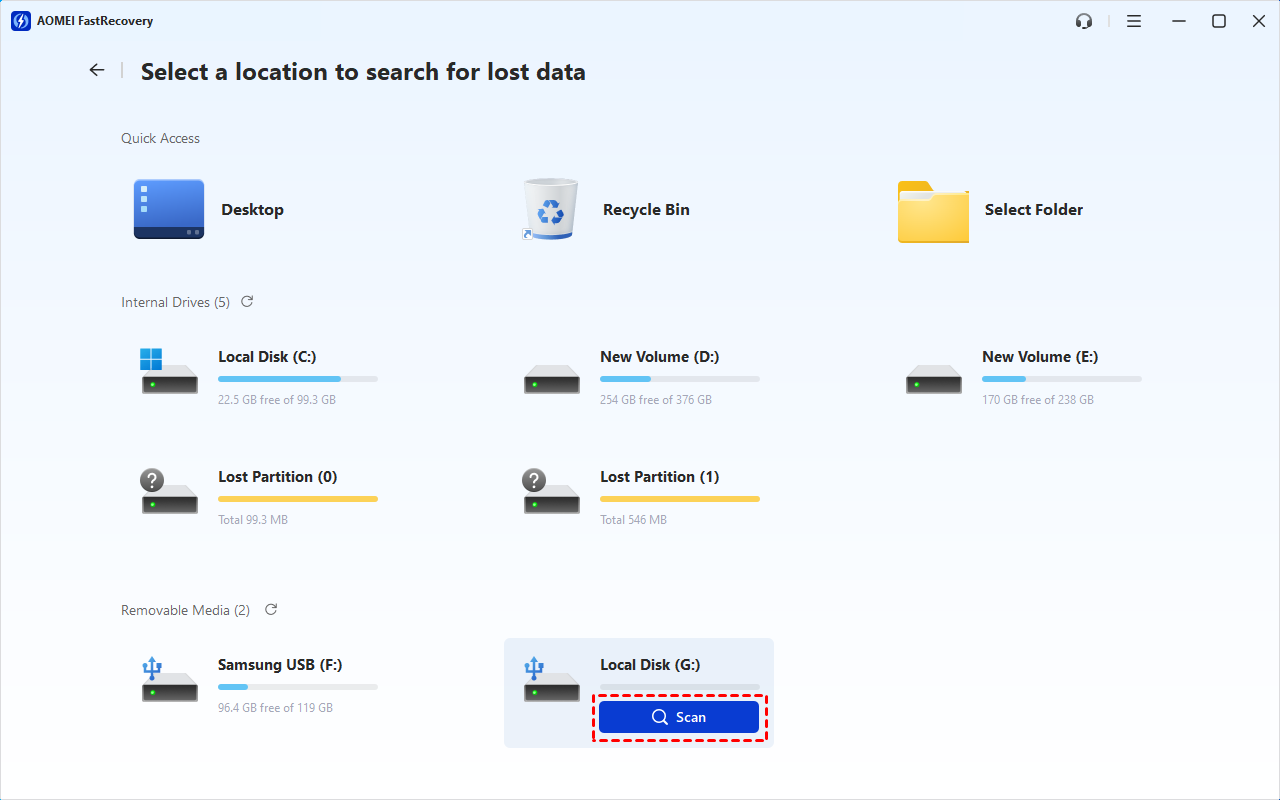
Step 3. Scan for deleted or lost files
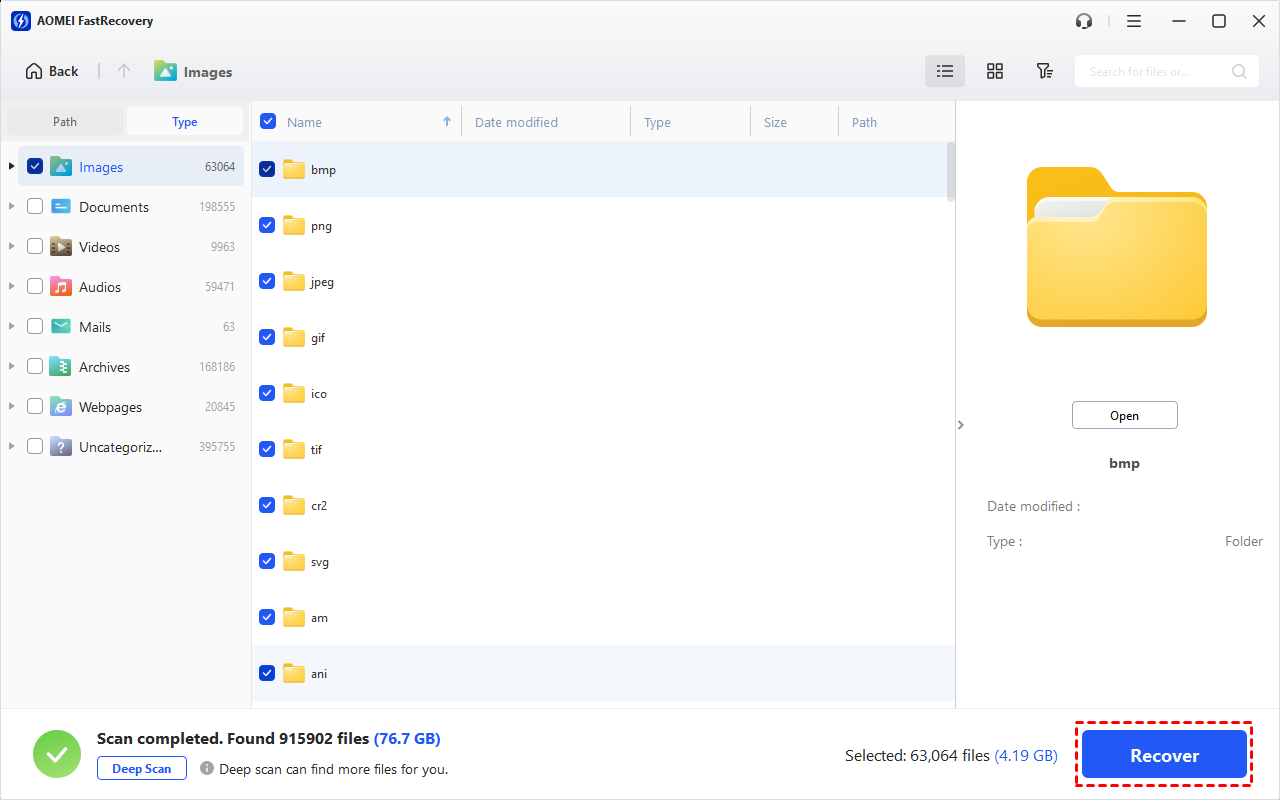
The quick scan starts automatically. Once it finishes, check the results by file type (e.g., Images) and specific formats. Expand to check specific files in the Deleted Files or Existing Files directories.
To find files quickly, combine the following options:
-
Sort files by name, date modified, type, etc., using the column headers.
-
For faster searching, type the file name or extension (.png) in the search box.
- Or click the funnel-shaped button to narrow your search by type or size, especially useful for large deleted files.
-
Browse by Path if you remember where the file was originally saved.
-
Click the Deep Scan to find more data if Quick Scan fails. It will scan every sector of the disk and take longer.
Step 3. Start Patriot SD card data recovery
Select the desired files on the Patriot SD card and click Recover to get your data back quickly. Always save them to a new location to avoid data overwriting.
You can perform Patriot SD card recovery for free, up to 500MB. To recover all files, please upgrade to the advanced editions.
What If the Patriot SD Card Is Not Recognized?
Sometimes, you may find your Patriot SD card does not display in File Explore. There is a chance your card is not recognized. Please rest assured! Here are some useful methods to make your PC recognize it.
Way 1: Try Some Simple Methods
- Clean the SD card and ports properly. The dust, lint, or any other foreign objects on Patriot SD card or port might prevent your PC from recognizing it.
- Try another SD card reader or a different machine.
- Restart your system and reconnect your SD card. Please eject your SD card safely before restarting.
Way 2: Assign a New Drive Letter
A missing drive letter is a common cause of why your Patriot SD card is not recognized. You can check this in Disk Management. If so, follow the steps below to assign a new drive letter for it.
Step 1. Connect your Patriot SD card to the computer. Press Win + R and type diskmgmt.msc in the Run command window. Then click OK to open Disk Management.
Step 2. Right-click on your card and select Change Drive Letter and Paths.
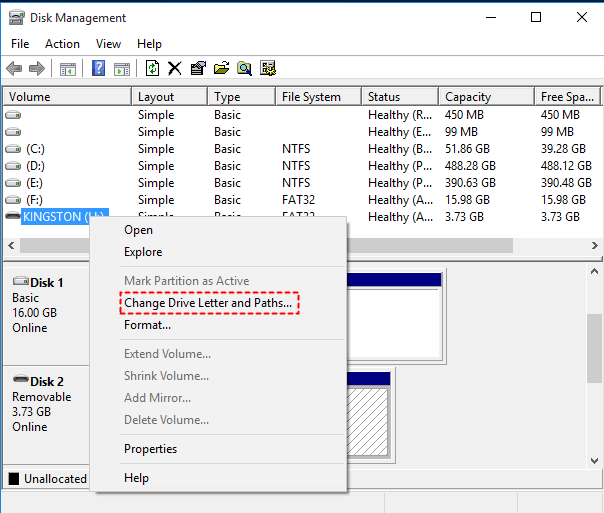
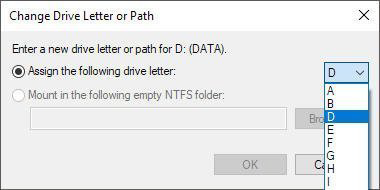
Step 3. Click Add and select a new drive letter from the Assign the following drive letter dropdown.
Way 3: Update the Card Driver
If your SD card has a correct drive letter, your card driver may be damaged or failed. Try to update the card driver.
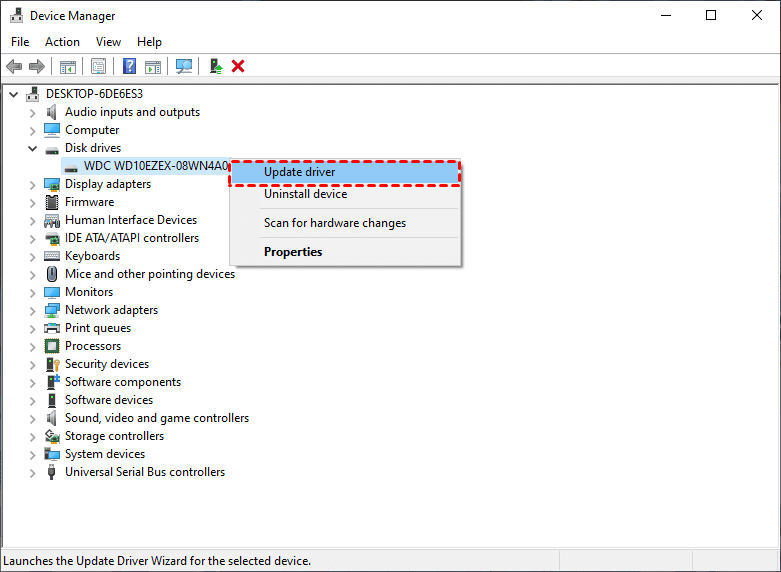
Step 1. Connect your Patriot SD card via a card reader. Press Win + R and type devmgmt.msc in the Run window. Then click OK to open the Device Manager.
Step 2. Expand Disk drivers. Locate and right-click the SD card and click Update driver.
Step 3. Click Search automatically for drivers. It will automatically search available drivers and install them on your device.
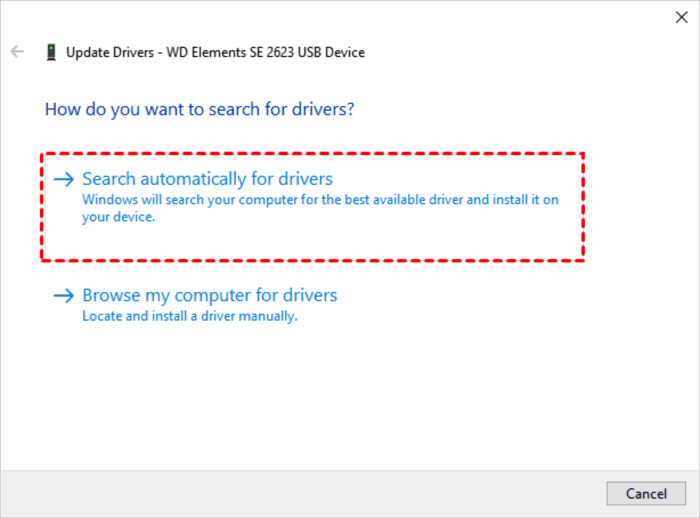
If you still have problems seeing this drive, click "Uninstall device" in the previous step and restart your computer.
Way 4: Run a Full Scan for Viruses
Viruses or malware could be a potential cause of the SD card recognition issue. To exclude this possibility, you can choose to run a full scan with Windows Defender or third-party antivirus software.
Step 1. Go to Windows Settings > Update & Security > Windows Security and select Virus & threat protection.
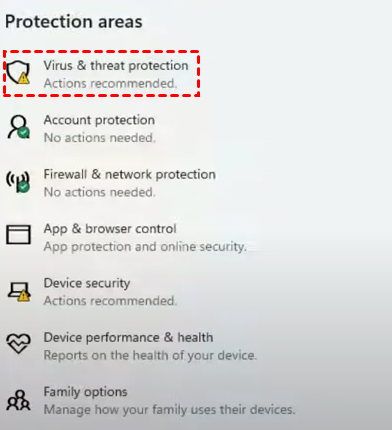
Step 2. Click the Scan options under Current Threats.
Step 3. Check Full scan and click Scan now. It will start to scan and remove viruses currently on the Patriot SD card.
Way 5: Format Your Patriot SD Card
If you still cannot see your Patriot SD card, try to format it with a compatible file system and make it reusable.
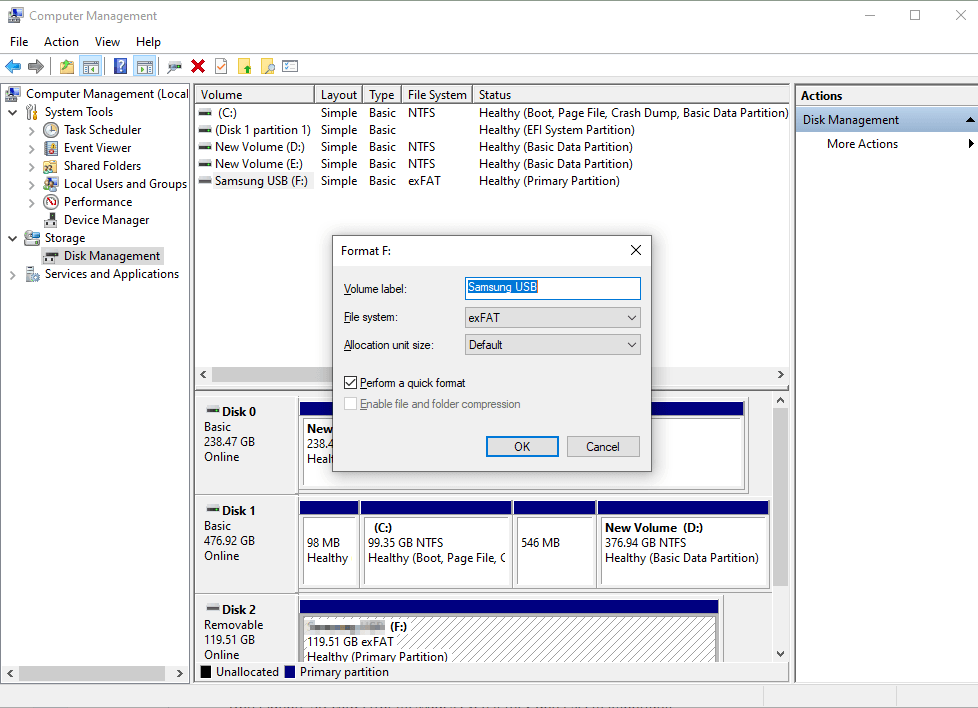
Step 1. Go to Disk Management and locate your Patriot SD card. Then, right-click this card and select Format.
Step 2. In the Format window, select NTFS file system. Click OK and confirm this. You can also select FAT32, FAT16, exFAT, etc.
Conclusion
You can easily start a Patriot SD card recovery and get your data back in a short time. Of course, the premise is that you don’t overwrite data on the SD card. There are many ways to recover data on a PC. But every attempt will reduce the success rate. So it’s suggested to try the method with the highest success rate.
We recommend you use reliable data recovery software like FastRecovery. It is able to recover 1000+ file types on different devices and has a high success rate, up to 95%. With an intuitive interface, even novices can recover data from a Patriot SD card without any obstacles.

 as a preferred
source on Google
as a preferred
source on Google