




How to Get Data from a Hard Disk Without Formatting It
You may be able to get data from hard disk without formatting even when Windows cannot open it. Find a suitable recovery method, retrieve the files you need, and understand when disk repair should wait.

By Ivy Updated on September 9, 2026


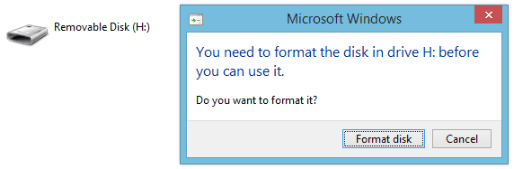
You open your hard drive, but instead of your folders, Windows displays a message asking you to format it. The documents, photos, and videos you need are suddenly inaccessible.
Click Cancel. You may still be able to get data from hard disk without formatting. If the drive remains detectable and stable, AOMEI FastRecovery can scan it for recoverable files without requiring a format first.
Other situations call for different actions. A missing drive letter may be an access problem, while File History can provide previously saved copies. The methods below explain which option fits your situation and how to save your files elsewhere.
Can You Recover Files from a Hard Drive Asking to Format?
Sometimes, yes. A format prompt indicates that Windows cannot use the volume as expected. However, it does not prove that the drive is empty or that all files have been deleted.
File system corruption, unsupported formats, device locking, and hardware issues can all lead to access difficulties. The fact that a drive appears in Disk Management does not, by itself, rule out physical failure.
- Stop saving new files to the drive, and decline requests to format it while you still need data inside it.
- If the drive clicks, repeatedly disconnects, or reports an unexpected capacity, avoid repeated scans and seek professional assessment.
Choose a starting point below. These are alternative routes, not a checklist you must complete in order.
| 🔍 What you find | 🛠️ Suitable method | ⚡ Capabilities | 🔑 Key requirement |
|---|---|---|---|
| The disk is detected consistently, but files are inaccessible | AOMEI FastRecovery | Scan for and extract recoverable files | The device must remain readable enough to scan |
| A recognized volume has no drive letter | Disk Management | Restore an access path | An existing, supported volume |
| A saved backup contains the required folders | File History | Restore earlier file copies | An accessible backup created before the problem |
Method 1: Recover Files from Inaccessible Hard Drive with AOMEI FastRecovery
👍 Best for: Retrieving files from an inaccessible hard drive that remains detectable and stable.
AOMEI FastRecovery is hard drive data recovery software that can scan for documents, photos, videos, and more you cannot access normally. Its graphical interface lets you browse results by file type or folder path, narrow down the selection, and recover specific files (not all).
For this disk recovery scenario, Deep Scan is the default mode and performs a more thorough search for underlying data. Search, filters, and thumbnail previews help you locate important files without checking every single result manually.
 AOMEI FastRecovery
Windows hard drive data recovery software
Step 1. Connect your external hard drive to your PC if it is not already connected. Meanwhile, preparea separate, healthy drive to save the recovered files. Download and install AOMEI FastRecovery on a different drive, then click Disk Data Recovery.
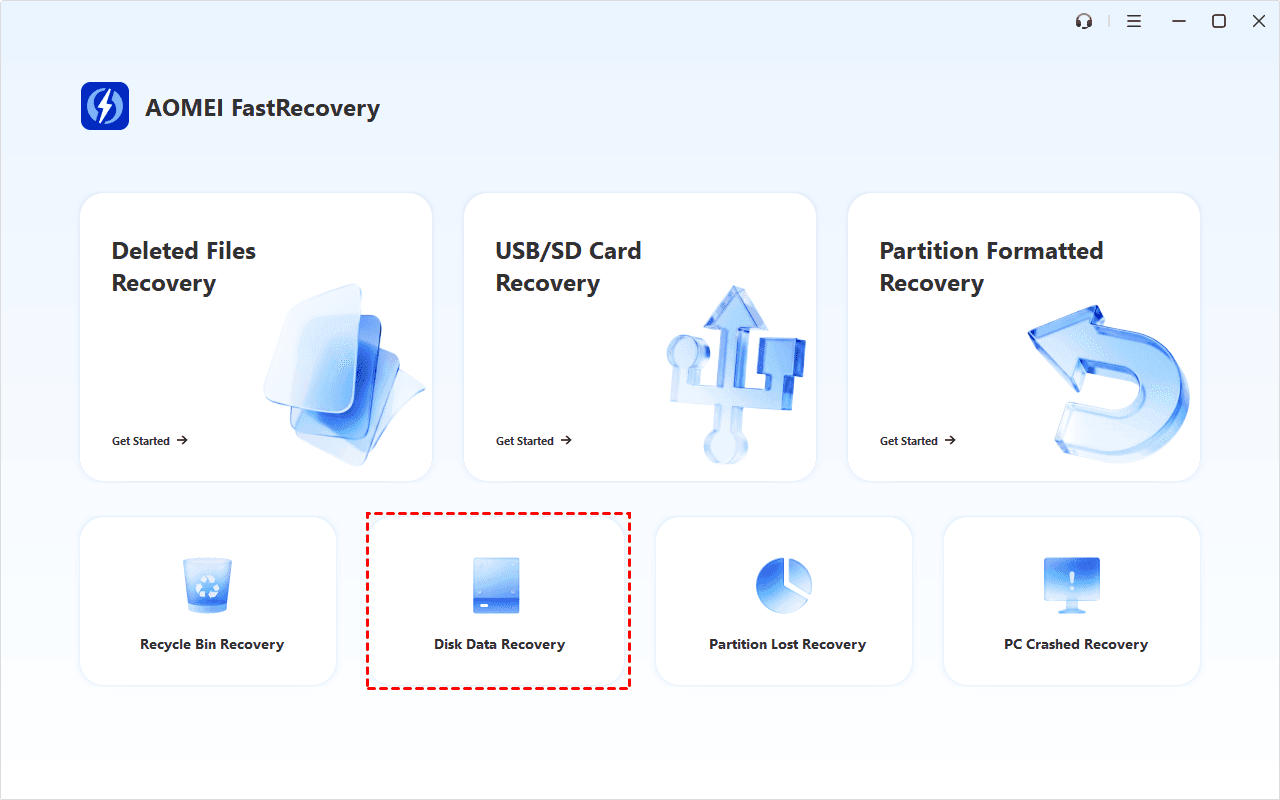
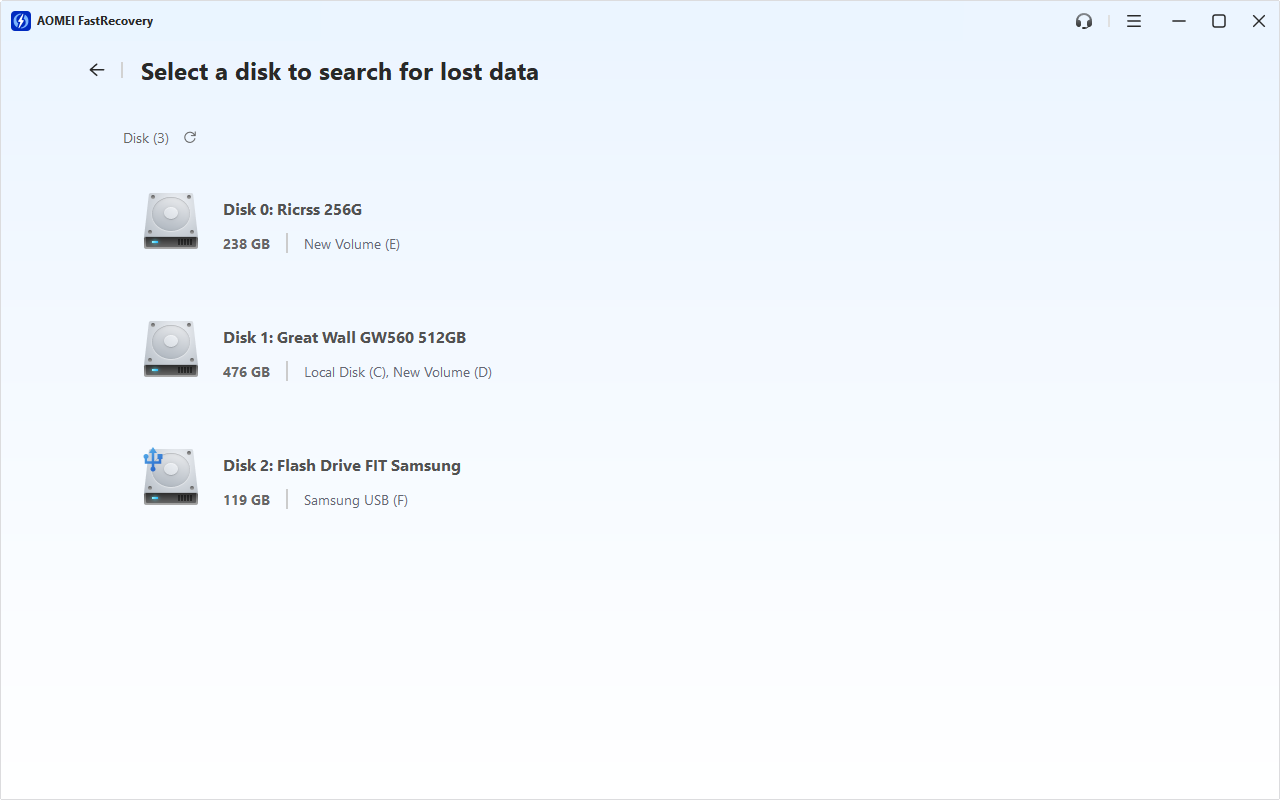
Step 2. Select the disk asking for format, then click Scan. Deep Scan searches the disk automatically and takes longer.
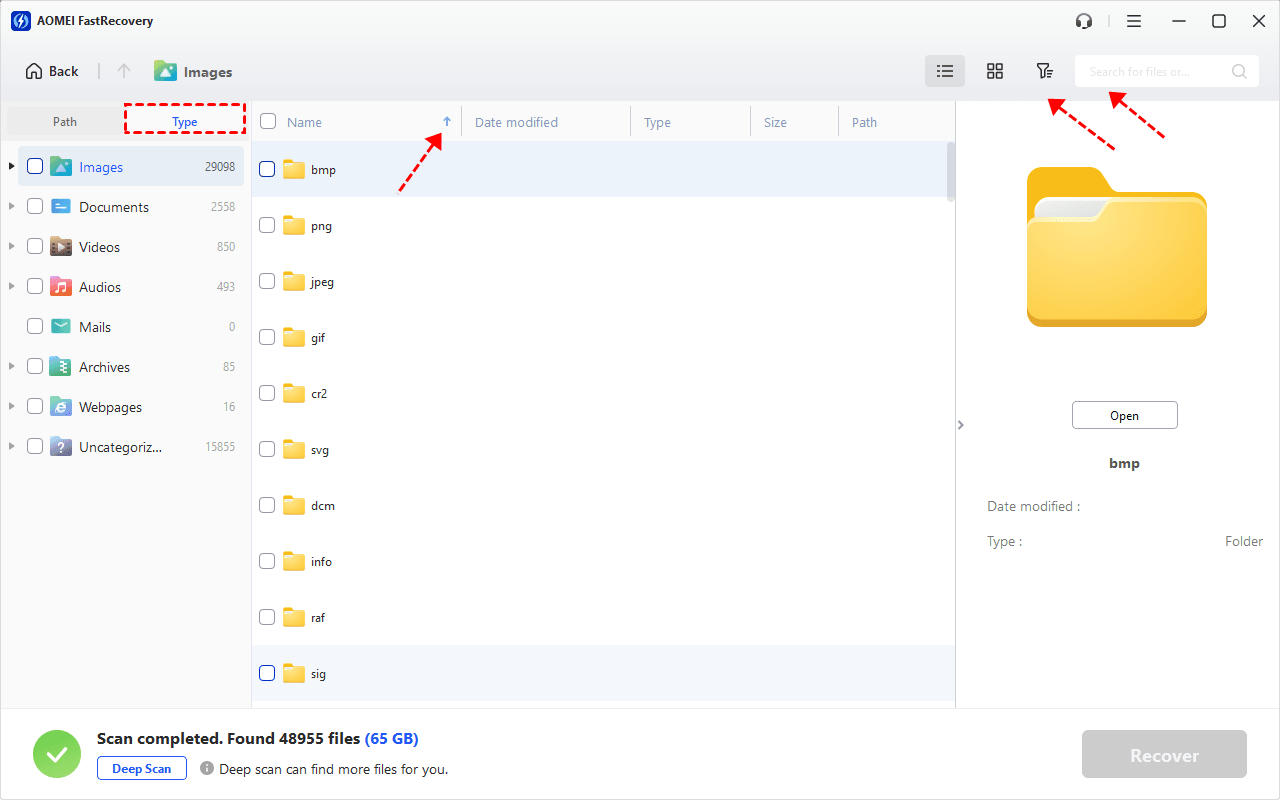
Step 3. In the results window, browse Path for folders or Type for categories like Documents, Photos, and Videos. Use search, filters, or sort to narrow down the results, and quickly pinpoint files using thumbnail previews.
Step 4. Select the files you need and click Recover. Choose a folder on the separate, healthy drive. Do not save the results back to the disk asking to format.
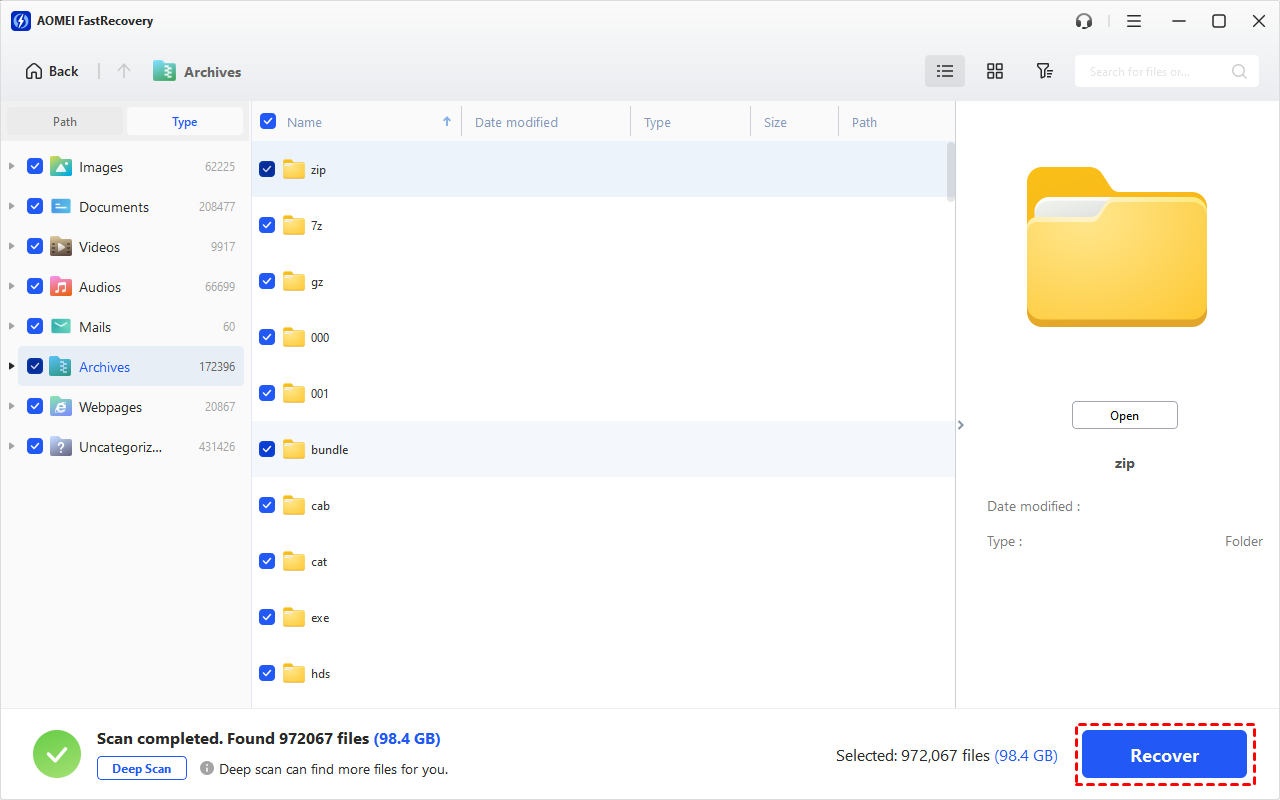
Open your important recovered files before making further changes to the disk asking for format.
Method 2: Add a New Drive Letter in Disk Management
👍 Best for: Accessing an existing volume that has a recognized file system but lacks a drive letter.
Assigning a drive letter in Disk Management only changes how File Explorer displays the volume, it does not recover data or fix file system errors. If a drive already has a letter yet asks to be formatted, changing the letter will not resolve the issue.
Step 1. Connect your external drive to the Windows PC. Right-click the Start menu and select Disk Management to open it.
Step 2. In Disk Management, locate the disk by its capacity, right-click it and choose Change Drive Letter and Paths.
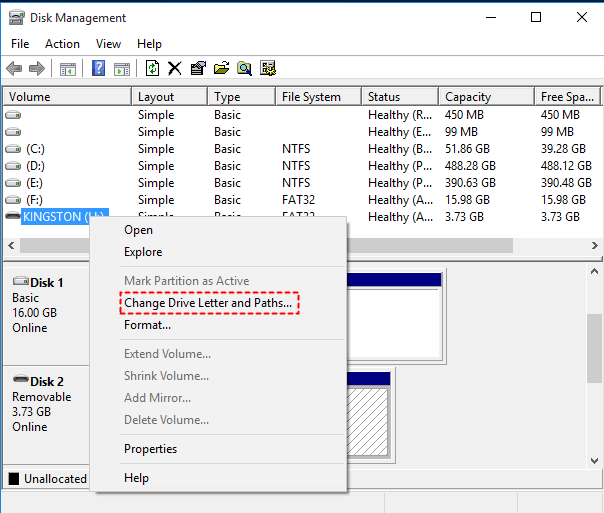
Step 3. Select Add > Assign the following drive letter, pick a drive letter, and click OK.
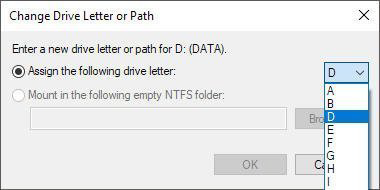
After adding a new drive letter, check it in File Explorer. If your folders are accessible, copy the required files to another disk. If Windows requests formatting, click Cancel and use an appropriate recovery route.
- If the disk shows Unallocated, do not create a new volume to make it appear. Read about recovering lost partition on external hard drive.
- If only certain folders are missing, see files disappearing from an external hard drive.
Method 3: Get Data from Hard Disk without Formatting using File History
👍 Best for: Retrieving files already included in an accessible File History backup.
File History provides a way to get data from hard disk without formatting by restoring previous backups, but this only works if the backup predates the problem and includes your target files.
Note that having File History enabled on your PC does not guarantee it backed up every folder on your external drive. If the files were never included, this method cannot recreate them.
Step 1. Connect the drive containing your File History backup, or make its network share available. Search for Restore your files with File History and open it.
Step 2. Browse the saved folders to locate your documents, photos, or other files. Use the navigation arrows to find a backup version from before the files became inaccessible.
Step 3. Check the backup date and select the files or folders you want. Right-click the Restore button and choose Restore to. You can choose a different hard drive to save them.
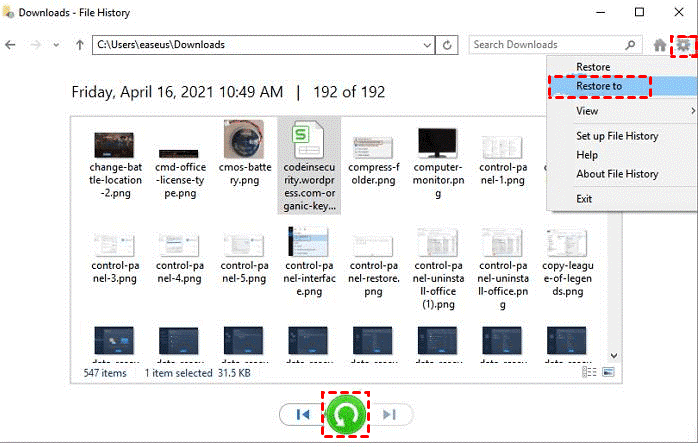
Open the restored files to check that you have the versions you need. If not, consider using data recovery software.
Should You Run CHKDSK Before Recovering Files?
CHKDSK can help restore access when certain file system errors are responsible. However, its repair options modify the volume, so it should not automatically be the first action when important files have no other copy.
The parameters have different purposes:
- /f fixes file system errors.
- /r locates bad sectors and attempts to recover readable information.
- /x forces the volume to dismount when necessary.
A check without repair parameters reports status rather than fixing errors. Repairing a file system can change its allocation information; it is not equivalent to copying your files to safety.
Once your files are saved and checked, CHKDSK may be appropriate for a stable drive with file system problem. It cannot repair physically damaged hardware. If your symptoms suggest a physical hard disk failure, get an assessment rather than repeatedly running repair commands.
FAQs
1. Does “You need to format the disk” mean my files are gone?
No. The message indicates an access problem, but it cannot tell you how much file data remains readable. Recovery depends on the cause and the condition of the disk.
2. Can SFC recover personal files from a hard drive?
SFC repairs protected Windows system files. It can help with related operating-system problems, but it does not directly restore your photos or documents from an inaccessible data drive.
3. Will recovered files keep their original names and folders?
Sometimes. That depends on whether the relevant file-system records survive. Some files may appear under different names or folders, and recovery is not guaranteed.
4. Can I save recovered files in another folder on the same disk?
Use a different physical drive. Another folder on the original disk does not protect the data you are trying to recover from being overwritten.
Conclusion
To get data from hard disk without formatting, match the method to the problem: scan inaccessible files with AOMEI FastRecovery, assign a missing drive letter when appropriate, or restore available File History copies.
Save the files on another drive, check the important ones, and only then decide whether the original disk needs repair.

 as a preferred
source on Google
as a preferred
source on Google