




How to Find a Missing File on Windows 10 and Get It Back
If you need to find a missing file on Windows 10, start with where you last saved it. An old shortcut, a cloud copy, or an earlier backup can point you to the next step.

By Ivy Updated on November 6, 2026


You open the folder where you usually keep a file, and it’s gone. To find a missing file on Windows 10, start in File Explorer. Search from This PC using part of the filename. If you usually save to OneDrive, check the same account in your browser. A file can still be online even if it doesn’t appear in the folder you checked.
If you think you deleted the file, check the Windows Recycle Bin or look for a backup. When neither has the file, AOMEI FastRecovery can scan the drive where it was stored. In that case, avoid saving or downloading anything to that drive while you decide what to do.
Where to find a Missing Files on Windows 10?
Start with where you last saved the file, or what you were doing when it disappeared. Then pick a method that fits:
| 🧠 What you remember | 📍 Start here | 🎒 What you need |
|---|---|---|
| Saved somewhere on this PC | File Explorer | A name fragment, file type, or likely folder |
| Deleted in Windows | Windows Recycle Bin | The file is still listed there |
| Saved to a synced folder | OneDrive search | Access to the account where it was saved |
| Deleted from OneDrive | OneDrive Recycle Bin | The online Recycle Bin still holds it |
| Backed up with File History | File History | A backup from before deletion |
| Permanently deleted from local drive | AOMEI FastRecovery | The original drive, plus a separate drive for setup and recovery |
Method 1: Search for a Missing File in File Explorer
👍 Best for: A renamed, moved file, or those saved in a different folder.
Searching from This PC lets you look beyond the folder where you expected to find the file. If you only remember opening it recently, Quick access may give you a clue about where it was last stored.
Step 1. Press Win + E and select This PC in the left pane. Enter the filename or a distinctive word from it in the search box. If you remember only the format, try a pattern such as *.docx or *.pdf.
Step 2. Check the folder path and Date modified for promising matches. If several files share a name, open the one whose location and date fit, then check that it contains your latest edits.
Step 3. If search comes up empty, look under Quick access for recently opened files. If the file is listed but won’t open, look for the folder path in the recent entry and check if the file was renamed or moved into a subfolder.
If you still can't find missing file, see file suddenly disappeared from folder.
Method 2: Restore a Missing File from Recycle Bin
👍 Best for: You deleted file on a Windows PC.
If the file is still in the Windows Recycle Bin, you can restore it to the folder it came from. Check the original location and deletion date if you see several files with the same name.
Step 1. Open Recycle Bin from the desktop.
Step 2. Search for the filename or switch to Details view and check Original Location and Date Deleted. Those columns help if you see several copies with the same name.
Step 3. Right-click the matching file and select Restore.
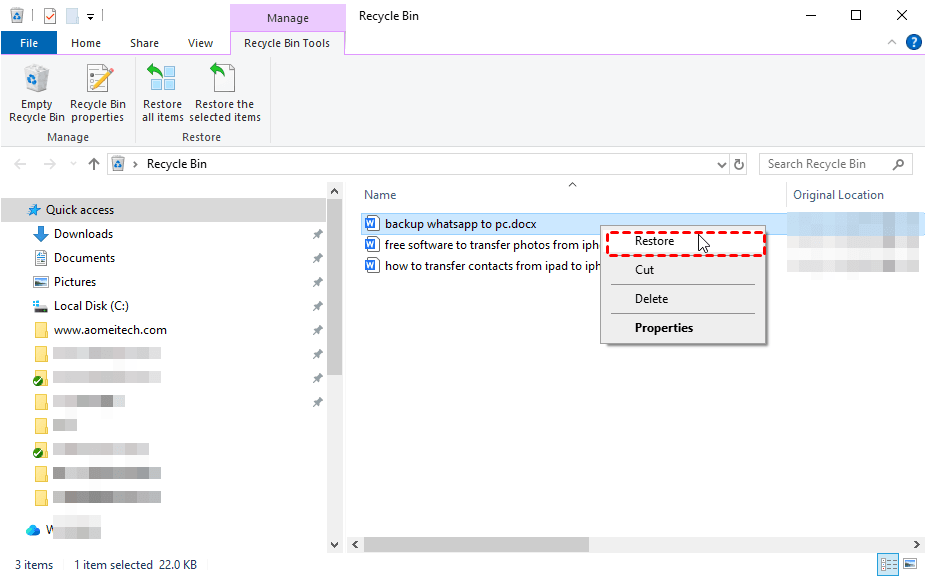
Open its original folder and check for it there. If you remember emptying the bin, check for a backup or see recovery options after emptying Recycle Bin.
Method 3: Find a Missing File in OneDrive
👍 Best for: A file saved to OneDrive, possibly in a synced Desktop or Documents folder.
Search OneDrive in your browser to see what's saved, especially useful if you have both personal and work accounts and aren't sure which one has the file.
Step 1. Open the OneDrive website and sign in to the account where you saved the file. If you use both a personal and a work account, check which one is shown on the site before you search.
Step 2. Use Search everything and enter a distinctive part of the filename. If the search returns nothing, browse My files and open the folder where you normally save this kind of file.
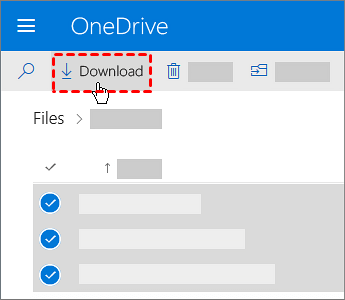
Step 3. Open the matching file online to verify it. If you need a local copy right away, select the file and choose Download.
Method 4: Restore Deleted File from OneDrive’s Recycle Bin
👍 Best for: a file deleted from a OneDrive folder or directly from the website.
When you need to find a missing file that was synced to OneDrive, check the online Recycle Bin even if the Windows Recycle Bin is empty. A file deleted through the OneDrive website may appear only in the online Recycle Bin.
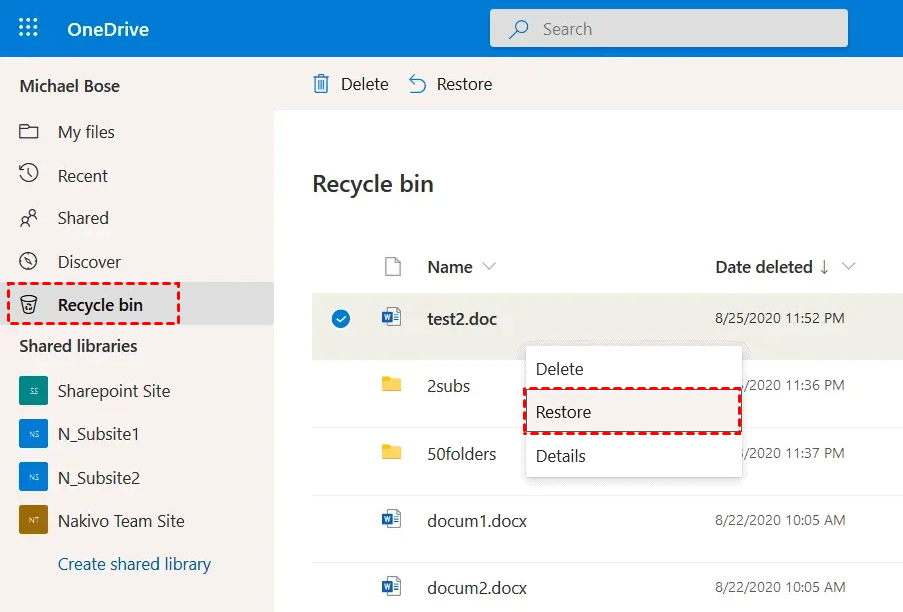
Step 1. On the OneDrive website, open Recycle bin from the left pane.
Step 2. Select the file and choose Restore. Go back to its original OneDrive folder and open it there to confirm you have the right copy.
Method 5: Restore a Missing File from File History
👍 Best for: A file from a folder that File History backed up before deletion.
File History lets you open a previous version of the folder and look for the missing file. If you find it, you can copy that file out while keeping the newer files in the folder.
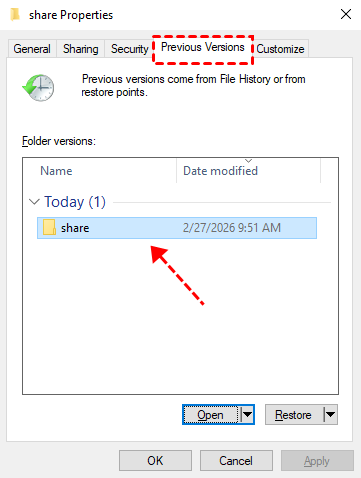
Step 1. Connect the File History backup drive to your computer. In File Explorer, go to the folder that contained the file. Right-click the folder and select Restore previous versions.
Step 2. Choose a version dated before the file disappeared. Click Open > Open in File History to check if the version contains the file you need.
Step 3. Copy the file from the older folder version to a separate location and open the copy. This lets you retrieve a file without replacing newer files in the original folder.
If you made a file backup with Backup and Restore (Windows 7), browse that existing backup for a copy.
Method 6: Recover a Deleted File on Windows 10 with AOMEI FastRecovery
👍 Best for: A file permanently deleted from a local drive, with no usable copy left.
AOMEI FastRecovery is a dedicated Windows file recovery software that can scan the drive where a deleted file was stored. You can narrow the results before deciding what to recover.
 AOMEI FastRecovery
- 🧩 Scenario matching: Offers dedicated modes for different situations. Deleted File Recovery is a great choice for quick results.
- ⚡ Two Scan Modes: Quick Scan finds deleted videos fast, while Deep Scan offers a more thorough search.
- 🎬 1000+ Data Types: Recover deleted or lost documents (DOC, XLSX, PPT), images (JPG, PNG), videos (MP4, MOV), and more.
- 🗂️ Flexible browsing: Browse by Type or Path, then use search or sort to narrow a long list of results.
- 🎁 Free recovery: The Free edition provides thumbnail preview and saves up to 500MB.
 100% Secure
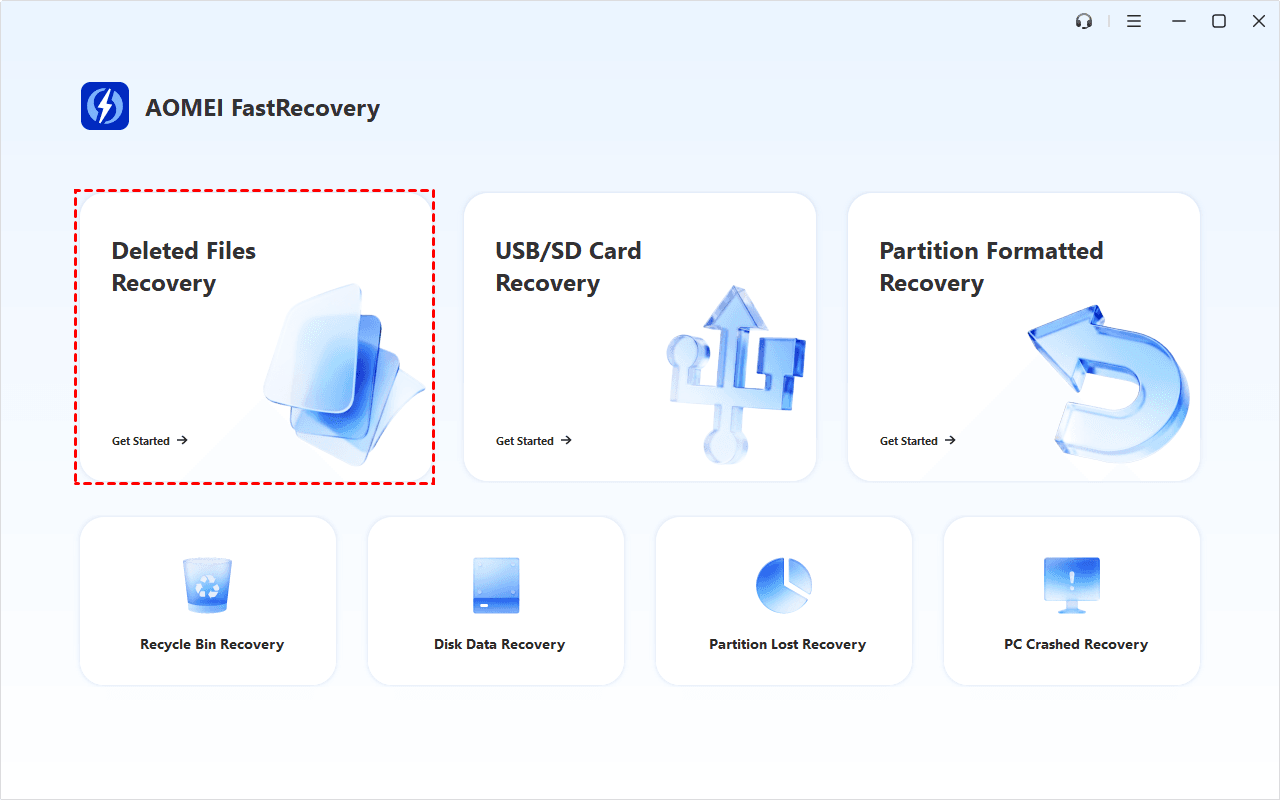
Step 1. Open OMEI FastRecovery after installing and select Deleted Files Recovery.
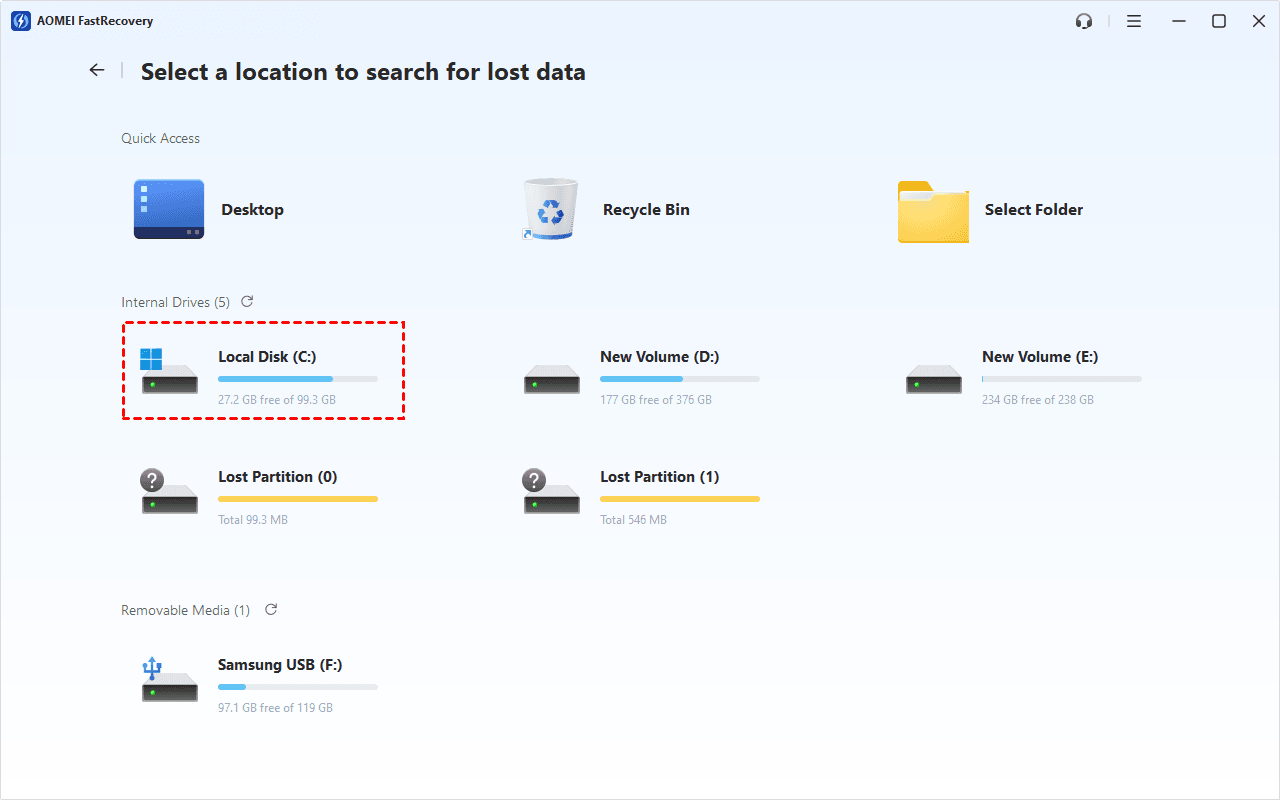
Step 2. Select the drive where the file was stored and click Scan. Quick Scan starts by default.
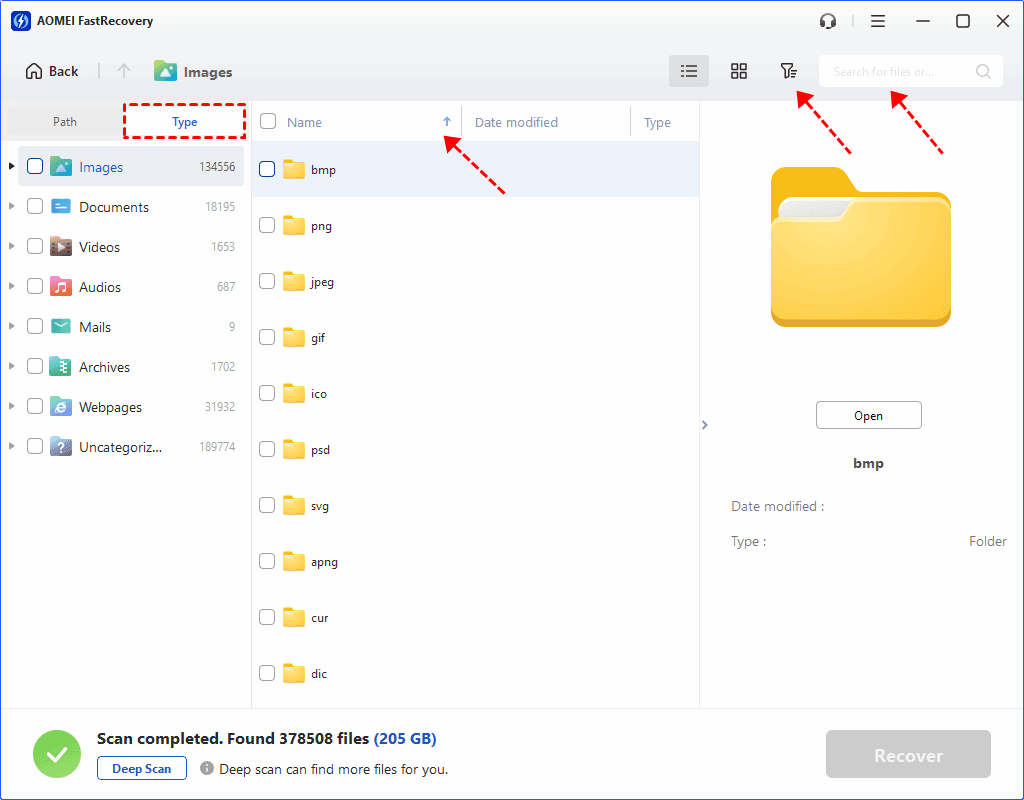
Step 3. Browse by Type or Path, search the results by name or extension, or or click the column headers to sort the results. This makes it easy to find deleted files by date, type, name, and more.
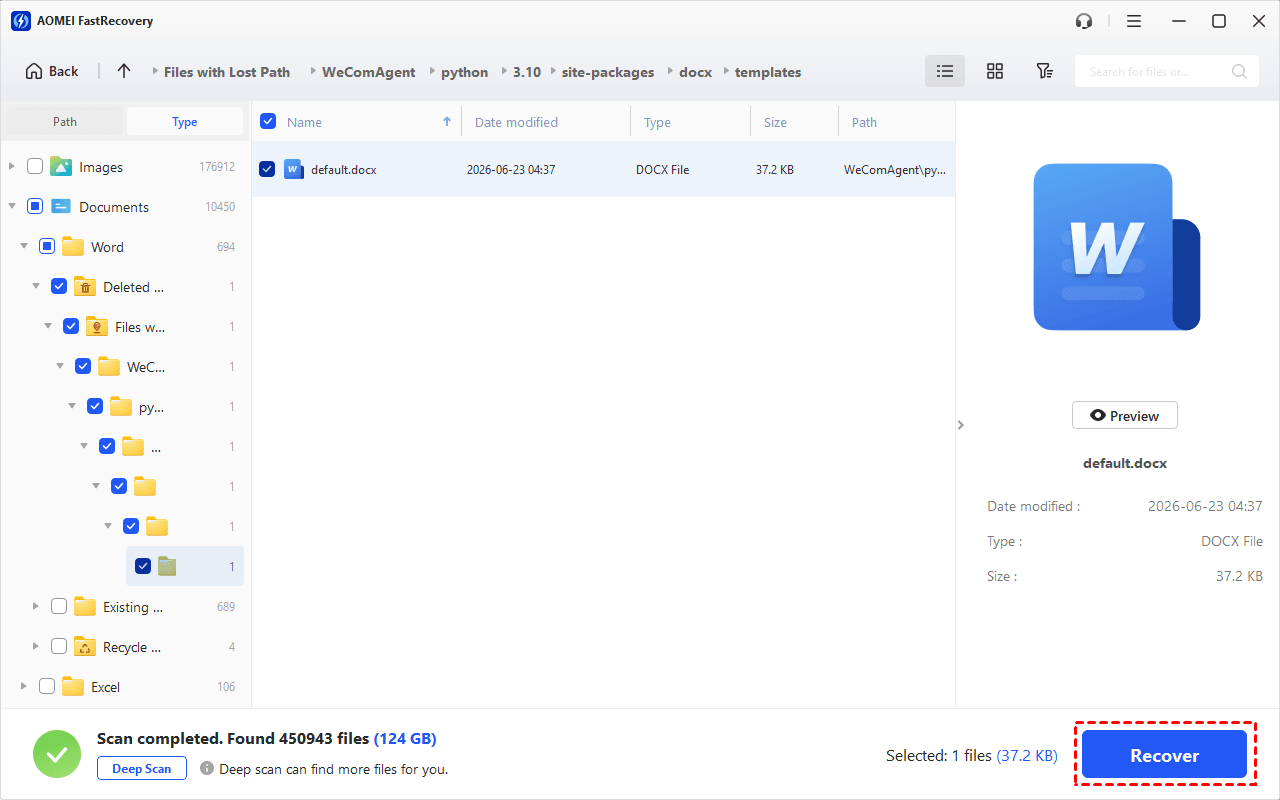
Step 4. Select the file you want, then click Recover. Save it to a different drive. Another folder on the original drive can still expose deleted data to overwriting.
-
If it finishes without finding the file, select Deep Scan to search more thoroughly.
-
The free edition can recover up to 500 MB. Recovery beyond that limit requires an advanced edition.
Open the recovered file and check that it’s complete. For a document, check that all pages are present.
Missing Files After a Windows 10 Upgrade?
If several personal folders look empty immediately after an upgrade, check which Windows profile you’re using. If Windows says it signed you in with a temporary profile, save any work created in that session to an external drive before restarting and signing back in. If you created a new account during the upgrade, check whether the files belong to your old account.
Also look for C:\Windows.old\Users if the upgrade was recent. If the folder exists, open the previous user folder and check locations such as Desktop and Documents. Copy any files you find to another drive quickly because Windows keeps these files only temporarily. If you’re troubleshooting a newer PC, see how to recover lost files after Windows 11 update.
Conclusion
To find a missing file on Windows 10, start with the last place you remember saving it. Once you locate or restore a copy, open it and check that it’s the version you need. If the file appears to have been permanently deleted and you have no usable copy, keep new writes off the original drive and scan it from a separate drive.

 as a preferred
source on Google