




Do Deleted Files from USB Go to Recycle Bin? Where to Look Next
Do deleted files from USB go to Recycle Bin? On Windows, USB flash drives usually bypass it. Identify your situation, protect the remaining data, and choose a recovery method based on whether another copy exists.

By Ivy Updated on September 9, 2026


You deleted a folder from your USB flash drive, opened the Windows Recycle Bin, and found nothing. Do deleted files from USB go to Recycle Bin? Usually, no. But don't panic, the data isn't necessarily gone forever. Whether you can recover it depends entirely on what happens next.
Stop all read/write activity on the drive. No saving, copying, or downloading.
If you have no backup, a direct scan with AOMEI FastRecovery is your best bet to pull the files back. But first, let's verify exactly what you deleted and where it came from, to choose the right recovery path.
Why Aren’t Deleted USB Files in the Recycle Bin?
The Recycle Bin doesn’t handle every storage device the same way. A USB connection alone doesn’t determine what happens: a flash drive and an external hard drive can behave differently.
| 📍 Where you deleted the file | 🔍 What to check |
|---|---|
| A USB flash drive in Windows | Files usually bypass the Recycle Bin; check another copy or consider using recovery software. |
| An external hard drive connected through USB | Keep it connected and check the desktop Recycle Bin; behavior depends on how Windows treats the drive and its settings. |
| A copy saved on your computer | Check the computer’s Recycle Bin, even if the file originally came from a USB. |
A permanent deletion prompt indicates that a standard Recycle Bin restore is not possible. However, deletion merely marks the storage space as available for reuse; it does not immediately overwrite the entire file.
Other circumstances also bypass the bin, including files too large for the Recycle Bin. Changing Recycle Bin settings afterward won’t restore an earlier deletion.
If you never deleted anything, the files may be moved or hidden. Go ahead and check files disappearing from an external hard drive.
How to Recover USB Files That Bypass the Recycle Bin
Choose a method based on what remains available:
- No backup, USB recognized normally: Use AOMEI FastRecovery for a graphical recovery workflow.
- An original file or earlier backup exists: Retrieve that copy first.
- You prefer a Microsoft tool: Use Windows File Recovery with the appropriate scan mode.
Before scanning, prepare a different drive with enough free space for recovered files. Don’t format the USB if Windows asks you to.
Method 1. Scan the USB Drive with AOMEI FastRecovery
👍 Best for: Recovering accidentally deleted USB files without a backup through a graphical interface; results depend on the remaining data and device condition.
AOMEI FastRecovery is Windows data recovery software that can recover deleted files from USB drive, even not in Recycle Bin. With dual-scan technology and support for a wide range of data loss scenarios, it provides a practical, all-in-one data recovery solution.
 AOMEI FastRecovery
- 🔎 Dual-Scan Mode: Quick Scan for recently deleted files and Deep Scan for more thorough recovery
- 🎯 Scenario‑Driven: Choose your data loss situation - accidental or permanent deletion, formatting, virus attack, or lost partition, and we'll run the scan that fits.
- 📚 Versatile Recovery: Recover documents, photos, videos, audio, and more, no matter the format.
- 📂 Flexible Browsing: Navigate results by file type or folder path - clean, intuitive, and beginner‑friendly.
- 🚀 Pinpoint What You Need: Search, sort, and filter to quickly find files - with thumbnail previews so you know exactly what you're recovering.
- 💰 Free Tier: Recover data up to 500MB for free. Need more? Upgrade for unlimited recovery.
 100% Secure
Step 1. Connect the USB drive and be sure it's recognized. Download and install AOMEI FastRecovery on a different drive (not the USB) before launching it. Select Deleted Files Recovery to get started.

Step 2. Identify the USB drive with deleted files by its drive letter and capacity, and click Scan. Quick Scan will start automatically.
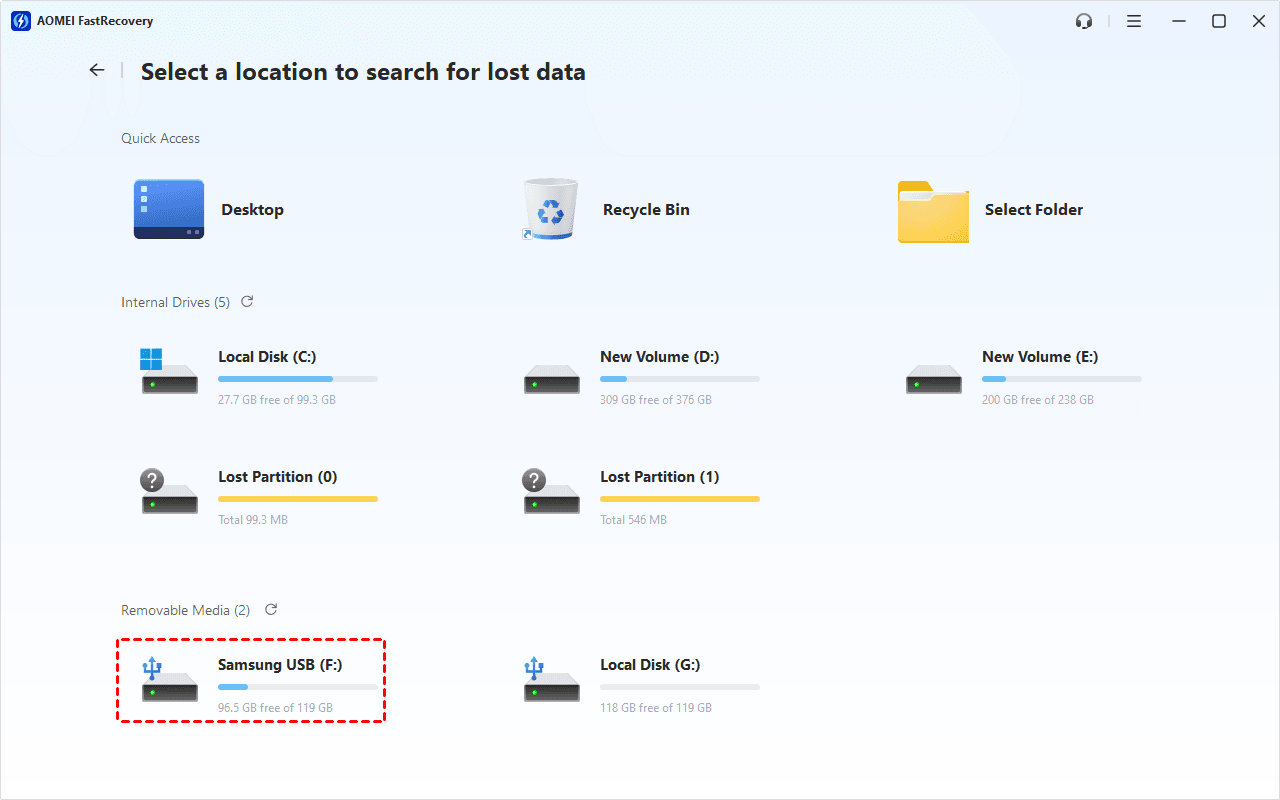
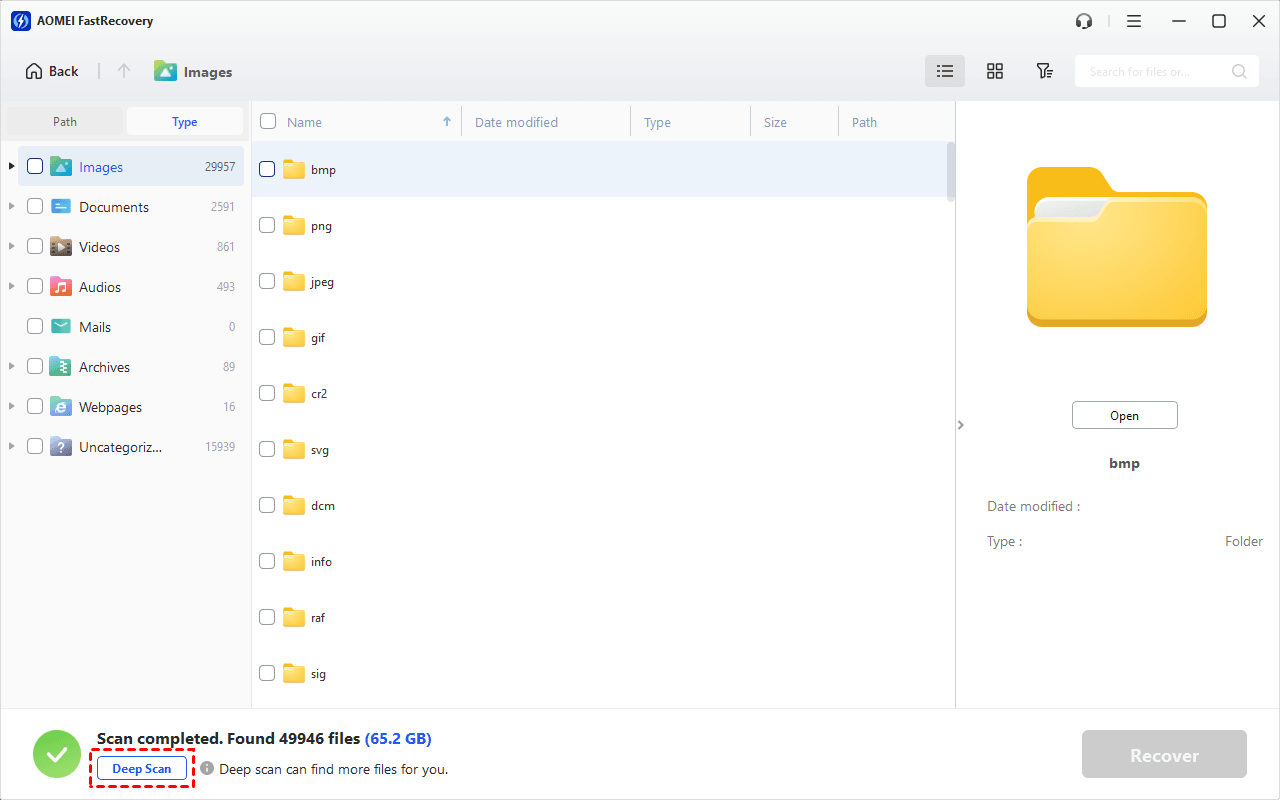
Step 3. Browse the results by Type or Path. Search by filename or extension, sort the results, or use filters to narrow your search.
Step 4. If a Quick Scan doesn’t find what you need, select Deep Scan for a more thorough search. Note that this may take longer.
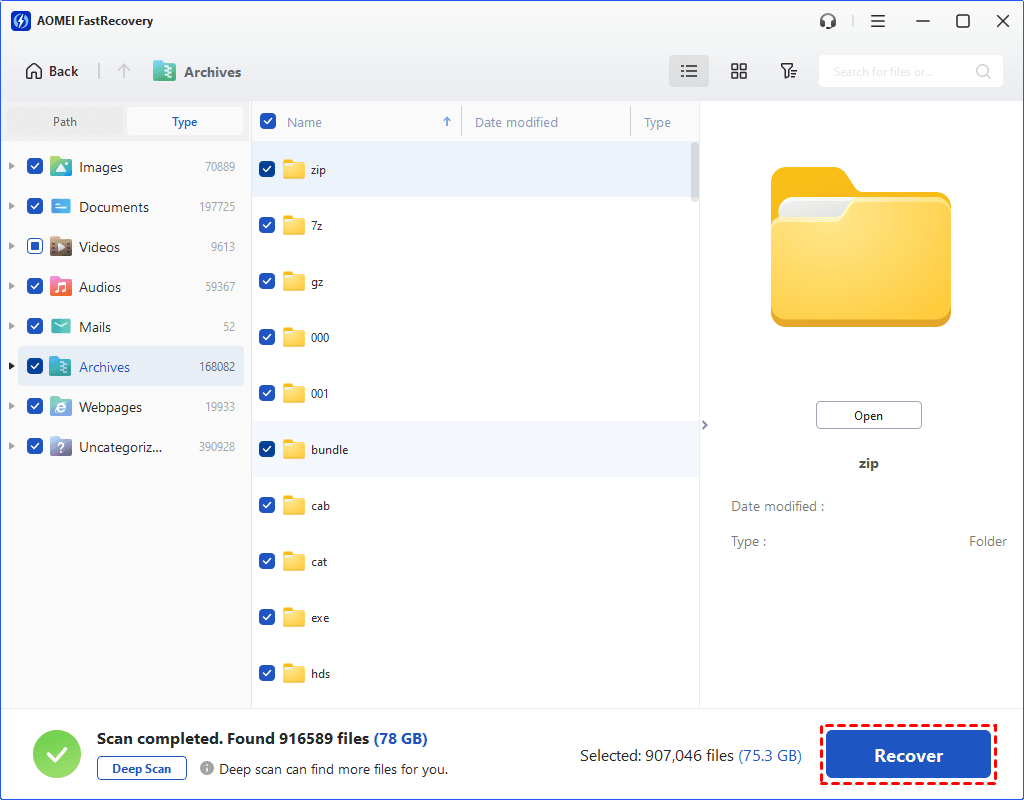
Step 5. Preview thumbnails, select your files, and click Recover. Always save them to a separate drive or folder (not the USB drive) to avoid overwriting.
Method 2. Retrieve an Existing Copy or Backup
👍 Best for: Getting a known copy back without scanning; the copy or backup must have existed before deletion.
Before searching for deleted files from USB, check whether you copied them from your computer originally. Email attachments, shared folders, and earlier exports may also contain usable versions.
Choose the retrieval method that matches where your copy is located:
-
From a local folder: Open File Explorer and locate the original copy on your computer. Right-click the file, choose Copy, and paste it into a separate folder (e.g., D:\Recovered). Open it to verify its contents and check the Date modified property.
-
From an email client: Open your Email client, use the search bar to find the filename (e.g., *.jpg), and click Download to save the attachment to your local PC. Open the file to verify it is intact.
-
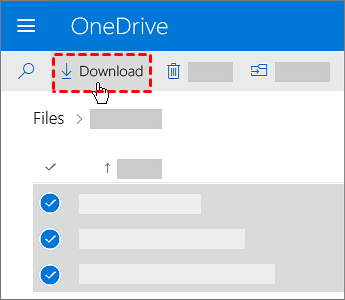
From a cloud drive (OneDrive): Sign in to OneDrive.com in your browser. Right-click the file and select Download to save a local copy, or click Version history to restore an earlier version.
If the missing originals were deleted from your PC, recovering deleted photos in Windows 10 or 11 may fit better.
Method 3. Use Windows File Recovery
👍 Best for: Attempting recovery with Microsoft’s command-line tool; you need the correct drive letters, file system, and recovery mode.
Microsoft documents support for USB storage and requires different source and destination drives. FAT/exFAT recovery uses Extensive mode; Regular is suitable for recently deleted files on NTFS.
Step 1. Open File Explorer, go to This PC, right-click the USB drive, and choose Properties. Note its drive letter and file system (e.g., exFAT, NTFS).
Step 2. Download and install Windows File Recovery from the Microsoft Store. Approve the administrator priority.
Step 3. Enter a winfr command specific to your situation.
For example, to recover PDF and Word documents from your an exFAT USB drive E: to C:, enter:
winfr E: C: /extensive /n *.pdf /n *.docx
Replace the drive letters with your actual USB drive and the destination.
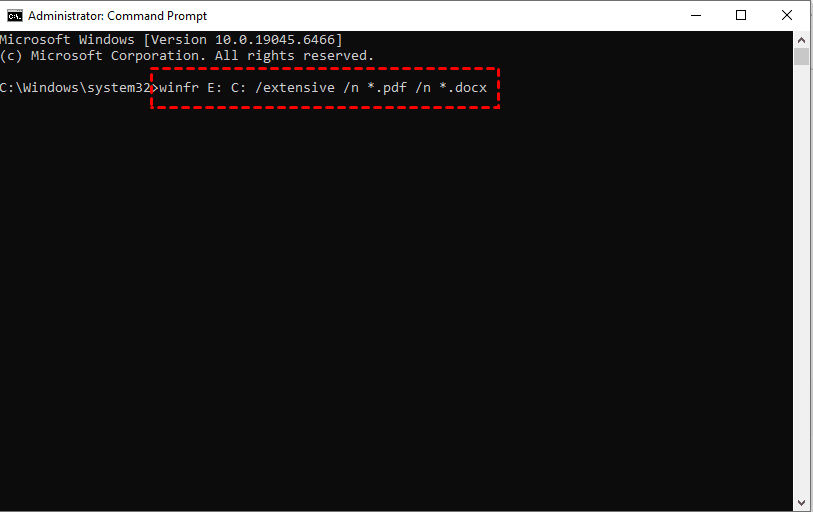
Press Y to confirm. When it’s done, head to the recovery folder on your destination drive to see what was retrieved.
Still unsure which method fits your situation? The table below can help.
| Recovery Method | Existing backup needed? | Key consideration |
|---|---|---|
| AOMEI FastRecovery | No | Graphical workflow; free recovery up to 500MB |
| Existing copy or backup | Yes | May contain an earlier version |
| Windows File Recovery | No | Requires suitable commands and scan mode |
What Can Prevent a Success USB File Recovery?
Continuing to use the USB may overwrite deleted files. Copying music onto it after deleting photos, for example, can reuse space those photos occupied.
Recovery also depends on file system condition and device health. Some results may retain their names but contain incomplete data. Repeated scans cannot recreate file contents that have been overwritten.
If the USB disconnects repeatedly, reports an incorrect capacity, or has physical damage, stop repeated recovery attempts. For valuable files, professional assessment may be more appropriate than further software scans.
FAQs
Does an empty Recycle Bin mean my USB files are unrecoverable?
No. An empty bin only tells you the files aren’t available there for a normal restore. Check existing copies, or scan the USB while avoiding further writes.
Can I undo permanent USB deletion with Ctrl+Z?
Don’t rely on it. Undo isn’t a recovery scan and generally cannot restore files deleted through a permanent-deletion operation. Use a backup or an appropriate recovery tool instead.
What if I deleted the files on a Mac?
Reconnect the USB and check Trash. If the files are present, drag them out or use Put Back where available. Don’t empty Trash while trying to recover them. Apple documents these restore options, and Kingston confirms that deleted USB files can continue occupying space through macOS Bin.
How can I reduce the chance of losing USB files again?
Keep another copy of important files, verify transfers before deleting originals, and read deletion prompts carefully. Treat a portable USB as a transfer device rather than the only storage location for important work.
Do deleted files from USB go to Recycle Bin? On a typical Windows flash drive, they usually don’t. Preserve the USB, retrieve an existing copy if possible, or scan for recoverable files and save them elsewhere.

 as a preferred
source on Google
as a preferred
source on Google