



How to Recover an Accidentally Deleted Downloads Folder in Windows 10 or 11
If you accidentally deleted the Downloads folder in Windows 10 or 11, start by checking where your files were saved. Then you can choose between restoring an existing copy and scanning for deleted files.

By Ivy Updated on November 17, 2026


Accidentally deleted your Downloads folder in Windows 10 or 11? Open the Recycle Bin first - the whole folder may still be there. If you only deleted a few downloads, search for those files by name and restore them individually.
If Downloads disappeared from File Explorer and you’re unsure what happened, check the actual save location before you scan the drive. The files may still be there even if the sidebar entry is gone.
For deleted files not in Recycle Bin or you don’t have an existing backup, AOMEI FastRecovery can scan the drive where they were stored. While you decide what to try, avoid downloading or saving anything new to that drive.
Was Your Downloads Folder Deleted or Moved?
Press Win + E to open File Explorer and search for %USERPROFILE%\Downloads to access the default Downloads folder. If the folder is empty or won’t open, check your browser’s download location to confirm.
|
👁🗨 What you find |
✅ What to do |
|---|---|
|
Your files are still in Downloads, but the sidebar entry is missing |
Pin Downloads back to Quick Access |
|
Your files are in a different folder |
Copy the files out of the folder where you found them |
|
The Downloads folder or missing files appear in the Recycle Bin |
Restore Downloads from the Recycle Bin |
|
Deleted files, with a File History backup available |
Recover Deleted Downloads from File History |
|
The files were deleted, and neither the Recycle Bin nor a backup exists. |
Scan Hard Drive for Deleted Downloads with AOMEI FastRecovery |
An empty or missing Downloads folder alone doesn't confirm deletion. Before recovery, check other download locations or search in File Explorer. If you can't find your downloads anywhere, they were most likely deleted.
Method 1: Restore Downloads from the Recycle Bin
If you deleted the whole Downloads folder, look for a single Downloads entry. Restoring it brings back the folder and the files it contained. If you deleted only a few downloads, look for those files by name.
Step 1. Open Recycle Bin from the desktop. Look for a folder named Downloads if you deleted the whole folder. If you deleted individual files, look for their filenames.
Step 2. Check Original Location and Date Deleted to confirm. This helps when the same PDF has several copies, or when multiple user accounts have a Downloads folder.
Step 3. Select the Downloads folder or individual files you want, right-click, and choose Restore.
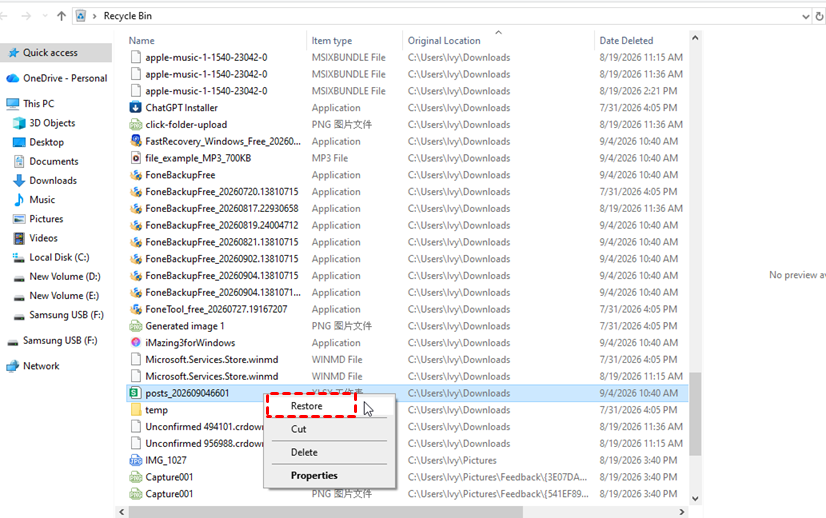
Open the original Downloads location and check that the files you need are back. If only some files are listed, restore those first. You can then check a backup or scan for the rest.
Method 2: Recover Deleted Downloads from File History
As a built-in backup option, File History is very useful for recover files from the Recycle Bin without software. It backs up user folders like Downloads, Desktop, and Pictures, unless you excluded one. To be safe, confirm the version you're about to restore actually contains those files.
Step 1. Connect the File History backup drive to your computer. If you deleted the whole Downloads folder, open C:\Users and find your user folder in File Explorer. If only some files are missing, find Downloads itself.
Step 2. Right-click that parent folder and select Restore previous versions. On Windows 11, check Show more options if needed.
Step 3. Choose a version dated before the deletion and expand Open > Open in File History to see which files it contains.
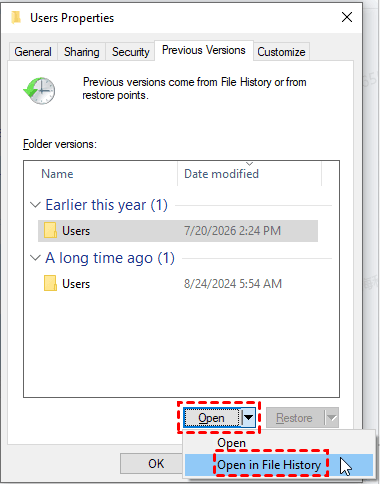
Step 4. Once confirmed, expand Restore and choose Restore to… to recover accidentally deleted Downloads folder or files inside it. Save them to a different location to greatly reduce the risk of overwriting data.
Method 3: Scan Hard Drive for Deleted Downloads with AOMEI FastRecovery
AOMEI FastRecovery is a powerful Windows file recovery software that can scan the drive where Downloads was stored and lets you select the files you want to recover.
 AOMEI FastRecovery
- 🧩 Scenario matching: Deleted File Recovery handles deleted files well and runs fast, even for deleted files not in Recycle Bin.
- ⚡ Two scan modes: Quick Scan for fast results, with an optional Deep Scan for a more thorough search.
- 📂 1,000+ file types: Recover deleted or lost Downloads, regardless of data type, such as documents, images, videos, and more.
- 🔀 Flexible browsing: Start with Type or Path, depending on what you know. Search, sort, and thumbnail previews help narrow down the results.
- 🎁 Free recovery: The free edition recovers up to 500 MB. Need more? Upgrade.
 100% Secure
How much you can recover depends on what's still on the drive. So don't download or install AOMEI FastRecovery on the drive where the deleted folder was, and don't add new data to it either. Any of these actions can overwrite data.
Step 1. Open AOMEI FastRecovery and choose Deleted Files Recovery.
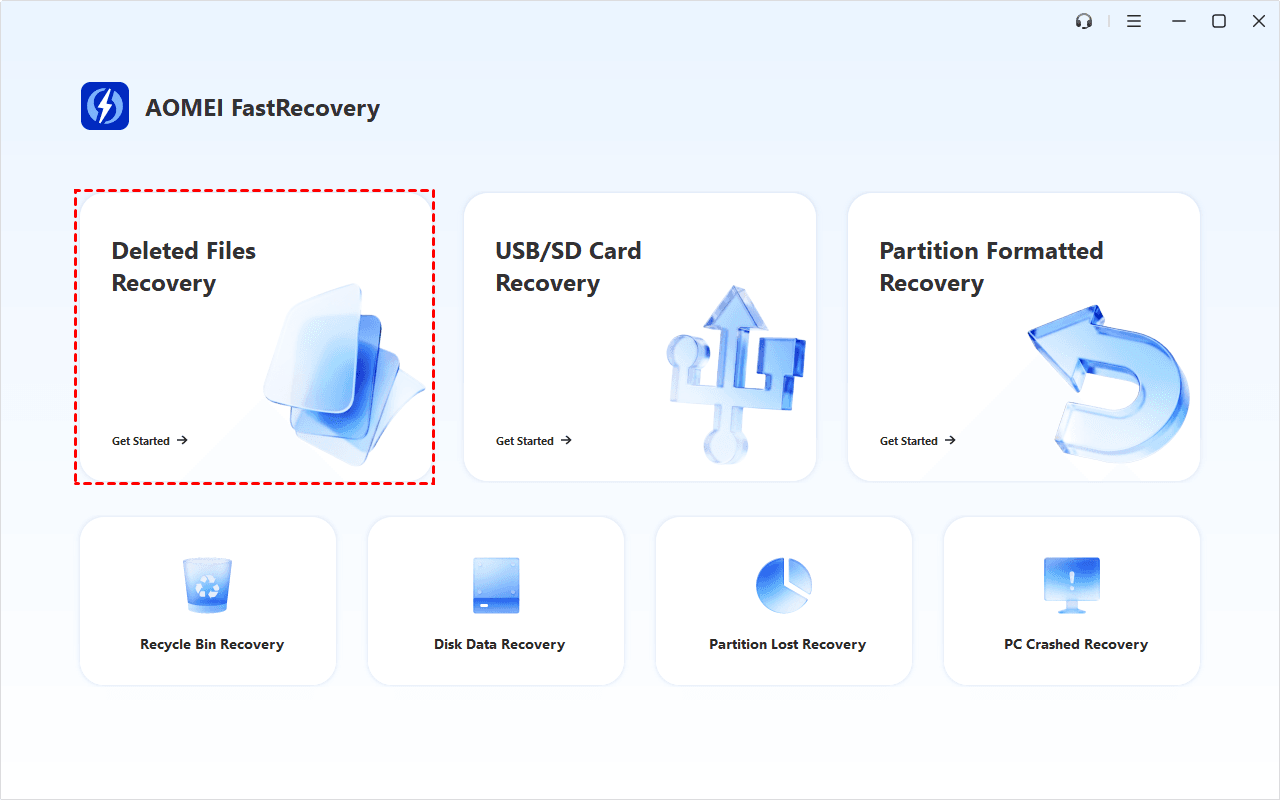
Step 2. Select the drive that held Downloads, usually C:, and click Scan. Quick Scan runs by default.
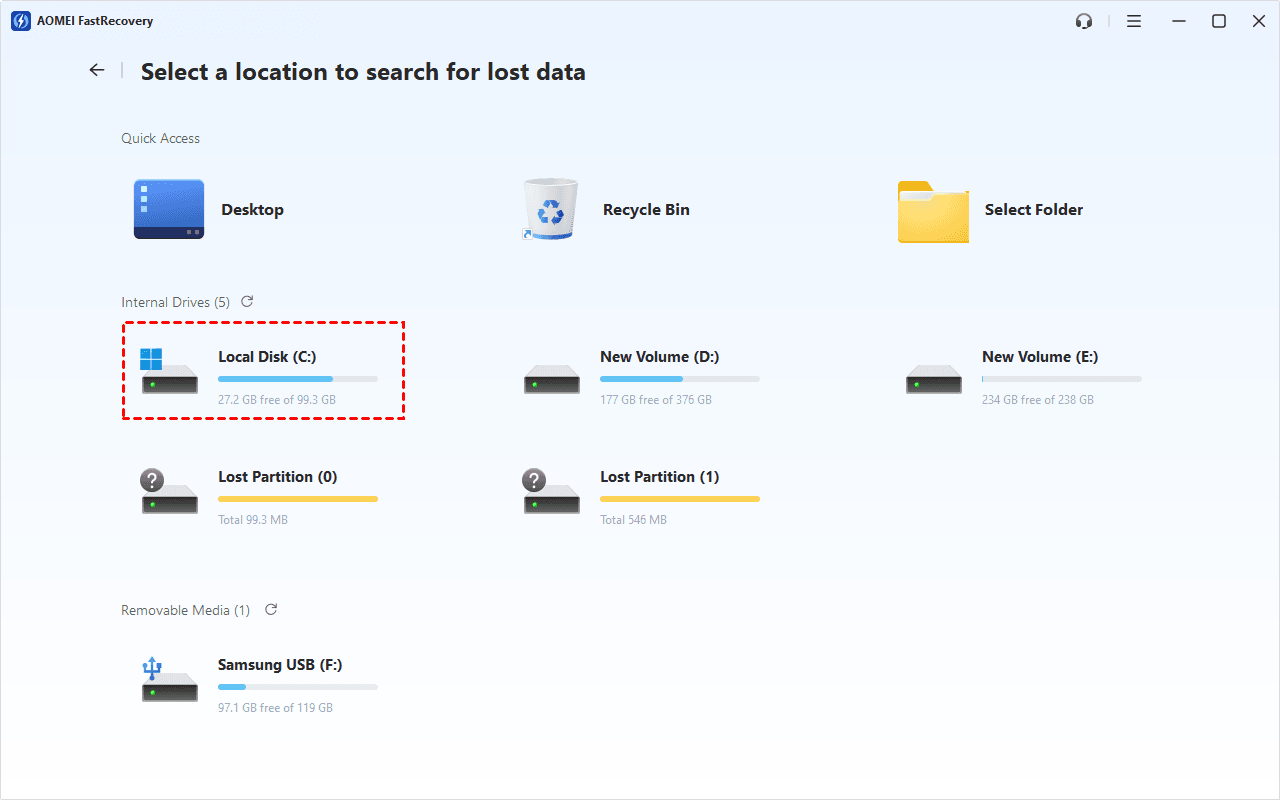
Step 3. Search for Downloads to find the folder. For individual files, type the file name or extension instead. Then sort the results to find deleted downloads quickly. If not, directly use Type to look for multiple files or go to Path to find where your Downloads folder was.
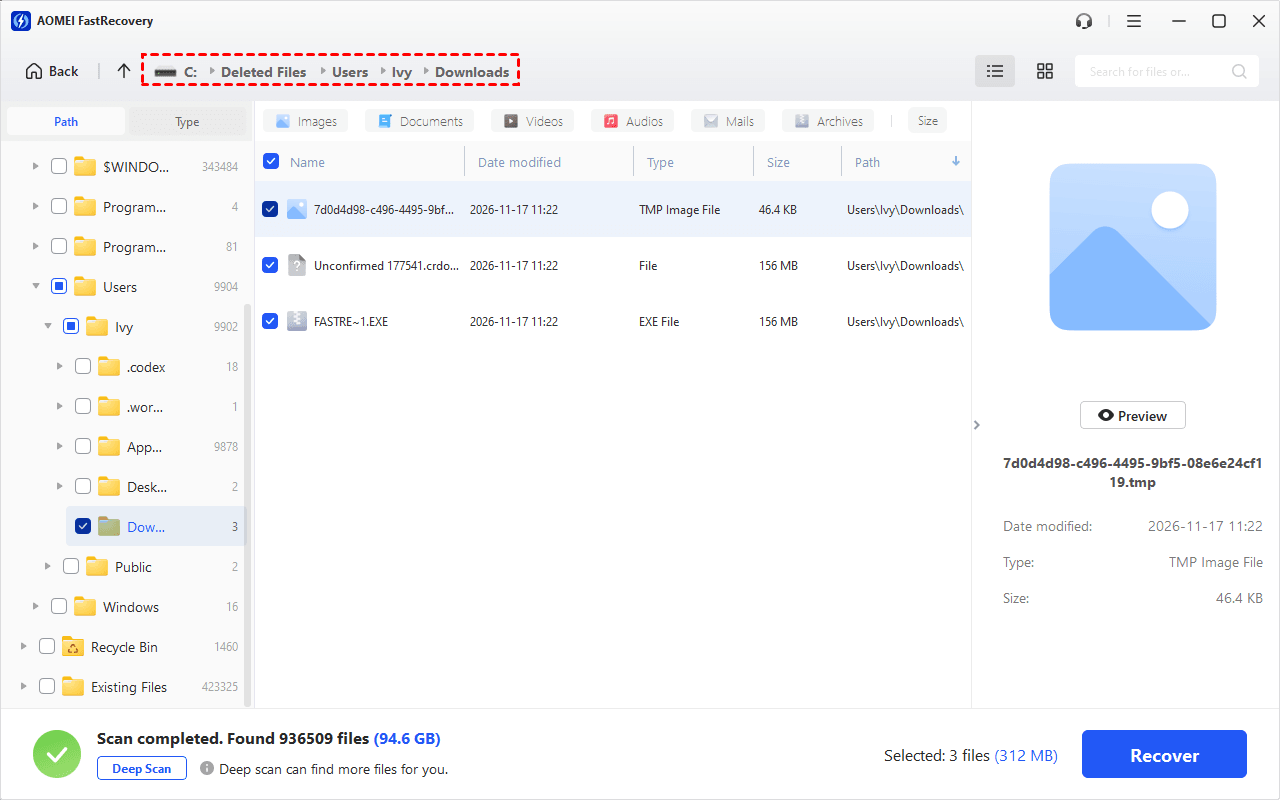
Step 4. Select the Downloads folder or individual files and click Recover. Save them to a different physical drive. A second folder on the source drive still writes to that drive.
-
If Quick Scan finishes without finding downloads, select Deep Scan.
-
The free edition can recover up to 500 MB. Recovering more requires an upgrade. Recovery depends on whether the deleted file data is still readable.
After recovery, open the saved files and check that they are complete. For example, check a PDF has all ithe pages or a ZIP archive opens and contains the expected files.
Method 4: Pin Downloads Back to Quick Access
If Downloads is missing from the File Explorer sidebar, just pin the folder back to Quick Access. Even if you moved it to another drive, you can pin it from its current location.
Step 1. Open File Explorer and go to the parent folder of your Downloads folder. If it uses the default location, enter %USERPROFILE% in the address bar.
Step 2. Right-click Downloads and select Pin to Quick access. On Windows 11, look for the pinned folder in Home and the navigation pane. On Windows 10, look under Quick access.
FAQs
Will creating a new Downloads folder bring back my files?
A new Downloads folder gives you an empty place to save future files. If you still need to scan for deleted downloads, recover and check the files first, then create the folder on source drive.
Can I get a missing file back from my browser’s download history?
Download history can help you identify the filename or revisit its original link. If the link still works, you can download another copy. If you edited the file locally, check for a backup or scan for that version. While recovery is pending, save any new download to a different drive.
Conclusion
If you accidentally deleted the Downloads folder in Windows 10 or 11, start by checking the Recycle Bin for the folder and individual files. If you have to scan the original drive, keep the recovered copies on a separate drive until you’ve opened and verified them.

 as a preferred
source on Google