




How to Recover Deleted Files from Recycle Bin Without Software
You can recover deleted files from Recycle Bin without software when the files remain in the bin or another saved copy exists. Check the matching recovery source before deciding whether a drive scan is necessary.

By Ivy Updated on October 27, 2026


You deleted a file, checked the Recycle Bin, and you're still not sure if it's recoverable. Maybe you even emptied the bin and really don't want to install a recovery app.
You can still get your files back without software if they're in the Recycle Bin or if another copy exists. If you emptied the bin, check File History, or OneDrive's web recycle bin for synced files. If you still come up empty, AOMEI FastRecovery provides a way to scan the original drive.
But first: stop saving or downloading anything to that drive. Any new data can overwrite what you're trying to recover. Keep reading to find the right method.
Choose a Recovery Method Based on Where Your Files Remain
Start with the location most likely to hold your files. You don’t need to attempt every method in order.
| 📍 Where your file is | 🛠️ What to try | 🔑 What it relies on |
|---|---|---|
| The files remain in Windows Recycle Bin | Method 1: Recycle Bin Recovery | Files remain in the Recycle Bin |
| File History saved them before deletion | Method 2: Restore from File History | An existing backup version |
| The files were stored in your OneDrive | Method 3: OneDrive Recycle Bin | Files still retained online |
| You need to scan after emptying the bin | Method 4: AOMEI FastRecovery | Recoverable data on the original drive |
The first three methods don’t require another recovery tool. Method 4 searches a drive rather than restoring a previous backup.
Method 1: Restore Files Still in the Windows Recycle Bin
👍 Best for: Files still listed in the Recycle Bin.
Windows lets you recover deleted files from the Recycle Bin without any software, as long as they're still there. No backup needed, either.
Step 1. Double-click Recycle Bin on your desktop.
Step 2. Find the deleted files. Use the search box for a remembered filename, or sort by deletion date. Check Original Location to distinguish files with similar names.
Step 3. Select the files, right-click them, and choose Restore. Go back to the original folders, and open the files to confirm they work.
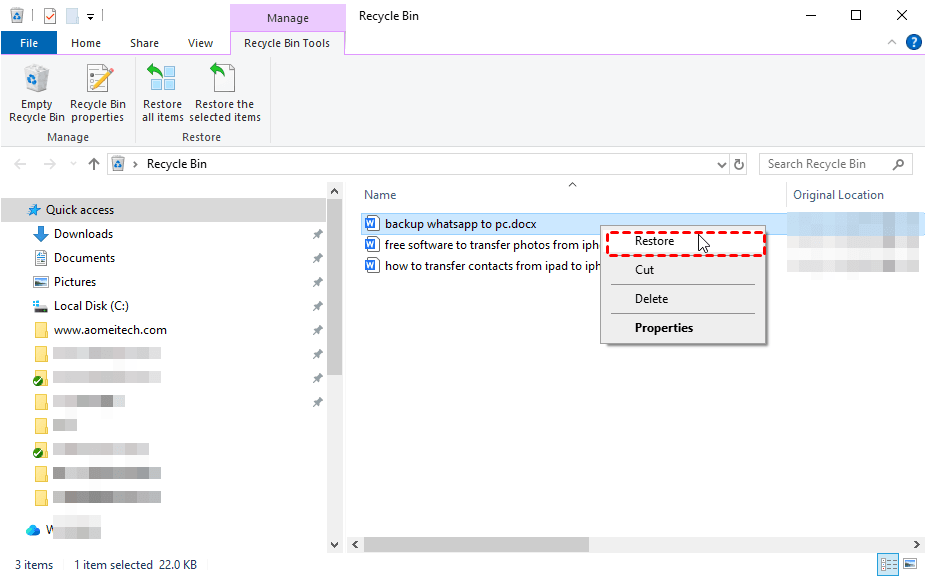
Nothing listed? That doesn’t necessarily mean you emptied the Recycle Bin. Shift + Delete, or files too big for the Recycle Bin may bypass it too. Continue with a matching backup or recovery method.
Method 2: Recover Deleted Files from File History Backup
👍 Best for: File History saved the deleted files before they were gone.
File History keeps copies of your protected folders, making it easy to restore files. Instead of opening the main File History window, you can jump straight to these copies via the Previous Versions tab.
Step 1. Connect your File History backup drive. In File Explorer locate the folder containing deleted files, right-click it and select Restore previous versions. For a deleted folder, use its parent folder.
Step 2. Under Previous Versions tab, select a version saved before deletion. Expand Open and choose Open in File History to check for the missing files.

Step 3. Select the files or folder to restore. Expand Restore and choose Restore to… to use another location. A different drive keeps current files and avoids overwritting data on the source drive.
Open the restored files and confirm they’re complete. For documents, check that no pages are missing.
Turning on File History now can't create a backup from before the files were deleted. If you don't see a version, try another method instead.
Method 3: Restore Synced Files from the OneDrive Recycle Bin
👍 Best for: Files previously stored in your own OneDrive and still remain online.
OneDrive’s web Recycle Bin is separate from Windows Recycle Bin. A file missing from the desktop Recycle Bin may still be available through your OneDrive account.
- Personal accounts normally retain deleted files for 30 days. Work or school accounts normally retain them for 93 days, unless the administrator changes the setting.
- Files deleted from the cloud may not appear in Windows Recycle Bin. Check the web location directly rather than relying on the desktop icon.
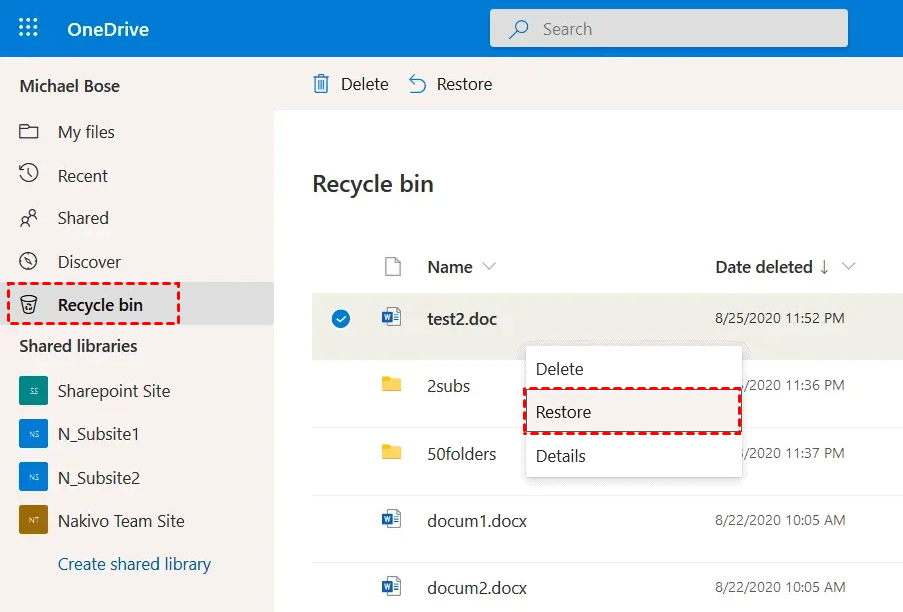
Step 1. Open the OneDrive website in your browser. Sign in with the account that stored deleted files.
Step 2. Select Recycle bin in the navigation pane. Locate the files or folders.
Step 3. Select them and click Restore. Return to their original OneDrive folder and open the files to check them.
Method 4: Recover Deleted Files from Recycle Bin with AOMEI FastRecovery
👍 Best for: Recovering deleted files from the Recycle Bin, including after it has been emptied.
AOMEI FastRecovery is easy-to-use Windows file recovery software for finding deleted files from Recycle Bin, even after emptied. Its Recycle Bin Recovery feature gives you a dedicated starting point for this exact situation, starting with a Quick Scan to find deleted files fast, followed by an optional Deep Scan. (Deleted Files Recovery is another option you can use.)
You can also browse files by Type or Path, using search, filters, sort, and thumbnail previews to narrow down the results. Then, pick exactly which files you want to recover rather than restoring everything. The free edition lets you recover up to 500MB.
 AOMEI FastRecovery
A free and reliable Windows data recovery software that easily recovers deleted or lost files from Recycle Bin, even after emptied.
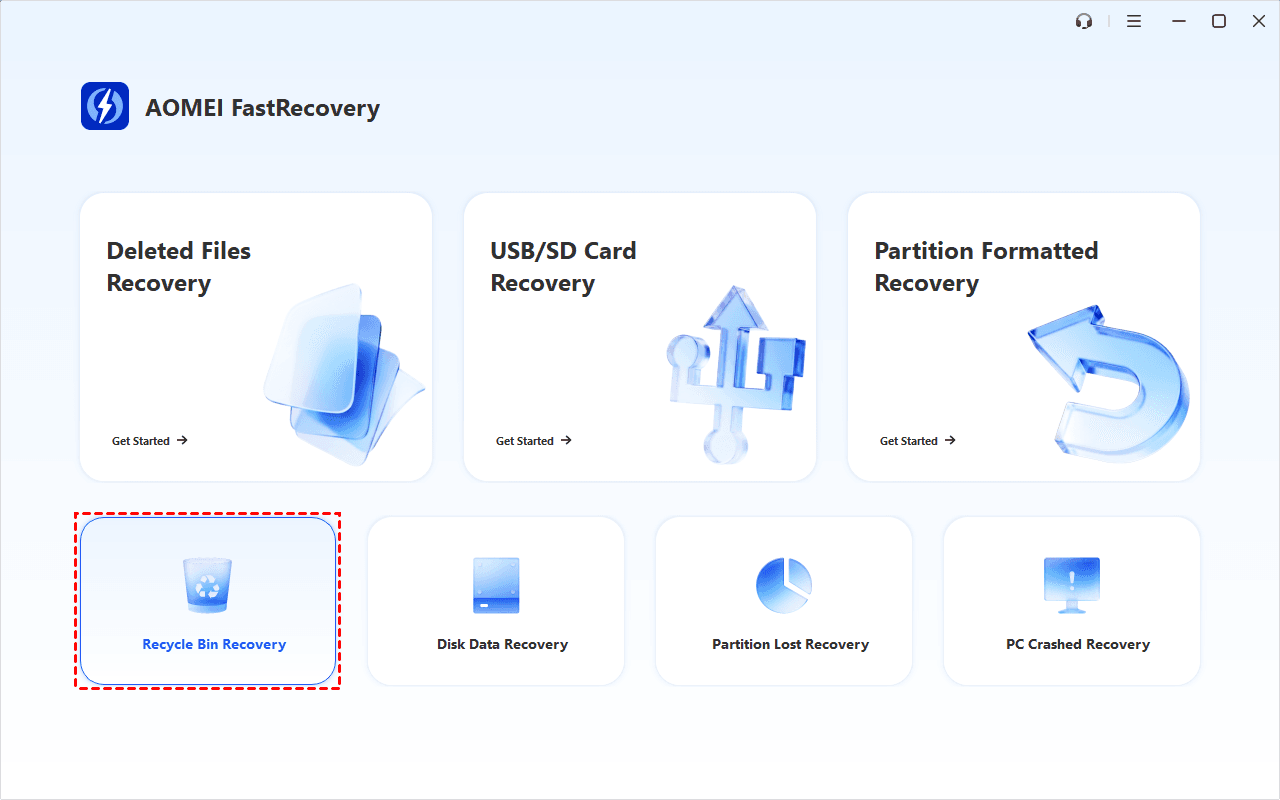
Step 1. Download and install AOMEI FastRecovery on a different drive from the one containing deleted files. The download itself writes data and may overwrite lost files. Then, open this software and select Recycle Bin Recovery.
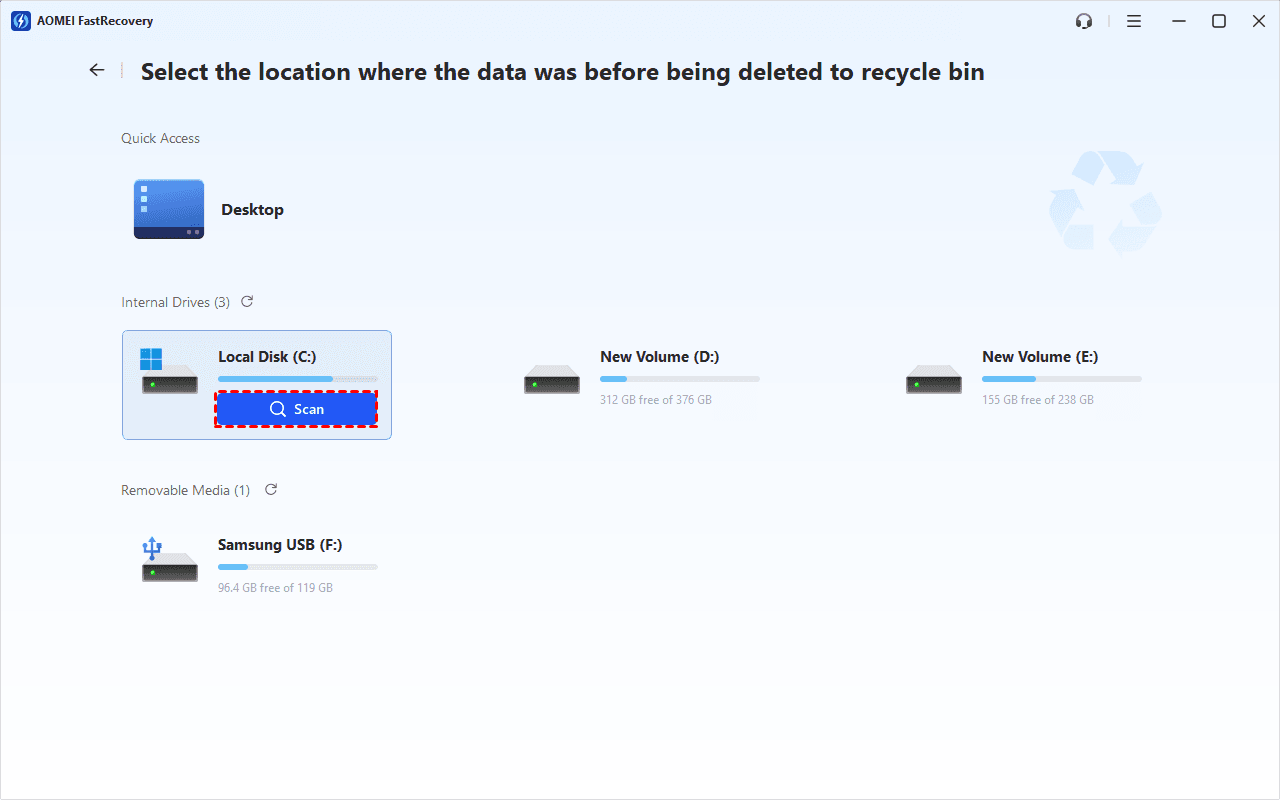
Step 2. It will list the drive where the deleted files were originally stored. Select a drive and click Scan.
Step 3. Let the default Quick Scan run. Browse results by Type or Path. Search for a remembered filename or extension to narrow the list. You can also find deleted files by date, size, path, etc.
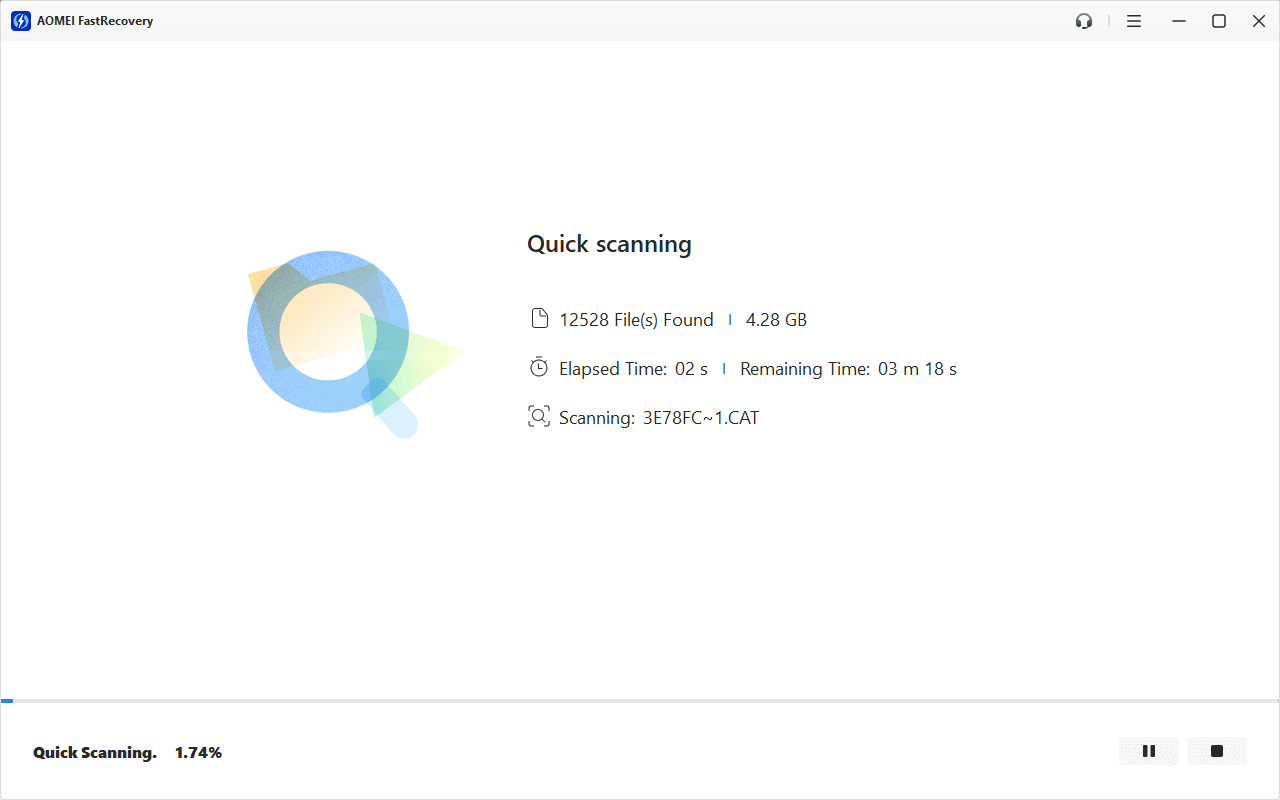
Step 4. Optional, clic Deep Scan if you still can't find deleted files. This searches more thoroughly and may take longer.

Step 5. Select the deleted files and click Recover. Save them to a different drive. Another folder on the same source drive may overwrite data you are trying to recover.
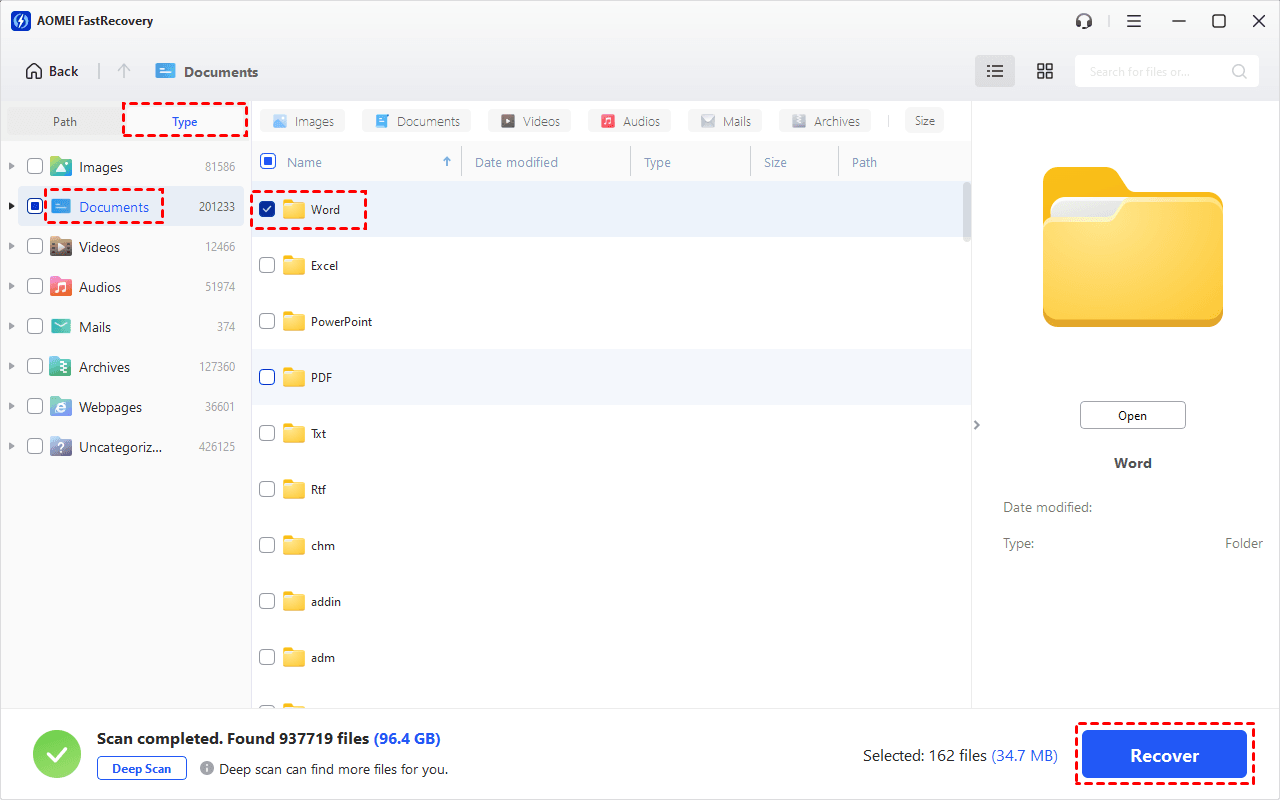
The free edition can recover up to 500MB. Recovery beyond that allowance requires an upgrade. Full preview is also available.
Open the recovered files and check that they’re complete. Finding a filename in scan results doesn’t confirm successful recovery. Overwriting and SSD TRIM may limit what can be retrieved.
FAQs
Does Windows File Recovery count as recovery without software?
No. Windows File Recovery is a Microsoft command-line app available from Microsoft Store. It requires installation, although it may suit readers who only want to avoid third-party applications.
Will enabling File History now recover files I already deleted?
No. It can protect future versions, but it cannot recreate a pre-deletion copy. Check any existing backup drive before setting up a new backup.
Conclusion
To recover deleted files from Recycle Bin without software, first identify an existing recovery source. Restore files still in the bin, or retrieve a saved copy through File History or OneDrive.
For files already cleared from those locations, consider scanning the original drive. Keep new downloads and recovered files on another drive.

 as a preferred
source on Google