




Recover Files Lost While Moving: Find Your Files and Get Them Back
An interrupted move can leave files missing from both locations. To recover files lost while moving, identify where the originals were stored, check for misplaced copies, and choose a suitable recovery method.

By Ivy Updated on September 9, 2026


You moved photos, videos, or documents to another folder or drive, but the destination is empty. Worse, the original files are missing too. Before repeating the transfer, check what remains in both locations.
To recover files lost while moving, stop saving new files to the drives involved. If the files were misplaced, a folder check may find them. If they were deleted during or after the move, AOMEI FastRecovery can scan hard drive for recoverable copies. An existing backup provides another recovery method.
Start by matching your situation to the methods below, then identify the drive that save the missing files.
Match Your Situation to the Right Recovery Method
You don't need to try every method. Match what you can see to the appropriate recovery method.
| 🧩 Your situation | ✅ Start with | 🔑 Key requirements |
|---|---|---|
| Files disappeared after reorganizing folders | File Explorer checks | Files still exist somewhere |
| Files are missing after a canceled or failed move | AOMEI FastRecovery | Detectable, readable storage |
| A saved copy exists from before the move | File History | A backup containing the missing files |
- Avoid copying more files onto either drive. New writes may overwrite deleted data.
- If the drive clicks, disconnects repeatedly, or isn't detected, stopscanning attempts and consider professional assessment.
- Don't format a drive containing your only copy just because Windows asks you to.
Method 1: Locate Misplaced Files with File Explorer
👍 Best for: Finding files moved to the wrong folder or accidentally deleted during reorganization.
Files can disappear due to drag-and-drop error, misclick, or accidental deletion. The right recovery method depends on what actually happened. Start by checking where the files may be, then match the action to the cause.
Check the actual location and recall the last action. Open File Explorer and navigate to both the source and destination folders. Confirm the exact drive letters and full paths in the address bar. Check for similarly named folders or additional subfolders created during the move.
Undo the move: If you just moved the files, right-click in the source folder and select Undo Move (or press Ctrl + Z). Check what action will be undone, and avoid pressing it repeatedly after other operations.
Check the Recycle Bin: If you think you pressed Delete, or if the file is not found after undoing the move, open the Recycle Bin, locate the files, select them, and click Restore.
Search and verify paths: If the files are still missing, search each drive by filename (or extension, e.g., *.jpg), and manually browse likely folders. For external drives, see files disappearing from an external hard drive.
Method 2: Recover Files Lost During a Move with AOMEI FastRecovery
👍 Best for: Retrieving deleted files from a detected drive after a move; recovery depends on whether the file data remains available.
AOMEI FastRecovery is a Windows file recovery software that scans HDDs/SSDs, external drives, USB sticks, and memory cards for missing photos, videos, documents, etc.
Its straightforward interface allows you to locate files using Quick Scan, search, sorting, filters, and thumbnail previews. For deeper searches, Deep Scan provides a more thorough option.
 AOMEI FastRecovery
A free and reliable Windows data recovery software that easily recovers deleted or lost data from Recycle Bin, HDDs/SSDs, USB drives, SD cards.
Scan for Missing Files and Save to Another Drive
Step 1. If you're recovering files lost from an external drive, connect it to your PC. Download and install AOMEI FastRecovery on a drive other than the one containing the missing files, then select Deleted Files Recovery.

Step 2. Select the drive where the files were located before the move. and click Scan.
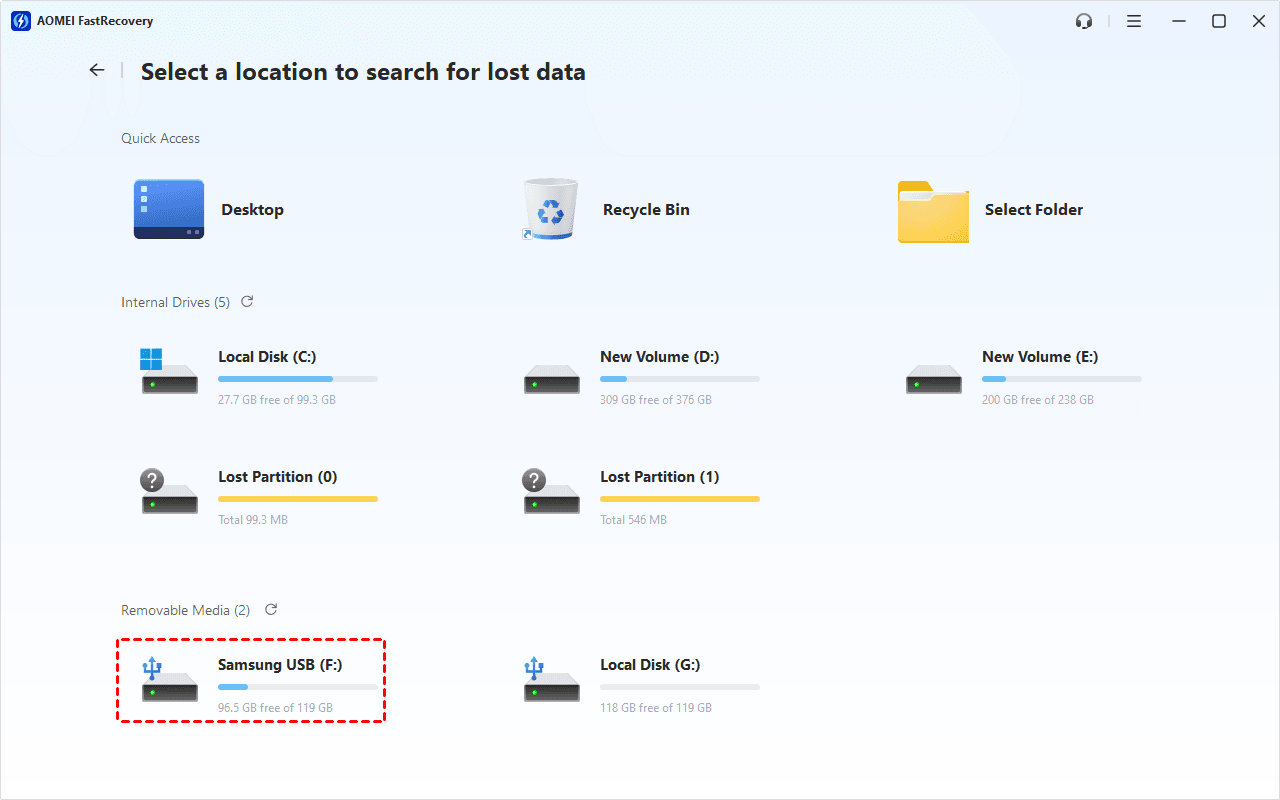
Step 3. Browse the Quick Scan results by Path or Type. Search by filename or extension, sort, or filter to narrow down the results.

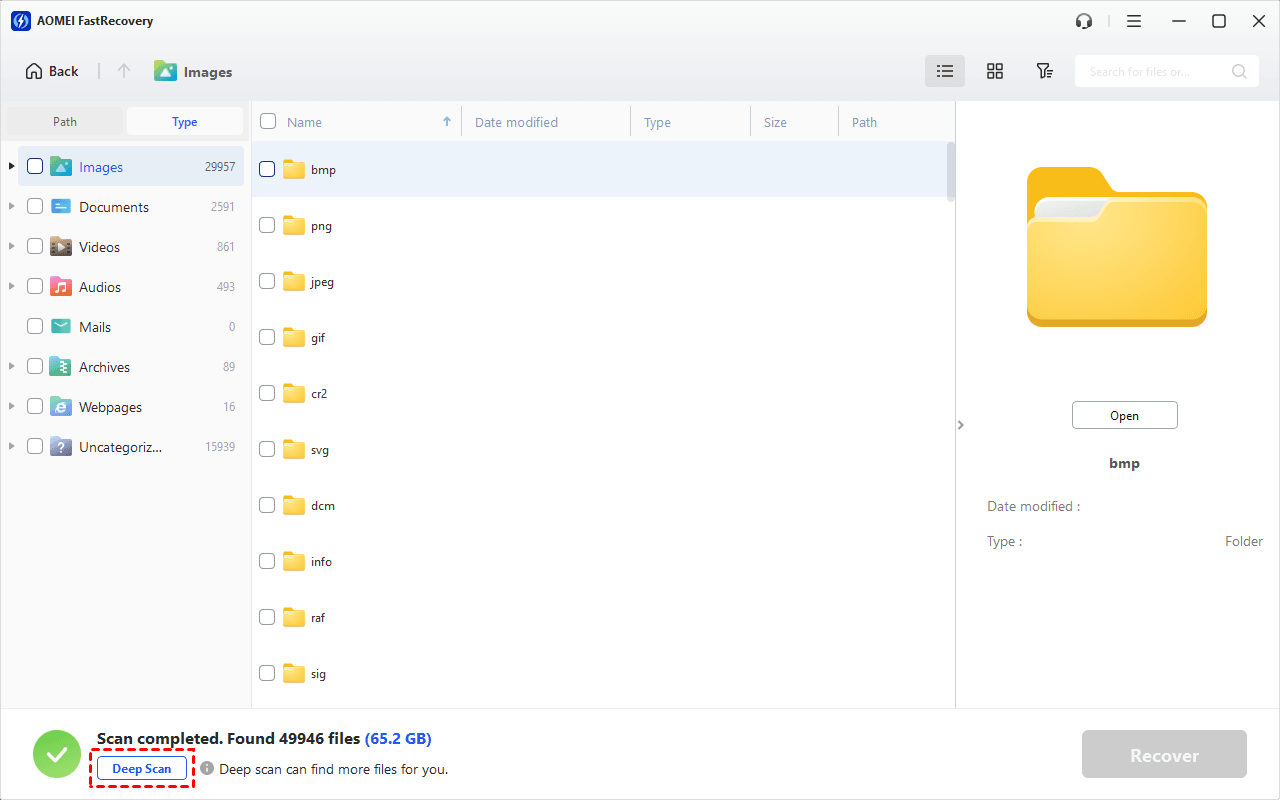
Step 4. If the required files aren't found after Quick Scan finishes, click Deep Scan. Allow more time for this broader search, then review the results.
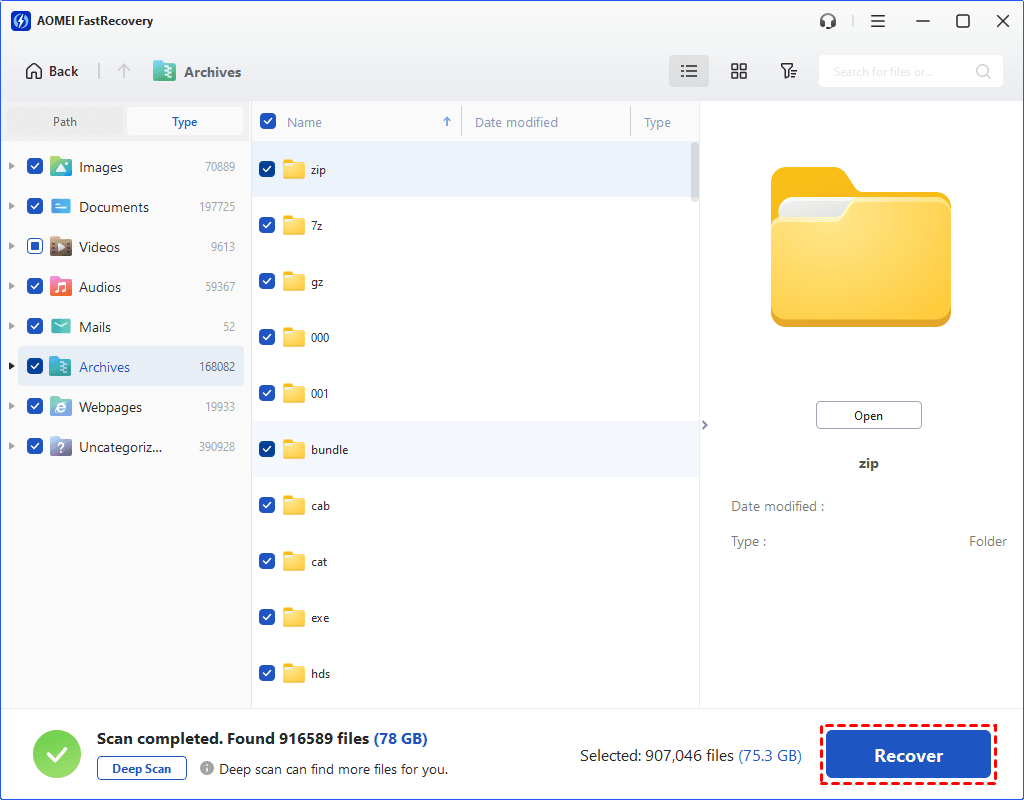
Step 5. Select the files you need and click Recover. Save them to a separate drive. Don't choose the drive being scanned or a transfer destination you still need to recover from.
- The free edition supports scanning, thumbnail previews, and recovery of up to 500MB. Upgrade for unlimited data recovery and full preview.
- If you need to recover deleted pictures, seehow to recover deleted photos on Windows.
Method 3: Restore Pre-Move File Copies with File History
👍 Best for: Retrieving files backed up before the move; the backup must include the original files and folders.
File History is a built-in backup tool that automatically creates copies of your files. However, enabling it on your PC does not guarantee that files on an external drive were included. The specific folder must be manually added to your user folders.
Step 1. Connect the File History backup drive to your Windows PC. Open File Explorer and navigate to the folder that previously contained the missing files.
Step 2. Right-click that folder and choose Restore previous versions. Select a version from before the move, expand Open and choose Open in File History to check it.
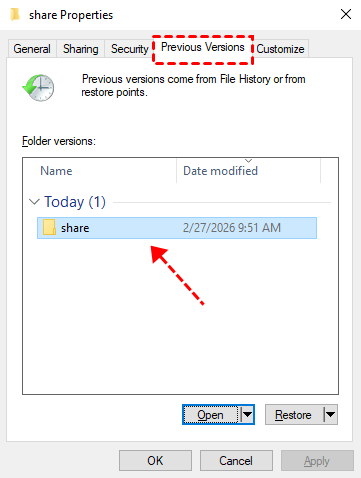
Step 3. If your files are there, expand Restore, choose Restore to… Always select a safe separate location. This avoids replacing the current folder while restoring.
If no suitable version appears, File History doesn't offer the required copy. Turning it on now won't create a backup from before the loss.
Verify Your Recovered Files Before the Next Transfer
Check the recovered copies before moving or deleting anything else:
- Open important documents and review the contents.
- Play recovered videos at several points.
- Compare file counts and sizes with any records or copies you have.
- Keep usable files even if part of the folder is still missing.
For your next transfer, copy first, verify the destination, and then delete the originals. Keep a separate backup of important folders and safely eject removable storage after the transfer finishes.
FAQs
1. Why is the destination folder empty?
The folder may have been created before the files finished transferring, or files may have been removed afterward. Check both locations; the folder's presence alone doesn't show how much data was transferred.
2. Why didn't Ctrl + Z restore the files?
Undo depends on the available operation history and the specific action being reversed. It isn't a general recovery method for interrupted transfers. Repeated undo commands can also reverse unrelated work.
3. Can files be recovered if they aren't in the Recycle Bin?
Possibly. A backup or a scan of the relevant drive may help. If a separate deletion occurred, files too large for the Recycle Bin may have bypassed it.
4. Can recovery software rebuild files that never reached the destination?
It cannot recover a complete file from a destination that never stored its full contents. Check the original drive and any existing backups for another copy.
To recover files lost while moving, establish where the files existed and preserve what remains. Choose a scan for missing files on readable storage or restore a usable backup, then verify the recovered copies before resuming the transfer.

 as a preferred
source on Google
as a preferred
source on Google