



How to Transfer Data from Old HP Computer to New HP Computer
Moving to a new HP computer?This guide will show you how to either transfer important files or perform a complete system migration—choose the approach that matches your upgrade plan.

By Lily Updated on August 13, 2026


Upgrading to a new HP computer is exciting—but figuring out how to transfer data from old HP computer to new HP computer can quickly feel overwhelming. Your old PC likely holds years of important documents, photos, apps, and personalized settings, and no one wants to lose or manually rebuild all of that from scratch.
The good news is that transferring data between HP computers doesn’t have to be complicated. In this guide, you’ll learn step-by-step methods to ensure a smooth HP laptop to HP laptop data transfer.
Prepare Before Transferring Data Between HP Computers
Before you transfer data to a new HP laptop/desktop, take a little time to get everything ready.
✅ Check Storage Space
- Check the used storage on your old HP computer (Settings > System > Storage).
- Compare it with the available space on the new HP device.
If the new HP computer has a smaller drive, consider deleting temporary files or moving rarely used data to external storage before transferring.
Even when using reliable transfer methods, creating a backup is essential. A backup acts as a safety net in case something goes wrong during the migration.
✅ Choose the Right Data Transfer Method
Different situations call for different transfer methods.
- Built-in Windows tools work well for basic file transfers.
- Professional migration software is best if you want to move programs, settings, and user profiles along with files.
 AOMEI Cloner
A reliable disk cloning software to safely clone your system, disk, or partitions with boot support.
Transfer Data from Old HP Computer to New HP Computer: 2 Cases
In this part, you’ll learn how to transfer data from one HP laptop/desktop to another. Two cases are included: transfer files and transfer everything.
Case 1: Transfer Files Between HP Computers
Using an external hard drive or USB flash drive is one of the most reliable and straightforward ways to move files from an old HP computer to a new one. Follow the instructions below:
Step 1. Plug the USB drive or external hard drive into the old HP PC and wait for Windows to recognize it.
Step 2. Open File Explorer, select the files and folders you want to transfer (Documents, Pictures, Videos, Desktop, etc.), right-click, and choose Copy. Then paste them onto the external drive.
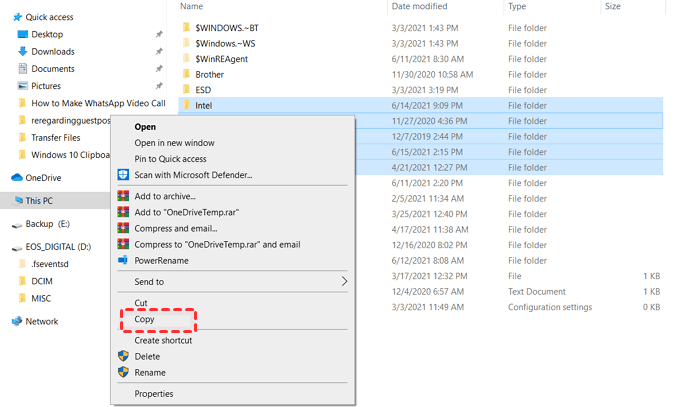
Step 3. Once the copy process finishes, right-click the USB icon in the system tray and select Eject to avoid data corruption.
Step 4. Plug the same drive into the new HP PC and open File Explorer.
Step 5. Copy the files from the external drive and paste them into the appropriate folders on the new computer.
Case 2: Transfer Everything Between HP Computers
If your goal is to move everything, using professional migration software - AOMEI Cloner is the most efficient option. It moves Windows, programs, settings, and files, making upgrades between computers efficient without reinstalling anything.
 AOMEI Cloner
- System & Disk Cloning: Transfers Windows OS, applications, user profiles, and files in one process.
- Intelligent Clone: Copies only used sectors, making the transfer faster and compatible with different-sized drives.
- SSD Alignment: Improves performance when migrating to an SSD-based HP laptop or desktop.
- Edit Partitions: Adjusts partition sizes and types of the destination disk as per your needs.
- Broad Compatibility: Supports cloning between NVMe, M.2, SATA, and external drives from all major brands.
 100% Secure
Now learn how to clone an old HP computer to a new HP computer below.
💡 Notes:
◆ For modern Windows (11/10, Server 2025/2022/2019/2016), the cloned drive will be bootable on the new computer, regardless of whether the hardware is identical or different.
◆ For older Windows versions with different hardware, you may use AOMEI Backupper to backup Windows and restore on another computer to ensure a successful boot.
Step 1. Remove the hard drive from the new HP computer. Connect it to your old HP computer using a USB adapter or enclosure.
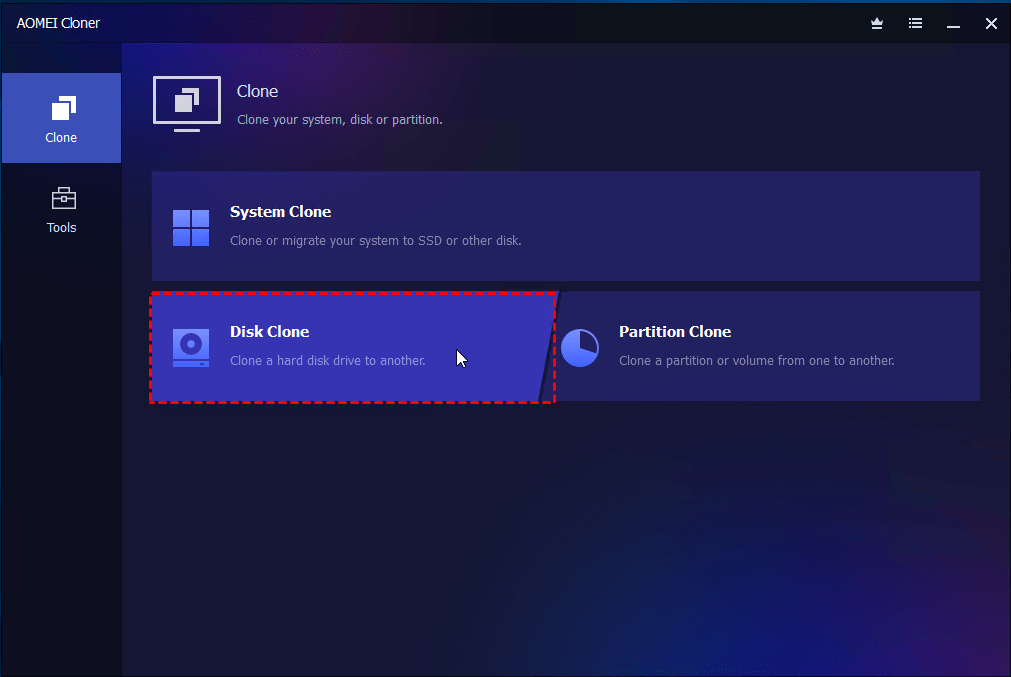
Step 2. Download and install AOMEI Cloner on your old HP computer, then open the program. Select Disk Clone.
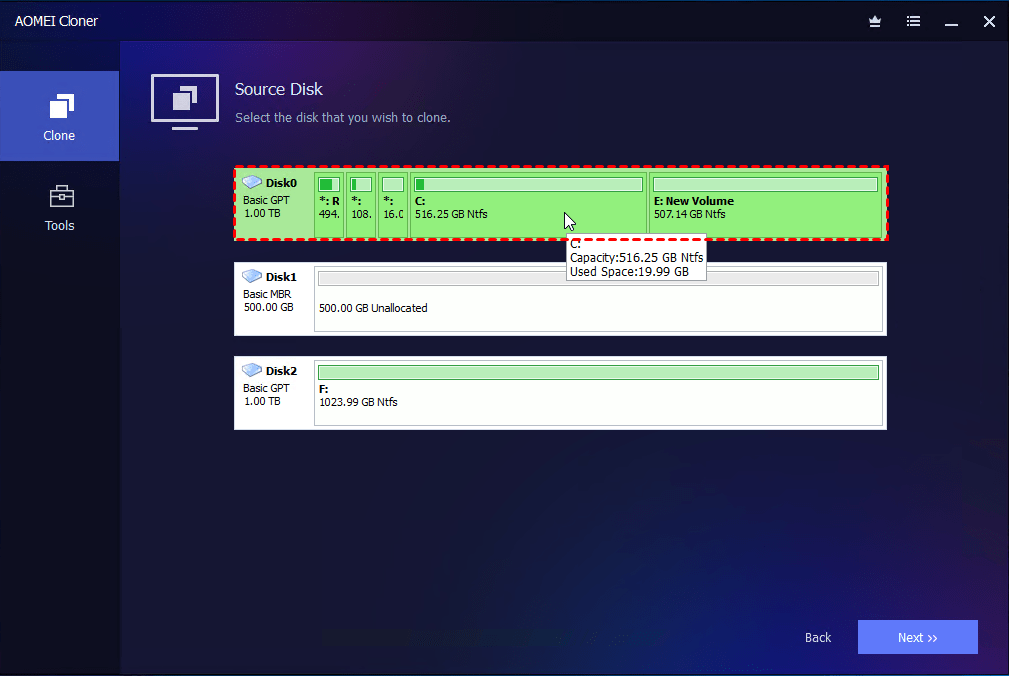
Step 3. Choose the old computer’s system disk as the source and select the new computer’s disk as the destination.
Step 4. Customize your clone settings:
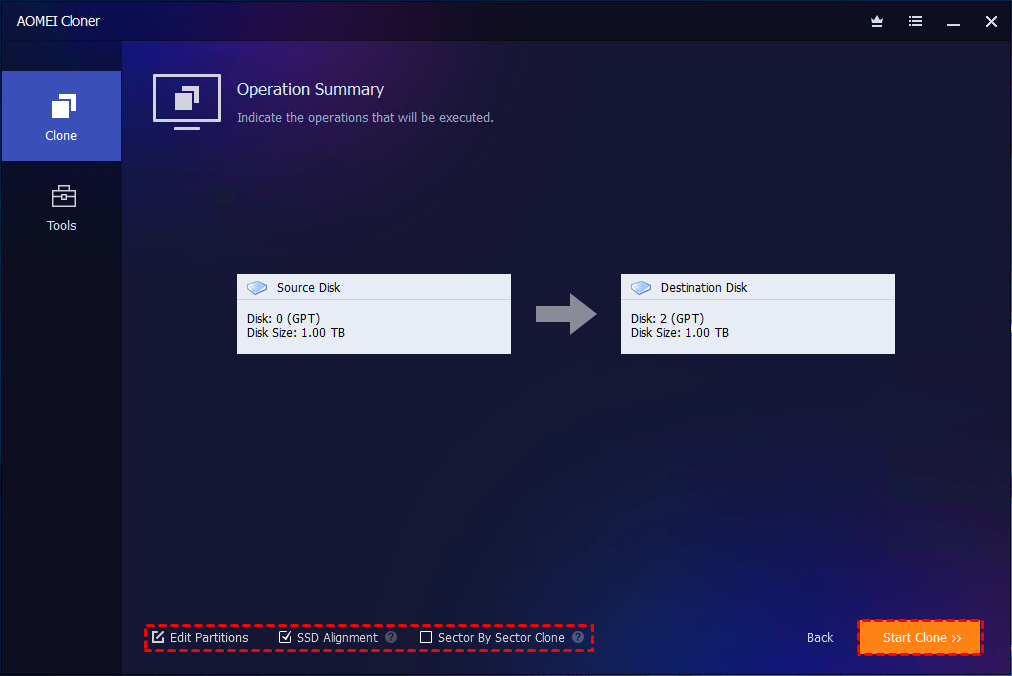
- For an SSD target, check the SSD Alignment option to optimize performance and longevity.
- For a larger target disk, click Edit Partitions, then select Add unused space to all partitions to utilize the full capacity of your new drive.
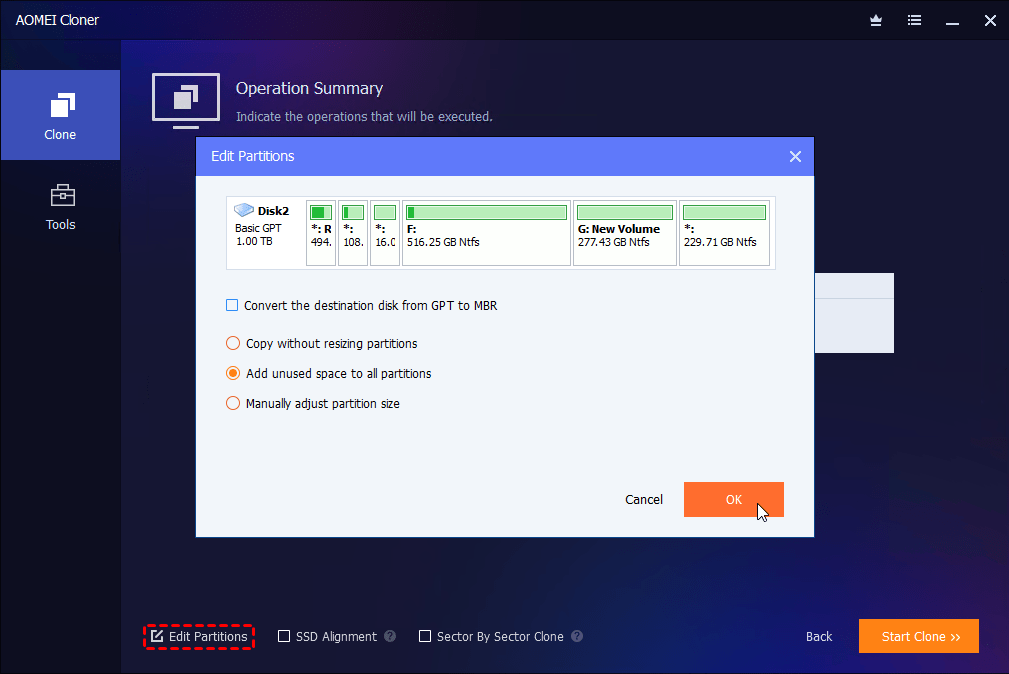
Step 5. Review the settings and click Start Clone. In the Data Safety Notice window, click Start Clone again to begin transferring all data automatically.
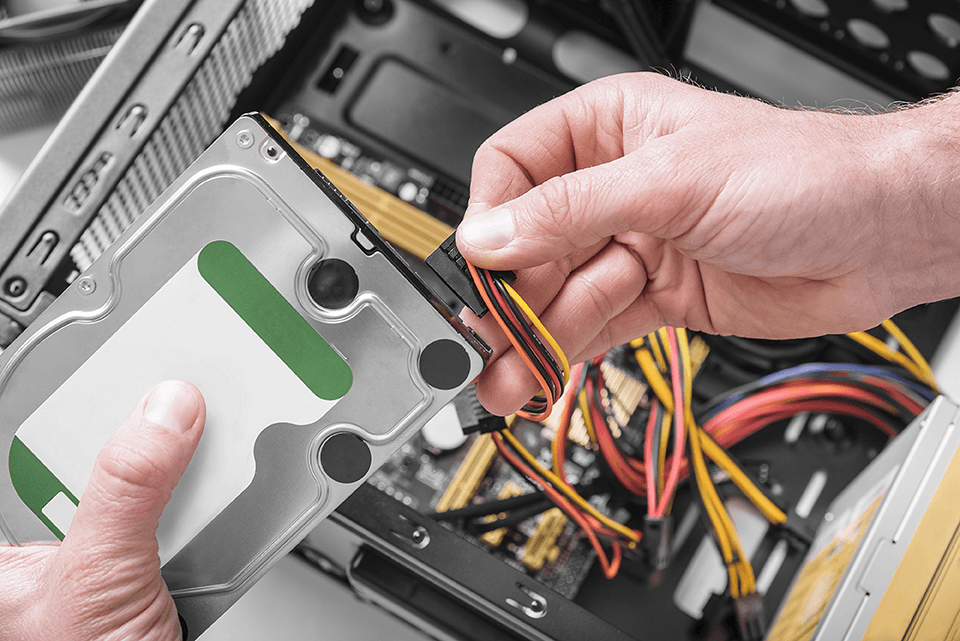
Step 6. Once completed, install the cloned drive into the new HP computer and boot. Windows should load exactly as it did on the old HP computer.
FAQs About Transferring Data Between HP Computers
1. What is the easiest way to transfer data between HP computers?
For basic file transfers, using an external hard drive or OneDrive is the easiest option. For a complete transfer that includes Windows, programs, and settings, using a dedicated tool like AOMEI Cloner offers the simplest and most hands-off experience.
2. Do I need an internet connection to transfer data?
Not always. External drives and cloning software work offline. An internet connection is only required if you use cloud-based options like OneDrive.
3. How long does it take to transfer data from one HP computer to another?
The time depends on:
- The total amount of data
- The transfer method used
- Disk type (HDD vs SSD)
Small file transfers may take minutes, while full system transfers can take one to several hours.
To Sum Up
That’s all for how to transfer data from old HP computer to new HP computer. For basic file transfers, external storage helps a lot. For a complete transfer of OS, apps, and files, AOMEI Cloner is the best assistant.
What’s more, AOMEI Cloner supports different computer brands. You can use it to upgrade Alienware SSD, clone Lenovo laptop hard drive, etc. Why not give it a shot?

 as a preferred
source on Google
as a preferred
source on Google