



Samsung Data Migration Clone Recovery Partition: Yes or No?
Struggling to clone a recovery partition with Samsung Data Migration? This article confirms its capabilities and guides you to an alternative tool that ensures success.

By Lily Updated on August 17, 2026


Can Samsung Data Migration Clone Recovery Partition?
📝 Short answer: Yes—but not always reliably.
Samsung Data Migration is designed to migrate an operating system from an old drive to a new Samsung SSD as quickly as possible. While it can clone the recovery partition in some cases, it does not guarantee that all recovery-related partitions will be copied correctly or remain functional after migration.
👉 When the Recovery Partition Is Not Cloned
Samsung Data Migration may fail to clone the recovery partition if:
- The recovery partition is OEM-customized or hidden
- The partition size is too small or nonstandard
- There are multiple recovery partitions on the source disk
- The source disk contains disk errors or bad sectors
- The migration involves GPT/MBR layout conflicts
In these cases, the recovery partition may be skipped, merged incorrectly, or become unusable after cloning. If you need a guaranteed, bootable system with a working recovery environment, a more advanced cloning solution is often the safer choice.
Best Alternative Tool to Samsung Data Migration
When Samsung Data Migration multiple partitions clone failed, AOMEI Cloner stands out as a reliable alternative for full-disk and system cloning.
 AOMEI Cloner
- Disk Clone: Copies an entire hard drive to another disk, including the operating system, applications, settings, and all partitions.
- System Clone: Automatically selects the system-related partitions and migrates them to a new SSD or HDD.
- Intelligent Clone: Copies only the used sectors of a disk instead of every sector, significantly reducing cloning time.
- Sector-By-Sector Clone: Creates a 1:1 replica of the source disk by copying every sector, useful when you need an exact duplicate for data recovery.
- Bootable Media Creation: Creates bootable media on a USB drive or CD/DVD so as to clone or restore disks even when Windows cannot start.
- Wide Compatibility: Works with HDDs, SATA SSDs, NVMe SSDs, and USB drives from major brands, not only Samsung.
 100% Secure
Download AOMEI Cloner now to try it out!
How to Clone HDD to Samsung SSD with Recovery Partition Successfully
If you want to upgrade from an HDD to a Samsung SSD without losing the recovery partition, AOMEI Cloner provides a safe and straightforward solution. Follow the steps below to ensure all system, EFI, and recovery partitions are cloned correctly.
💡 Before You Start
- Connect the Samsung SSD to your computer (via SATA, NVMe slot, or USB adapter).
- Back up important data on the target SSD, as it will be overwritten.
- Make sure the Samsung SSD has enough capacity to hold all used data on the HDD.
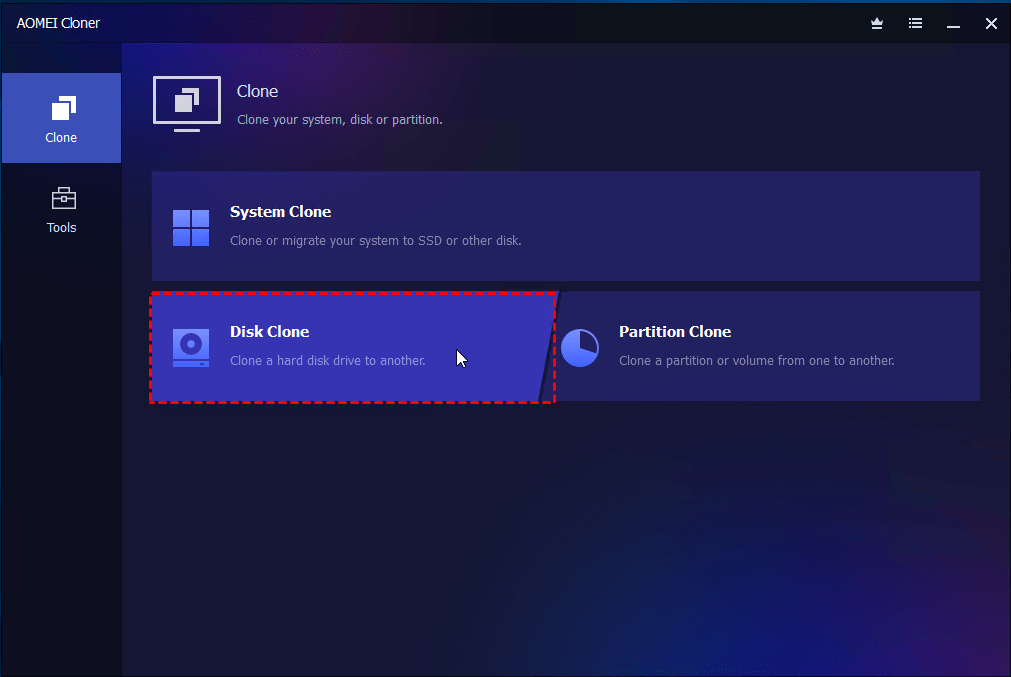
Step 1. Install and open AOMEI Cloner. In the main interface, click Disk Clone from the left panel.
Step 2. Click Select Source Disk to choose your existing HDD as the source disk. Click Next to continue.
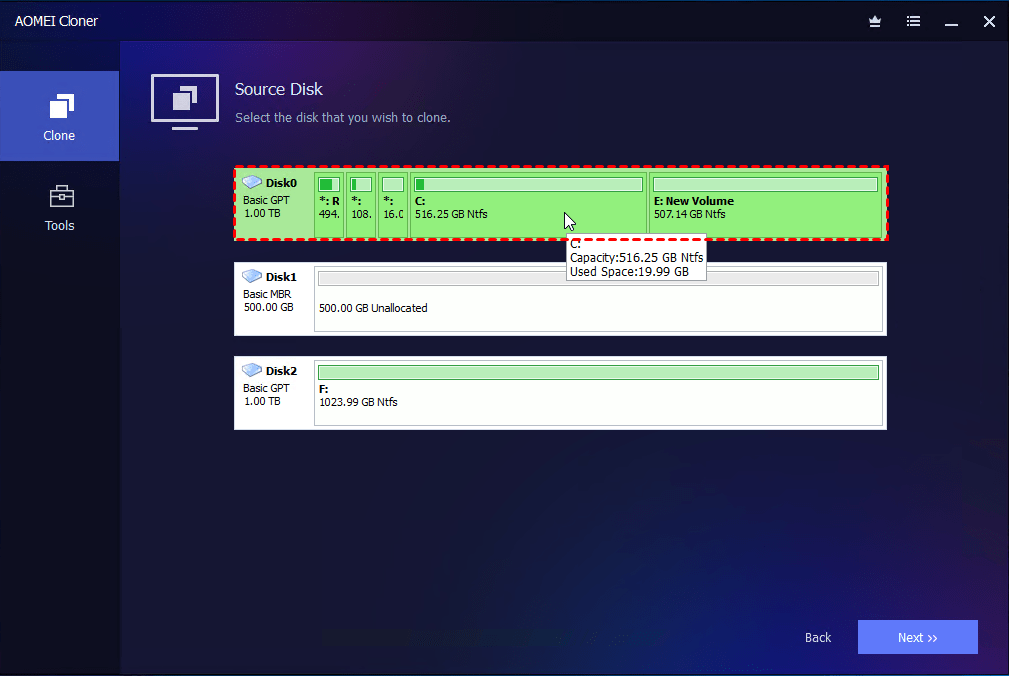
Step 3. Click Select Destination Disk to select the Samsung SSD as the destination disk.
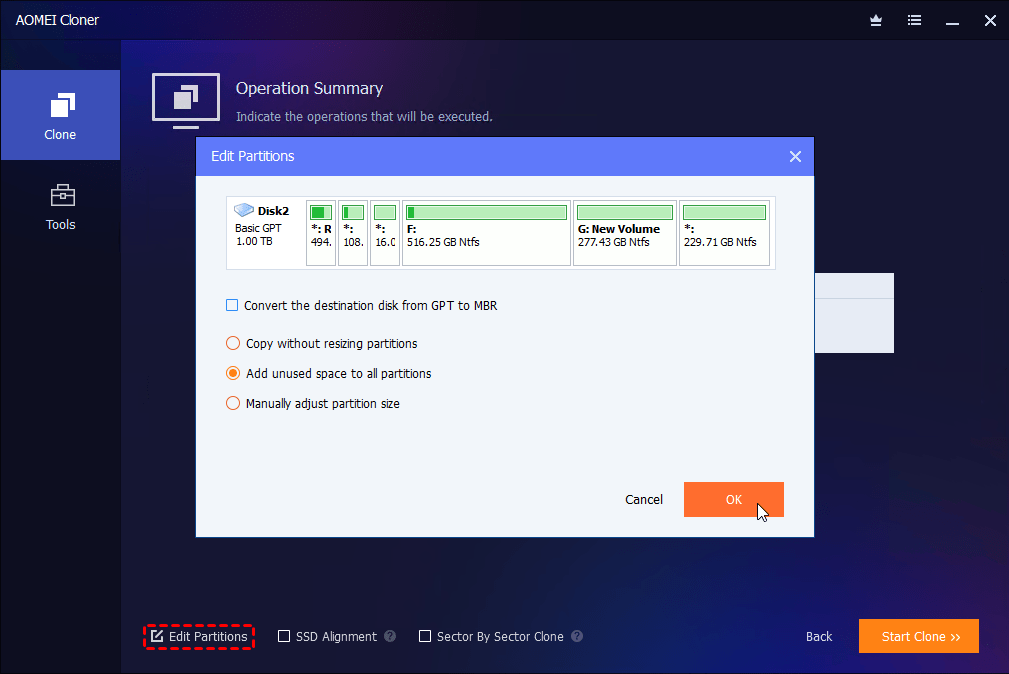
Step 4. (Optional) If the Samsung SSD is larger than the original HDD, use Edit Partitions to adjust partition sizes and avoid unallocated space.
Step 5. Check SSD Alignment to optimize performance and extend the Samsung SSD’s lifespan. Then, click Start Clone.
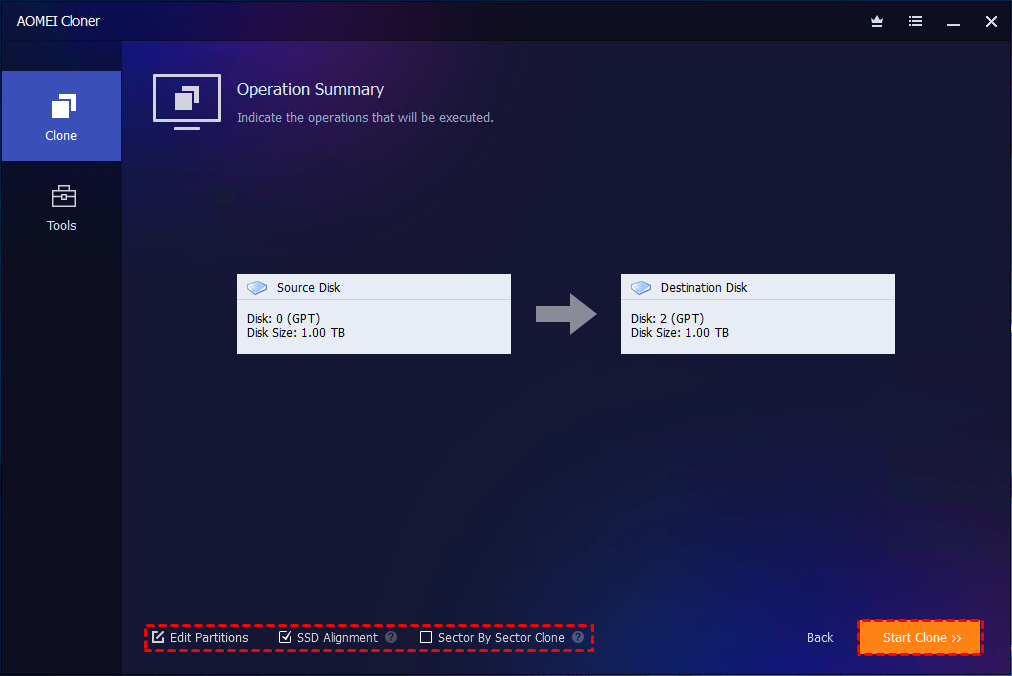
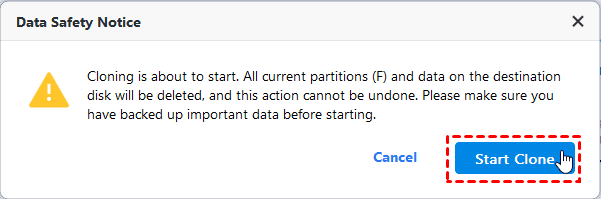
Step 6. Confirm the warning that all data on the target disk will be erased, then click Start Clone and wait for the process to complete.
Step 7. Once cloning is complete, shut down your computer, replace the HDD with the Samsung SSD (or change boot order in BIOS/UEFI) to boot from the cloned SSD. After booting, open Disk Management to verify the recovery partition exists.

FAQs about Samsung Data Migration Recovery Partition
1. Does Samsung Data Migration always clone the recovery partition?
No. Samsung Data Migration may clone the recovery partition in simple disk layouts, but it often fails with OEM, hidden, or multiple recovery partitions. In such cases, the partition may be skipped or become unusable after migration.
2. Can Windows boot if the recovery partition is missing after migration?
Yes, Windows can usually boot without the recovery partition. However, you may lose access to Windows Recovery Environment (WinRE), system repair tools, and some Windows update or reset features.
3. How can I check if the recovery partition was cloned successfully?
After migration, open Command Prompt as administrator and run reagentc /info. If Windows RE is enabled and Disk Management shows a recovery partition, it was cloned successfully.
4. Is it safe to delete the recovery partition before cloning?
Deleting the recovery partition is not recommended unless you fully understand the consequences. While Windows may still run, you will lose built-in recovery options that can be critical for troubleshooting system failures.
Wrapping Things Up
The Samsung Data Migration recovery partition often becomes a problem during SSD upgrades because the tool is designed for basic system transfers rather than full, complex disk cloning. Luckily, AOMEI Cloner works as a more reliable alternative that enables you to clone all system and recovery partitions accurately.
What’s more, it supports all major brands. You can use it to clone HDD to Fanxiang SSD, Crucial SSD, and Kingston SSD, etc. Don’t hesitate to try it out!

 as a preferred
source on Google
as a preferred
source on Google