



Full Guide to Paragon Migrate OS to SSD & Best Alternative
Safely migrate your operating system to an SSD with Paragon. This article provides a step-by-step guide and recommends a powerful alternative tool if you encounter errors during the process.

By Lily Updated on August 14, 2026


Is Paragon Migrate OS still available?
Paragon Migrate OS to SSD is a specialized system migration utility developed by Paragon Software to help users transfer their existing Windows operating system from a traditional hard drive to a solid-state drive without reinstalling Windows.
However, Paragon Migrate OS is no longer available as a standalone tool since October 8, 2025. If you want to use this feature now, you should download Paragon Hard Disk Manager.
 AOMEI Cloner
If you encounter problems when using Paragon Hard Disk Manager, try the best alternative tool to migrate OS to SSD.
How to use Paragon to migrate OS to SSD
In this part, I’ll show you how to use Paragon Hard Disk Manager to migrate OS to SSD step by step.
Note: The “Copy operating system” feature is only available in Hard Disk Manager Advanced or Hard Disk Manager for Business. You may request a trial version if needed.
Step 1. Connect the new SSD to your computer. On a desktop, this usually means installing the SSD internally. On a laptop, you can use a USB-to-SATA or USB-to-NVMe adapter.
Note: If the new SSD contains any data, backup important files before proceeding.
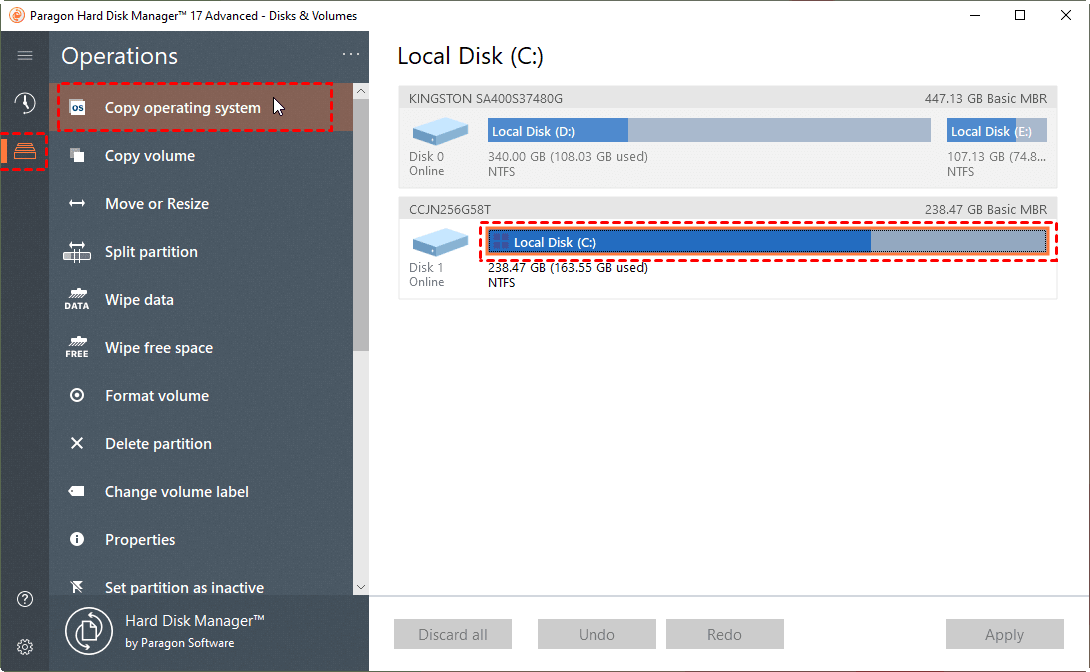
Step 2. Install and launch Paragon Hard Disk Manager. Then click Disks and volumes from the left panel.
Step 3. Click on your current system partition and choose Copy operating system in the Operations section.
Step 4. Choose the connected SSD as the destination disk.
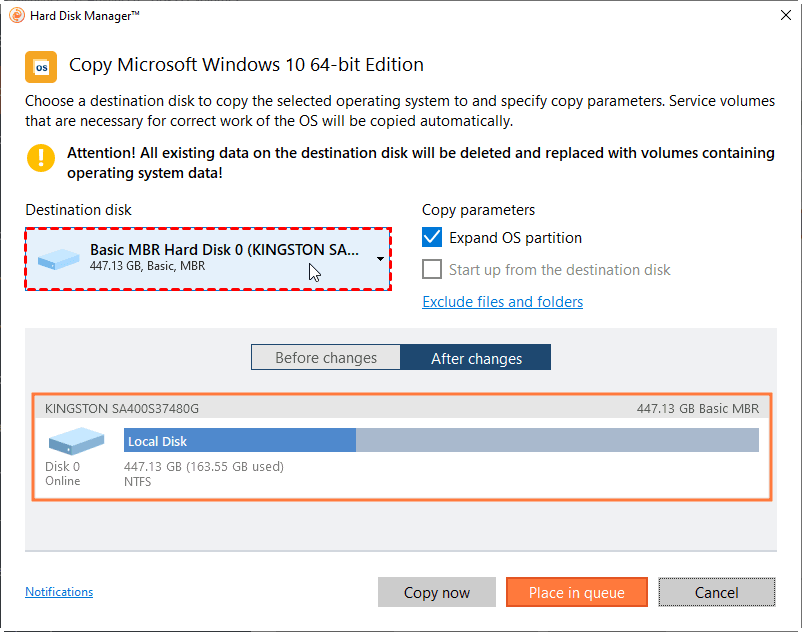
Step 5. Specify copy parameters as necessary.
- The Expand OS partition option is checked by default to expand the resulted OS partition across all on-disk space.
- If the selected disk is not enough in capacity to hold your OS, you can click Exclude files and folders to remove redundant data from the migration process.
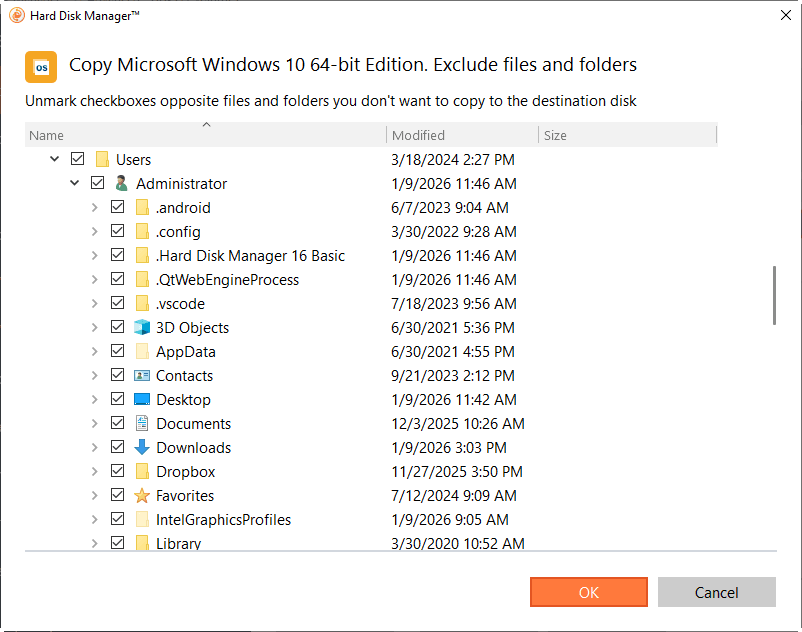
Note: We highly recommend you not to exclude system files, but those that could take plenty of disk space, like video, music, photos, etc.
Step 6. Check the resulting disk layouts at “After changes” and click Copy now to start the operation immediately.
Step 7. After the migration finishes, shut down your computer. Physically replace the old hard drive with the SSD, or enter BIOS/UEFI settings and set the SSD as the first boot device. Restart your computer and verify that Windows loads from the SSD.

Common problems when using Paragon to migrate OS
Powerful as Paragon Hard Disk Manager is, users may still encounter errors during the system migration process. Below are the most common problems and proven ways to resolve them.
1. Cloned SSD Won’t Boot After Migration
🎯 Possible causes:
- Incorrect boot mode (UEFI vs. Legacy BIOS)
- Missing or damaged EFI/System Reserved partition
- Wrong boot order in BIOS/UEFI
🛠 How to fix it:
Enter BIOS/UEFI and make sure the SSD is set as the first boot device. Check that the boot mode (UEFI or Legacy) matches the original system disk. If Windows still won’t load, use Windows installation media to run Startup Repair or rebuild boot records with automatic repair tools.
2. Target SSD Not Showing Up in Paragon
🎯 Possible causes:
- SSD is not initialized
- Connection or adapter issues
- Outdated storage or chipset drivers
🛠 How to fix it:
Open Windows Disk Management and initialize the SSD as GPT or MBR. Reconnect the drive, try a different USB port or adapter, and avoid USB hubs. Updating storage and motherboard drivers can also help Paragon detect the SSD correctly.
3. Migration Failed or Got Stuck During the Process
🎯 Possible causes:
- Bad sectors on the source disk
- Insufficient free space on the SSD
- Interference from antivirus software
🛠 How to fix it:
Run chkdsk /f /r to check and repair disk errors before migrating. Make sure the used space on the system disk is smaller than the SSD capacity. Temporarily disable antivirus and close background programs during migration.
Best alternative to Paragon to migrate to SSD
If you’re looking for a reliable alternative to Paragon Migrate OS to SSD, AOMEI Cloner stands out as one of the most effective solutions for moving your Windows operating system to a new SSD.
 AOMEI Cloner
- Flexible Migration: Choose System Clone to move just Windows and its boot partitions or Disk Clone for a full copy of your hard drive.
- Intelligent Clone (Default): Copies only used sectors, enabling transfer to smaller SSDs.
- 4K Alignment: Automatically configured to enhance SSD performance and lifespan.
- Broad Compatibility: Supports cloning between NVMe, M.2, SATA, and external drives from all major brands.
 100% Secure
Download AOMEI Cloner now and follow the instructions below to migrate OS to SSD:
Step 1. Connect the new SSD and backup data on it if it is not empty.
Step 2. Install AOMEI Cloner and run it. Choose System Clone.
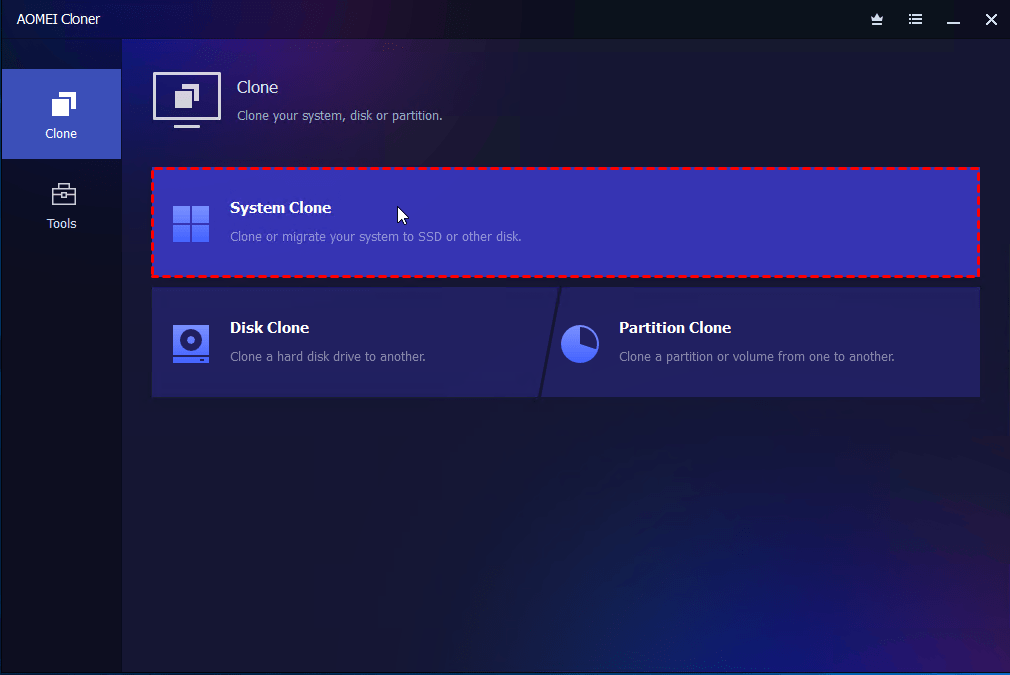
Step 3. The program automatically selects the installed OS on your computer as the source. Choose the connected SSD as the destination disk and click Next.
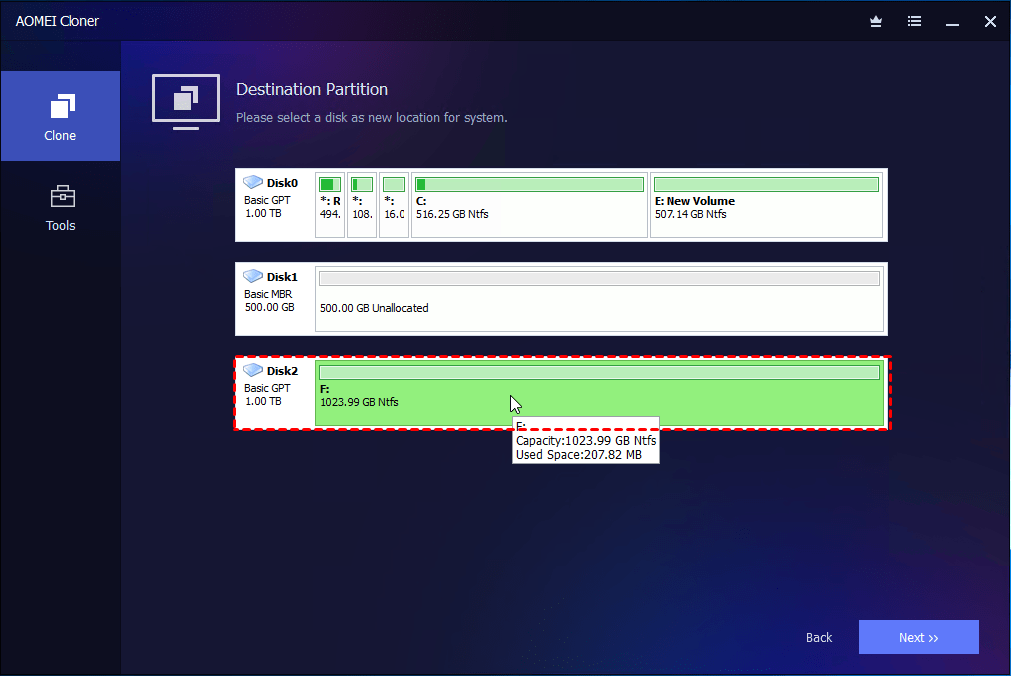
Step 4. On the System Clone Confirmation page, configure cloning options according to your situation.
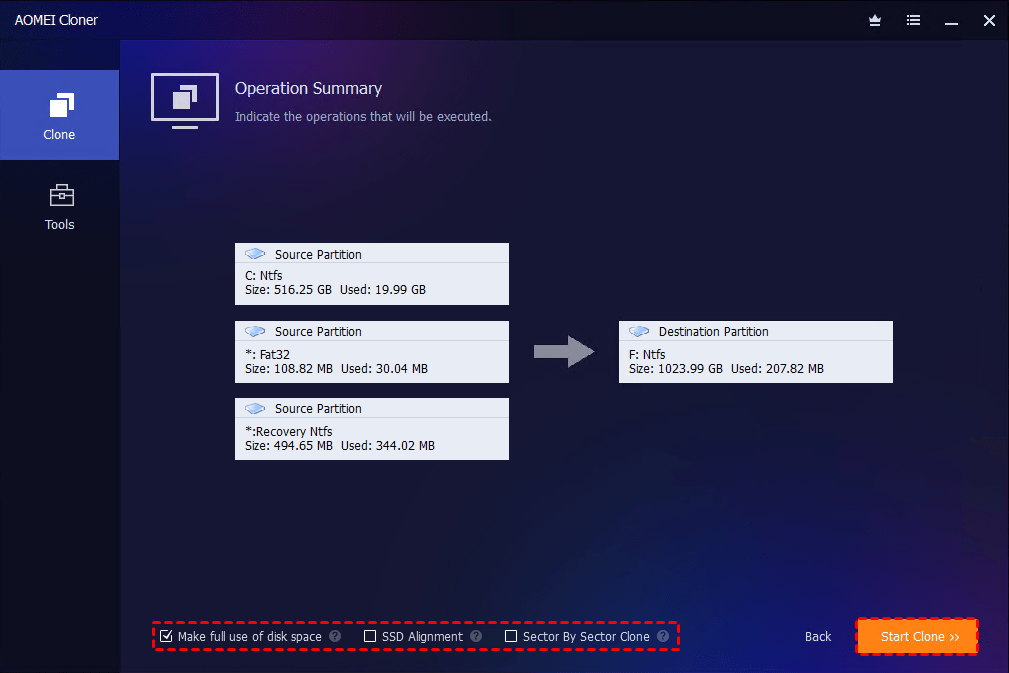
- If there’s only C drive to be cloned, you can use Edit Partitions to adjust partition size and change drive letter, etc.
- If there are multiple partitions (C drive, EFI, recovery, etc.) to be cloned and you are cloning to a larger drive, there will be an option called Make full use of disk space and it is checked by default to maximize disk space usage.
- Check SSD Alignment to optimize performance and extend lifespan of the target SSD.
Step 5. Review the summary and click Start Clone.
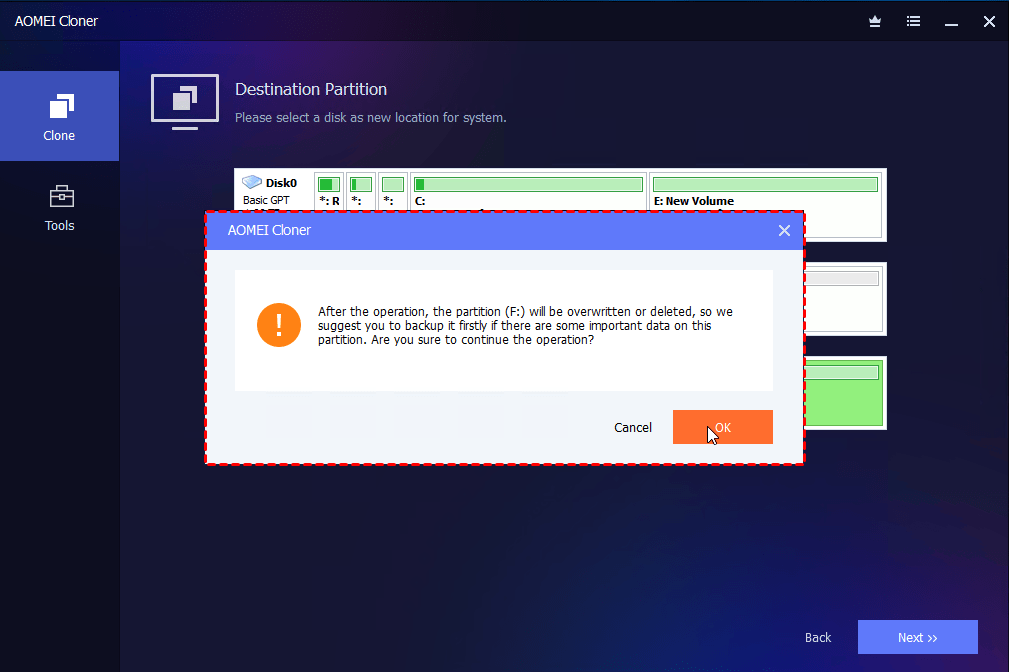
Step 6. AOMEI Cloner will display a warning that all data on the target SSD will be erased. Click Start Clone to continue, as we already made a backup before.
Step 7. After completion, replace the old drive with the SSD or change boot order in BIOS to boot from the new SSD.
To sum up
Now you know how to use Paragon to migrate OS to SSD safely. You also get solutions to common Paragon migration problems, such as boot failures, undetected SSDs, and migration stuck. If you don't want to troubleshoot one by one, you can try the best Paragon alternative – AOMEI Cloner.
It enables you to migrate OS and system files to SSD with minimal effort. What’s more, AOMEI Cloner supports various devices. You can use it to clone USB drives, HDDs, and SSDs, etc. Why not give it a shot?

 as a preferred
source on Google
as a preferred
source on Google