



How to Clone C Drive to D Drive - Full Guide
Here is how to clone C drive to D drive on Windows 10/11 with the best cloning softare - simple to use, no data loss or boot errors.

By Jonna Updated on August 10, 2026


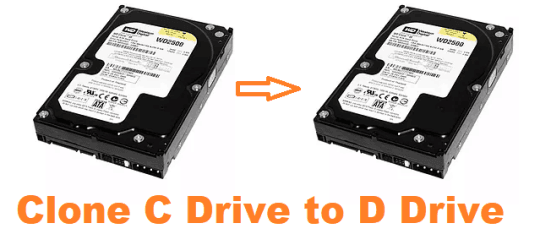
When it comes to managing storage on your computer, moving data from C drive to D drive can be a smart decision. And cloning C drive to D drive makes it simple to migrate a complete system setup to a new drive without reinstalling Windows and apps, preserving all settings and data. In this guide, we’ll walk you through how to copy C drive to D drive with ease.
Prerequisites for Cloning C Drive to D Drive
To move files from the C drive, usually involving boot files, installed programs, and sensitive data, to the D drive, and make sure all things are in place after cloning, there are some prerequisites to keep in mind.
- Sufficient space on D drive - The D drive must have equal or larger capacity than the data currently stored on the C drive. For example, if your C drive is using 500GB of space, your D drive should have at least 500GB of storage space.
- Cloning software - You'll need reliable cloning software to copy C drive to another drive. AOMEI Cloner helps simplify the process, providing you with a quick, easy, and effective way to transfer data between drives.
Best Software to Clone C Drive
Simply copying files from C drive to D drive may cause PC failed to boot. AOMEI Cloner offers a variety of features that make migrating C drive to D drive seamless and no boot errors. Here are some of the standout features of it:
 AOMEI Cloner
- Disk Clone/System Clone: It allows you to clone entire disks or only OS-related partitions, ensuring a secure boot after cloning.
- Clone to Smaller Drives or Larger Drives: It runs in Intelligent Clone by default, copying only the occupied sectors and skipping over bad ones.
- Edit Partitions: It can adjust partition size or partition style of the destination disk, so you don’t have to worry about mismatched sizes or styles.
- Wide support: It works well with HDDs and SSDs from various brands, like cloning HDD to Samsung SSD, Crucial SSD, PNY SSD, etc.
 100% Secure
How to Clone C Drive to D Drive
Here is a detailed guide on how to clone your C drive to your D drive using AOMEI Cloner.
Step 1. Prepare C Drive for Cloning
Before you begin cloning, it’s important to prepare your C drive for the process. Here’s what you need to do:
👉Free up space on the C drive
You can do this by removing unnecessary files, uninstalling unused programs, or transferring large files to another drive to free up some space to ensure a smooth and quick cloning process, especially if there is not enough space on the D drive.
👉Check the disk health
Run a disk check on your C drive to make sure there are no errors or bad sectors that could cause issues during the cloning process. You can do this by going to “This PC,” right-clicking on the C drive, selecting “Properties,” then clicking on the “Tools” tab and selecting “Check.”
👉Close unnecessary applications
Close all open applications and files to ensure that no data is being modified during cloning. This will also help speed up the cloning process. You could also try WinPE disk clone to enjoy a cleaner, faster, and safer cloning.
Step 2. Run the Cloning Software
Now that you’ve prepared your system, it’s time to run the cloning software. Follow these steps to clone your C drive to your D drive using AOMEI Cloner.
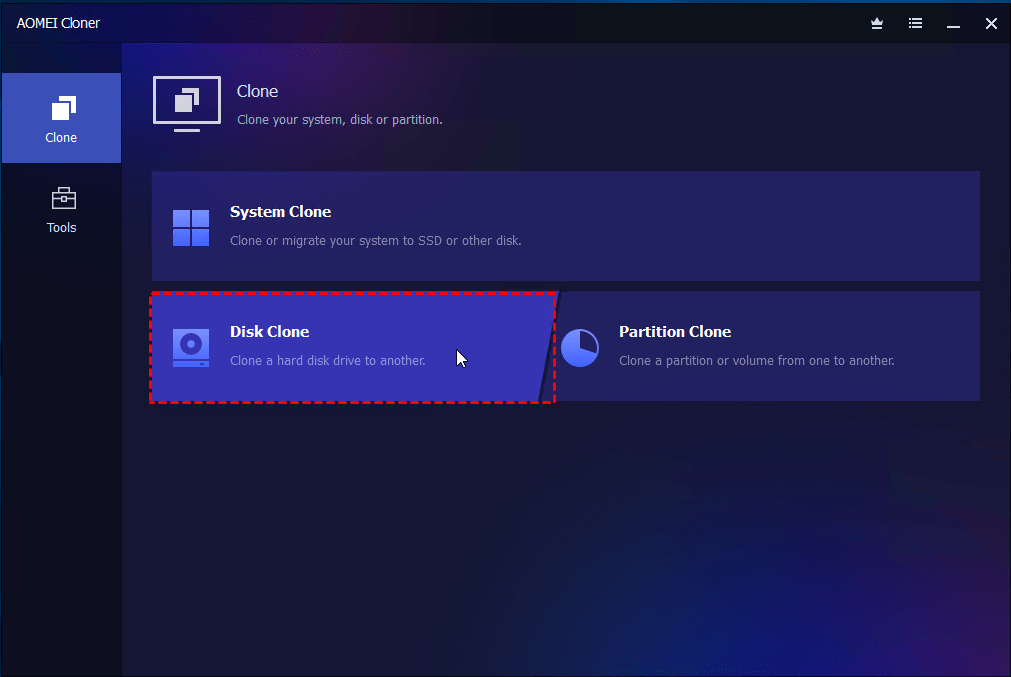
Step 1. Install AOMEI Cloner and select Disk Clone option from the left menu.
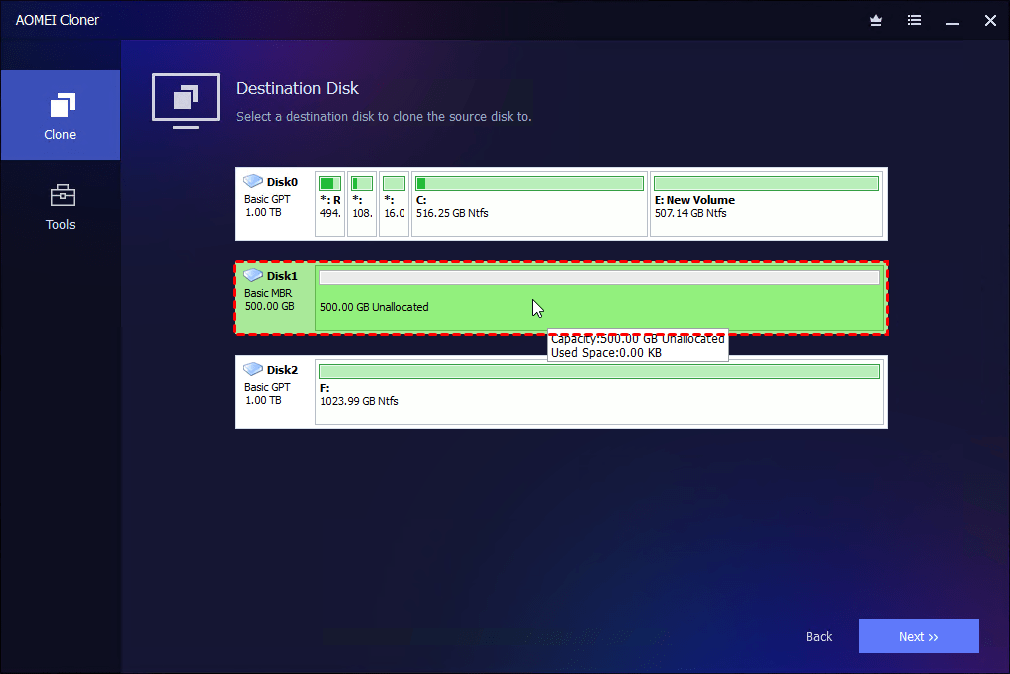
Step 2. Click Select Source Disk to select your C drive as the source disk, and then click Select Destination Disk to choose D Drive as the destination disk.
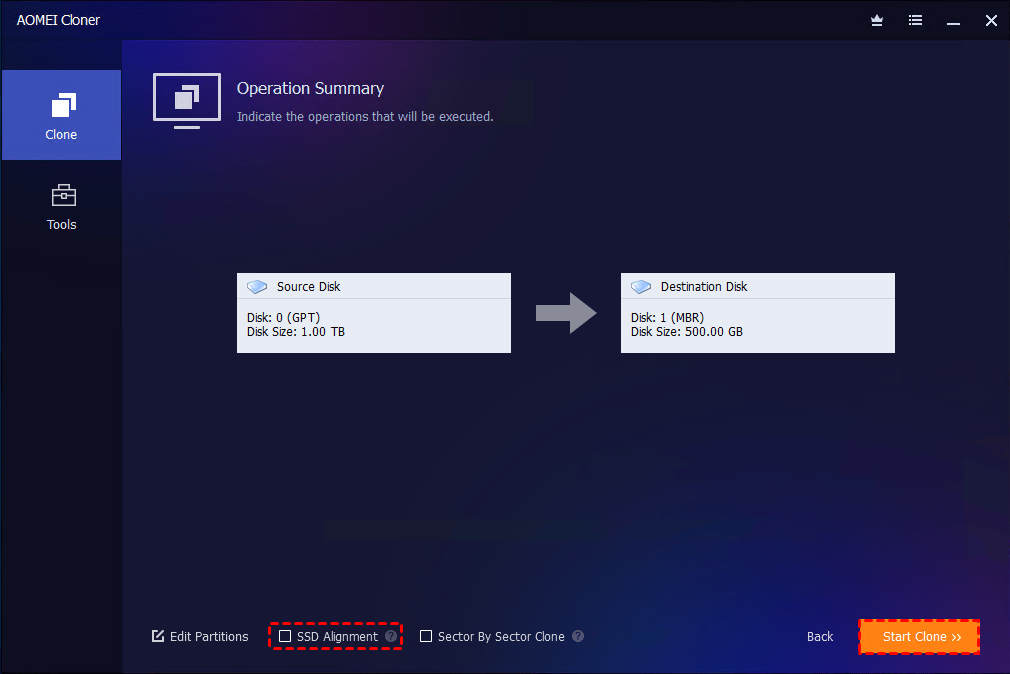
Step 3. Configure more cloning options as needed and click Start Clone.
- Edit Partitions: Adjust partition size or convert disk partition styles (one MBR, one GPT)as needed.
- SSD Alignment: If the D drive is an SSD, use this option to improve the read and write speed of the SSD as well as prolong its service life.
- Sector By Sector Clone: Clone every sector, including empty ones. Do NOT check this option if the D drive is smaller or there are bad sectors on C drive.
Step 3. Boot the PC from D drive
Once the cloning process is complete, you will need to boot your PC from the D drive to make sure everything works correctly. Please proceed with these steps:
Step 1. After the cloning is done, power off your computer completely.
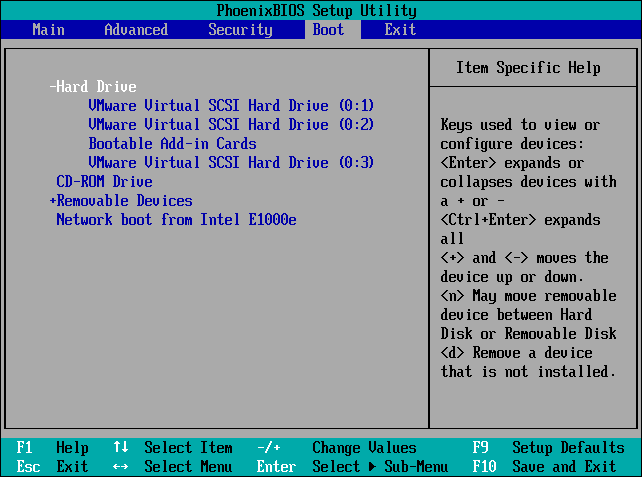
Step 2. Restart the computer, enter BIOS/UEFI using the F2, F12, DEL, ESC, or F10 key during startup, then navigate to the Boot Order or Boot Priority section.
Step 3. Locate the D drive in the boot device list, and move it to the top. Then, save changes and exit.
FAQs on Copying C Drive to D Drive
1️⃣ What to move from C drive to D drive?
To make sure that you can boot up from D drive smoothly, all system-related parts should be cloned to avoid boot failures (with System Clone on AOMEI Cloner). If you wish to move all data like media files (videos, images, music), games or software installations, and downloads folder, just go with Disk Clone instead.
2️⃣ How to transfer everything from C to D drive?
To transfer everything from C drive to D drive, you will need to clone the entire drive. This process ensures that the OS, applications, and all files on the C drive are copied to the D drive, including system settings.
3️⃣ How to make D drive the main drive?
To make your D drive the main drive, follow these steps:
- Change Boot Order in BIOS: Enter the BIOS settings and change the boot order so that the D drive is listed as the first boot device.
- Disconnect C Drive: If you want to ensure the D drive is used exclusively, disconnect the C drive.
Summary
That’s all about how to clone C drive to D drive. With AOMEI Cloner, you can choose to copy entire drive or move only Windows OS. Both of them ensure a secure boot after cloning. Also, you can try this tool to clone C drive to external hard drive. Just download it to have a try!

 as a preferred
source on Google
as a preferred
source on Google