




Acronis Failed to Read from Sector | Causes & Fixes
With 6 useful methods, you can easily fix the Acronis failed to read from sector error, along with step by step instructions. Replace hard drive if necessary! Scroll down to learn more.

By Ivy Updated on September 18, 2026


What Does “Acronis Failed to Read from Sector” Mean?
The error message “Acronis failed to read from sector” indicates that Acronis was unable to access specific sectors of your hard drive while performing a backup or cloning operation. A sector is the smallest storage unit on a disk, and when even one of these sectors becomes unreadable, backup software may pause or stop to prevent data corruption.
Usually, these sectors are physically or logically damaged or become inaccessible due to file system errors. This indicates underlying disk problems, but not always to an immediate failure. Thus, there is still a chance to complete the backup or cloning operation.

Common Causes of the Acronis Failed to Read from Sector Error
Understanding the root cause is critical for choosing the right fix to “Acronis failed to read data from the disk” and preventing permanent data loss.
|
Bad Sectors or Physical Damage |
The most frequent cause of this error is bad sectors on a hard drive resulting from physical damage, such as unexpected power loss or shock, or wear over time. Once occurs, they usually continue to spread, making this error a strong warning sign of an imminentdrive failure. |
|
File System Error |
Even if the disk hardware is healthy, file system corruption (e.g., inconsistent metadata) can prevent Acronis from reading certain sectors correctly. This can be caused byimproper shutdowns, system crashes, software conflicts, malware infections, interrupted read/write operations, etc. |
|
Faulty Cables, Ports, or External Drives |
Sometimes the problem has nothing to do with the disk itself. Unstable connections (e.g., damaged USB cablesor ports, failing SATA controllers, low-quality disk enclosures, etc) are a common and overlooked cause of sector read failures. |
|
Outdated Software or Drivers |
Running an outdated version of Acronis True Image or using obsolete storage drivers can also produce sector read errors. Newer drives and modern file systems may not be fully compatible with older software builds, causing false read errors even when the drive is healthy. |
How to Fix Acronis Failed to Read from Sector Step by Step
Here are some useful methods to fix the Acronis failed to read from sector error.
#1: Run Disk Check to Repair Errors
The Windows CHKDSK utility scans the file system and repairs logical errors that often trigger sector read failures.
Step 1. Type cmd in the Start menu and select Run as administrator.
Step 2. Type chkdsk C: /r command and press Enter. Replace C: with the drive letter that Acronis is failing to read.
Step 3. When prompted to schedule the scan on the next reboot, type Y and restart your computer.
#2: Try Dedicated Diagnostic Utility
Sometimes, this may not work. You can consider using a dedicated diagnostic utility from disk manufacturers to complete the check. They usually take the longest time but offer the most accurate assessment for disk status - whether it’s good or needs replacement.
- Western Digital drives: Data Lifeguard Diagnostic for Windows
- Seagate disks: SeaTools for Windows
- HGST disks: HGST Windows Drive Fitness Test (WinDFT)
- Samsung drives: Samsung Magician
- ADATA drives: ADATA SSD ToolBox
- Kingston SSDs: Kingston SSD Manager
- Transcend SSDs: Transcend SSD Scope
- Silicon Power disks: SP ToolBox
- Toshiba disks: Toshiba PC Diagnostic Tool Utility
#3: Backup Only Used Sectors of a Drive
Acronis offers users a Sector-by-sector mode to force read every sectorof a drive, whether it’s damaged or unused sectors. You can choose to uncheck it to ignore bad sectors.
Step 1. Open Acronis True Image. Click Backup in the left sidebar.
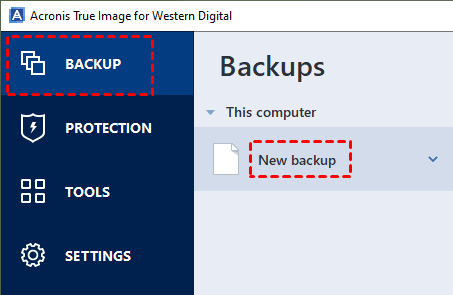
Step 2. Select the source and destination disks one after another.
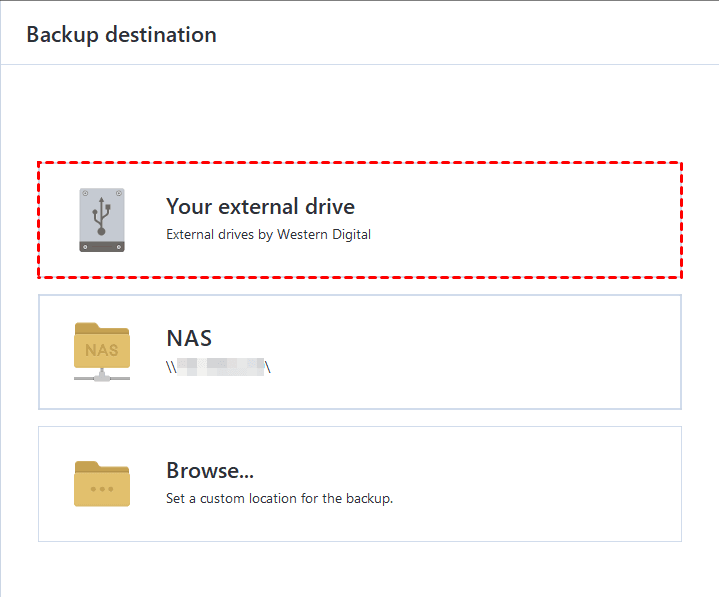
Step 3. Click Options >Advanced >Backup method and uncheck Sector-by-sector backup. It will skip unreadable sectors during backup. You can also click Error handling under Advanced and enable Ignore bad sectors for extra security.
Step 4. Confirm the backup settings and click Start Backup.
#4: Update Acronis True Image
Outdated software can miscommunicate with modern disks and trigger false read errors.
Step 1. Open Acronis True Image and click Help > Check for updates.
Step 2. Download and install the latest version of Acronis True Image if there is a newer version.
#5: Update Disk Drivers
Outdated drivers alsotrigger false read errorssometimes.
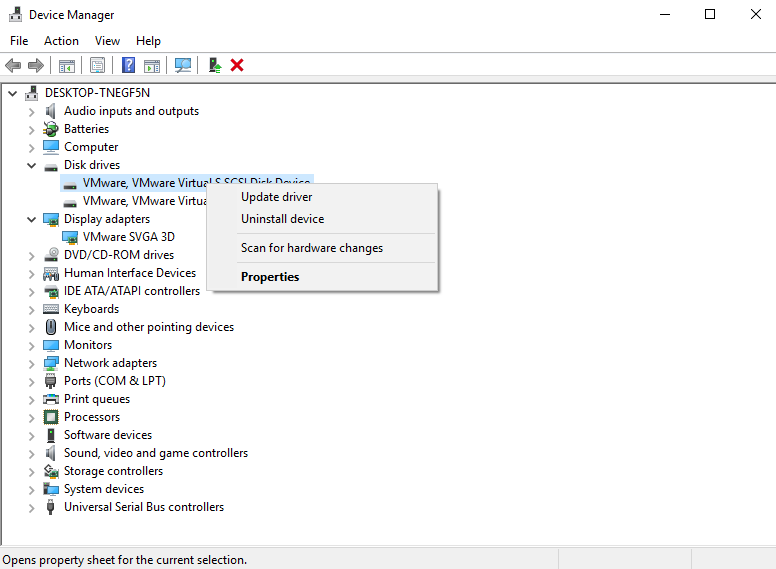
Step 1. Open Device Manager. Expand Disk drives, right-click the drive Acronis fails to read, and select Update driver.
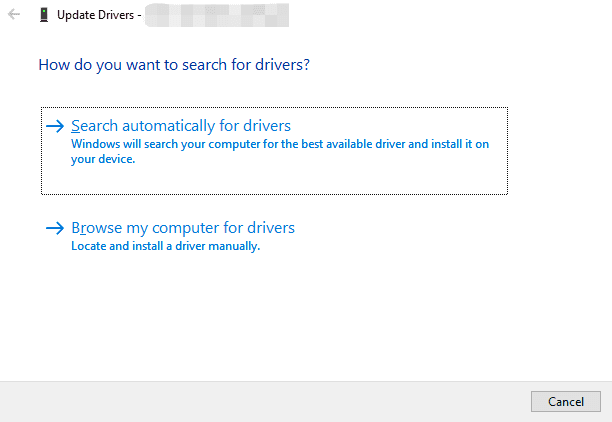
Step 2. Click Search automatically for driver. It will try to find and install the best available driver on the disk.
Step 3. Expand Storage controllers, right-click the device, and select Update driver. Click Search automatically for driver again.
Step 4. Restart your system to save changes and try again.
#6: Check Disk Health using SMART Tools
SMART data reveals whether the drive itself is physically failing.
Step 1. Download and install the disk monitoring tool, CrystalDiskInfo.
Step 2. Open it and let it automatically scan all connected drives. It will display the health status in different colors:
- Blue indicates good
- Yellow is caution
- Red for bad
You can also check the Reallocated Sector Count and Read Error Rate to decide if the drive is failing. Immediately backup files to external hard drive and replace the drive if its health is in caution or bad.
When to Replace a Failing Hard Drive
It’s time to replace a failing hard drive when you repeatedly receive read errors, the SMART status shows Caution or Bad, the Reallocated Sector Count continues increasing, the system becomes slow, etc. Cloning hard drive with bad sectors is a fast method to replace it, while reliable cloning software is crucial.
Best Software for Cloning Hard Drive with Bad Sectors
Acronis offers users a Sector-by-Sector clone mode to copy everything, including bad sectors, but you may not want this. If your drive has many bad sectors, it’s going to fail. The bad sectors will continue to spread. We recommend using professional hard drive cloning software - AOMEI Cloner.
 AOMEI Cloner
- By default, bad sectors are skipped when cloning a hard drive as it uses intelligent clone method automatically.
- Optionally select a system clone or disk clone based on your needs.
- Include all data, OS, and boot-related partitions, making cloned drive bootable.
- Align the SSD to accelerate the reading and writing speed.
- Clone and resize partitions of a new, larger drive automatically and convert MBR to GPT (with different partition styles).
- Support all major disk brands and types, making it possible to clone hard drive to SSD, clone 2.5 SSD to m.2 SSD, clone PCIe SSD, etc.
 100% Secure
How to Safely Clone Hard Drive with Bad Sectors
💡 What Do You Need:
◾ Prepare a new hard drive or SSD, preferably larger.
◾ Get a proper adapter or enclosure to connect the drive.
◾ Download the best HDD/SSD cloning software - AOMEI Cloner.
Step 1. Connect the new drive to your motherboard or using M.2 adapter. Then, open AOMEI Cloner after installing, click Disk Clone.
Step 2. Click Select Source Disk and Select Destination Disk to choose hard drive with bad sectors and the new drive, respectively. Click Next after each selection.
Step 3. Uncheck Sector by Sector Clone to avoid cloning bad sectors. Check SSD Alignment to boost SSD performance (if it is) and click Start Clone to clone hard drive with bad sectors.
⚠️Note: By default, the Add unused space to all partitions in Edit Partitions is automatically checked to resize the new, larger drive, preventing the cloned hard drive show wrong size error. Optionally, convert MBR to GPT to boot a UEFI system.
Final Thoughts
The Acronis failed to read from sector of disk 1 error usually indicates your disk has bad sectors or file system errors, you can try the above methods to fix it effectively. If the MART status shows Caution or Bad, Reallocated Sector Count continues increasing, etc., it’s suggested to replace hard drive with a new one.

 as a preferred
source on Google
as a preferred
source on Google