




This Folder Protects Against Ransomware OneDrive: Solved!
Is OneDrive showing a "This folder protects against ransomware" message? This easy guide explains why it pops up and shows you how to fix it without losing any of your files.

By Lily Updated on April 29, 2026


OneDrive Sync Error: “This Folder Protects Against Ransomware”
The warning “This folder protects against ransomware OneDrive” typically appears when Windows Security detects an application trying to modify files inside protected folders. While this protection is designed to block ransomware attacks, it can sometimes interfere with normal OneDrive syncing activities. Below are some common situations that can trigger this warning.
1. OneDrive Not Explicitly Allowed
Even though OneDrive is a trusted Microsoft service, it still needs to be explicitly allowed through Controlled Folder Access.
2. Syncing Protected Folders
If OneDrive syncs files in protected directories (e.g., Documents, Desktop, Pictures), Windows may block modifications until it verifies the app is safe.
3. OneDrive Updates
After an update, Windows may temporarily treat the new version as an unrecognized app, triggering a protection warning.
4. Third-Party Security Conflicts
Other antivirus tools may interfere with Windows Security policies, blocking OneDrive's access or causing sync errors.
How to Fix “This Folder Protects Against Ransomware OneDrive”
To fix the sync error “This folder protects against ransomware”, there are 3 effective solutions.
Fix 1: Allow OneDrive through Controlled Folder Access
If you see the “This folder protects against ransomware OneDrive” warning, the most effective solution is to allow OneDrive through Controlled Folder Access. Follow the instructions below:
Step 1. In the search box, type Windows Security and press Enter.
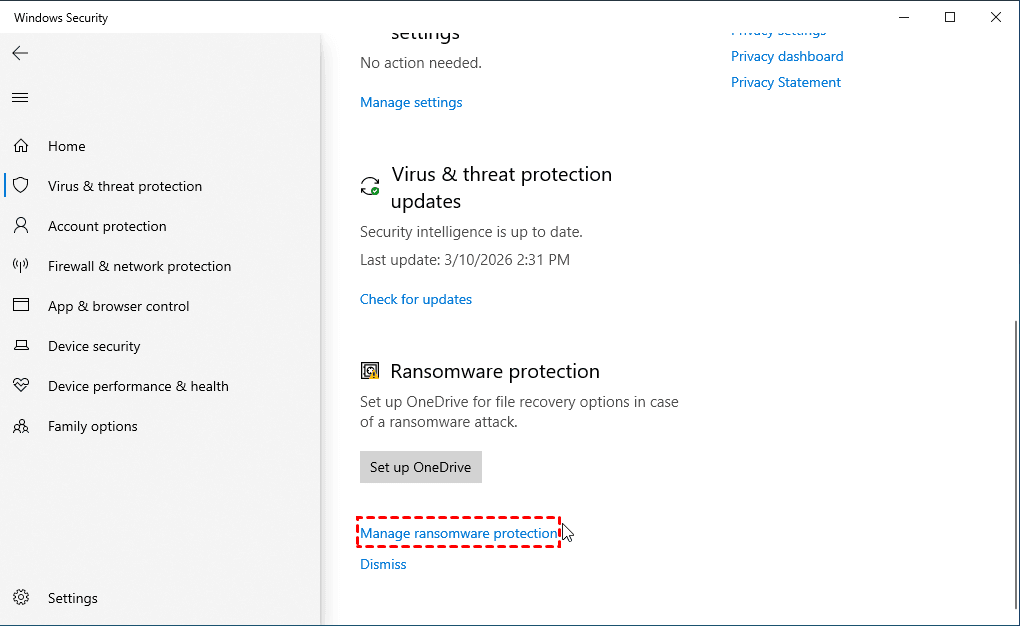
Step 2. Click Virus & threat protection. Scroll down to Ransomware protection and click Manage ransomware protection.
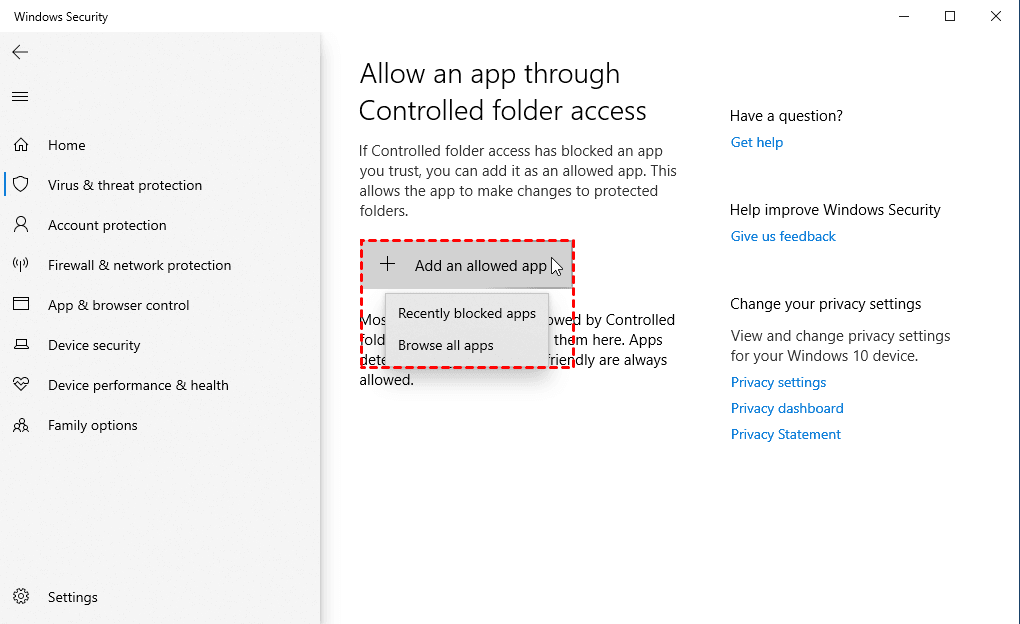
Step 3. Under the Controlled folder access feature, click Allow an app through Controlled folder access.
Step 4. Click Add an allowed app and select Recently blocked apps.
Step 5. Look for onedrive.exe in the list. Click the + (plus) sign to add it.
Step 6. After allowing OneDrive, restart the application and check whether your files sync correctly.
Fix 2: Allow OneDrive in Antivirus
If you have a third-party antivirus installed (like Bitdefender, McAfee, Norton, or Kaspersky), it usually takes over the "Ransomware Protection" duties from Windows Defender. Take Bitdefender as an example. Learn how to unblock OneDrive in Bitdefender below:
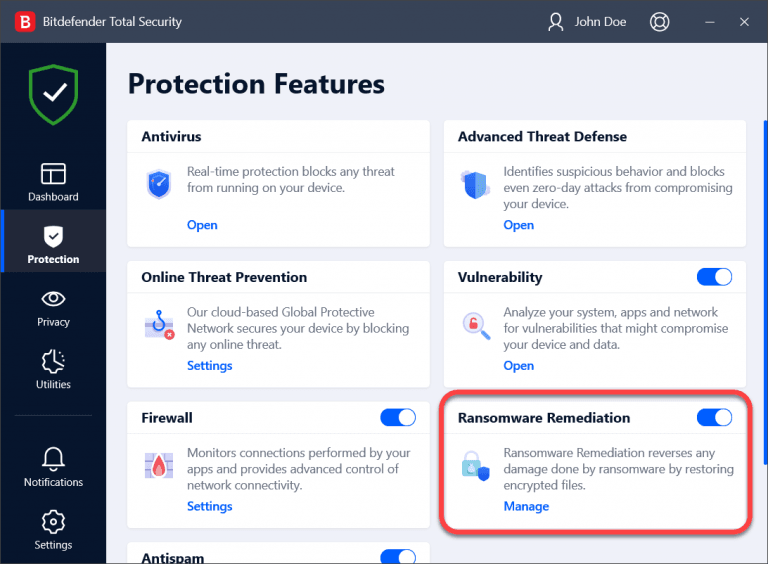
Step 1. Open the Bitdefender interface and go to Protection on the left-hand menu.
Step 2. In the Ransomware Remediation pane, click Manage.
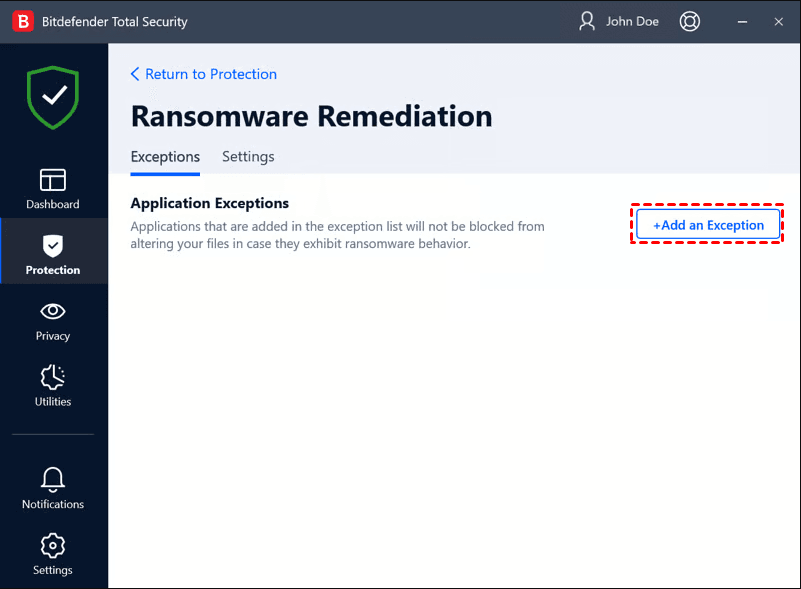
Step 3. Go to the Exceptions tab and click + Add an Exception.
Step 4. Navigate to the executable file of OneDrive, select it, then click on OK to add it as an exception.
Fix 3: Check OneDrive's "PC Folder Backup"
If the error is happening inside OneDrive settings, it might be because your system folders (Documents, Pictures, Desktop) are already being protected by another service or have permission conflicts. Here’s how to fix it:
Step 1. Click the OneDrive icon in your system tray, and select Help & Settings > Settings.
Step 2. In the OneDrive settings, go to Sync and backup > Manage backup.
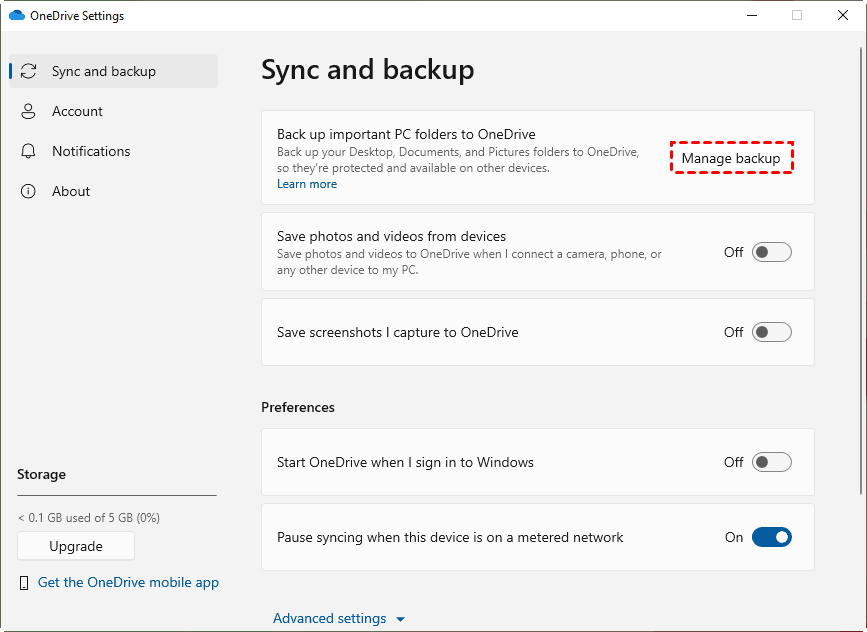
Step 3. If a folder says "Protected," try toggling it off and back on to reset the link.
Tips to Prevent OneDrive Ransomware Issues in the Future
After fixing the “This folder protects against ransomware OneDrive” warning, it’s important to take preventive measures to avoid similar issues in the future. Here are some effective measures:
1. Keep Windows Security and OneDrive Updated
Regular updates ensure that both Windows Security and OneDrive run with the latest security improvements and bug fixes. Outdated software may cause compatibility problems with ransomware protection features. To stay protected:
- Enable automatic Windows updates.
- Update the OneDrive client regularly.
- Restart your system after major updates to apply new security settings.
2. Avoid Untrusted Applications
Ransomware often enters systems through unknown software, suspicious downloads, or malicious email attachments. Installing unverified applications may trigger security warnings and compromise file safety. To reduce risks:
- Download software only from official websites or trusted sources.
- Avoid opening unknown email attachments.
- Run regular antivirus scans on your system.
3. Maintain Regular Backups
Although OneDrive provides cloud syncing and version history, it should not replace a dedicated backup strategy. If ransomware encrypts your files before syncing, the encrypted files may also be uploaded to the cloud.
AOMEI Backupper Professional is a comprehensive backup and recovery tool designed to protect systems and files from data loss and ransomware threats.

 AOMEI Backupper
- Multiple Backup Types – System, disk, partition, or file-level backups to match your needs.
- Automatic Scheduling – Daily, weekly, or monthly backups for continuous protection.
- Multi-Destination Storage – Save to external drives, NAS, or network locations to evade ransomware.
- Flexible Recovery – Quickly restore files, system, or entire disk after infection or failure.
- Built-in Ransomware Protection – Shield backup files and critical folders from unauthorized encryption.
 100% Secure
After creating backups with AOMEI Backupper, you can protect backups from ransomware using these steps:
Step 1. Run AOMEI Backupper. Click Tools > Ransomware Protection.
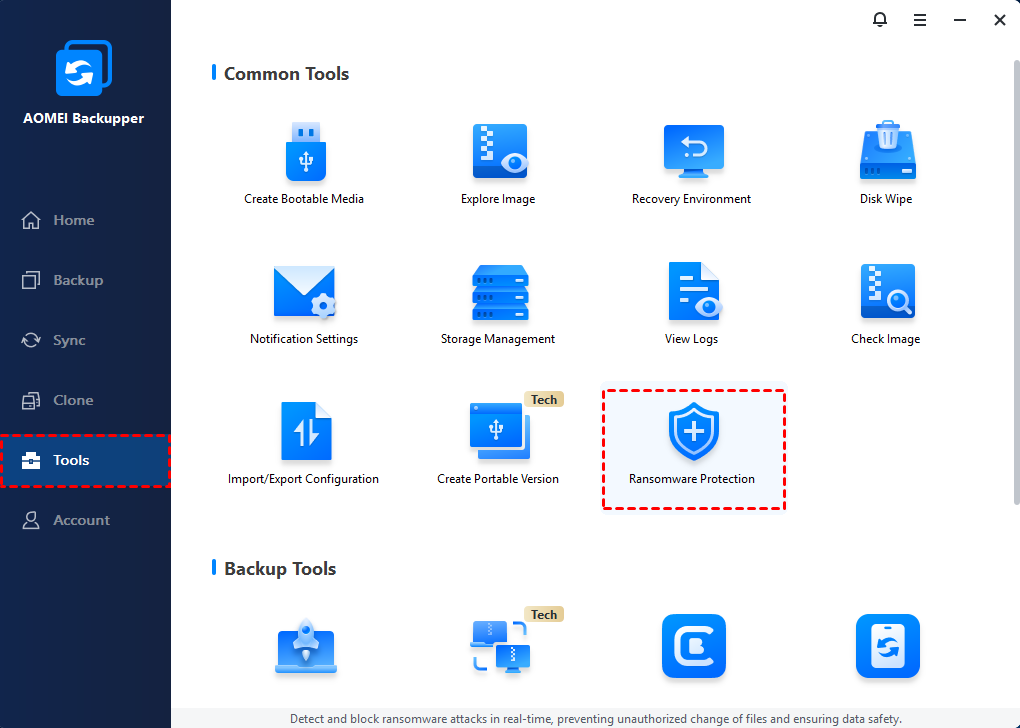
Step 2. In the pop-up window, toggle on the Enable Ransomware Protection switch.
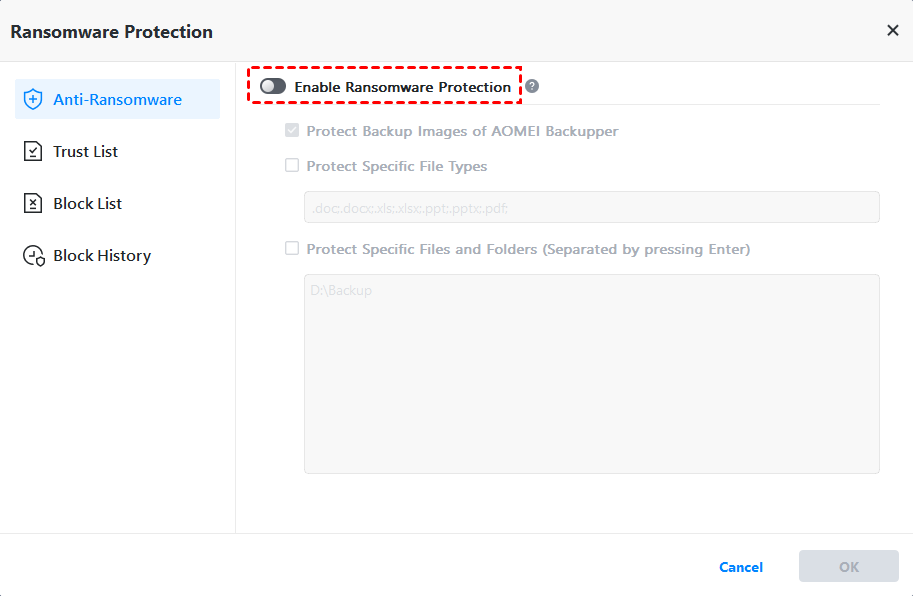
Step 3. The option Protect Backup Images of AOMEI Backupper is checked by default, keeping the image files created by AOMEI Backupper protected.
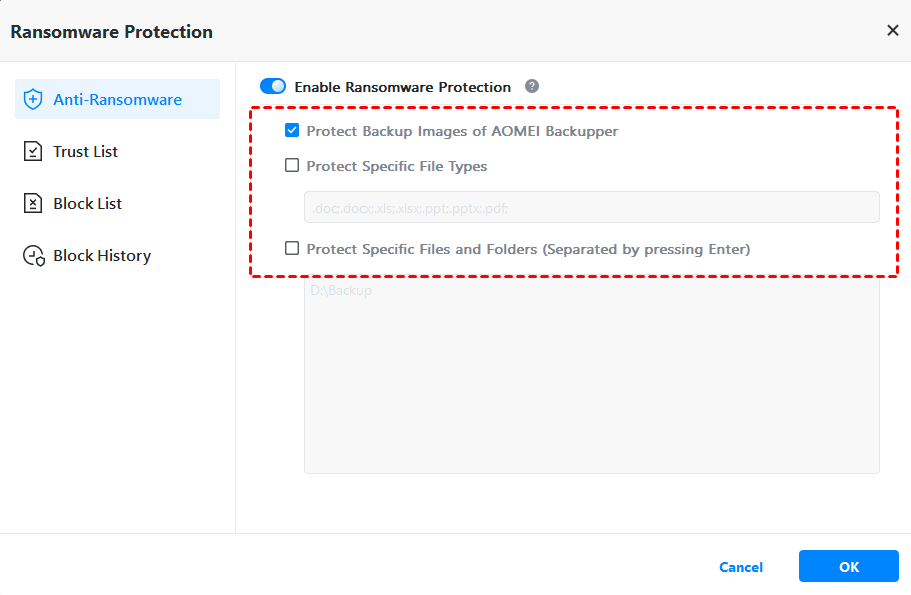
💡 Note: To protect backups created by other backup tools, you can check Protect Specific File Types to add the corresponding backup file extensions.
Step 4. Confirm your settings and click OK.
To Sum Up
This article explains why the “This folder protects against ransomware OneDrive” warning appears and how to fix the issue. It also provides practical ways to prevent OneDrive ransomware issues in the future.
The most reliable defense against ransomware is to combine ransomware protection with a secure backup strategy. AOMEI Backupper enables you to perform Windows backup and restore easily and it is also embedded with the Ransomware Protection feature. Don’t hesitate to try it out!

 as a preferred
source on Google
as a preferred
source on Google