




[Fixed] Remediation Incomplete Windows Defender
With 6 simple and effective solutions, you can easily fix the Remediation Incomplete error in Windows Defender. Combine it with AOMEI Ransomware Protection for better defense.

By Ivy Updated on May 6, 2026


What Does Remediation Incomplete Mean in Windows Defender?
When you see the “Remediation Incomplete” status in Windows Defender, it means the security tool has detected a threat but was unable to fully remove or resolve it. While the system may have taken initial action, such as quarantining or attempting deletion, some part of the threat remains on your device. This can leave your system partially exposed and requires further action to ensure complete protection.
Common warning messages you may see:
- “Remediation incomplete”
- “Threat not fully removed”
- “Action needed” or “Incomplete cleanup”
- “Error during remediation”
These warnings typically appear in the Protection History section of Windows Security and indicate that the threat still requires attention. Ignoring them may allow the issue to persist or reappear later.
Main Causes of the Windows Defender “Remediation Incomplete” Error
The “Remediation Incomplete” error in Windows Defender usually points to underlying issues that prevent the system from fully removing a detected threat. Understanding these root causes can help you choose the right fix and avoid repeated security warnings.
- The infected files are still in use or locked by the system.
- Windows Defender has insufficient Permissions to delete or modify certain files, typically system files or files located in protected directories.
- Some malware hides deep within the system or splits into multiple components, potentially leaving behind corrupted or hidden residual files.
- Outdated virus definitions prevent Microsoft Defender from fully detecting or handling new threats, especially with evolving malware variants.
- Interference from third-party security tools, such as quarantining files independently, or interfering with system access, etc.
How to Fix Remediation Incomplete in Windows Defender
When Windows Defender reports “Remediation Incomplete” it means a threat was detected but not fully removed. This usually happens when malware is deeply embedded, actively running, or protected by the system. To resolve it, you need to bypass these limitations and perform a deeper cleanup.
Fix 1: Run Microsoft Defender Offline Scan
A Microsoft Defender Offline Scan is designed to remove stubborn or hidden threats that cannot be handled during a normal system scan. It will restart your computer and scan your system in a secure environment before Windows fully loads. It is especially useful when:
- The same threat keeps reappearing after removal.
- Defender repeatedly shows “Remediation Incomplete”.
- Suspicious behavior continues despite previous scans.
Step 1. Open Windows Security from the Start menu. Click Virus & threat protection.
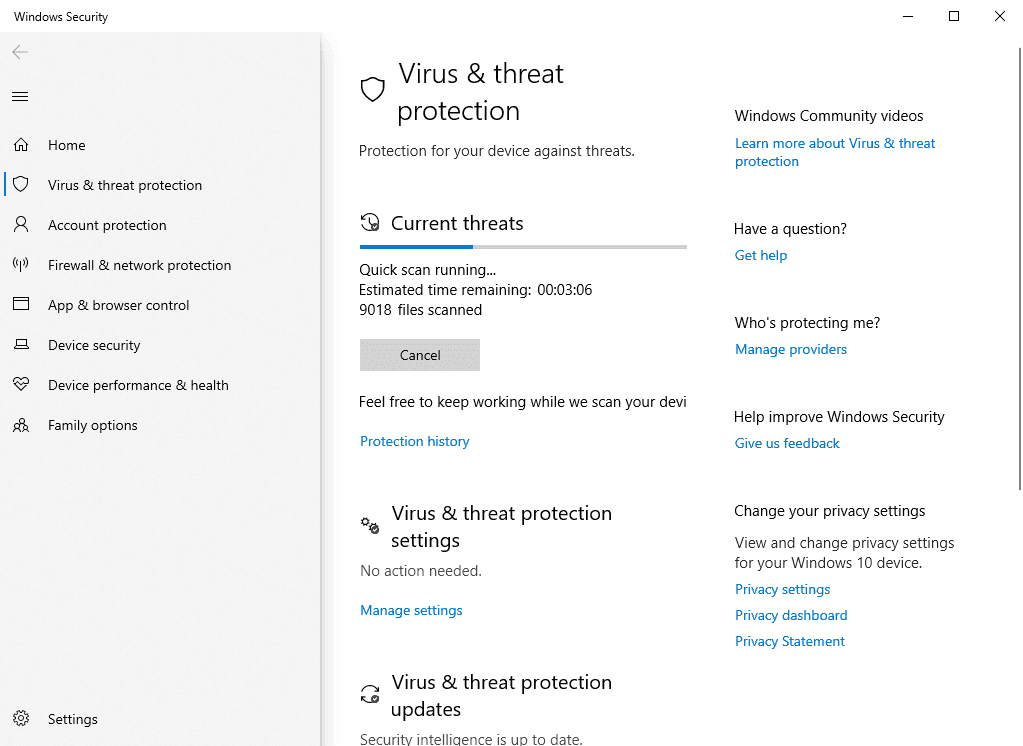
Step 2. Click Scan options.

Step 3. Select Microsoft Defender Offline scan and click Scan now.
Fix 2: Restart Your System and Re-run the Scan (Only First Remedition Incomplete)
Restarting your computer is a simple but effective way to fix the “Remediation Incomplete” issue. Many threats cannot be fully removed because they are actively running or locked by system processes. A restart stops these processes and releases any locked files.
Step 1. Save your work and restart your computer. After reboot, open Windows Security. Then, go to Virus & threat protection.
Step 2. Click Scan options.
Step 3. Select Full scan and click Scan now.
Fix 3: Manually Remove the Detected Threat File
If Windows Defender cannot fully remove a threat, you can manually delete the leftover files in the Protection History. It works best when:
- Defender quarantined the file but left remnants.
- The threat is hidden in a specific folder.
- Automatic removal fails repeatedly.
Step 1. Open Windows Security and go to Virus & threat protection.
Step 2. Click Protection History and find the detected threat. Note the file location of the threat.
Step 3. Navigate to the folder in File Explorer. Delete the file manually, usually requiring administrator permissions.
Fix 4: Boot into Safe Mode for Deep Malware Removal
When you boot Windows into Safe Mode, only the most essential drivers and services start up. This stops most malware from loading and running in the background, so Windows Defender can scan and clean infections more thoroughly and effectively.
Step 1. Press Win + R to open the Run box. Type msconfig and press Enter to access System Configuration.
Step 2. Under the Boot tab, scroll down to Boot options. Then, check Safe boot and select Minimal (or Network if you need internet).
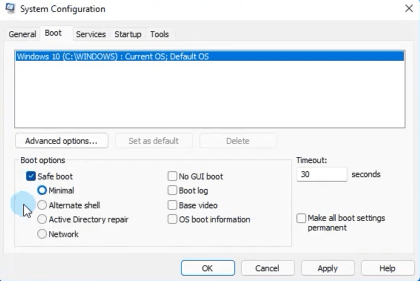
Step 3. Click OK and Restart. Your computer will start in Safe Mode. Afterward, perform a Full Scan or Microsoft Defender Offline Scan in Windows Defender for the best results
Fix 5: Run SFC and DISM
Sometimes, Windows Defender fails to complete remediation because system files are corrupted or missing. Running SFC (System File Checker) and DISM (Deployment Image Servicing and Management) can repair these files, ensuring Defender works properly.
Step 1. Type cmd in the Start menu, right-click it, and select Run as administrator.
Step 2. In the Command Prompt window, type SFC and DISM commands respectively.
- DISM /Online /Cleanup-Image /RestoreHealth
- sfc /scannow
- exit
Step3. After completion, restart your computer. Perform a Full Scan or Microsoft Defender Offline Scan to check if remediation now completes.
Fix 6: Clear Scan History (as Last Resort)
Sometimes, Windows Defender repeatedly shows “Remediation Incomplete” even after threats have been removed. One reason is corrupted or overloaded scan history logs. Clearing the scan history can stop these repeated warnings.
Step 1. In File Explorer, right-click Quick Access and go to Options.
Step 2. Under the View tab, check Show hidden files, folders, and drives. Click Apply, then OK.
Step 3. Navigate to the Defender scan history folder, right-click the Service folder, and select Delete. Click Continue if prompted for permissions.
C:\ProgramData\Microsoft\Windows Defender\Scans\History\Service
Protect Your OS and Files Beyond Windows Defender with AOMEI Backupper
Windows Defender helps scan your system and detect suspicious files, but it fails sometimes, displaying error messages, such as remediation incomplete, can’t restore quarantined files, etc., which makes users frustrated. Is there a better way to protect the OS and data on it?
Sure, backup is always the best practice for protecting your OS and data. AOMEI Backupper Professional is a complete backup software for Windows that allows you to backup system, disk, OS, files, etc., automatically.
In addition, it still features a Ransomware Protection tool that can continuously monitor disk I/O activity, thereby protecting backups and critical data from deletion, encryption, or tampering. Any detected abnormal behavior will result in a ban.
- You need to create at least one backup task before enabling Ransomware Protection.
- You can enable schedule backup, incremental backup, backup scheme, etc., during backup, greatly saving backup time and space while keeping multiple backup versions.
- For safety, it’s best to save backup images to multiple storage, such as an external drive, NAS, or network share, etc.
Step 1. Open AOMEI Backupper Professional after installing. Under the Tools tab, click Ransomware Protection.
Step 2. Toggle the Enable Ransomware Protection tab. The option to protect backup image created by AOMEI Backupper is automatically checked. To enhance data security, specify frequently used file types, or crucial files or folders, such as C:\Program Files (x86), C:\ProgramData, etc., to be protected.
Once enabled, you’ll be asked to add apps to trust or block list. Check the specific app and click Add to Trust List or Add to Block List. Or click Ignore.
Step 3. Switch to the Trust List, Block List, Block History, and manually configure them. In the Block History window, you can choose to clear block history, add to trust list, or add to block list.
How to Prevent Windows Defender Remediation Incomplete Issues
Preventing the “Remediation Incomplete” error in Windows Defender is easier than fixing it. By keeping Windows Defender and your system well-maintained, you can reduce the chances of threats lingering or scan failures.
Keep Microsoft Defender Updated at All Times
Always ensure that Defender’s virus definitions and software updates are current. New malware variants are constantly emerging, and outdated definitions may fail to detect or remove threats completely.
- Turn on automatic updates for Windows Security.
- Check for updates manually. Go to Windows Security > Virus & threat protection > Protection updates.
- Update regularly, especially after connecting to the internet or external drives.
Avoid Running Conflicting Security Software
Running multiple antivirus or security tools simultaneously can create conflicts. Other programs may block Defender from removing threats or accessing certain files, leading to incomplete remediation.
- Use only one primary antivirus at a time.
- If using additional security software, configure it to exclude Defender processes.
- Uninstall or temporarily disable conflicting tools during scans.
Regularly Scan and Clean Temporary Files
Temporary files, cache, and leftover software remnants can interfere with Defender scans. Cleaning these files regularly ensures that malware cannot hide in cluttered folders, improving remediation success.
- Use Disk Cleanup or third-party cleaning tools.
- Schedule regular scans for both malware and system files.
- Keep critical folders organized and backed up.
Conclusion
“Remediation Incomplete” in Windows Defender happens when some part of a threat cannot be fully removed. Common causes include locked files, outdated definitions, or system issues, and you can fix them effectively through 6 simple and effective methods.
To prevent this issue, keep Defender updated, avoid running conflicting security software, and regularly clean temporary files. For extra protection, combining Windows Defender with AOMEI Ransomware Protection helps protect critical files and backups, giving your system a stronger defense against ransomware.

 as a preferred
source on Google
as a preferred
source on Google