




Ransomware Resilience: What Is Air Gapping? Why It Matter?
This guide shows how ransomware air gaps work, why they’re important, best practices for using them, etc., to ensure you always have safe, recoverable backup copies of data. Scroll down to learn more.

By Ivy Updated on April 27, 2026


What Is a Ransomware Air Gap?
A ransomware air gap is a security method that keeps backups or critical data isolated from active systems and networks, preventing ransomware from accessing or encrypting them. This isolation can be physical or logical, but the goal is the same: ensure backups are unreachable during normal operation so attackers cannot destroy recovery options.

Modern attacks can bypass antivirus software, exploit credentials, and deliberately target connected and cloud-based backups, completely depriving victims of recovering data without paying the ransom. Air-gapped backups break this deadlock, establishing a reliable last line of defense. Even if prevention and detection tools fail, organizations and users can still restore data from air gap backups.
What Are the Types of Air Gapping?
Air gapping comes in 2 main types, each designed to protect backups from ransomware and other cyber threats:
1️⃣Physical Air Gap
A physical air gap separates backup storage from networks and live systems all the time. Examples include offline external drives, removable media, or disconnected servers. Because the backup device has no network access, ransomware cannot reach or encrypt it, ensuring clean recovery copies are always available.
2️⃣ Logical Air Gap
A logical air gap isolates backups through software, permissions, and access controls rather than physical disconnection. This includes read-only backup repositories, restricted network access, or backup management tools that enforce strict access rules. Tools like AOMEI Backupper can enforce these logical air gaps, blocking unauthorized access while enabling automatic backups and protecting them from malware.
What Are the Advantages of Air Gap Backups?
Air gap backups provide a secure layer of protection that keeps data isolated from active systems and networks. Even if ransomware infects a computer or server, air-gapped backups remain untouched, ensuring reliable recovery without paying a ransom. Key advantages include:
- Ransomware protection: Backups are unreachable during attacks, preventing encryption or deletion.
- Safe recovery: Organizations and users can restore data from clean backup copies without relying on attackers.
- Minimized downtime: Quick access to completebackups reduces operational disruptions.
- Enhanced security layering: Works alongside antivirus, endpoint protection, and immutable storage for comprehensive defense.
- Long-term data integrity: Offline or access-restricted backups are less vulnerable to corruption, human error, or malware.
Air gap backups turn recovery into a predictable, secure process, making them an essential part of any ransomware defense strategy.
Best Practices for Ransomware Protection with Air Gap
Here are 4 key points to perform ransomware air gap protection, including using offline backup, restricted access, and 3-2-1-1-0 backup rule.
✅Use offline and scheduled backups
One of the simplest ways to create a ransomware air gap is to store backups offline and access them only during scheduled backup windows. This prevents continuous exposure to malware while ensuring recovery data is up to date. Regular scheduling also helps maintain consistency and reduces the risk of data loss.
✅ Enforce access isolation and write protection
Limiting who can access backup storage and enabling write-protection are essential for air-gapped security. Logical controls, such as read-only permissions and network segmentation, prevent ransomware from modifying or deleting backup files while still allowing authorized recovery when needed.
✅ Follow 3-2-1-1-0 backup rule
The 3-2-1-1-0 backup ruleis an enhanced backup strategy for protecting data against ransomware, hardware failure, and other disasters. It expands on the traditional 3-2-1 rule with additional safeguards. Break the rule:
- 3 copies of your data: Keep three total copies-the original plus two backups.
- 2 different storage types: Store backups on at least two different media (e.g., an internal drive and external drive or cloud storage).
- 1 offsite backup: Keep one copy offsite or in the cloud to protect against local disasters.
- 1 air-gapped or immutable copy: Maintain at least one physically or logically isolatedbackup, or createimmutablebackups, to defend against ransomware.
- 0 errors: Regularly verify backup integrity to ensure all copies are complete, accessible, and uncorrupted.
✅ Combine air gaps with proactive protection
Air gap backups prevent data loss, not infection. When connected to a network, ransomware will still attempt to delete or encrypt these files unless there is a tool, such as an antivirus, ransomware protection, etc., to detect abnormal behavior or prevent backup images from being deleted or tampered with.
How to Use Air-Gapped Backups for Ransomware Protection
AOMEI Backupper Professional integrates a complete suite of backup features as well as the Ransomware Protection feature to create proactive air gap backup in Windows 7, 8/8.1, 10, 11 by enforcing access isolation and monitoring backup folders for unauthorized changes. Even if malware bypasses antivirus defenses, your backups are recoverable.

 AOMEI Backupper
- Real-Time Protection: Monitor system behavior in real time and block suspicious operations, such as deleting or tampering with files.
- Protected Target: Backup images created by AOMEI Backupper, specific file types, files, and folders.
- Unauthorized Access Restrictions: Add trusted or blocked apps or folders and decide if they can modify or delete protected data.
- Flexible Backup Solutions: Create a system image or disk backup, depending on what you want to include.
- Complete Backup Feature Suite: Include schedule backup, incremental backup, backup cleanup, encryption, compression, etc., to enhance security or optimize disk space.
 100% Secure
⚠️IMPORTANT: Prepare offline storage devices, such as external hard drives,USB drives, etc., for air-gapped backups. Connect it to your computer and be sure it’s recognized.
Step 1. Create Air Gap Backups
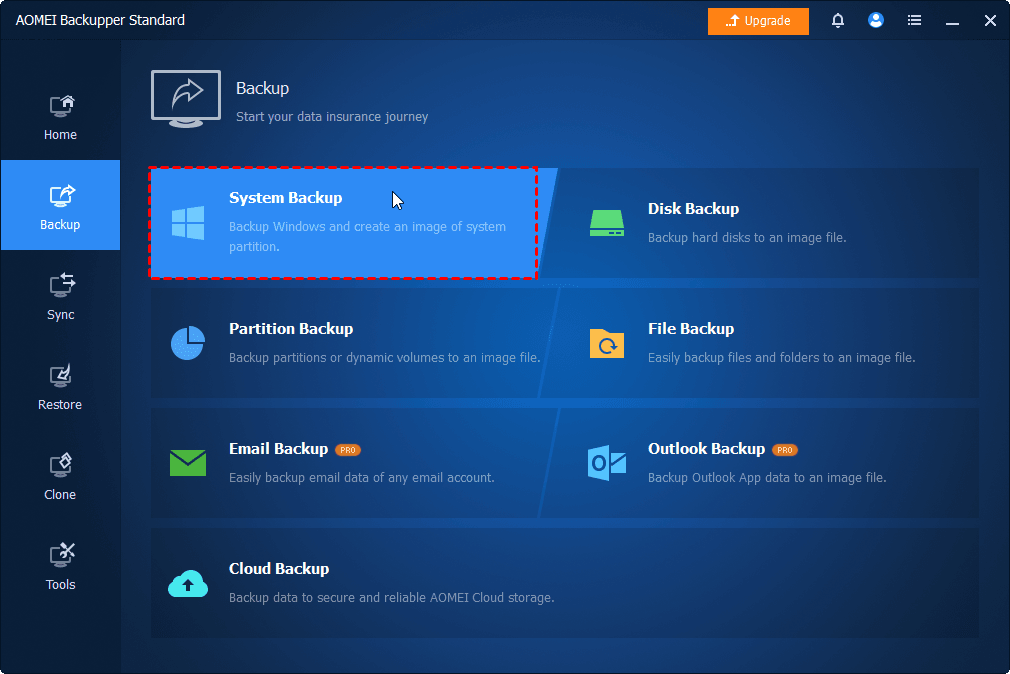
Open AOMEI Backupper Professional after installing. Click Backup and select the desired backup solution, preferably system backup or disk backup. Be sure to select the prepared external hard drive, USB drive, etc., as the destination.
📍📍📍Note:
✅ To set up or change backup settings, click Options, Backup Scheme, Schedule.
✅ The incremental backup is the default option in a scheduled task.
✅ You can change the backup settings in the Home tab. Locate the backup task, click the three-dot icons, and select the corresponding options.
Step 2. Switch to the Tools tab, click Ransomware Protection.
Step 3. Toggle the Enable Ransomware Protection tab to enable it. Then, specify file type, files, and folders to enhance data security.
- The backup images created by AOMEI Backupper are protected automatically.
- Enter the file extensions you frequently use to protect specific file types.
- Enter specific folder paths, such as C:\Program Files (x86), C:\ProgramData, etc., to protect important files and folders.
Step 4. Check the specific app and click Add to Trust List or Add to Block List. Or simply click Ignore.
Step 5. Switch to the Trust List, Block List, and Block History and manually configure them.
📍📍📍Note:
✅ You need to add trusted or blocked apps or folder paths and decide if they can modify or delete protected files or folders.
✅ In the Block History window, you have 3 options: Clear Block History, Add to Trust List, or Add to Block List.
Ransomware Air Gap vs Immutable Backups: What’s the Difference?
✅ Are immutable backups the same as an air gap?
Immutable backups and air-gapped backups are not the same, though both protect against ransomware. Immutable backups prevent any changes or deletions for a defined retention period, while air gaps isolate data physically or logically from networks and active systems. Immutability enforces tamper-proof storage, whereas air gaps block access entirely.
✅ When should you use air gaps, immutability, or both?
Use air gaps when you want complete separation from live systems, such as offline drives or logically isolated backups. Use immutability for long-term, tamper-proof storage, especially in cloud or enterprise environments. Combining both provides maximum protection, ensuring backups are unreachable and cannot be altered, even if ransomware bypasses other defenses.
Conclusion
Ransomware air gaps are a simple but powerful backup strategyto keep your data safe. By isolating dataphysically or logically, clean copies are always available, even if your system is infected.
Using air gaps together with proactive protection, regular backup testing, etc., creates a strong defense. Following best practices like offline backups, access control, andthe 3-2-1-1-0 rule helps ensure you can recover data quickly and avoid data loss.
Air-gapped backups aren’t optional- they’re essential for protecting your data from ransomware.

 as a preferred
source on Google
as a preferred
source on Google