




Microsoft Defender for Endpoint: Features and Setup
Need robust endpoint protection but unsure where to start? This article breaks down Microsoft Defender for Endpoint's key features and gives you a clear path to setting it up correctly.

By Lily Updated on April 29, 2026


What Is Microsoft Defender for Endpoint?
Microsoft Defender for Endpoint is an enterprise-grade endpoint security platform designed to prevent, detect, investigate, and respond to advanced cyber threats across organizational devices. While Microsoft Defender Antivirus provides baseline protection against common malware, viruses, and spyware, Microsoft Defender for Endpoint adds advanced capabilities such as:
- Behavioral threat detection
- Real-time attack investigation
- Endpoint detection and response (EDR)
- Automated remediation
- Centralized security management
- Enterprise-grade reporting and analytics
MS Defender for Endpoint is best suited for:
- Mid-sized to large enterprises
- Organizations using Microsoft 365 E5 or Business Premium
- Companies with remote or hybrid workforces
- IT teams needing centralized security visibility
- Businesses seeking integrated endpoint and identity protection
 AOMEI Backupper
To add critical ransomware protection, try the best ransomware-proof backup software for Windows PC.
Microsoft Defender for Business vs Defender for Endpoint
Some users may also hear of Microsoft Defender for Business. Learn the key differences between Microsoft Defender for Business and Defender for Endpoint below:
|
Feature |
Microsoft Defender for Business |
Microsoft Defender for Endpoint (Plan 2) |
|
Target Audience |
SMBs (up to 300 users) |
Enterprises (300+ users) |
|
Threat Hunting |
Basic automation only |
Advanced Hunting (KQL support) |
|
Data Retention |
Standard logs |
Up to 6 months of raw data |
|
Managed Services |
Not included |
Microsoft Threat Experts available |
|
Core Protection |
EDR, AV, Vulnerability Mgmt |
Full EDR, Sandbox, & Deep Analysis |
Note: There is also a Defender for Endpoint Plan 1, which provides basic protection (AV and Attack Surface Reduction) but lacks the advanced EDR and automation found in both MDB and MDE Plan 2.
💡Summary:
- Defender for Business: Best for teams without a dedicated security operations center—offers guided setup, default policies, and simplified administration.
- Defender for Endpoint: Designed for enterprise teams—provides deep visibility, advanced threat hunting, custom alerts, and granular integrations.
How to Set Up Microsoft Defender for Endpoint Step by Step
Setting up Microsoft Defender for Endpoint correctly ensures your organization gets full protection from ransomware, zero-day exploits, and advanced threats. Below is a clear deployment guide:
Step 1 - Prepare for deployment
Before starting, ensure your environment meets the necessary prerequisites.
- Licensing: Verify you have a valid license, such as Microsoft 365 E3/E5, Windows 10/11 Enterprise E3/E5, or a standalone Defender for Endpoint P1/P2.
- System Requirements: Ensure devices are running supported operating systems (Windows 10/11, macOS, Linux, Android, or iOS).
- Permissions: You must have Global Administrator or Security Administrator roles to configure the tenant.
Step 2 - Connect Defender to Microsoft Intune
If you use Microsoft Intune for device management, you must enable the service-to-service connection.
In the Microsoft Defender Portal:
1. Navigate to Settings > Endpoints > Advanced features.
2. Locate Microsoft Intune connection and toggle it to On.
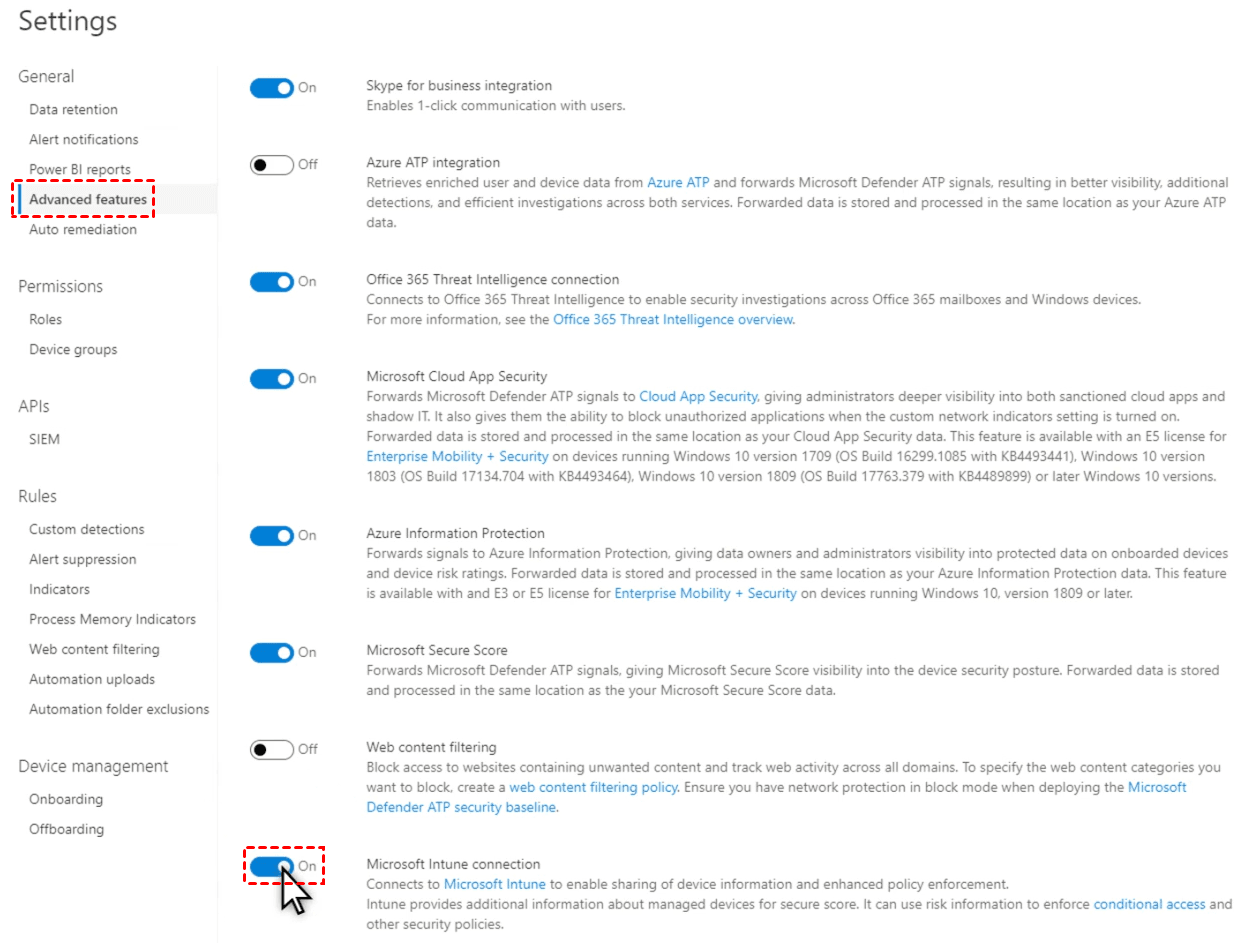
3. Click Save preferences.
In the Microsoft Intune Admin Center:
1. Go to Endpoint security > Microsoft Defender for Endpoint.
2. Set Allow Microsoft Defender for Endpoint to enforce Endpoint Security Configurations to On.
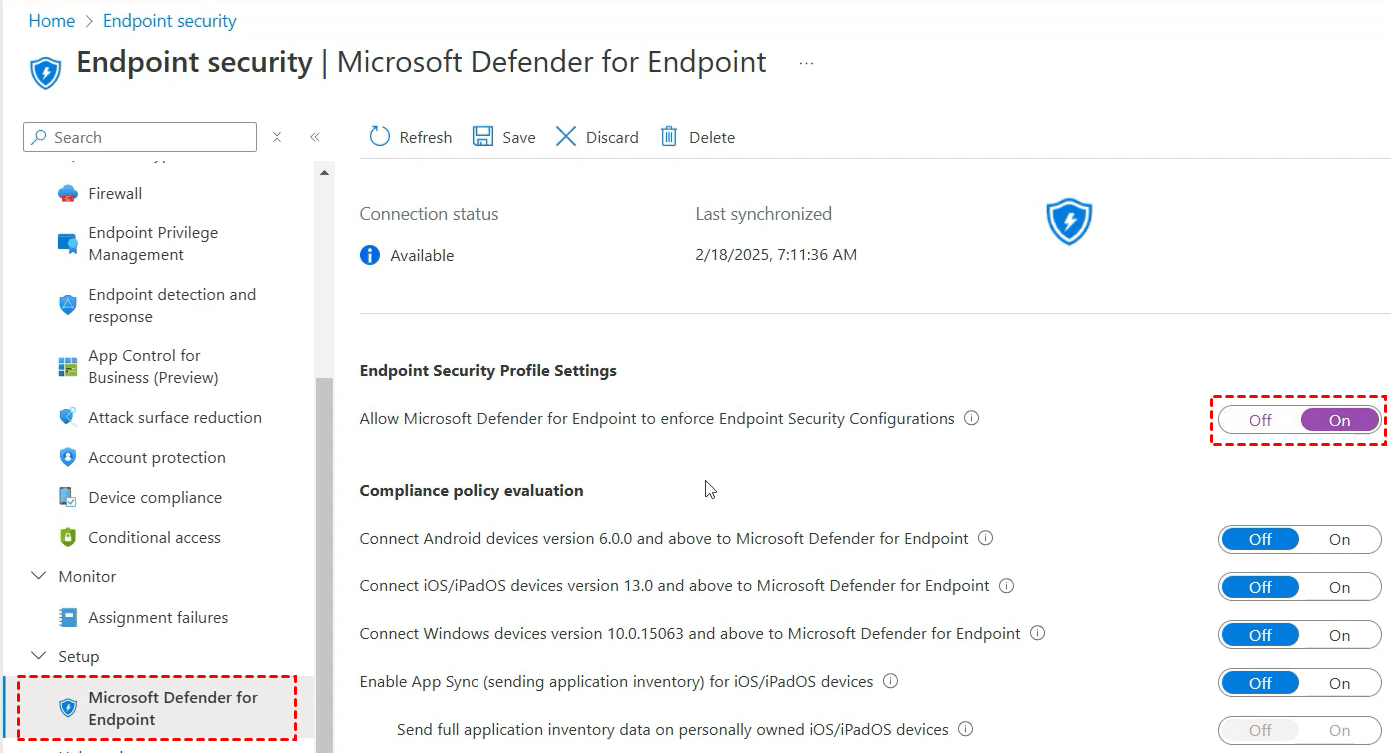
3. Click Save at the top of the page.
Step 3 - Onboard Devices
Onboarding activates the Defender sensor on your endpoints so they can report data to the portal.
Using Intune (Recommended for Scale):
1. Go to Endpoint security > Endpoint detection and response.
2. Select Create Policy, choose your platform (e.g., Windows 10 and later), and select the Endpoint detection and response profile.
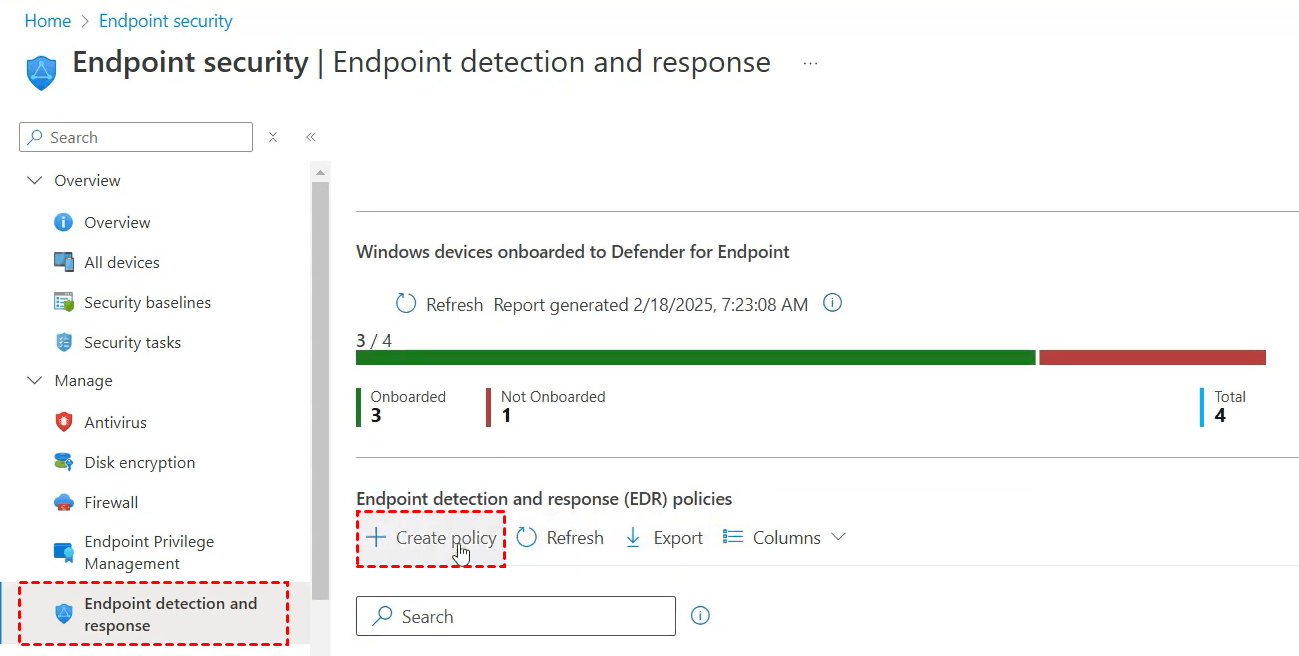
3. Set the configuration package type to Auto from connector and assign the policy to your device groups.
Using Local Script (For Testing/Small Scale):
1. In theDefender Portal, go to Settings > Endpoints > Device management > Onboarding.
2. Select the OS and choose Local script as the deployment method.
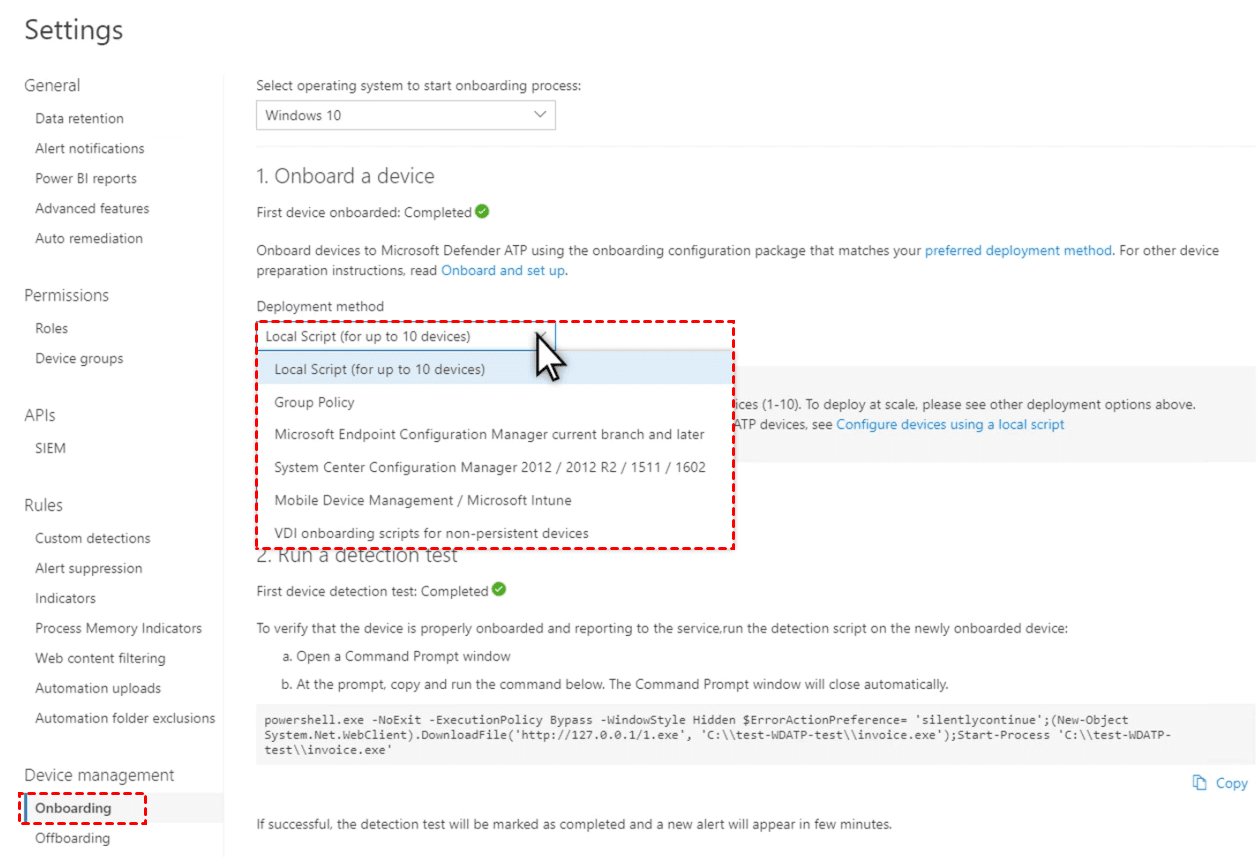
3. Download the onboarding package, extract it, and run the script on the target device as an administrator.
Step 4 - Configure Security Capabilities
Once devices are onboarded, enable core protection features to secure them.
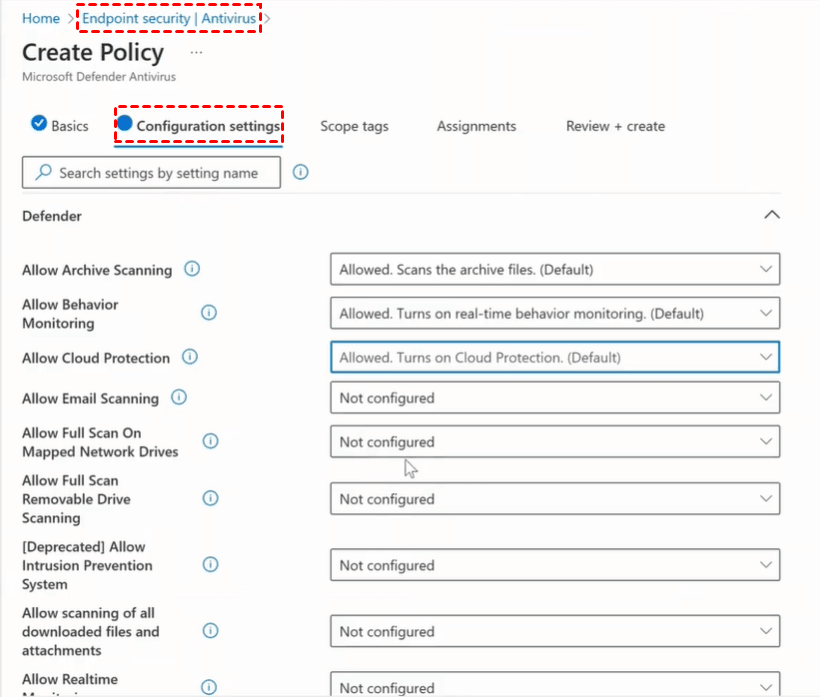
1. Next-Generation Protection (Antivirus):
Create an Antivirus policy in Intune (Endpoint security > Antivirus) to enable Real-time protection and Cloud-delivered protection.
2. Attack Surface Reduction (ASR):
Set up ASR rules in Intune to block common malware entry points, such as malicious office macros or credential stealing.
3. Tamper Protection:
In the Defender Portal (Settings > Endpoints > Advanced features), ensure Tamper Protection is turned On to prevent users or malware from disabling security settings.
Step 5 – Verification
1. Check Device Inventory:
Within 15–30 minutes of onboarding, devices should appear in the Microsoft Defender Portal under Assets > Devices.
2. Run a Detection Test:
On a Windows device, run a specialized command-line script provided by Microsoft to trigger a safe test alert and confirm the sensor is communicating correctly.
Bonus: Best Tool to Protect Your PC from Ransomware
When you need reliable ransomware protection for a Windows PC, AOMEI Backupper Professional offers a dependable, ransomware-resilient backup solution.
 AOMEI Backupper
- Create scheduled system, disk, partition, or file backups tailored to your protection strategy.
- Save backups on offline drives, NAS, or other isolated locations to keep them away from malware attacks.
- Perform fast recovery of an entire system or selected files after a ransomware incident.
- Activate built-in Ransomware Protection to safeguard backup files, specific file types, or designated folders from unauthorized encryption.
 100% Secure
Download AOMEI Backupper and follow the steps below to enable ransomware protection:
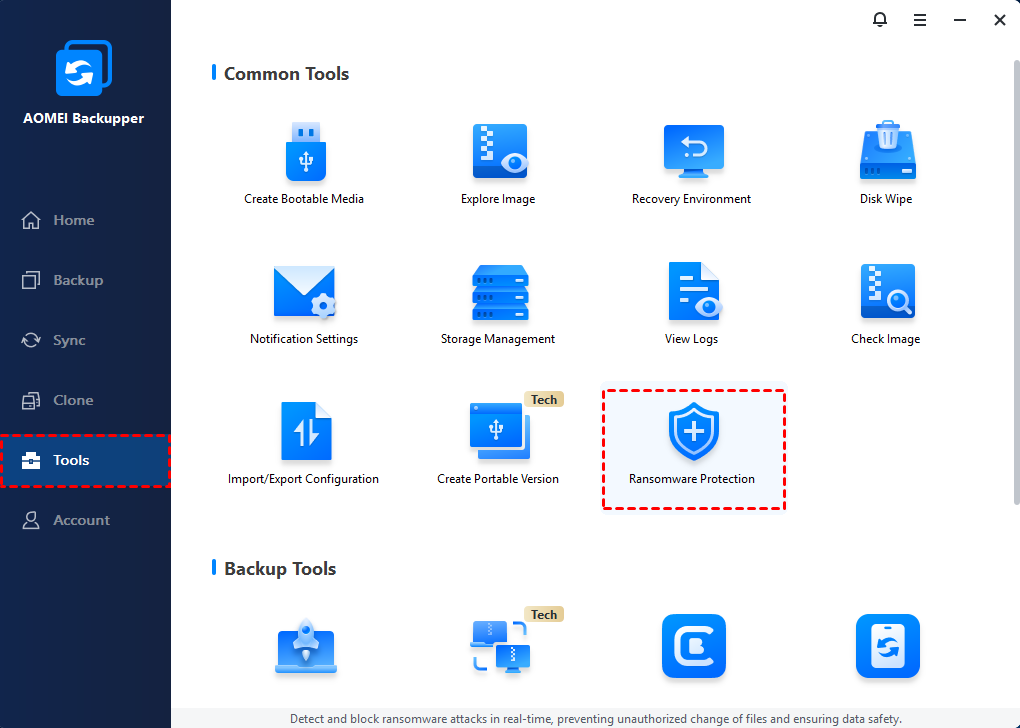
Step 1. Install and run AOMEI Backupper. Click Tools > Ransomware Protection.
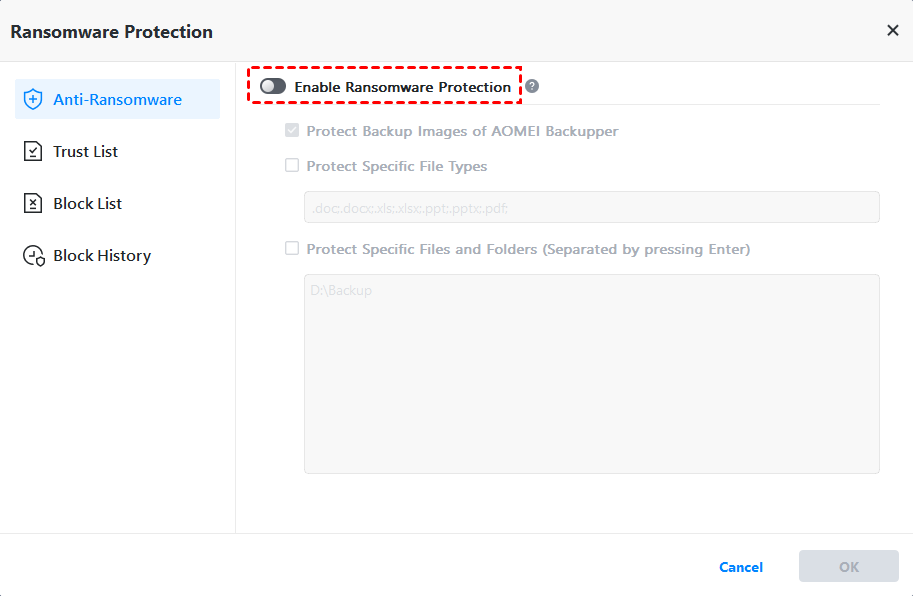
Step 2. In the pop-up window, turn on the switch for Enable Ransomware Protection.
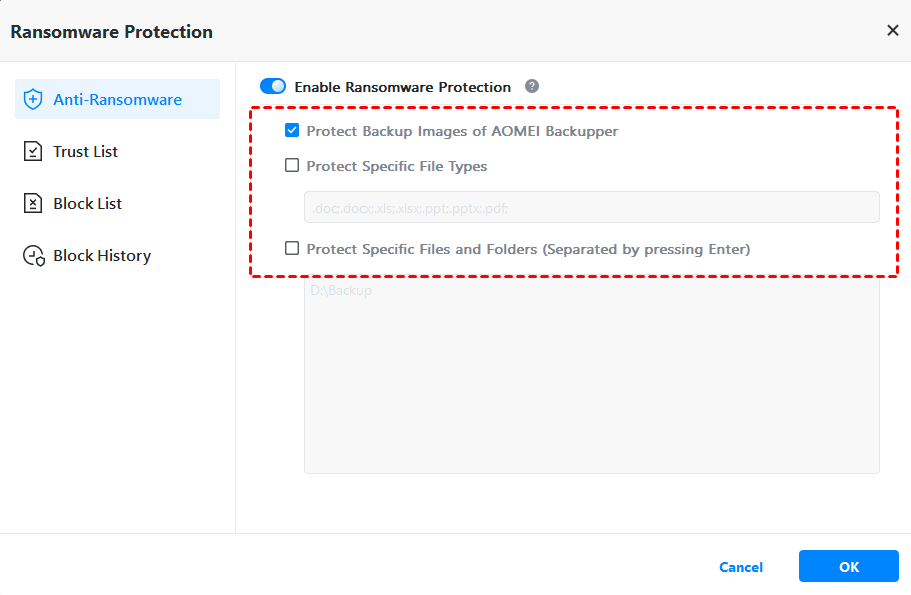
Step 3. Protect Backup Images of AOMEI Backupper is checked by default. You can designate specific file types and paths to be protected by checking Protect Specific File Types and Protect Specific Files and Folders.
Step 4. Confirm your settings and click OK.
Summary
This comprehensive guide explores Microsoft Defender for Endpoint, including its core features and the process of enabling Microsoft Defender EDR. Endpoint protection alone isn’t sufficient against today’s ransomware threats.
A dependable backup solution like AOMEI Backupper provides an extra layer of defense, allowing you to restore your data quickly after a ransomware incident. It’s a smart safeguard worth trying.

 as a preferred
source on Google
as a preferred
source on Google