




Symantec Endpoint Security: Setup and Comparison
Looking for the best endpoint protection? Learn how to deploy Symantec Endpoint Security on your devices—and see how it stacks up against Microsoft Defender for Endpoint.

By Lily Updated on April 29, 2026


What Is Symantec Endpoint Security?
Symantec Endpoint Security is an enterprise-grade endpoint protection platform developed and maintained by Broadcom Inc.. It is designed to secure laptops, desktops, servers, and virtual machines against modern cyber threats, including ransomware, zero-day exploits, fileless malware, and targeted attacks. It covers the following key features:
⭐ Real-time malware detection using signature-based and AI-driven scanning
⭐ Behavioral monitoring to identify suspicious activity and unknown threats
⭐ Exploit prevention to block vulnerabilities in applications and operating systems
⭐ Ransomware protection with rollback and remediation capabilities
⭐ Centralized management for monitoring, reporting, and policy enforcement
 AOMEI Backupper
To add critical ransomware protection, try the best ransomware-proof backup software for Windows PC.
Symantec Endpoint Security vs Microsoft Defender for Endpoint
Speaking of solutions aiming to protect organization endpoints from malware, ransomware, and advanced threats, you can’t miss Microsoft Defender for Endpoint. See the key differences between Microsoft Defender for Endpoint and Symantec Endpoint Security below:
|
Feature / Aspect |
Microsoft Defender for Endpoint |
Symantec Endpoint Security |
|
Integration & Ecosystem |
Deeply integrated into the Microsoft ecosystem (Windows, M365, Azure). Seamless for existing Microsoft users, simplifying telemetry correlation and policy management. |
Standalone security platform within the Broadcom portfolio. Integrations tend to be more complex and less unified. |
|
Threat Protection & Detection |
Robust protection (AV, EDR). Praised for advanced threat analytics, automated investigations, and rapid incident response, reducing manual workload. |
Robust protection (AV, EDR). Offers comprehensive threat intelligence, layered defenses, device control, and detailed compliance reporting. |
|
Deployment & Management |
Largely cloud-centric, easy to set up and scale. Centralized console reduces overhead, ideal for hybrid/cloud-first deployments. |
Can require more involved setup with traditional on-premises or mixed approaches. Management interface may be less intuitive. |
|
Pricing & ROI |
More cost-effective, especially for organizations with existing Microsoft licenses (M365 or Windows). Features are often included or easily bundled. |
Typically perceived as more expensive, particularly as a standalone solution. Cost may be justified by its depth of features and threat intelligence. |
💡 Summary:
- Choose Microsoft Defender for Endpoint if you're fully in the Microsoft cloud and want seamless integration with cost efficiency.
- Choose Symantec Endpoint Security if you need cross-platform support, advanced threat reporting, and detailed policy controls—especially for compliance-heavy environments.
How to Use Symantec Endpoint Security to Protect Windows Devices
In this part, you’ll learn how to set up a management console to deploy agents and manage security policies across your network devices using Symantec Endpoint Security.
Step 1. Sign into a Symantec Security Cloud Account. The Home page appears by default. Under Default, select the video icon to review the product tour.
Step 2. Configure the default policies.
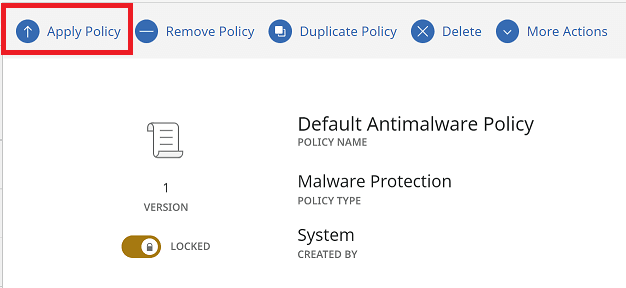
- Go to Policies, and then select a default policy (e.g., Default Antimalware Policy).
- Make changes and click Save Policy.
- By default, the policies apply to the Default group. To apply the policy to a different group or more groups, select Apply Policy and select one or more groups.
Step 3. (Optional) If you use proxies in your environment, allow required URLs through network settings or firewalls. In addition, make sure that certain communication ports are open.
Step 4. Symantec Endpoint Security download for clients.
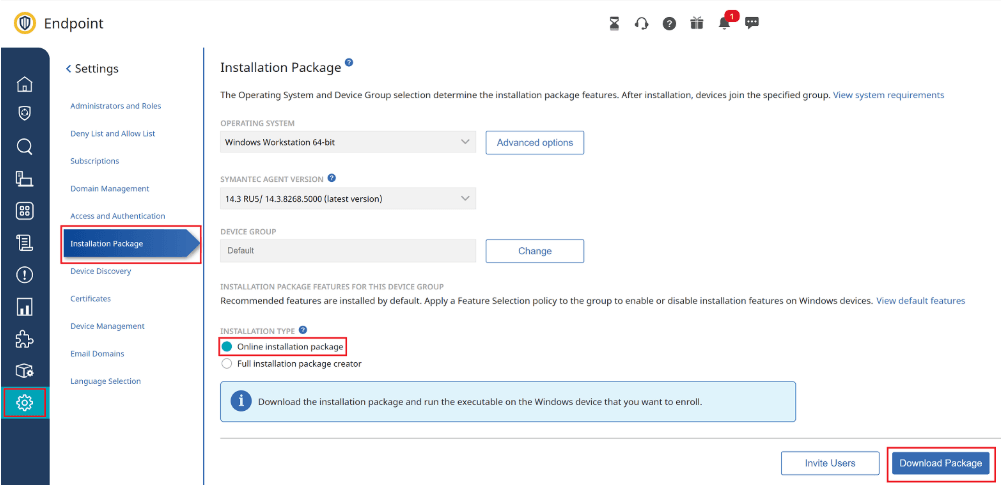
- Go to Settings > Installation Package, and then select Online installation package.
- Click Download Package. Then run the executable on the Windows device you want to enroll.
Step 5. View your enrolled devices.
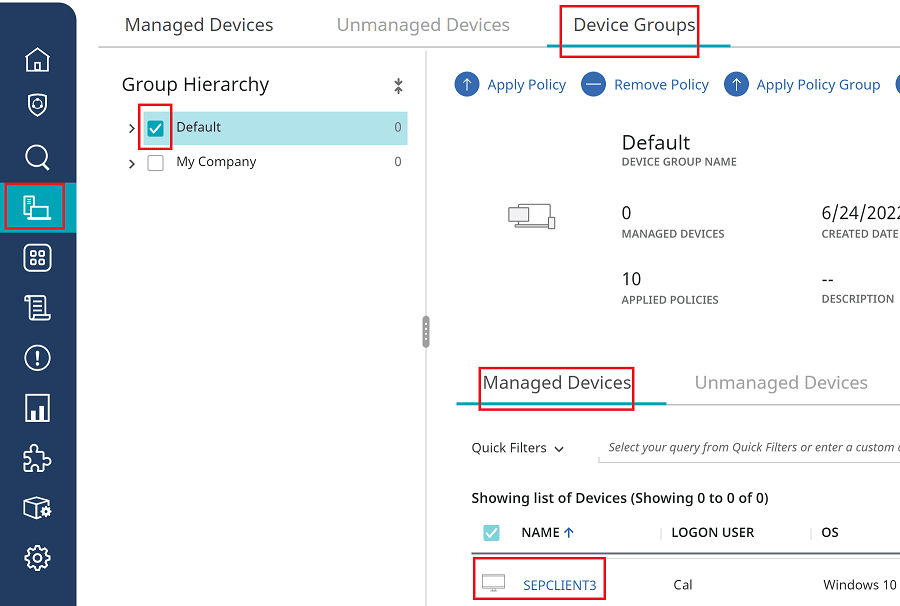
- Go to Devices > Device Groups.
- In the Group Hierarchy, select Default.
- On the Device Groups page, select the Managed Devices tab.
✍ Note: On the device, the Symantec Agent is called the Symantec Endpoint Protection client.
Bonus: Best Ransomware Protection for Windows PC
When it comes to protecting a Windows PC from ransomware, the best ransomware-proof backup software - AOMEI Backupper Professional can give you a hand.
 AOMEI Backupper
- Schedule system backups, disk/partition backups, and file-level backups based on your needs.
- Store backups offline or on external drives to prevent encryption by malware.
- Restore entire systems or specific files quickly after an attack.
- Enable Ransomware Protection to protect backups, certain file types, or specified file paths from unauthorized encryption.
 100% Secure
Download AOMEI Backupper and follow the steps below to enable ransomware protection:
Step 1. Install and run AOMEI Backupper. Click Tools > Ransomware Protection.
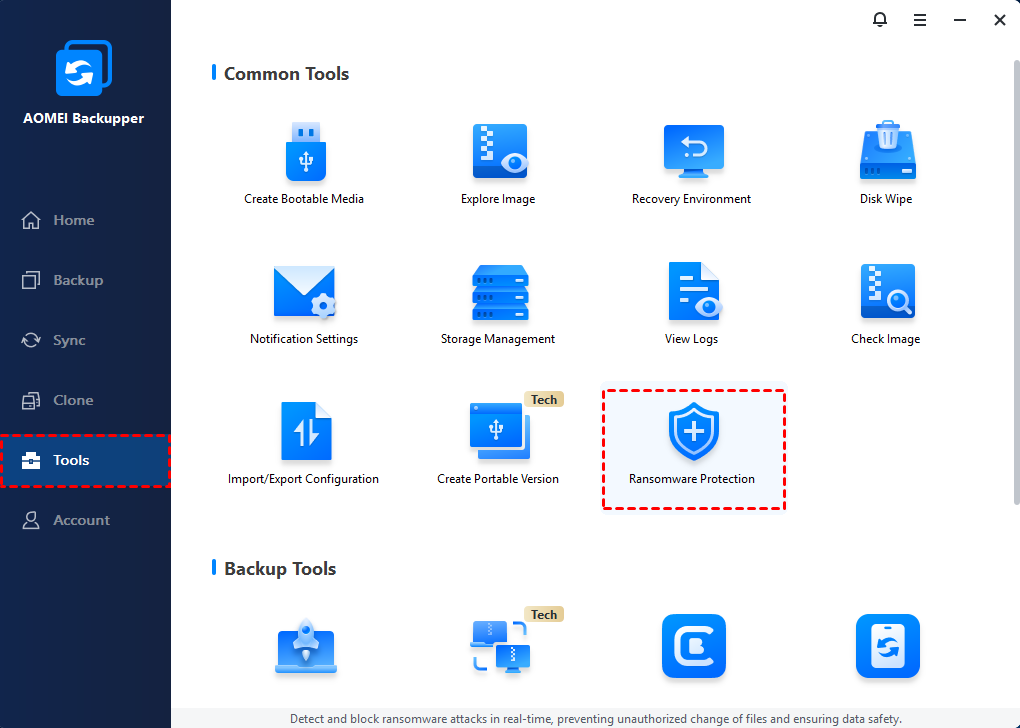
Step 2. In the pop-up window, turn on the switch for Enable Ransomware Protection.
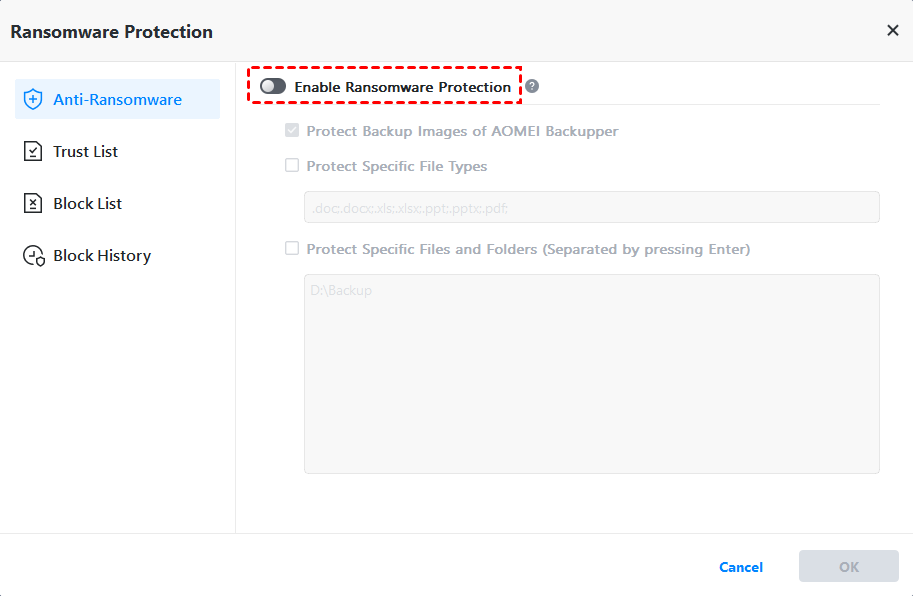
Step 3. There are three sub-options:
- Protect Backup Images of AOMEI Backupper: Checked by default to protect image files created by AOMEI Backupper.
- Protect Specific File Types: Add file extension(s) to be protected, such as .doc, .docx, and .pdf.
- Protect Specific Files and Folders: Add specific folder paths to be protected, for example, C:\Program Files (x86), C:\ProgramData, etc.
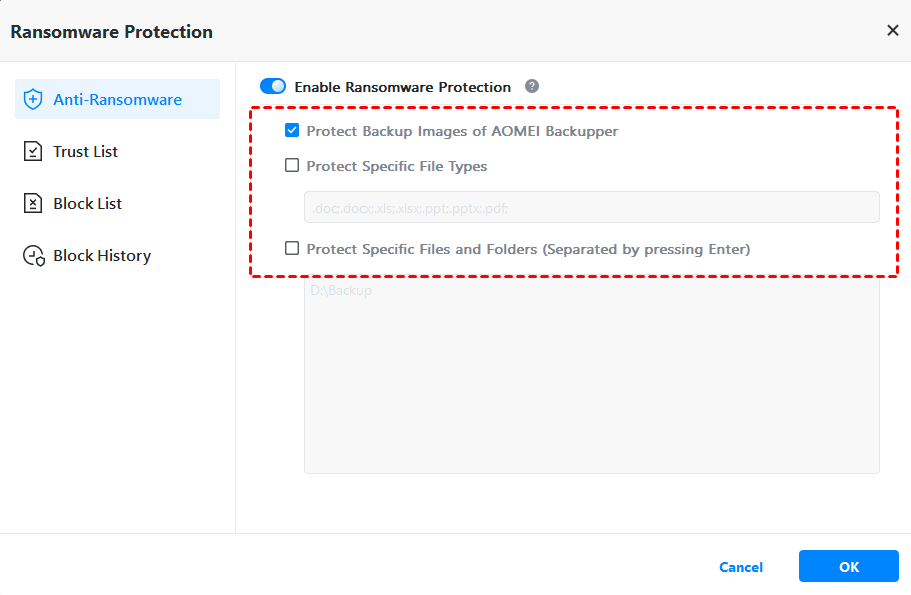
Step 4. Confirm your settings and click OK.
Wrapping Things Up
Choosing the right endpoint protection is essential to securing business data and ensuring operational continuity. This guide shows you how to set up a Symantec Endpoint Security management console to deploy protection agents.
Endpoint protection alone is not enough. A reliable backup tool like AOMEI Backupper adds critical ransomware protection, enabling fast recovery without paying ransoms. Why not give it a shot?

 as a preferred
source on Google
as a preferred
source on Google