




Google Drive Only Sync Certain Folders? Here's How to Set It Up Easily
You can easily set up Google Drive to sync only certain folders usingtwo methods and explore a better alternative tool- AOMEI Backupperfor more control overfile filter andautomation.

By Ivy Updated on June 15, 2026


Google Drive makes it easy to access files across devices, but sometimes it syncs more folders than you need. This can take up storage space, use extra bandwidth, and make file management more difficult.
Many users want Google Drive to sync only certain folders. For example, you may want to back up important documents while excluding large videos, downloads, or personal files. Selective sync helps keep your storage organized and improves sync efficiency.
The good news is that Google Drive can sync only specific folders. However, the setup process depends on the selected method. In this guide, you'll learn how to choose which folders Google Drive syncs and discover an alternative solution for more flexible folder synchronization.
Can Google Drive Sync Only Certain Folders?
Yes, Google Drive can sync only certain folders instead of everything on your computer or in your cloud storage. This feature allows you to choose which folders are synced and which are excluded, helping you manage storage and control what data is available across devices.
To understand how selective sync works, it's important to know the different sync options available in Google Drive.
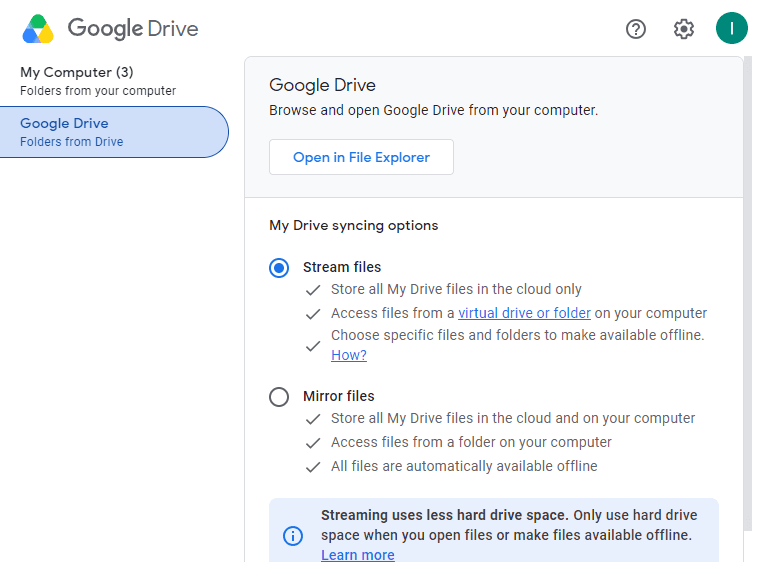
👉 Google Drive: It manages the files and folders stored in your Google Drive account and allows you to choose which folders from My Drive are available on your computer and how they are stored locally in the following two options.
- Stream files: Files remain in the cloud and are downloaded only when needed, helping save local storage space.
- Mirror files: Files are stored both in the cloud and on your computer, allowing offline access but using more disk space.
👉 My Computer: It allows you to upload folders from your computer to Google Drive, including Documents, Desktop, Pictures, or any custom folder you select. So you keep a copy of your files online.
Method 1: Sync Only Certain Folders to Google Drive
Google Drive for Desktop also provides users with My Computer option to upload folders on your computer to Google Drive. It’s useful when you only want important data saved in the cloud while excluding large or unnecessary files.
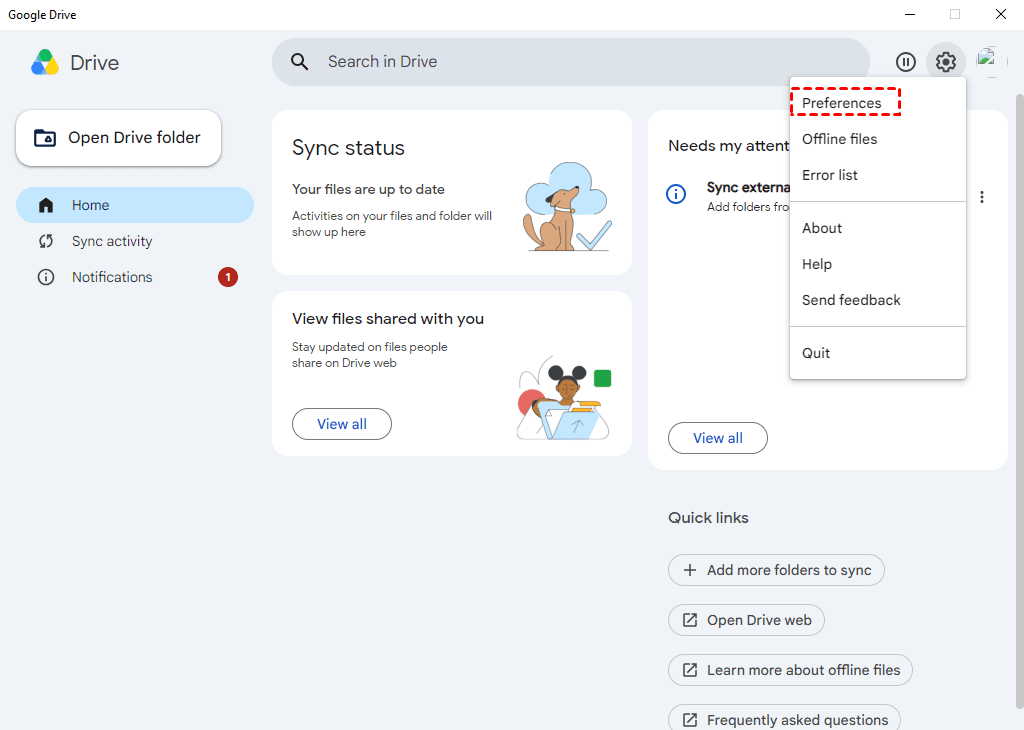
Step 1. Open Google Drive for Desktop on your computer. Click the Settings (gear icon) > Preferences.
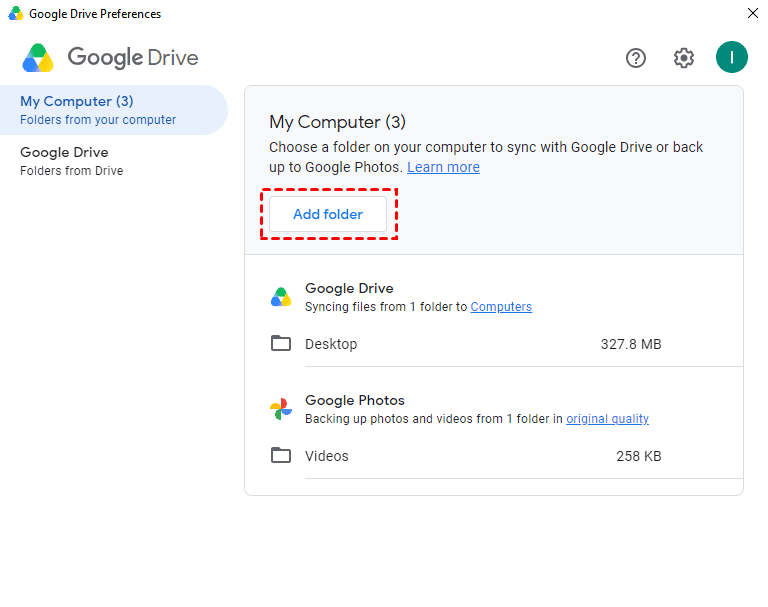
Step 2. In the My Computer section, click Add folder, then select the folder you want to back up (such as Documents or Desktop).
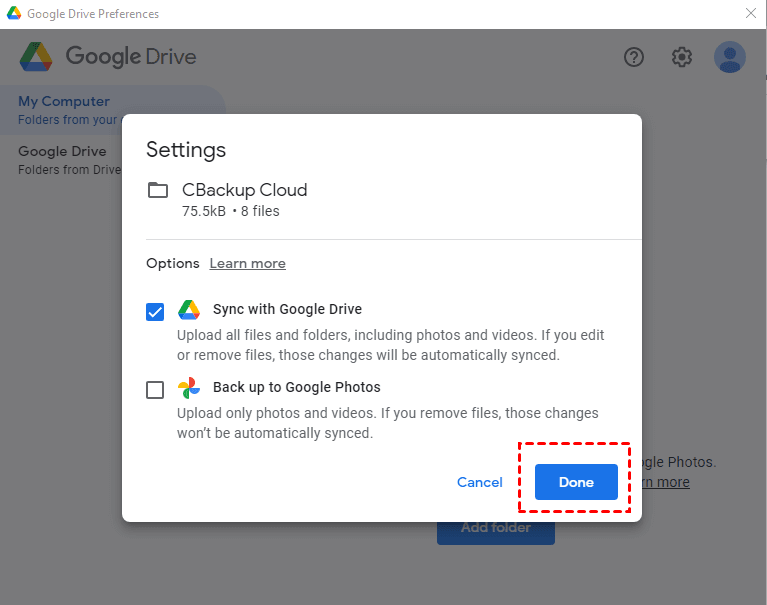
Step 3. In the Settings window, check Sync with Google Drive and click Done.
Method 2: Sync Only Specific Folders from My Drive
Google Drive for Desktop offers users the My Drive option to control which Google Drive folders are synced to your computer. You can choose to keep only important cloud files available offline.
Step 1. Open Google Drive on your computer. Then, click Settings (gear icon)> Preferences.
Step 2. Switch to the Google Drive section, select a sync option - Stream Files or Mirror Files.
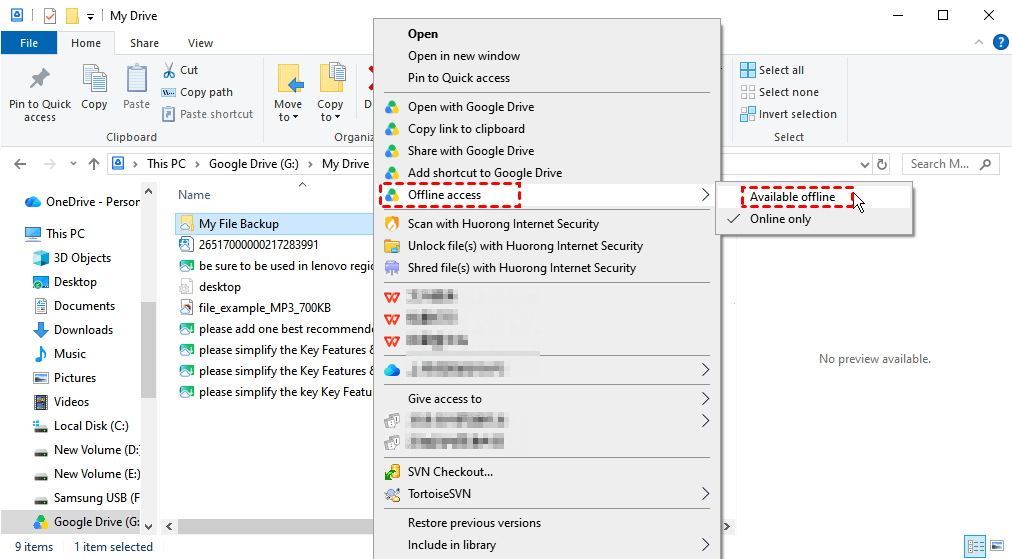
Step 3. Select only certain folders you want to sync, right-click them, and select Offline Access > Always available.
Easier Alternative to Google Drive Sync Only Certain Folders
While Google Drive offers basic selective sync features, it’s limited to cloud sync and lack flexible control over the sync frequency, as well as features such as email notifications, file filtering, etc. AOMEI Backupper Professional, on the other hand, includes all of these features.
 AOMEI Backupper
- 4 Sync Modes: Choose from Basic Sync, Real-Time Sync, Mirror Sync, or Two-Way Sync to sync only new or changed files.
- Multiple Folder Sync: Select two or more folders at once to sync, significantly improving efficiency.
- Automatic Sync: Sync files on daily, daily (by interval), weekly, monthly (by date), event triggers, etc. The shortest interval is once hourly.
- Sync deletions: Offer you the chance to sync deleted files from the source to the destination.
- Email notification: Sent when sync tasks are completed, fail, or require user interaction.
- Multiple Sync Destinations: Sync files to external hard drive, cloud drives (i.e., Google Drive), USB drive, network drive, NAS, etc., offering you more options.
 100% Secure
Step 1. Open AOMEI Backupper after installing. Under the Sync tab, click Basic Sync.
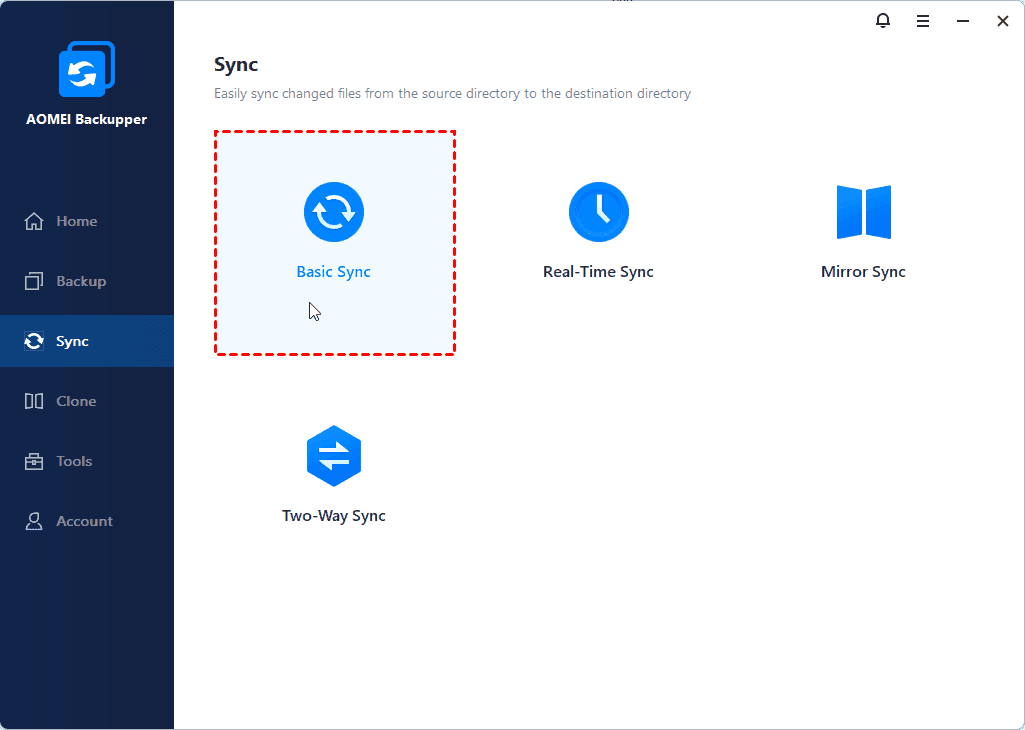
You can also select other sync solutions (if needed).
- Real-Time Sync: Similar to Google Drive for desktop, syncs files as soon as it detects changes.
- Mirror Sync: Keep files in the destination the same as the source folder.
- Two Way Sync: Sync files between two folders, drives, or computers, with changes made in one location being synced to the other.
Step 2. Type a unique name for distinguish. Click Select Source > This PC and select the folders you want to sync.
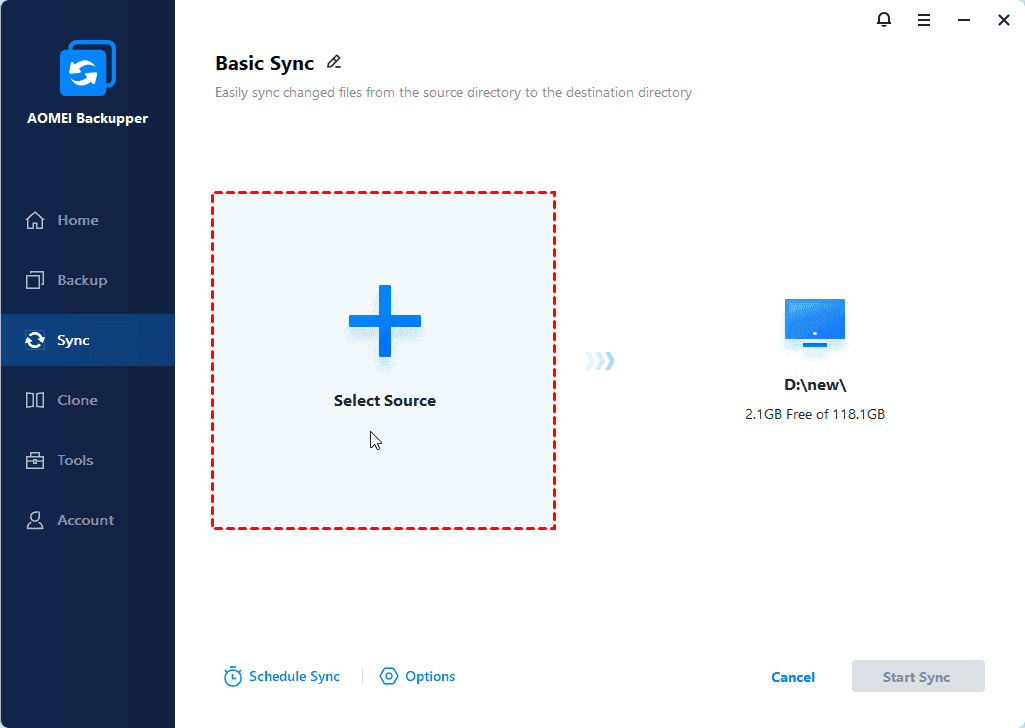
Step 3. Then, click the PC icon and select Google Drive under This PC.
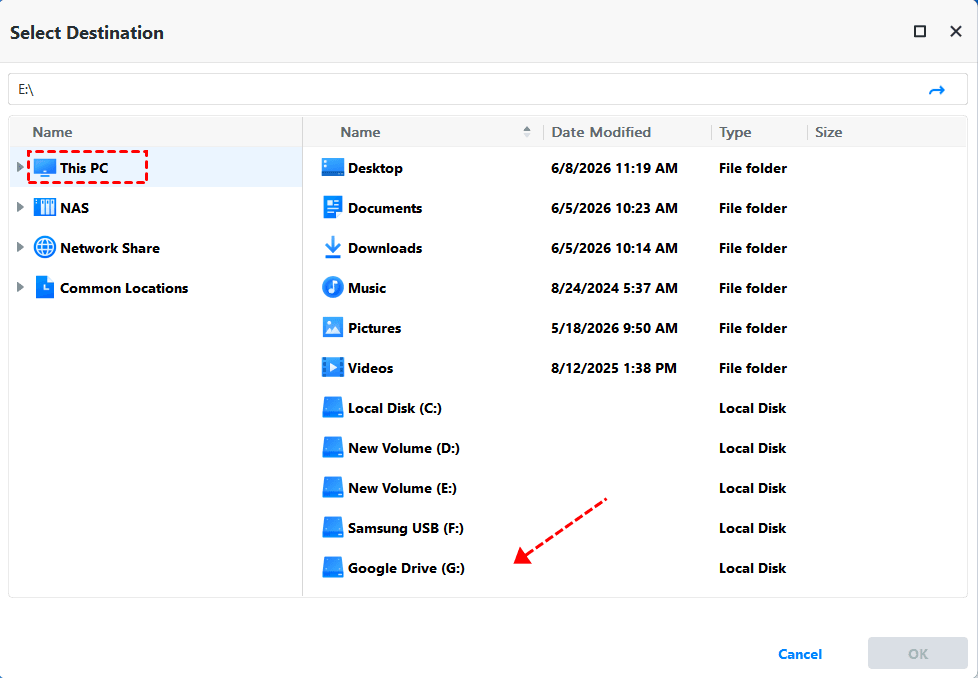
Step 3. To sync files with Google Drive automatically, click Schedule Sync to enable daily, weekly, monthly (by date), etc, or even hourly. At last, click Start Sync.

- You can also enable email notification to get notification timely.
- Click Options to filter files or folders. Enter a file extension (e.g., *.doc, *.xls, *.ppt) or a filename in the box.
The first sync will sync all the selected folders, which may take a while depending on the number of files. However, subsequent syncs will only sync changes, significantly reducing the time.
Google Drive vs AOMEI Backupper
|
Feature |
Google Drive |
AOMEI Backupper |
| Sync Mode | Real-time sync or Two-Way Sync (depending on the settings) | 4 options, including Basic Sync (free), Real-Time Sync, Mirror Sync, and Two-Way Sync |
| Free | 15 GB (shared among Google Drive, Gmail, Google Photos) | Basic Sync is free |
|
Folder Selection |
Basic folder selection (include/exclude only) |
Filter specific files or folders by type or name |
|
Automatic Sync |
Real-time only |
Real-time or scheduled sync, even hourly |
|
Backup & Recovery Capabilities |
Limited to file sync and version history |
Support full backup and restore |
|
Sync Destination |
Google Drive or Photos |
Not only Google Drive, but also other cloud drives, local or external HDD/SSD, network drives, NAS, etc. |
Best Practices for Selective Folder Sync
To get the most out of selective folder sync in Google Drive, it’s important to set up and manage your files in a structured way. These best practices help improve performance, reduce storage issues, and keep your data organized.
📌 Organize Files Before Enabling Sync
Before turning on sync, group your files into clear, purpose-based folders such as Work, Personal, or Projects. A well-organized structure makes it easier to select only the folders you actually need and prevents unnecessary syncing later.
📌 Avoid Syncing Temporary Files
Do not include folders that contain temporary, cached, or frequently changing files. These files can trigger constant sync activity, slow down performance, and consume storage without adding long-term value.
📌 Monitor Storage Usage
Regularly check your Google Drive storage to ensure you are not approaching your limit. Keeping an eye on usage helps you identify large folders early and adjust your sync settings before issues occur.
📌 Combine Cloud Sync with Local Backup
For better data protection, use cloud sync for accessibility and combine it with a local backup solution. This ensures your important files are safe even if cloud sync errors occur or files are accidentally deleted.
Conclusion
Google Drive can sync only certain folders, but it depends on how you configure its settings. The easiest method is to use Google Drive for Desktop to select specific folders from My Drive or choose local folders on your computer. These built-in options are usually enough for basic selective sync needs.
However, Google Drive has limitations when it comes to advanced control, such as scheduling, multi-location sync, file filter, etc. In this case, AOMEI Backupper is a strong alternative, offering comprehensive backup and sync features with greater flexibility.

 as a preferred
source on Google
as a preferred
source on Google