




How to Force Copy Files in Windows 10 | 4 Ways
Standard copy methods fail in Windows 10? Read this article to get 4 effective methods to let Windows force copy files in use.

By Lily Updated on January 23, 2026


Why Windows 10 Fails to Copy Certain Files?
When you try to force copy files in Windows 10, the problem usually starts because the system blocks a normal copy process. Here are the main reasons why Windows 10 fails to copy certain files:
📍 Permission Issues
Some files require administrator rights or ownership to copy. You may receive error messages like “Access is denied”, “You’ll need to provide administrator permission to copy this file”, etc.
>> Fix: Take ownership of the file/folder or run the copy operation with administrator privileges.
📍 Disk or File System Errors
Corrupted data or bad sectors on the drive may block copying, throwing you an error “Cannot read from the source file or disk”.
>> Fix: Run chkdsk to scan and repair the drive to fix file system errors.
📍 Path or Naming Problems
Very long paths (over 260 characters) or invalid file names can cause failures.
>> Fix: Shorten the file path or rename files to remove unsupported characters.
📍 Files in Use
Windows can’t copy files currently open in other programs.
>> Fix: Read the following parts to learn how to let Windows force copy files in use.
👉 Method 1: Force Copy Files Using Xcopy
👉 Method 2: Force Copy Files via Robocopy
👉 Method 3: Force Copy Files in Safe Mode
👉 Easier Way to Force Copy Files in Windows🔥
How to Force Copy Files in Windows 10
Both command lines and Safe Mode can help you force copy files in Windows. Learn how to copy files using Command Prompt in Windows 10 or from Safe Mode in detail below.
Method 1: Force Copy Files Using Xcopy
Xcopy is a classic Windows command-line utility that offers more control than normal drag-and-drop copying. It is especially useful when you need to overwrite existing files or copy entire directories while bypassing common interruptions. Here’s how to use it:
1. Press Windows + S, type cmd, then choose Run as administrator.
2. Input the basic force copy command:
xcopy "Source\Path" "Destination\Path" /E /H /C /Y
For example, to copy files and subfolders from D: drive to E: drive without interruptions, type:
xcopy "D:\My Documents" "E:\My Backup" /E /H /C /Y
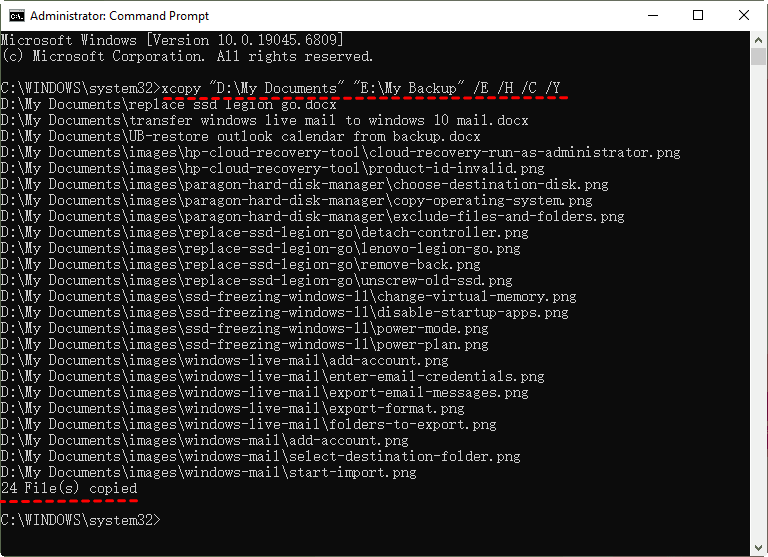
● /E – Copies all subfolders, including empty ones
● /H – Copies hidden and system files
● /C – Continues copying even if errors occur
● /Y – Suppresses overwrite confirmation prompts
3. Press Enter to start copying. After all files are copied, exit Command Prompt.
🙁Limitations of Xcopy
Although Xcopy is useful, it cannot copy files that are actively locked by the system, and it struggles with severe disk corruption or very long file paths.
Method 2: Force Copy Files via Robocopy
Robocopy (Robust File Copy) is Microsoft’s advanced file replication tool. Compared with Xcopy, Robocopy is faster, more resilient, and specifically designed to handle locked files, interruptions, and large or problematic transfers. Follow the steps below:
1. Press Windows + S, type cmd, then choose Run as administrator.
2. Type a force copy command:
robocopy "Source\Path" "Destination\Path" /E /ZB /R:n /W:n
For example, to copy files and subfolders from D: drive to E: drive with automatic retries, type:
robocopy "D:\My Documents" "E:\My Backup" /E /ZB /R:3 /W:5
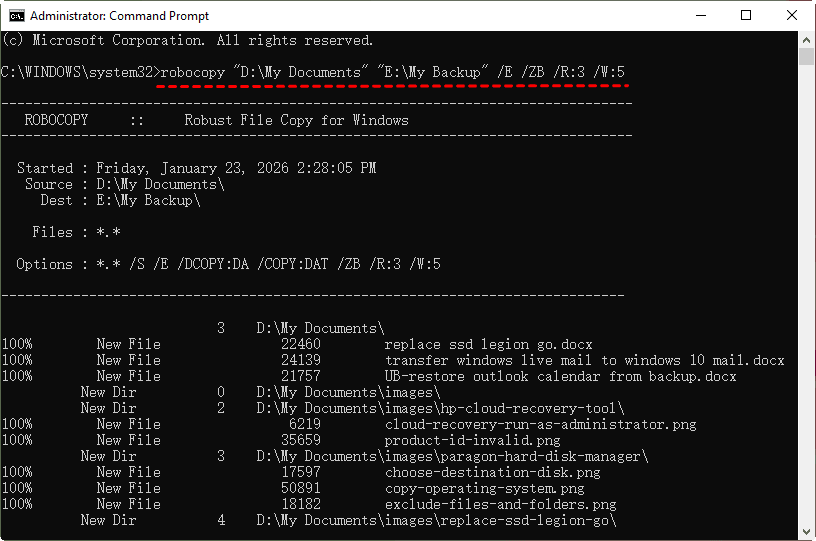
● /E – Copies subdirectories, including empty ones.
● /ZB – Uses restartable mode; if access is denied, uses backup mode.
● /R:n – Specifies the number of retries on failed copies (default is 1 million, set to 1-3 for speed).
● /W:n – Specifies wait time between retries (in seconds).
3. Press Enter to start the copy process. Exit Command Prompt when the operation is done.
Method 3: Force Copy Files in Safe Mode
When standard commands fail because files are “in use” or protected by background services, Safe Mode becomes one of the most effective ways to force copy files in Windows 10. Follow the instructions below:
1. Go to Settings → Update & Security → Recovery.
2. Under Advanced startup, click Restart now.
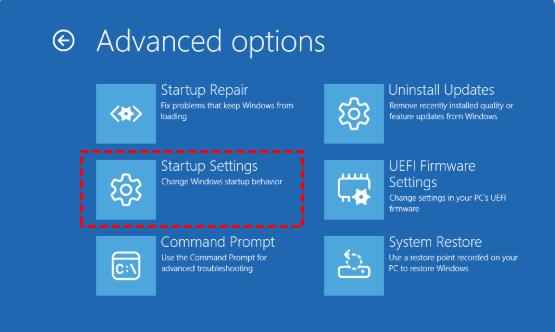
3. Select Troubleshoot → Advanced options → Startup Settings → Restart.
4. Press 4 (or F4) to start Safe Mode.
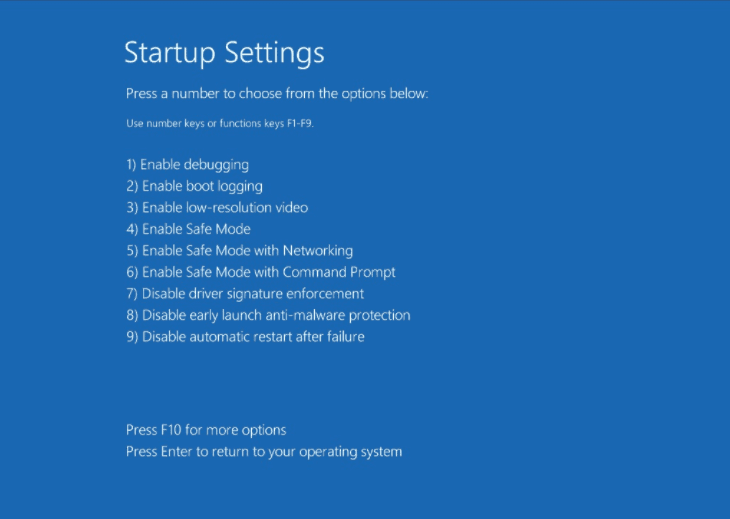
💡 Note: Choose 5/F5 if you need networking support or choose 6/F6 if you need Command Prompt.
5. Once Windows restarts in Safe Mode, open File Explorer and try copying the files normally. You can also run Xcopy or Robocopy commands in Safe Mode.
Easier Way to Force Copy Files in Windows
Command-line tools and Safe Mode work well for many situations, but they can be intimidating for non-technical users. When Windows repeatedly fails to copy files, you may try a dedicated backup and sync tool - AOMEI Backupper Standard.

 AOMEI Backupper
- Various Storage Devices: You can copy files from/to internal or external drives, USB flash drives, cloud, and network shares, etc.
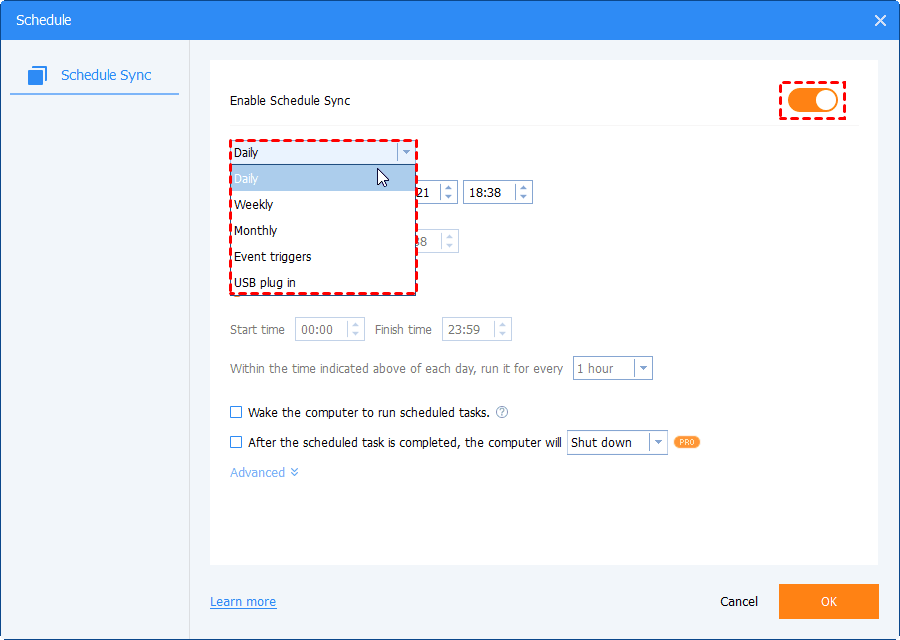
- Automatic Sync: Set up sync tasks to run daily, weekly, monthly, or triggered by specific system events.
- Intelligent Sync: Automatically skip locked or unreadable files instead of freezing.
- Batch Processing: Transfer multiple folders at once, eliminating repetitive manual work.
- Offline Copy: Create a bootable USB/CD/DVD to copy files without booting Windows.
 100% Secure
Download AOMEI Backupper and follow the steps below to force copy files in Windows 11/10/8/7:
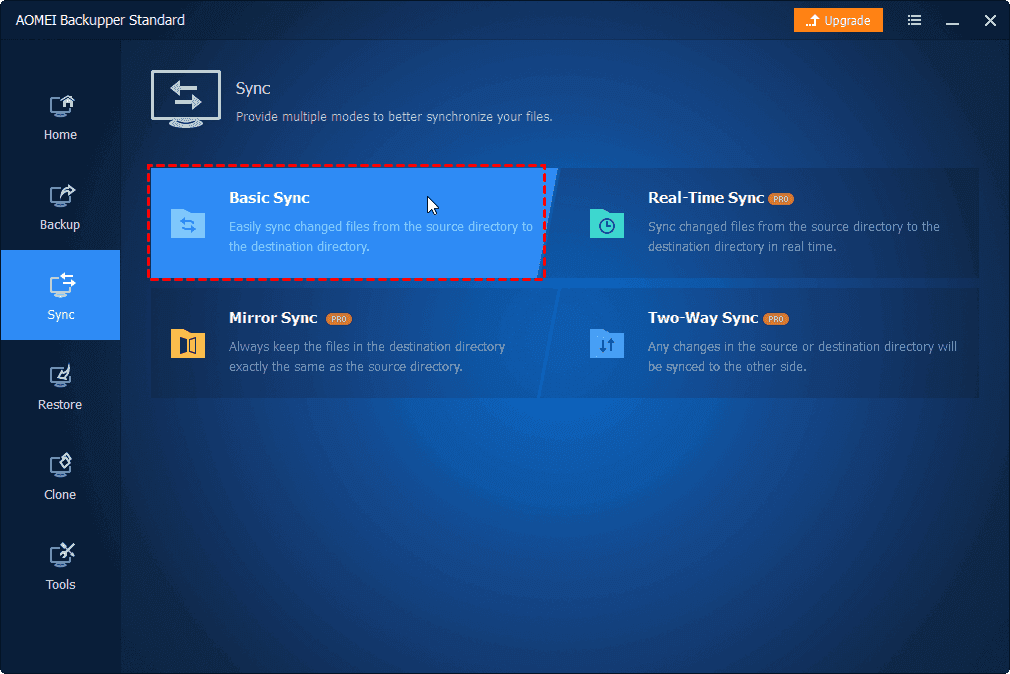
Step 1. Install and run AOMEI Backupper. Then click Sync > Basic Sync.
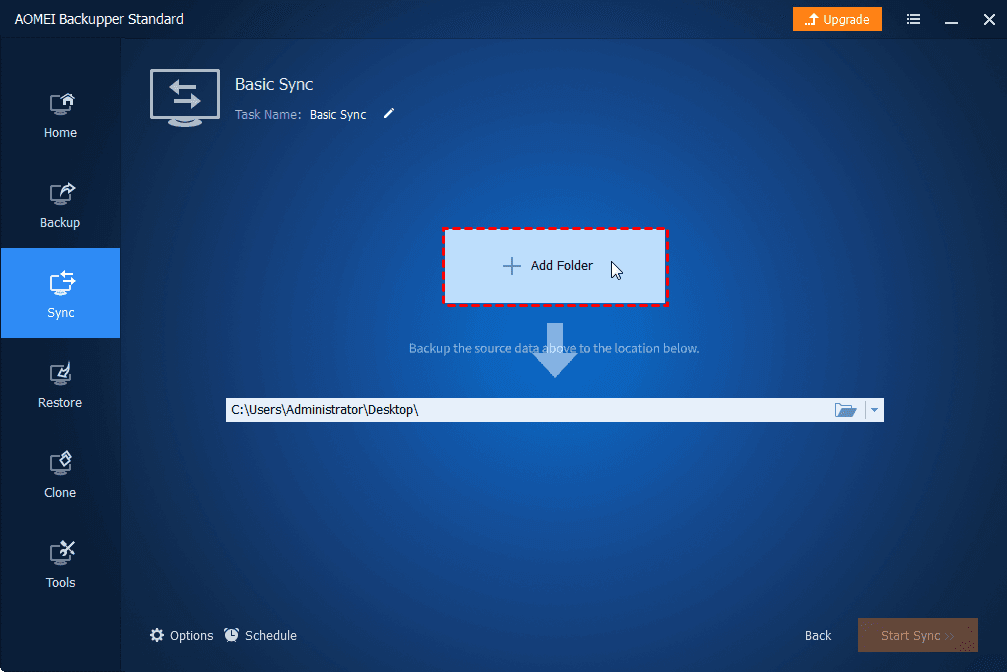
Step 2. Click Select Source and select the folder(s) you want to sync.
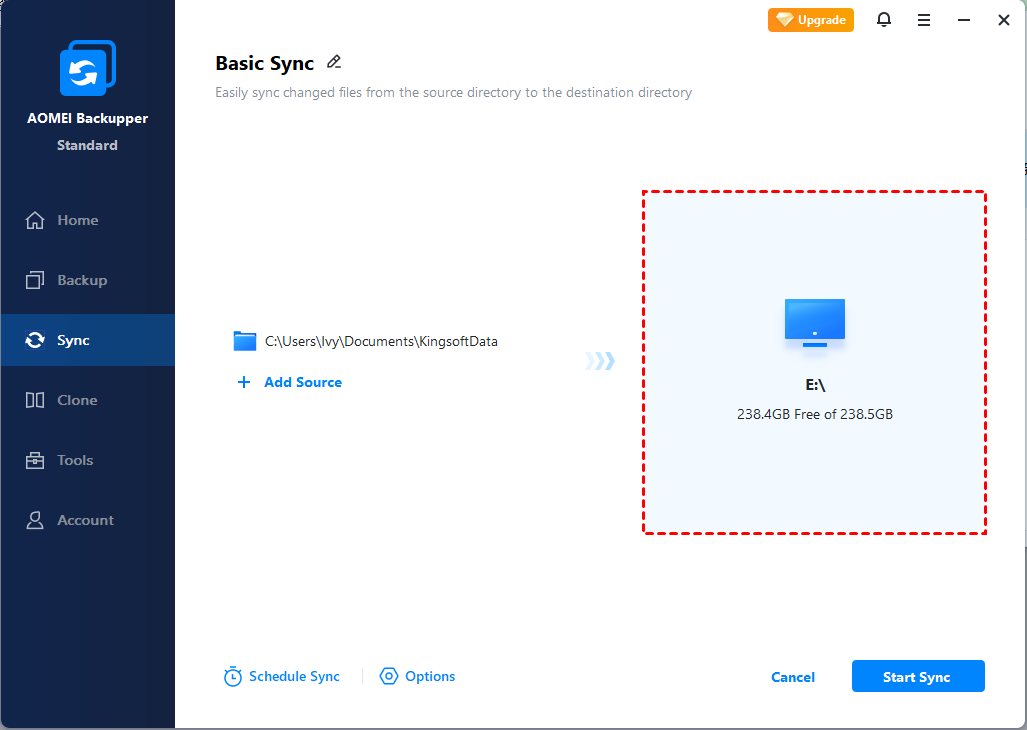
Step 3. Click the destination box to select a location to hold the synced files.
Step 4. Click Schedule Sync to configure sync frequency as necessary. Finally, click Start Sync to begin file copy.
💡 Note: To include or exclude certain file types from syncing, click Options > Filter to set a file inclusion/exclusion mask. You may upgrade to AOMEI Backupper Professional to enjoy this feature.
To Sum Up
When Windows refuses to move or duplicate your data, you can try the methods offered in this article to force copy files in Windows 10.
- Xcopy and Robocopy provide powerful ways to force overwrite files, continue past errors, and handle large transfers.
- Safe Mode offers a cleaner environment that unlocks many stubborn files and reduces system conflicts.
- For a simpler, safer, and more reliable way to force copy files in Windows, try AOMEI Backupper.
What’s more, AOMEI Backupper is specialized backup and restore software. It enables you to backup external drive, OS, individual files and restore them whenever needed. Try it now to discover more!

 as a preferred
source on Google
as a preferred
source on Google