




Best Free File Transfer Manager for Windows 10 [2026]
AOMEI Backupper Standard is one of the best free file transfer manager for Windows 10, automatically copying files between different drives, network shares, or computers. Scroll down to learn more!

By Ivy Updated on January 9, 2026


While Windows 10 includes a built-in file management system through File Explorer, it was never designed for handling heavy or mission-critical file transfers.
As file sizes grow larger and workflows become more complex, relying solely on basic “Copy and Paste” quickly becomes inefficient and risky. This is where a dedicated file transfer manager for Windows 10 becomes essential.
What Is a File Transfer Manager in Windows 10?

File transfer manager in Windows 10 is specialized software designed to automatically copy files between different devices, such as local drives, from local drive to network drive, PC to PC, external drives, etc.
Unlike the built-in “Copy andPaste”, it provides faster transfer speed, more flexible scheduling, and advanced features, enabling more stable and efficient transfers, particularly for large files or complex data transfers.
File Transfer App for PC Free Download - Fast and Efficient
AOMEI Backupper Standard is a free file transfer app for PC that can automatically copy files between different drives, e.g., transfer files from C drive to D drive, from local drive to network drive, from old computer to new computer, etc.

 AOMEI Backupper
- Free Sync: Basic Sync is free and easy to follow, suitable for large files or complex data transfers.
- Fast Sync: Sync multiple folders simultaneously - Only new and changed files to optimize transfer speed.
- Automatic Sync: Support daily, weekly, monthly (by week), event triggers, etc., up to 7 options.
- More advanced features: Optionally set up Email notification, sync deletions or not, set transfer priorities, etc.
- Storage compatibility: Compatible with different storage devices, including local drives, external drives, network shares, NAS, etc.
 100% Secure
Step-by-Step Guide: Usea File Transfer Manager on Windows 10
Using a file transfer manager - AOMEI Backupper Standard on Windows 10 is straightforward, even for first-time users. With proper settings, you cansignificantly improve transfer speed, reliability, and efficiency.
Step 1. Download, install, and launch AOMEI Backupper Standard on your Windows 10. Open it, click Sync >Basic Sync.
Step 2. Click Select Source to add any folder you want to transfer.
In the Open window:
- Click Desktop, Libraries, This PC to select a local folder. If it’s on an external hard drive, connect it to your computer first.
- Click Share/NAS to select or add a network share or NAS device.
Click Add Source to add two or more folders.
Step 3. Click the PC icon to select the destination. It can be local drives (under This PC), NAS, or network shares.
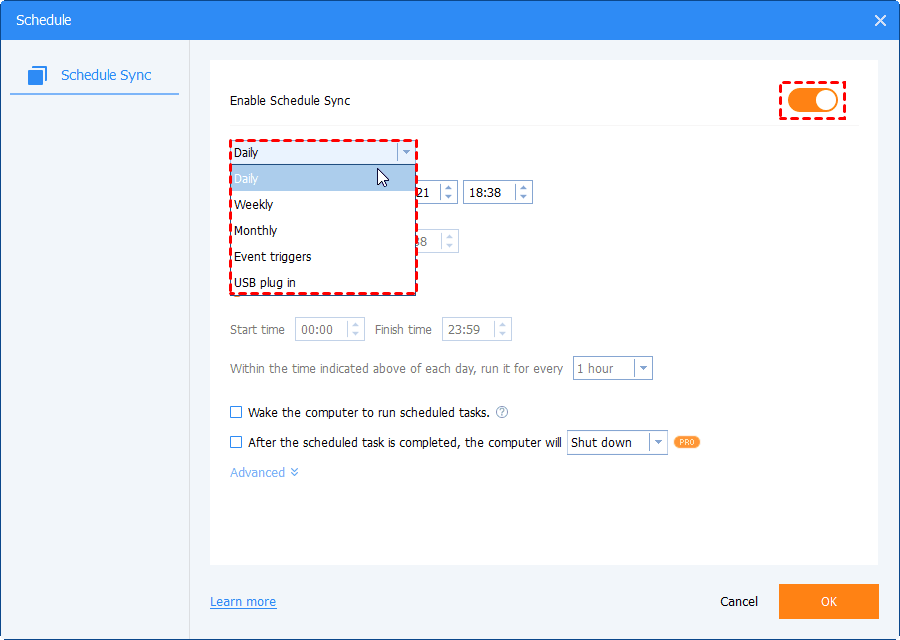
Step 4. Click Schedule Sync to set a frequency - based on daily, weekly, monthly, or event triggers, and click Start Sync to transfer files from one drive to another. You can also enable Email notifications for sync status.
⚠️Notes:
◾ File deletion cannot be undone if you check “Sync deletions from source directory to destination” in Options.
◾ To ensure safety, it’s suggested to verify the integrity of files in Options.
◾ For smooth transfer, you can set the operation priority to Slow, Normal, or High in Options.
After the first sync, it willonly sync modified or new files - saving both time and disk space. In addition, its advanced version still supports encryption for secure transfer, sync files with certain file extensions, etc.
Final Thoughts
A reliable file transfer manager for Windows 10 is more than just a convenience tool, it becomes an essential part of daily work and data management. With it, you can easily move large files, sync folders between computers, handle complex workflows, etc.
AOMEI Backupper Standard is an excellent choice that helps you sync files with different storage devices, such as local drives, external hard drives, from local drive to network share, etc., and make it run automatically.
FAQs
1. Does Windows 10 have a file transfer software?
Yes, Windows 10 offers users basic “Copy and Paste” to transfer files from one location to another, but it’s limited to small amount of data. It requires you to manually copy and paste files, making the process somewhat cumbersome.
2. Why should I use file transfer software instead of Windows File Explorer?
Windows File Explorer is suitable for simple file moves, but it lacks advanced featuresfor faster speed andgreater reliability, such as sync only changed files, scheduling, email notification, set operation priority, etc. This is particularly obvious when handling large or important files.
3. What is the best way to transfer files from PC to PC?
To transfer files from PC to PC, the best method is to use a reliable file transfer software - AOMEI Backupper Standard. It allows you to select files from local drive or network share and save them to another PC through a network share.

 as a preferred
source on Google
as a preferred
source on Google