




Full Guide to Dropbox Ransomware Protection & Recovery
Is your Dropbox really safe from ransomware? Learn how Dropbox protects your files and how to recover your Dropbox files after an attack from this page.

By Lily Updated on April 29, 2026


Does Dropbox Protect Against Ransomware?
Yes, Dropbox provides protection against ransomware through active monitoring, alerts for suspicious activity, and file recovery tools like Dropbox Rewind. For teams with the Security Add-on (standard in Advanced/Enterprise plans), it detects ransomware, allows admins to suspend compromised users, and helps revert files to a pre-attack state.
 AOMEI Backupper
Dropbox is not a backup service. To secure your PC system and files, please try the best ransomware-proof backup software.
Built-In Dropbox Ransomware Protection Features
While Dropbox is not a dedicated anti-ransomware tool, it includes several built-in security and recovery features that help minimize damage if ransomware encrypts your files. Below are some key features for Dropbox protection from ransomware.
📁 Version History
Automatically saves previous file versions. If ransomware encrypts a file, restore a clean version from history—available for 30+ days depending on your plan.
♻️ File Recovery
Restore deleted files through the web interface—ideal when ransomware removes originals before encrypting.
⏪ Dropbox Rewind
Revert your entire account or a specific folder to a pre-attack state—restores thousands of files at once after mass encryption.
🚨 Suspicious Activity Detection
Monitors for unusual file changes (e.g., mass modifications) and alerts users with guidance to secure accounts and recover data.
🔐 Multi-Factor Authentication (MFA)
Prevents attackers from using stolen credentials to access your Dropbox account and deploy ransomware from within.
Comparison of Ransomware Features by Plan
|
Feature |
Plus (Individual) |
Standard (Team) |
Advanced / Enterprise |
|
Version History |
30 Days |
180 Days |
1 Year |
|
Dropbox Rewind |
Yes |
Yes |
Yes |
|
Ransomware Alerts |
No |
Optional (Add-on) |
Included |
|
Account Suspension |
No |
Yes (Admin) |
Yes (Admin) |
How to Recover Dropbox Files After a Ransomware Attack
If ransomware encrypts synced Dropbox files, the corrupted versions may upload automatically. However, Dropbox offers recovery tools to restore clean copies. Acting fast helps minimize data loss and prevent further spread.
💡 Note: Disconnect the infected device from Dropbox before you restore files. This stops the synchronization process to prevent additional encrypted files from being uploaded.
Restore Previous File Versions
Step 1. Sign in to your Dropbox account on the web.
Step 2. Locate the affected file. Click the three-dot menu next to the file and select More > Version history.
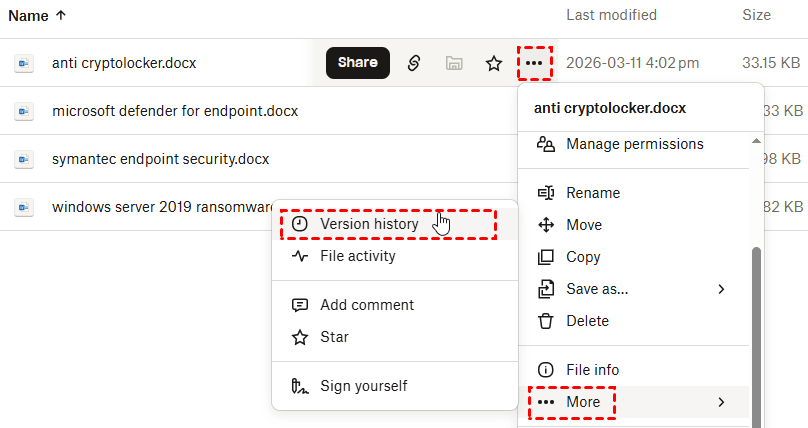
Step 3. Choose a version created before the ransomware attack and click Restore.
Recover Deleted Files
Step 1. Sign in to your Dropbox account on the web.
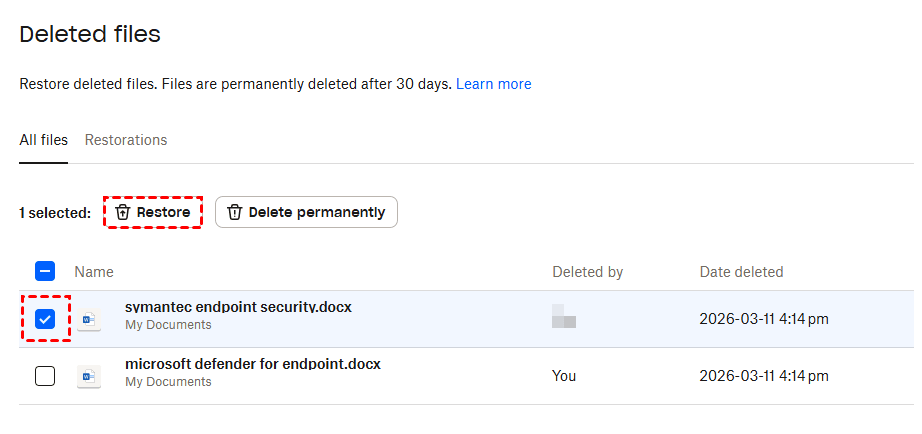
Step 2. Go to the Deleted files section in Dropbox.
Step 3. Find the file or folder removed by ransomware. Select the item and click Restore.
Use Dropbox Rewind to Restore Multiple Files
Step 1. Sign in to Dropbox on the web and select the affected folder.
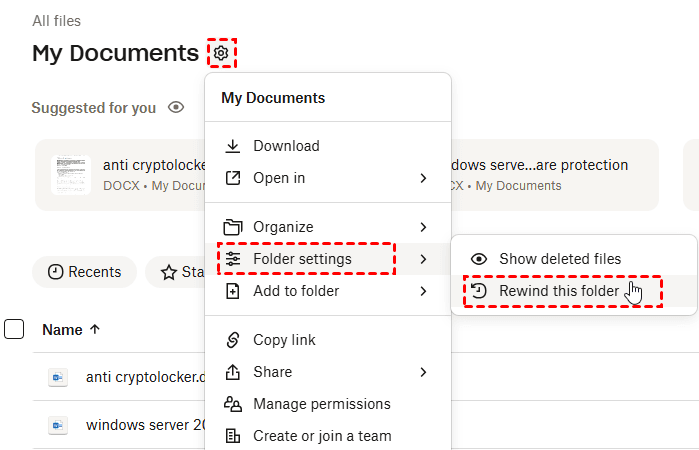
Step 2. In the next window, click the gear icon next to the folder name and select Folder settings > Rewind this folder.
Step 3. Select a date and time before the ransomware infection.
Step 4. Confirm the restoration process and click Rewind. Dropbox will then automatically restore files to their earlier, unencrypted versions.
🌟 Helpful Tips:
Once your files are restored, take steps to secure your account and prevent future incidents:
- Run a full malware scan on all connected devices
- Update your operating system and security software
- Change your Dropbox password
Best Practices to Strengthen Dropbox Ransomware Protection
While Dropbox provides useful recovery tools, preventing ransomware from reaching your files is even more important. Follow the best practices below:
1. Enable Two-Factor Authentication (2FA)
One of the simplest ways to improve Dropbox account security is to enable two-factor authentication (2FA). With 2FA enabled, you must enter a verification code from your phone or authentication app in addition to your password when signing in.
2. Keep Your Devices Secure and Updated
Since Dropbox syncs files directly from your devices, any malware infection on a computer can quickly affect your cloud storage. Keeping your system secure is essential. Recommended practices include:
- Install reliable antivirus or anti-ransomware software
- Keep your operating system and applications updated
- Regularly scan your system for malware
- Avoid downloading software from untrusted sources
3. Limit Third-Party App Permissions
Dropbox allows third-party apps to connect to your account for additional functionality. However, some apps may pose security risks if they are malicious or compromised. To reduce this risk:
- Only connect trusted and verified applications
- Review the list of connected apps regularly
- Remove any apps you no longer use
- Avoid granting unnecessary permissions
4. Be Careful with Email Attachments and Links
Phishing emails are one of the most common ways ransomware spreads. Attackers often disguise malicious attachments or links as invoices, shipping notifications, or shared documents. To stay safe:
- Do not open suspicious attachments from unknown senders
- Avoid clicking on unexpected file-sharing links
- Verify the sender before downloading files
- Be cautious with documents that request macros or downloads
Bonus: Best Ransomware-Proof Backup Software for Windows
AOMEI Backupper Professional is a comprehensive Windows backup solution featuring built-in safeguards against ransomware. It is designed to shield both your active data and your backup archives from unauthorized encryption, ensuring you have a reliable recovery path even if a primary security layer fails.
 AOMEI Backupper
- Tailored Backup Strategies: Design a custom defense by scheduling automated backups for individual files, specific partitions, or your entire system to match your specific risk profile.
- Air-Gapped Isolation: Stay beyond the reach of attackers by replicating data to NAS devices, offline external drives, or secure cloud environments.
- Instant Disaster Recovery: Drastically reduce downtime with high-speed restoration of both individual files and full system states immediately following a ransomware incident.
- Hardened Repository Protection: Secure your backup archives and sensitive directories against unauthorized modification or encryption.
 100% Secure
Download AOMEI Backupper and use it to protect Dropbox from ransomware now.
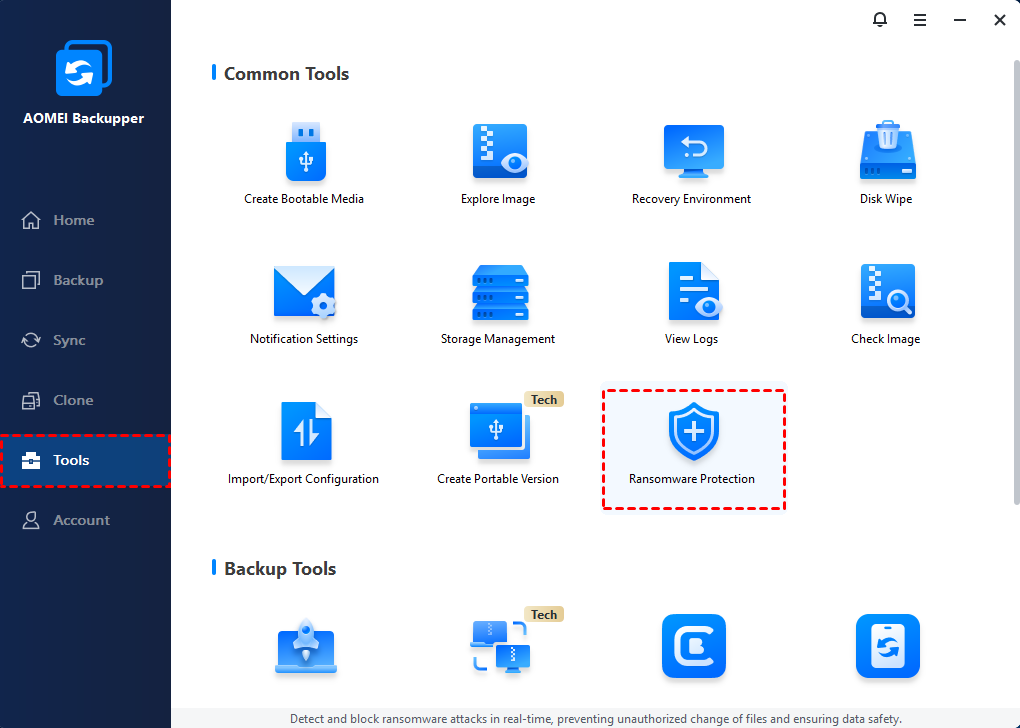
Step 1. Install and run AOMEI Backupper. Click Tools > Ransomware Protection.
Step 2. In the pop-up window, turn on the switch for Enable Ransomware Protection.
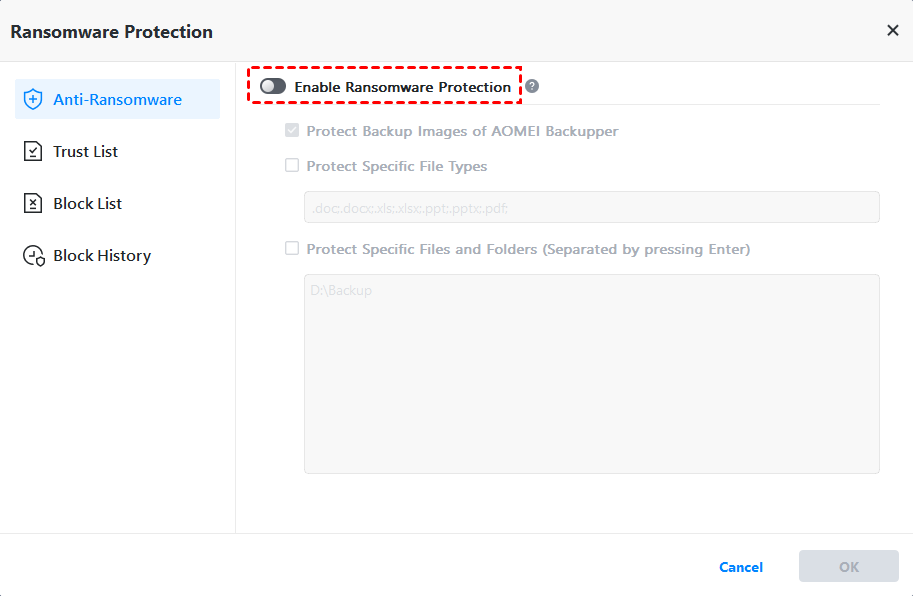
Step 3. The first protection option is checked by default. Check Protect Specific Files and Folders and input your Dropbox local folder path (e.g., C:\Users\Username\Dropbox).
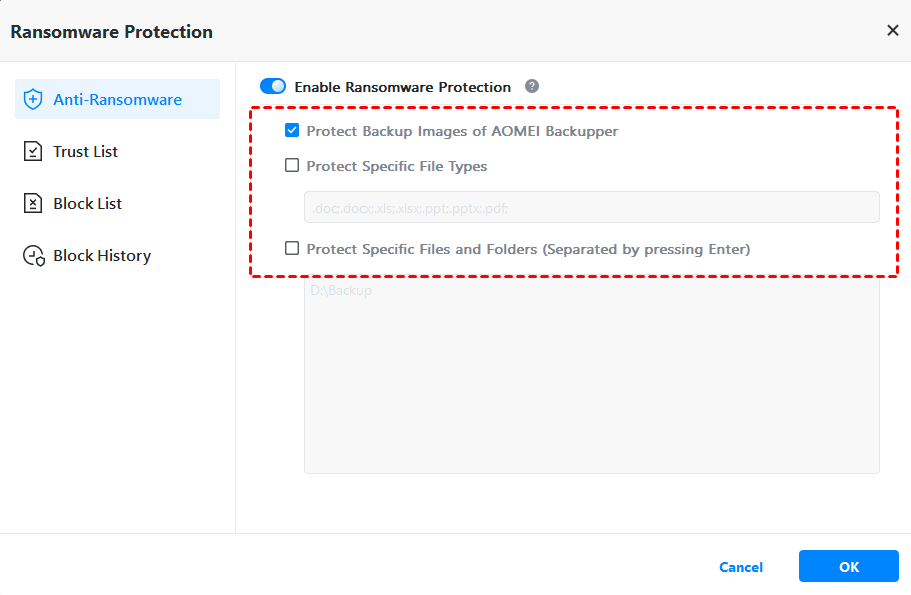
💡 Note: The Dropbox local folder is only available after you install the Dropbox desktop app.
Step 4. Confirm your settings and click OK.
Summary
This article dwells on Dropbox ransomware protection features that help reduce the damage caused by ransomware, including version history, file recovery, and Dropbox Rewind. To better protect your data, you should maintain independent backups with AOMEI Backupper. You can use it to backup Windows and individual files while protecting backups from ransomware. Why not give it a shot?

 as a preferred
source on Google
as a preferred
source on Google