



How to Bypass BitLocker on Windows 11 (2 Effective Ways)
Need to bypass BitLocker on Windows 11? This article shows you two ways – using recovery keys or CMD – plus the best freeware to back up your encrypted drive.

By Lily Updated on May 15, 2026


Can You Bypass BitLocker on Windows 11?
Yes, it is possible to bypass BitLocker on Windows 11 in certain situations, but the process depends on whether you have legitimate access to the device or recovery credentials. BitLocker is designed to protect your data from unauthorized access, so there is no guaranteed or official method to bypass its encryption without proper authentication.
It is important to understand the difference between bypassing BitLocker and unlocking it legally:
- Unlocking BitLocker means using the correct password, PIN, or recovery key to access the encrypted drive.
- Disabling BitLocker removes encryption after the drive has been unlocked successfully.
- Bypassing BitLocker without credentials is generally not supported because BitLocker uses strong encryption designed to prevent unauthorized access.
 AOMEI Backupper
Since encryption-related operations may risk data loss, it is highly recommended to backup your encrypted drive beforehand using free and reliable Windows backup software.
How to Do BitLocker Bypass on Windows 11 Step by Step
If you are locked out of a BitLocker-protected drive on Windows 11, the safest and most effective approach is to use official recovery methods. Learn how to bypass BitLocker recovery key on Dell laptop Windows 11 below.
💡 Note: These methods can also help you bypass BitLocker on Windows 11 HP/ASUS/Lenovo, etc.
Method 1: Unlock BitLocker with the Recovery Key
The BitLocker recovery key is the primary recovery method provided by Microsoft.
1. Find your recovery key. You may find the 48-digit recovery key in one of these locations:
- Your Microsoft account
- A printed document
- A USB flash drive
- Azure AD or Active Directory (work/school devices)
- A text file saved on another device
2. Start your Windows 11 computer. When the BitLocker recovery screen appears, enter the 48-digit key.
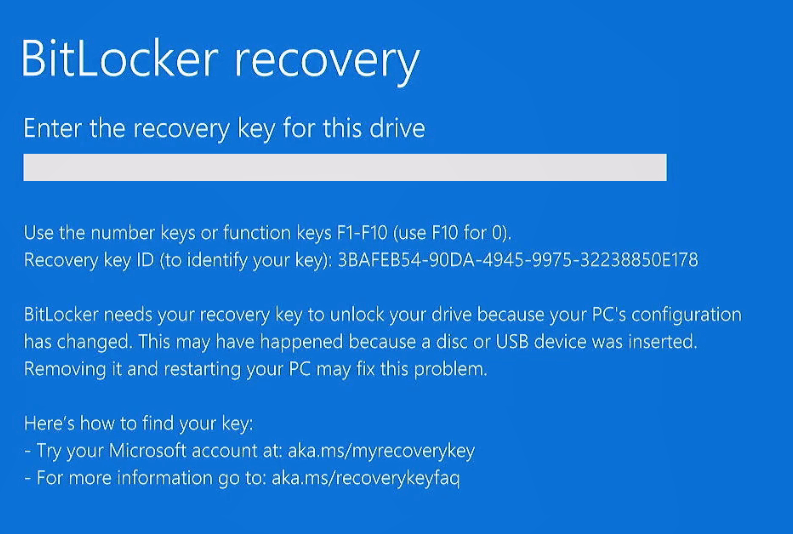
3. Press Enter to continue. Once verified, Windows 11 will unlock the encrypted drive and boot successfully.
Method 2: Unlock BitLocker Using Command Prompt
You can also unlock a BitLocker drive through Command Prompt if you have administrator access and the recovery key.
1. Boot into Windows Recovery Environment.
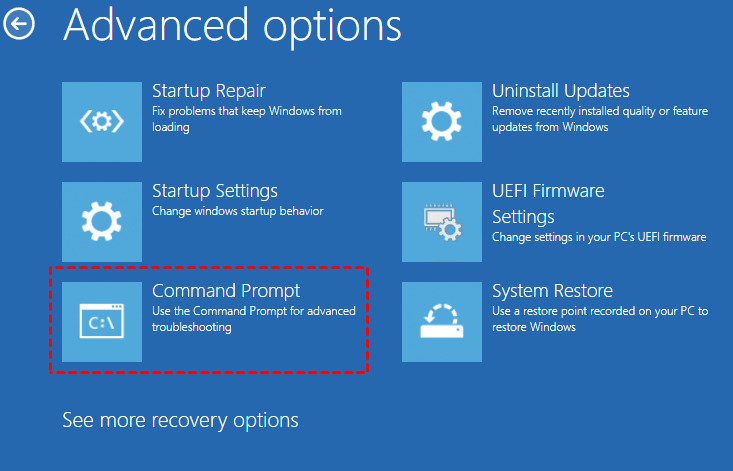
2. Select Troubleshoot > Advanced options > Command Prompt.
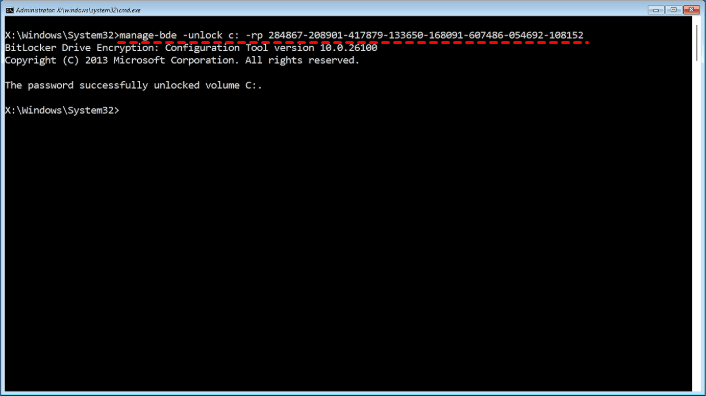
3. In the Command Prompt window, type manage-bde -unlock c: -rp YOUR-48-DIGIT-KEY and press Enter to unlock the drive. Replace C: with the correct drive letter and enter your recovery key.
4. Type exit and press Enter to close Command Prompt.
5. Select Continue or Exit and continue to Windows. Your computer should now boot successfully.
Fixed: Bypass BitLocker in a Recovery Key Loop
If your computer keeps asking for your BitLocker recovery key even when you enter the correct key, try these steps to fix it:
1. On the screen asking for your recovery key, select Skip this drive at the bottom.
2. Select Advanced options > Troubleshoot > Advanced options > Command Prompt.
3. In the Command Prompt window, type manage-bde -status c: and press Enter.
4. Find the line that saysLock Status. It will show either:
- Locked (you need to continue to Step 5)
- Unlocked (skip to Step 6)
5. Type manage-bde -unlock c: -rp YOUR-48-DIGIT-KEY and press Enter to unlock the drive.
6. Type manage-bde -protectors -disable c: and press Enter to temporarily turn off BitLocker protection.
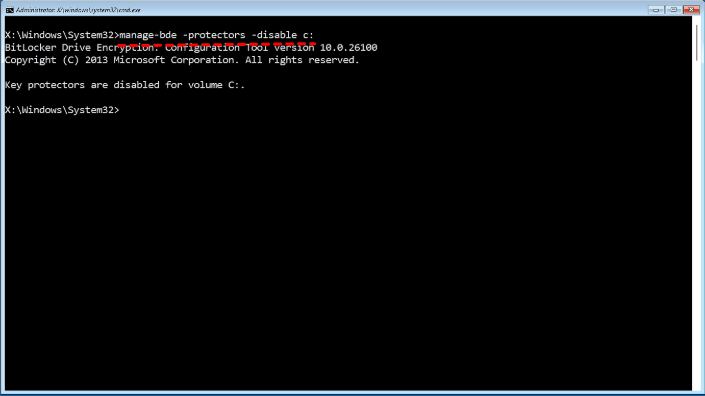
7. Exit Command Prompt and continue to Windows. Once Windows starts, you need to turn BitLocker protection back on:
- Select Start and type bitlocker in the search box.
- Select Manage BitLocker from the results.
- Find your drive (usually C:) in the BitLocker window.
- Select Resume protection next to your drive.
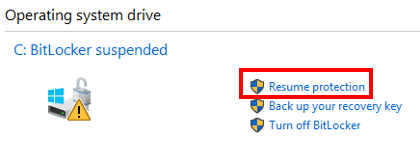
- Wait for the message that says protection is active again.
Your computer is now fully protected and should work normally.
Bonus: Best Way to Backup an Encrypted Drive in Windows 11
Before attempting to bypass, disable, or troubleshoot BitLocker, creating a backup of your encrypted drive is highly recommended. This helps protect important files from accidental loss caused by failed recovery attempts, formatting errors, or system corruption. AOMEI Backupper Standard stands out as the most reliable solution.
 AOMEI Backupper
- Backs up Windows, disks, partitions, or selected files as you want.
- Works with BitLocker-enabled drives even without unlocking them.
- Allows scheduled automatic backups, including daily, weekly, monthly backup, etc.
- Provides incremental backup to save storage space.
- Includes the Create Bootable Media feature for unbootable system recovery.
 100% Secure
Download AOMEI Backupper and follow the instructions below to safely backup your encrypted drive:
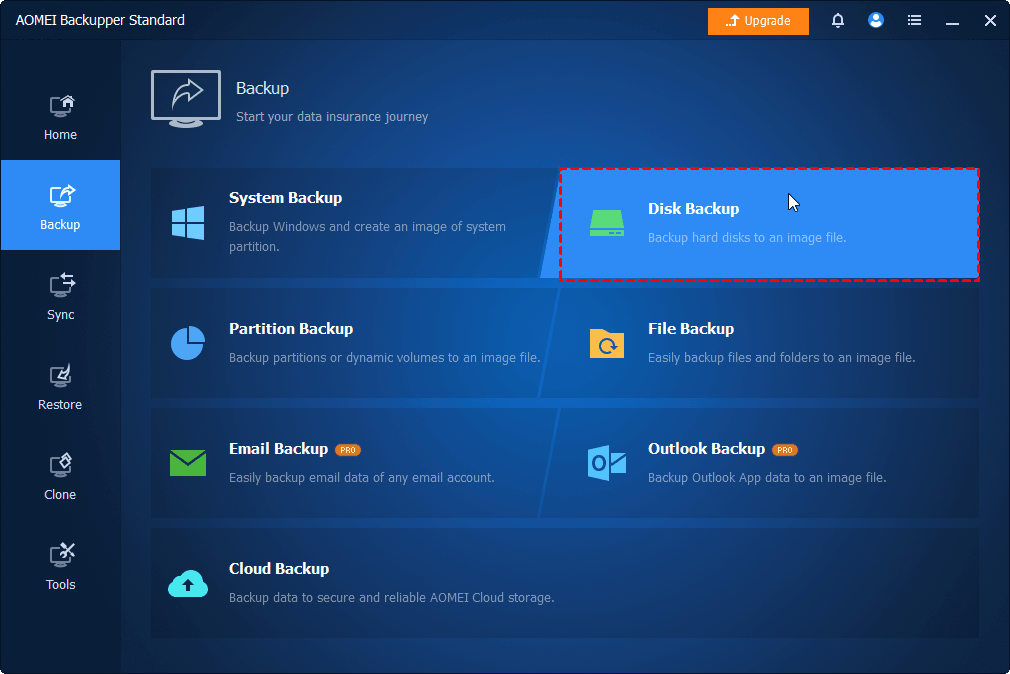
Step 1. Run AOMEI Backupper. Click on the Backup tab on the left panel and select Disk Backup.
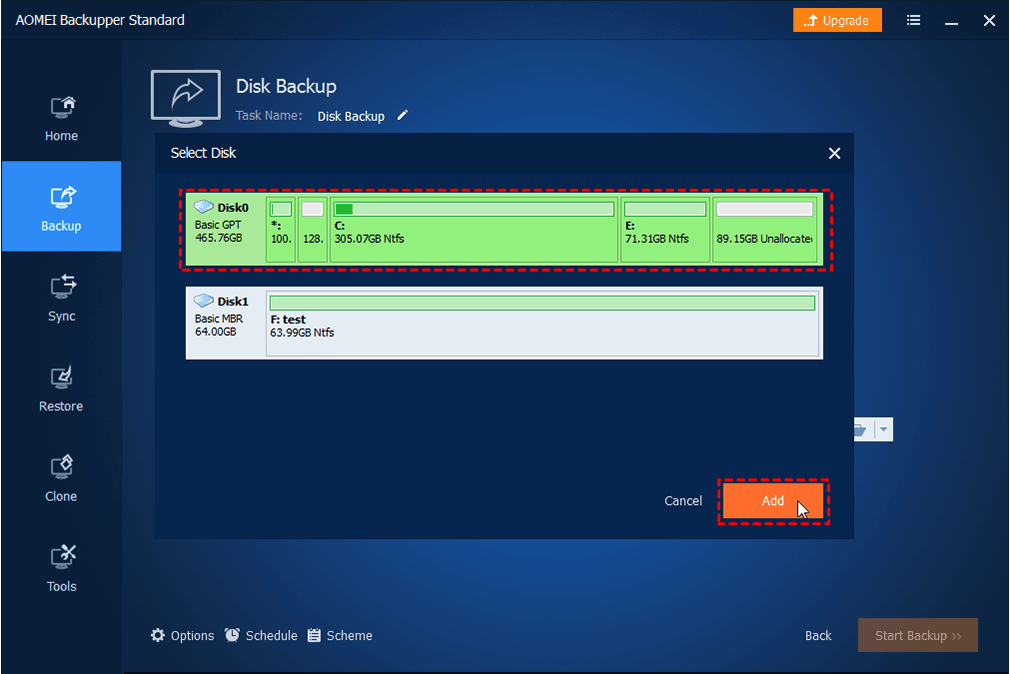
Step 2. Click Select Source. Choose your BitLocker-encrypted drive from the list and click OK.
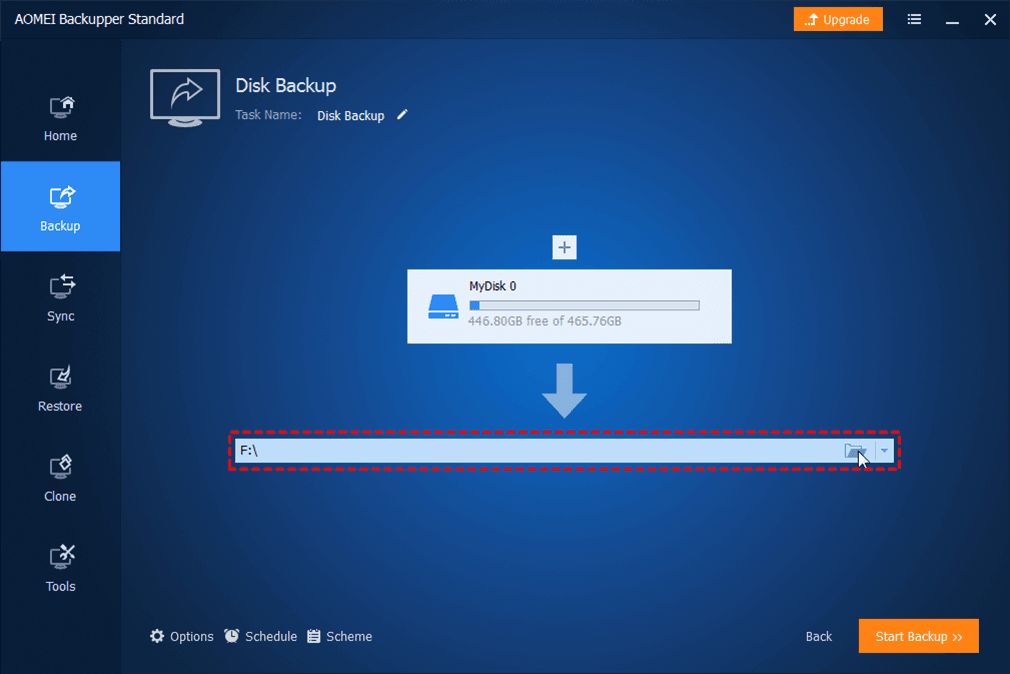
Step 3. Click the destination area to choose a location to save the disk image.
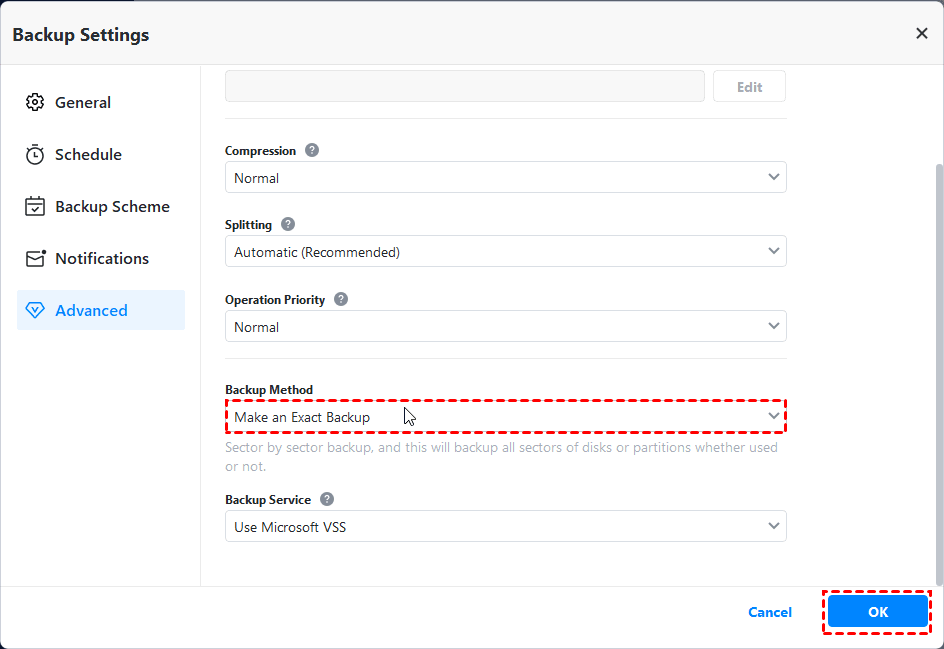
Step 4. To backup the encrypted drive, click Options > Advanced. Then choose Make an Exact Backup under Backup Method and click OK. This method requires the destination path to have at least the same capacity as the source disk.
💡 Notes:
- "Make an Exact Backup" will backup all sectors of the hard drive, whether used or not, so it will take much time and space.
- If you want to save time and space, you can decrypt the hard drive first, and then use the "Intelligent Sector Backup" method, which only backs up the used space.
Step 5. Click Schedule to enable automatic backups as necessary. Finally, click Start Backup to begin. The software will create an image of your encrypted drive without affecting your data.
FAQs about Bypassing BitLocker on Windows 11
1. Which methods work best to bypass BitLocker on Windows 11?
There are no reliable methods to truly “bypass” BitLocker without the recovery key or proper credentials. BitLocker is a full-disk encryption feature designed to prevent unauthorized access. If you’ve lost the key, the only practical options are:
- Using the Microsoft account recovery key (if backed up there).
- Restoring the key from an Active Directory (for enterprise devices).
- Performing a clean installation of Windows 11 (which erases all data).
2. Does resetting Windows 11 remove BitLocker encryption automatically?
No. Resetting Windows 11 via “Reset this PC” will generally require the BitLocker recovery key before proceeding. If the system cannot unlock the drive, the reset won’t start. A full clean installation from USB media can remove encryption, but this deletes all personal files and reinstalls Windows from scratch.
3. Is using Command Prompt effective to bypass BitLocker protection?
No, using Command Prompt is not effective for bypassing BitLocker. While Command Prompt can be used to manage BitLocker (e.g., manage-bde commands to unlock a drive or check status), it still requires the correct recovery key or password to perform any decryption action.
To Sum Up
BitLocker is a powerful security feature in Windows 11 that protects your data through drive encryption, but it can also lock users out after password changes, hardware modifications, or lost recovery keys. This article explained how to bypass BitLocker on Windows 11 safely using official recovery methods.
Since encryption-related operations may risk data loss, it is highly recommended to backup your encrypted drive beforehand using AOMEI Backupper. It provides automatic backups, full system and file protection. Don’t hesitate to try it out!

 as a preferred
source on Google
as a preferred
source on Google