




How to Transfer Music from iPhone to Computer for Free
Need a free way to save iPhone music on a computer? This guide explains 4 ways to transfer music from iPhone to computer free, working for purchased songs, local audio files, and computer-based transfers.

By Jonna Updated on August 25, 2026


Listening to music on an iPhone is convenient, but over time, your music library can take up a significant amount of storage space. You may also want to transfer songs to your computer for backup, editing, sharing, or moving them to another device.
Many users search for how to transfer music from iPhone to computer free because Apple does not provide a simple drag-and-drop method like Android devices. While iTunes can sync music, it has limitations, especially when you want to move songs from an iPhone back to a computer. Fortunately, there are several free ways to transfer music from an iPhone to a computer.
Can I Transfer Music from iPhone to Computer for Free?
Yes, you can transfer music from an iPhone to a computer for free, but the available methods depend on where your music comes from. Before choosing a method, it is important to understand the type of music stored on your iPhone.
1. Purchased Music from Apple Music/iTunes Store
If you purchased songs from Apple, you can download them again through your Apple Account or transfer purchased items using iTunes.
2. Apple Music Subscription Songs
Songs downloaded through an Apple Music subscription are protected by DRM and cannot be copied directly to another computer as normal audio files. You can only access them by signing into the same Apple Account and downloading them through Apple Music.
3. Imported MP3 Files or Other Music
If you manually added music files to your iPhone from another source, transferring them back to your computer can be more difficult. In this situation, a dedicated iPhone transfer tool is usually more convenient.
Method 1. Transfer Purchased Music from iPhone to Computer with iTunes
This is the most official free option when the songs were bought from the iTunes Store. It does not solve every music-transfer problem, but it is reliable for eligible purchases and keeps you inside Apple's authorization system.
Step 1. Install or open iTunes on the Windows PC and sign in with the Apple Account used to buy the songs.
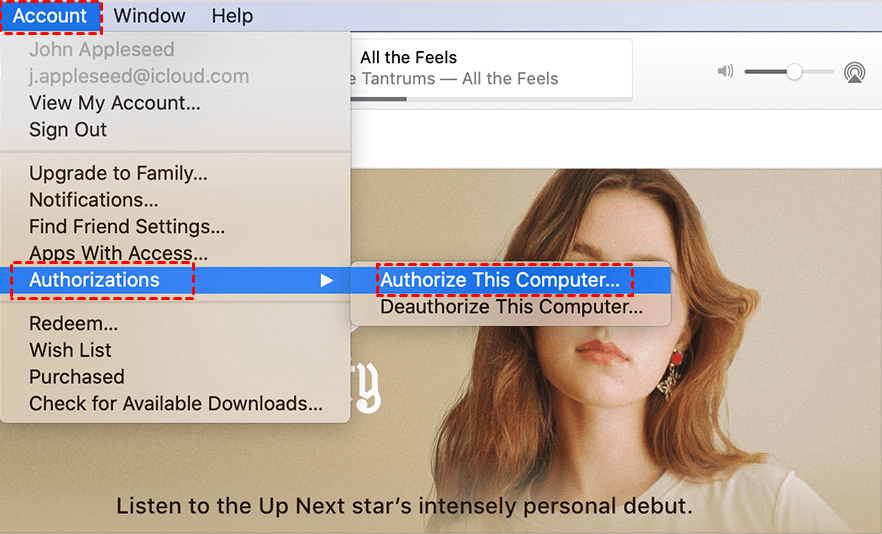
Step 2. Choose Account > Authorizations > Authorize This Computer. Complete the authorization if prompted.
Step 3. Connect the iPhone with a USB cable and tap Trust This Computer on the iPhone if the prompt appears.
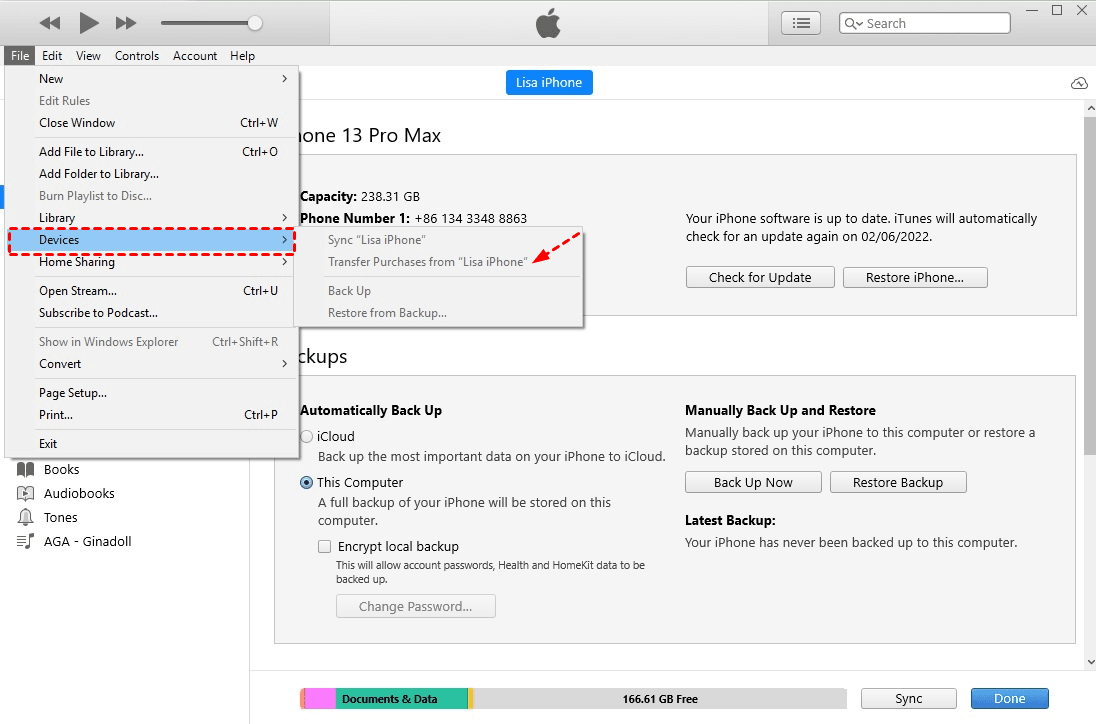
Step 4. In iTunes, choose File > Devices > Transfer Purchases from [device name].
Step 5. Open the music library on the computer and confirm that the purchased songs appear or can be downloaded locally.
Use this method when your goal is to recover or archive purchased music. Do not rely on it for non-purchased MP3s, recordings from another app, or Apple Music subscription songs.
Method 2. Copy Music Files through Cloud Storage
Cloud storage is useful when your songs are already visible as files on the iPhone. It works with services such as iCloud Drive, Dropbox, Google Drive, or OneDrive. The transfer is free within the available storage limit, but large music libraries may take time to upload and download.
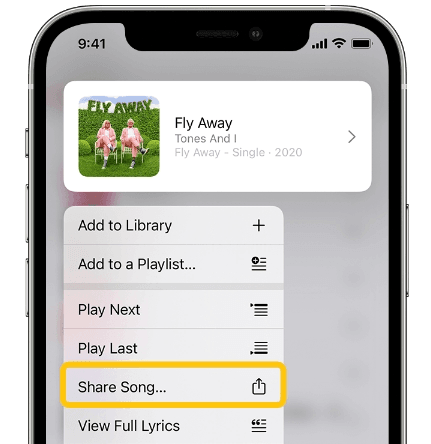
Step 1. On the iPhone, open the app where the audio files are stored, then select Share Song.
Step 2. Move the songs to iCloud Drive, Dropbox, Google Drive, or another cloud folder you can access from the computer.
Step 3. On the computer, sign in to the same cloud account in a browser or desktop app.
Step 4. Select the uploaded music files and choose Download to save them to a local folder.
Step 5. Play a few files on the computer to confirm the format, length, and audio quality before deleting anything from the iPhone.
This method is simple, but it cannot pull protected tracks directly out of the Music app. It is best for files you own and can manage through Files or another export-friendly app.
Method 3. Transfer Music with AOMEI FoneBackup
AOMEI FoneBackup may be useful when you prefer a Windows-based iPhone data transfer tool instead of managing iTunes sync. It allows selective transfer for iPhone media, from iPhone to computer as well as transfer data from PC to iPhone.
 AOMEI FoneBackup
- Transfer between iPhone and PC: Transfer photos, videos, purchased and unpurchased music, etc., - no iCloud or Wi-Fi required.
- Data Safety: Quick music transfer and won't overwrite the content.
- NO Apple ID Limit: No need to sign in to Apple ID; not restricted by Apple ID.
- Wide compatibility: Supports all iOS versions and all models of iPhone, iPad, and iPod.
 100% Secure
Step 1. Install and open AOMEI FoneBackup on the Windows computer. Connect the iPhone with a USB cable, unlock it, and tap Trust This Computer if required.
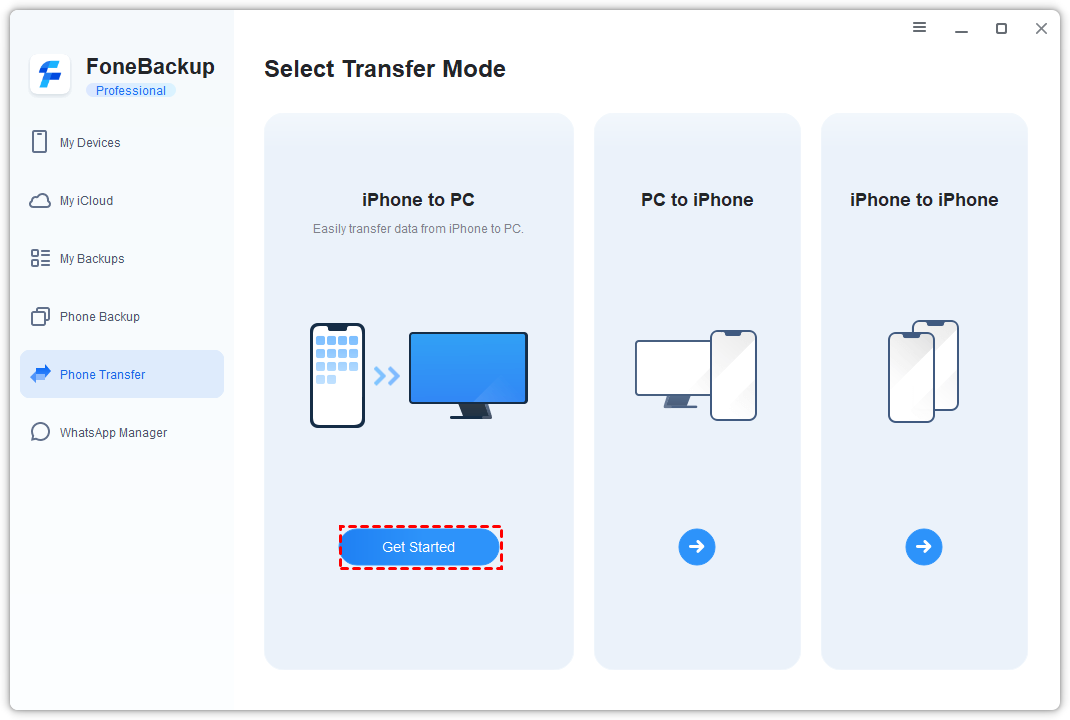
Step 2. In AOMEI FoneBackup, choose Phone Transfer > iPhone to PC > Get Started.
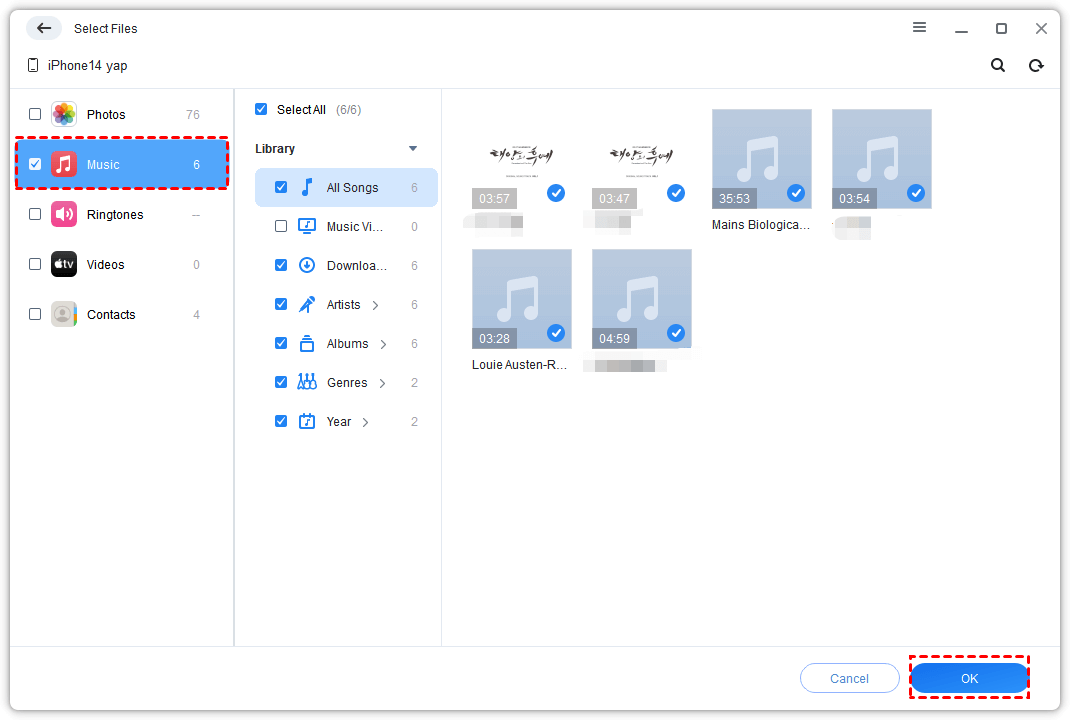
Step 3. Click the plus icon and select Music or the available media category that contains the songs you want to copy.
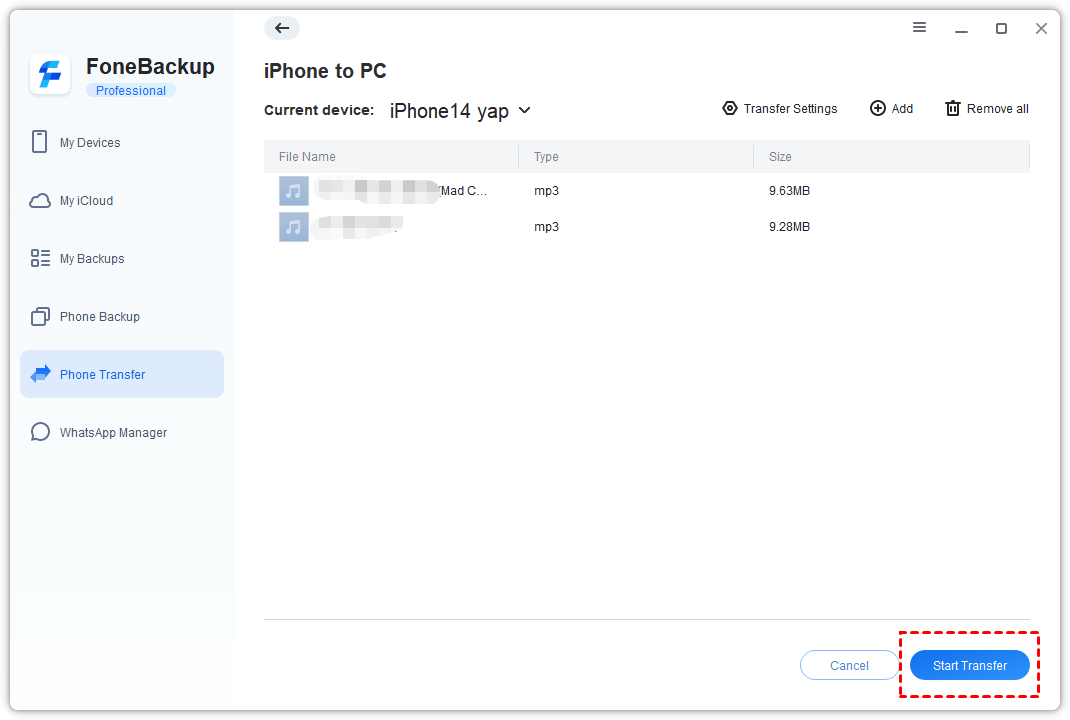
Step 4. Open Transfer Settings, choose a destination folder on the computer, then click Start Transfer.
This method is strongest when you want to pick specific files and keep the transfer local. If the music is protected by Apple Music subscription rules or is not visible to the transfer workflow, use an Apple account-based method instead.
Method 4. Use Apple Music or Sync Library for Subscription Music
If your songs come from an Apple Music subscription, exporting them as regular files is usually not the right goal. A better free path is to use the same Apple Account and Sync Library so the music library appears on your computer through Apple Music, subject to your subscription and regional availability.
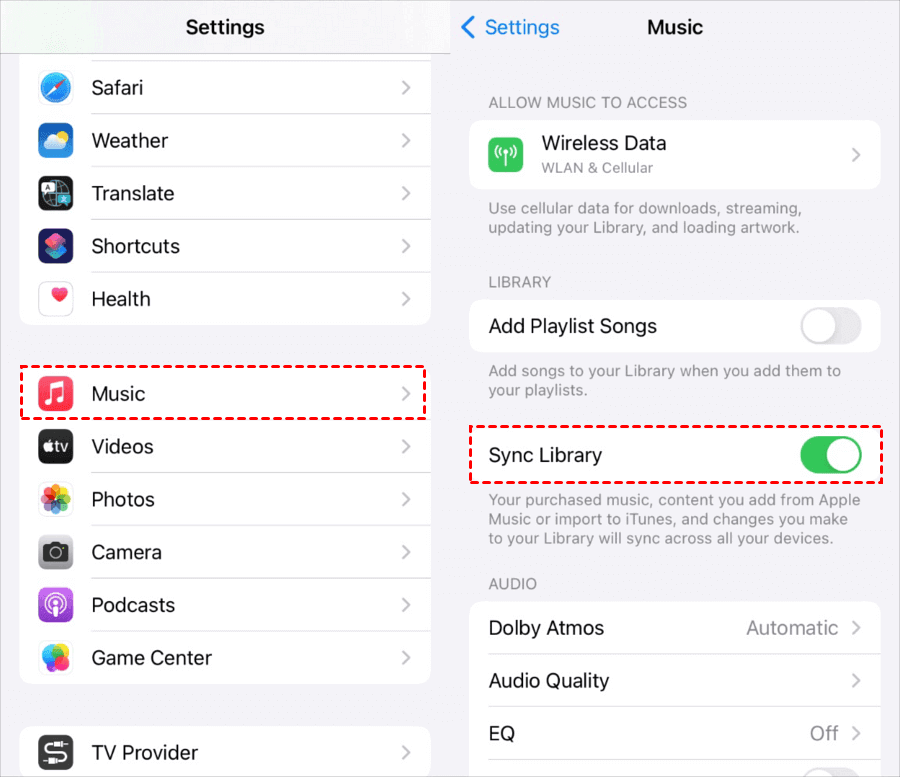
Step 1. On iPhone, check Settings > Music and confirm Sync Library is enabled when your subscription supports it.
Step 2. On the computer, open Apple Music or the relevant Apple app and sign in with the same Apple Account.
Step 3. Wait for the library to sync, then download available songs for offline listening inside the app if needed.
This gives access, not unrestricted file ownership. It is a good fit for listening on the computer, but not for creating a separate folder of exportable music files.
FAQs on Transferring Music from iPhone to Computer Free
#1. Can I transfer music from iPhone to computer free without iTunes?
Yes, if the music exists as accessible files, you can use cloud storage, or a computer-based transfer tool such as AOMEI FoneBackup. Purchased iTunes Store music can also be handled through Apple's purchase-transfer or re-download workflow.
#2. Can File Explorer copy iPhone music to a PC?
Usually no. Windows File Explorer commonly shows iPhone photos and videos, but it does not expose the Music app library like a normal USB drive.
#3. Can I export Apple Music subscription songs as MP3 files?
No. Subscription access is different from owning exportable files. Use Apple Music and Sync Library for listening on other devices where your account allows it.
#4. What is the safest free method for a few local audio files?
Cloud storage is often the simplest if the files can be shared from the iPhone. For a local USB workflow on Windows, AOMEI FoneBackup may be easier when it supports the data type you need.
Conclusion
The best way to transfer music from iPhone to computer free depends on the song source. Use iTunes for eligible purchases, cloud storage for audio files you can access directly, and AOMEI FoneBackup when you want a selective music transfer. Before deleting anything from the iPhone, verify that the copied files open correctly on the computer.

 as a preferred
source on Google
as a preferred
source on Google