




How to Transfer FLAC to iPhone and Play It Offline
This guide shows how to transfer FLAC to iPhone for offline listening, whether you want to keep the original files, use a wireless method, or manage lossless music in Apple Music.

By Ivy Updated on August 21, 2026


You have a folder full of FLAC albums on your Windows PC, and now you want to listen to them on your iPhone. However, copying music to an iPhone isn’t as simple as moving files into an Android Music folder. Even after the transfer, your FLAC songs may not appear in Apple Music.
The problem is usually the destination rather than the FLAC files themselves. You can keep the original FLAC format and play it through Files or a compatible player such as VLC. If you want the songs inside Apple Music, you may need to convert FLAC to ALAC first.
This guide explains how to transfer FLAC to iPhone using USB, Wi-Fi, or cloud storage. It also helps you choose the right method for your preferred playback app.
Can iPhone Play FLAC Files?
An iPhone can open and play FLAC files, but the experience depends on the app you use.
The Files app can store and preview FLAC audio. A compatible player such as VLC can provide more useful music controls and keep your files available for offline listening. However, saving a FLAC file in Files or VLC does not automatically add it to your Apple Music library.
FLAC and ALAC are both lossless audio formats. FLAC is widely supported by third-party players, while ALAC is Apple’s lossless format. If you want local songs organized in Apple Music by artist, album, and playlist, converting FLAC to ALAC is usually the more suitable route.
Quick Guide: Choose a FLAC Transfer Method
| 🎯 What you want | 🛠️ Recommended method | 💡 What to know |
|---|---|---|
| Select and transfer FLAC files from Windows | AOMEI FoneBackup | Free Transfer supports 30 files per day |
| Use a free official Windows transfer tool | Apple Devices and VLC | Files stay inside VLC |
| Transfer without a cable or cloud storage | VLC Wi-Fi Sharing | Both devices need the same local network |
| Move a few files through the cloud | iCloud Drive | Download the files before offline listening |
| Manage lossless songs in Apple Music | Convert FLAC to ALAC | Conversion is required before library syncing |
Where to start?
- If you want a direct iPhone to PC transfer and need to choose individual songs, start with AOMEI FoneBackup.
- To keep FLAC files inside an independent player at no cost, use Apple Devices with VLC.
- Choose the ALAC route when Apple Music library management matters most.
Method 1. Transfer FLAC from PC to iPhone with AOMEI FoneBackup
👍 Best for: Select multiple FLAC files on a Windows PC without syncing an entire music library.
AOMEI FoneBackup is an iPhone backup and transfer tool for Windows PCs. Its PC to iPhone feature officially supports FLAC, along with MP3, WAV, M4A, AAC, AIF, and AIFF music files.
This method gives you more control over which songs you transfer:
- Choose specific files: Add individual FLAC songs or an entire folder.
- Transfer through USB: You do not need to upload your music to cloud storage.
- Keep existing content: The process adds files instead of replacing.
 AOMEI FoneBackup
iPhone backup and transfer tool for Windows PCs
Step 1. Download and install AOMEI FoneBackup on your Windows PC. Connect the iPhone with a USB cable, unlock it, and tap Trust if prompted.
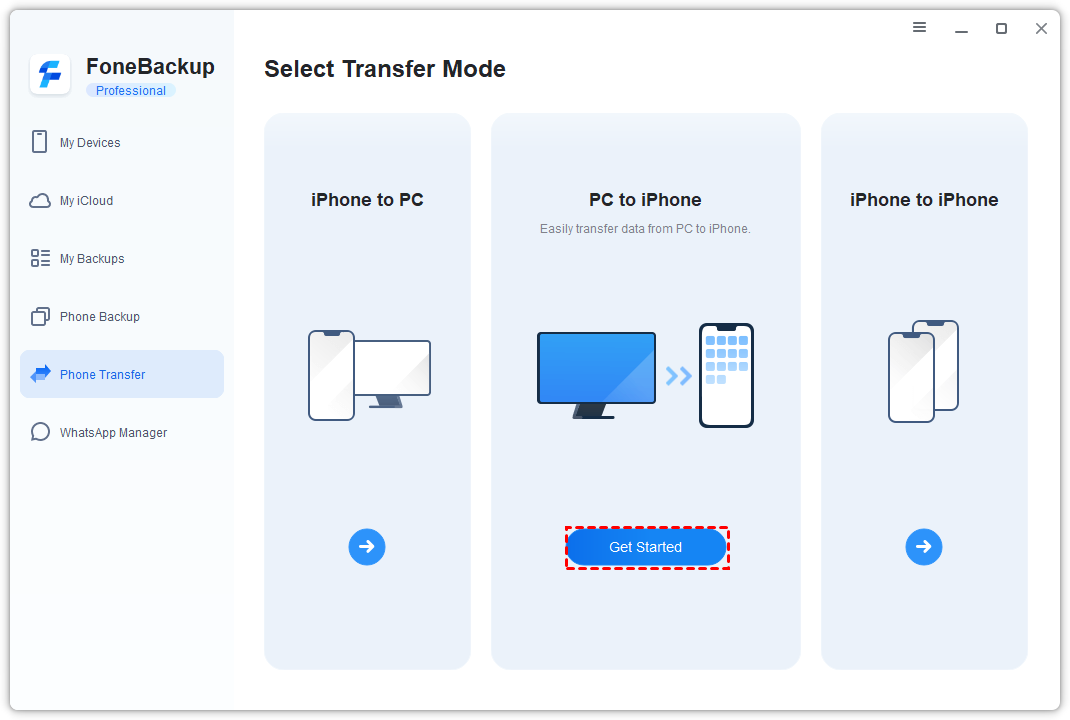
Step 2. Open AOMEI FoneBackup and select Phone Transfer. Move to PC to iPhone, then click Get Started.
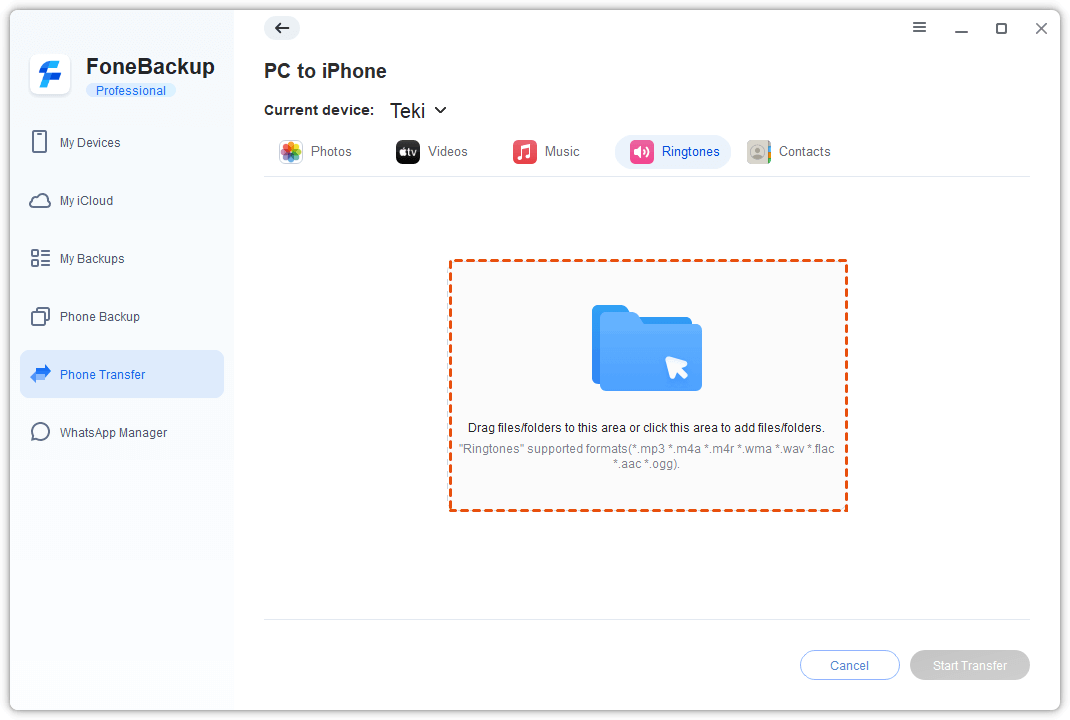
Step 3. Click the blue folder icon. Select the FLAC files or folders you want to add.
Step 4. Install or update the AOMEI FoneBackup app on your iPhone if the desktop program asks you to do so.
Step 5. Review the selected files and click Start Transfer. Keep the iPhone connected until the transfer finishes.
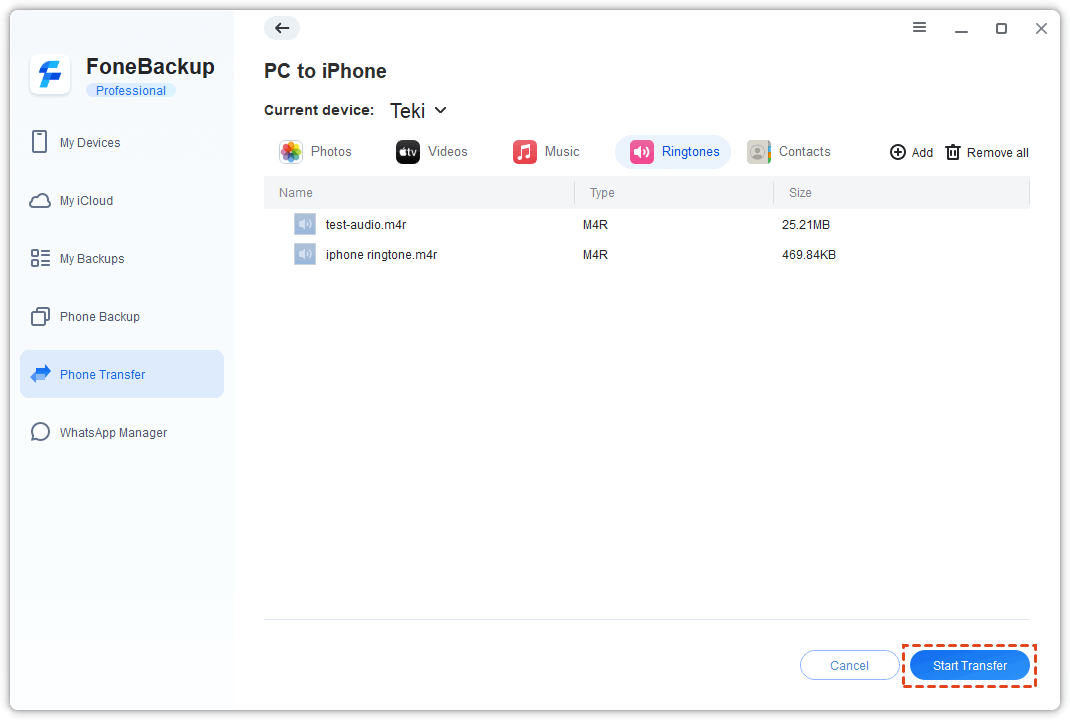
Afterward, check the downloaded music location indicated by the app. Play several tracks and confirm that their titles, album details, artwork, and playback order are correct before deleting the computer copies.
If a FLAC file is rejected, confirm that its extension is .flac and test whether it plays normally on the PC. Protected Apple Music subscription downloads are not normal transferable FLAC files.
Method 2. Transfer FLAC to iPhone for Free with Apple Devices and VLC
👍 Best for: Copy FLAC files by USB into a compatible player without converting the audio.
Apple Devices is Apple’s current device-management app for Windows 10 and later. Its File Sharing feature can copy files directly into an iPhone app that supports file sharing.
VLC is a practical destination because it can receive media files and play FLAC without conversion. The transferred songs remain inside VLC and do not automatically appear in Apple Music.
Step 1. Install Apple Devices on your Windows PC and VLC on your iPhone. Meanwhile, connect the iPhone to the PC with a USB cable. Unlock the iPhone and approve the Trust request if it appears.
Step 2. Open Apple Devices, select your iPhone in the sidebar, then Files. This page displays the iPhone apps that support File Sharing.
Step 3. Select VLC, then drag your FLAC files into the Apple Devices window. Depending on the app version, you may also see an Add File option.
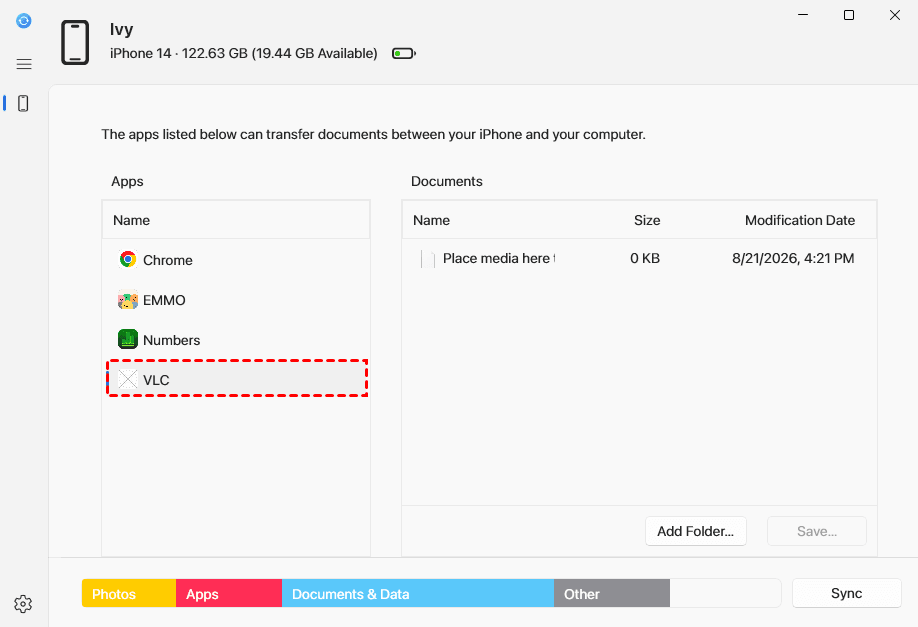
Wait until the files have been copied, then eject the iPhone before disconnecting it.
Open VLC on the iPhone and locate the transferred songs. Play at least 1 complete track. Then turn off Wi-Fi and mobile data and test it again. This confirms that the file is stored locally rather than being streamed.
Method 3. Transfer FLAC to iPhone Wirelessly with VLC Wi-Fi Sharing
👍 Best for: Send FLAC files from a computer without using a cable or cloud account.
VLC includes a Wi-Fi Sharing feature that creates a local transfer page. Your computer uploads the files directly to VLC while both devices are connected to the same network.
Step 1. Connect the iPhone and computer to the same Wi-Fi network.
Step 2. Open VLC on your iPhone, select Browse > Network, and turn on Sharing via WiFi.
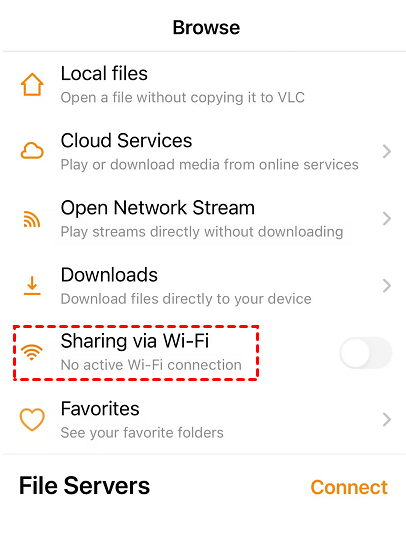
Step 3. VLC displays a local web address. Open it in your computer's browser, and drag your FLAC files into the window. You can also click the + button and select the files manually.
Keep VLC open until the progress indicator shows that the upload is complete.
The transferred tracks should appear in VLC and remain available for offline playback. Turn off Sharing via WiFi when you finish, especially if other people can access the same local network.
Method 4. Transfer FLAC to iPhone with iCloud Drive
👍 Best for: Moving a small number of FLAC files without connecting the iPhone to the computer.
iCloud Drive lets you upload FLAC files through a browser and find them later in the iPhone Files app. It is convenient for a few songs, but a large FLAC library can use substantial iCloud storage and take longer to upload.
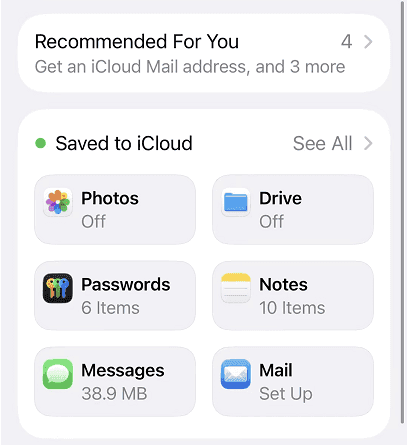
Step 1. On the iPhone, open Settings, tap your name, and select iCloud.
Step 2. Tap Drive, then turn on Sync this iPhone.
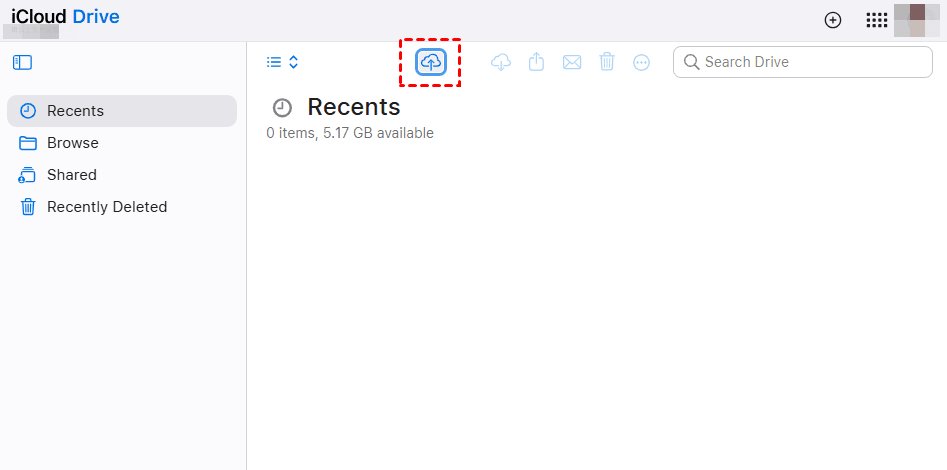
Step 3. On the computer, visit iCloud.com, sign in to the same Apple Account, and open Drive.
Step 4. Select the File Upload button and choose the FLAC files. You can also drag the files into the iCloud Drive browser window.
Step 5. On the iPhone, open Files and tap Browse > iCloud Drive. Open the folder containing the uploaded music.
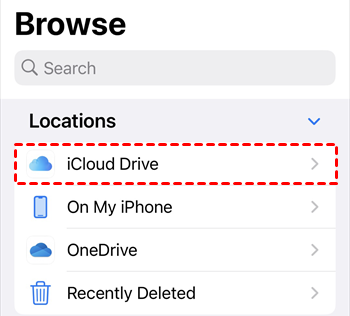
Tap a FLAC file to preview it. For more playback controls, use the Share menu to open or copy the file into a compatible music player.
A cloud icon next to a song can mean that the complete file is not currently stored on the iPhone. Download it before traveling or listening without an internet connection.
Method 5. Convert and Add FLAC to Apple Music
👍 Best for: Organizing local lossless songs in Apple Music by artist, album, playlist, and artwork.
A FLAC file stored in Files or VLC does not automatically become part of your Apple Music library. If your goal is to use the Music app, convert the FLAC files to ALAC first.
Apple does not provide a built-in FLAC-to-ALAC converter. This method uses fre:ac, a free, open-source desktop audio converter that supports both formats. Download it only from the official fre:ac website or its official GitHub repository.
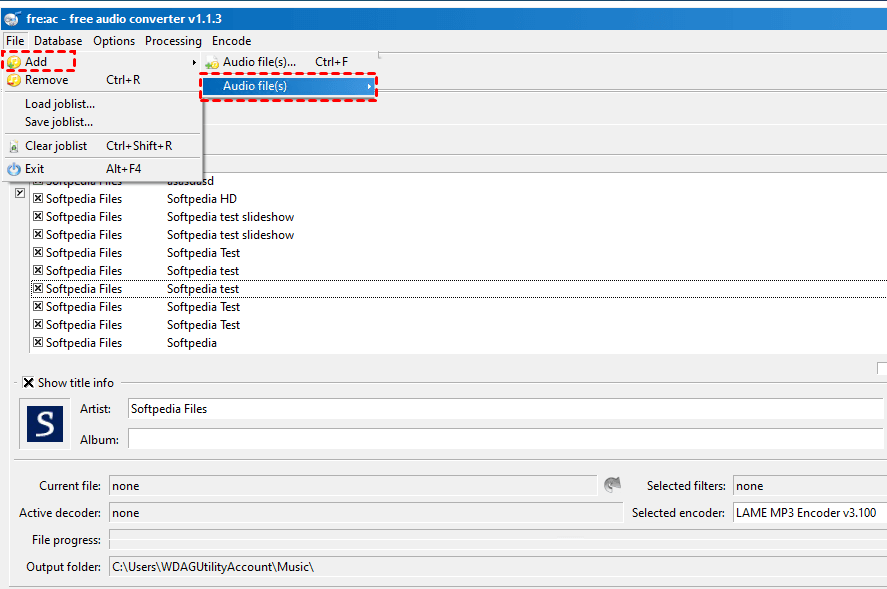
Step 1. Open fre:ac and click File > Add > Audio files. Select the FLAC songs or album folder you want to convert.
Step 2. Open the Selected encoder menu and choose Apple Lossless Encoder. Set a separate output folder so the converted files do not overwrite or mix with your original FLAC collection.
Step 3. Click Start encoding and wait for the conversion to finish. The resulting files normally use the .m4a extension but contain lossless ALAC audio.
You can now import the ALAC files into Apple Music and sync them to your iPhone with Apple Devices. Follow this complete guide to add local music to Apple Music and sync it to iPhone.
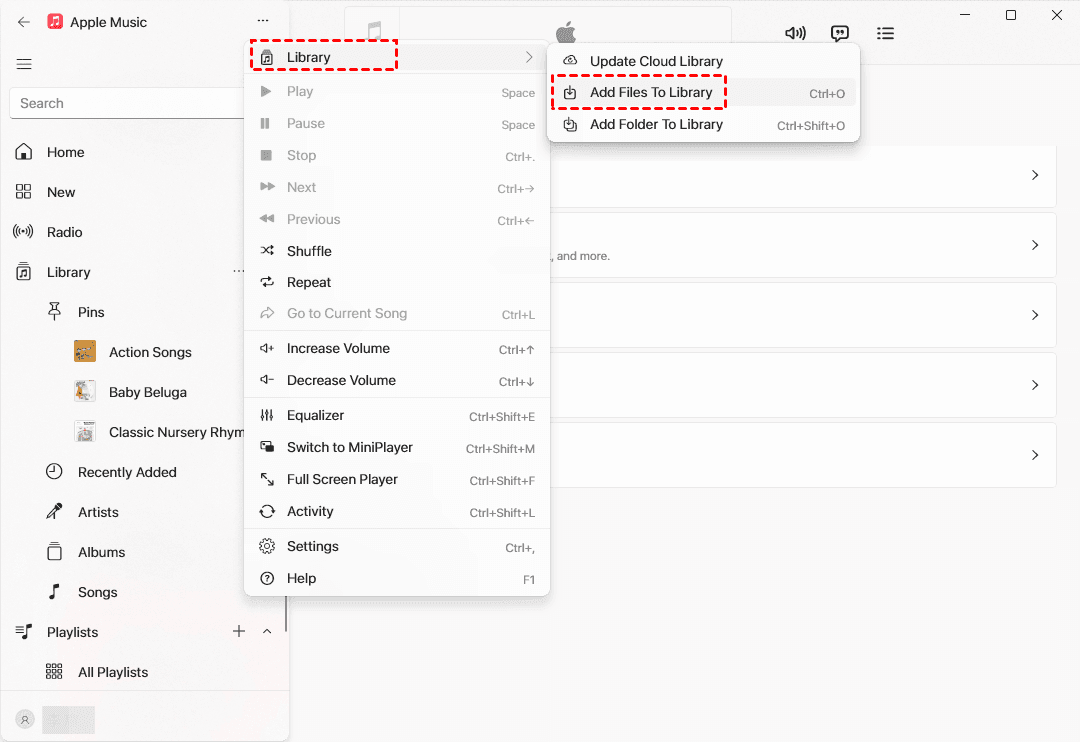
After syncing, open Music on the iPhone and play several songs. Turn on Airplane Mode and test them again to confirm they are stored for offline listening.
-
Manual music syncing may be unavailable while Sync Library is enabled. Review your library carefully before turning off this option, because a later sync can change music previously synced from another computer.
-
Do not convert FLAC to MP3 merely for compatibility if you want to preserve lossless audio. MP3 uses lossy compression, while ALAC retains lossless audio data.
FLAC Transfer Methods Compared
| Method | Transfer type | Keeps FLAC | Playback location | 👍 Best for |
|---|---|---|---|---|
| AOMEI FoneBackup | USB | Yes | Music download location | Selective Windows transfer |
| Apple Devices and VLC | USB | Yes | VLC | Free offline transfer |
| VLC Wi-Fi Sharing | Local Wi-Fi | Yes | VLC | Wireless transfer without cloud storage |
| iCloud Drive | Cloud | Yes | Files | A few files across devices |
| Convert FLAC to ALAC | Library sync | No, creates ALAC | Apple Music | Music library management |
Here is the simple choice:
- Use AOMEI FoneBackup to select and transfer FLAC files from a Windows PC. Free Transfer supports up to 30 files per day.
- Use Apple Devices and VLC for a free USB method that keeps the original FLAC files.
- Use VLC Wi-Fi Sharing to transfer without a cable or cloud storage.
- Use iCloud Drive when you only need to move a few files.
- Convert FLAC to ALAC when you want the songs organized in Apple Music.
FAQs
1. Can an iPhone play FLAC without a third-party app?
The Files app can open and preview FLAC files. For a larger music collection, a compatible player usually provides better album browsing, playback queues, and playlist controls.
2. Why don’t my FLAC files appear in Apple Music?
Files, VLC, and Apple Music use different storage areas. Copying a FLAC file into Files or VLC does not import it into the Apple Music library. Convert the file to ALAC if you want to manage it through Apple Music.
3. Can I transfer FLAC to an iPhone without iTunes?
Yes. You can use AOMEI FoneBackup, Apple Devices File Sharing, VLC Wi-Fi Sharing, or iCloud Drive. Current Windows systems generally use Apple Devices instead of relying only on iTunes for device file sharing.
4. Does converting FLAC to ALAC reduce audio quality?
FLAC and ALAC are both lossless formats. A proper lossless conversion should preserve the audio data, although tags, album artwork, and other metadata should still be checked afterward.
5. Where are FLAC files stored on an iPhone?
The location depends on the method. iCloud Drive files appear under Files > Browse > iCloud Drive. Files copied through Apple Devices belong to the receiving app, such as VLC. AOMEI FoneBackup’s current documentation identifies the Music library’s downloaded location for music transferred to iOS.
6. Can I listen to transferred FLAC files offline?
Yes, as long as the complete files are stored locally. Test them with Airplane Mode turned on before a trip. Files that remain only in iCloud must be downloaded first.
Summary
You do not need to convert every FLAC file before moving it to an iPhone. The correct method depends on where you want to listen:
- Keep FLAC and use a third-party player: transfer with Apple Devices, VLC Wi-Fi Sharing, or iCloud Drive.
- Organize songs in Apple Music: convert FLAC to ALAC and sync the converted copies.
- Select and transfer FLAC from Windows through a guided interface: use AOMEI FoneBackup.
For a Windows PC, AOMEI FoneBackup provides a direct PC-to-iPhone transfer with official FLAC support and selective file input. Check several songs after transfer before deleting your original FLAC library.

 as a preferred
source on Google
as a preferred
source on Google