



How to Transfer a Single App from One iPad to Another
Want to transfer a single app from one iPad to another? Learn how to reinstall purchases, share links, and know when app data comes along.

By Lily Updated on August 7, 2026


Can I Transfer an App from One iPad to Another?
Yes, but “transfer” usually means installing the same app on the other iPad. Apple does not provide a tool that copies one installed app package and all of its local data directly from one iPad to another. In most cases, the cleanest way to transfer one app to a new iPad is to download it again from the App Store.
Whether your settings, documents, game progress, or sign-in details appear on the new device depends on the app. Data may return after you sign in to the app, sync through iCloud, or use an export feature provided by the developer. If the app stores everything only on the old iPad, reinstalling it will not bring that local data across.
Before You Move One App to Another iPad
A quick check prevents the most common surprises:
- Apple Account: For purchased apps, use the Apple Account that originally obtained the app, or make sure the purchase is available through Family Sharing.
- Compatibility: Confirm that the app supports the iPadOS version and hardware on the destination iPad.
- Availability: An app removed from the App Store may not be downloadable again, even if it remains installed on the old iPad.
- App data: Open the app settings and look for account sync, iCloud, backup, export, or transfer options before removing anything from the old device.
How to Transfer an App from One iPad to Another
In this part, you’ll learn two effective ways to transfer a single app from one iPad to another. Let’s check them one by one.
Way 1. Download One App from the App Store
The App Store is the most direct answer to how to transfer one app to another iPad. It lets you reinstall one previously downloaded app without restoring the full contents of the old iPad.
Step 1. On the destination iPad, sign in with the Apple Account used to obtain the app. Then open the App Store.
Step 2. Tap your profile picture in the upper-right corner.
Step 3. Tap Apps or Purchased. Depending on the iPadOS version, you may then need to tap My Apps.
Step 4. Choose Not on this iPad and search for the app by name.
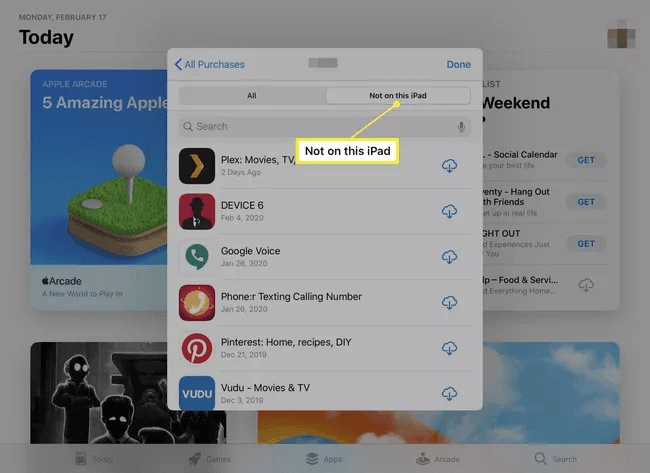
Step 5. Tap the cloud download button beside the app and wait for installation to finish.
Step 6. Open the app and sign in to its account, if required. Check whether its cloud-synced content or settings return.
💡 Note: If the app is free and still available, you can also search for it directly in the App Store. For a paid app, you normally will not be charged again when the same eligible Apple Account is used.
Way 2. Share the App Link with AirDrop
AirDrop is useful when you want to locate the exact app quickly on the second iPad. However, it does not send the installed app or copy its data. It shares the app’s App Store page, from which the recipient downloads the app.
Step 1. On both iPads, turn on Wi-Fi and Bluetooth. Keep the devices close together.
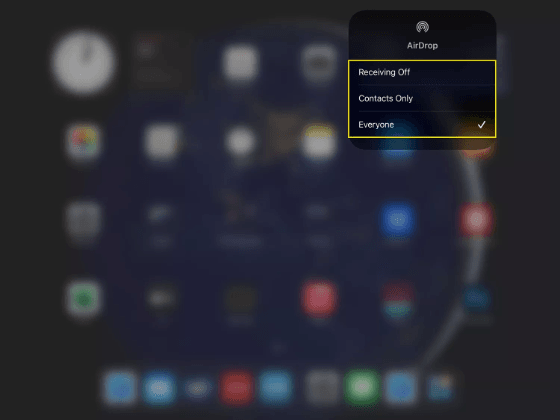
Step 2. Turn on AirDrop on both iPads. Open Control Center, press and hold the network controls, tap AirDrop, and select Contacts Only or Everyone for 10 Minutes.
Step 3. On the old iPad, press and hold the app icon on the Home Screen, then tap Options > Share App.
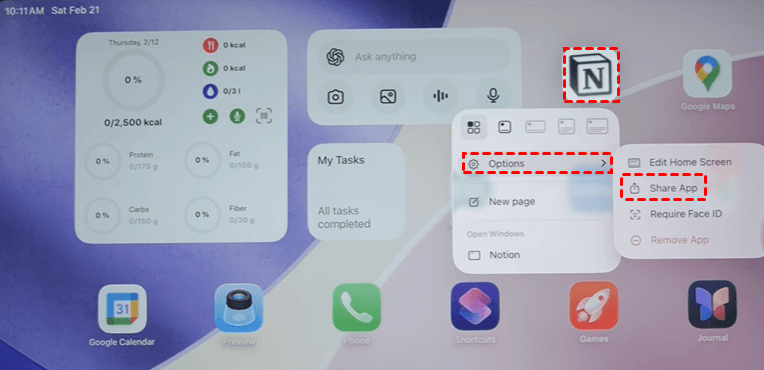
💡 Note: If the Share App option is unavailable, open the app’s App Store page and tap the Share button.
Step 4. Select AirDrop and tap the destination iPad.
Step 5. On the destination iPad, accept the shared item. When the App Store page opens, tap Get or the cloud download button.
💡 Note: This method is especially convenient if several apps have similar names or the recipient uses a different Apple Account. Normal App Store availability, purchase, region, and Family Sharing rules still apply.
How to Transfer App Data from One iPad to Another
Installing an app and transferring app data are separate tasks. Use the option that matches how the app stores information:
- Account-based apps: Sign in with the same account. Services such as streaming, note-taking, and cloud storage apps often restore server-based content automatically.
- Apps using iCloud: On both iPads, check Settings > [your name] > iCloud and enable the app if it appears in the list. Sync availability is controlled by the app developer.
- Apps with export tools: Use the app’s own backup, export, or device-transfer feature. This is often the safest approach for projects, recordings, or specialized databases.
- Local-only apps: If the developer offers no sync or export option, Apple’s selective reinstall methods cannot copy that app’s private local data by itself.
Bonus: Move the Entire Old iPad with AOMEI FoneBackup
If your real goal is to move most or all content rather than transfer one app to a new iPad, AOMEI FoneBackup provides a computer-based device-to-device transfer option. It can be useful when you prefer a wired workflow, have unreliable network access, or need to move data between devices using different Apple Accounts.
For selective work, AOMEI FoneBackup can separately transfer photos, videos, music, and contacts, but it does not install a single third-party iPad app from the source device.
 AOMEI FoneBackup
- Wired transfer: Connect both iPads to a Windows PC instead of depending on a large iCloud restore.
- Flexible Apple Accounts: Move supported content even when the source and destination do not use the same Apple Account.
- Selective file transfer: Choose supported photos, videos, music, and contacts when you do not need a full migration.
- Broad compatibility: Support all iPad and iPhone modes and is perfectly compatible with the latest iOS 27.
 100% Secure
Download AOMEI FoneBackup and learn how to transfer data from one iPad to another step by step below:
Step 1. Install and open AOMEI FoneBackup on the Windows PC, then connect both iPads with USB cables. Unlock each iPad and tap Trust if prompted.
Step 2. Choose Phone Transfer in the left pane. Under iPhone to iPhone, click Get Started.
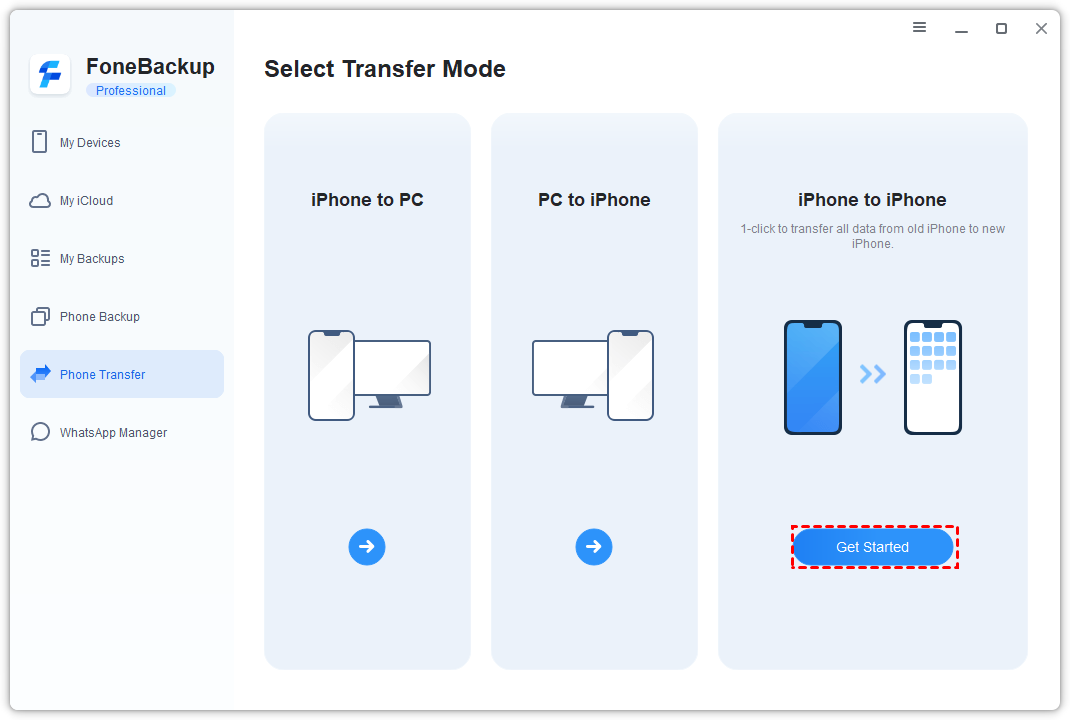
Step 3. Confirm that the old iPad is the source and the new iPad is the destination. Use the switch option if they are reversed.
Step 4. Enable Backup Encryption if you want protected data included and set a password you can retain safely.
Step 5. Click Start Transfer and keep both iPads connected until the process completes.
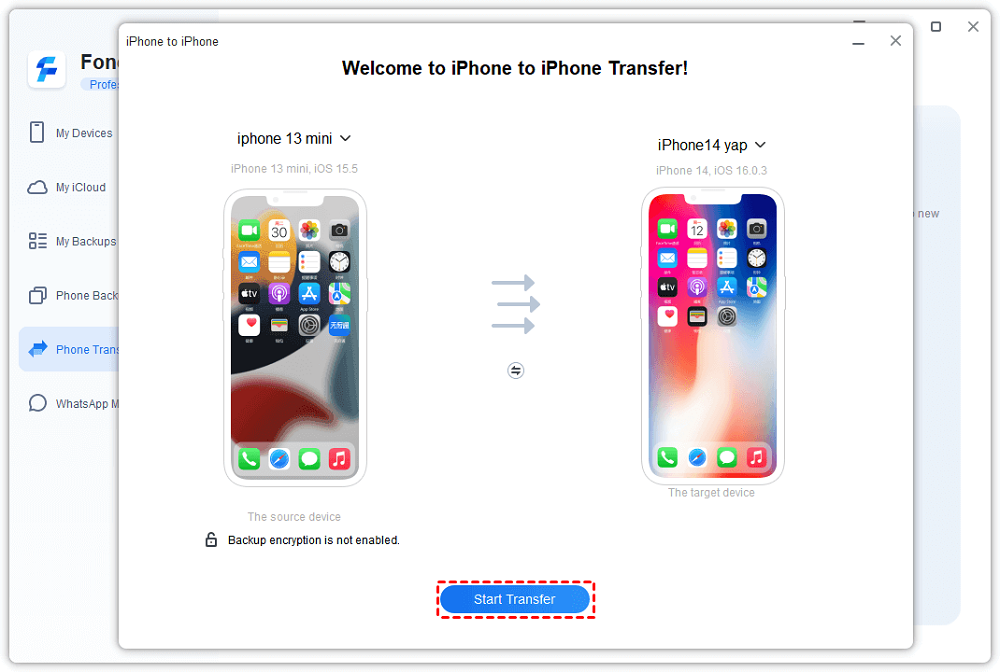
💡 Note: Read this guide “iPhone to iPhone transfer” to check what can be transferred and what can’t be transferred between iPhones/iPads using AOMEI FoneBackup.
Troubleshooting: The App Will Not Download
- The app is missing from purchases: Check that you are using the original Apple Account, review hidden purchases, and confirm whether the app was obtained by another family member.
- The cloud icon does not appear: The app may have been removed from the store, may not be offered in your current region, or may be incompatible with the destination iPad.
- AirDrop cannot find the other iPad: Keep both devices awake and nearby, verify Wi-Fi and Bluetooth, temporarily choose Everyone for 10 Minutes, and disable Personal Hotspot.
- The app opens without old content: Sign in to the same app account and check its iCloud or in-app sync settings. Reinstallation alone does not copy local app data.
FAQs About Moving One iPad App
1. Can I move an app between iPads without iCloud?
Yes. Download the app from the App Store or use AirDrop to share its store link. Neither method requires an iCloud device backup, although the app may use iCloud to sync its own data.
2. Does AirDrop transfer the actual app?
No. AirDrop sends a link to the App Store listing. The destination iPad still downloads and installs its own compatible copy.
3. Can I transfer one paid app to a different Apple Account?
A purchase belongs to the Apple Account that obtained it. A different account may need to buy the app, unless the app is eligible for Family Sharing and purchase sharing is configured.
4. Will my game progress move with the app?
Only if the game syncs progress through its own account, iCloud, Game Center, or another developer-supported backup method. Installing the game by itself does not guarantee that local progress will transfer.
Conclusion
For how to transfer a single app from one iPad to another, reinstalling it from the App Store is the simplest solution. AirDrop can save time by sharing the correct store page, but it does not copy the app itself. Before installing, check how the app syncs or exports its data.
When you need a full-device migration or selective transfer of supported media and contacts, use AOMEI FoneBackup. It also enables you to transfer iCloud data to a new iCloud account. Just give it a shot!

 as a preferred
source on Google
as a preferred
source on Google