




How to Fix "The Requested Value Cannot Be Determined" iPhone Error
Getting the “requested value cannot be determined” error when copying photos from iPhone to PC? Here are 6 practical fixes, from simple reboots to permission changes and more reliable alternatives.

By Ivy Updated on August 13, 2026


"I usually use my iPhone to take photos and transfer them to my Windows PC via USB. Recently, when I drag and drop photos from the DCIM folder, an error message saying, 'The requested value cannot be determined' pops up. The USB cable is original, and I've tried another one. This iPhone has been trusted by the computer. I've tried many times, but nothing works. Please help!"
- Question from Apple Community
Sound familiar? You're not alone. This error is a known frustration among iPhone users trying to copy photos, videos, or other files from their iPhone to a Windows PC.
The good news: this isn't a sign that your iPhone is broken or that your files are corrupted. It's a Windows-level issue that typically occurs when you try to copy too many files at once or run into permission problems.
Here's what you need to know and how to fix it, starting with the simplest solutions and moving to more advanced ones.
Quick Selection: Which Fix Should You Try First?
| Your situation | Try this first | Why it works |
|---|---|---|
| Copying the entire DCIM folder | Transfer files in smaller batches | Windows struggles with too many files at once |
| Error appears only with HEIC photos | Change iPhone photo transfer setting | HEIC format can cause Windows issues |
| Error appears when copying to a specific folder | Check folder permissions | You may not have write access |
| USB connection seems unstable | Try a different cable or port | Faulty hardware can trigger this error |
| Error persists after all fixes | Use AOMEI FoneBackup | Bypasses Windows' file copy limitations |
Why This Error Occurs
The "the requested value cannot be determined" error usually appears when copying files from a mobile device to a Windows PC. Here's what's actually happening:
Too many files at once: This is the most common cause. Windows struggles when you try to copy an entire DCIM folder containing thousands of photos and videos in one go. The file system can't handle the volume of data being transferred simultaneously.
Large file size: If your destination drive uses the FAT32 file system, it has a 4GB file size limit. Trying to copy a video larger than 4GB triggers this error. NTFS drives don't have this limitation.
Permission issues: Your Windows user account may not have full control over the destination folder. Without write permissions, Windows blocks the transfer.
Transfer protocol mismatch: When you connect your iPhone via USB, Windows expects the MTP (Media Transfer Protocol) or PTP (Picture Transfer Protocol) to communicate properly. Using the wrong protocol can cause this error.
HEIC format changes: Apple moved from JPG to HEIC as the default photo format in a previous iOS update. This change introduced new compatibility issues with Windows, and Apple Engineering has acknowledged this as a known problem.
Fix 1: Basic Troubleshooting (Quick Wins)
Let's get started with some simplest solutions first. Low effort, high chance of success.
- Disconnect your iPhone and restart your PC. Reconnect your iPhone, unlock it, and tap Trust if prompted.
- Try a different USB cable (preferably an Apple-certified one) and a different USB port.
- If possible, try copying to a different folder or a different drive (e.g., from C: to D:). This can help identify if the issue is permission-related.
If the error was caused by a temporary glitch or faulty hardware, it should be resolved. If it persists, move to the next fix.
Fix 2: Transfer Files in Smaller Batches
If you try to copy too many files or entire library at once, and receiving this error, copy them in multiple small batches. This is the most effective fix for most people.
Step 1. Open File Explorer and navigate to your iPhone under This PC.
Step 2. Open the DCIM folder and select a smaller number of files - try 50 or 100 at a time instead of the entire folder.
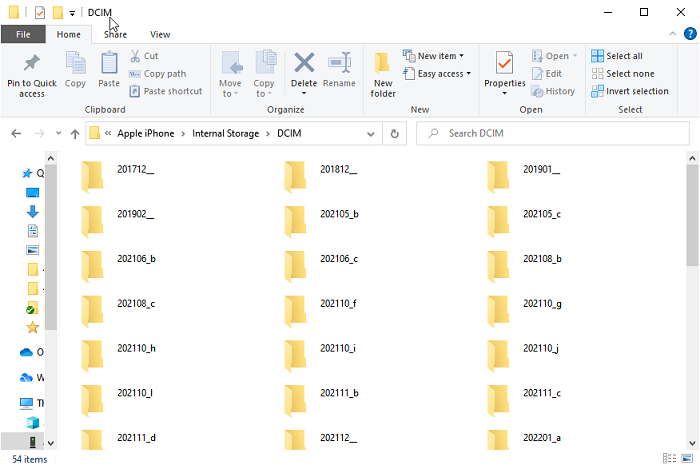
Step 3. Copy and paste them to your desired location. If successful, repeat with the next batch.
Fix 3: Change Your iPhone's Photo Transfer Setting (for HEIC Photos)
If you want to transfer HEIC photos from iPhone to PC, the simplest method is to change iPhone transfer settings. This is a known issue with HEIC files in Apple.
Step 1. On your iPhone, go to Settings > Apps > Photos > Transfer to Mac or PC.
Step 2. Select Keep Originals instead of Automatic (which converts HEIC to JPG during transfer).
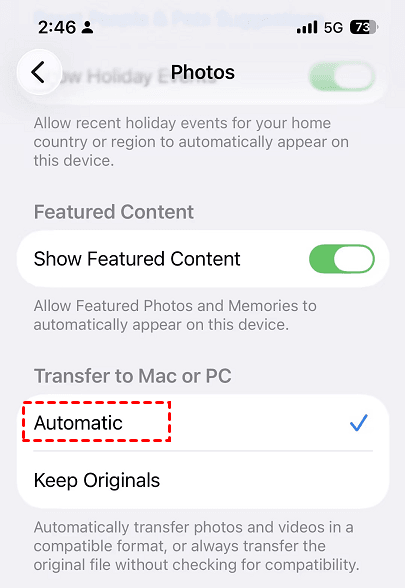
Step 3. Reconnect your iPhone to your PC and try copying files again.
Fix 4: Choose the Right Transfer Protocol
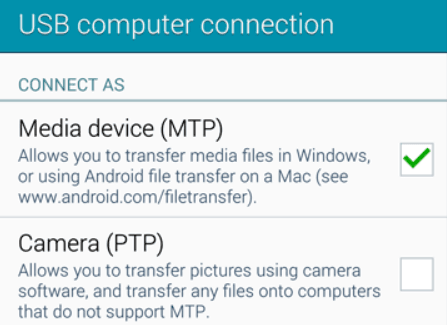
Switching protocols can resolve connection issues between the iPhone and Windows. Some users find PTP works better for photos, while MTP works better for mixed content.
Step 1. Connect your iPhone to your PC with a USB cable, unlock it and tap Trust if prompted.
Step 2. On your iPhone, look for a prompt asking how to use the USB connection. Make sure MTP (Media Transfer Protocol) or File Transfer is selected.
Step 3. If MTP doesn't work, try PTP (Picture Transfer Protocol) instead, especially if you're only transferring photos.
Fix 5: Change Folder Permissions
If you can copy files to some folders but not others, or receive insufficient permission error, try granting full control to your user account.
Step 1. Right-click the destination folder on your PC and select Properties.
Step 2. Under the Security tab, go to Group or user names, select your user account and click Edit.
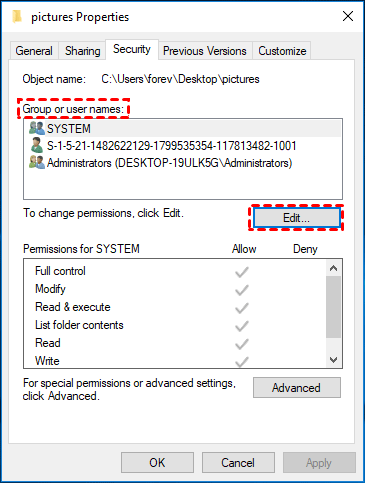
Step 3. Check Full control and click Apply > OK to save the changes.

Try copying your files again.
Fix 6: Create a New Local User Account
If you still have a problem, it may be due to corrupted user profile or restricted permissions. You can choose to create a new local user account.
Step 1. Open the Start menu and go to Settings > Accounts > Family & other users.
Step 2. Scroll down to Other users, click Add someone else to this PC.
Step 3. Wait until the Create a user for this PC screen appears, enter a username and password. Then, follow on-screen instructions to create a new user account.
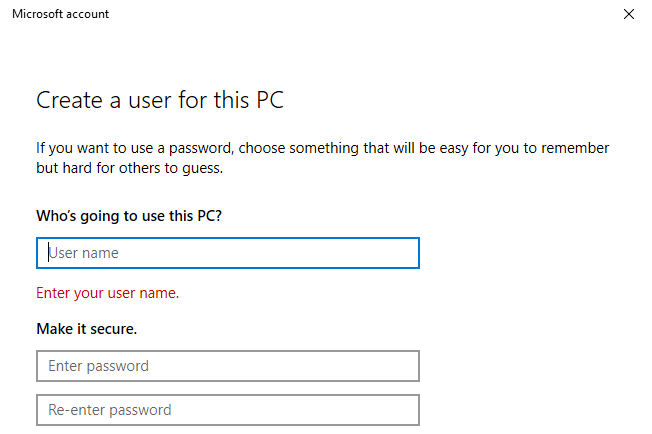
Step 4. Log out of your current account and log in with the new account. Try copying your iPhone files again.
Fix 7: Transfer with AOMEI FoneBackup (Alternative Solution)
If you've tried all the above solutions and the error still appears or you just want an easier way to get your files off your iPhone, AOMEI FoneBackup offers a more reliable alternative.
 AOMEI FoneBackup
- 3️⃣ Transfer Modes: iPhone to PC, PC to iPhone, iPhone to iPhone. No iCloud or Apple ID needed.
- 🎯 Selective Transfer: Preview and pick exactly which files to transfer, not your entire library.
- ⚡ Batch Transfer: Move 1,000+ photos, videos, contacts, and more in under 10 minutes. No compression, no quality loss - HEIC supported.
- 🎯 Selective Transfer: Preview and pick exactly which files to transfer, not your entire library.
- 📂Flexible Destination: Save to any folder on your PC, external drive, USB drive, or NAS.
- 💰 Free Version Available: 30 files/day free; Pro for unlimited transfer.
- 📱 Broad Compatibility: Works with all iPhone models and iOS versions, including iPhone 17 and iOS 26.
 100% Secure
How to transfer files with AOMEI FoneBackup:
Step 1. Download and install AOMEI FoneBackup on your Windows PC. Connect your iPhone with a USB cable. When prompted, tap Trust and enter your passcode.
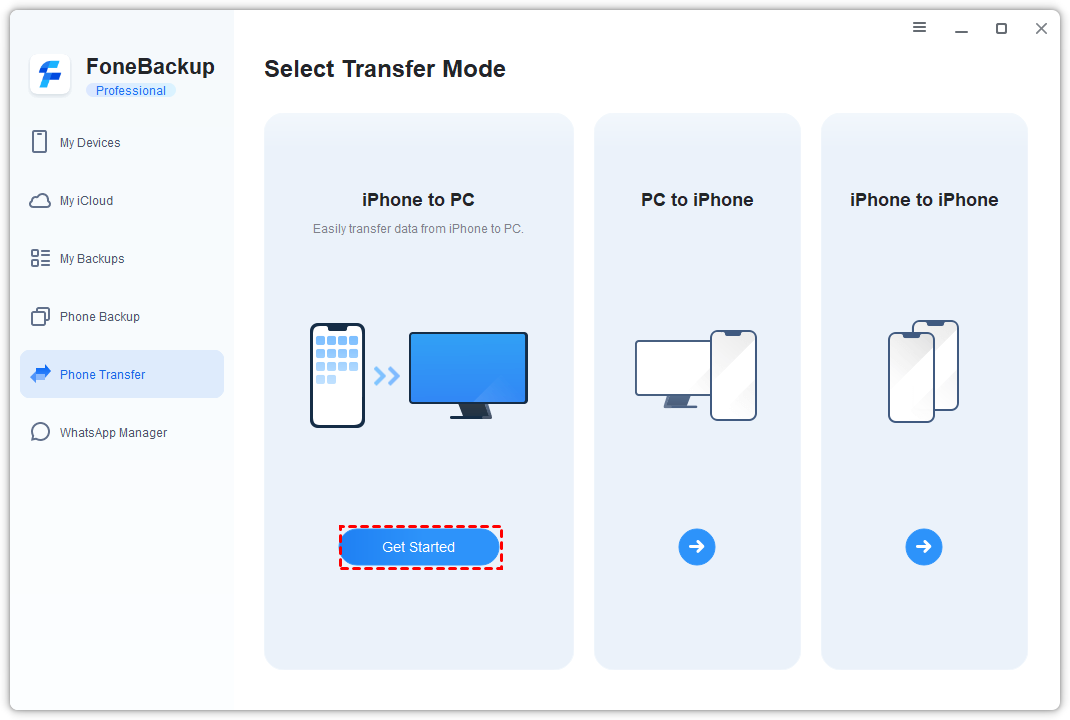
Step 2. Select Phone Transfer > iPhone to PC and click Get Started.
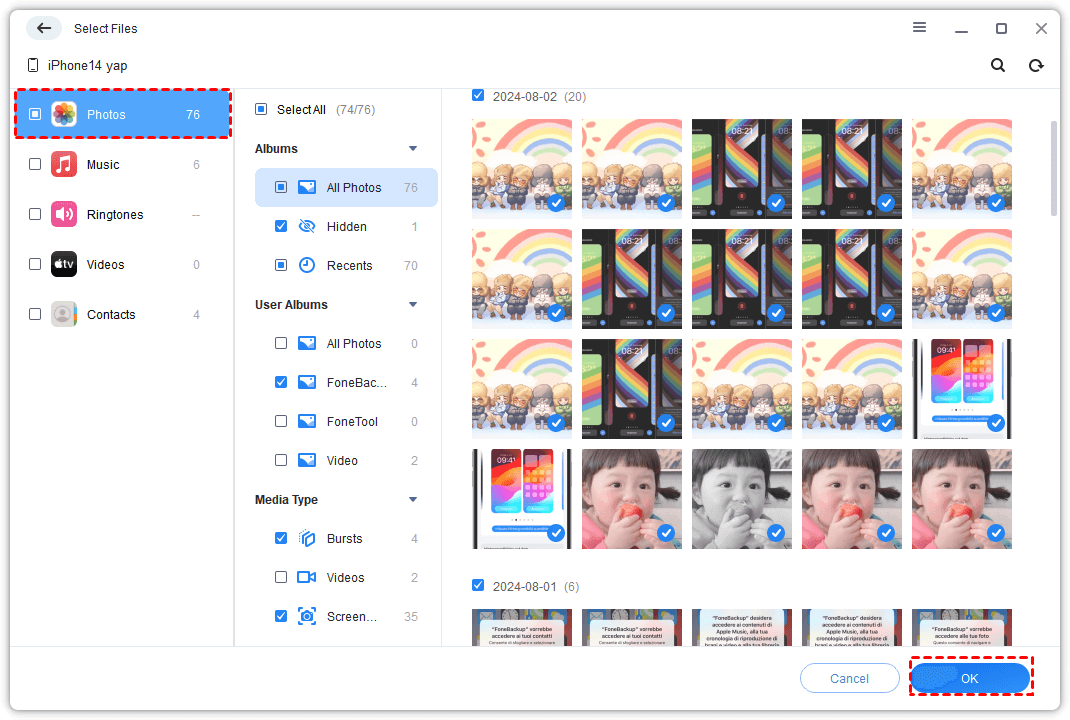
Step 3. Click the Photos icon (or other data types) to select the files you want to transfer.
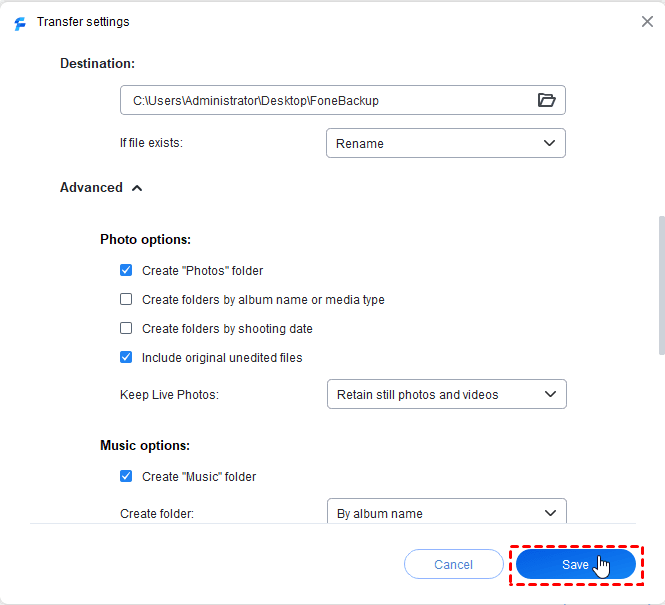
Step 4. Open Transfer Settings to choose where you want to save your data. Adjust other settings and click Save > Start Transfer.
Except for photos, you can also transfer music between PC and iPhone, get contacts from iCloud to iPhone, etc.
Full Comparison of All Fixes
| Fix | Difficulty | Time Required | Success Rate | Best For |
|---|---|---|---|---|
| Fix 1: Basic Troubleshooting | Very Easy | 2-5 minutes | Medium | Quick wins, USB issues |
| Fix 2: Batch Transfer | Very Easy | 5-15 minutes | High | Large folders, most users |
| Fix 3: Change Transfer Setting | Very Easy | 1 minute | Medium | HEIC format issues |
| Fix 4: Change Transfer Protocol | Easy | 1-2 minutes | Medium | Connection-related errors |
| Fix 5: Change Folder Permissions | Medium | 3-5 minutes | Medium-High | Permission-related errors |
| Fix 6: Create New User Account | Medium | 5-10 minutes | Medium | Profile/corruption issues |
| Fix 7: Use AOMEI FoneBackup | Easy | 5-10 minutes | High | All users, especially large transfers |
Final Recommendation
Still getting the "the requested value cannot be determined" iPhone error? Here's how to pick the right fix:
-
In a hurry? Start with Fix 1 - restart, try a different cable or USB port.
-
Copying a large folder? Use Fix 2 (Batch Transfer). Copy 50-100 files at a time instead of the entire folder.
-
Error started after an iOS update? Try Fix 3 - switch iPhone photo transfer to "Keep Originals".
-
Error only with certain PC folders? Check Fix 5 - you may need folder permissions.
-
Nothing else works? Use Fix 7 (AOMEI FoneBackup). It bypasses Windows' file copy mechanism entirely.

 as a preferred
source on Google
as a preferred
source on Google