



iPhone Software Update Fails? Here're 7 Fixes That Work
iPhone software update fails? Try 7 proven fixes - restart, check storage, use iTunes, and more. Plus a tool to back up your data before updating. Step‑by‑step.

By Kelsey Updated on May 14, 2026


My iPhone Software Update Failed!
I recently wanted to upgrade iOS, but every time I try I keep getting an iPhone software update fails error. How can I fix the iOS 26 software update failed error on an iPhone? And does anyone know the reason for this error?
- Question from Apple Community
You tap "Install Now," wait patiently, and then - error. The update stops. Your iPhone stays on the old version. You're left wondering what went wrong.
If you've ever seen an iPhone software update fails message, you're not alone. It's one of the most common headaches iPhone users face, and it usually comes down to a handful of simple issues: network trouble, low storage, or a corrupted update file. This guide walks you through seven fixes to get your iPhone updated and running smoothly.
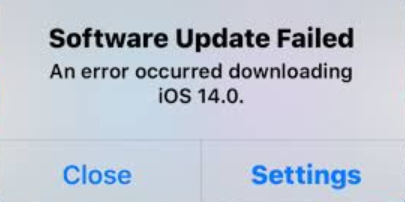
Why Does My iPhone Software Update Keep Failing?
Before diving into solutions, it helps to know what might be causing the problem:
- Unstable network connection. A weak or interrupted Wi-Fi signal can break the download.
- Not enough storage. iOS updates need at least a few gigabytes of free space to install.
- Corrupted update file. If the download was interrupted, the file might be incomplete.
- Apple server issues. Sometimes the problem isn't on your end - Apple's servers can get overloaded.
7 Fixes for iPhone Software Update Fails
Try these solutions in order. The first few are quick checks; later ones involve resetting settings or using a computer.
Solution 1. Restart Your iPhone
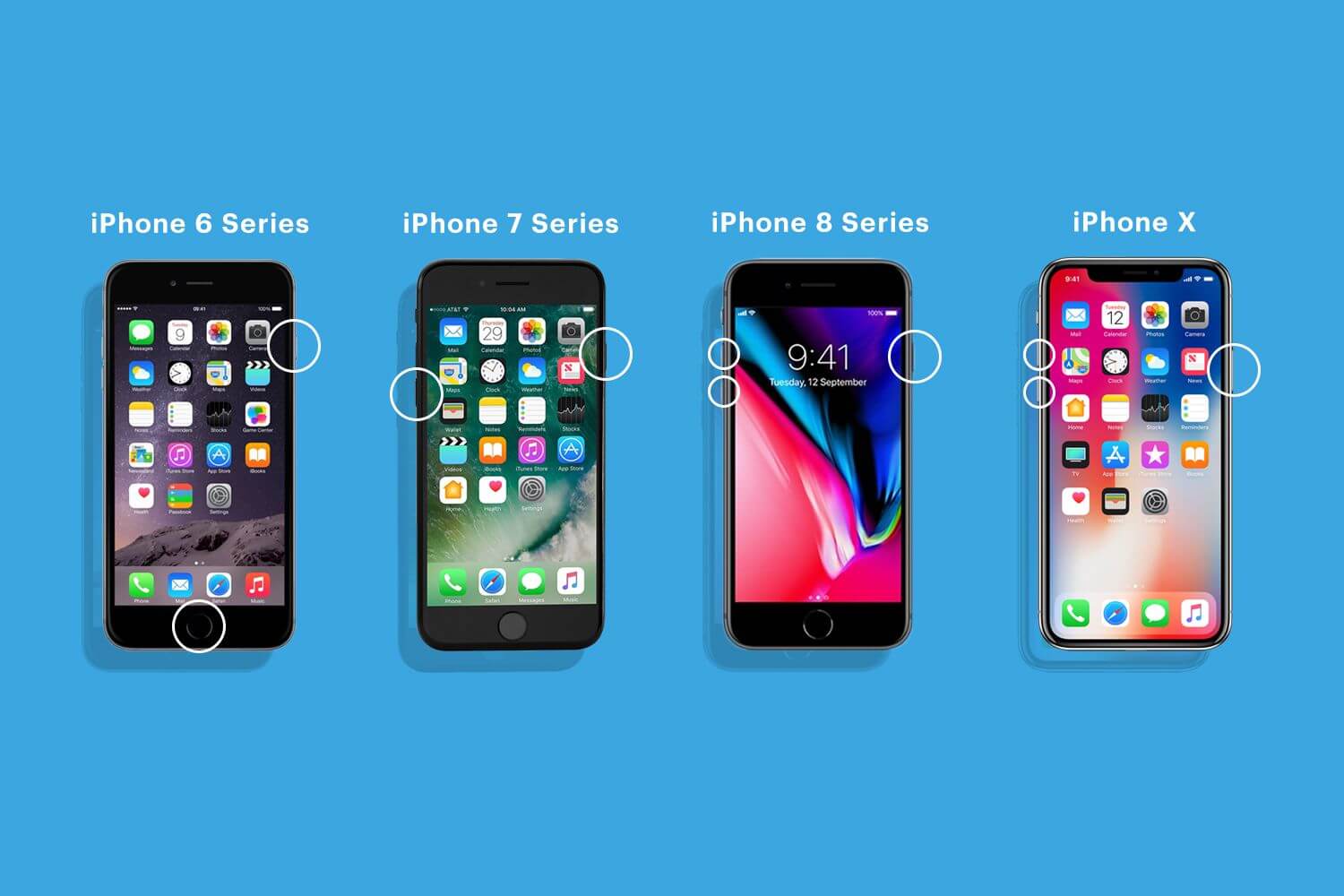
A simple restart clears out minor glitches that might be blocking the update. The steps depend on your iPhone model.
- iPhone 8 and later: Press and quickly release the Volume Up button. Press and quickly release the Volume Down button. Then press and hold the Side button until you see the Apple logo.
- iPhone 7/7 Plus: Press and hold both the Volume Down button and the Side button until the Apple logo appears.
- iPhone 6s and earlier: Press and hold both the Home button and the Top (or Side) button until the Apple logo appears.
Once your iPhone restarts, try the update again.
Solution 2. Check Your Network Connection
A weak Wi-Fi signal is one of the most common reasons updates fail.
- Look at the Wi‑Fi icon in the top‑right corner. If it's showing only one or two bars, move closer to your router.
- Try connecting to a different Wi‑Fi network.
- Restart your router by unplugging it for 30 seconds, then plugging it back in.
Solution 3. Delete the Previous Update File
If you've already downloaded the update but it keeps failing, the file itself might be corrupted. Deleting it forces your iPhone to download a fresh copy.
Step 1. Go to Settings > General > iPhone Storage.
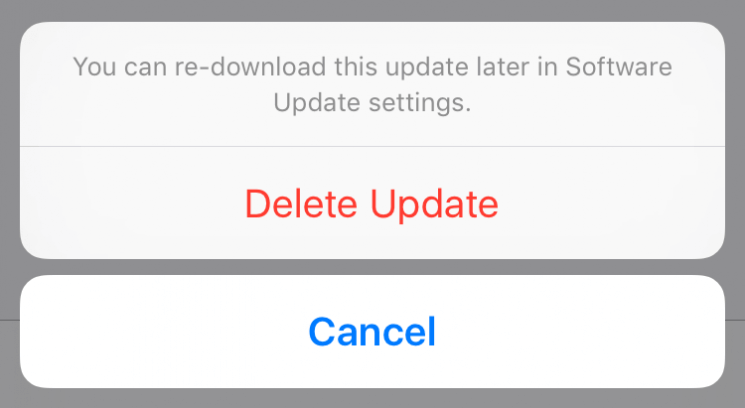
Step 2. Scroll down until you see the iOS update file. Tap it, then tap Delete Update.
Step 3. Go back to Software Update and download the update again.
Solution 4. Reset Network Settings
If your iPhone still won't update, a network settings error might be the culprit. Resetting them often clears up connection problems.
Step 1. Go to Settings > General > Transfer or Reset iPhone > Reset > Reset Network Settings.
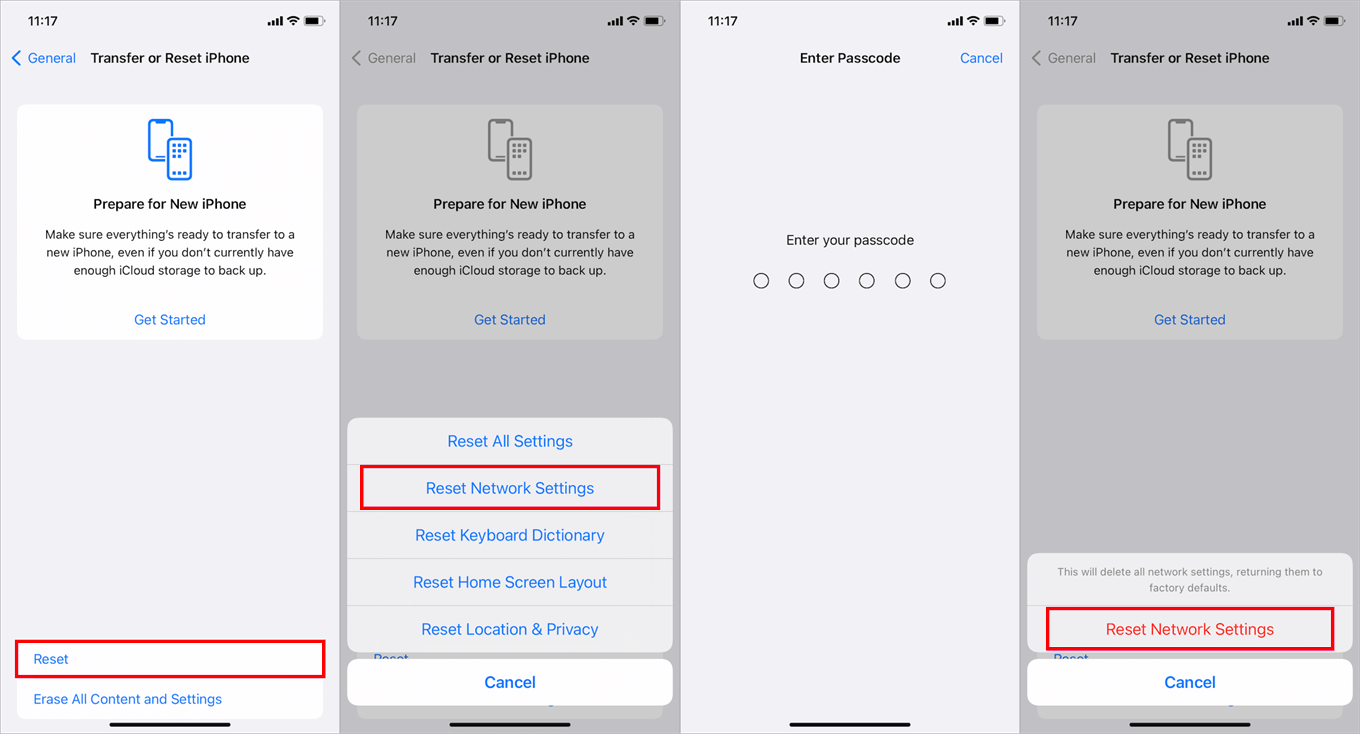
Step 2. Enter your passcode to confirm. Your iPhone will restart, and Wi‑Fi passwords will be cleared—you'll need to re‑enter them.
After the restart, reconnect to Wi‑Fi and try the update again.
Solution 5. Free Up Storage Space
iOS updates need room to install. If your iPhone is nearly full, the update won't go through.
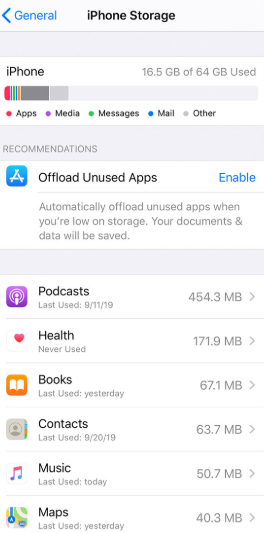
- Go to Settings > General > iPhone Storage.
- Look for large apps you don't use, old messages, or downloaded videos you can delete.
- Aim for at least 5GB of free space before attempting the update again.
Solution 6. Update via iTunes (or Finder)
If updating directly on your iPhone keeps failing, try using a computer. iTunes (or Finder on newer Macs) can download and install the update for you.
Step 1. Download and install the latest version of iTunes on your PC (or open Finder on a Mac). Connect your iPhone to your computer using a USB cable.
Step 2. In iTunes, click the device icon in the top-left corner. In Finder, select your iPhone from the sidebar.
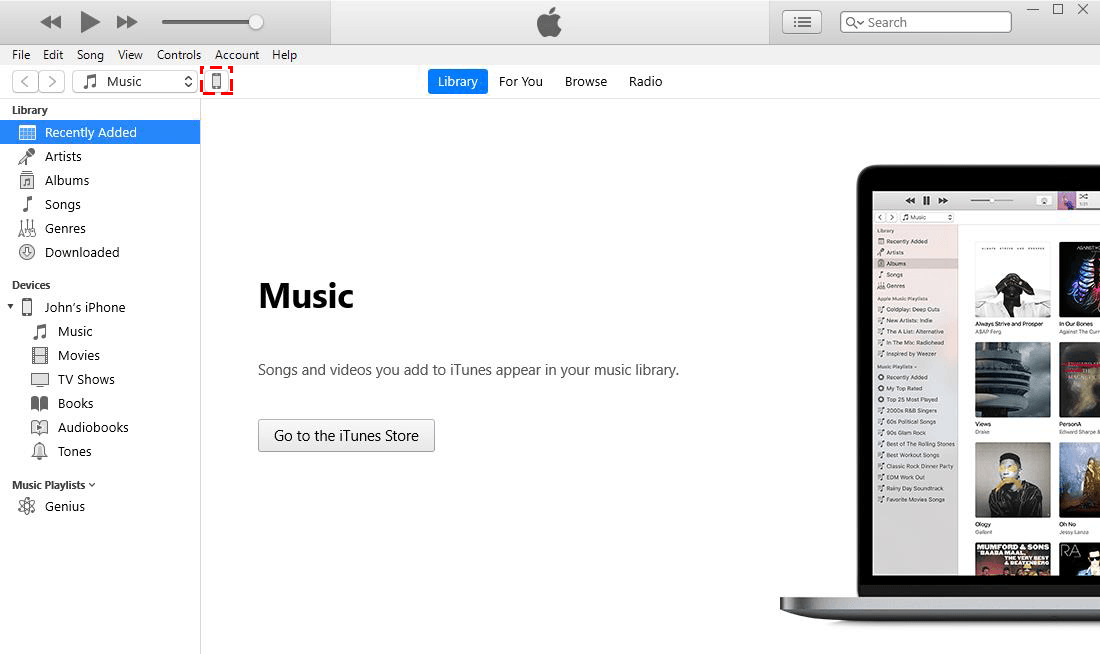
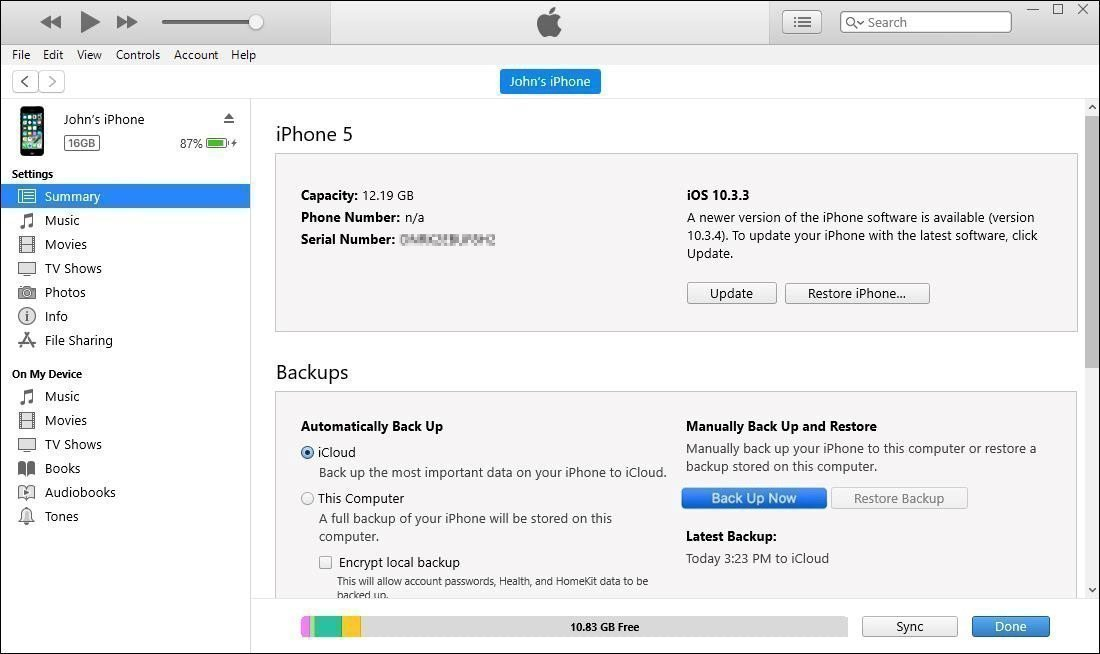
Step 3. Click Check for Update or Update. Follow the on‑screen instructions. Your computer will download the update and install it on your iPhone.
Solution 7. Download the Firmware Manually
If none of the above works, you can manually download the iOS firmware file and install it through iTunes. This method is more involved and carries a risk of data loss—back up your iPhone first (see the Bonus section).
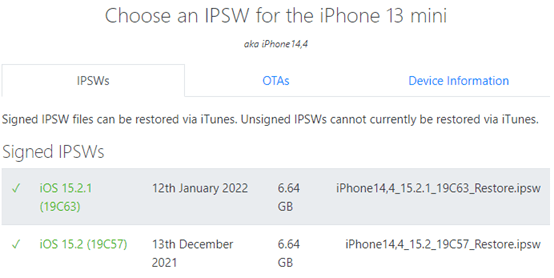
Step 1. On your computer, go to the IPSW website.
Step 2. Select your iPhone model and choose the latest firmware version under Signed IPSWs. Download the file.
Step 3. Open iTunes and connect your iPhone. Hold the Shift key (on Windows) or Option key (on Mac) and click Check for Update.
Step 4. Select the IPSW file you downloaded. iTunes will install it on your iPhone.
-
This method replaces your current iOS version and can cause data loss. Use only if other fixes have failed.
Bonus Tip: Back Up Your iPhone Before Updating
Before you attempt any major update, especially if you're using iTunes or manual firmware, back up your iPhone. AOMEI FoneBackup is a free Windows tool that lets you back up exactly what you want, where you want.
 AOMEI FoneBackup
-
Selective backup: Back up only what matters, photos, contacts, messages, or do a full backup.
-
Preview before saving: See what's on your iPhone and choose what to keep.
-
Save data to anywhere: PC, external hard drive, USB, or both your choice.
-
Restore without wiping: Add data back to your iPhone without losing what's already there.
 100% Secure
Step 1. Download and install AOMEI FoneBackup on your Windows PC. Connect your iPhone with a USB cable and tap "Trust This Computer" when prompted.
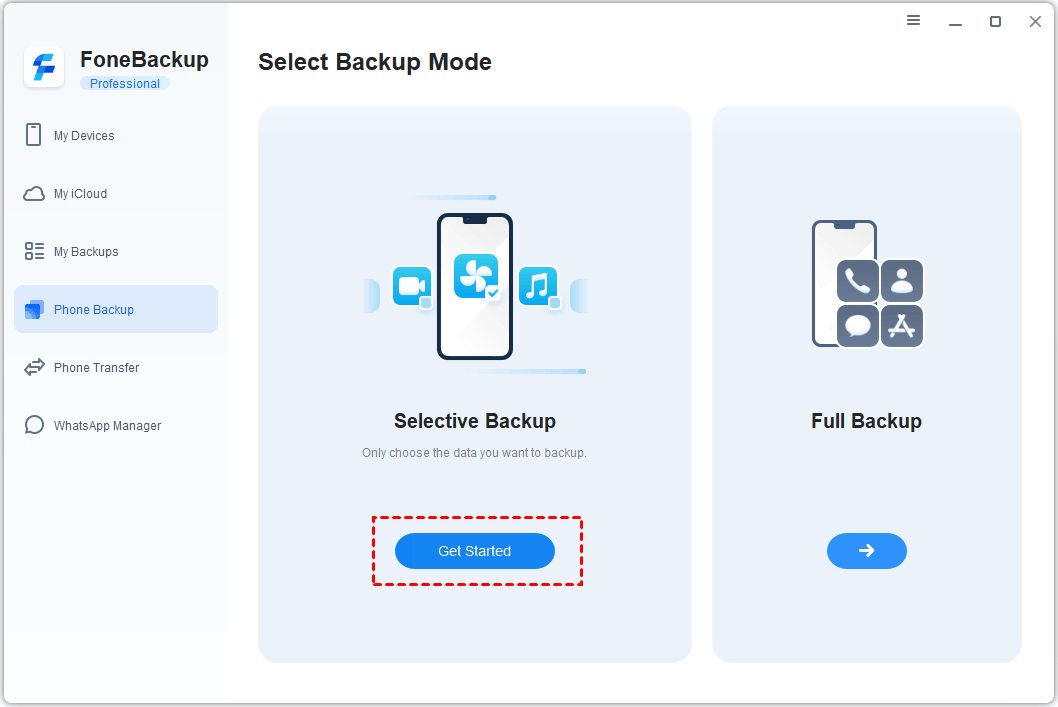
Step 2. Open AOMEI FoneBackup. Click Phone Backup, then choose Selective Backup and click Get Started.
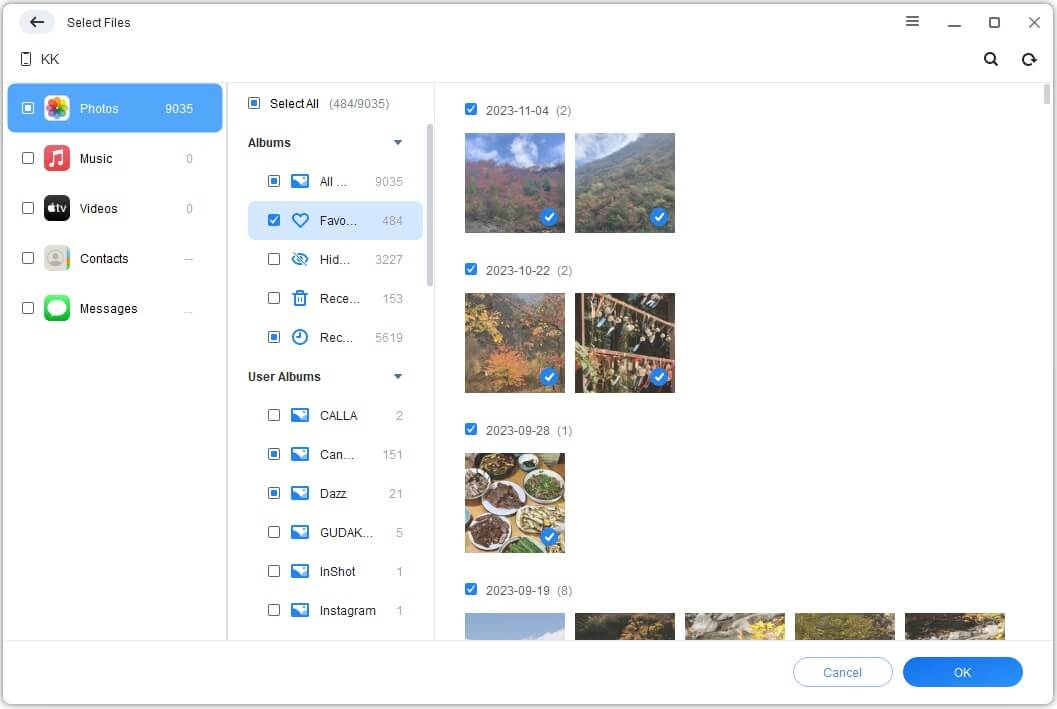
Step 3. Click the icons for the data types you want to back up - Photos, Contacts, Messages, etc. Preview and select the specific files. Click OK.
Step 4. Click Backup Storage Path and choose where to save the backup (your PC, an external drive, etc.).
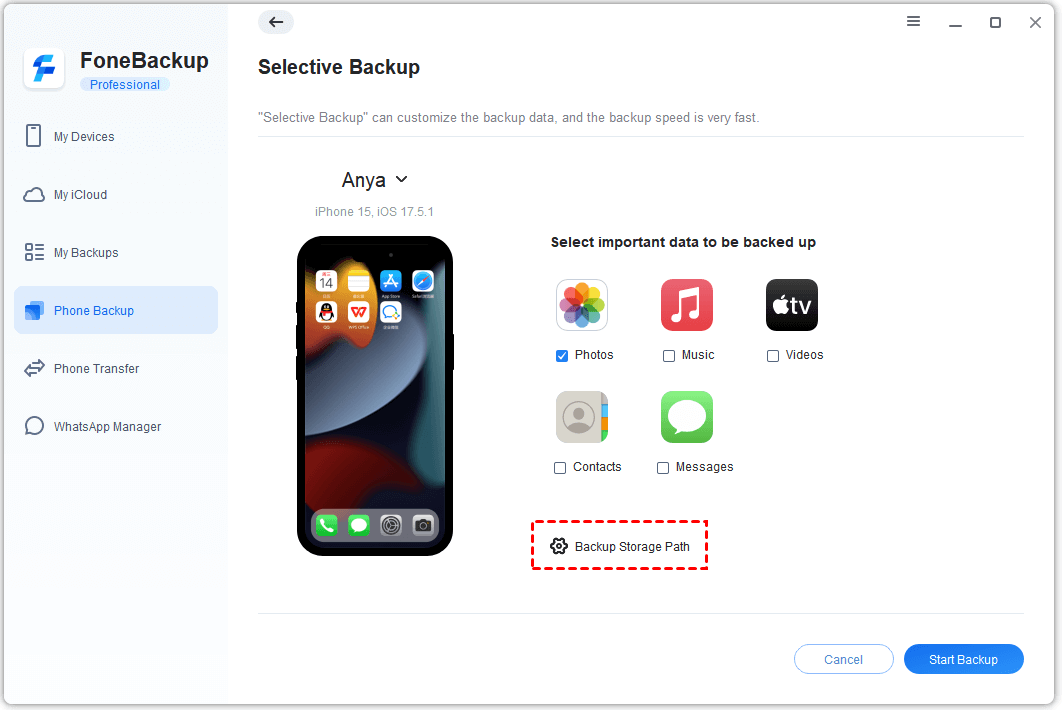
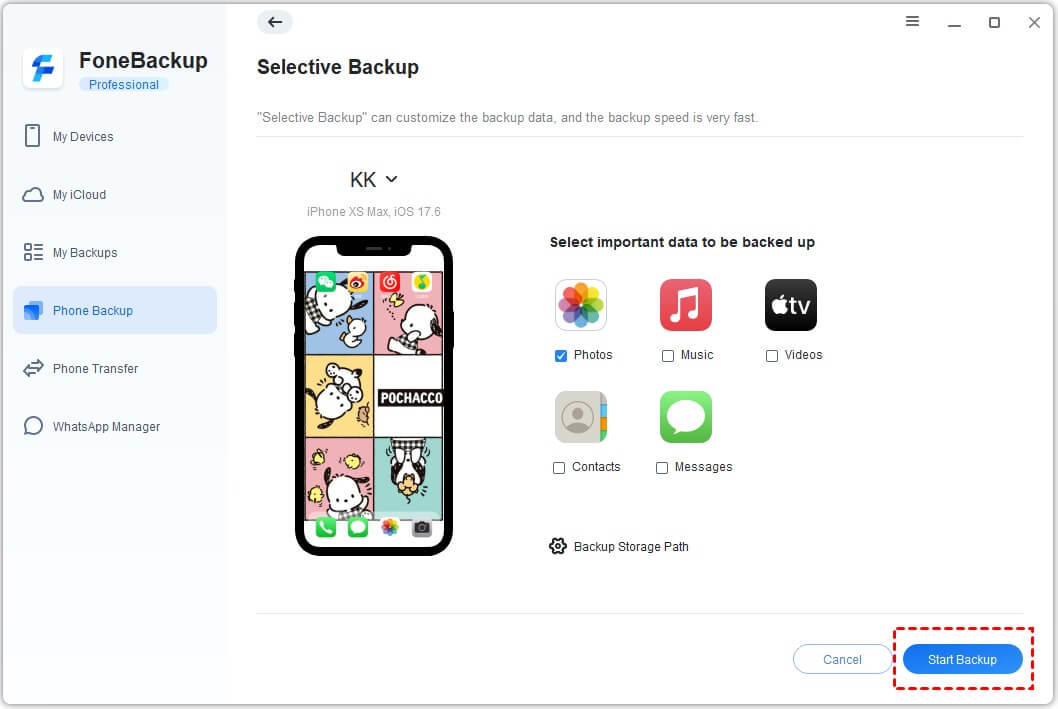
Step 5. Click Start Backup. A few minutes later, your data is safely stored.
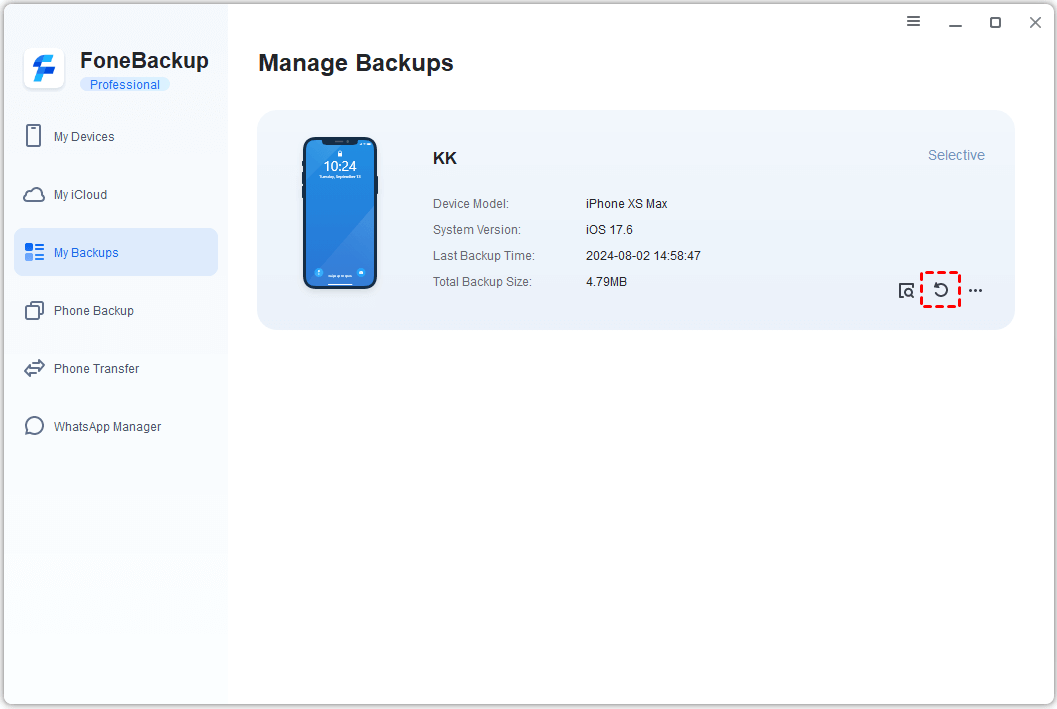
To restore later, go to "My Backups" and click Restore next to the backup you need.
Frequently Asked Questions
Q: Why does my iPhone keep restarting during software updates?
An iPhone rebooting during an update can be caused by a low battery, software conflict, or hardware issue. Make sure your device is fully charged and plugged into power, then try again. If the problem persists, contact Apple Support.
Q: Can I downgrade my iPhone software if the update fails?
In some cases, yes. if Apple is still signing the older firmware version. But downgrading can cause data loss and isn't always recommended. It's usually better to fix the update rather than go back.
Q: Is it safe to interrupt an iPhone software update?
No. Interrupting an update mid‑process can corrupt your iPhone's software, potentially leaving it unusable. If the update seems stuck, leave it plugged in and connected to Wi‑Fi for at least an hour before taking any action.
Wrapping Things Up
This post provides 7 ways to fix the iPhone software update fails effectively, if you also encounter this iOS upgrade error prompt, please fix it step by step. It is worth noting that you are better off backing up your iPhone in advance using AOMEI FoneBackup, in case the data is lost or damaged during the whole process. This tool provides you with the most comprehensive iOS backup service to escort your data.

 as a preferred
source on Google
as a preferred
source on Google