



Best Free iPhone Backup Extractor: 3 Tools to Extract Data
Looking for a free iPhone Backup Extractor? This guide compares 3 tools - Jihosoft, Syncios, and iMazing, to extract data from iTunes backups. Plus a completely free alternative without iTunes. Keep reading.

By Ivy Updated on July 16, 2026


You have an iTunes backup of your iPhone, but you can't see what's inside it. Photos, messages, contacts, call logs - all locked away in that encrypted backup file.
You're not alone. iTunes backs up your iPhone completely, but it doesn't let you browse or extract specific files from that backup. That's where an iPhone backup extractor comes in.
This guide compares 3 of the best free iPhone backup extractors - Jihosoft, Syncios, and iMazing, so you can choose the right tool for your needs. We'll cover what each tool can do, what it costs, and step-by-step instructions for extracting your data.
Quick Guide: Which Tool Should You Use?
| ❓ Your Situation | 🎯 Best Tool | 💡 Why |
|---|---|---|
| You need a free tool with preview and export features | Syncios | Free full version available, easy to use |
| You need to extract data from an encrypted iTunes backup | Jihosoft | Supports password-protected backups |
| You want the most powerful tool with editing capabilities | iMazing | Can browse, extract, and even edit backup files |
| You prefer a completely free alternative without iTunes | AOMEI FoneBackup | Totally free backup and file management tool |
What Can You Extract from an iTunes Backup?
All three tools covered in this guide can extract the following data types from your iTunes backup:
-
Photos & Videos: Camera Roll, App Photos, and more
-
Contacts: Name, phone numbers, email addresses
-
Messages: SMS, iMessage, WhatsApp history
-
Call Logs: Incoming, outgoing, and missed calls
-
Notes: Apple Notes and other text data
-
Calendars: Events, reminders, and schedules
#1: Jihosoft - Extract Data from Encrypted iTunes Backups
👍 Best for: Users who need to extract data from encrypted iTunes backups.
Jihosoft is a dedicated iTunes backup extractor that supports iPhone, iPad, and iPod Touch backups. It can extract contacts, call logs, text messages, photos, videos, notes, WhatsApp history, and more.
🔑 Key Features:
-
Supports encrypted iTunes backups with a password
-
Extract photos, messages, contacts, call logs, and more
-
Preview files before extracting
-
Works with iPhone, iPad, and iPod Touch backups
💰 Pricing: Not totally free - some features require payment
📥 How to extract data with Jihosoft:
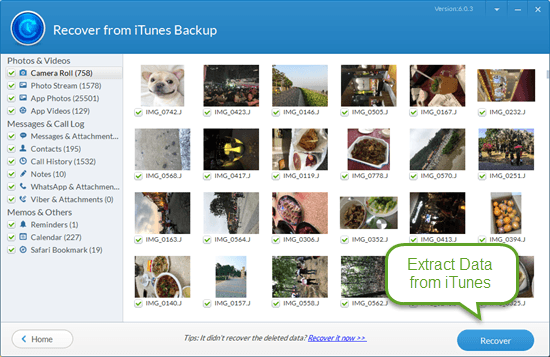
Step 1. Download and launch Jihosoft. The software will automatically scan your iTunes backups. Select the backup file you want to extract and click Next.
Step 2. Choose the file types you want to extract, such as Camera Roll, App Photos, messages, contacts, etc. Then, click Next.
Step 3. Preview the files, select the ones you want, and click Recover. For encrypted backups, you'll need to enter the backup password.
#2: Syncios - Free Full Version iTunes Backup Extractor
👍 Best for: Users who want a completely free extractor with preview and export features.
Syncios is an iTunes backup extractor that offers previewing and selecting files from iTunes backups. It can recover photos, contacts, calendars, messages, call history, and more — and it's a great choice if you've had a failed iOS upgrade or accidentally lost important data.
🔑 Key Features:
-
Preview files before extracting
-
Export data to a computer
-
Back up your iPhone directly
-
Free full version available
📥 How to extract data with Syncios:
Step 1. Download and launch Syncios, then connect your iPhone to your computer.
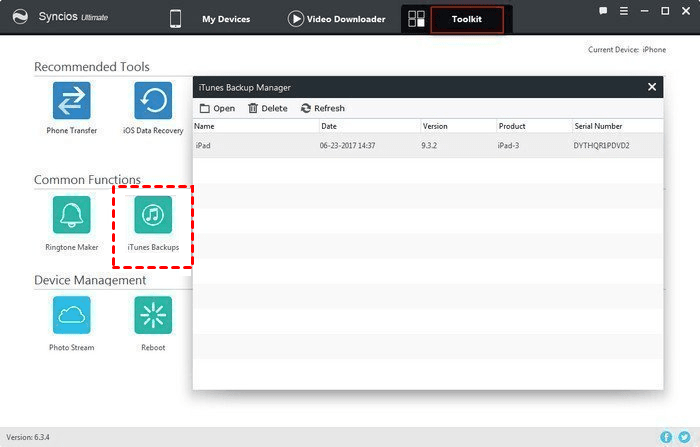
Step 2. Click Toolkit at the top, then select iTunes Backups. Syncios will automatically find your iTunes backups. Choose the one you want to scan and click Open.
Step 3. Preview and select the data you want to extract, then click Export to save it to your computer.
#3: iMazing - Powerful iPhone Backup Viewer with Editing
👍 Best for: Users who want the most powerful backup viewer with editing capabilities.
iMazing is a powerful iPhone backup browser that not only lets you browse and extract data from iTunes backups, but also edit the backup copy to recover corrupted backup files. It supports iPhone, iPad, and iPod Touch.
🔑 Key Features:
-
Browse and extract data from iTunes backups
-
Edit backup files to recover corrupted data
-
Supports iPhone, iPad, and iPod Touch
-
Preview files before exporting
💰 Pricing: Not totally free — you need to pay to extract more files
📥 How to extract data with iMazing:
Step 1. Download iMazing and connect your Apple device to your computer.
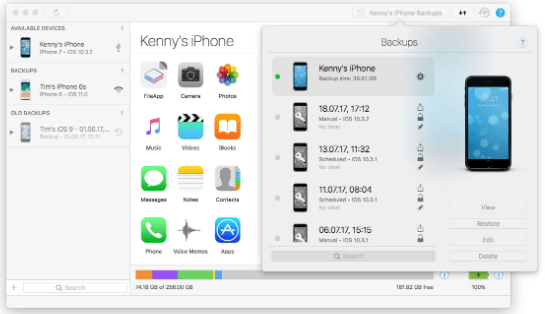
Step 2. Click your device's name in the upper-right corner to find your iTunes backups, then click View.
Step 3. Click an icon to enter Selection. After selecting the files you need, click Export.
Quick Comparison: Which Tool Should You Choose?
| Feature | Jihosoft | Syncios | iMazing |
|---|---|---|---|
| Price | Limited free | Free, full version | Limited free |
| Encrypted Backup Support | ✅ | ❌ | ❌ |
| Preview Files | ✅ | ✅ | ✅ |
| Edit Backup Files | ❌ | ❌ | ✅ |
| Supported Devices | iPhone, iPad, iPod Touch | iPhone | iPhone, iPad, iPod Touch |
| Extract Data Types | Photos, messages, contacts, call logs, notes, WhatsApp | Photos, contacts, calendars, messages, call history | All backup data |
Don't Want to Use an Extractor? Try This Free Backup Tool Instead
Do you find it complicated to back up your iPhone or view your backup files? If you want a simpler software, AOMEI FoneBackup is a professional iPhone backup tool that's completely free.
Unlike iTunes, AOMEI FoneBackup lets you back up your iPhone data and easily view it on your computer without needing a separate extractor. It supports the latest iOS versions and works on Windows 11, 10, 8, and 7.
 AOMEI FoneBackup
- 💰 Totally Free: Backup what you need without paying a cent. No subscriptions, no paywalls.
- 🎯 Full or Selective Backup: Back up everything at once, just like iTunes or choose exactly what to protect: photos, videos, songs, messages, contacts, and more.
- 👁🗨 Preview Before Backup: See exactly what you're backing up before you start. Only back up what you actually need.
- 📂 One-Click Access: Locate and view your backup files with a single click. No digging through folders.
- 📱 Works with All iPhones: Compatible with all iPhone models and iOS versions, including the latest iPhone 17 and iOS 26.
 100% Secure
 Option 1: Selectively back up photos, messages, etc., on iPhone
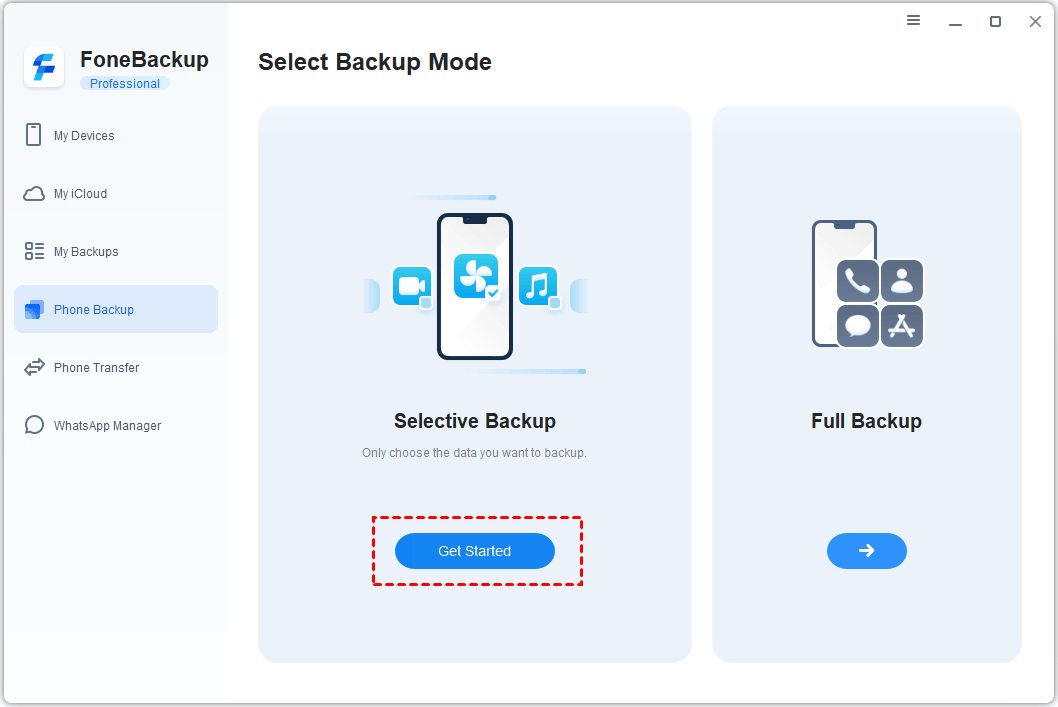
Step 1. Launch AOMEI FoneBackup, select Phone Backup on the toolbar, go to Selective Backup, and click Get Started.
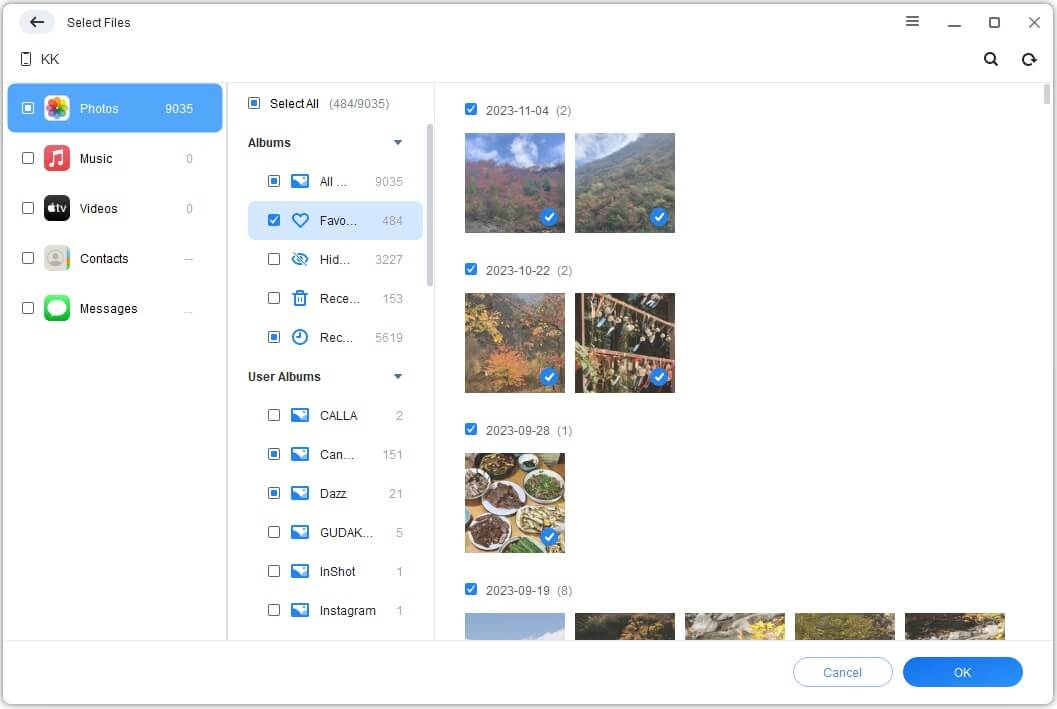
Step 2. Select the types of data (e.g., Photos) you want to back up. You can preview and select specific files, then click OK to confirm. You can also select Music, Videos, Contacts, or Messages to backup.
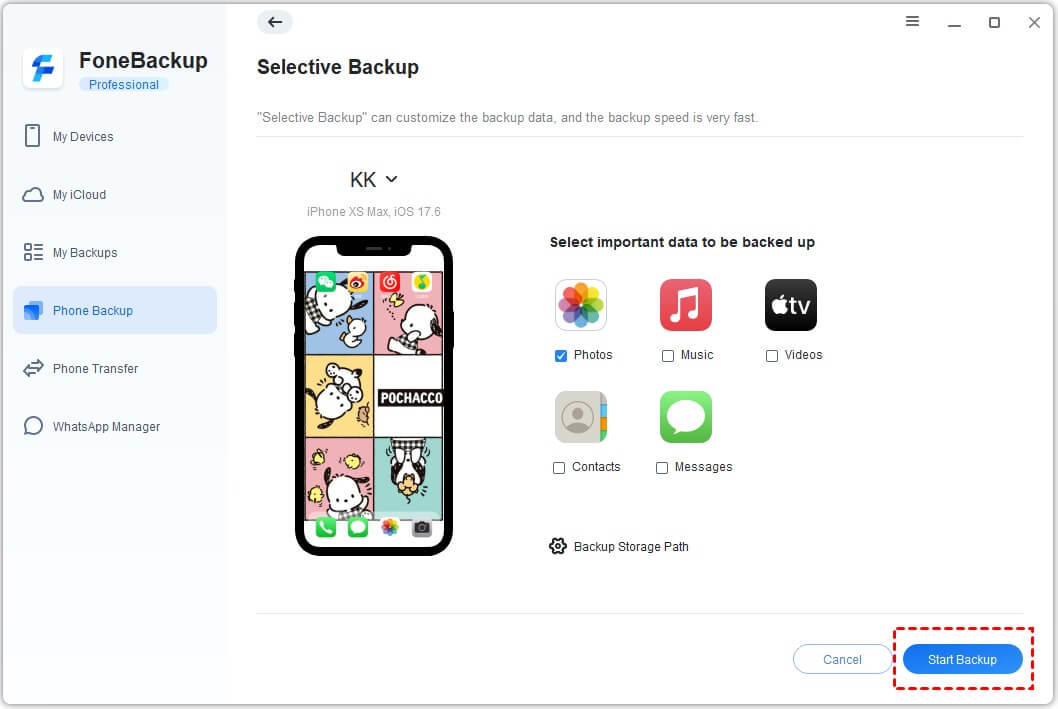
Step 3. Click Backup Storage Path and select a location to save your photos. At last, click Start Backup.
Option 2: Make a full iPhone backup
Instead of backing up only selected photos, music, videos, etc., you can backup all of them with AOMEI Fone Backup in a few clicks.
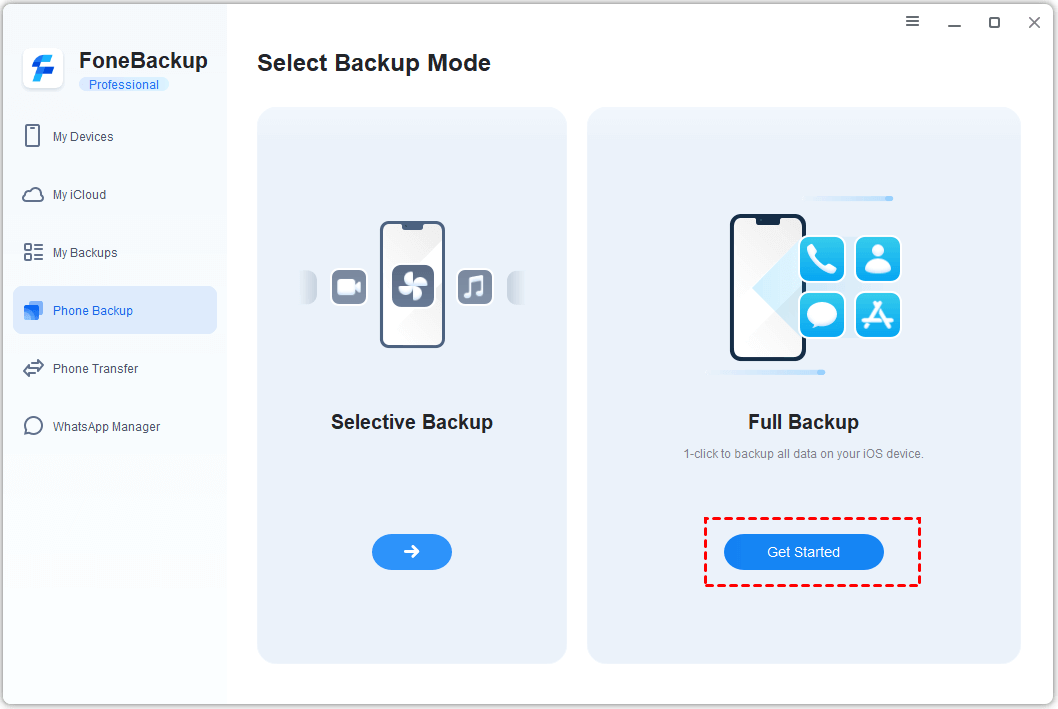
Step 1. Go to Phone Backup > Full Backup and click Get Started.
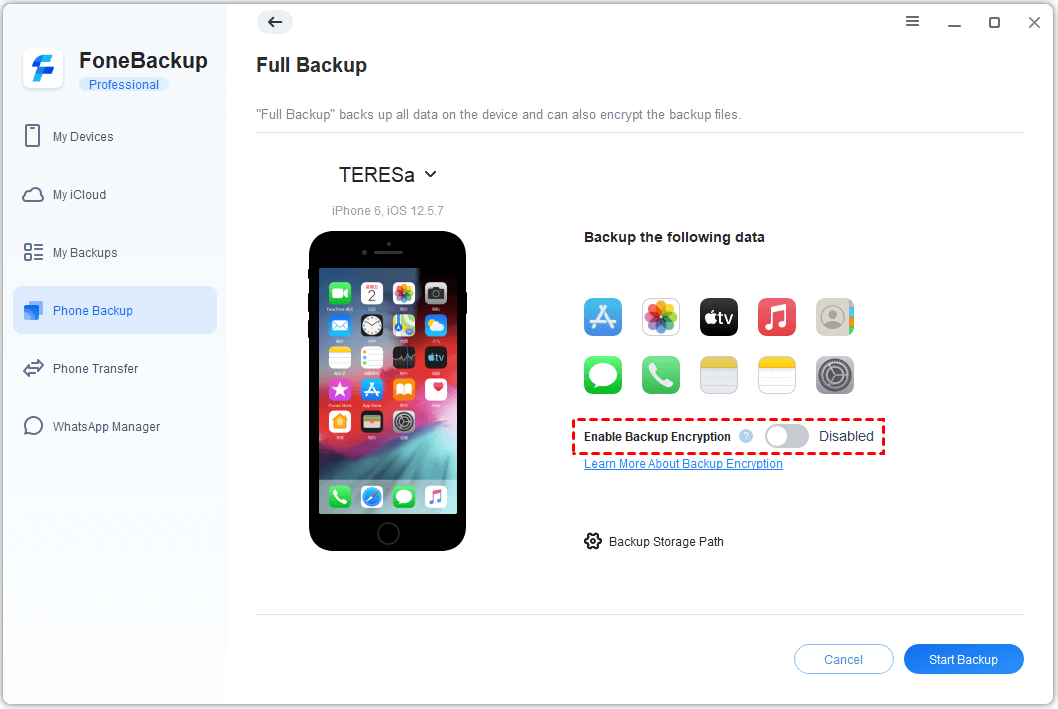
Step 2. Enable backup encryption to protect your data if needed. Click Backup Storage Path to choose where to save your backup, and click Start Backup.
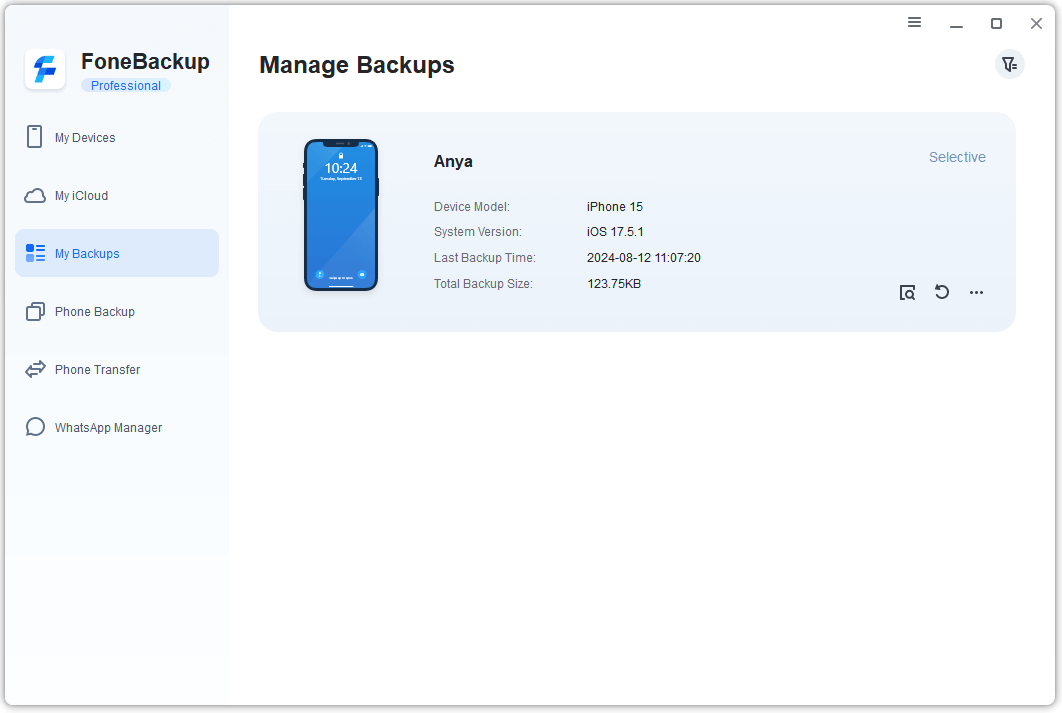
Backups created by AOMEI FoneBackup can be easily viewed and managed. You can go to My Backups to finish the process.
FAQs About iPhone Backup Extractors
1. Is it safe to use free iPhone backup extractors?
Generally, reputable free iPhone backup extractors are safe to use. However, always download such tools from trusted sources to avoid potential security risks.
2. Can I recover deleted data from an iPhone backup using an extractor?
Yes, many iPhone backup extractors can recover deleted data from your iPhone backups, including deleted messages, photos, and other files.
3. Does using an iPhone backup extractor void my warranty?
No, using an iPhone backup extractor to extract data from your backups does not void your iPhone warranty.
4. Can I extract data from an encrypted iTunes backup?
Jihosoft supports encrypted iTunes backups with password extraction. Other tools may not support encrypted backups — check before downloading.
5. What's the difference between an extractor and a backup tool?
A backup extractor reads existing iTunes backups and pulls out specific files. A backup tool (like AOMEI FoneBackup) creates new backups that you can view and manage directly.
Final Words
Extracting data from iTunes backups doesn't have to be complicated. Whether you choose Jihosoft for encrypted backups, Syncios for a completely free solution, or iMazing for advanced editing features, you can access your photos, messages, contacts, and more with just a few clicks.
If you're looking for an even simpler approach, AOMEI FoneBackup offers a completely free way to back up and view your iPhone data - no iTunes backup extractor needed.
Here's the simple rule:
-
Choose Jihosoft if you need to extract from an encrypted iTunes backup.
-
Choose Syncios if you want a completely free extractor with preview.
-
Choose iMazing if you need editing capabilities.
-
Choose AOMEI FoneBackup if you want a free backup tool that lets you view files without an extractor.
Your data is worth protecting. Start extracting or backing up today.

 as a preferred
source on Google
as a preferred
source on Google