



How to Transfer Audiobooks to iPhone from PC: 2 Easy Ways
Want to enjoy your audiobooks on iPhone? Learn how to transfer them from Windows using iTunes or AOMEI FoneBackup – fast and hassle-free.

By Lily Updated on July 30, 2026


Need to Transfer Audiobooks to iPhone
Audiobooks have become a popular way to enjoy books while traveling, exercising, commuting, or simply relaxing. With an iPhone, iPad, or iPod touch, you can listen to your favorite audiobooks anytime and anywhere without carrying physical books.
However, many users download audiobook files from websites and save them on a Windows PC. Since these files are stored on a computer, they need to be transferred to an iOS device before they can be played on the go.
So, how do you transfer audiobooks from a Windows computer to an iPhone?
How to Transfer Audiobooks from PC to iPhone
In this part, I will introduce two practical methods: using iTunes and using a professional iPhone transfer tool. You can choose the method that best fits your needs.
Method 1. Transfer Audiobooks to iPhone Using iTunes
As Apple’s official media management tool, iTunes allows you to sync various types of content, including music, videos, and audiobooks, from a computer to an iPhone. However, there is one thing to keep in mind: many audiobooks downloaded from the Internet are saved in MP3 format. iTunes does not automatically recognize these files as audiobooks.
You need to first import them into the iTunes library and change their media type before transferring them to your iPhone. Learn how to add audiobooks to iPhone below:
Step 1. Use a USB cable to connect your iPhone to the computer. Unlock your iPhone and tap Trust if a prompt appears asking you to trust the computer.
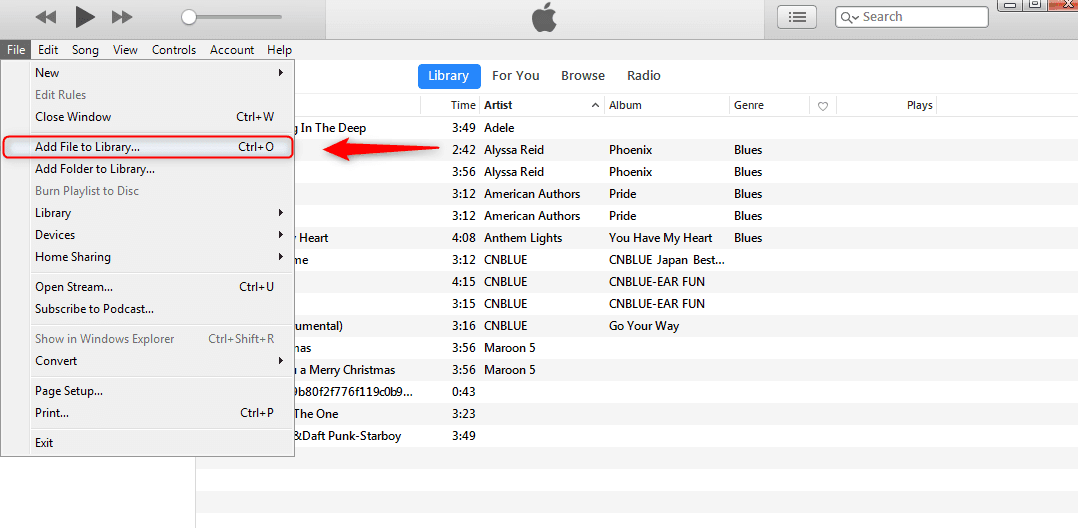
Step 2. Install and open the latest version of iTunes for Windows. Go to File > Add File to Library and select the audiobook files stored on your computer.
Step 3. After importing the files, you can change audiobook files to the Audiobook category:
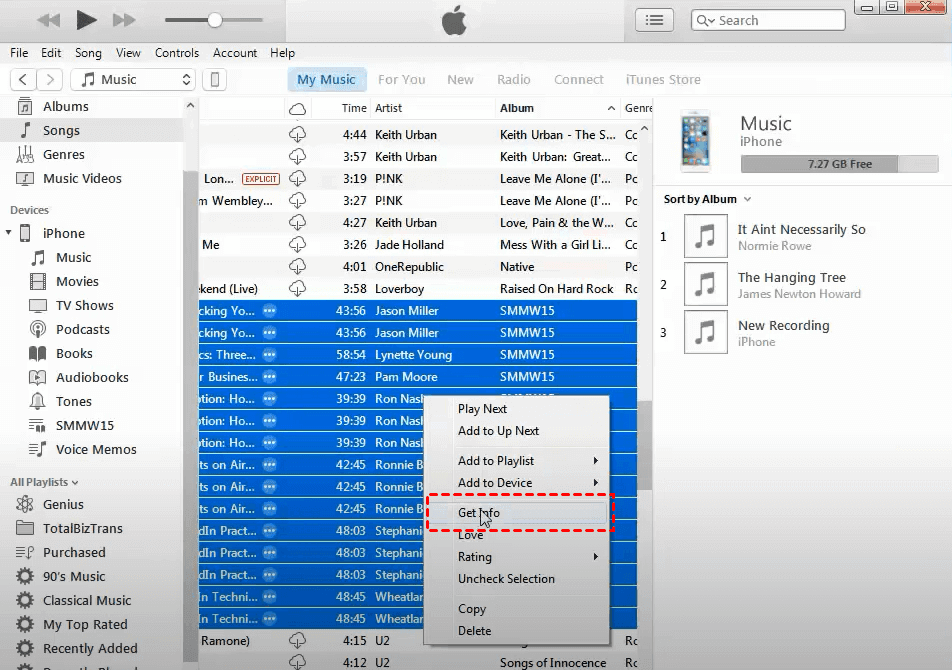
- Select the audiobooks in your iTunes library. Right-click and choose Get Info.
- Open the Options tab. Change media kind to Audiobook.
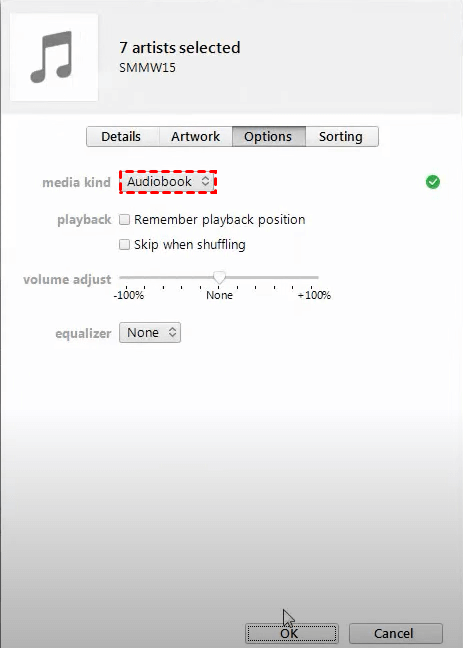
- Click OK to save the changes. The audiobook files will now appear under the Audiobooks section instead of Music.
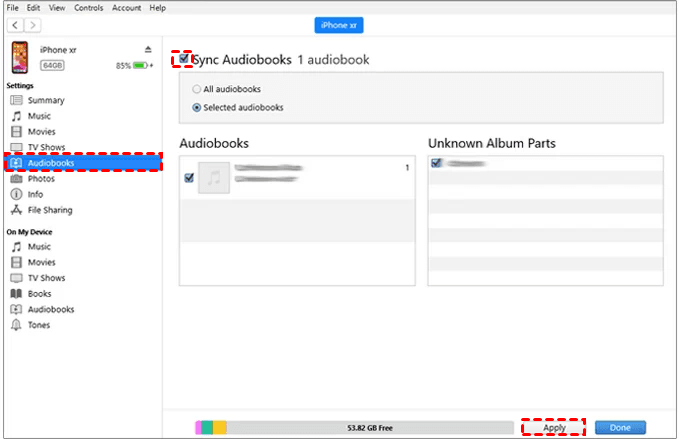
Step 4. Click the iPhone icon in iTunes and select the Audiobooks section.
Step 5. Check Sync Audiobooks, select the audiobooks you want to transfer to your iPhone, and click Apply.
Step 6. After the process finishes, open the Books app on your iPhone to check whether your audiobooks have been transferred successfully.
💡 Note: iTunes also allows you to manually manage media files. You can select your iPhone in iTunes, open the Summary page, disable automatic syncing, and enable Manually manage music and videos.
Method 2. Transfer Audiobooks to iPhone Without iTunes
Although iTunes is an official solution, transferring audiobooks through iTunes can be time-consuming and confusing, especially when managing different file formats or avoiding data loss.
A simpler alternative is to use a dedicated iOS transfer tool like AOMEI FoneBackup. It allows you to directly transfer audiobooks from a Windows PC to an iPhone without relying on iTunes syncing.
 AOMEI FoneBackup
- Easy-to-use interface: The simple design allows you to transfer audiobooks with only a few clicks, even if you have little technical experience.
- Selective transfer: You can choose specific audiobook files instead of syncing your entire library.
- Fast transfer speed: It transfers files efficiently, saving time compared with traditional syncing methods.
- Wide iOS compatibility: It supports various iPhone models and iOS versions, including the latest iOS versions.
 100% Secure
Download and install AOMEI FoneBackup on your Windows computer. Then learn how to transfer audiobooks to iPhone without iTunes as follows:
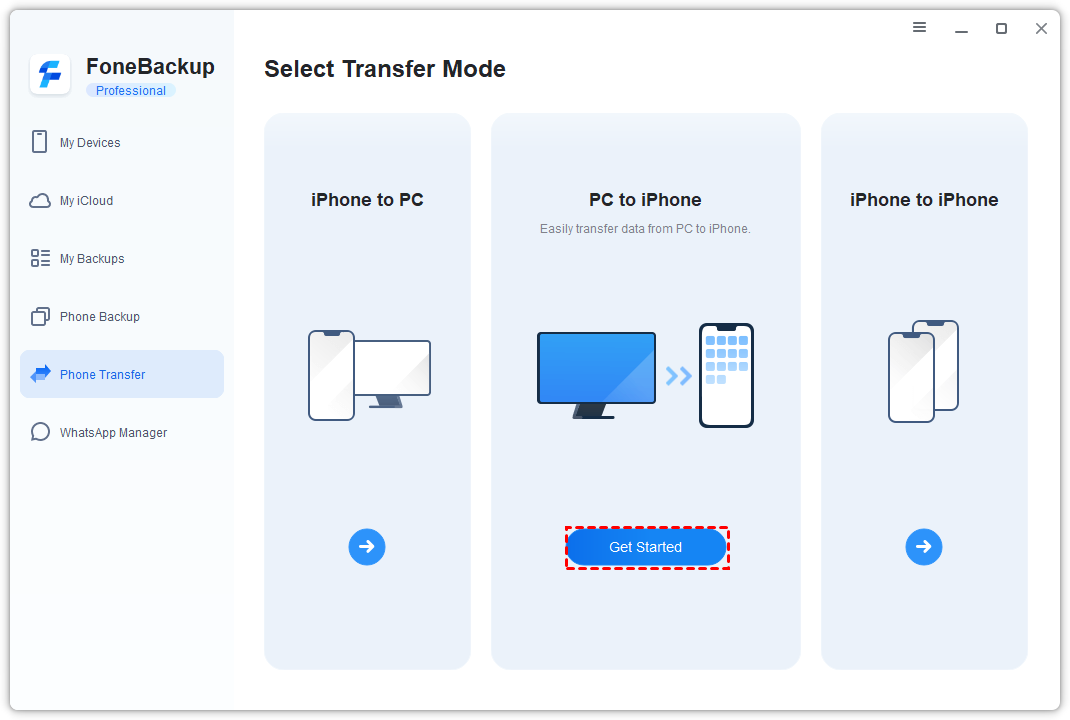
Step 1. Connect your iPhone using a USB cable. Open AOMEI FoneBackup and select Phone Transfer > PC to iPhone > Get Started.
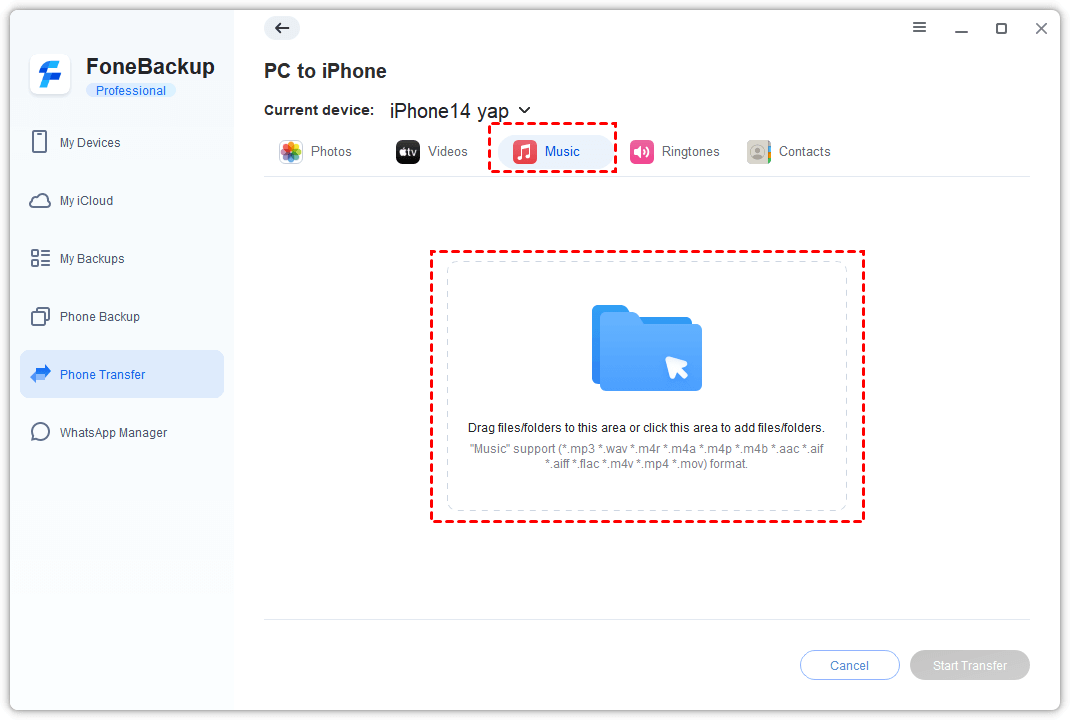
Step 2. Click the Music icon and add the audiobook files by dragging and dropping them into the window. You can also click the blue folder to browse audiobook files on your PC and select them.
Step 3. Confirm the files you want to transfer and click Start Transfer.
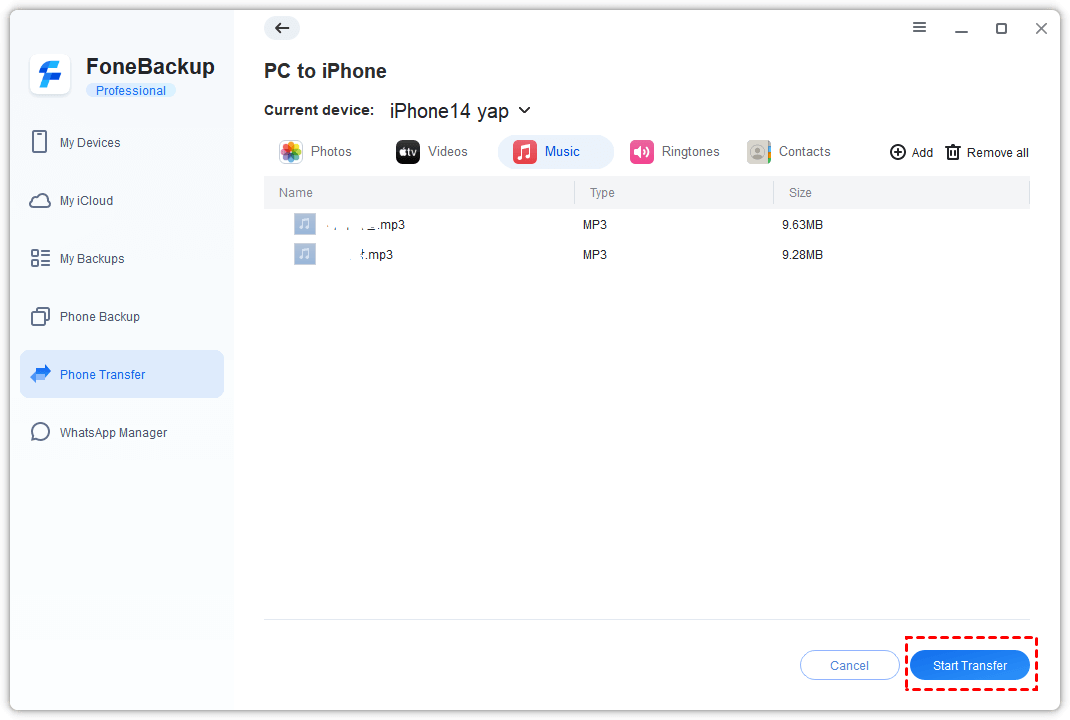
Step 4. Once finished, you can open the Music app on your iPhone to access the transferred audiobook files.
FAQs About Transferring Audiobooks from PC to iPhone
1. Can I transfer MP3 audiobooks from PC to iPhone?
Yes. You can transfer MP3 audiobooks to your iPhone using iTunes or AOMEI FoneBackup. With iTunes, you may need to change the file type to Audiobook before syncing. AOMEI FoneBackup allows you to transfer audiobook files directly.
2. Why aren’t my audiobook files showing up in iTunes?
This is a common issue that usually happens for two main reasons:
- The file format isn't recognized: iTunes needs the file to be in a compatible format, such as M4B (the standard for audiobooks) or MP3.
- The file is tagged as "Music": If you add an MP3 file, iTunes might categorize it as a song. It won't appear in the Audiobooks section of your iPhone with its proper features.
3. Where can I find transferred audiobooks on my iPhone?
If transferred as audiobooks, you can usually find them in the Books app under the Audiobooks section. If transferred as music, you can find them in the Music app.
Summary
That’s all about how to transfer audiobooks to iPhone from a Windows PC. iTunes provides an official way to sync audiobooks, but the process can involve multiple steps and may be confusing for some users.
If you prefer a simpler and more flexible solution, AOMEI FoneBackup lets you transfer audiobooks directly from your computer to your iPhone with just a few clicks. Besides audiobook transfer, it is also specialized iPhone backup software. You can use it to backup contacts, photos, videos, messages, and more. Just give it a shot!

 as a preferred
source on Google
as a preferred
source on Google