




How to Print Photos from iPhone with Ease [2 Free Ways]
Wondering how to print photos from iPhone? Two free ways, AirPrint for wireless printing or transfer to PC for any printer. Step-by-step guide inside!

By Kelsey Updated on May 14, 2026


I've got hundreds of photos on my iPhone—from my daughter's graduation to our last vacation. I'd love to print some out to frame or give to family, but I have no clue where to start. How do I print photos from my iPhone?
- Question from Reddit
If that sounds like you, you're not alone. Even in this digital age, there's something special about holding a physical photo. Maybe you want to frame a favorite shot, create a scrapbook, or send a printed memory to a friend. Whatever your reason, learning how to print photos from iPhone is easier than you think. This guide walks you through two free methods - one wireless, one using a computer, so you can get those memories onto paper today.
Why Bother Printing iPhone Photos?
Let's be honest: our iPhones have become our primary cameras. From graduations to weddings to lazy Sunday afternoons, we capture everything. And while scrolling through a digital gallery is nice, printed photos hit different.
Physical photos matter because:
🧩They preserve memories better. A photo in your hand feels more real than one on a screen. It's something you can touch, frame, or tuck into a wallet.
🎁They make great gifts. A framed photo of a shared memory? That's thoughtful in a way a digital file just isn't.
⌛They last. Phones get lost, broken, or replaced. A printed photo sitting in an album? That's there for decades.
The good news? Printing from an iPhone used to be a hassle, but these days it's surprisingly simple.
Method 1. Print Directly from iPhone Using AirPrint
Got an AirPrint-enabled printer? If so, you're in luck. AirPrint is Apple's built-in wireless printing feature, and it's the easiest way to print straight from your iPhone. No apps to download, no cables to fiddle with. Just make sure your printer and iPhone are on the same Wi-Fi network.
🔍What you'll need:
-
An AirPrint-compatible printer (most modern printers from HP, Canon, Epson, and Brother support this)
-
Both devices connected to the same Wi-Fi network
How to print photos from iPhone using AirPrint:
Step 1. Open the Photos app on your iPhone. Tap "Select" in the top right corner and choose the photo or photos you want to print.
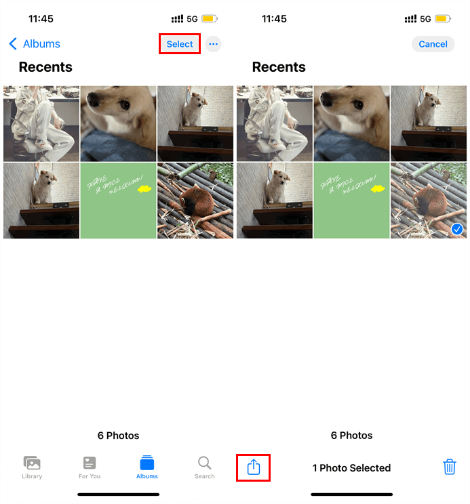
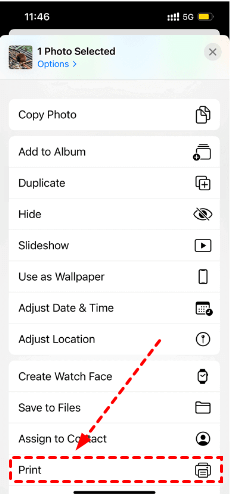
Step 2. Tap the "Share" icon (that's the square with an arrow pointing up). Scroll down through the share options, you'll find it, and tap "Print."
Step 3. In the Printer Options window, tap "Select Printer." Your iPhone will scan for nearby AirPrint printers. Choose yours from the list.
Step 4. Adjust any settings you want number of copies, color or black and white, double-sided, etc. Most printers let you pick paper size, too.
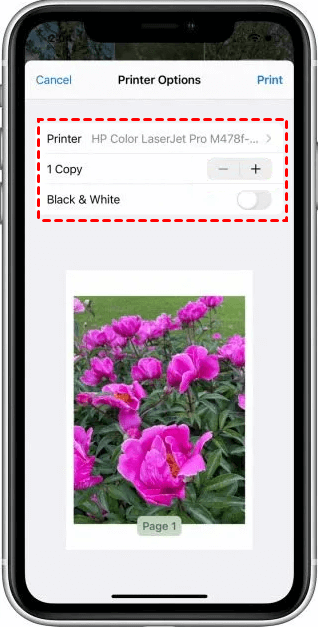
Step 5. Once everything looks right, tap "Print" in the top right corner. That's it. Your photo should start printing in a few seconds.

- 📝Note:
- If your printer doesn't show up, double-check that both devices are on the same Wi-Fi network. Also, some older printers might need a firmware update to work with AirPrint.
Method 2. Print iPhone Photos from a Computer
Don't have an AirPrint printer? No problem. You can still print pictures from iPhone on computer with any printer, old or new, wireless or USB. The trick is to get your photos onto your computer first, then print from there.
For this, you'll want a tool that makes transferring photos dead simple. AOMEI FoneBackup is a solid choice. It's free, works with all iPhones, and transfers photos at legitimately fast speeds. Plus, you can pick exactly which photos to move, no need to dump your whole camera roll.
How to get iPhone photos to your computer for printing:
Step 1. Download and install AOMEI FoneBackup on your Windows PC . Grab your USB cable and connect your iPhone to the computer.
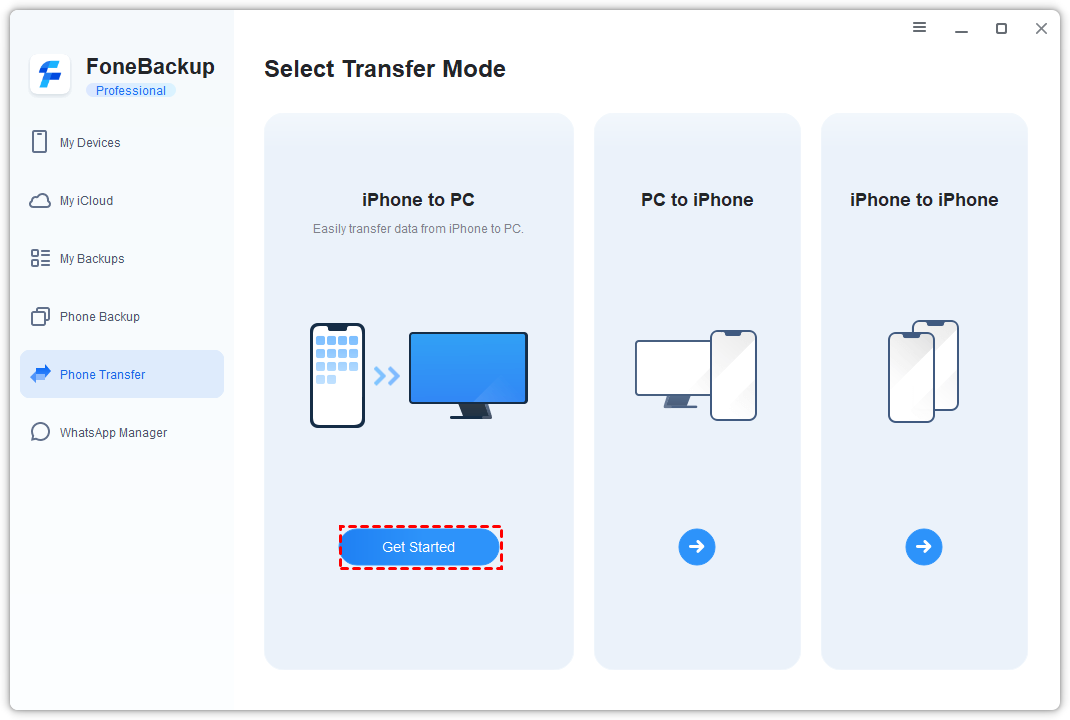
Step 2. Open AOMEI FoneBackup. On the home screen, click Phone Transfer, then choose iPhone to PC, and hit Get Started.
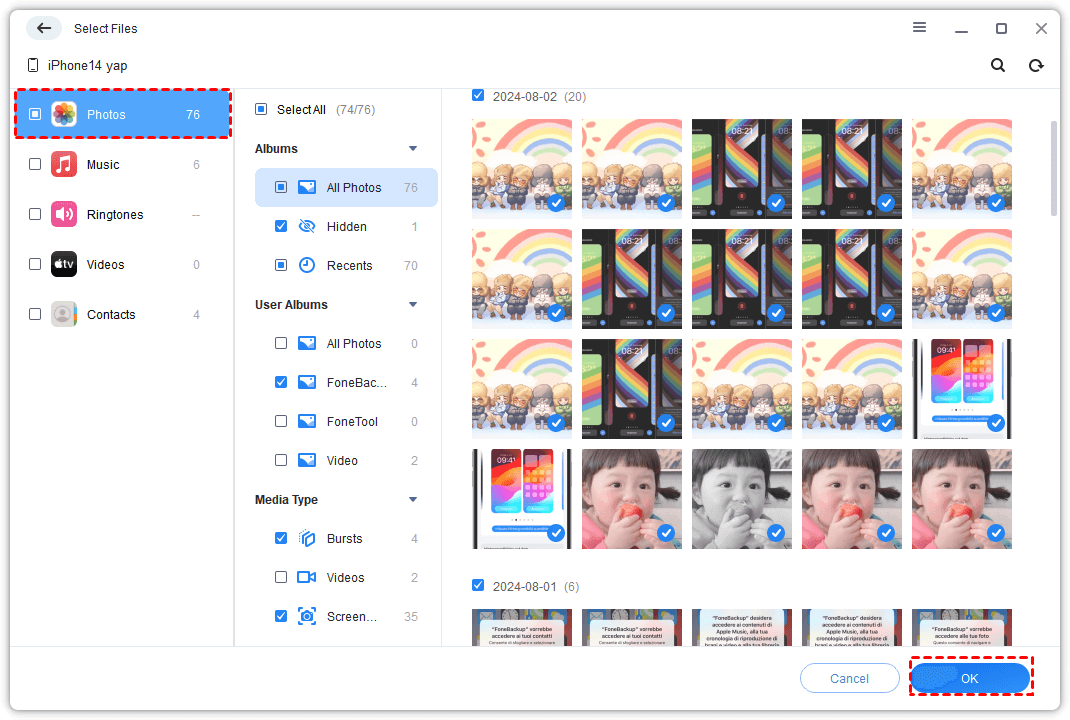
Step 3. Click the Photos category. You'll see all your photos nice and organized. Pick the ones you want to print (select one, a few, or all of them). Click OK when you're done.
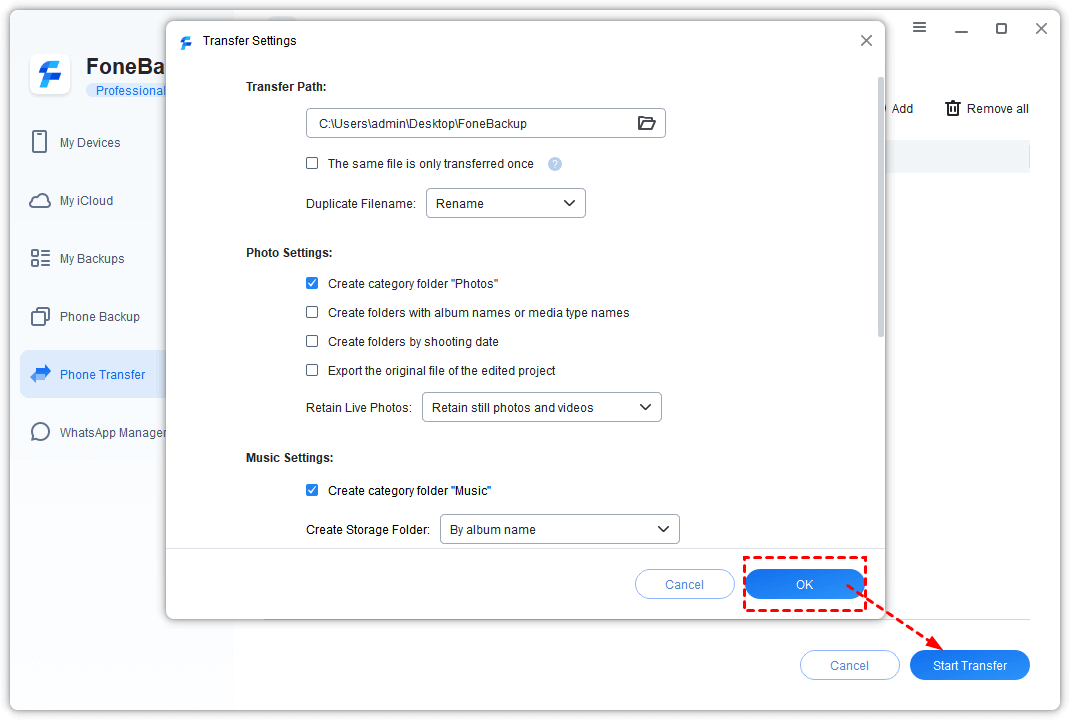
Step 4. Choose where on your computer you want to save these photos. You can pick any folder - your desktop, a specific folder, even an external hard drive if you want. Then click Start Transfer.
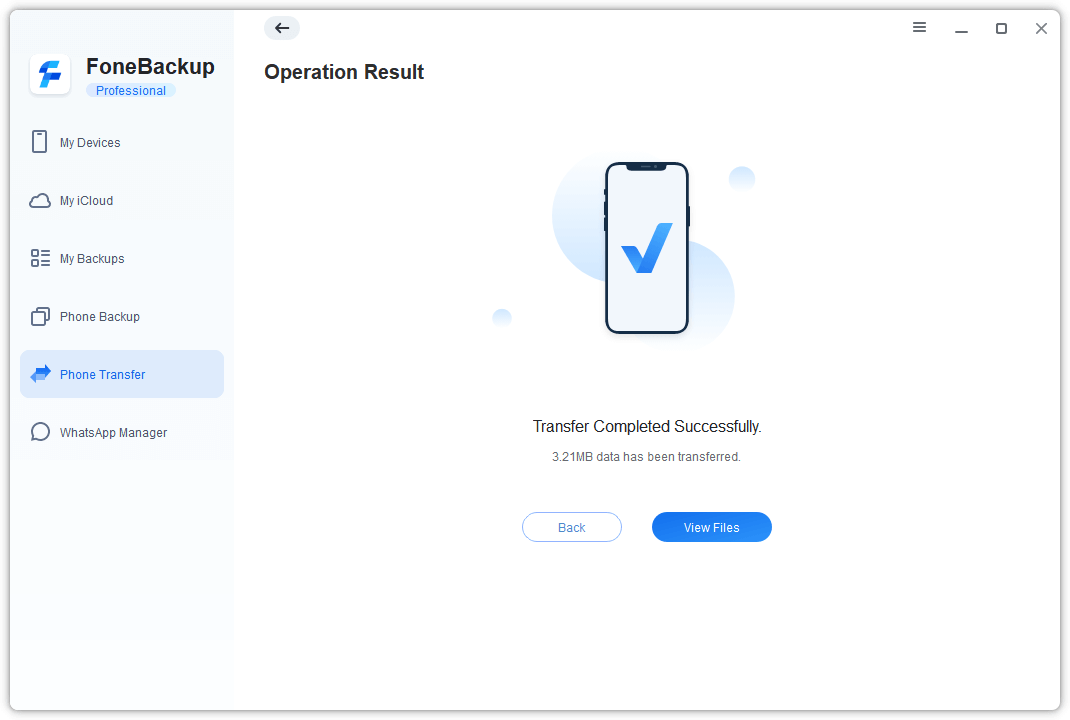
Step 5. Wait a few seconds (or minutes, depending on how many photos). When it's done, you'll see a "Transfer Completed" message. Click OK.
Bonus Tip: Back Up Your iPhone Photos Before You Print
Here's something to think about. While you're figuring out how to print pictures from iPhone, take a moment to consider how many photos are sitting on your phone right now. Graduations, birthdays, random silly moments—they add up. And if your phone gets lost or broken, those photos are gone. Poof.
Printing is great, but backing up is essential. AOMEI FoneBackup isn't just for transferring photos to print, it's also a solid backup tool . Here's why it's worth using:
- Preview before you back up - Don't want to save every blurry screenshot? No problem. See what's there and pick what matters.
- Fast backups - In testing, 10GB of photos transferred in just a few minutes. You won't be waiting around.
- Back up other stuff too - Photos, music, messages, contacts—you can pick and choose or do a full backup.
- Works with all iOS devices - iPhone, iPad, iPod Touch, latest iOS.
 AOMEI FoneBackup
Easily back up and restore iPhone data, transfer data between PC and iPhone, and manage iCloud and WhatsApp data.
How to back up your iPhone photos:
Step 1. Connect your iPhone to your computer and launch AOMEI FoneBackup.
Step 2. Click Phone Backup, then choose Selective Backup. Check the Photos box.
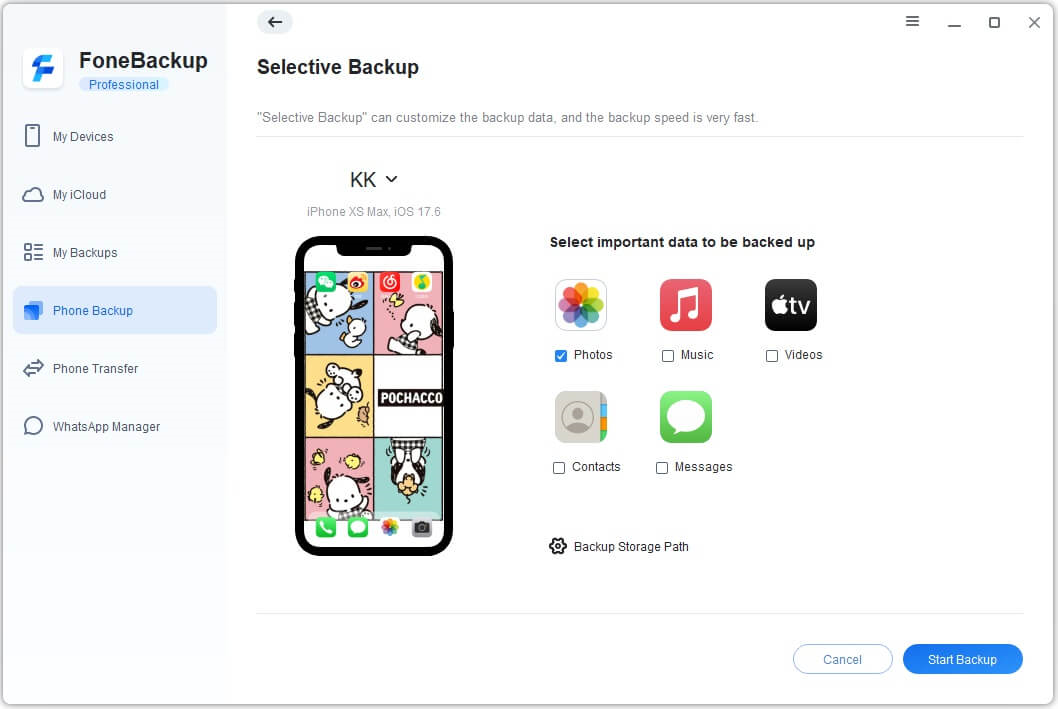
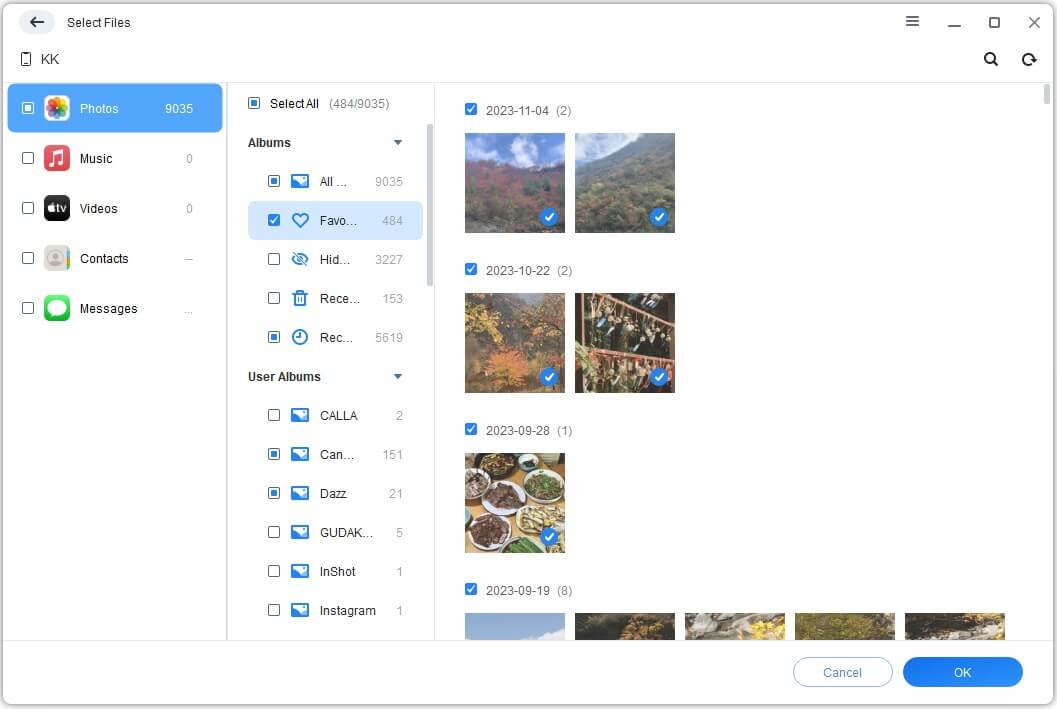
Step 3. You'll see previews of your photos. Select the ones you want to keep safe. Click OK.
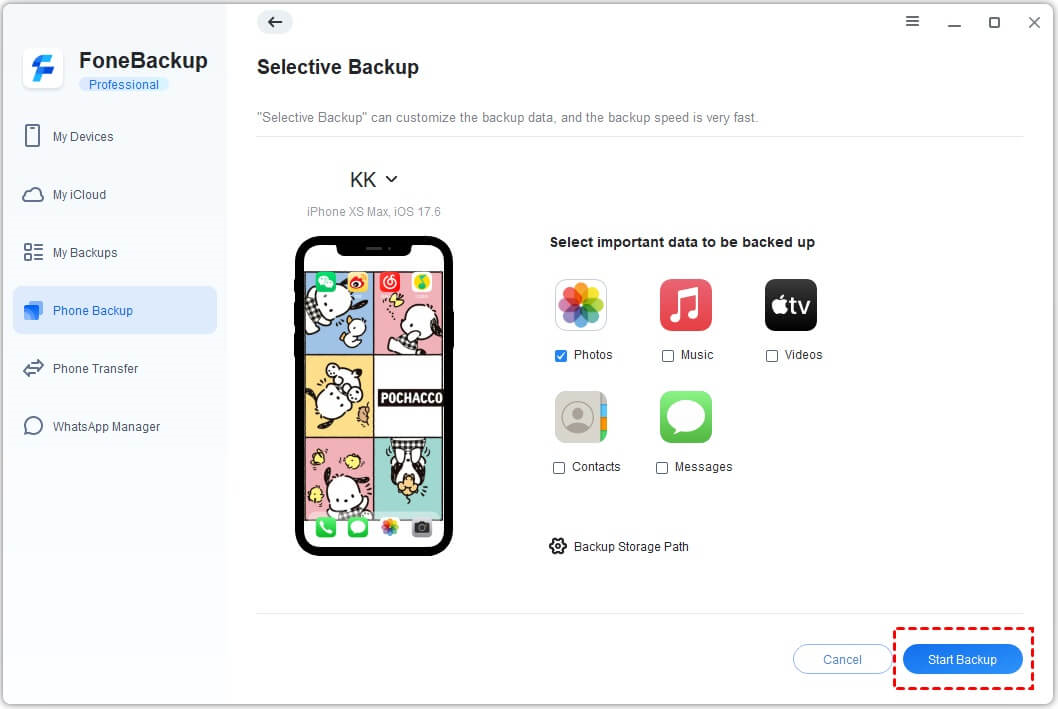
Step 4. Hit Start Backup. A few moments later, your photos are safely stored on your computer.
The Bottom Line
So, how to print photos from iPhone? You've got two solid options: use AirPrint if your printer supports it for a totally wireless experience, or transfer photos to your computer with AOMEI FoneBackup and print from there using any printer you own. Both are free, both are straightforward, and both get the job done.
And while you're at it, consider backing up those photos. AOMEI FoneBackup makes it easy to keep your memories safe, not just ready for printing, but protected for the long haul. Download it, plug in your phone, and give yourself one less thing to worry about.

 as a preferred
source on Google
as a preferred
source on Google