




How to Create and Restore a Full iPhone Backup
A full backup is more than pressing one button. Compare 3 iPhone backup methods - what they include, how to verify, and how to restore.

By Ivy Updated on July 17, 2026


A full iPhone backup gives you a recovery point before an upgrade, repair, reset, or device replacement. But here's what many users don't realize: no backup method creates a browsable clone of everything on your phone.
Some data goes into the backup. Some stay in iCloud. And some purchased content re-downloads during restoration.
This guide compares three practical ways to back up your iPhone - AOMEI FoneBackup, iCloud, and Apple's computer tools, so you can choose the method that fits your situation. We'll cover what each backup includes, how to create it, and how to restore from it when needed.

Before You Start: A 5-Minute Checklist
-
Check the estimated backup size and confirm your destination has enough free space.
-
Use a reliable USB cable for computer backups, and unlock your iPhone before connecting.
-
Decide if the backup must include protected categories (passwords, Health data, etc.). Enable encryption where needed.
-
Write down any backup password in a password manager. Do not rely on memory alone
-
Keep your iPhone connected to power during the backup and avoid disconnecting it mid-process.
Which Backup Method Should You Choose?
| 🔍 If you want... | 🎯 Choose... | 💡 Key consideration |
|---|---|---|
| A guided local backup on your Windows PC with a selectable destination | AOMEI FoneBackup | Free for essential use; verify required data types are covered |
| Automatic wireless backups without a computer | iCloud | Requires enough iCloud storage (5GB free; paid plans available) |
| A local backup using Apple's built-in tools (Mac or Windows) | Finder / Apple Devices / iTunes | Use encryption to protect Health data, passwords, and call history |
🔥 Quick recommendation:
-
If you're a Windows user who wants to back up to your PC, ➡ Start with AOMEI FoneBackup.
-
If you prefer automatic backups without cables, ➡ Use iCloud.
-
If you're on a Mac or want Apple's official local backup, ➡ Use Finder/Apple Devices/iTunes.
What a Full iPhone Backup Really Means
Before diving into the methods, it's worth understanding what a backup actually covers.
What's included in most backups:
-
Device settings and configuration
-
App data (for most apps)
-
Home screen layout
-
Messages and call history (if not synced to iCloud)
-
Photos and videos (if not using iCloud Photos)
What's NOT included:
-
Content already synced to iCloud (e.g., iCloud Photos, Messages in iCloud)
-
Face ID, Touch ID, or device passcode
-
Apple Pay information
-
Content that can be re-downloaded (App Store purchases, Apple Music)
Encryption matters:
-
Encrypted backups can include passwords, Wi-Fi settings, website history, Health data, and call history
-
Keep your encryption password safe as you cannot restore an encrypted backup without it
Method 1: Create a Local Full Backup with AOMEI FoneBackup
🔥 Best for: Windows users who want a guided local backup with a selectable destination - no iCloud storage limits.
AOMEI FoneBackup is a free iPhone data backup software that lets you back up your iPhone to your PC or an external drive. It's especially useful when iCloud capacity is limited or when you want full control over where your backup is stored.
 AOMEI FoneBackup
- 💾 1-Click Full Backup: Back up photos, videos, contacts, messages, app data, settings, and more. No Wi‑Fi, iCloud, or Apple ID required.
- 🎯 Selective Backup: Choose exactly what to back up: photos, contacts, call history, messages, and more.
- 📂 Flexible Storage: Save data to your PC, external drive, USB drive, cloud drive, and network share or NAS..
- 👁🗨 Preview Before Backup: See exactly what you're backing up before you start. Only back up what you actually need.
- 🔍 One-Click Access: Locate and view your backup files with a single click. No digging through folders.
- 💰 Totally Free: Backup what you need without paying a cent. No subscriptions, no paywalls.
- 📱 Works with All iPhones: Compatible with all iPhone models and iOS versions, including the latest iPhone 17 and iOS 26.
 100% Secure
How to back up your iPhone with AOMEI FoneBackup:
Step 1. Install and launch AOMEI FoneBackup on your Windows PC. Connect your iPhone via a USB cable, unlock it, and tap Trust if prompted.
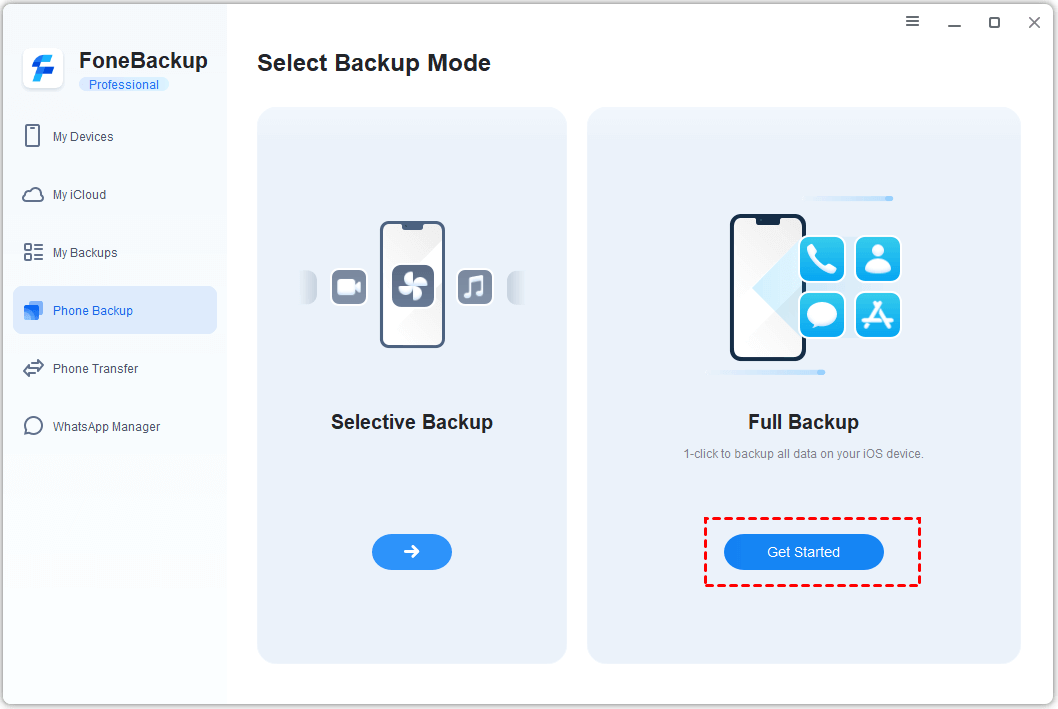
Step 2. Select Phone Backup, choose Full Backup, and click Get Started.
Step 3. Toggle Enable Backup Encryption on to protect your privacy. Click Backup Storage Path to choose a backup destination, confirm there's enough space, and click Start Backup.
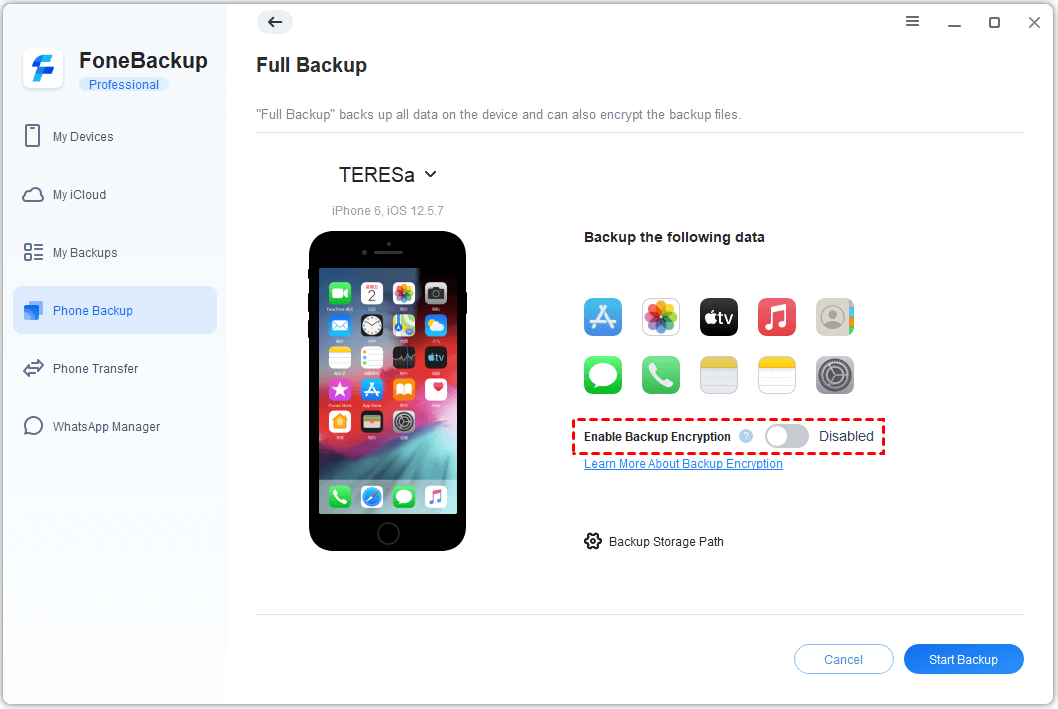
Leave your iPhone connected until the completion status appears. Your backup is saved to your chosen location. You can find it anytime under Backup History.
Method 2: Use iCloud for Automatic Wireless Backup
👍 Best for: Users who want automatic backups without connecting to a computer - ideal for "set it and forget it" protection.
iCloud is the simplest choice when you want backups to run wirelessly. It automatically backs up your iPhone when it's connected to power, locked, and on Wi-Fi. The tradeoff is that you need enough iCloud storage space.
How to enable iCloud Backup:
Step 1. Connect your iPhone to Wi-Fi. Go to Settings > [Your Name] > iCloud > iCloud Backup.
Step 2. Turn on Back Up This iPhone for automatic protection. Keep your phone locked, on power, and connected to Wi-Fi when you expect the backup to run.
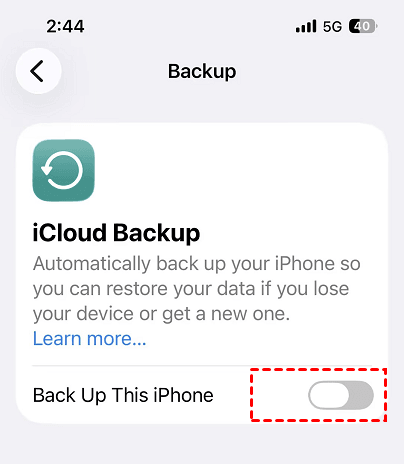
Step 3. To create a backup immediately, tap Back Up Now. Stay connected until it finishes, then check the date and time shown.
💡 If you run out of iCloud storage:
-
Review the next backup size and the apps included in the backup
-
Stop backing up unneeded app data
-
Delete obsolete device backups carefully
-
Consider upgrading your iCloud storage plan
Method 3: Create an Encrypted Local Backup with Apple Tools
👍 Best for: Users who want a local backup using Apple's official tools and need to protect sensitive data like Health information, passwords, and call history.
This method stores the backup locally on your computer, so available hard drive space determines capacity. You can use one of 3 tools: Finder, Apple Devices, or iTunes (as a fallback), depending on your operating system.
How to create an encrypted backup:
Step 1. Connect your iPhone to your computer, unlock it, and tap Trust if prompted. Open Finder (Mac), Apple Devices (Windows), or iTunes.
Step 2. Select your iPhone from the sidebar. Go to General (Finder/Apple Devices) or Summary (iTunes).
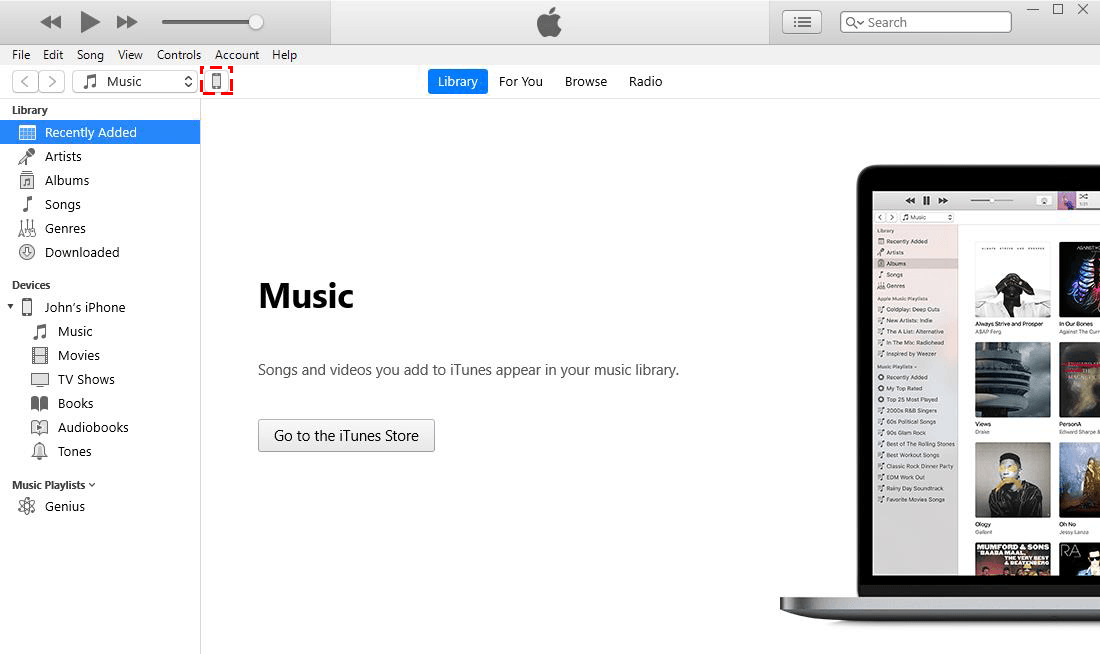
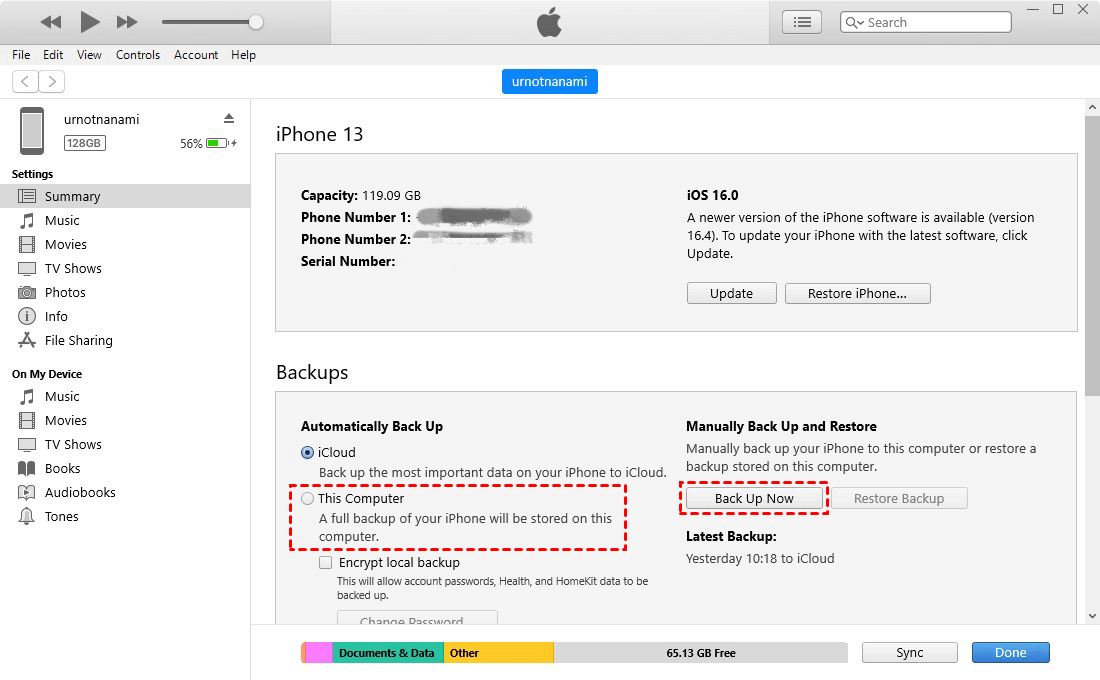
Step 3. Select Back up all of the data on your iPhone to this Mac. If you are using iTunes, select This computer.
Step 4. Check Encrypt local backup if you need protected categories included. Click Back Up Now.
-
Create a strong password and store it safely, as you cannot restore this backup without it.
-
After completion, verify that the latest backup date appears. Encrypted backups show a lock indicator in the backup list.
If your iPhone isn't showing up in iTunes, try the fixes in our guide on iPhone not showing up in iTunes.
Verify Your Backup Before You Depend on It
A completed progress bar doesn't always mean a usable backup. Verification is what turns a backup into a recovery plan.
👉 What to check:
- Completion time: Make sure the displayed time matches the job you just ran
- Backup exists: Confirm the backup appears in AOMEI FoneBackup Backup History, the Apple backup list, or the iCloud Backup screen
- Destination space: Verify the destination still has enough free space and that an external drive wasn't disconnected.
- For encrypted backups: Verify the lock indicator and confirm the password is stored safely.
- For iCloud backups: Check both the last successful backup date and which apps are included.
👉 What if verification fails?
If the backup doesn't appear or something seems wrong:
- Create a new backup and verify it again
- Check the destination drive for errors<
- Free up space and re-run the backup before you rely on it
How to Restore a Full iPhone Backup
Restoration can replace data on your target device. Some cloud-synchronized or purchased content may continue downloading afterward. Use the backup date and size to choose the right recovery point.
👉 Restore with AOMEI FoneBackup:
Step 1. Connect the new iPhone using a USB cable. Open AOMEI FoneBackup, go to Backup History, choose the backup you want, and select Restore.
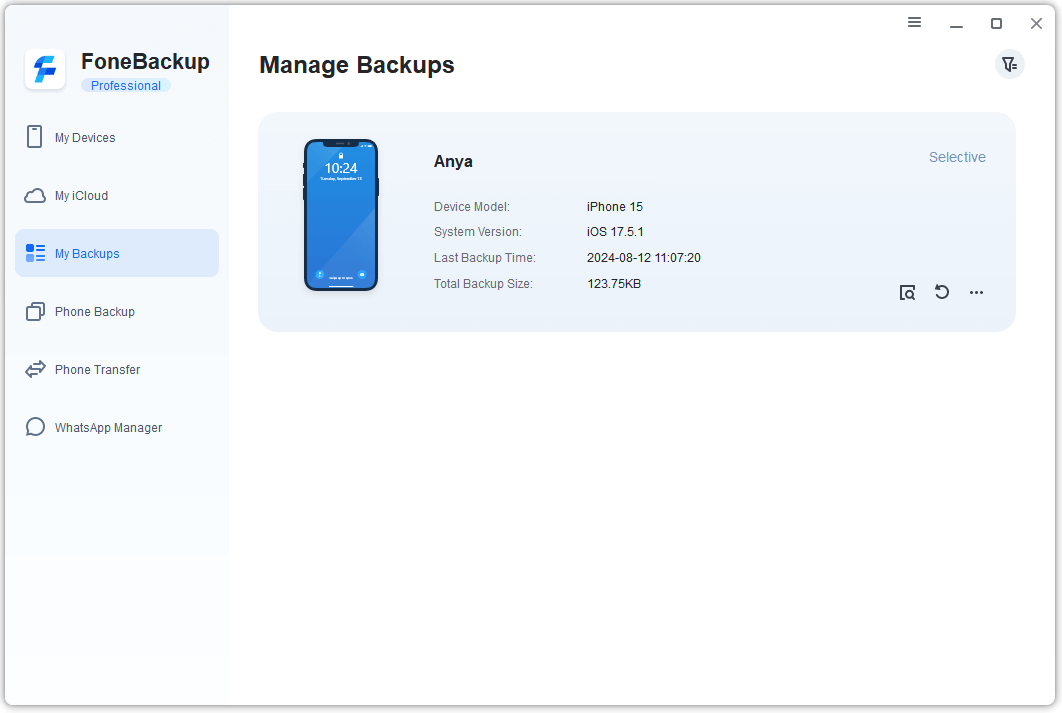
Step 2. Confirm the target device and the items shown, then select Start Restore.
👉 Restore from iCloud Backup:
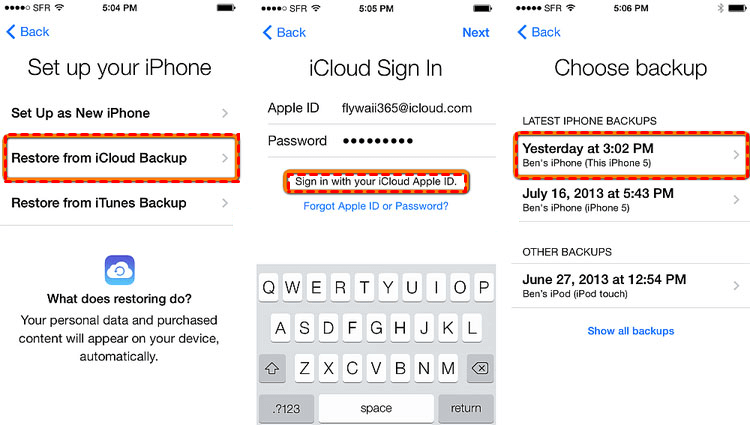
Step 1. Start from the iPhone setup assistant. At the Transfer Your Apps & Data window, choose From iCloud Backup.
Step 2. Sign in with your Apple ID and select the relevant backup by its date and size.
👉 Restore from Computer Backup (Finder / Apple Devices / iTunes):
Step 1. Open Finder, Apple Devices, or iTunes and connect your iPhone.
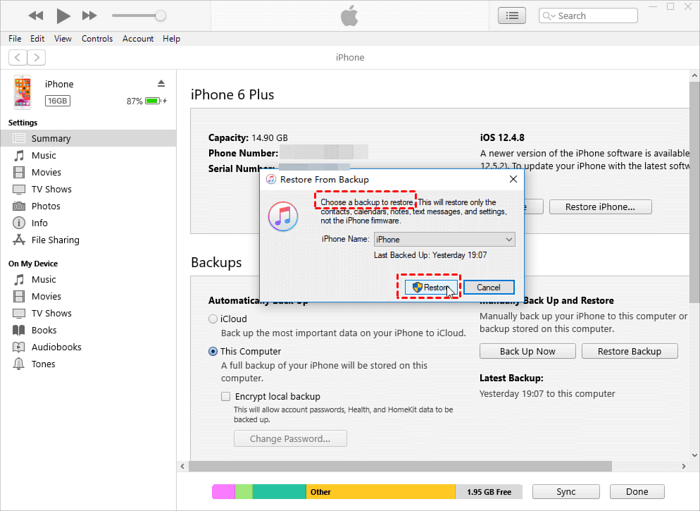
Step 2. Select Restore Backup, choose the intended backup, and enter its encryption password if requested.
Step 3. Click Restore. Keep the device connected while it restarts and syncs.
After restoring, check that your messages, photos, contacts, authenticator apps, etc., are all back before you erase your old device.
FAQs
1. Does a full iPhone backup include everything?
Not literally everything in one archive. Backup coverage depends on the method, encryption, and services already syncing your data. Purchases and apps may be downloaded again, cloud-synchronized content may live outside the backup, and biometric/passcode data is excluded.
2. How long does a full iPhone backup take?
There's no universal time. Data volume, cable or Wi-Fi speed, destination performance, and cloud upload bandwidth all affect duration. Plan extra time for the first backup and always verify completion.
3. Can I keep both an iCloud backup and a computer backup?
Yes. Using both creates alternative recovery paths. An automatic iCloud backup is convenient for daily protection, while a separate local backup is useful before repairs, updates, or travel. Just keep encryption passwords and local backup drives safe.
4. Should I encrypt a local iPhone backup?
Yes when you need protected categories like saved passwords, Wi-Fi settings, website history, Health data, or call history. Store the password securely because restoration depends on it.
Conclusion
A dependable full iPhone backup is a verified recovery point, not just a completed progress bar.
Choose the method that fits you:
- For Automatic wireless protection, use iCloud.
- Windows PC user who wants a guided local backup with a selective destination should use AOMEI FoneBackup.
- Mac user who wants system-level integration should try Finder/Apple Devices.
- Need to protect Health data, passwords, or call history, try Method 3
Your data is worth protecting - start backing up today.

 as a preferred
source on Google
as a preferred
source on Google