




How to Wipe Hard Drive Without Deleting Windows 11/10/8/7
This article will show you how to wipe hard drive without deleting Windows 11/10/8/7. You can try these ways to protect your personal data before selling a hard drive or giving it away.

By Hedy Updated on May 29, 2026


Can you wipe hard drive without deleting Windows?
Yes, you can wipe a hard drive without deleting Windows, but it depends on what you mean by “wipe”. There are several ways to clean a drive while keeping the operating system intact.
|
Option 1. Reset Windows and Remove Personal Files |
This is the safest and easiest method for most users. Windows reinstalls itself while deleting apps, settings, and personal data. |
|
Option 2. Wipe only the data partition |
If your hard drive has multiple partitions, such as C: (Windows system)and D: (Data storage). You can wipe the D: partition without affecting Windows. |
What does it mean to wipe a hard drive without removing Windows?
Wiping a hard drive without deleting Windows means removing files, apps, settings, or personal data while leaving the Windows operating system intact. Instead of formatting the entire disk and reinstalling Windows manually, the system refreshes itself while preserving the core installation files needed for booting and running the computer.
Years ago, this process was complicated. Users had to create installation media, back up drivers, and sometimes spend hours fixing activation problems afterward. Modern Windows recovery tools changed that completely. Microsoft’s “Reset this PC” feature now allows users to choose whether they want to keep files or remove everything while automatically reinstalling Windows in the background.
✍ Difference between wiping data and reinstalling Windows
A full Windows reinstall removes the operating system completely before installing a fresh copy. This usually requires bootable USB media and manual setup afterward. Wiping data while keeping Windows works differently. The system rebuilds itself internally while preserving the Windows core environment.
Here is a simple comparison:
|
Feature |
Wipe data keep Windows |
Full Windows reinstall |
|
Keeps Windows installed |
Yes |
No |
|
Requires bootable USB |
Usually No |
Yes |
|
Removes apps |
Yes |
Yes |
|
Keeps activation |
Usually Yes |
Sometimes |
|
Faster process |
Yes |
Often slower |
|
Easier for beginners |
Yes |
Moderate difficulty |
For most users dealing with slow performance, storage problems, or software corruption, the built-in reset option is enough. It is like cleaning a messy kitchen instead of tearing down the entire house and rebuilding it from the ground up.
How to wipe hard drive without deleting Windows 11/10/8/7
Wiping a hard drive usually means erasing data permanently. However, many users only want to clean personal files, remove junk data, or securely erase a partition while keeping the Windows operating system intact. The good news is that Windows 11, 10, 8, and 7 all provide ways to solve how to wipe a hard drive without deleting Windows.
Method 1. Reset Windows while keeping the operating system
If you want to wipe your hard drive but keep Windows installed, using the “Reset this PC” feature is one of the easiest solutions. This option removes personal files, installed apps, and settings while reinstalling a fresh copy of Windows automatically.
Step 1. Simultaneously press both "Win+I" keys together and enter "Settings". Then, in sequence, go to "System", "Recovery", and "Reset PC".
Step 2. Next, access the Windows Recovery Environment. Forcefully shut down your PC twice, then restart it. Once in the Recovery Environment, click on "Troubleshoot", and then select "Reset this PC" to initiate the reset.
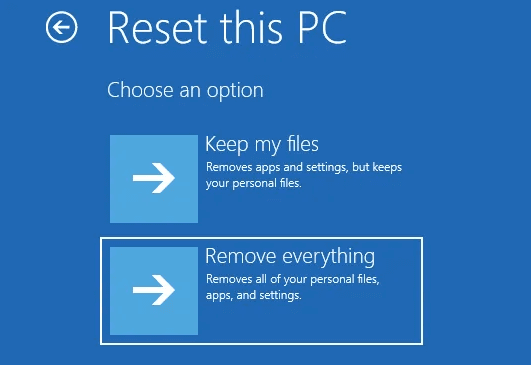
Step 3. When seeing the interface, choose either the "Keep my files" option or "Remove everything" based on your preferences as previously discussed.
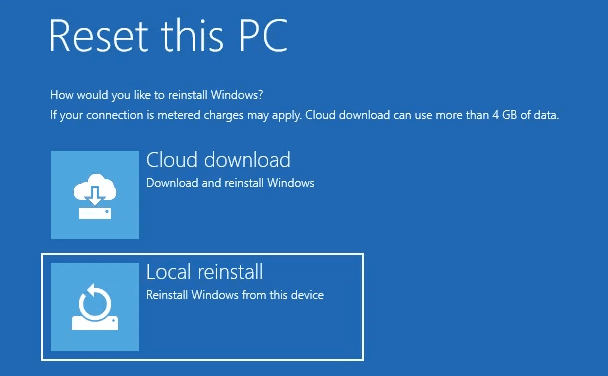
Step 4. Now, decide on the method for reinstalling the system after performing the Windows 10 factory reset.
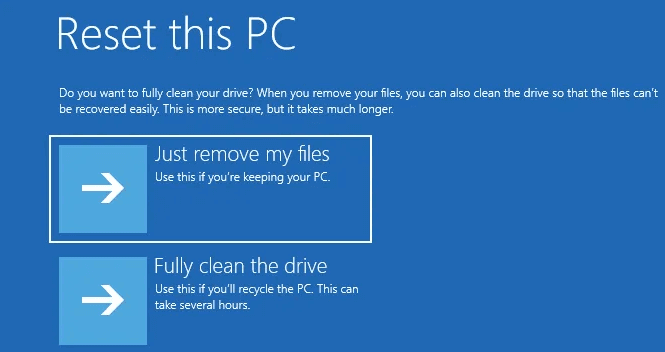
Step 5. Make your selection between "Just remove your files" or "Fully clean the drive".
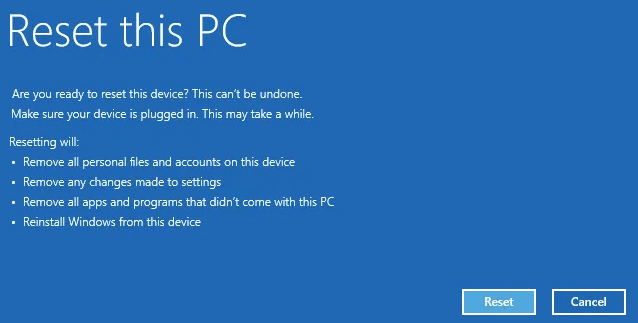
Step 6. As you reach the reset screen, a list of the potential impacts of resetting your device will be displayed. If you have no further questions regarding these effects, proceed by clicking "Reset" to start the Windows 10 PC factory reset process.
Method 2. Wipe a data partition without deleting Windows
If you only want to erase a data partition while keeping the Windows operating system untouched, AOMEI Partition Software offers a safe and convenient solution. This professional partition management software allows users to wipe selected partitions without affecting the system partition where Windows 11, 10, 8, or 7 is installed.
With its “Wipe Partition” feature, you can permanently remove personal files, sensitive data, or unwanted content from a specific partition while preserving Windows, installed programs, and system settings. This is especially useful when preparing a secondary drive for reuse, selling a computer, or cleaning up old data securely.
AOMEI Partition Software supports multiple wiping methods, including:
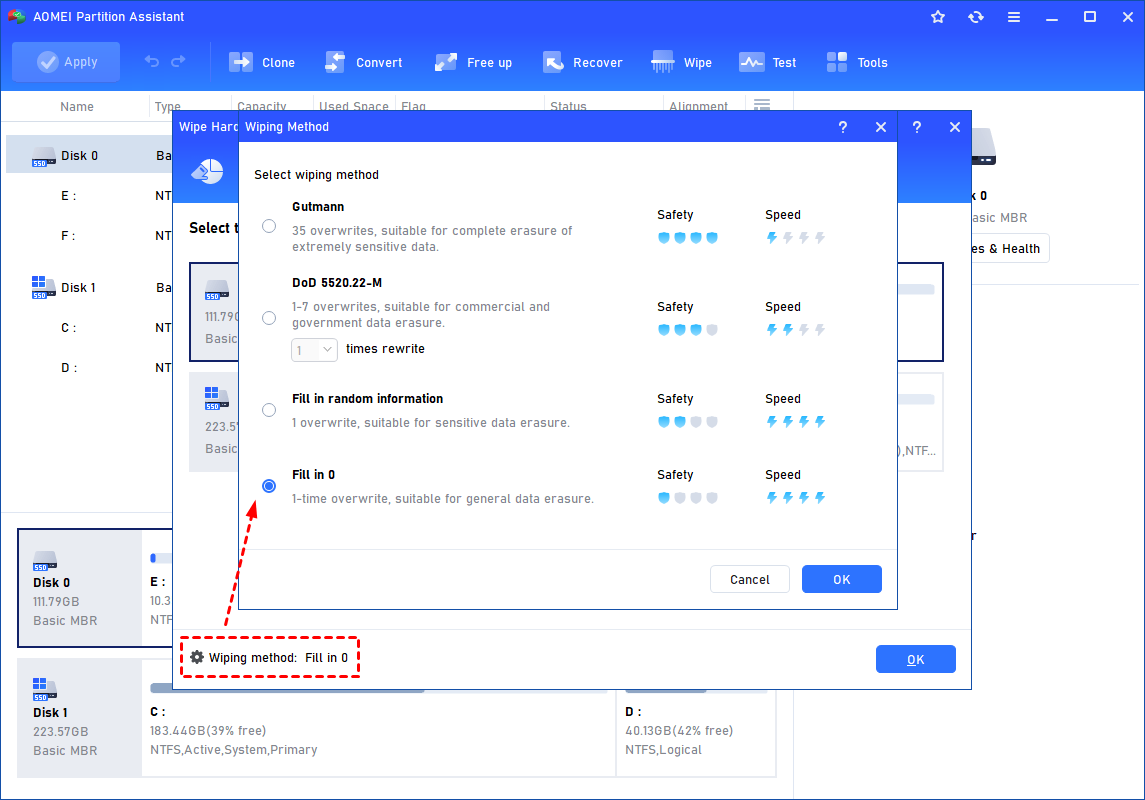
➨ Fill in 0: Overwrite all sectors with zeros. It is common to wipe a personal hard drive. It is safe and fast.
➨ Fill in random information: It overwrites the hard drive with random data. It is more secure than the first one.
➨ DoD 5220.22-M: It will overwrite addressable locations on the hard disk with binary 0's, binary 1's, and a random bit pattern from once to seven times. The more times you choose to overwrite, the longer the process will take. Three times to five times are recommended. It is more secure than "zero-filling" and "random data filling" and faster than the Guttman. Thus it is often adopted by companies and organizations.
➨ Gutmann: It overwrites a hard drive with 35 passes. It is the safest way here, but it also takes the longest time.
Here’s how to wipe hard drive but keep Windows using AOMEI Partition Software:
 AOMEI Partition Software
A safe and reliable disk partition management tool that helps you migrate OS to SSD or HDD, reorganize disk space, and improve overall PC performance.
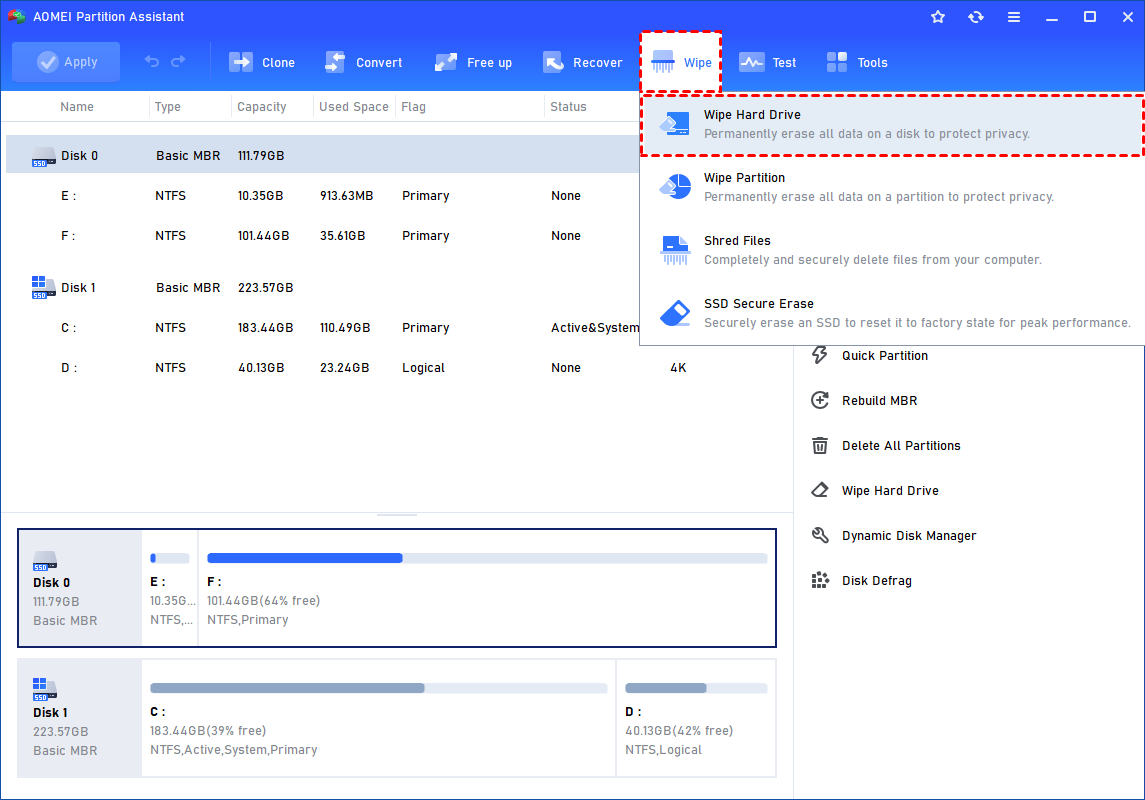
Step 1. Download and launch AOMEI Partition Software, and click Wipe on the main interface and choose “Wipe hard drive”.
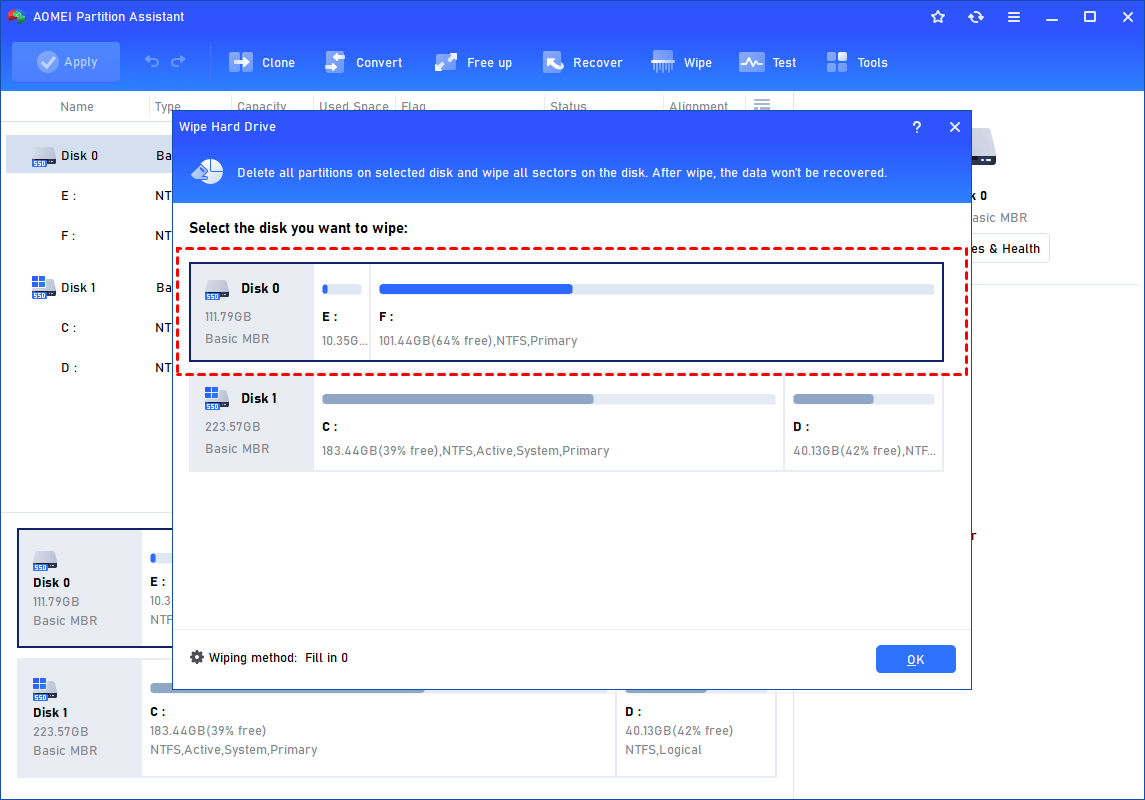
Step 2. Select the disk you want to wipe and click "OK" to continue.
In this stage, you can also select a wiping method to wipe the selected hard drive according to your requirements and click "OK". (By default, the wiping method is Fill in 0.)
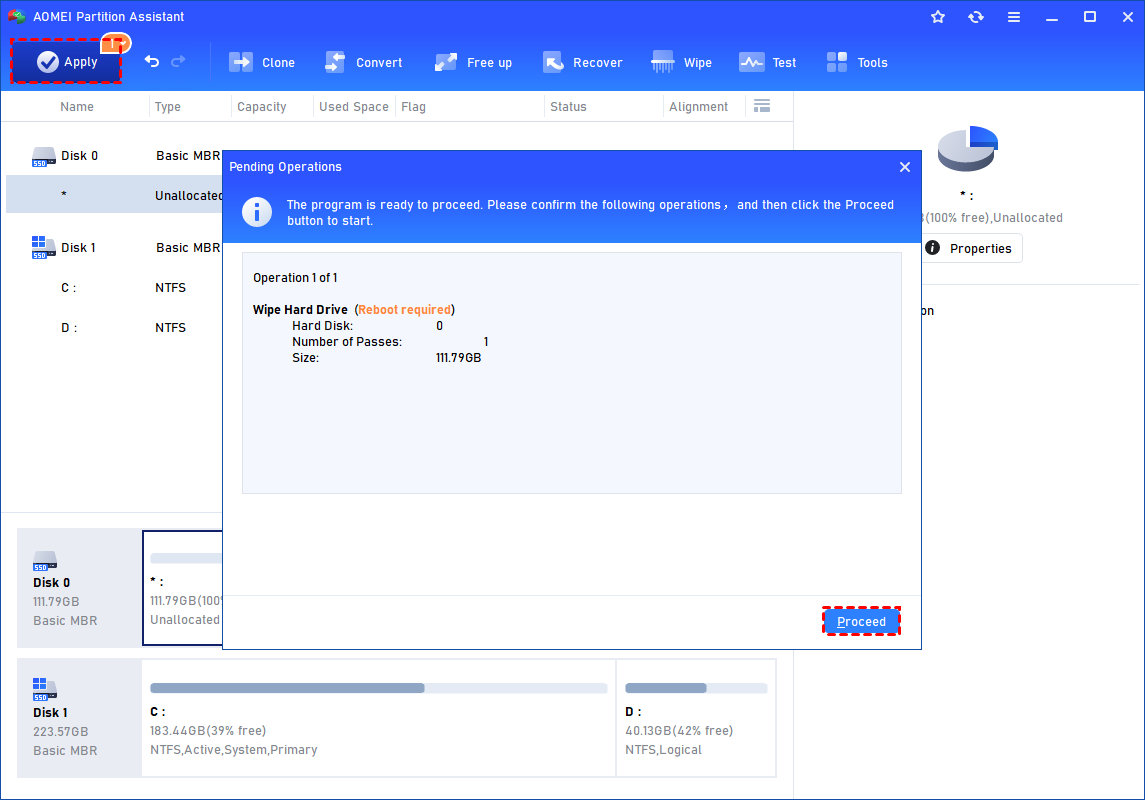
Step 3. You can preview the shrink operation by viewing the "Pending Operations". To commit the "Pending Operations", please click "Apply" and "Proceed".
FAQs
1. Can I wipe my hard drive but keep Windows 11 installed?
Yes. Windows 11 includes the “Reset this PC” feature, allowing you to reinstall Windows while preserving personal files or removing unwanted data safely.
2. Does Reset This PC delete everything?
Not always. The “Keep my files” option preserves personal files, while “Remove everything” deletes apps, settings, and user data.
3. Is wiping a drive the same as formatting it?
No. Formatting usually prepares a partition for reuse, while wiping focuses on erasing stored data securely.
4. Will Windows stay activated after resetting the PC?
In most cases, yes. Modern Windows licenses are linked to hardware or Microsoft accounts, so activation usually restores automatically.
5. What is the safest way to wipe a hard drive without losing Windows?
Using Windows Reset This PC with the “Keep my files” option is the safest and easiest method for most home users.
Conclusion
Wiping a hard drive without deleting Windows is completely possible using built-in reset tools or professional partition management software. Whether you want to remove personal files, clean a secondary partition, or refresh system performance, you can safely erase unwanted data while keeping Windows intact. For deeper cleaning and secure partition wiping, tools like AOMEI Partition Software provide flexible and reliable solutions for Windows 11, 10, 8, and 7 users.

 as a preferred
source on Google
as a preferred
source on Google