




How to Repair an External Hard Drive Without Losing Data
Sometimes, you may need to repair external hard drive when devices fail. This summary discusses ways to repair external hard drive problems and highlights software options for safe data recovery.

By Irene Updated on May 9, 2026


🔶 Article Overview: External Hard Drive Repair
This article provides a comprehensive guide for users facing external hard drive failures, such as "disk needs formatting" errors or connectivity issues. It reassures readers that data is often recoverable and offers a mix of manual and automated solutions.
📢 Core Repair Methods
-
Windows Command Prompt: Users can utilize Diskpart to force format a drive and restore its usability through command lines. Additionally, the CHKDSK command is highlighted as a powerful tool to scan for file system errors and repair bad sectors.
-
Professional Software: For those seeking a more user friendly experience, the article suggests to use a professional software. This kind of tool provides a graphical interface to check partitions and fix errors without needing to memorize complex code.
📢 Understanding Drive Failure
The guide categorizes the common causes and warning signs of disk corruption to help users identify problems early.
-
Common Causes: Issues often stem from improper ejection, power surges, malware, or physical wear over time.
-
Warning Signs: Red flags include missing files, extremely slow performance, unrecognized hardware, or audible clicking noises.
📢 Summary of Solutions
The article concludes by emphasizing that while logical errors (software based) are usually fixable for free or via low-cost software, physical damage might require expensive professional recovery. Maintaining safe habits, like using the "Safely Remove Hardware" feature and keeping regular backups, is presented as the best long term strategy for data health.
Need to repair an external hard drive
You sit down, plug in your external hard drive like you always do, and wait for your files to show up. That little thing probably has a bit of everything on it, your photos, some work stuff, maybe backups you really care about. But this time, nothing happens. Or even worse, a message pops up saying the drive needs to be formatted before you can use it. Yeah, that feeling is not great.
The good news is this happens more often than you might think, and it usually does not mean your files are gone. Most of the time, the drive itself is still okay. It could just be something small, like a system hiccup, a file error, or even unplugging it a bit too quickly last time. These little things can mess things up and lead to those scary messages.
There is often a way to sort it out without losing your data. With a few simple steps, you can usually get back into your drive and see your files again. In this guide, we will share some easy and practical ways to fix the problem.
How to repair external hard drive
Way 1. Repair external hard drive with CMD
If your hard disk is corrupted, you can use the Windows built in tool Diskpart to repair a external hard drive and restore its usability. Formatting is one of the most common and effective ways to deal with serious file system errors, bad sectors, or inaccessible partitions.
Diskpart allows you to clean, create, and format the drive through command lines, making it a powerful option when normal methods fail. However, keep in mind that formatting will erase all existing data, so backing up important files in advance is strongly recommended. The specific steps are as follows:
Step 1. Press “Windows” + “R” to open the Run box, typing “diskpart” and press “Enter”.
Step 2. And then, type the following command and press “Enter” after each.
- list disk
- select disk n(here “n” is the disk number of the disk you want to format.)
- clean
- create partition primary
- active
- select partition 1
- format fs=ntfs (If you want to format the disk into other file system like FAT32, replace the command with “format fs=fat32”.)
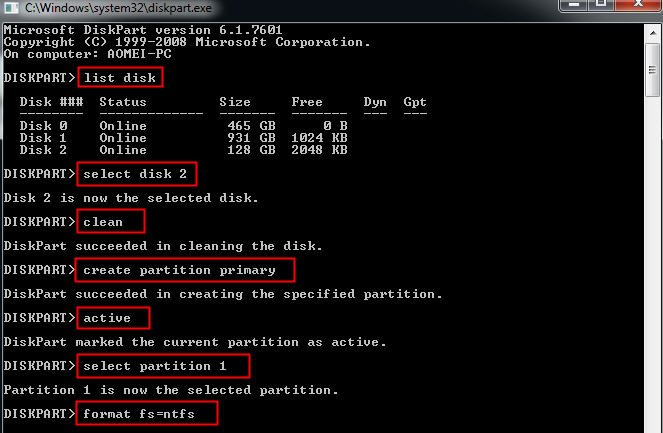
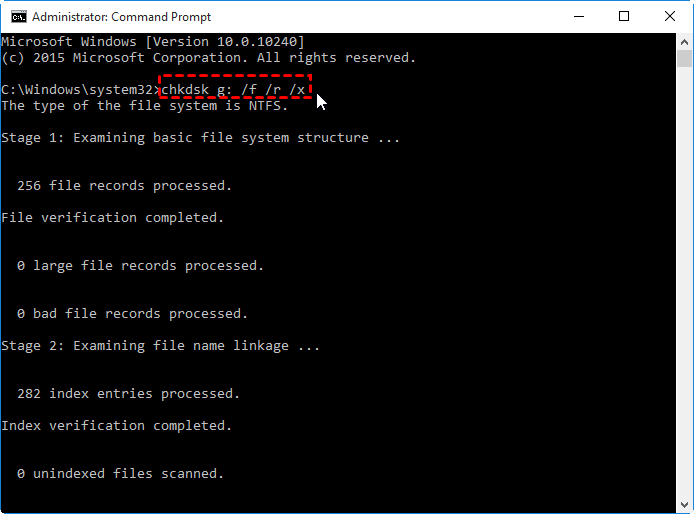
After completing these steps, the corrupted hard disk can usually be force formatted within a few minutes. If the issue still remains, you can try another built in tool called CHKDSK to scan and fix disk errors. You can run the CHKDSK repair command like this: chkdsk g: /f/r/x
- chkdsk: Runs the Check Disk utility to scan a drive for errors.
- g: The target drive letter. In this case, it checks drive G.
- /f: Fixes file system errors automatically.
- /r: Finds bad sectors on the disk and tries to recover readable data.
This option also includes /f, so it repairs errors too. - /x: Forces the drive to dismount before scanning if it is being used.
Any open files on that drive may be closed.
Way 2. Use a professional repair tool
If you prefer a simpler and safer way to repair an external hard drive, using a professional tool like AOMEI Partition Software is often a better choice than relying on Command Prompt. While CMD tools such as Diskpart or CHKDSK are powerful, they require precise commands, and even a small mistake can lead to data loss or further disk damage. This can be stressful, especially if you are not familiar with command line operations.
In contrast, AOMEI Partition Software offers a clear graphical interface that makes the whole process much easier to understand and control. You can repair file system errors, format corrupted drives, rebuild partition tables, and even check bad sectors with just a few clicks. This reduces the risk of accidental errors and saves time. Another advantage is its wide compatibility. It works smoothly on Windows 11, 10, 8, and 7, and supports various storage devices including external hard drives, USB drives, and SSDs.
Beyond repairing disks, it also includes useful features such as partition resizing, performing boot repair, and creating bootable media for emergency situations. These extra tools make it a more complete and reliable solution for managing and repairing external hard drives.
 AOMEI Partition Software
- Manage Disks & Partitions: Resize, move, extend, shrink, and merge partitions without data loss, helping you make full use of available disk space.
- Migrate OS & Copy Disks: Migrate Windows OS to SSD or HDD, or clone system and data disks easily for migration or backup.
- Convert Disks Effectively: Safely convert disks between MBR and GPT, switch between basic and dynamic disks, and convert file systems between NTFS and FAT32.
- Free Up More Disk Space: Accurately clean junk files and reclaim disk space, especially useful to solve the C: drive full problem and adjust OS drive usage.
- Wipe Sensitive Data Securely: Use advanced wiping algorithms to permanently erase disks or partitions, ensuring sensitive data is completely removed and unrecoverable.
 100% Secure
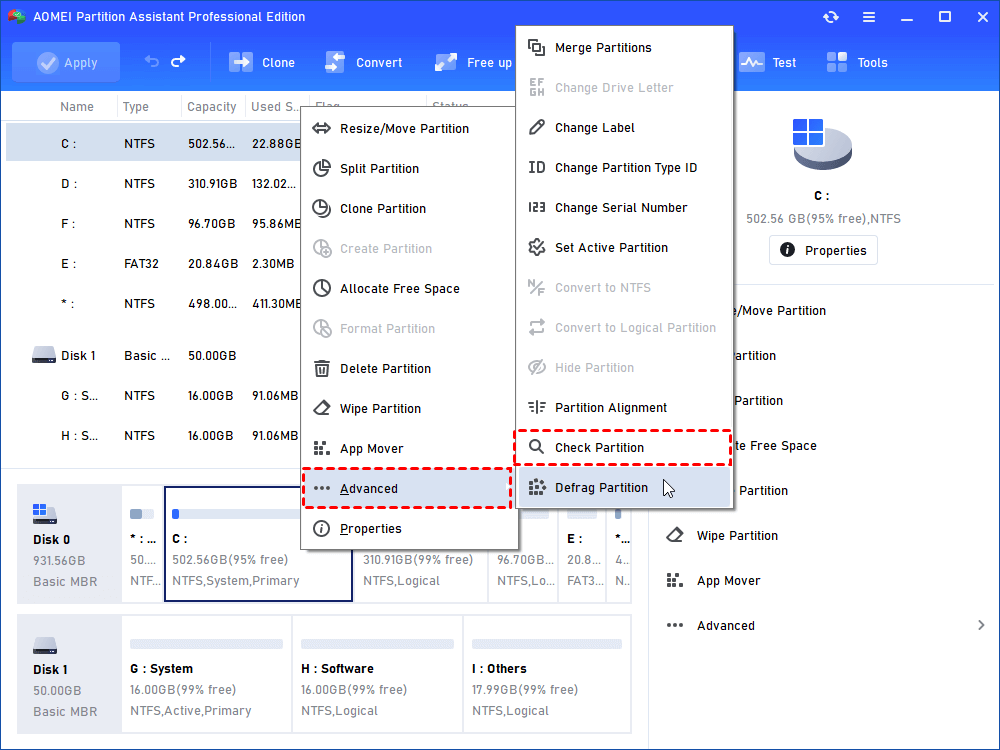
Step 1. Download, install and run AOMEI Partition Software. Right-click the partition of the corrupted hard disk and choose “Check Partition” under “Advanced” tab.
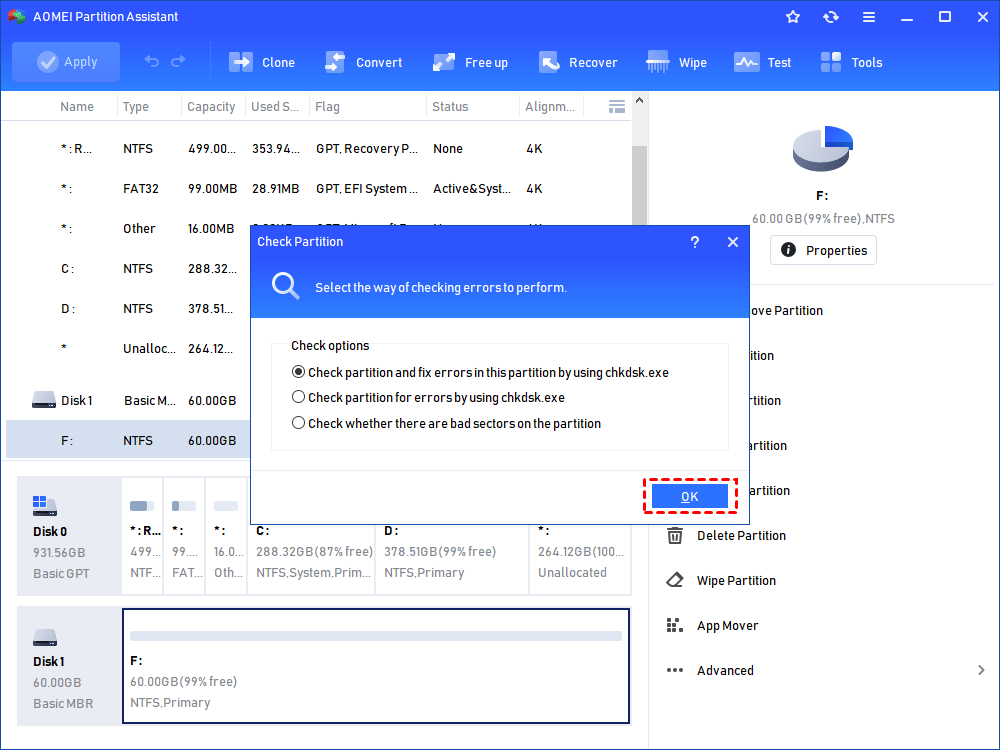
Step 2. In the pop-up window, select the way of checking errors to perform and click “OK”.
Finally, wait for the process to finish.
Why does external hard drive get corrupted?
External hard drives are convenient, but they’re also more exposed to risks than internal drives. Corruption usually happens when the file system or data structure becomes damaged.
| Cause | What it means | Example |
|---|---|---|
| Improper ejection | Removing the drive without safely ejecting | Unplugging during file transfer |
| Power interruption | Sudden shutdown while writing data | Laptop battery dies mid-copy |
| Virus or malware | Malicious software damages files or partitions | Infected USB spreads to drive |
| Bad sectors | Physical damage on the disk surface | Aging HDD develops unreadable areas |
| File system errors | Corrupted structure (NTFS, FAT32, exFAT) | System crash during write process |
| Hardware failure | Internal components wear out | Failing controller or head crash |
| Overheating | Excess heat damages components | Long use without proper cooling |
In short, corruption is usually caused by unsafe operations, physical wear, or software-related issues. The more frequently a drive is plugged in, moved, or used across devices, the higher the risk.
What are the symptoms of a corrupted external hard drive?
When an external hard drive becomes corrupted, it usually starts showing small but noticeable problems before it completely stops working. You may find that the drive suddenly becomes very slow, files disappear without warning, or error messages keep popping up when you try to open folders. In some cases, the computer may fail to recognize the drive at all, or it may ask you to format the disk before use. Strange clicking noises, frequent freezing, and failed file transfers can also be signs that something is wrong. Paying attention to these symptoms early can help prevent permanent data loss and give you a better chance to repair the drive safely.
🔷 Symptom overview
| Symptom | What you’ll notice | Severity |
|---|---|---|
| “Drive needs to be formatted” message | System cannot read file system | High |
| Missing files | Data appears lost | Medium to High |
| Extremely slow access | Long loading times | Medium |
| Not detected | Drive doesn’t show in File Explorer | High |
| Clicking noise | Possible hardware failure | Critical |
These symptoms often start small (like slow speed) and gradually become more serious (like data loss or total inaccessibility). Recognizing them early can help you take action before permanent damage occurs.
Conclusion
In conclusion, a corrupted external hard drive can feel stressful, but it is often not the end of your data. Many issues are caused by simple problems like improper removal, file system errors, or temporary system glitches. By using built in tools like Diskpart and CHKDSK, or choosing an easier option like AOMEI Partition Software, you can often repair the drive and restore access to your files. More importantly, paying attention to early warning signs and using safe habits, such as properly ejecting the drive and keeping backups, can help you avoid serious problems in the future.
FAQs
🗨️ Can external hard drives be repaired?
Yes, many external hard drives can be repaired depending on the problem. Logical issues like file system corruption, bad sectors, or partition errors are often fixable with repair tools or commands. However, serious physical damage may require professional data recovery services.
🗨️ How to fix an unresponsive external hard drive?
First, try reconnecting the drive to another USB port or another computer. You can also update the USB driver, check Disk Management to see if the drive appears, and run tools like CHKDSK to repair file system errors. If the drive still does not respond, it may have hardware damage.
🗨️ How much would it cost to fix an external hard drive?
The cost depends on the issue. Basic repairs using Windows tools or software like AOMEI Partition Software are usually free or much cheaper than professional services. If the drive has physical damage and needs data recovery, the price can range from about $100 to more than $1000.
🗨️ How do I fix corrupted and unreadable external hard drive?
You can start by running CHKDSK, changing the drive letter, updating drivers, or using disk repair software. If the drive is still unreadable, data recovery software may help recover files before formatting the drive.
🗨️ What's the average lifespan of an external hard drive?
Most external hard drives last around 3 to 5 years with normal use. Some may last longer if they are handled carefully and stored properly, while frequent drops, overheating, or power issues can shorten their lifespan.

 as a preferred
source on Google
as a preferred
source on Google