



[Fixed] Windows Cannot Format This Drive on SD Card/USB
This article provides practical, step-by-step methods to resolve formatting errors on Windows computers. It covers effective techniques to repair corrupted microSD cards, USB flash drives, and external disks.

By Irene Updated on May 19, 2026


📢 Article Overview: Fixing "Windows Cannot Format This Drive"
When external hard drives, USBs, or SD cards encounter issues like write-protection, corruption, bad sectors, or unreadable RAW file systems, Windows' native tools often fail, triggering the error “Windows was unable to complete the format.” This article outlines why this happens and provides four distinct solutions, highlighting AOMEI Partition Software as a powerful alternative to bypass Windows' limitations.
✔️ Common Causes of the Error
-
Write Protection: The drive is digitally locked, preventing any modifications.
-
FAT32 Limitations: Native Windows tools strictly refuse to format any partition larger than 32GB into the FAT32 file system.
-
Disk Damage: Physical bad sectors, RAW drives, or severe I/O communication errors interrupt the formatting process.
✔️ 4 Ways to Fix It:
-
Way 1: Use AOMEI Partition Software – A free tool that easily formats RAW, corrupted, or write-protected drives, and allows formatting drives larger than 32GB to FAT32.
-
Way 2: Convert to NTFS – Use AOMEI to safely switch from FAT32 to NTFS without losing any of your data.
-
Way 3: Clear Read-Only Status – Use the Windows DiskPart tool via command line (attributes disk clear readonly) to unlock write-protected drives.
-
Way 4: Repair Disk Errors – Run the CHKDSK command (
chkdsk G: /f /r /x) in Command Prompt to scan and fix corrupted sectors.
How to fix Windows cannot format this drive?
Way 1. Directly format the drive that Windows unable to format disk
There are many reasons why Windows cannot complete the format on a microSD card, USB flash drive, or external hard drive. The drive may be write protected, corrupted, infected by bad sectors, or damaged by an unsupported file system. In these situations, Windows built in tools often fail to finish the formatting process.
To fix the “Windows was unable to complete the format” error more easily, you can try AOMEI Partition Software, a free and reliable disk management tool for Windows 11, 10, 8, and 7. It supports formatting drives to NTFS, FAT32, exFAT, Ext2, Ext3, and Ext4, making it suitable for USB drives, SD cards, and external disks with different storage needs.
Compared with Windows Disk Management, this software has fewer limitations and can even format RAW, corrupted, or write protected drives successfully. It also supports formatting large drives over 32GB to FAT32, which Windows often cannot do directly. Besides formatting, it offers other useful features like partition resizing, disk checking, drive speed testing, and partition wiping, helping users manage storage devices more efficiently and solve formatting problems with less effort.
 AOMEI Partition Software
- Manage Disks & Partitions: Resize, move, extend, shrink, and merge partitions without data loss, helping you make full use of available disk space.
- Migrate OS & Copy Disks: Migrate Windows OS to SSD or HDD, or clone system and data disks easily for migration or backup.
- Convert Disks Effectively: Safely convert disks between MBR and GPT, switch between basic and dynamic disks, and convert file systems between NTFS and FAT32.
- Free Up More Disk Space: Accurately clean junk files and reclaim disk space, especially useful to solve the C: drive full problem and adjust OS drive usage.
- Wipe Sensitive Data Securely: Use advanced wiping algorithms to permanently erase disks or partitions, ensuring sensitive data is completely removed and unrecoverable.
 100% Secure
tep 1. Download, install, and open AOMEI Partition Software on your Windows PC.
Step 2. Locate your large external hard drive or high-capacity USB flash drive in the visual interface.
Step 3. Right-click the partition and select Format Partition.

Step 4. A window will appear. Click the File System drop-down menu. Unlike native Windows tools, AOMEI will gladly allow you to select FAT32, regardless of whether the drive is 64GB, 500GB, or 2TB.
Step 5. Click OK, then click Apply at the top left of the main interface, and hit Proceed.
Way 2. Convert to NTFS without data loss
Sometimes the “Windows was unable to complete the format” error appears because the drive is using FAT32. FAT32 has several limitations, especially on large external hard drives and USB devices. It does not support files larger than 4GB, and the file system can become unstable or corrupted after long term use, unsafe removal, or interrupted transfers. In some cases, Windows may fail to format the drive correctly because of these FAT32 related problems.
To solve this issue without deleting existing files, AOMEI Partition Software provides a FAT32 to NTFS Converter feature. Instead of formatting the drive completely, the software can safely convert the file system from FAT32 to NTFS while keeping stored data unchanged.
After conversion, the drive can support larger files, better stability, and improved compatibility with Windows systems. This method is much safer and more convenient than traditional formatting because it helps users fix formatting related problems without risking important photos, videos, or documents.
Step 1. Install and launch AOMEI Partition Software, right-click the drive that you need to fix the Windows was unable to complete the format issue, and choose “Convert to NTFS”.
Step 3. Click “OK” to start the process.
Step 4. Click “Proceed” when everything is ready.
Way 3. Remove read-only attributes via DiskPart
In certain cases, the drive may be marked as read only at the system level, which can trigger errors such as “Windows was unable to complete the format” or prevent files from being deleted or modified. This issue is common on USB drives, microSD cards, and external storage devices affected by corrupted attributes or improper removal. To fix the problem, you can use the built in DiskPart utility in Windows to clear the read only status and restore full write access before attempting to format the drive again.
Step 1. Press Windows + R to open the Run dialog.
Step 2. Type diskpart and press Enter.
Step 3. Execute the following commands:
list disk
select disk 1
attributes disk clear readonly
(Replace “1” with the correct disk number.)
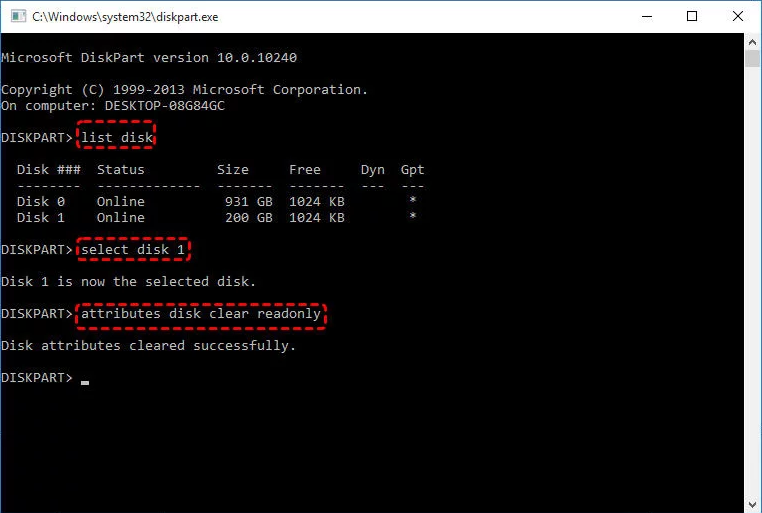
Step 4. Once the system confirms that the disk attributes have been cleared, close the window and try formatting again.
Way 4. Check and repair I/O device error on the drive
An I/O device error can be one of the reasons behind the “Windows was unable to complete the format” problem. When a USB drive, microSD card, or external hard drive contains bad sectors or file system corruption, Windows may fail to format the device correctly or even show "We can’t find a USB flash drive". Using Command Prompt to scan and repair the drive can help fix disk errors, restore normal access, and increase the chance of completing the formatting process successfully.
Step 1. To start, type "Command Prompt" in the search bar next to the Start menu.
Step 2. Right-click the Command Prompt option and choose "Run as administrator".
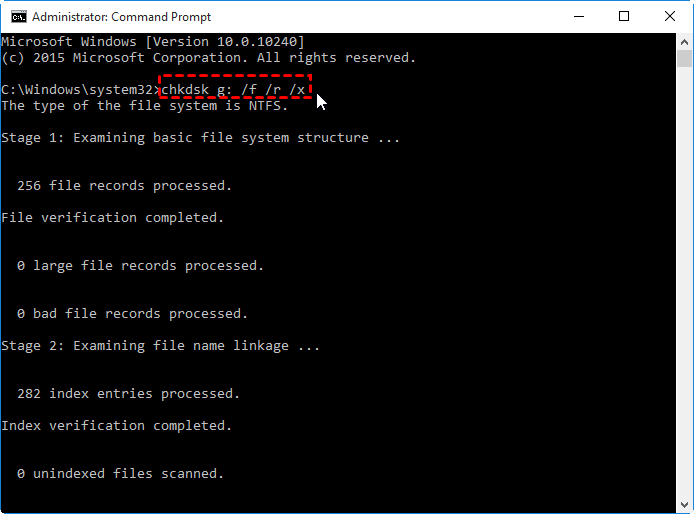
Step 3. Next, enter the command chkdsk G:/f/r/x in the window and press Enter. Be sure to replace "g" with the correct drive letter for the hard drive experiencing the I/O error.
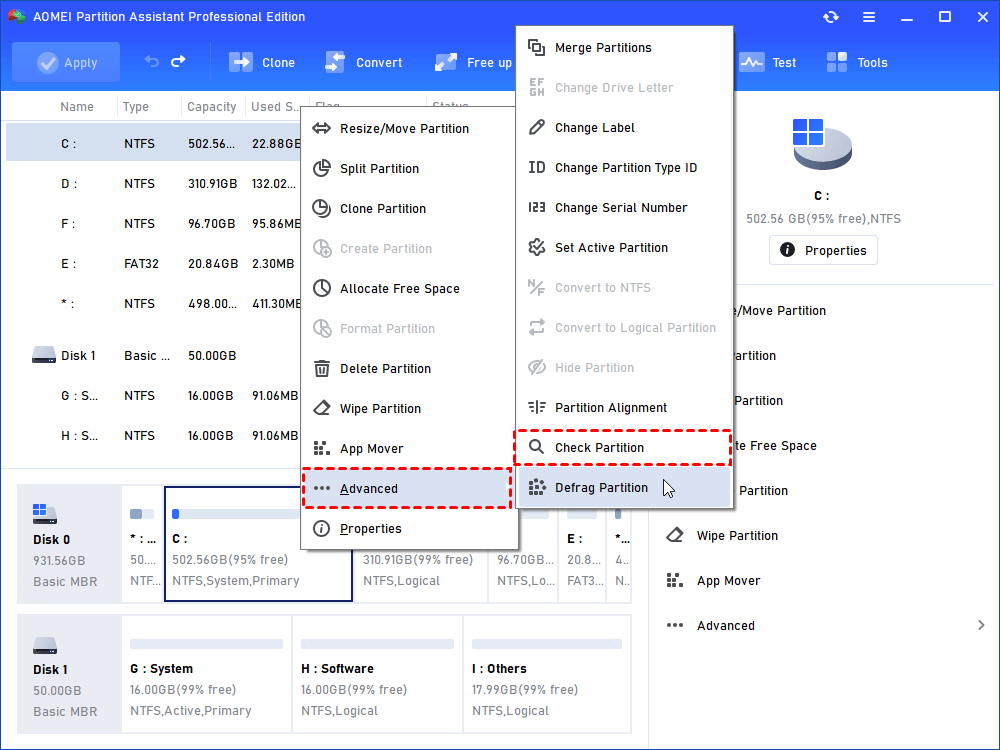
If using command lines feels difficult or risky, you can let AOMEI Partition Software handle the CHKDSK check for you. Its clean and easy interface guides you through the process in just a few clicks, giving you a safer and more comfortable way to check your disk.
Why Windows was unable to complete the format disk?
The “Windows was unable to complete the format” error usually means Windows cannot access, modify, or rebuild the file system on the storage device properly. This problem can appear on USB flash drives, microSD cards, SD cards, external hard drives, and internal disks.
Here are some common causes of the problem:
| Cause | Description |
|---|---|
| Write protection | The drive is locked and Windows cannot make changes or perform formatting. |
| File system corruption | Damaged FAT32 or NTFS file systems may prevent the format process from completing normally. |
| Bad sectors | Physical damage on the disk can interrupt formatting and cause read or write failures. |
| RAW drive | The partition becomes RAW and Windows cannot recognize the original file system correctly. |
| I/O device errors | Connection problems or disk communication failures may stop Windows from formatting the drive. |
| Drive in use | Another program or background service may still be accessing the disk. |
| FAT32 limitation | Windows built in tools cannot format partitions larger than 32GB to FAT32. |
When these issues occur, users may see errors like “Windows cannot format this drive” or “Windows unable to complete format” during the formatting process.
Conclusion
The “Windows was unable to complete the format” error can happen for many reasons, including file system corruption, write protection, bad sectors, or FAT32 limitations. Fortunately, there are several effective ways to solve the problem and restore normal access to your USB drive, microSD card, external hard drive, or SD card.
Among these solutions, AOMEI Partition Software provides a simpler and more flexible way to manage and format storage devices. Whether you need to format a corrupted drive, convert FAT32 to NTFS without data loss, remove read only attributes, or repair disk errors, the software can help complete the task more safely and efficiently than many built in Windows tools.
FAQs
🧐 Is NTFS or FAT32 better for Windows 10?
NTFS is generally better for Windows 10 because it supports larger files, better security, improved stability, and more advanced features. FAT32 is mainly used for compatibility with older devices such as game consoles, smart TVs, and car stereo systems.
🧐 Why can't I format my SSD to FAT32?
Windows built in formatting tools usually do not allow formatting drives larger than 32GB to FAT32. Since most SSDs are much larger than 32GB, the FAT32 option may not appear. In this situation, you can format large SSDs to FAT32.
🧐 How to fix error 0x8004242d?
Error 0x8004242d usually appears when Windows cannot create or format partitions during installation. You can try deleting existing partitions, checking the drive for disk errors, converting the partition style, or using DiskPart commands to clean the drive before reinstalling Windows.
🧐 How do I force a SSD to format?
You can force format an SSD by using DiskPart, Disk Management, or third party disk management software. If the SSD is write protected, corrupted, or RAW, a tool like AOMEI Partition Software may provide a higher success rate than Windows built in utilities.
🧐 How to fix error 0x80300024 when reinstalling Windows 10?
Error 0x80300024 is often related to partition conflicts, damaged installation media, or incorrect drive connections. To fix it, disconnect unnecessary drives, recreate the installation partition, check BIOS boot settings, or clean the target disk using DiskPart before installing Windows again.

 as a preferred
source on Google
as a preferred
source on Google