



Solved: Windows Cannot Be Installed to This Disk
Windows cannot be installed to this disk? In this guide, you will know the reasons and learn how to resolve this tricky problem easily and effectively.

By Hedy Updated on May 29, 2026


What caused "Windows cannot be installed to this disk"?
The error “Windows cannot be installed to this hard disk space” usually appears during setup when the installer detects a compatibility or configuration issue with your drive. It’s not a single problem—several underlying causes can trigger it.
✍ Here are the most common ones:
◤ Partition style mismatch (GPT/MBR conflict): The disk uses a partition style that does not match the system firmware mode, causing Windows Setup to reject the installation target during disk validation checks.
◤ Incorrect BIOS/UEFI boot mode: The computer is booted in a firmware mode that is incompatible with the disk structure, leading to Windows being unable to proceed with installation on the selected drive.
◤ Disk formatted with unsupported file system: The target disk may use a file system or structure that Windows Setup does not recognize or cannot install to, resulting in installation failure.
◤ Corrupted or damaged disk sectors: Physical or logical damage on the disk can prevent Windows from writing required installation files, triggering the installation error during disk preparation or copying.
◤ Dynamic disk configuration: The selected drive may be configured as a dynamic disk, which is not always supported for standard Windows OS installation in typical setup environments.
◤ Existing incompatible system partitions: Previous system-reserved or EFI partitions may conflict with new installation requirements, causing Windows Setup to block installation on the chosen partition.
How to fix the "selected disk is of the GPT partition style” error
Legacy BIOS systems do not support the GPT partition style, which means the drive must be converted to MBR before installation can continue. Before making any changes, it is important to confirm whether the system offers UEFI support. Restart the computer and enter the BIOS/UEFI setup using keys such as F1, F2, F10, F12, or DEL. Once inside, navigate to the Boot section and locate the Boot Mode setting.
On many systems, BIOS menus vary depending on the manufacturer, so this option may not appear immediately. In most cases, it is found under a “Boot” tab. If the system is set to Legacy mode and no UEFI option is available, the disk will need to be converted to MBR before proceeding with Windows installation.
This conversion process is typically performed during Windows setup and will erase all existing data on the target drive, so it cannot be done from within a running operating system. Alternatively, third-party tools can convert GPT to MBR without data loss.
To proceed with manual conversion, insert the Windows installation media and boot from it using the appropriate function key to access the boot menu. When the Windows Setup screen appears, press Shift + F10 to open Command Prompt.
Next, type diskpart and press Enter. Then enter list disk to display all available drives. A disk using GPT will be marked with an asterisk (*) under the GPT column. Identify the correct disk number, then select it using select disk 0 (or the relevant disk number).
If necessary, run the clean command to remove all partitions and data from the drive. After that, type convert mbr to change the partition style to MBR.
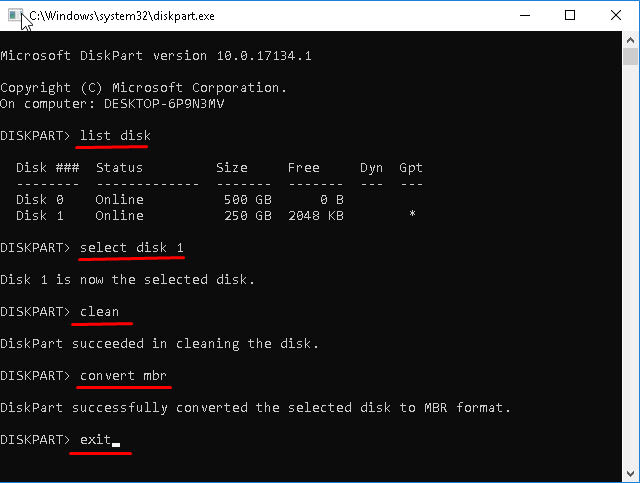
Once the process is complete, close Command Prompt, return to the Windows installation screen, and restart the installation process.
How to fix the "selected disk has an MBR partition table” error
This error usually appears when the system is running UEFI firmware while the target drive is still formatted in MBR. In such cases, the disk must be converted to GPT to proceed with installation.
1. Disable EFI boot sources
In some BIOS setups, it may be possible to bypass the issue by disabling EFI boot options. Enter the BIOS menu, then open the Boot Order section and look for EFI boot sources. If available, disable them temporarily and start the Windows installation again. After installation completes successfully, EFI boot can be re-enabled. If this setting is not present, conversion will be required.
2. Convert MBR to GPT via Command Prompt
The same DiskPart method used for GPT-to-MBR conversion can also be applied in reverse. The key difference is the final command. Instead of converting to MBR, use convert gpt.
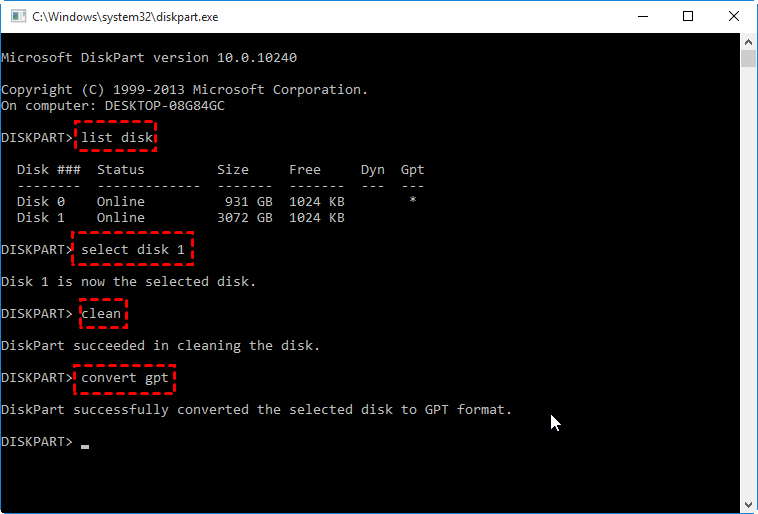
After running the necessary steps, exit Command Prompt and continue with the installation process normally.
3. Convert during Windows installation
Another approach is to let the Windows installer handle the conversion. When selecting a target drive, an empty disk with no partitions will automatically be converted to GPT by the setup process.
If partitions already exist, they must be removed first. Select each partition one by one and delete them until only unallocated space remains. Then choose the unallocated disk and click Next to proceed.
Once completed, the installation should continue without the error, allowing Windows to install successfully.
A better way to convert partition style to MBR or GPT
When you encounter the error “Windows cannot be installed to this disk GPT”, it is often caused by a mismatch between the system boot mode (UEFI or Legacy BIOS) and the disk partition style (GPT or MBR). In such cases, converting the disk to the correct partition style is essential—and this is where AOMEI Partition Software becomes a reliable solution.
AOMEI Partition Software is a professional and user-friendly disk management tool designed for Windows users. It allows you to easily convert disks between MBR (Master Boot Record) and GPT (GUID Partition Table) without requiring advanced technical skills.
Unlike the built-in DiskPart tool, which typically requires deleting all partitions (resulting in data loss), AOMEI Partition Software can perform conversions without erasing your data, making it a much safer and more convenient option.
 AOMEI Partition Software
A safe and reliable disk partition management tool that helps you migrate OS to SSD or HDD, reorganize disk space, and improve overall PC performance.
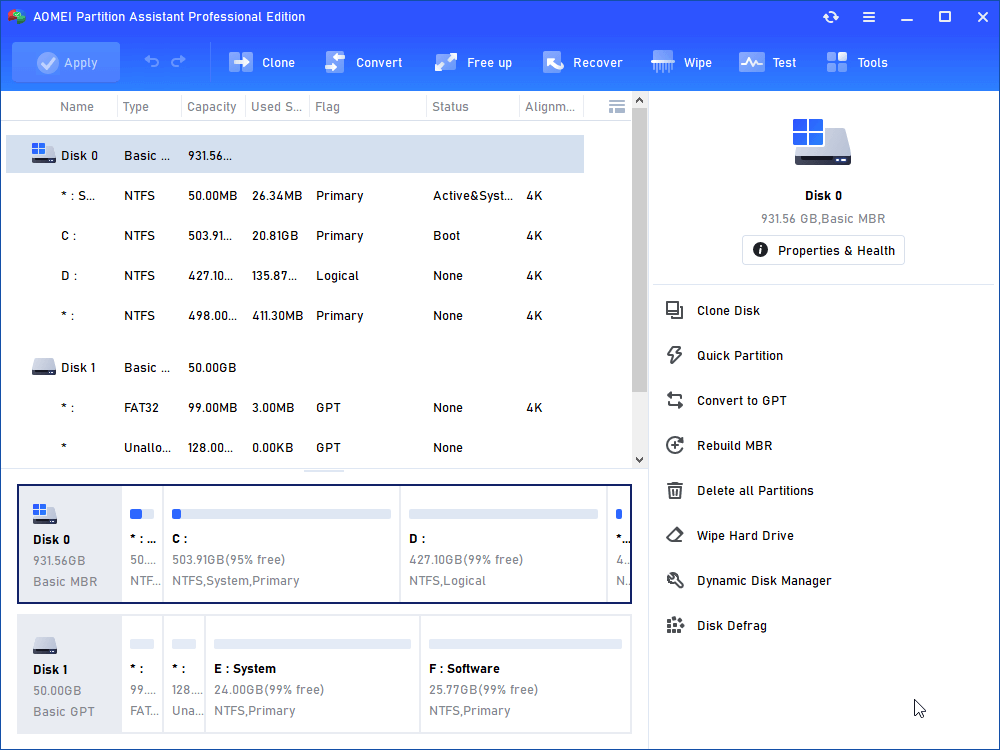
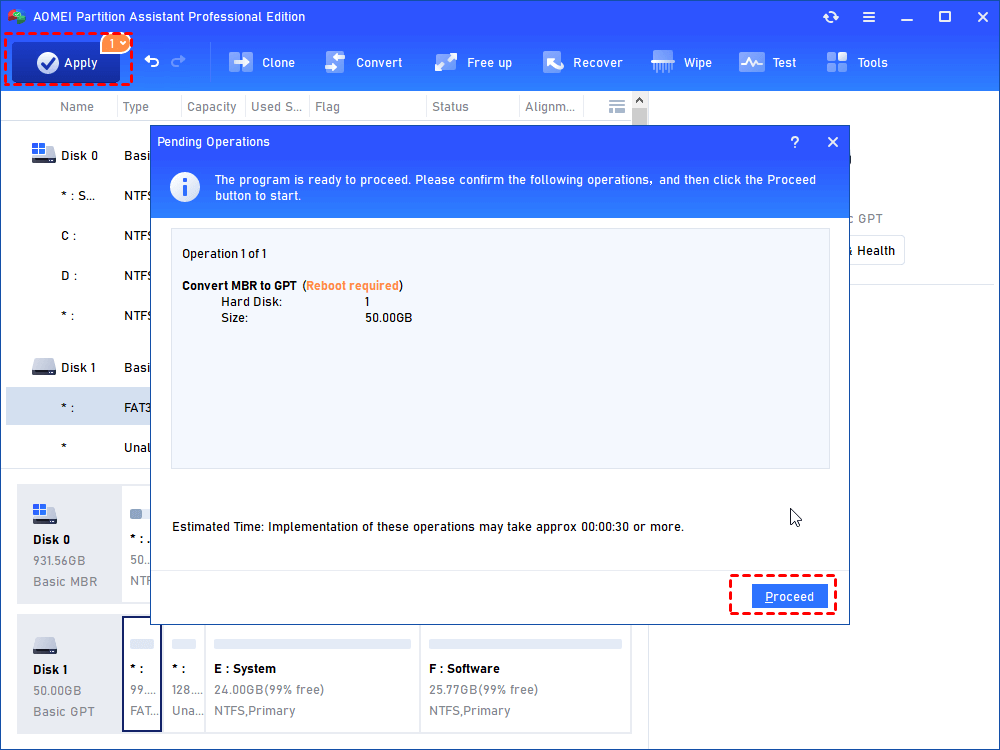
Step 1. Install and launch the AOMEI Partition Software. After opening it, select the target disk and then click “Convert” at the top toolbar. Select the “Convert MBR/GPT” option.
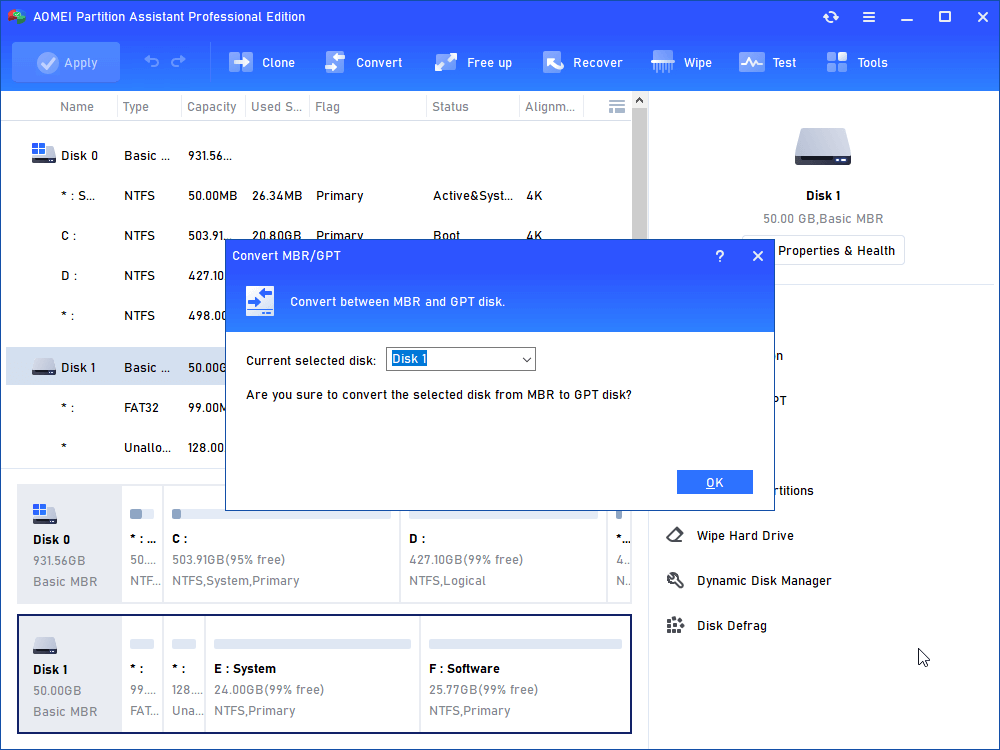
Step 2. Ensure you have converted Legacy BIOS to UEFI, and click “Yes” to confirm.
Step 3. In the main interface of AOMEI Partition Software, click “Apply” to start the conversion.
Conclusion
In short, the “Windows cannot be installed to this disk GPT partition style” error stems from mismatches between firmware mode, partition style, or disk configuration issues. Resolving it typically involves aligning BIOS/UEFI settings with GPT or MBR formats, repairing disk problems, or reconfiguring partitions. While manual tools like DiskPart work, safer alternatives such as AOMEI Partition Software simplify the process by converting disk types without data loss, ensuring a smoother and more reliable installation experience.

 as a preferred
source on Google
as a preferred
source on Google