




Solved: We Couldn't Update the System Reserved Partition Windows 11
During a Windows 10 or 11 upgrade, you may encounter an error message stating, “We couldn’t update the system reserved partition”.When this issue appears, refer to this guide to learn three effective methods to fix it.

By Hedy Updated on May 29, 2026


Why “We couldn’t update system reserved partition” error occur in Windows 10/11?
The “We couldn’t update the system reserved partition” error in Windows 10/11 usually appears during a major update or upgrade. It indicates that Windows cannot modify the System Reserved Partition (SRP), which is essential for boot files and update processes.
Here are the main reasons why this error occurs:
1. Insufficient space in the system reserved partition: The SRP is typically small (100MB–500MB). During updates, Windows needs extra space to store temporary boot files. If the partition is nearly full, the update fails.
2. Too many font files stored in SRP: Some systems (especially upgraded from older Windows versions) may store unnecessary font files in the SRP. These files consume valuable space and block the update process.
3. Incorrect partition permissions: Windows updates require proper access permissions to modify the SRP. If permissions are restricted or altered, the system cannot write the necessary files.
4. BitLocker or disk encryption issues: If BitLocker or other encryption tools are enabled, they may lock the SRP or restrict modifications during the update.
5. File system errors or corruption: Corruption in the SRP file system can prevent Windows from reading or writing update-related data properly.
6. Outdated disk layout from older Windows versions: Systems upgraded from older versions (like Windows 7/8) may have improperly sized or configured SRPs that are not suitable for modern updates.
How to fix “We couldn’t update system reserved partition” error
Here’s a clear, step-by-step guide to fix the “Windows 11 we couldn't update the system reserved partition(SRP)” error in Windows. This issue usually happens because the SRP doesn’t have enough space or proper permissions for the update.
Method 1. Extend the system reserved partition (most effective)
When the System Reserved Partition (SRP) lacks sufficient space, Windows updates may fail. Expanding this partition is the most reliable solution, ensuring enough room for boot files and update data to complete successfully.
Step 1. Press Win + X and select Disk Management.
Step 2. Locate the System Reserved Partition (usually 100–550MB).
Step 3. Check if there is unallocated space next to it.
Step 4. If not, right-click the adjacent partition (typically C:) and choose Shrink Volume.
Step 5. Enter the amount of space to shrink (at least 200MB recommended).
Step 6. Right-click the System Reserved Partition and select Extend Volume.
Step 7. Follow the wizard to add the unallocated space.
Step 8. Restart your computer and try the update again.
When Windows built-in tools fall short, choosing a reliable alternative becomes essential—especially when dealing with sensitive partitions like the System Reserved Partition (SRP). In such cases, AOMEI Partition Software stands out as a powerful and user-friendly disk management solution that offers far more flexibility than the native Windows Disk Management utility.
AOMEI Partition Software is a professional disk partitioning tool designed for Windows users who need advanced control over their storage devices. Unlike Windows Disk Management, which has strict limitations (such as being unable to extend partitions without adjacent unallocated space), AOMEI provides a much more flexible and efficient approach.
It allows users to safely resize, move, merge, and extend partitions—even when unallocated space is not directly next to the target partition. This makes it especially useful for extending the System Reserved Partition, which is often too small and can trigger errors like “Win 11 we couldn't update the system reserved partition” during Windows upgrades.
✍ Key advantages of extending the system reserved partition:
🔸 Allocate free space directly: AOMEI lets you allocate unused space from another partition (like the D: drive) directly to the System Reserved Partition without deleting or formatting anything.
🔸 No data loss risk: The software is designed with data protection in mind, ensuring that your files remain intact during the resizing process.
🔸 User-friendly interface: Its intuitive interface makes it easy for beginners to perform complex partition operations with just a few clicks.
🔸 Boot repair feature: In addition to partition management, AOMEI also includes tools to fix boot-related issues, which is particularly helpful if SRP problems affect system startup.
 AOMEI Partition Software
A safe and reliable disk partition management tool that helps you migrate OS to SSD or HDD, reorganize disk space, and improve overall PC performance.
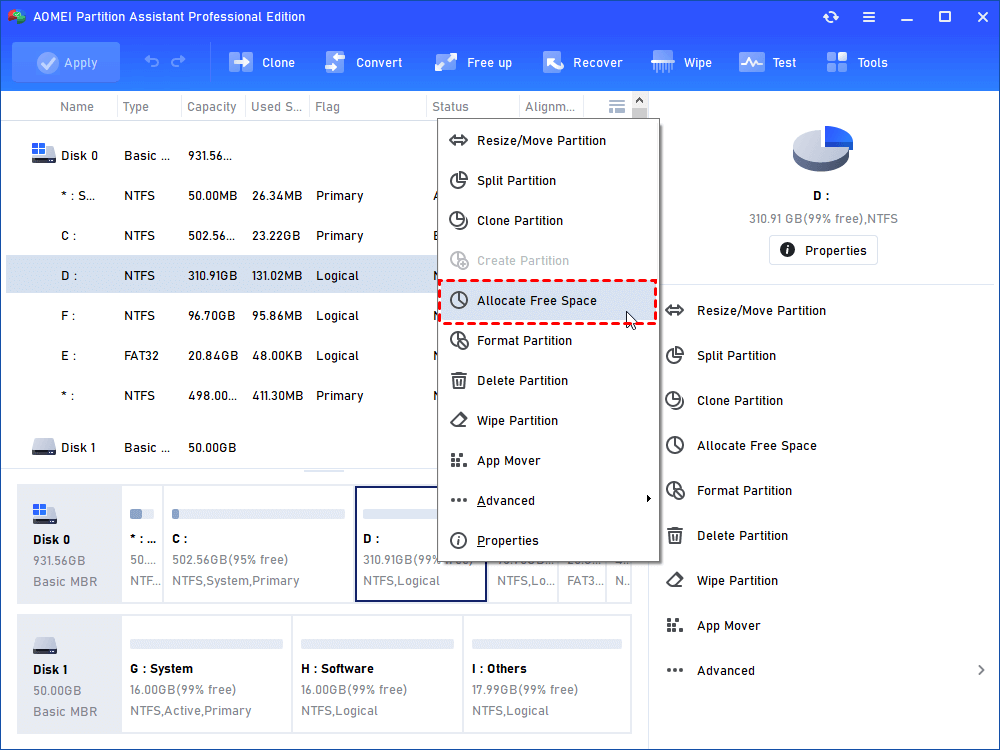
Step 1. Open the software, and right-click a partition that can share free space with the system-reserved partition and choose "Allocate Free Space".
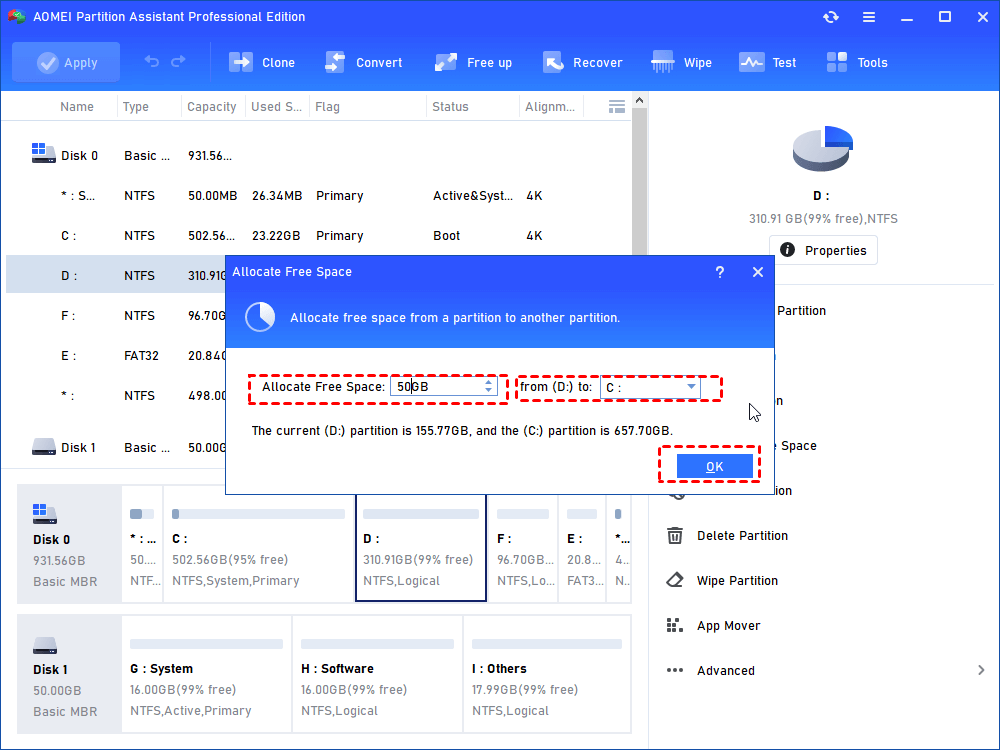
Step 2. Select the system partition and click “Ok”.
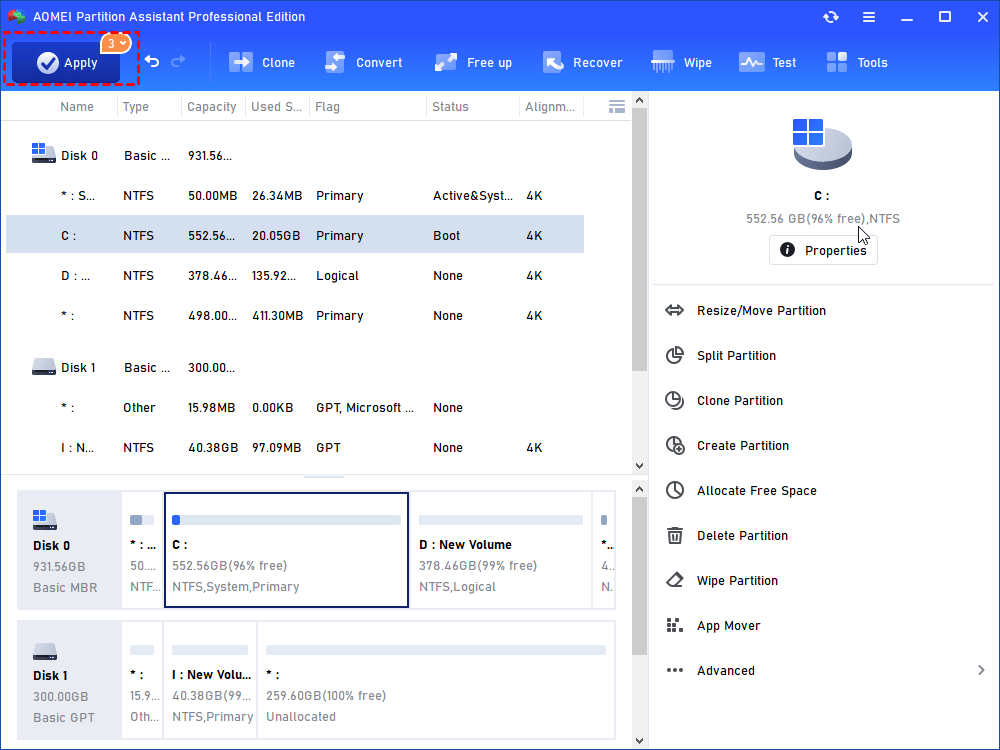
Step 3. Click “Apply” to confirm, and then reboot the PC. After you boot the computer, your system reserved partition will have more free space.
Method 2. Clean up the SRP
Over time, the System Reserved Partition may accumulate unnecessary fonts or language files, leaving insufficient free space for updates. Cleaning up redundant files can free space and resolve update errors without resizing partitions.
Step 1. Press Win + R, type diskmgmt.msc, and press Enter.
Step 2. Assign a drive letter to the System Reserved Partition:
Step 3. Right-click SRP → Change Drive Letter and Paths → Add.
Step 4. Open File Explorer and access the newly assigned drive.
Step 6. Navigate to the Boot\Fonts folder.
Step 7. Delete unnecessary font files (keep essential ones if unsure).
Step 8. Go to Recycle Bin and empty it to free space.
Step 9. Remove the drive letter from SRP after cleanup.
Step 10. Restart your PC and retry the Windows update.
Method 3. Fix partition permissions
Incorrect permissions on the System Reserved Partition can prevent Windows from writing necessary update files. Adjusting access permissions ensures the system can properly modify boot-related data during updates.
Step 1. Open Command Prompt as Administrator.
Step 2. Type the following command and press Enter:
mountvol y: /s
(This mounts the SRP as drive Y:)
Step 3. Navigate to the SRP by typing Y:
Step 4. Run the following command to grant permissions:
icacls Y:\ /grant administrators:F /t
Step 5. Wait for the process to complete.
Step 6. Remove the drive letter using:
mountvol y: /d
Step 7. Restart your system. Run Windows Update again to check if the issue is resolved.
FAQs
1. What size should the System Reserved Partition be?
Typically 100–550 MB, depending on Windows version. Windows 10/11 often requires at least 500 MB to store boot files, recovery data, and updates without encountering upgrade or patching errors.
2. Is it safe to delete files from SRP?
No, deleting files manually is risky. The SRP contains critical boot and system files. Removing the wrong data can make Windows unbootable or cause serious system errors.
3. Why does this error happen even with free disk space?
The error occurs because SRP has a limited allocated space. Even if other partitions have free space, Windows cannot use it unless the SRP itself is expanded.
4. Can I fix this without reinstalling Windows?
Yes, you can fix it by extending the SRP, cleaning unnecessary files, or adjusting permissions. Tools like partition managers help resize the partition without reinstalling the operating system.
5. Does this error affect system performance?
No, it usually doesn’t affect performance. However, it blocks Windows updates or upgrades, which may eventually impact security, stability, and access to new features if left unresolved.
Conclusion
In conclusion, the “We couldn’t update the system reserved partition Windows 11” error mainly stems from limited SRP space, permission issues, or outdated configurations. Fortunately, it can be resolved without reinstalling Windows by extending the partition, cleaning unnecessary files, or fixing permissions, ensuring smooth and successful system updates.

 as a preferred
source on Google
as a preferred
source on Google