



4 Ways to Resolve Selected File Is Not a Proper BIOS
Have you ever encountered the selected file is not a proper BIOS issue? Don’t worry, this article will give some troubleshooting tips to help you resolve this annoying problem.

By Hedy Updated on May 29, 2026


The error “Selected file is not a proper BIOS” usually appears when updating or flashing BIOS in tools like ASUS EZ Flash, MSI M-Flash, Gigabyte Q-Flash, Dell BIOS Update, or HP BIOS Utility. It means the motherboard cannot recognize or validate the BIOS file.
Here are the most common fixes:
|
👀 Format the external hard drive |
Format the USB or external drive to FAT32 for BIOS compatibility and proper file recognition. |
|
🚦 Update BIOS with the correct file |
Download the exact motherboard BIOS version and update it using a FAT32-formatted USB drive. |
|
💡 Update the outdated drivers |
Update incompatible or outdated drivers through Device Manager to prevent BIOS update communication conflicts. |
|
🔨 Run CHKDSK to check your external hard drive |
Use CHKDSK to scan and repair USB drive errors causing BIOS file detection problems. |
How to fix selected file is not a proper BIOS
As explained earlier, BIOS plays a critical role in every computer system by enabling communication between hardware components and the operating system. Before attempting to fix the “Selected File Is Not a Proper BIOS” error, it is important to complete several preparation steps to avoid unnecessary risks during the BIOS update process.
✍ Preparations before fixing “Selected File Is Not a Proper BIOS”:
1. Check system information
The first step is to gather accurate system details. Review important information such as your computer model, motherboard model, current BIOS version and release date, and BIOS mode. These details help ensure that you download the correct BIOS update file compatible with your device.
2. Confirm the BIOS file is valid
If the BIOS file appears damaged or invalid, download a fresh copy directly from a trusted manufacturer’s website. A corrupted BIOS package is one of the most common causes of this error.
It is also recommended to temporarily disable antivirus or anti-malware software during the download and update process. In some cases, security programs may incorrectly identify BIOS files as suspicious and block or delete them automatically.
3. Create a system image backup
Before making any BIOS-related changes, create a full system image backup to protect your operating system, applications, and personal files. This precaution can help you recover your computer if the BIOS update fails or causes system instability.
Completing these preparations in advance reduces potential risks and provides a safer environment for troubleshooting the “Selected File Is Not a Proper BIOS” issue. Once everything is ready, you can move forward with the repair methods more confidently.
Way 1. Format the external Hard Drive
One common cause of the “Selected File Is Not a Proper BIOS” error is an incompatible external drive format. Many BIOS update tools require the USB drive or external hard disk to use the FAT32 file system. If the device is formatted with NTFS, exFAT, or another unsupported format, the BIOS file may fail to load correctly.
To resolve this issue, formatting the external storage device to FAT32 is often necessary. A practical solution for this task is AOMEI Partition Software, which provides an easy and efficient way to manage and format disk partitions.
In addition to FAT32 formatting, the software also includes advanced partition management features that help users organize, resize, convert, and optimize storage devices more conveniently.
With AOMEI Partition Software, formatting a hard drive or USB device becomes fast and straightforward. Follow the instructions below to quickly format your external drive to FAT32.
 AOMEI Partition Software
A safe and reliable disk partition management tool that helps you migrate OS to SSD or HDD, reorganize disk space, and improve overall PC performance.
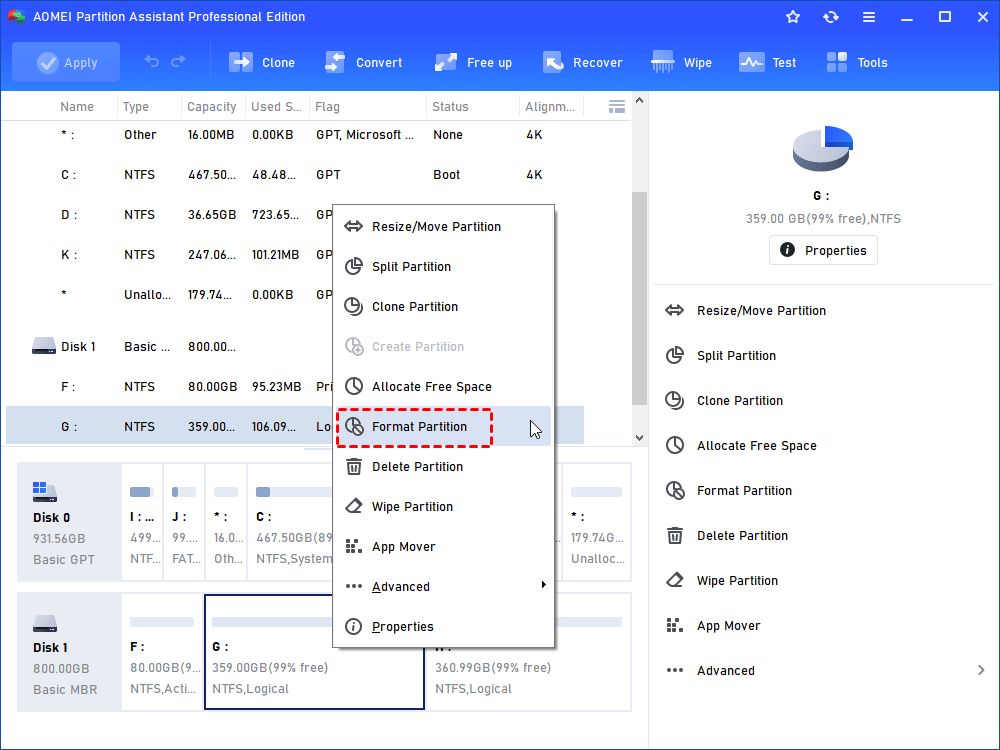
Step 1. Download and install AOMEI Partition Software. Right-click the target external hard drive and select Format Partition:
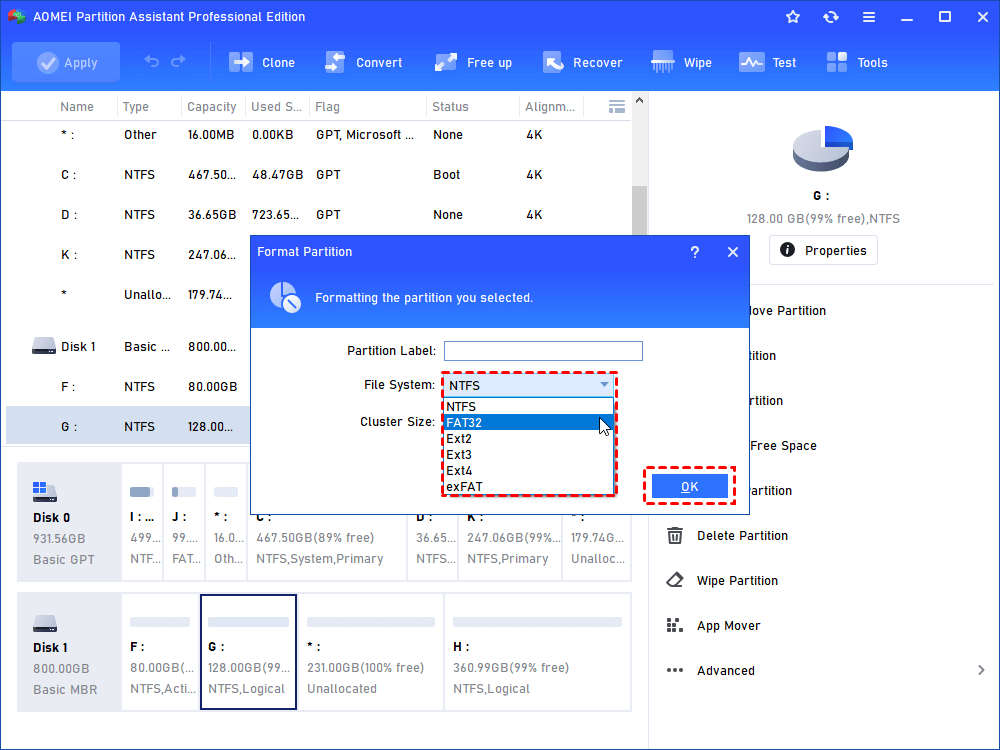
Step 2. In the formatting window, configure the partition settings based on your needs. Select the preferred file system, such as NTFS, FAT32, exFAT, or Ext4, and then click OK to confirm.
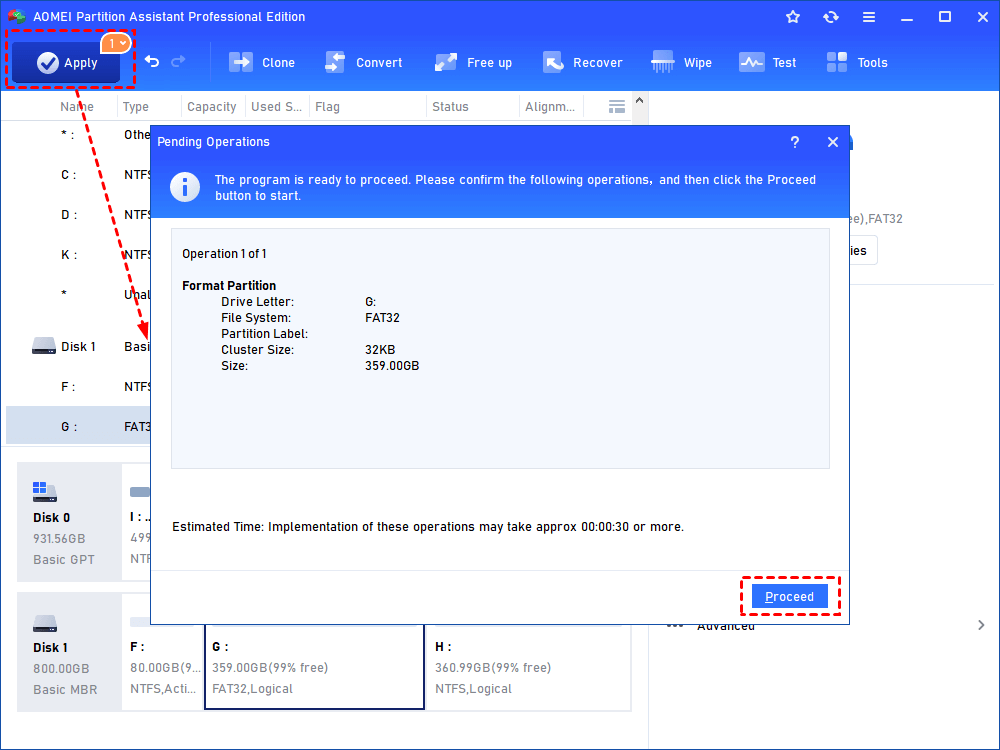
Step 3. Click Apply in the upper-left corner of the interface, then choose Proceed to execute the formatting task.
Way 2. Update BIOS with the correct file
Using an incorrect or damaged BIOS update file is another major reason behind the “Selected File Is Not a Proper BIOS” error. If the BIOS version does not match your motherboard model or hardware configuration, the system may reject the file during the update process.
To fix this problem, you need to download the correct BIOS version and follow the proper update procedure carefully. Doing so can eliminate compatibility conflicts and help ensure a successful BIOS installation.
Phase 1. Format the USB drive to FAT32
Before updating the BIOS, prepare a USB flash drive using the FAT32 file system. Many motherboard manufacturers require BIOS update drives to be formatted in FAT32 for proper detection.
You can use AOMEI Partition Software to quickly format the USB drive. Follow the formatting instructions provided in Method 1.
Phase 2. Download the correct BIOS file
Once the USB drive has been formatted, the next step is downloading the correct BIOS update file for your motherboard.
Make sure the BIOS version matches your motherboard model exactly, including the WiFi or non-WiFi edition if applicable. Using the wrong BIOS package may trigger update errors or even cause boot problems.
✏️ To locate the proper BIOS file:
1. Check your computer manual or system information to identify the exact motherboard model
2. Visit the official website of the motherboard manufacturer
3. Open the Support or Downloads section
4. Download the latest compatible BIOS update file for your motherboard version
Phase 3. Update the BIOS
After preparing the FAT32 USB drive and copying the correct BIOS file, you can begin the BIOS update process.
Step 1. Insert the USB drive containing the BIOS file into your computer and restart the system.
Step 2. Press the required BIOS shortcut key during startup, such as F2, F10, or F12, depending on your motherboard manufacturer.
Step 3. Open the boot menu or BIOS update utility and set the USB drive as the temporary boot device if necessary.
Step 4. Locate the correct BIOS update file on the USB drive, select it, and confirm the update operation.
Wait patiently for the process to finish. Interrupting the BIOS update may damage the motherboard or make the computer unable to boot properly.
Way 3. Update the outdated drivers
Outdated or incompatible drivers can sometimes trigger the “Selected File Is Not a Proper BIOS” error by creating communication conflicts between the operating system and hardware components. Updating device drivers may help eliminate these compatibility issues and improve system stability during the BIOS update process.
Follow the steps below to update outdated drivers on your Windows computer.
Step 1. Press the Win + X keyboard shortcut to open the Power User menu, then select Device Manager from the list.
Step 2. In the Device Manager window, expand the Display Adapters category. Next, right-click the target driver and choose “Update Driver”.
Step 3. Select “Search automatically for drivers”. Windows will begin scanning for the latest compatible driver version available for your hardware.
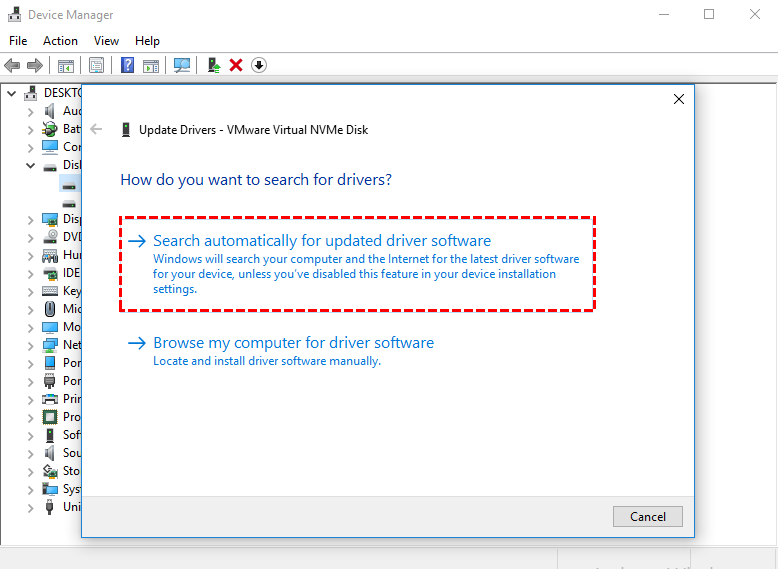
If an update is found, follow the on-screen instructions to complete the installation. After the update finishes, restart your computer and check whether the BIOS-related error has been resolved.
Way 4. Run CHKDSK to check your external hard drive
In some cases, the “Selected File Is Not a Proper BIOS” error may be caused by a faulty or corrupted USB drive. File system errors, bad sectors, or damaged storage structures can prevent the BIOS update file from being recognized correctly.
To repair potential drive errors, you can use the built-in CHKDSK utility in Windows. This tool scans the storage device for logical errors and attempts to fix them automatically.
Follow these steps to check and repair your USB drive using CHKDSK.
Step 1. Press Ctrl + Shift + Esc to open Task Manager. Click Run New Task, and type cmd in the dialog box. Check “Create this task with administrative privileges”and click OK to open Command Prompt as administrator.
Step 2. In the Command Prompt window, type the following command:
chkdsk C: /f /r
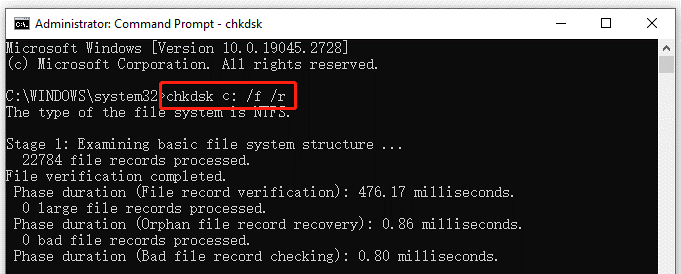
Replace C with the actual letter assigned to your USB drive or external hard drive.
Step 3. Windows will analyze the drive, detect file system errors, and repair any issues it finds automatically.
Once the process is complete, reconnect the USB drive and check whether the BIOS update error has been fixed.
Why selected file is not a proper BIOS?
The “Selected File Is Not a Proper BIOS” error can appear for several reasons, and identifying the exact cause is essential before attempting a fix. In most cases, the issue is related to an incompatible BIOS file, hardware problems, or system conflicts that prevent the BIOS update from loading correctly. Below are some of the most common causes behind this error message:
🔸 Invalid or corrupted BIOS file
A BIOS update file that is damaged, incomplete, or intended for a different motherboard model can trigger this error. When the system fails to verify the file properly, the update process cannot continue.
🔸 Outdated device drivers
Old or incompatible drivers may interfere with BIOS-related operations. These conflicts can disrupt communication between the system and the update utility, resulting in the BIOS file recognition error.
🔸 Corrupted external storage device
If the BIOS file is stored on a faulty USB drive or external hard disk, the system may struggle to read the data correctly. File corruption or physical damage on the storage device often leads to BIOS update failures.
🔸 Unsupported drive format
BIOS utilities typically support specific file systems, such as FAT32. If the external drive is formatted using an unsupported format, the motherboard may not detect or access the BIOS file properly, causing the error to appear.
FAQs
1. Why does my BIOS say “Selected file is not a proper BIOS”?
This usually means the BIOS file does not match your exact motherboard model, is corrupted, or the USB drive format is unsupported.
2. Does the BIOS USB drive need FAT32?
Yes. Most motherboard manufacturers recommend FAT32 formatting for BIOS update USB drives. NTFS and exFAT may not work properly.
3. Can I update BIOS without a CPU installed?
Yes, if your motherboard supports BIOS Flashback. This feature allows updates without CPU or RAM installed.
4. What happens if BIOS update fails?
Modern motherboards often include recovery tools like Dual BIOS or CrashFree BIOS. Older boards may become unbootable after failed updates.
5. Should I rename the BIOS file manually?
Some ASUS motherboards require special filenames. Using the included BIOSRenamer utility is the safest option.
Conclusion
In conclusion, the “Selected File Is Not a Proper BIOS” error is usually caused by an incompatible BIOS file, unsupported USB format, outdated drivers, or storage device issues. By preparing your system carefully, formatting the drive to FAT32, downloading the correct BIOS version, updating drivers, and checking the USB drive for errors, you can successfully resolve the problem and complete the BIOS update safely without risking system instability or boot failure.

 as a preferred
source on Google
as a preferred
source on Google