




[Answered] How Do I Delete Windows Update Files?
How do I delete Windows update files? In this article, you will learn five reliable and workable methods to make it. A professional PC cleaner is also covered.

By Hedy Updated on May 29, 2026


How do I delete windows update files?
Windows updates are essential, but accumulated update files can occupy significant disk space. Removing them can free storage, resolve update errors, and keep your system running efficiently. Here are five methods.
Method 1. Delete Windows Update Files via Windows Settings
Windows Settings allow users to manage and remove downloaded updates without using additional tools. This method is simple, safe, and ideal for freeing space occupied by old update files.
Step 1. Press Windows + I to open Settings.
Step 2. Go to Update & Security > Windows Update.
Step 3. Click View update history.
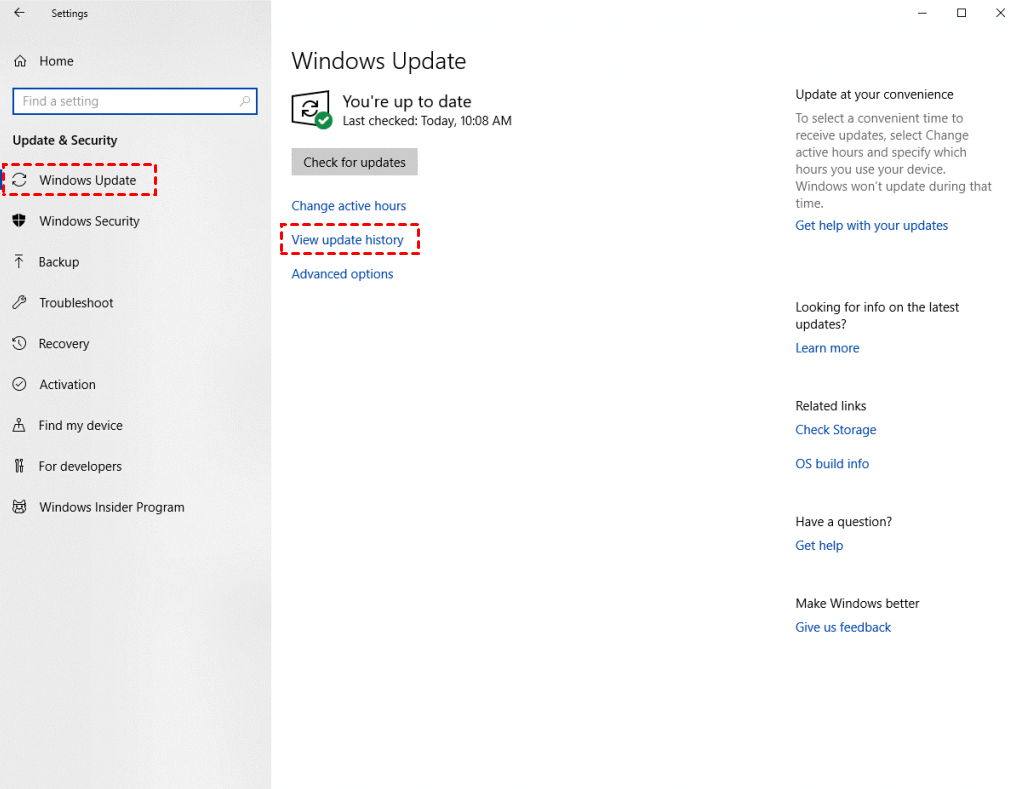
Step 4. Select Uninstall updates.
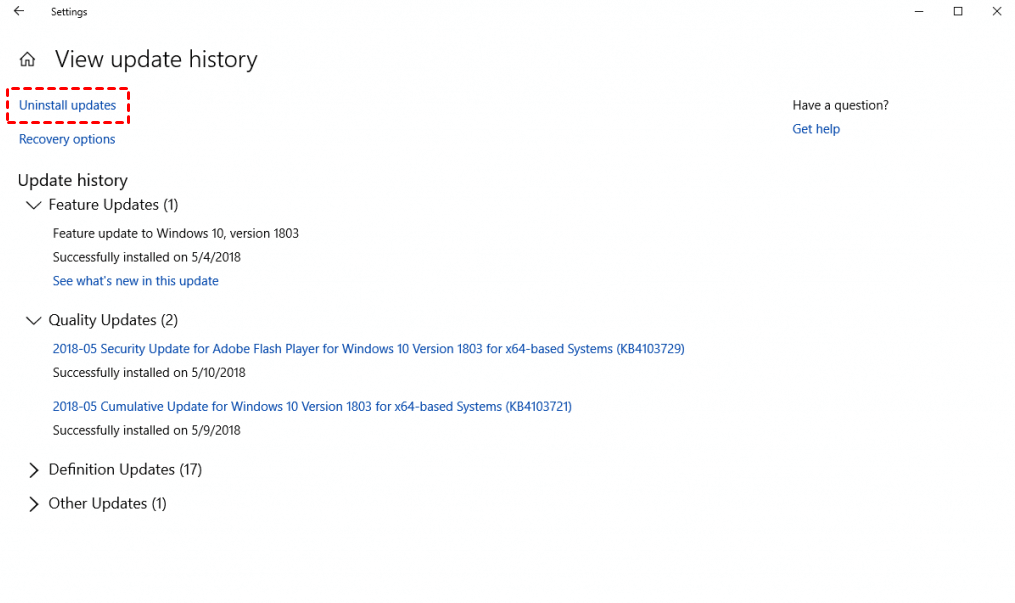
Step 5. Choose the updates you want to remove, then click Uninstall.
Step 6. Restart your computer if prompted.
Method 2. Use Disk Cleanup tool to remove update files
Disk Cleanup is a built-in Windows utility that helps remove temporary files, including old Windows update files. This tool safely frees storage and improves system performance.Here is how to delete Windows update files Windows 10:
Step 1. Press Windows + S, type Disk Cleanup, and open it.
Step 2. Select the drive where Windows is installed (usually C:).
Step 3. Click Clean up system files.
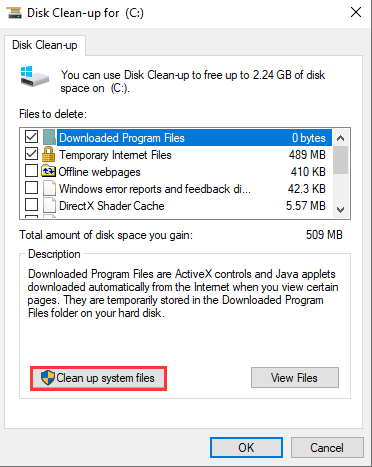
Step 4. Re-select the system drive if prompted.
Step 5. Check Windows Update Cleanup and any other unnecessary files.
Step 6. Click OK, then Delete Files.
Step 7. Wait for the cleanup to finish.
Method 3. Delete SoftwareDistribution folder manually
The SoftwareDistribution folder stores downloaded update files. Manually deleting it can resolve update errors and free space, especially if some updates are stuck or corrupted.
Step 1. Press Windows + R, type services.msc, and press Enter.
Step 2. Find Windows Update service, right-click, and select Stop.
Step 3. Navigate to C:\Windows\SoftwareDistribution.
Step 4. Delete all contents inside the folder (select all files and press Delete).
Step 5. Go back to Services, right-click Windows Update, and select Start.
Method 4. Remove update files using Command Prompt
Advanced users can use Command Prompt to delete update files quickly. This method requires administrator access and is effective for stubborn or failed updates.Follow the steps below on how to delete Windows update files Windows 11:
Step 1. Press Windows + X, select Windows Terminal (Admin) or Command Prompt (Admin).
Step 2. Type net stop wuauserv and press Enter to stop the update service.
Step 3. Type net stop bits and press Enter.
Step 4. Navigate to the update folder: C:\Windows\SoftwareDistribution\Download.
Step 5. Type del /f /s /q *.* and press Enter to delete files.
Step 6. Restart services: net start wuauserv and net start bits.
Step 7. Close Command Prompt.
Method 5. Use Storage Sense for automatic cleanup
Storage Sense automatically manages temporary files, including Windows update leftovers. Enabling it keeps your system clean without manual intervention, maintaining free space efficiently.
Step 1. Press Windows + I to open Settings.
Step 2. Go to System > Storage.
Step 3. Toggle Storage Sense to On.
Step 4. Click Configure Storage Sense or run it now.`
.png)
Step 5. Select Delete temporary files that my apps aren’t using and Delete previous versions of Windows.
Step 6. Click Clean now to perform an immediate cleanup.
Bonus: Delete stubborn junk files with professional PC Cleaner
Wondering how to delete Windows update files? That’s only part of the solution. Simply removing updates won’t reclaim much disk space because countless hidden junk files still linger deep in your system, often overlooked by users.
For a thorough cleanup, AOMEI Partition Software is an excellent choice. This free, robust tool works seamlessly with Windows 11, 10, 8, and 7. It scans for every bit of junk—from system caches to registry leftovers. Once the scan completes, a single click on “Clean All” wipes these files away, freeing up your disk instantly.
 AOMEI Partition Software
A safe and reliable disk partition management tool that helps you migrate OS to SSD or HDD, reorganize disk space, and improve overall PC performance.
Step 1. Install and launch AOMEI Partition Software, and then click "Free up" > "PC Cleaner".
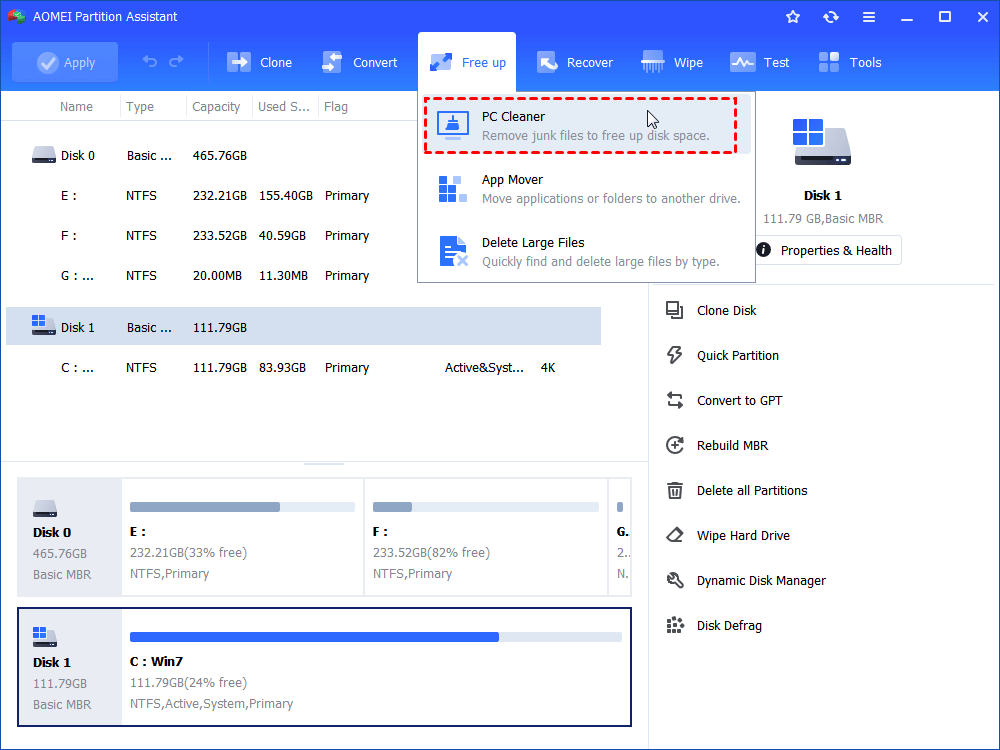
Step 2. In the pop-up window, click "Start Scan" to scan for junk files.
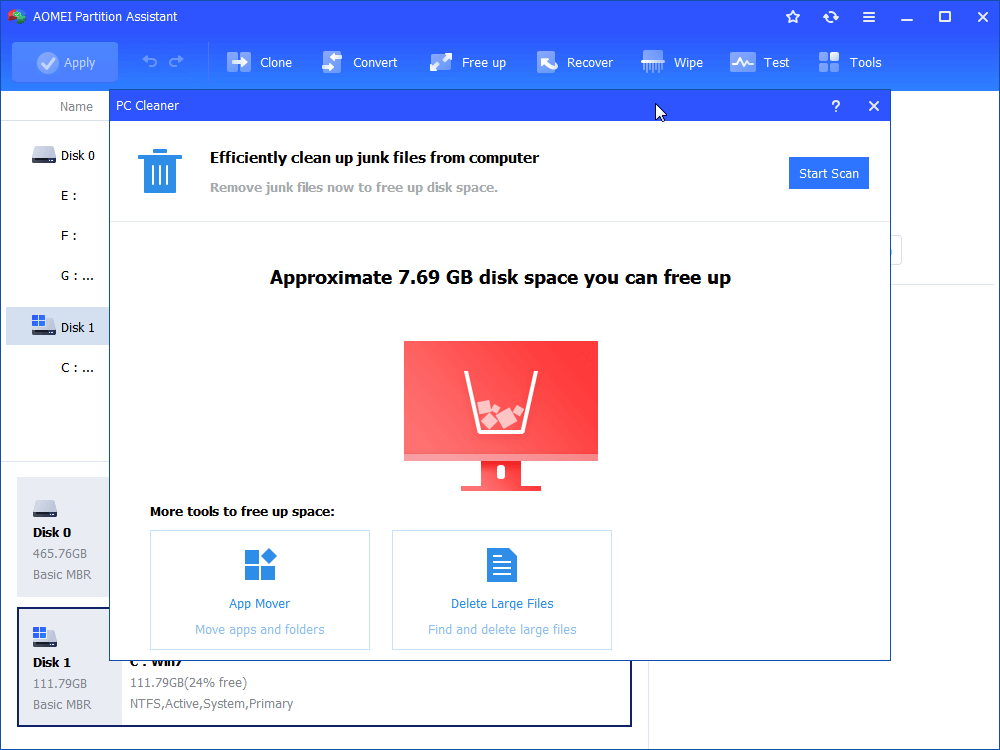
Step 3. Wait until the scanning process completes.
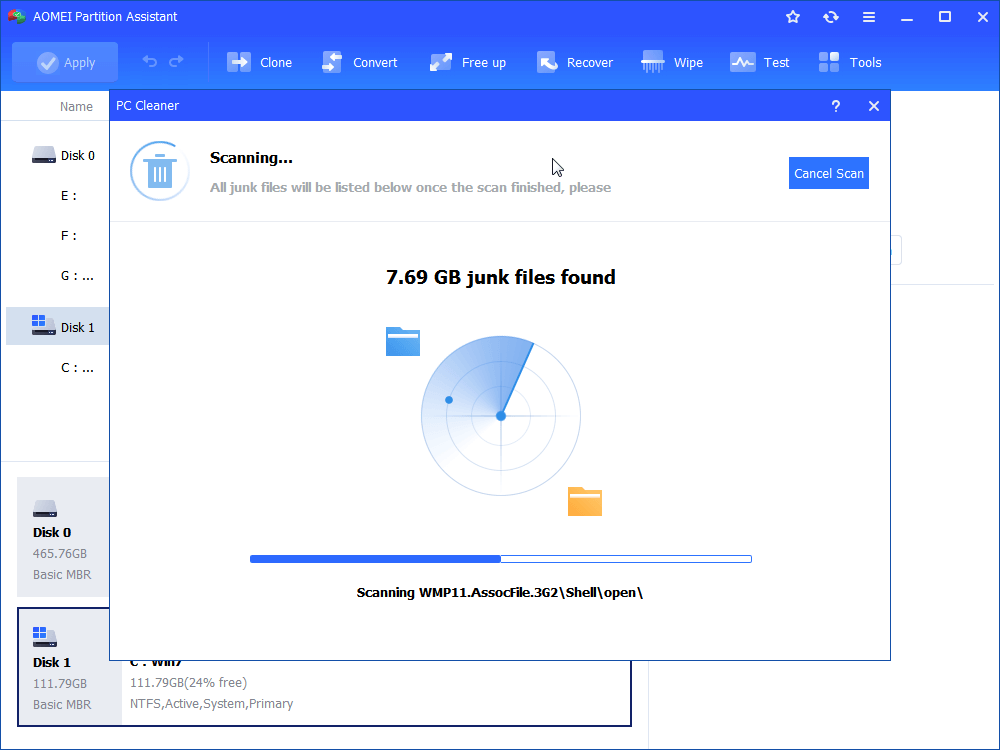
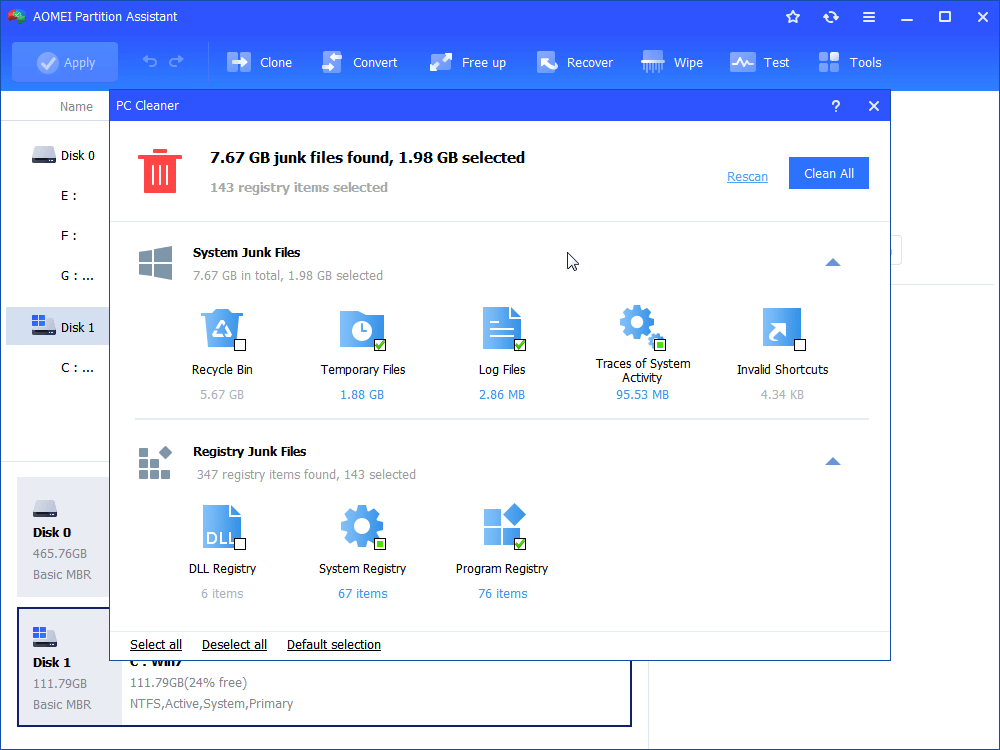
Step 4. When the scan is completed, all kinds of available junk files will be listed. Then, tick the options you want to clean, then click "Clean All" to begin the cleaning process.
Step 5. When you see a correct symbol displayed in the interface, you can click "Back" to exit the Window.
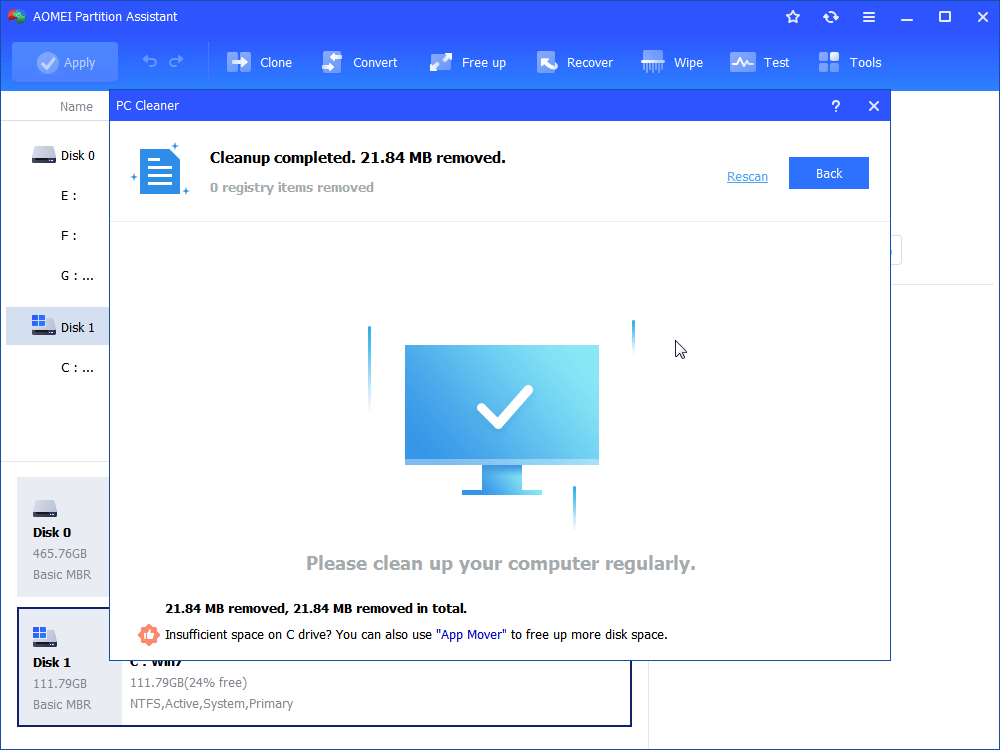
Then your PC will get rid of all redundant junk files.
What you should know about deleting Windows update files?
When the C drive full after Windows 10 update, your eyes may focus on Windows update files. Because they are stored on the C drive usually and take up too much space. How do I delete Windows update files to free up space? You will find the answer in the next paragraph. But before deleting it, you need to figure out what Windows update files are and whether it is safe to delete them.
▶ What are Windows update files?
As the name suggests, Windows update files are files used to handle the download and installation of operating system updates. Through it, we can upgrade to a more advanced system or download patches for the current system. In this way, the system can support more software and hardware, solve various compatibility problems, and make the system safer and more stable. Windows update files are usually stored in the C:\Windows folder.
▶ Is it safe to delete Windows update files?
Yes, it is. Deleting Windows update files will not cause damage to your computer's software or hardware, and personal files will not be lost. This is a safe process. But you need to be aware that after deleting Windows update files, you can not able to restore or downgrade to the previous version of Windows.
FAQs
🔎 Will deleting update files remove installed updates?
No, deleting Windows Update files only removes temporary installation files stored on your system. Installed updates remain intact, so your system stays updated, but space used by leftover files is freed.
🔎 Why are Windows Update files so large?
Windows Update files include full packages, patches, language packs, and system components. Over time, multiple updates accumulate, creating large caches that occupy significant disk space, especially on systems not regularly cleaned.
🔎 What is the safest method to delete them?
The safest approach is using Windows built-in tools like Disk Cleanup or Storage Sense. These automatically identify and remove obsolete update files without risking system stability or deleting essential components.
🔎 What should I do if I cannot delete update files?
If files are locked, restart your PC in Safe Mode or stop the Windows Update service, then try deletion. Alternatively, use trusted third-party cleaners like AOMEI Partition Softwareto safely remove them.
Conclusion
Deleting Windows update files can free up disk space, resolve update errors, and maintain system efficiency. Use built-in tools like Disk Cleanup or Storage Sense for safe removal, or opt for professional cleaners like AOMEI Partition Software to eliminate hidden junk files completely, keeping your Windows PC clean, stable, and running smoothly without affecting installed updates or personal data.

 as a preferred
source on Google
as a preferred
source on Google