




Stepwise Guide to Fix Run DLL Error on Startup
Are you encountering a Run DLL error on your Windows computer? In this guide, you will learn the common causes behind Run DLL errors and discover several effective methods to fix them.

By Hedy Updated on June 3, 2026


What is a RunDll error?
A RunDll error appearing during startup usually shows up as a Windows pop-up message. It indicates that the system failed to launch a required DLL (Dynamic Link Library) file while Windows was starting.
DLL files contain important instructions and resources used by programs and system components. If Windows cannot access one of these files correctly, certain applications or startup processes may fail to run properly.
Why does the RunDll error occur at startup?
In most cases, a RunDll startup error is linked to damaged, deleted, or inaccessible DLL files. When Windows attempts to load the missing component, the startup sequence is interrupted and the error message appears.
Several underlying issues can trigger this problem. Common causes include malware attacks, incomplete software installations or removals, corrupted system files, and invalid startup entries left behind by uninstalled applications.
How to fix RunDll error on startup in 5 ways
If you are constantly seeing a RunDll error whenever your computer starts, don’t panic. Several proven solutions can help eliminate the issue and restore a smooth Windows startup experience.
In the following section, you’ll learn four effective methods to troubleshoot and fix the RunDll startup error step by step. Follow the instructions carefully to identify the cause and resolve the problem successfully.
You can also use the quick-share buttons below to share this helpful guide with friends or on social media platforms.
Way 1. Run a professional boot repair tool
For users looking for a fast and hassle-free solution, AOMEI Partition Software can help repair RunDll error on startup efficiently. The software provides advanced system repair and boot management features designed to resolve various Windows startup problems.
Unlike basic troubleshooting methods, this all-in-one utility focuses on detecting and fixing boot-related issues that may trigger RunDll errors during system startup. With its user-friendly interface and powerful repair capabilities, it offers a convenient way to restore normal system performance without complicated manual operations.
 AOMEI Partition Software
A safe and reliable disk partition management tool that helps you migrate OS to SSD or HDD, reorganize disk space, and improve overall PC performance.
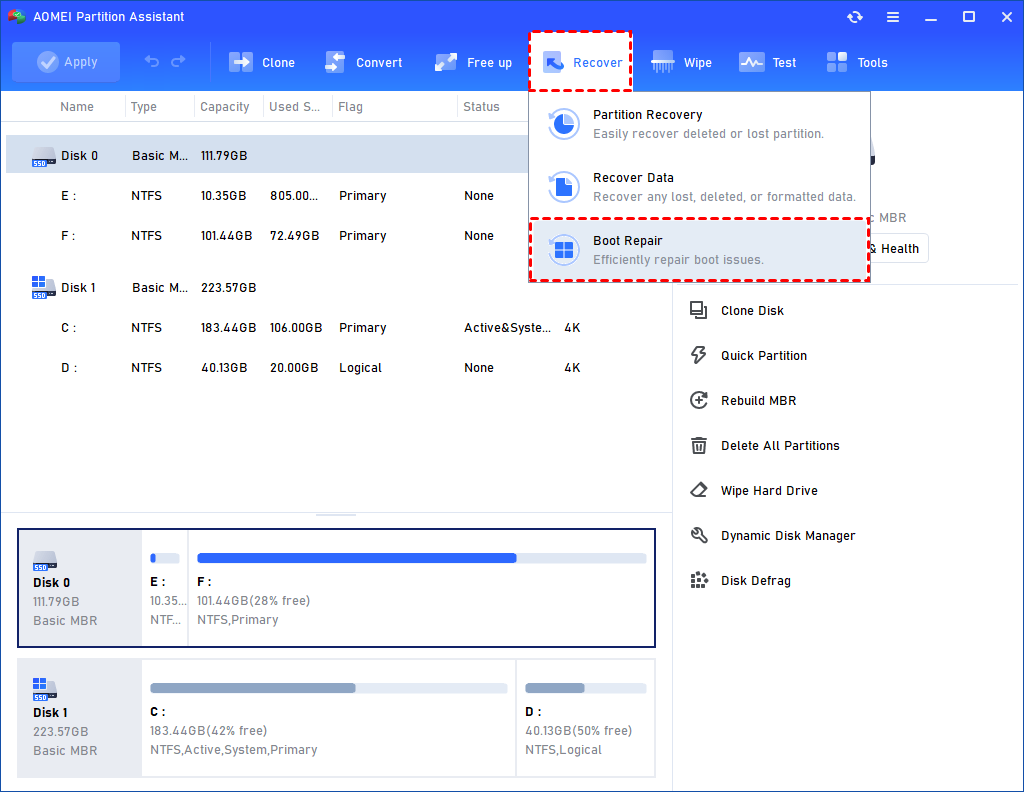
Step 1. Install and launch AOMEI Partition Software. In the Main Tab, please click the "Recover" tab and select "Boot Repair".
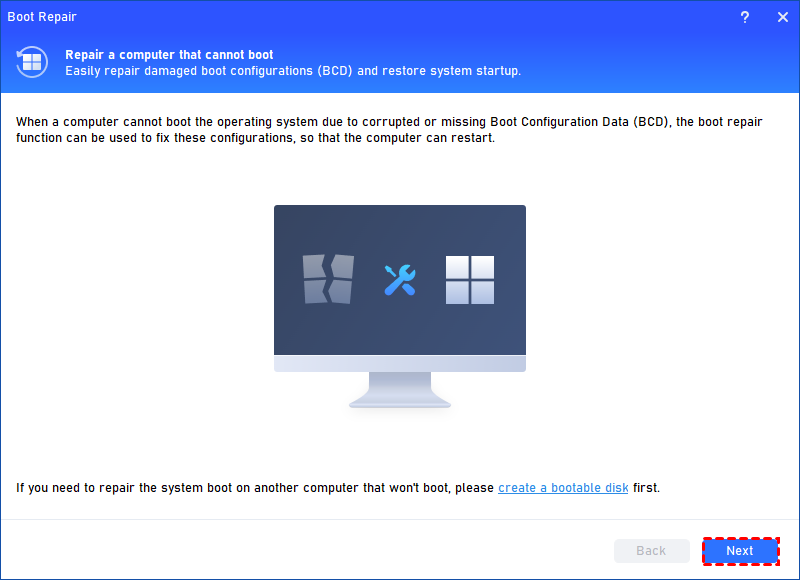
Step 2. The Boot Repair tool will pop up. If you have created a bootable media beforehand, please click "Next" to start the system’s boot entries scan process. If not, please follow the instructions to create one.
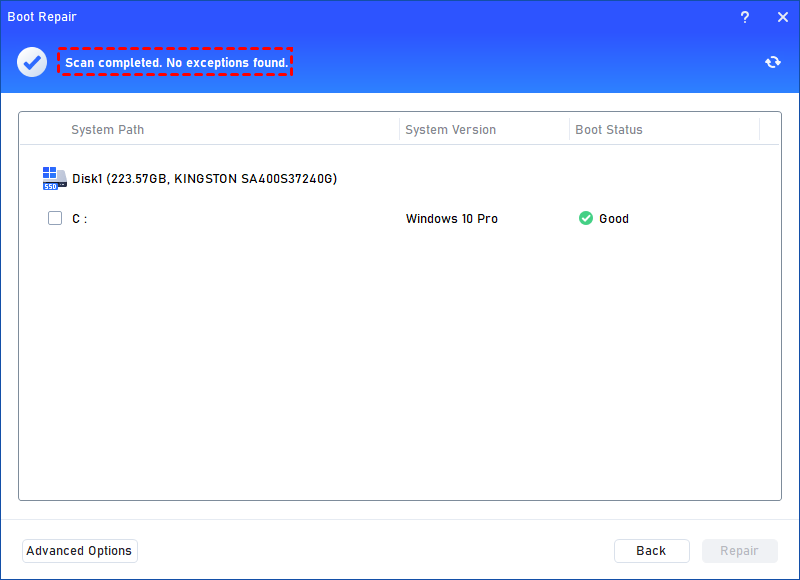
Step 3. After the process is completed, it will display the scan result: system paths, system versions, and boot status. And, all repairable boot entries will be available to select.
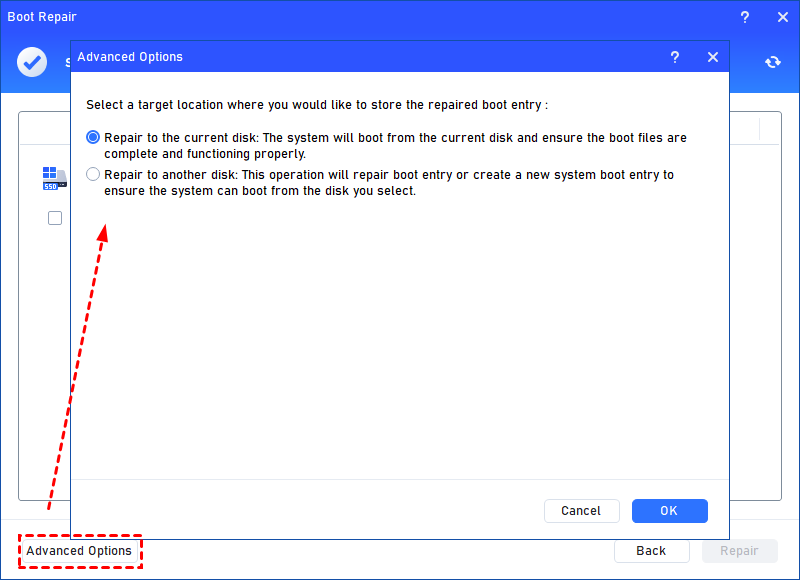
Advanced Settings: Select a location to store the repaired boot entry.
◆ Repair to the current disk: The system will boot from the current disk and ensure the boot files are complete and functioning properly. (By default)
◆ Repair to another disk: This operation will repair the boot entry or create a new system boot entry to ensure the system can boot from the disk you select.
Step 4. Select one/multiple repairable boot entries you want to repair and click the "Repair" button to start the boot repair.
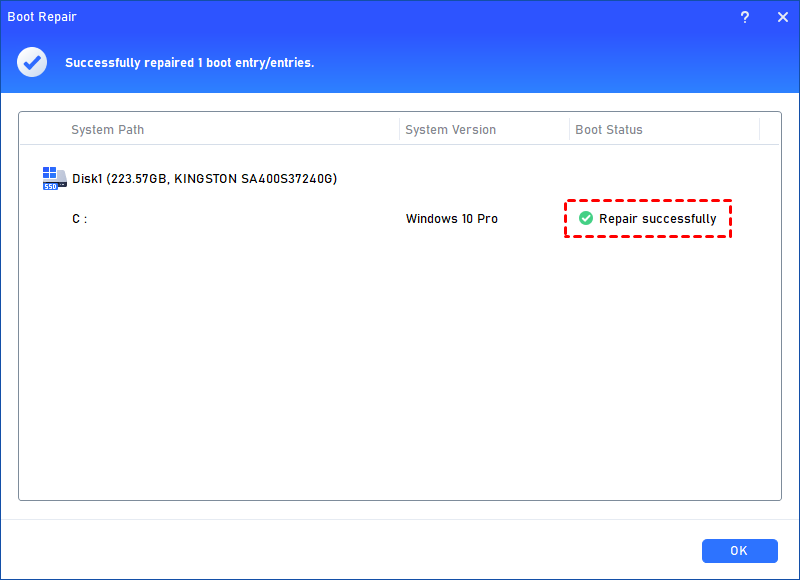
Step 5. Wait for the repair process to finish. Once it is finished, you can check the repair result. If it succeeds, you will get a "Repair Successfully" result.
Way 2. Scan the hard disk
AOMEI Partition Software is capable of scanning your system drive automatically to detect and repair bad sectors, file system corruption, and other disk-related problems. Its built-in repair features help improve disk health and resolve errors that may affect system startup or overall performance.
Download the software and follow the step-by-step guide below to begin the scanning and repair process.
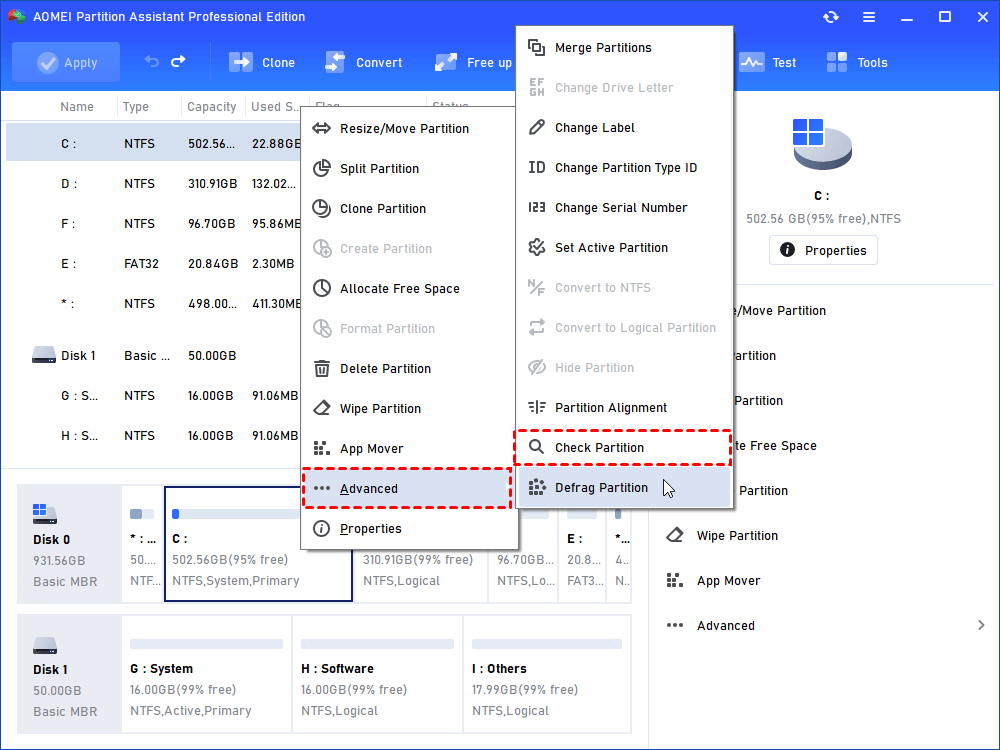
Step 1. In the main interface, right-click the target drive and then click "Check Partition".
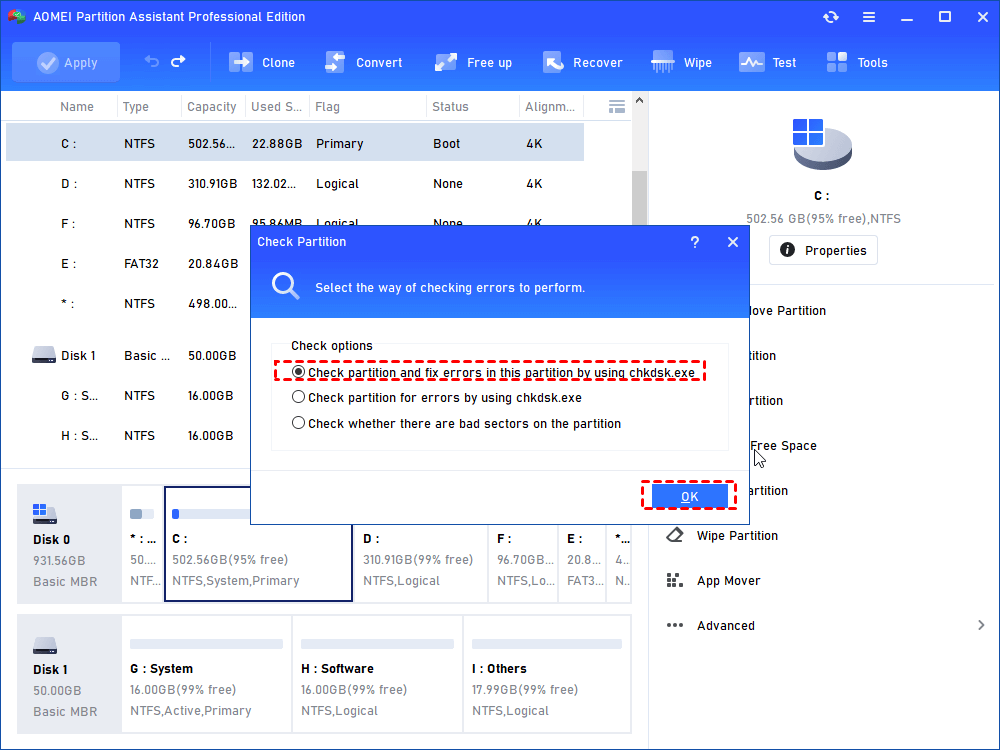
Step 2. Choose the "Check partition and fix errors in this partition by using chkdsk.exe" option, then click "OK".
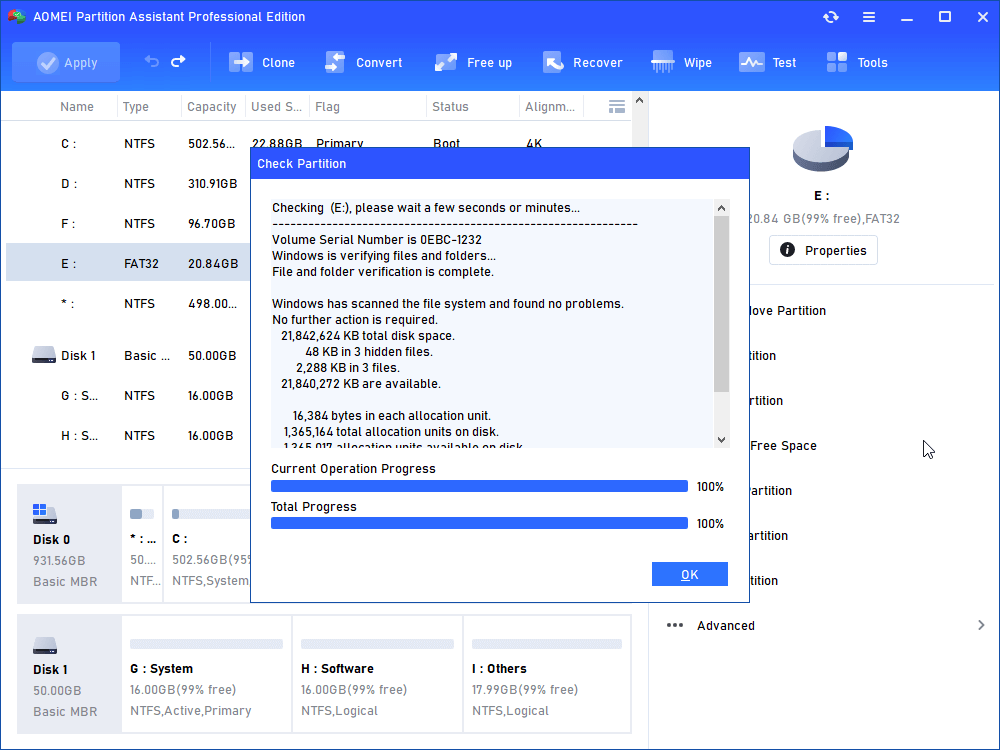
Step 3. Wait for a while and click "OK" when it's finished.
Way 3. Using Windows Startup Repair
Damaged or missing shared DLL files are one of the major reasons behind Run DLLthere was a problem startingerrors. In many cases, running Windows Startup Repair can help detect and fix these problems automatically. Follow the instructions below:
Step 1. Press the Windows + I keys together to open Windows Settings.
Step 2. Select Update & Security, then click Recovery from the left-side panel.
Step 3. Under the Advanced startup section, click Restart now.
Step 4. Once your computer restarts, you will enter the advanced recovery environment. Choose Advanced options, then select Startup Settings.
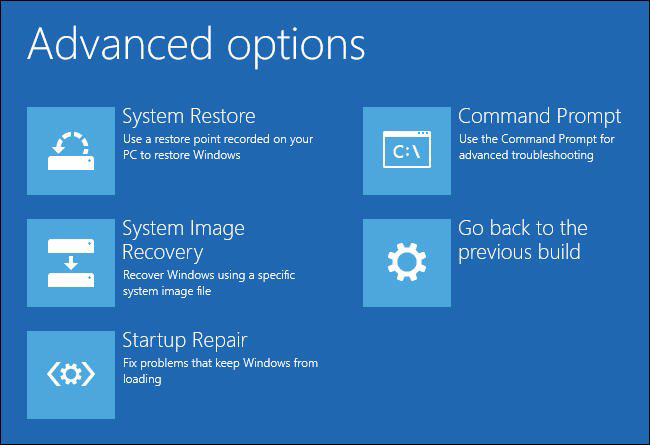
Step 5. From the list of startup options, click Enable Debugging to continue the troubleshooting process.
Way 4. Manually remove the RunDLL error on the startup
You can also remove the RunDll startup error manually by editing the Windows Registry and disabling related startup tasks. Carefully follow the steps below:
Step 1. Press Windows + R together to open the Run dialog box. Type regedit and press Enter to open the Registry Editor.
Step 2. Inside Registry Editor, locate the file name mentioned in the RunDll error message. Press Ctrl + F to open the search tool, enter the file name, and click Find Next. The search process may take a few moments.
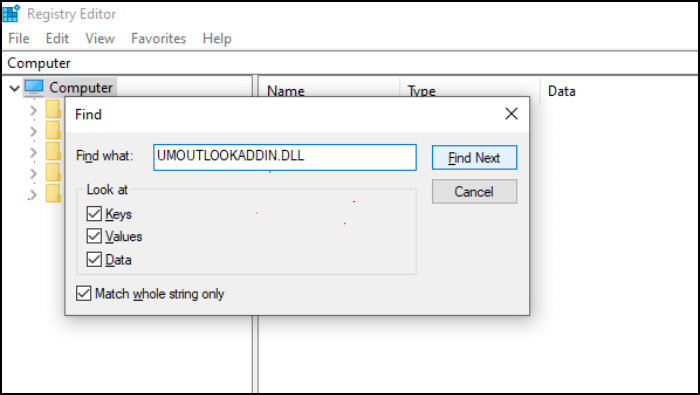
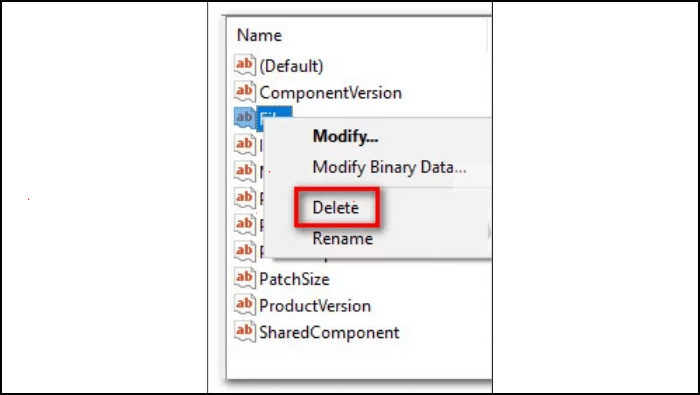
Step 3. After locating the related registry entry, right-click it and select Delete to remove the invalid reference connected to the missing DLL file. Then close Registry Editor.
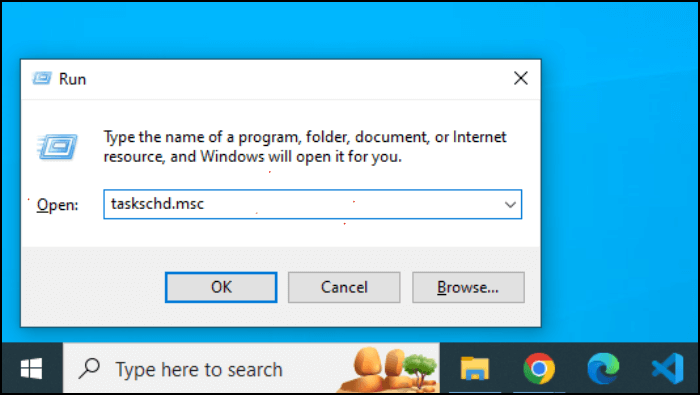
Step 4. Open the Run dialog box again, type taskschd.msc, and press Enter to launch Task Scheduler.
Step 5. Select Task Scheduler Library and review the entries displayed in the center panel. Look for tasks linked to the DLL file mentioned in the RunDll error. Once identified, right-click the related task and choose Disable.
Step 6. Close Task Scheduler and restart your computer. After rebooting, check whether the RunDll startup error has disappeared.
Way 5. Delete temporary files
Temporary files stored in the AppData folder can sometimes interfere with RunDLL processes during Windows startup. Clearing these unnecessary files may help eliminate the error. Follow the steps below:
Step 1. Press Windows + R to open the Run dialog box.
Step 2. Type the following path into the search field and press Enter:
C:\Users\Your Username\AppData\Local\Temp
Make sure to replace Your Username with your actual Windows account name.
Step 3. Once the Temp folder opens, press Ctrl + A to select all files. Right-click the selected items and choose Delete to remove the temporary files.
After the cleanup process is complete, restart your computer and check whether the RunDLL startup error has been resolved.
FAQs
1. Is RunDLL.exe a virus?
No, the legitimate Rundll32.exe file is a normal Windows component located in the System32 folder. However, malware sometimes disguises itself using similar names.
2. Can I delete Rundll32.exe?
No. Deleting the genuine Rundll32.exe file can damage Windows functionality and cause serious system instability.
3. Why does RunDLL error appear during startup?
Startup RunDLL errors usually happen because Windows is trying to load missing DLL files referenced in startup programs or scheduled tasks.
4. Does reinstalling Windows fix RunDLL errors?
Yes, but it should be the last resort. Most RunDLL problems can be solved using SFC scans, malware removal, or startup cleanup tools.
5. What is the safest way to repair missing DLL files?
Use built-in repair tools like SFC and DISM or reinstall the affected software. Avoid downloading DLL files from unofficial websites.
Conclusion
In conclusion, RunDll startup errors are usually caused by missing or corrupted DLL files, invalid startup entries, or malware infections. Fortunately, the issue can often be resolved using disk repair tools, Windows Startup Repair, registry cleanup, or temporary file removal. By following the correct troubleshooting steps, you can restore normal startup performance and prevent the RunDll error from appearing again in Windows.

 as a preferred
source on Google
as a preferred
source on Google