



3 Ways to Change Dynamic Disk to Basic Safely
Is there any way to change dynamic disk to basic quickly and safely? In this post, we will compare built-in tools with third-party software to help you convert to basic disk.

By Hedy Updated on May 29, 2026


Windows Disk Management allows users to convert a dynamic disk into a basic disk, but the process comes with a major drawback. To complete the conversion, every volume on the dynamic disk must be deleted first, which means all stored data will be erased. In addition, the operation cannot be undone once finished.
So, can you convert a dynamic disk to a basic disk without data loss? Fortunately, yes. Several reliable methods make it possible to perform the conversion while keeping your files intact.
The following sections introduce three effective solutions for changing a dynamic disk to a basic disk safely. Before starting the step-by-step instructions, take a quick look at the key details and differences between these methods.
|
Comparison |
AOMEI Partition Software |
Disk Management |
Command Prompt |
|
Duration |
3 minutes |
5 minutes |
6 minutes |
|
Effectiveness |
High |
Medium |
Medium |
|
Difficulty level |
Easiest |
Easy |
Hard |
|
Users |
Beginner |
Experienced users |
Experienced users |
How to convert dynamic disk to basic disk without losing data
A dynamic disk offers advanced storage features such as spanning volumes, striping, and mirroring. However, many users eventually want to convert a dynamic disk back to a basic disk because of compatibility issues, dual-boot setups, or easier disk management.
The problem is that Windows built-in tools usually require deleting all existing volumes before the conversion, which means data loss. Fortunately, there are still several ways to change a dynamic disk to a basic disk safely.
Below are three practical methods you can use.
Way 1. Convert dynamic disk to basic disk via AOMEI Partition Software
AOMEI Partition Software is a reliable disk management tool that helps users convert a dynamic disk to a basic disk without deleting volumes or losing data. Compared with Windows Disk Management, which usually requires removing all existing volumes before conversion, AOMEI provides a much safer and more convenient solution.
The software supports Windows 11, 10, 8, 7, and Windows Server systems. With its user-friendly interface, even beginners can complete the conversion process in just a few clicks.
 AOMEI Partition Software
A safe and reliable disk partition management tool that helps you migrate OS to SSD or HDD, reorganize disk space, and improve overall PC performance.
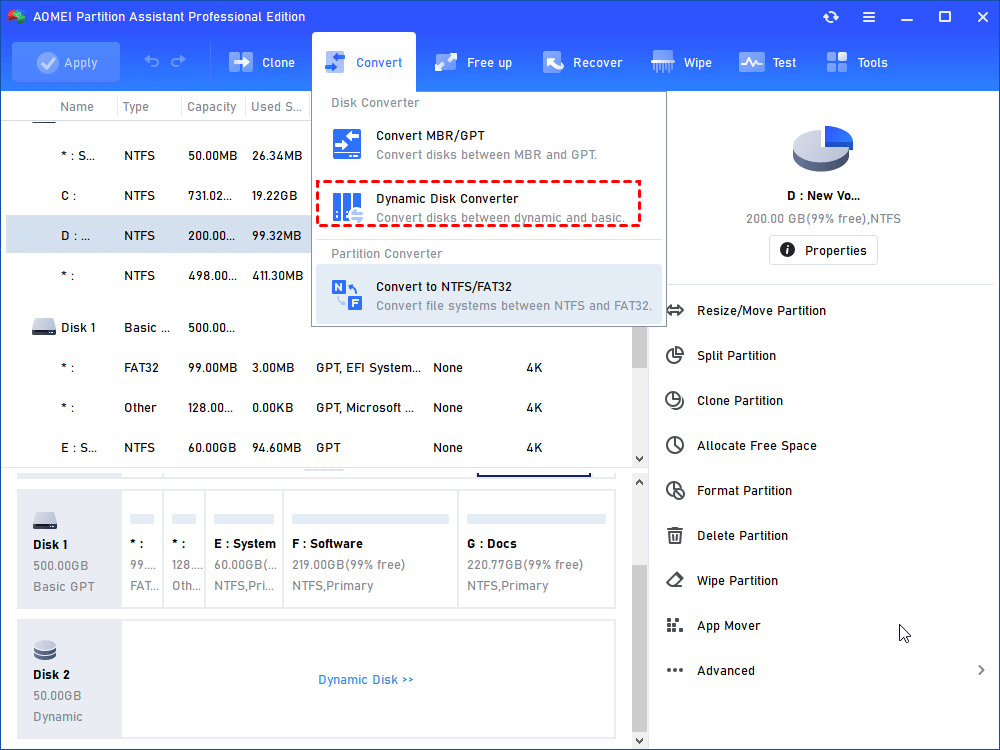
Step 1. Install and run AOMEI Partition Software. Click “Convert” in the top toolbar, and choose “Dynamic Disk Converter”.
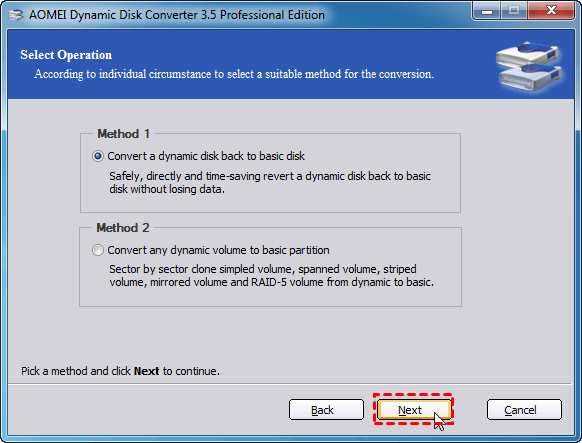
Step 2. Choose one between Convert a dynamic disk back to basic disk and Convert any dynamic disk volume to basic partition and click Next.
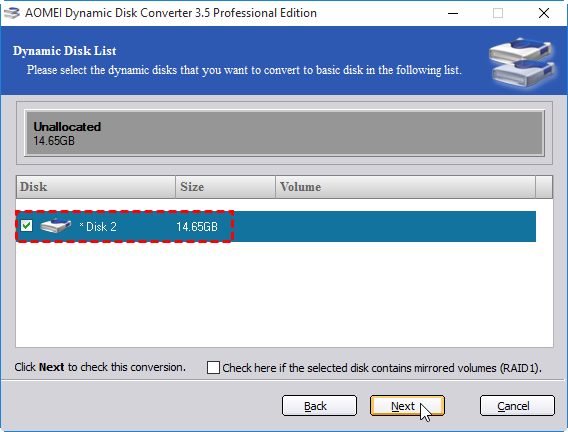
Step 3. Select the dynamic disk that you want to convert to a basic disk. Then, click Next and Proceed.
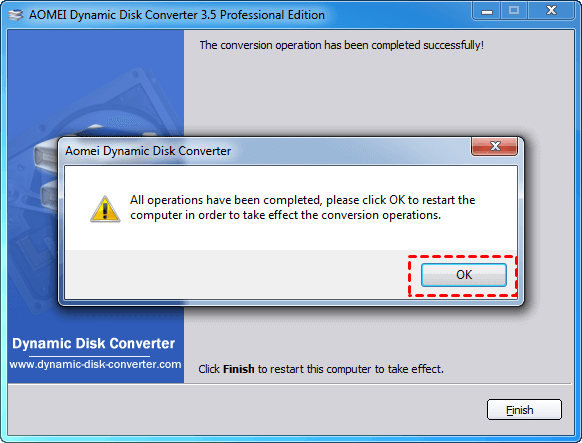
Step 4. When the conversion is completed, click OK to restart your computer, and then you can see that the disk has been converted to basic.
Way 2. Convert dynamic disk to basic disk with Disk Management
Windows Disk Management includes a built-in option for converting dynamic disks back to basic disks. However, this method requires deleting all volumes on the dynamic disk first.
-
Before proceeding, back up all important files because this process erases all partitions and data.
Step 1. Create a backup of every volume stored on the dynamic disk before starting the conversion process. This helps prevent accidental data loss during the operation.
Step 2. Open Disk Management. Locate the dynamic disk, then right-click each volume on that disk and choose “Delete Volume”. Repeat the process until all partitions are removed.
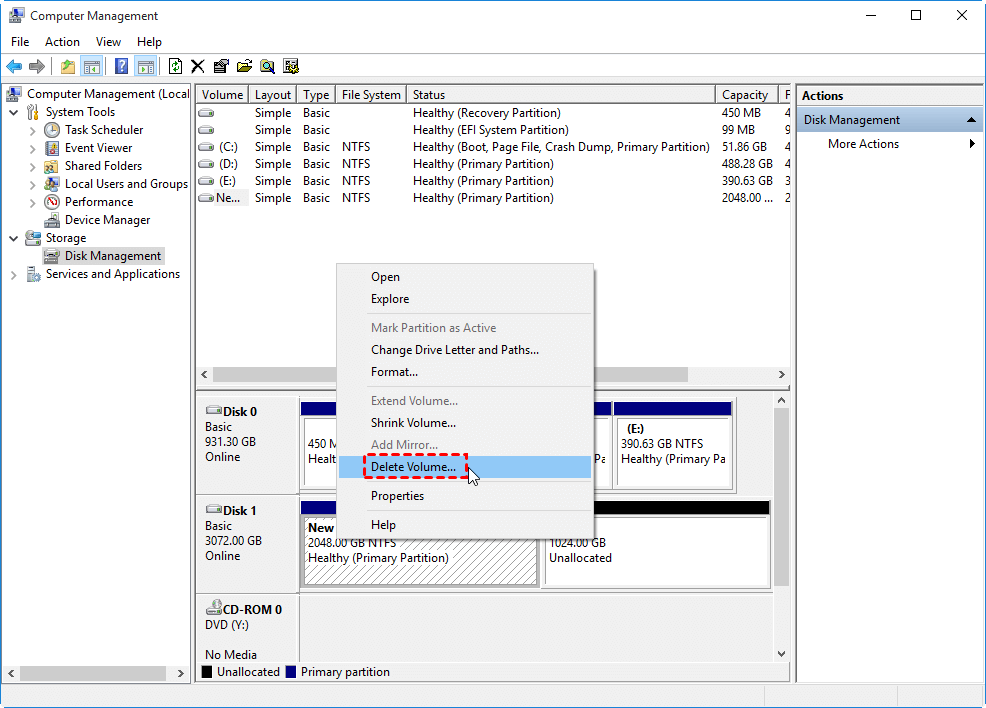
Step 3. A warning message will appear asking for confirmation. Click “Yes” to continue deleting the selected volumes.
Step 4. Once every volume has been deleted, right-click the dynamic disk and select “Convert to Basic Disk”.
In certain newer versions of Windows, the disk may automatically switch back to a basic disk immediately after all dynamic volumes are removed.
Way 3. Change dynamic disk to basic with Command Prompt
You can also use DiskPart in Command Prompt to convert a dynamic disk to a basic disk. Similar to Disk Management, this method also deletes all data on the disk.
Step 1. Open the Windows search bar and type cmd. Right-click Command Prompt and choose “Run as administrator”.
Step 2. In the Command Prompt window, enter the following command and press Enter to launch DiskPart:
diskpart
Step 3. Execute the commands below one by one, pressing Enter after each command:
list volume
select volume 6 (Replace 6 with the volume number you want to remove.)
delete volume
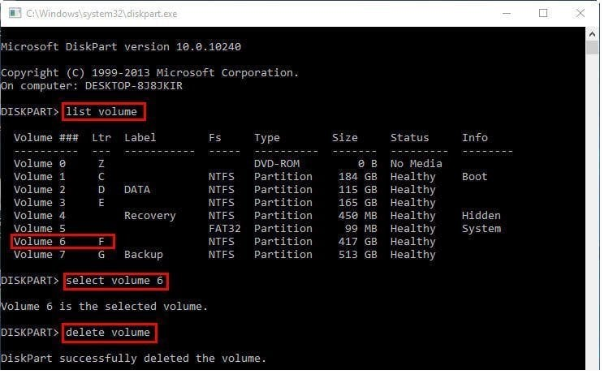
Continue repeating the select volume and delete volume commands until every volume on the dynamic disk has been deleted.
Step 4. After removing all volumes, type the following commands to convert the disk back to a basic disk:
select disk 1
convert basic
Be sure to replace 1 with the correct disk number of the target disk.
Step 5. Once the conversion is complete, type the command below to close DiskPart:
exit
The dynamic disk will now be converted into a basic disk successfully. You can then create new partitions and store data on the drive again as needed.
What is basic and dynamic disk?
A basic disk is a traditional storage configuration used by most Windows computers. It stores data through primary partitions and logical drives, making it suitable for everyday file management and standard system operations. By default, these partitions are typically formatted with the NTFS file system.
A dynamic disk, on the other hand, is designed for more advanced storage management. It offers additional capabilities that basic disks do not support, such as creating spanned, striped, mirrored, and RAID-5 volumes. These features make dynamic disks more flexible for complex storage environments and large-scale data management.
Basic disk vs. dynamic disk: Which one is better?
Many users are unsure about the differences between these two disk types and which option best fits their needs. In reality, each has its own advantages depending on the usage scenario.
The following comparison table highlights the key differences between basic and dynamic disks, helping you better understand their features and choose the most suitable disk type for your system.
|
Comparison |
Basic disk |
Dynamic disk |
|
Supported OS |
· MS-DOS(Microsoft Disk Operating System) · All Windows-based operating systems |
· Windows 2000/XP/Vista/7/8/10 · Windows server systems |
|
Maximum partition number |
· MBR - 4 primary partitions, or three primary partitions + one extended partition · GPT - 128 partitions |
· 2,000 volumes
|
|
Partition type
|
· Primary partition · Extended partition or logical partition |
· Simple volume · Spanned volume · Stripped volume · Mirrored volume · Raid-5 volume |
|
Recommended for |
· Most users |
· Advanced/server users |
FAQs
1. Can you convert a dynamic disk to a basic without losing data?
Yes, there are three ways to convert dynamic disk to basic. Users could back up the data to another hard drive, and then you can delete all volumes and convert it.
2. How can I change the dynamic to basic?
A dynamic disk has more flexibility than a basic disk. Basic and dynamic disks mainly share differences in OS, number of partitions, partition types, and usages. It's obvious that Dynamic disk is mainly used for huge storage, while the basic disk is better for ordinary data storage.
3. What happens if I convert to a dynamic disk?
Converting a basic disk into a dynamic disk is an irrevocable operation. Once you convert a basic disk into a dynamic disk, you can not convert it back into a basic disk unless you delete every volume on the entire disk.
Conclusion
Converting a dynamic disk to a basic disk can be simple or risky, depending on the method you choose. Windows built-in tools like Disk Management and DiskPart require deleting all volumes, which causes data loss. In contrast, tools such as AOMEI Partition Software provide a safer way to complete the conversion without removing files or partitions. By understanding the differences between basic and dynamic disks, users can select the most suitable solution for their storage needs.

 as a preferred
source on Google
as a preferred
source on Google