




Windows File Recovery Stuck at 99%: When to Wait or Retry
Windows File Recovery stuck at 99% doesn’t tell you whether the scan has failed. Learn what to check before canceling, how to retry with suitable settings, and when a graphical recovery tool makes sense.

By Ivy Updated on September 16, 2026


You've been staring at the same screen for what feels like forever. Windows File Recovery is stuck at 99% and it hasn't budged in minutes. Maybe hours.Your files still aren't back.
Should you keep waiting or cut your losses?
The problem is, 99% looks exactly the same whether the tool is still working, waiting for input, or completely stalled. You can't tell by the number alone.
The checks below help you figure out what's actually happening and what to do next. This article provide you with an easier way to recover deleted files from hard drive.
What to Do When Winfr Is Stuck at 99%?
Avoid downloading, installing, or saving files to the drive where the deleted files were stored.
| ✅ What you see | ✅ Recommended action |
|---|---|
| Messages or recovery output continue changing | Keep monitoring before canceling |
| The window requests a response or reports a full destination | Read and address that message |
| An external drive has connection problems | Stop the operation before checking its connection |
| Nothing changes across repeated checks | Review the command and consider a targeted retry |
| You want to recover deleted files through a graphical interface | Use AOMEI FastRecovery |
| The drive clicks or disconnects repeatedly | Stop repeated scans and consider professional recovery |
If an existing backup contains the files you need, restoring that copy is another option.
Method 1: Diagnose What 99% Actually Means
👍 Best for: An unchanged percentage without a clear error; these checks provide clues, not a guaranteed diagnosis.
Before restarting, look beyond the progress number. A message requesting input needs a different response from a scan that is still producing output. Checking both the window and the computer’s activity gives you more information than simply waiting for 99% to become 100%.
-
Read the latest lines. Look for a question, an error, or a destination space message. Respond to the displayed prompt rather than pressing keys blindly.
-
Observe activity over time. Use Task Manager to watch Windows File Recovery’s CPU activity and overall disk activity. Changing activity suggests work may be continuing, but does not prove useful progress.
-
Check existing output. If recovered files are appearing on the destination, compare the folder across several checks. An empty folder during scanning does not, by itself, prove failure.
-
Close unnecessary workloads. Pause games, large downloads, and other demanding tasks. This may reduce resource competition, but it is not a specific fix for 99%.
If the drive stays connected and output changes, continued monitoring is reasonable. If repeated checks reveal no change, move to the destination and command checks below.
Method 2: Check the Destination Drive and External Connection
👍 Best for: A full recovery destination or an unstable external connection; partition resizing is unnecessary for these checks.
Know which drive is which: the source is where your deleted files came from, and the destination is where the recovered copies go. Free space on other drives won't help if the destination is full. Before you change anything, check the drive letters in your recovery command.
-
Open File Explorer > This PC and check the destination's free space. If it's too low, switch to a drive with enough room. Don't free up space on the source.
-
Stop Windows File Recovery before unplugging any external drive. Check the cable and try a stable direct USB connection.
-
Double-check the drive letters. They should match what File Explorer shows.
Repeated disconnections, unusual clicking, or a drive that disappears from Windows call for a different method. Avoid cycling through recovery scans on a potentially failing device.
If you never confirmed deletion and only noticed files disappearing from an external hard drive, check whether they are hidden or inaccessible before assuming they were erased.
Method 3: Retry Windows File Recovery with Different Settings
👍 Best for: A readable drive and a command that needs correcting; changing settings cannot guarantee completion.
With Windows File Recovery stuck at 99%, rerunning the same command gives you little new information. Review the file system and requested files first. A targeted retry should have a clear purpose, such as correcting the mode or limiting results to relevant file types.
Step 1. Record the existing command, then press Ctrl+C to stop. Check the source drive’s file system under Properties.
Step 2. Open Windows File Recovery and approve its permission prompt. Use Regular for recently deleted files on healthy NTFS; use Extensive for FAT/exFAT or older NTFS deletions.
Step 3. For recently deleted PDF and Word files on NTFS drive D:, saving to E:, enter:
winfr D: E: /regular /n *.pdf /n *.docx
For a suitable Extensive mode retry:
winfr D: E: /extensive /n *.pdf /n *.docx
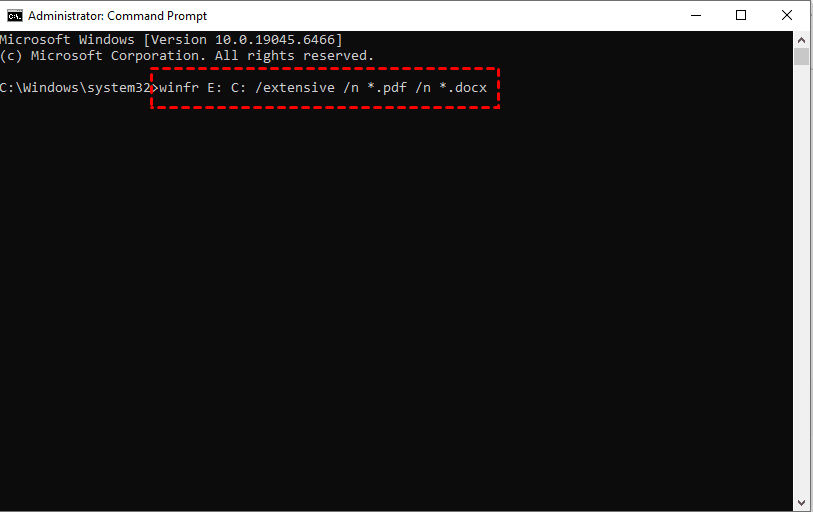
Replace the drive letters and extensions with yours. Source and destination must differ. Enter Y when prompted.
In addition, you can also type winfr.exe /? to learn more about Windows File Recovery.
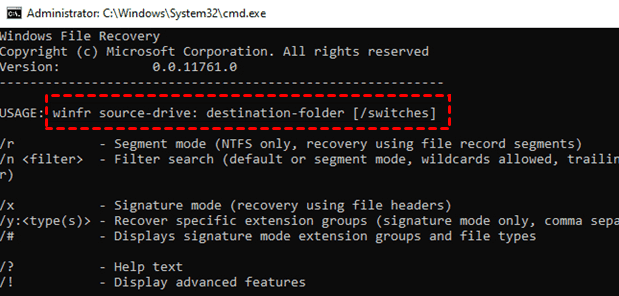
Filters help target wanted files; they do not guarantee a faster scan or resolve every stall. If this attempt behaves the same way, consider another recovery method.
Try an Easier Alternative to Recover Deleted Files - AOMEI FastRecovery
👍 Best for: Recovering deleted files from hard drive without command syntax; results depend on the remaining file data and drive condition.
AOMEI FastRecovery is easy-to-use Windows file recovery software that can find and recover deleted documents, photos, videos, audios, and more., in Windows 11, 10, 8, 7, etc., and Windwos Server.
 AOMEI FastRecovery
- 🎯 Target Your Drive: Scan the drive where your deleted files were stored, with a user-friendly interface and easy to follow guidance.
- 🔍 Targeted Scanning: Start with Quick Scan to find deleted files, then run Deep Scan if needed.
- 🗂️ Flexible Browsing: Combine search, filter, sort, and thumbnail preview with Type or Path browsing to narrow down results.
- 💰 Free Tier: Recover up to 500MB for free - works on Windows 11, 10, 8, 7, and Windows Server.
 100% Secure
Step 1. Download and install AOMEI FastRecovery on a different drive other than the one containing your deleted files. Open it and select Deleted Files Recovery.

Step 2. Select the affected drive, and click Scan. This scenario starts with Quick Scan.
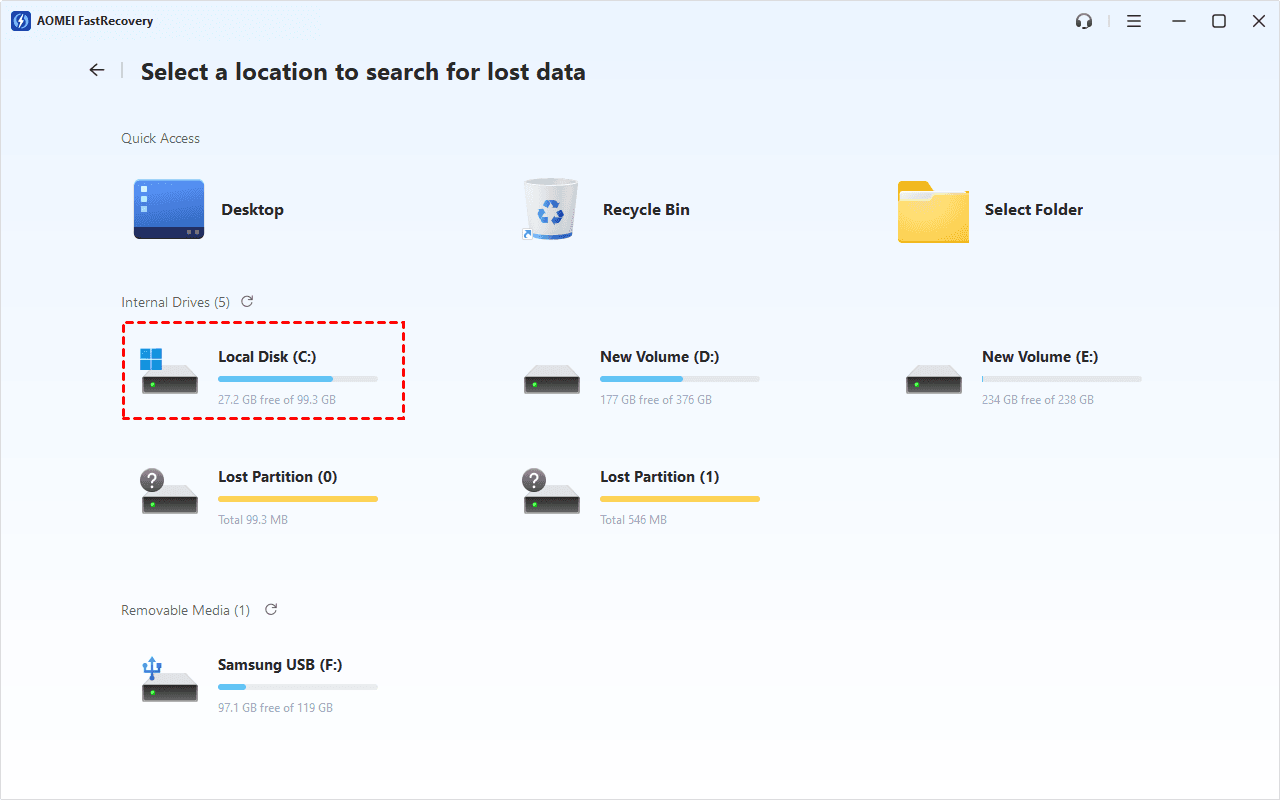
Step 3. Review the results by Type or Path. Search for a filename, filter by file type and size, and sort the results.
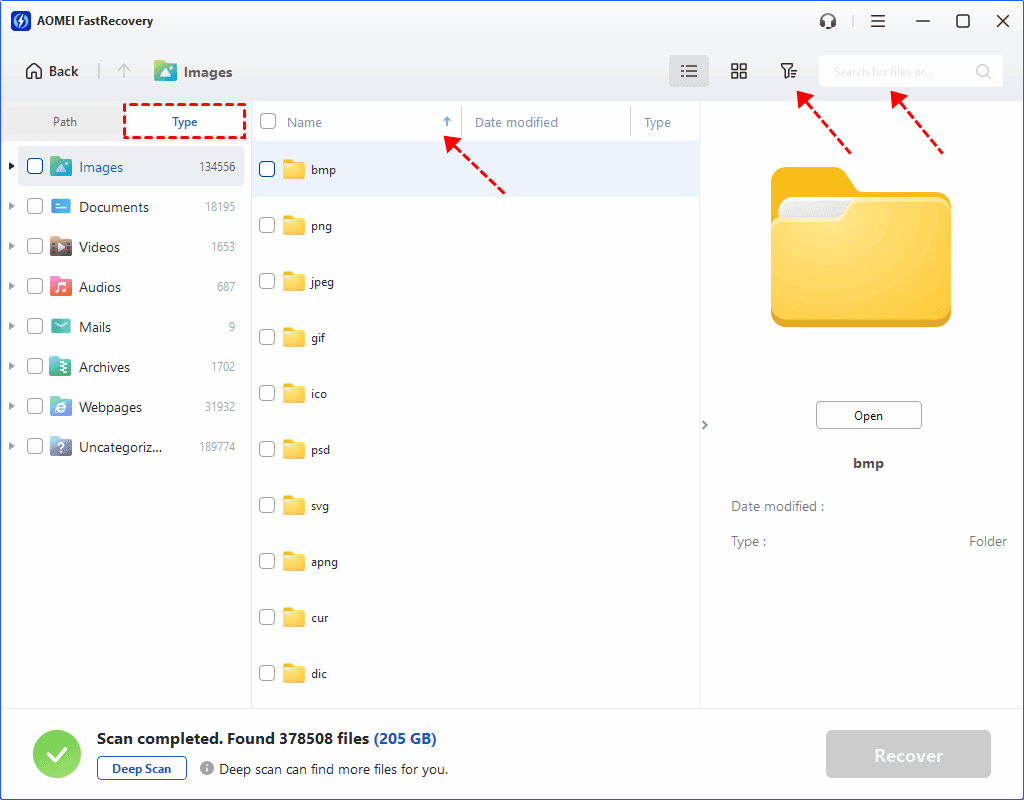
Step 4. If you still can't find the required files, click Deep Scan for a more thorough search. Wait and review the scanned results.
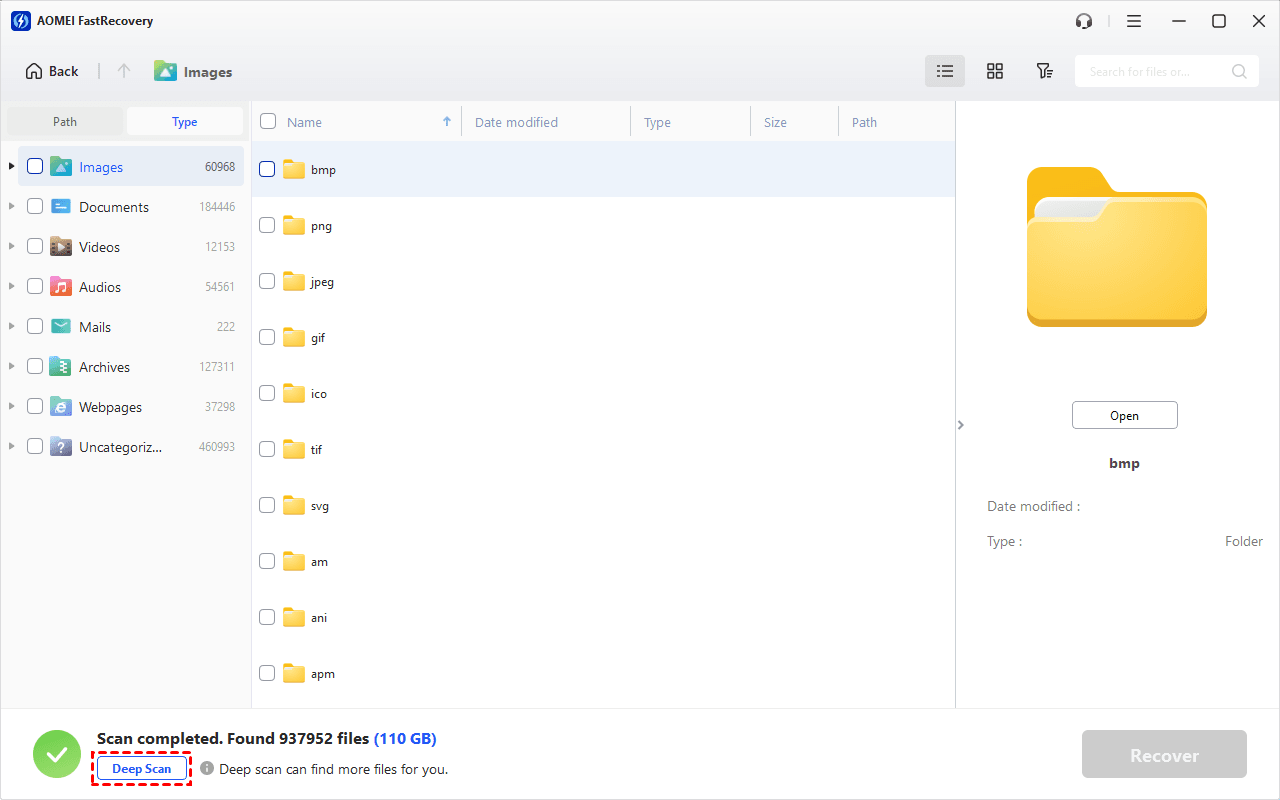
Step 5. Select the files you want to recover and click Recover. Save the recovered dat to a different drive, not another folder on the same drive.
- The free edition can recover up to 500MB. Recovering more requires an upgraded edition.
- This workflow also applies to deleted files too large for Recycle Bin, JPEG image recovery, and more.
FAQs
1. How long should I wait at 99%?
There is no universal cutoff. Drive size, scan mode, and device condition affect duration. Compare messages and activity across repeated checks rather than treating a fixed number of hours as proof that the scan has failed.
2. Will canceling let me resume at 99% later?
Do not assume a new command resumes the canceled scan. Plan for a fresh attempt, and keep any files already written to the destination. Before restarting, identify what you will change.
3. Should I run CHKDSK first?
Not as a routine first step for missing files. Repair switches modify the volume. Prioritize preserving or recovering important files before considering file-system repair.
4. Why won’t some recovered files open?
A recovered filename does not establish that all its contents survived. Overwriting, missing portions, or existing corruption can leave unusable files. Test recovered copies before deleting backups or deciding recovery is complete.
In the End
Windows File Recovery stuck at 99% needs a status check before another restart. Address a visible prompt or destination problem first. If a suitable retry still stalls, use a graphical recovery workflow on a stable drive, then check the recovered files before returning to normal use.

 as a preferred
source on Google
as a preferred
source on Google