




5 Methods to Enable Windows 11 Auto Login
This article will show you how to enable Windows 11 auto login with 5 simple and effective methods, from Account settings to Registry, Group Policy settings, etc.

By Ivy Updated on May 6, 2026


Enabling auto login in Windows 11 allows your computer to sign in automatically without requiring a password each time you start or wake the device. This feature is useful for personal or home computers where convenience is more important than strict security, helping you save time and access your desktop instantly.
In this guide, we will show 5 methods to enable Windows 11 auto login, from Account settings to Registry, Group Policy settings, etc., so you can enjoy this streamlined experience.
Way 1. Change User Account Settings to Enable Auto Login
Adjusting the account Sign-in settings helps enable auto login in Windows 11, which removes the need to entre your password when signing in.
Step 1. Open Settings from the Start menu. Navigate to Accounts and click on Sign-in options.
Step 2. Scroll down to the Require sign-in section, select Never.
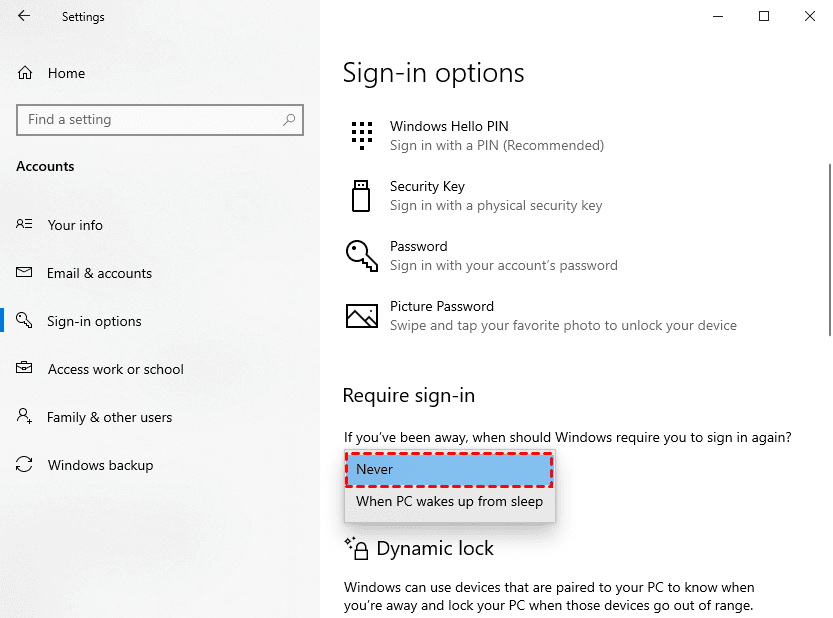
This method largely reduces sign-in prompts after inactivity. For full auto login, additional settings, such as using netplwiz, may be required.
Way 2: Enable Full Windows 11 Auto Login using Netplwiz
The netplwiz command offers users a user-friendly interface and allows your PC to sign in with your account each time it starts automatically, especially useful when fast access is more important.
Step 1. Press Win+R to open the Run window. Then, type netplwiz and hit Enter.
Step 2. Uncheck Users must enter a username and password to use this computer. Click Apply.

Step 3. You'll be asked to enter your credentials. Type the username and password and click OK.
Way 3: Turn on Passwordless Settings for Auto Login
In Windows 11, auto login may be blocked if the system enforces passwordless sign-in mode, as it prioritizes Windows Hello security. But the Registry Editor enables you to edit a specific registry value to make auto login work again.
This method is commonly used when the “Users must enter a username and password” option in netplwiz is missing or greyed out.
Step 1. Press Win+R to open the Run window. Then, type gpedit.MSc and press Enter.
Step 2. Navigate to: Computer\HKEY_LOCAL_MACHINE\SOFTWARE\Microsoft\Windows NT\CurrentVersion\PasswordLess\Device.
Step 3. In the right panel, double-click DevicePasswordLessBuildVersion and change its value from 2 to 0.
Step 4. Restart your computer to apply the changes.
Way 4: Enable Full Auto Login in Windows 11 using Registry Editor
The Registry Editor allows you to directly modify system values and force Windows 11 auto sign-in without prompts, even in cases where other options are unavailable. This gives you more control, but be cautious when making changes, as incorrect changes to the registry may affect system stability.
Step 1. Press Win+R to open the Run window. Then, type regedit and press Enter.
Step 2. Navigate to: HKEY_LOCAL_MACHINE\SOFTWARE\Microsoft\Windows NT\CurrentVersion\Winlogon
Step 3. Modify DefaultUserName and DefaultPassword to your username and password. Meanwhile, set the AutoAdminLogon value to 1.
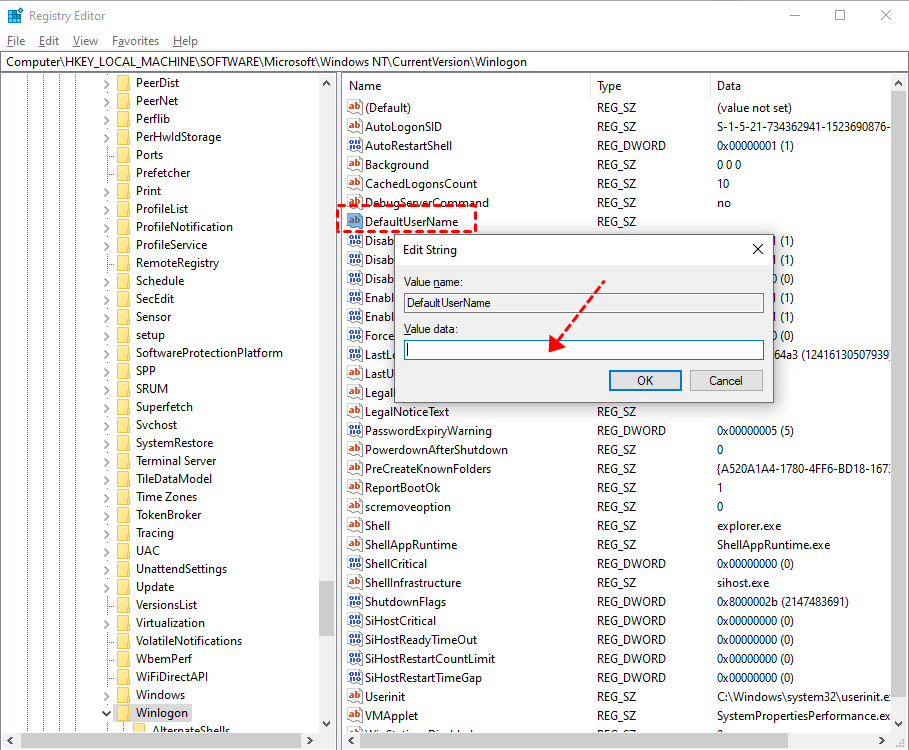
- If a key does not exist, create a new one. Click Edit > New > String Value and enter the name of the missing key.
- Be sure the DefaultPassword value is specified. Otherwise, Windows will automatically change the value of the AutoAdminLogon to 0, disabling it.
Step 4. Restart your computer to apply the changes.
Way 5: Turn on Windows 11 Auto Login using Group Policy Editor
Exclusive to Windows 11 Pro and higher editions, the Group Policy Editor adds an extra layer of control, allowing you to adjust security policies related to login.
Step 1. Press Win+R to open the Run window. Then, type gpedit.msc and press Enter.
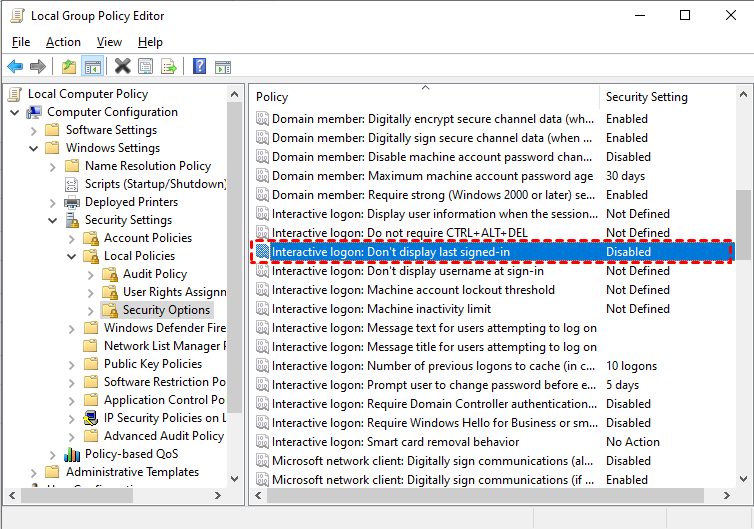
Step 2. Navigate to: Computer Configuration > Windows Settings > Security Settings > Local Policies > Security Options
Step 3. In the right panel, double-click "Interactive Logon: Do not display last user name" and set its status to Disabled. Click Apply > OK. For Windows 10 version 1703 and later, the policy is: Interactive logon: Don't display last signed-in.
Bonus: How to Recover Deleted Files in Windows 11
Accidentally delete important files in Windows 11? It's a very common issue. Do not worry, try professional file recovery software - AOMEI FastRecovery, which can retrieve data from hard drives, SSDs, USB drives, memory cards, etc., effectively in simple steps.
AOMEI FastRecovery- It has a free edition that recovers up to 500MB.
- The intuitive user interface allows easy navigation and data recovery in just a few clicks.
- Integrate Quick & Deep Scan technologies to find all recoverable data thoroughly.
- Simplified layout for easier navigation - Organize data by type and path, along with options to sort, search, filter, and preview files.
- Selectively recover files and folders instead of all.
- Recover deleted or lost photos, videos, audio files, documents, emails, compressed files, etc., up to 1000+ formats.
 100% Secure
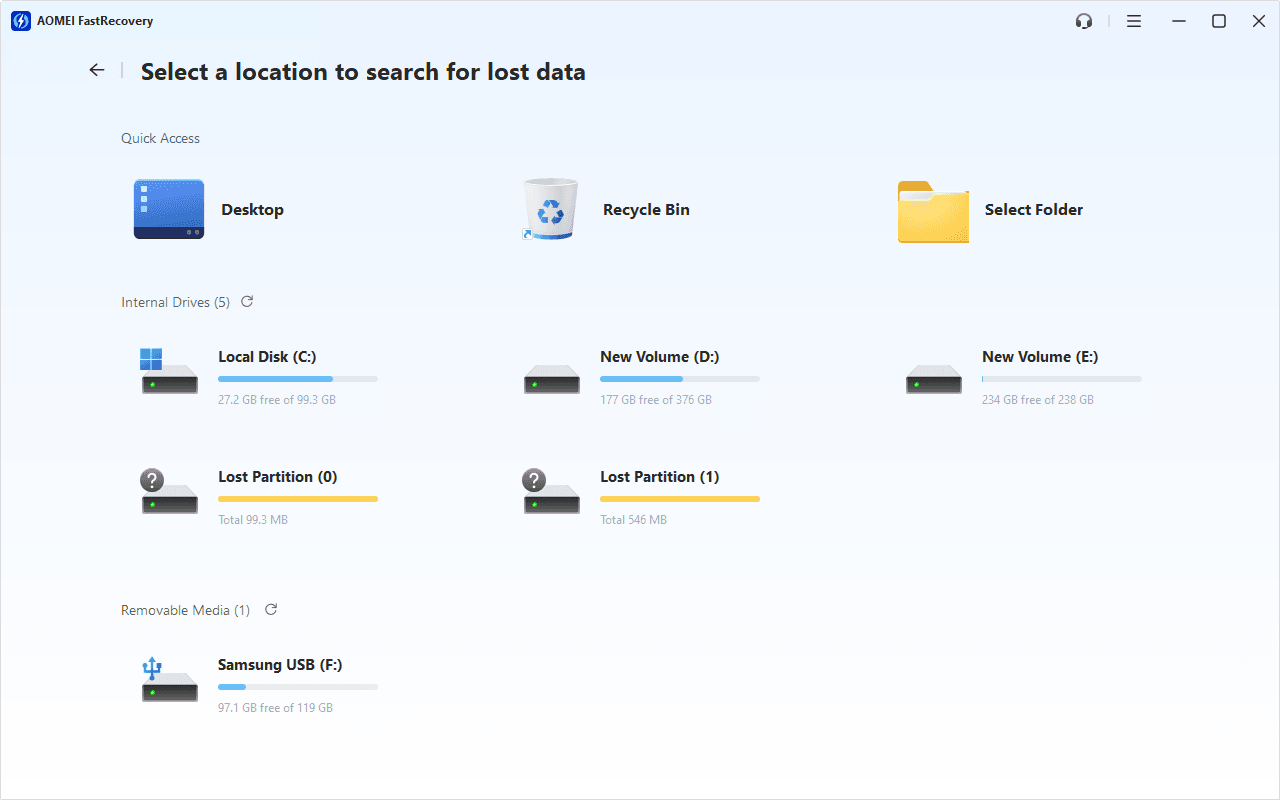
Step 1. Open FastRecovery after installing. Then, click Deleted Files Recovery to get started.

Step 2. You'll see a list of devices. Hover the mouse over the drive containing deleted files, and click Scan to start the quick scanning process and display all recoverable data.
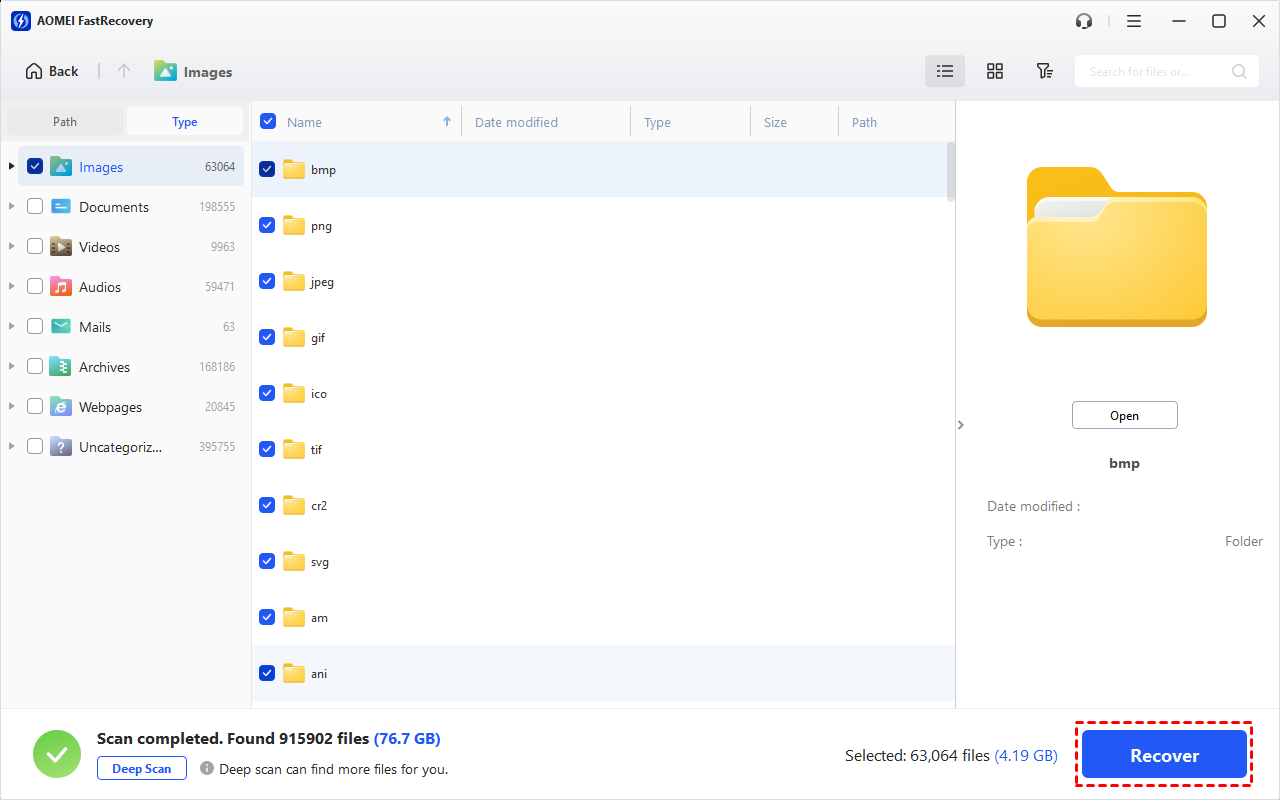
Step 3. Under the Type section, specify a data type (e.g., Images) and expand it to see all data formats. You can sort them or search the name for quick recovery.
-
You can also locate deleted files by Path if you remember this.
-
Click the Deep Scan button if the Quick Scan fails. Deep Scan searches every sector of the disk to find more files.
Step 4. Select the deleted files you want and then click Recover. Please select a new location to save them instead of the original location, preventing data overwriting.
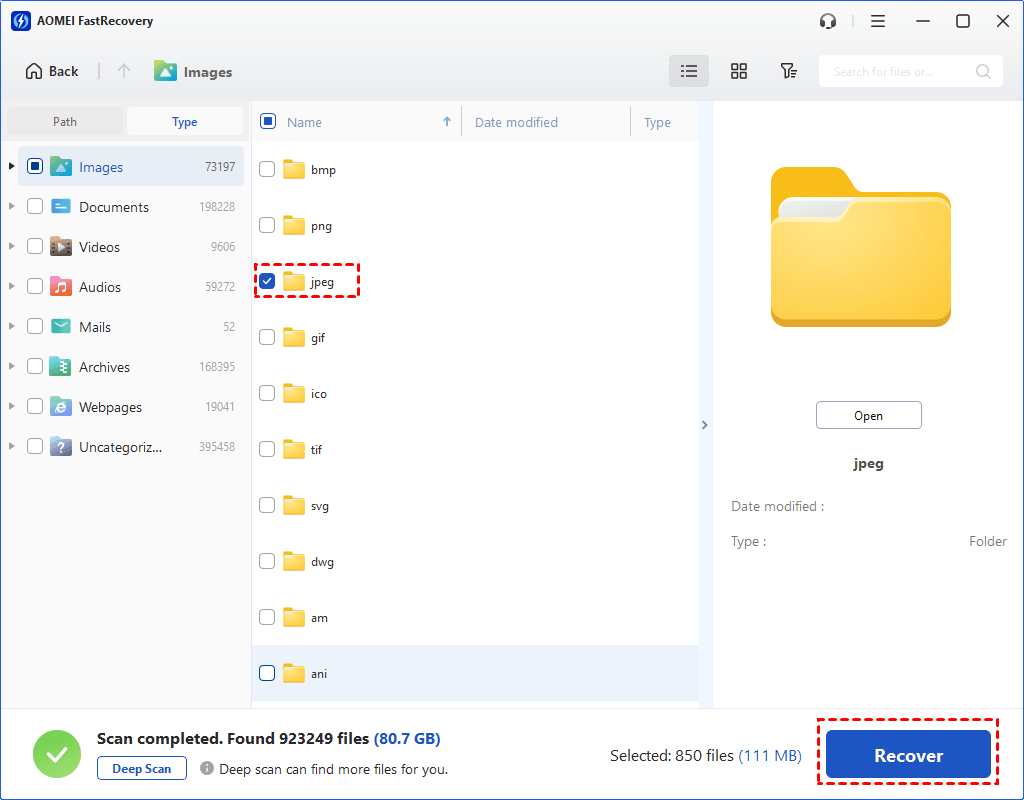
You may be asked to upgrade to the advanced edition of AOMEI FastRecovery to enjoy unlimited data recovery. The free edition supports up to 500MB.
Conclusion
In conclusion, Windows 11 auto login transforms your interaction with the system, making it more personalized and efficient. Choose a method that suits your preferences and requirements. And, for those accidental file deletions, FastRecovery stands ready to rescue your valuable data.
FAQs
1. Is auto login secure in Windows 11?
Absolutely! Auto login is secure, especially for personal devices or non-sensitive environments. For added security, consider implementing encryption and strong password practices.
2. Can I enable auto login on Windows 11 Home edition?
Certainly! Methods like user account settings and the netplwiz command are applicable and effective on Windows 11 Home edition.
3. Does FastRecovery support all file types for recovery?
Yes, AOMEI FastRecovery is versatile and supports the recovery of various file types, including documents, photos, videos, and more.

 as a preferred
source on Google
as a preferred
source on Google