




SD Card Won’t Format? 5 Quick Fixes [without Data Loss]
Unable to format SD card on Windows PC? Don't worry! Here are 6 practical solutions to help you fix SD card won't format issue, and you can also learn how to recover SD card data.

By Ivy Updated on April 29, 2026


A Secure Digital card is a small flash memory card designed for high-capacity memory and use in portable devices such as vehicle navigation systems, cellular phones, smartphones, digital cameras, music players, digital video camcorders, and personal computers.
In brief, SD cards are indispensable to our lives and careers. But careless treatment can cause errors or data loss. We'll discuss the SD card won't format error and how to fix it without losing data.
Help! Why can’t I format my SD card?
About one week ago, I tried moving files from the SD card onto the computer, but that was impossible. I thought there was something wrong with this SD card, so I attempted to format it via Disk Management and CWM. But I kept getting the same error: can’t format SD card.
I also placed the SD card in a USB card reader and an SD card reader to format it through the computer. It seems to me that this SD card is locked in a previous state and is write-protected. What’s worse, it won’t let me format it. So how do you fix an SD card that won’t format? Thanks.
- A user from XDA-developers
You may receive the format error in different situations, such as when you attempt to format an inaccessible SD card, or it's displayed as RAW in Disk Management.
Why can’t I format my SD card? In most cases, write protection, bad sectors, corrupted or damaged file systems, and virus attacks can prevent users from formatting an SD card in File Explorer.
[IMPORTANT] Is it necessary to recover data from SD card?
Usually, users only format an SD card if they can’t access it or if it’s damaged. What's more, formatting will erase all the existing data on your SD card. So it's necessary to recover data from SD card, preferably before formatting it.
However, Microsoft does not provide a way to recover data from SD card. You will need to rely on powerful data recovery software such as AOMEI FastRecovery.
 AOMEI FastRecovery
- 🧩Recoverable scope: Apply to permanent deletion, disk formatting, lost partition, system crashes, etc.
- 👍 Top algorithms: Integrate Quick & Deep Scan to find as many deleted or missing files as possible.
- 📚 High-efficiency: Recover deleted or lost photos, documents, compressed files, videos, audios,etc., up to 1000+ data formats.
- 👁🗨 Simplified layout: Organize data by Type or Path for easier navigation, along with options to sort, search, filter, and preview files.
- 💾Wide compatibility: Support different types of memory cards, including SD/SDHC/SDXC/SDUC, microSD, XQD, CFast, etc.
- ❌💰 Free data recovery, up to 500MB.
 100% Secure
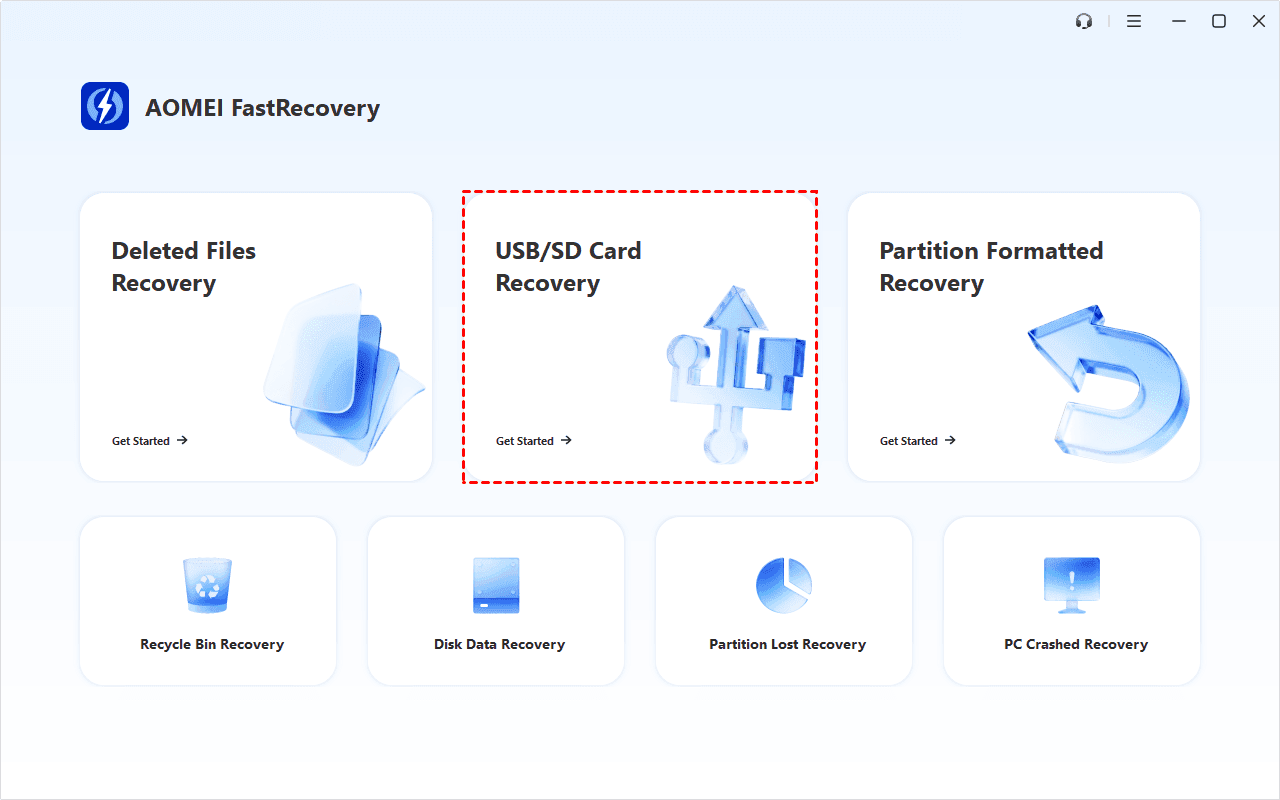
Step 1. Connect the SD card to your computer using USB or SD card reader. Open this trustworthy data recovery software - AOMEI FastRecovery. On the main interface, click USB/SD Card Recovery.
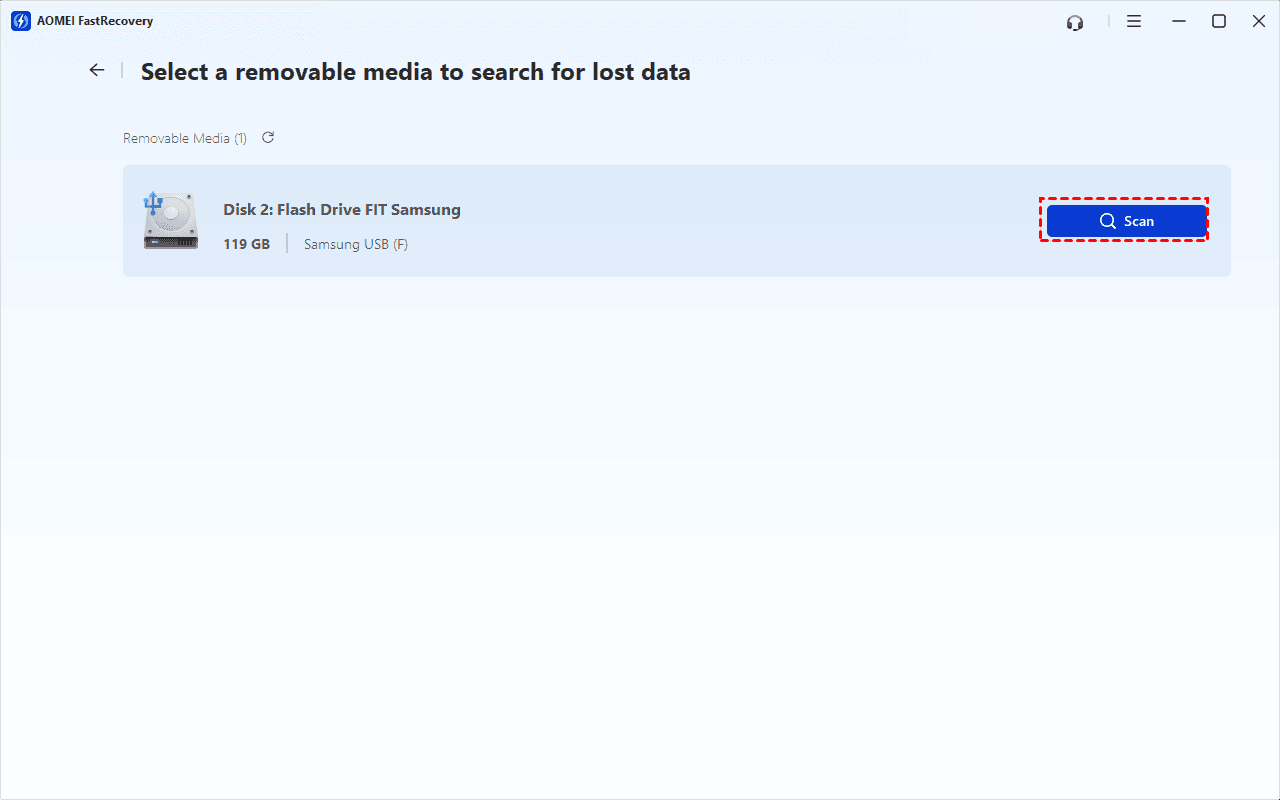
Step 2. Select the unformatted SD card and click Scan to search it deeply and display all recoverable data.
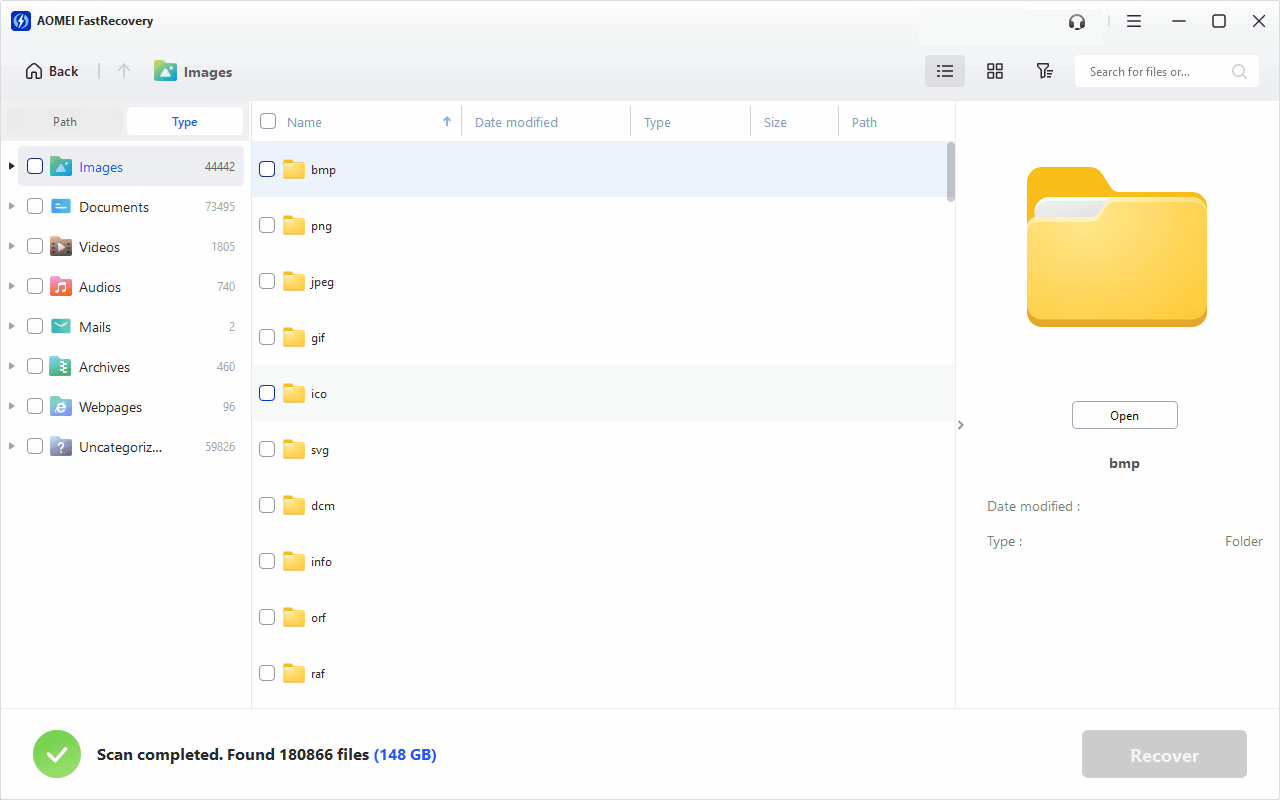
Step 3. Under the Type section, specify a data type and expand it to see all the data formats. You can sort them or search the name to locate files quickly.
Step 4. Select the files you want to recover and click Recover. Please select a new location to save the recovered files, as restoring to the original location may result in data overwriting.
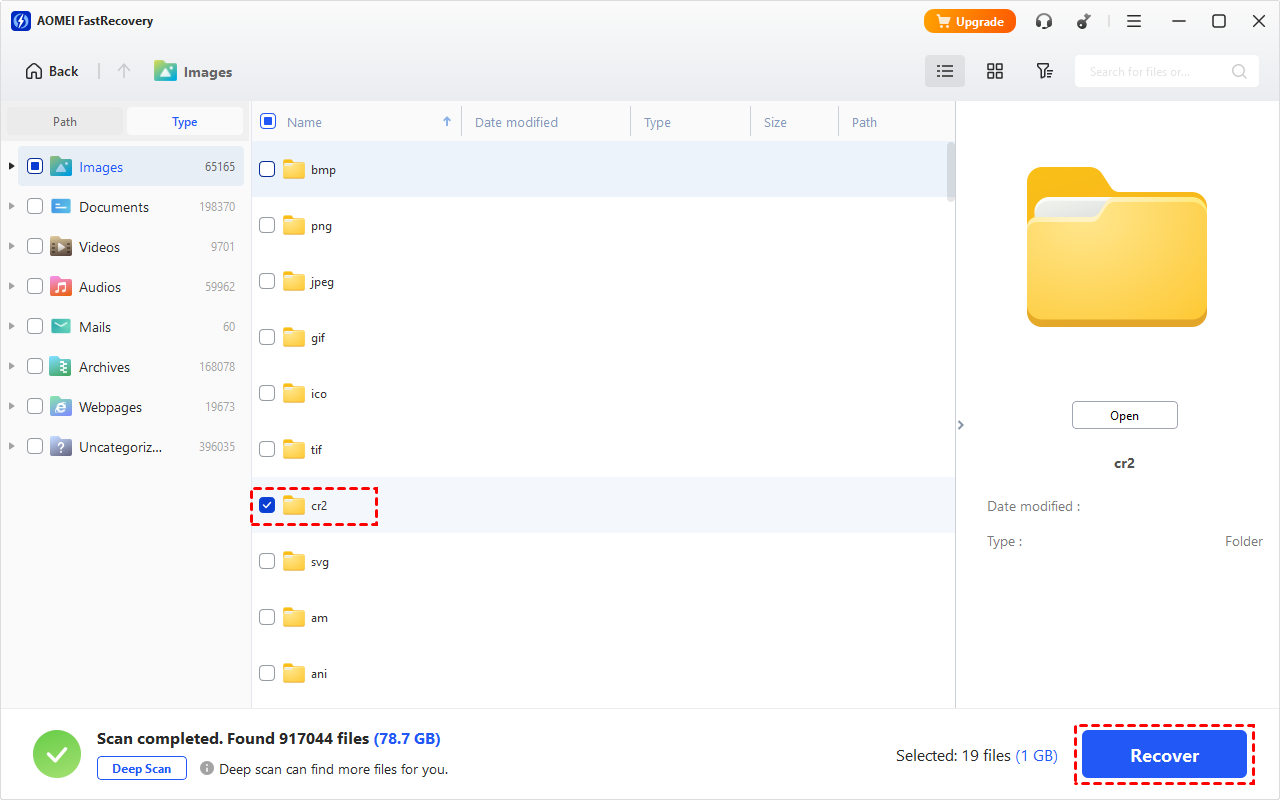
You can recover data from SD card for free, up to 500MB. To recover unlimited data, please upgrade to the advanced edition of AOMEI FastRecovery.
How to fix an SD card that won’t format (5 fixes)
My Micro SD card won’t format, so how do I fix an SD card that won’t format? According to the possible reasons, there are 5 feasible fixes for you to solve this issue.
Fix 1. Assign SD card a drive letter
Sometimes, we are unable to format SD card because the SD card is not accessible. To ensure your Windows OS can recognize and display your SD card, be sure your SD card has a drive letter.
Step 1. Connect the SD card to your computer using a USB or SD card reader. Then, press Win + X and select Disk Management to open this utility.
Step 2. Right-click on your SD card and choose the Change Drive Letter and Paths option.
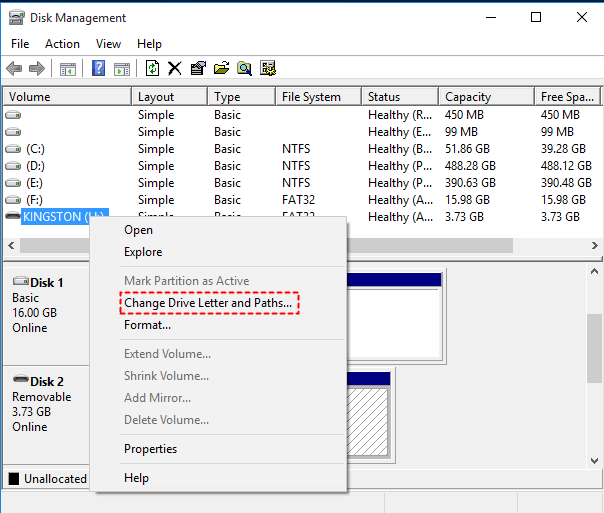
Step 3. If there’s no drive letter, click Add. Under the Assign the following drive letter option, select a new drive letter. Please ensure it is different from all the existing drive letters.
Fix 2. Frmat SD card from RAW to NTFS using DiskPart
If you’re unable to format SD card from RAW to NTFS in File Explorer, diskpart is a powerful tool to help you clean SD card and then format it. Note formatting will erase all data on the SD card. Be sure to backup them if you are any important data.
Step 1. After connecting your SD to the computer, press Win + R and type diskpart in the Run box. Then, hit Enter or click OK to open it.
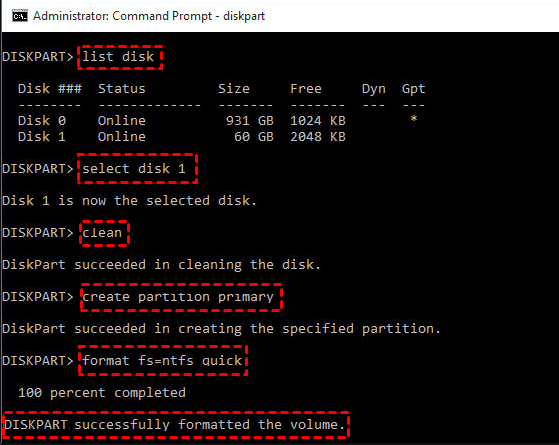
Step 2. Type the following command prompt in the window one by one and hit Enter after each line.
- list disk
- select x (x refers to the disk number of your SD card)
- clean (to wipe out all the data on your SD card)
- create partition primary
- format fs=ntfs quick (or format fs=fat32 quick)
Fix 3. Format SD card using Disk Management
If you can’t format SD cards with diskpart, you can seek help from another handy utility, Disk Management, because this system tool is good at executing advanced storage tasks.
Step 1. Connect your SD card to Windows. Then press Win + X and select Disk Management to open this utility.
Step 2. Right-click on your SD card and click the Format button.
Step 3. Select the NTFS file system and click OK to save your changes.

Fix 4. Remove write protection from SD card won’t format
As mentioned above, write protection is among the possible factors for unformatted SD cards, which indicates that your SD card is set to read-only mode. To write new data or modify your SD card, you need to unlock the SD card and remove write protection.
Step 1. Insert your SD into Windows. Then, type cmd in the search box and select Run as administrator.
Step 2. Type diskpart and press Enter to open this tool.
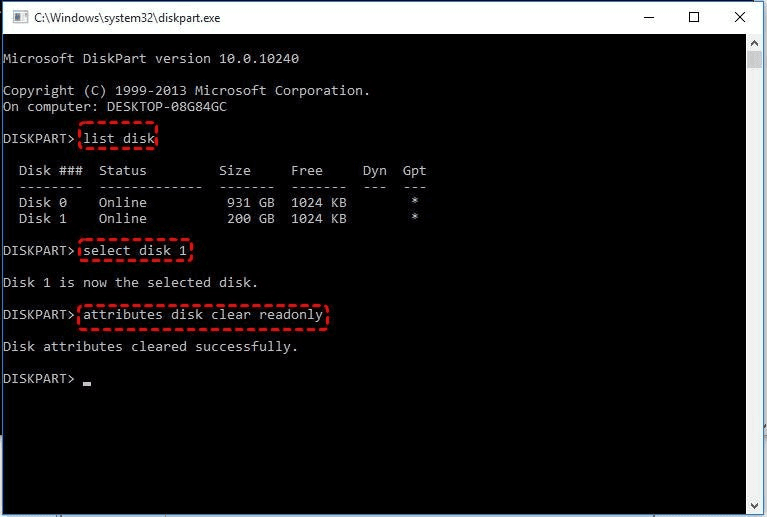
Step 2. Type the following commands in turn. Remember to hit Enter after each line.
- list disk
- select disk x (x refers to the disk number of your SD card.)
- attributes disk clear readonly
Fix 5. Check and repair bad sectors
Bad sectors on your storage device can be hidden yet significantly hinder your ability to access files and use your SD card effectively. You can try the chkdsk command to find and repair bad sectors, causing the "unable to format" error.
Step 1. Type cmd in the search box, select Run as administrator.
Step 2. Type chkdsk X: /f /r. Replace X: with the drive letter of your SD card.
How to protect my SD card data
Undeniably, data loss is inevitable in our lives and careers, but data loss can bring us great inconvenience. So, how do I secure my SD card data? Follow some useful suggestions:
- Clean your SD card slots at times.
- Be away from high temperatures or humid environments, such as sunlight and water.
- After seeing Safely Remove Hardware and Eject Media, you’re ready to eject SD cards.
- Please don’t eject or remove your SD card as it reads, writes, or transfers data.
- Run Windows Defender and other latest anti-virus software to protect your PC.
- Please think twice before deletion.
- Don’t empty your Recycle Bin frequently.
- Only regular backups can prevent data loss at the source. For easier operation, try free file backup software - AOMEI Backupper Standard.
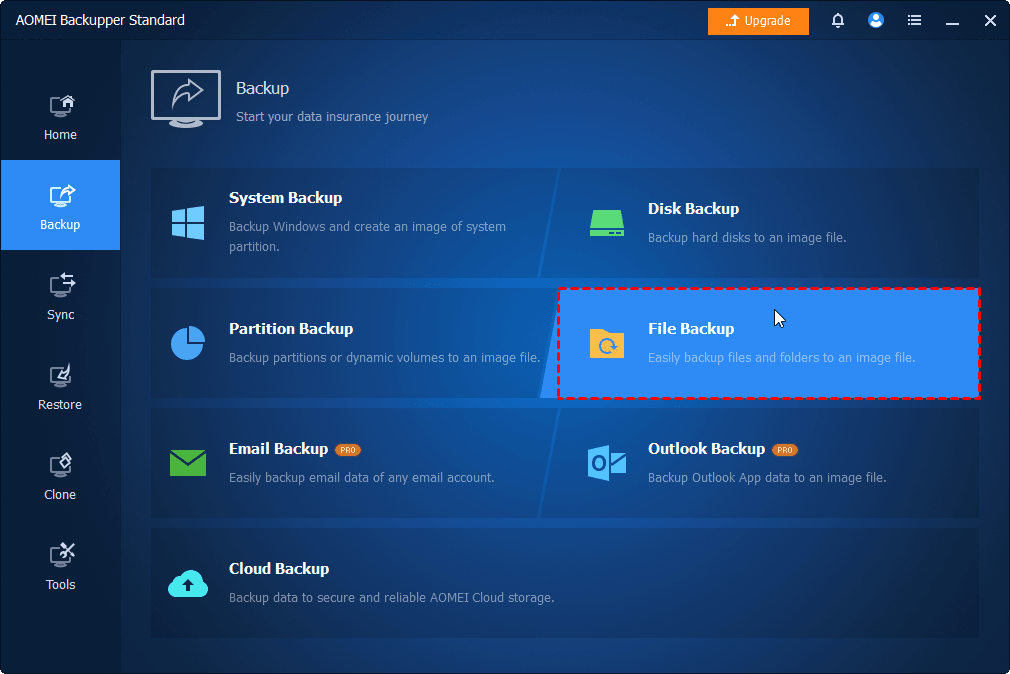
Step 1. Launch AOMEI Backupper after installing. Then, under the Backup tab, click File Backup.
Step 2. Click Select Source > Add Folder/Add File to add the folder or files you want to backup. Then, click the PC icon to select a destination.
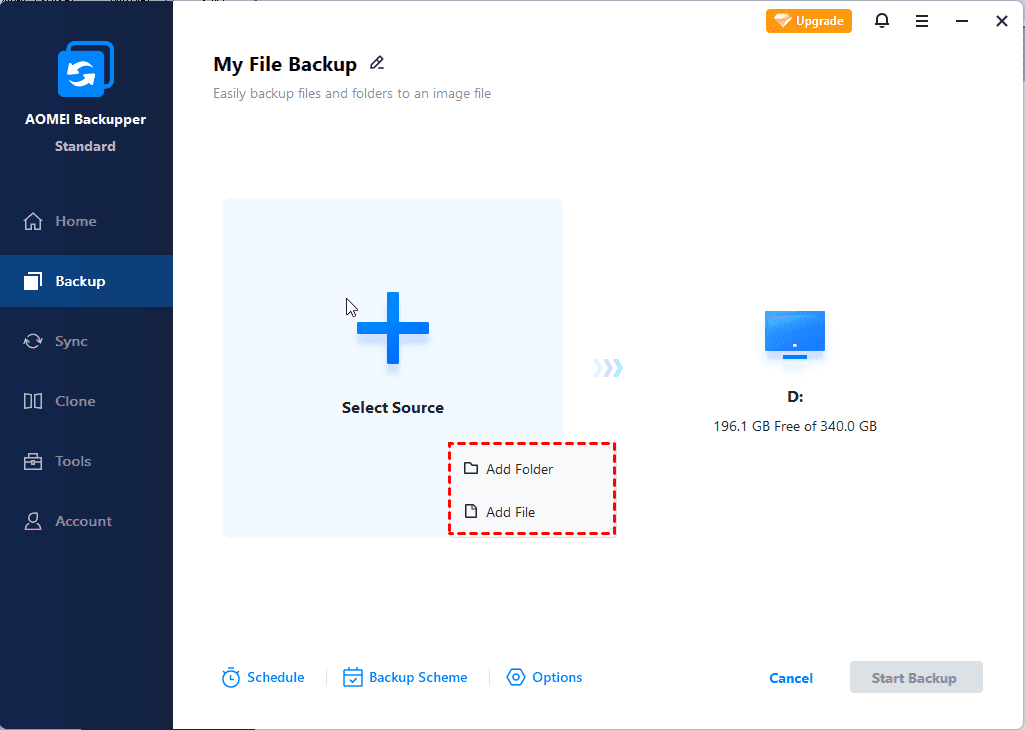
Step 3. Click Schedule to enable Daily, Weekly, Monthly (By Date), Event triggers, etc., for continuous data protection. Then, click Start Backup.

Conclusion
With 5 simple and effective methods, you can easily fix SD card wont format error. In addition, it's necessary to recover data from SD card, preferably before formatting it, as this process will delete all data on the SD card.
AOMEI FastRecovery is one of the most powerful SD card data recovery software that enables you to recover data from unformatted SD card in 4 simple steps. It comes along with some useful features, such as filter, preview, selective recovery, etc., making the process straightforward.

 as a preferred
source on Google
as a preferred
source on Google