




How to Recover a Formatted XQD Card: 2 Simple Methods
Accidentally formatted your XQD card? Don't panic, your photos are still there. This guide shows you how to recover a formatted XQD card using 2 methods - command-line or one-click software. Keep reading.

By Ivy Updated on July 13, 2026


You've just finished a shoot with your Nikon Z6 or Sony camera. You go to transfer the photos and realize you've accidentally formatted your XQD card. Those 50+ images you haven't backed up yet? Gone.
Sound familiar? You're not alone. This question pops up constantly on photography forums. The good news: formatting an XQD card doesn't actually erase your photos. They're still there - just hidden. This guide shows you exactly how to get them back.
Can You Recover a Formatted XQD Card?
The short answer is yes, but it depends on how quickly you act. When you format an XQD card, your camera or computer doesn't actually delete your photos.
It simply removes the "index" that tells the device where the files are stored. The photos themselves remain on the card until they're overwritten by new data. That's why recovering a formatted XQD card is possible as long as you stop using the card immediately.
Recover a Formatted XQD Card with Winfr.exe (Command Line)
Preparation: Check Your XQD Card's File System
Before using Windows File Recovery, you need to know your card's file system:
Step 1. Connect your XQD card to your computer using a compatible card reader.
Step 2. Open This PC, right‑click your XQD card and select Properties. Then, look for the File System entry, it will show NTFS, FAT32, or exFAT.
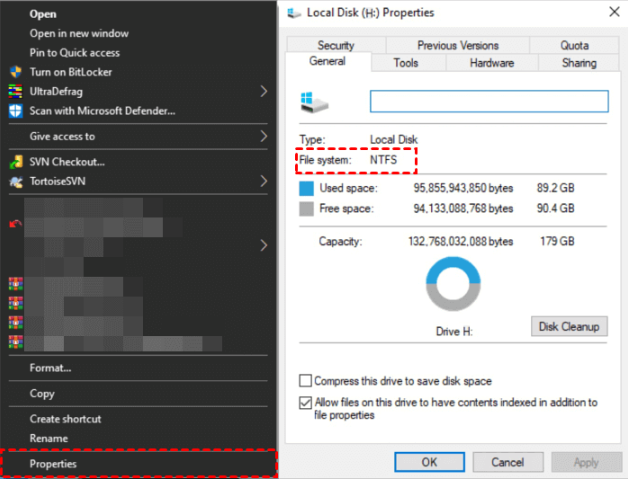
Recover Formatted XQD Card with Windows File Recovery
Step 1. Open the Microsoft Store, search for Windows File Recovery, and install it. Open the program as Administrator (right‑click > Run as administrator).
Step 2. Choose the right recovery mode based on your file system.
| File System | Situation | Recommended Mode |
|---|---|---|
| NTFS | Formatted recently | Default |
| NTFS | Formatted a while ago | Segment |
| NTFS | After formatting | Segment → Signature |
| FAT/exFAT | Any | Extensive |
Step 3. Choose the right switches to control what files to recover.
| Switch | Purpose | Example |
|---|---|---|
/n |
Recover specific files by name, path, or type | /n *.jpg (all JPEGs) |
/segment |
Segment mode (NTFS drives using file record segments) | /segment |
/signature |
Signature mode (all file systems using file headers) | /signature |
/u |
Recover undeleted files (e.g., from Recycle Bin) | /u |
Step 4. Enter the command. For example, to recover photos from XQD drive D: to drive E:, type:
winfr D: E: /extensive /n *.jpg /n *.png
Type Y and press Enter to confirm.
The Easier Way: Recover a Formatted XQD Card with AOMEI FastRecovery
If you prefer a simpler, more visual approach, AOMEI FastRecovery is an excellent alternative. It's designed for users who want to recover formatted XQD cards without dealing with command lines.
 AOMEI FastRecovery
- 🔎 Dual-Scan Mode: Quick Scan for recently deleted files, for formatted drives and complex data loss, giving you the best chance of recovery
- 📁 1000+ Data Types: Recover photos in RAW formats (NEF, CR2, ARW), JPG/JPEG, PNG, GIF, along with documents, videos, audio, and more.
- 🛡️ Wide Range of Scenarios: Recover files from accidental deletion, disk formatting, system crashes, unbootable drives, and more.
- 🚀 Find Your Files Fast: Browse by type or path, preview files, and recover only what you need. No more digging through endless lists.
- ✅ Safe & Easy to Use: Read-only, no data overwriting. simple, intuitve interface.
- 🎁 Try It with No Risk: Free edition recovers up to 500MB - no commitment, no quality compromise.
 100% Secure
How to recover formatted XQD card with AOMEI FastRecovery:
Step 1. Download and install AOMEI FastRecovery on your Windows PC. Connect your XQD card via a compatible card reader. Then, click Deleted Files Recovery for fast recovery.

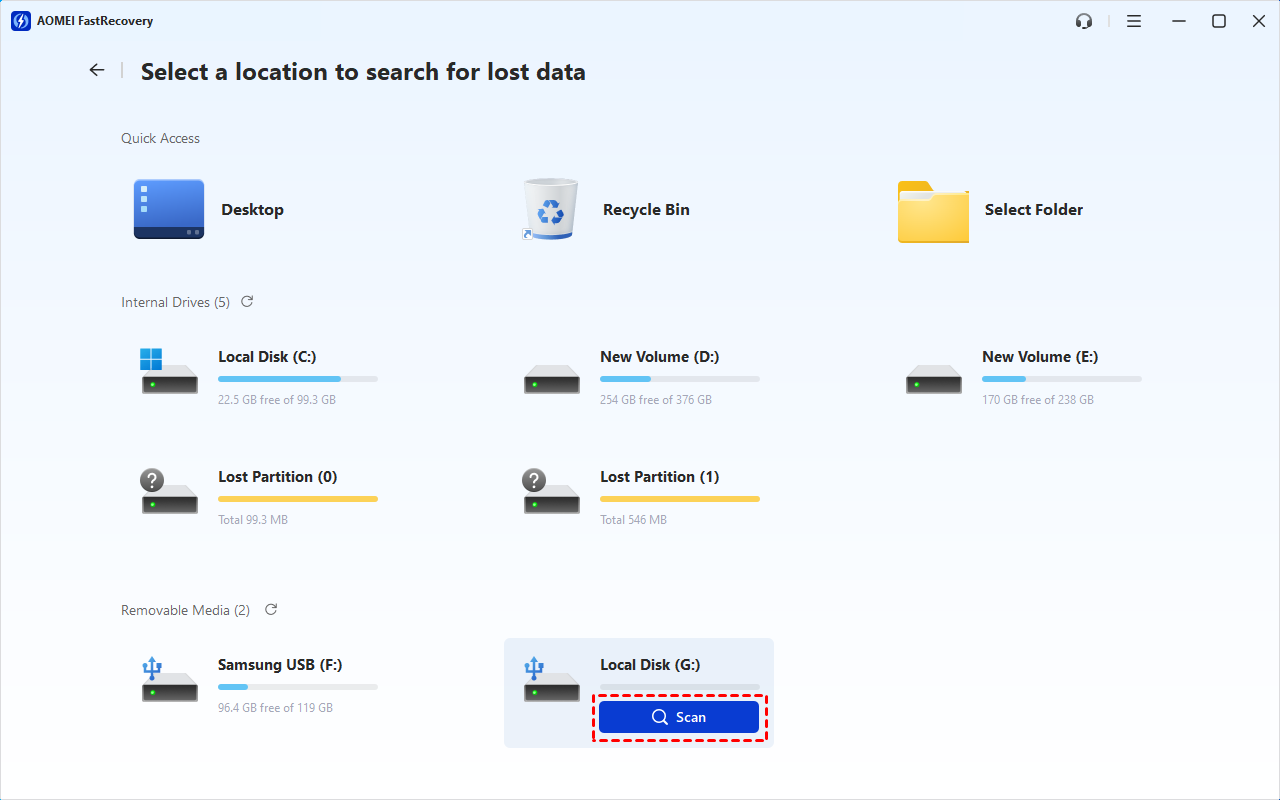
Step 2. Hover your mouse over the XQD card drive and click Scan. The software will automatically run Quick Scan to find all recoverable data.
Step 3. Once the scan finishes, you'll see all recoverable data below. Under the Type section, check all the data types and formats and click Recover to get the data back completely.
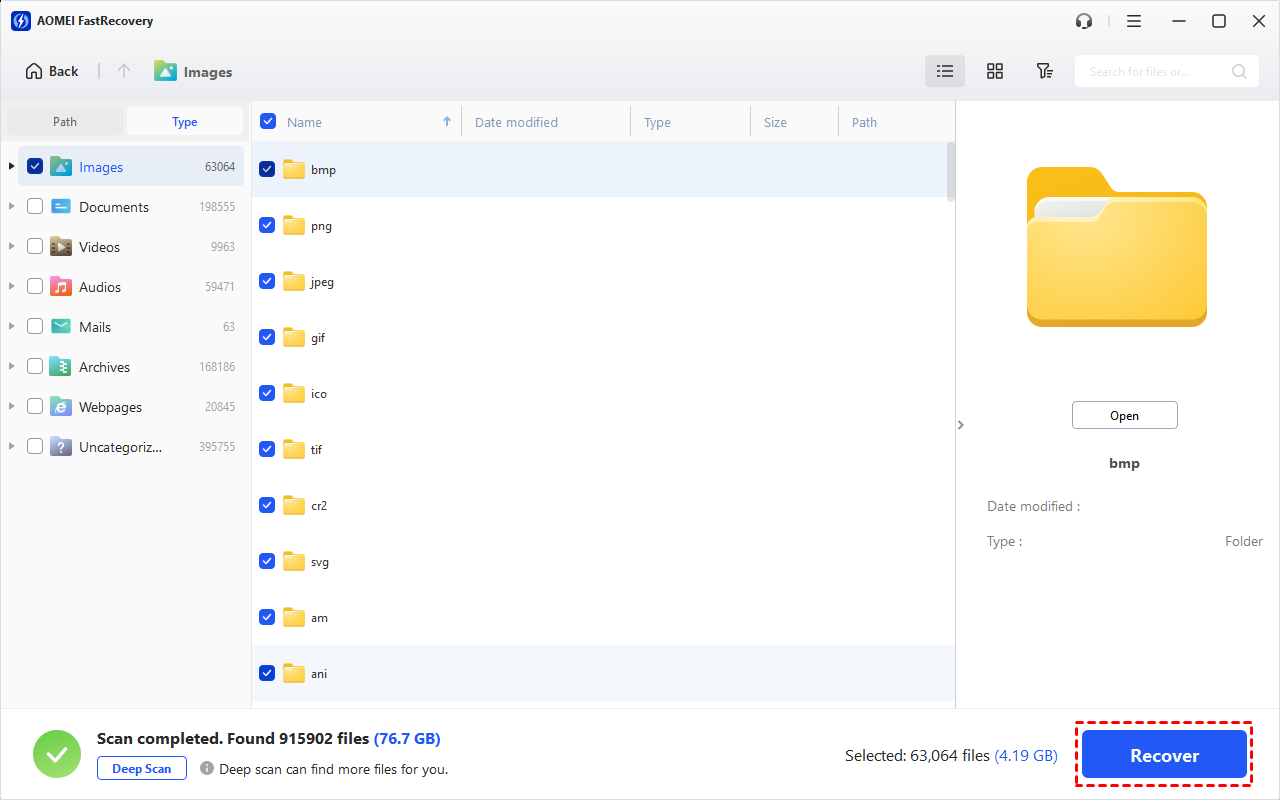
For a more detailed view, expand a specific format (e.g., Word) > Deleted Files, Recycle Bin, or Existing Files to browse all recovered files.
Or expand the Deleted Files, Recycle Bin, or Existing Files directories to find individual files. To find files faster, combine the following options:
- Sort files by name, date modified, type, etc., using the column headers.
-
For faster searching, type the file name or extension (.docx) in the search box.
- Or click the funnel-shaped button to narrow your search by type or size, especially useful for large deleted files.
You can also double‑click files to preview them before recovering. Always choose a new location for your recovered files, which significantly avoids data overwriting.
FAQs About Formatted XQD Card Recovery
1. Can I recover photos from a formatted XQD card for free?
Yes, Windows File Recovery is completely free, and AOMEI FastRecovery offers a free tier that allows you to recover up to 500MB of data.
2. How long does XQD card recovery take?
It depends on the card size and the recovery method. Software-based recovery typically takes 10-30 minutes.
3. What if my computer doesn't recognize the XQD card?
Try using a different card reader or USB port. If the card is still not detected, the card may be physically damaged, in which case, professional data recovery services may be your best option.
4. Will formatting my XQD card again help?
No. Formatting again will only increase the risk of overwriting your lost photos. Stop using the card immediately and start recovery.
Final Words
Accidentally formatting an XQD card is frustrating, but it's rarely a permanent loss. The key is to act quickly: stop using the card, choose the right recovery method, and start the process as soon as possible.
If you're comfortable with command lines, Windows File Recovery is a free option worth trying. If you prefer a simpler, more visual approach, AOMEI FastRecovery gets the job done in just a few clicks.
To protect your future shoots: always back up your photos immediately after a shoot, and carry spare XQD cards so you never have to format one in the field.
Your photos are worth saving. Start recovery now.

 as a preferred
source on Google
as a preferred
source on Google