




How to Recover Files After Clean Install Windows 10 or 11
To recover files after clean install, first check what survived. This guide explains when Windows.old, an existing File History backup, or a formatted-partition scan can help retrieve your personal files in Windows 10/11.

By Ivy Updated on October 29, 2026


Windows is running again, but your old Desktop, Documents, and Pictures folders are empty. You may have forgotten to copy a folder before reinstalling, or the installation removed more files than you expected.
You may still recover files after clean install, but the next step depends on what remains. A surviving Windows.old folder or an existing backup provides a direct source. AOMEI FastRecovery can scan a formatted Windows partition for recoverable files, provided some old data remains readable.
Match Your Recovery Method to What Remains
A clean install, an upgrade, and a reset can leave different results. Start with what you can actually find rather than assuming Windows preserved your files.
| 🔍 What you find | 🛠️ Suitable method | 🔑 Key requirements |
|---|---|---|
| Windows.old contains your old user folders | Method 1: Copy from Windows.old | The files still exist inside it |
| A File History backup predates the reinstall | Method 2: Restore from File History | The backup includes the missing files |
| The original Windows partition was formatted | Method 3: Scan with AOMEI FastRecovery | Some old file data remains readable |
You can go directly to the matching method. An unsuccessful backup attempt is not a requirement for software scan.
Before scanning, check other drives for your original folders. If you previously synced files to OneDrive, check that account from another device. Files stored elsewhere may remain available despite the reinstall.
Method 1: Copy Personal Files from Windows.old
👍 Best for: Personal files still stored in the previous Windows installation’s user folders.
The Windows.old folder holds files from your previous Windows installation and keeps them for up to 10 days. If you're missing any files, check this folder to see if you can restore them.
Step 1. Sign in with an administrator account. Open File Explorer, navigate to the Windows.old folder, usually on C:\Windows.old. Then, open it and select Users.
Step 2. You'll see a list of available user folders. Open the one containing misisng files and check Desktop, Documents, Downloads, Pictures, and other folders you used. If Windows asks for administrator permission to access it, select Continue.
Step 3. Select the missing files, choose Copy, and paste them onto a separate external drive. Make sure it's a different drive from the original Windows drive to keep your remaining recovery chances.
Open several important files after copying. If Windows.old is absent or incomplete, choose another method below.
Method 2: Restore Files from an Existing File History Backup
👍 Best for: Missing files included in a File History backup made before reinstalling Windows.
File History stores previous copies of your user folders and can remain useful after a clean install, even when the originals are gone forever. Just remember it only backs up what you tell it to. If a folder was excluded, turning File History on won't magically make it appear.
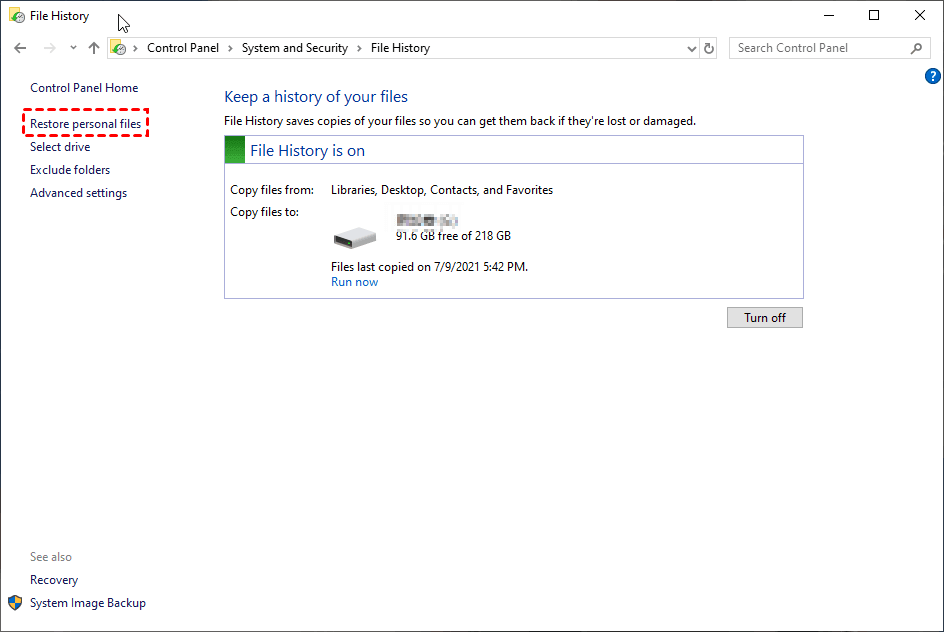
Step 1. Connect the drive containing the File History backup. Go to Control Panel > System and Security > File History and choose Restore personal files.
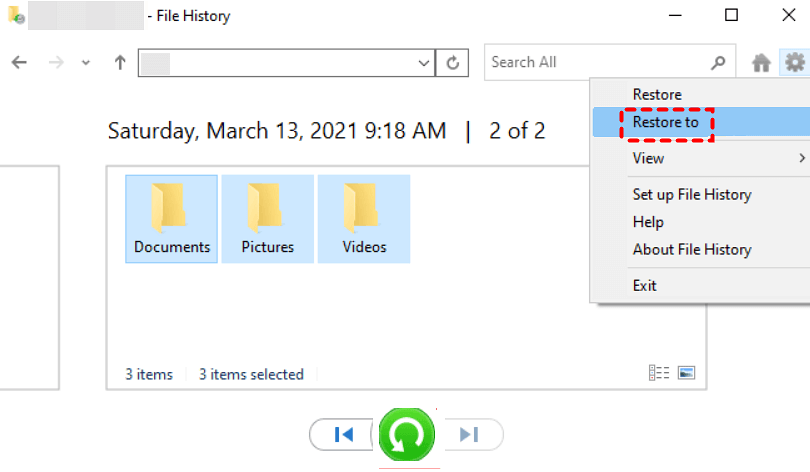
Step 2. Click the left or right arrows to find a version from before the clean install.
Step 3. Select the missing files or folders, right-click the green Restore button and choose Restore to. Select a folder on another drive rather than the original Windows drive to avoid data overwritting.
Method 3: Recover Files from Formatted Windows Partition with AOMEI FastRecovery
👍 Best for: Files lost when the original Windows partition was formatted during installation.
AOMEI FastRecovery is powerful Windows data recovery software that can scan a healthy, formatted, damagaed hard drive for lost documents, photos, videos, and other files
 AOMEI FastRecovery
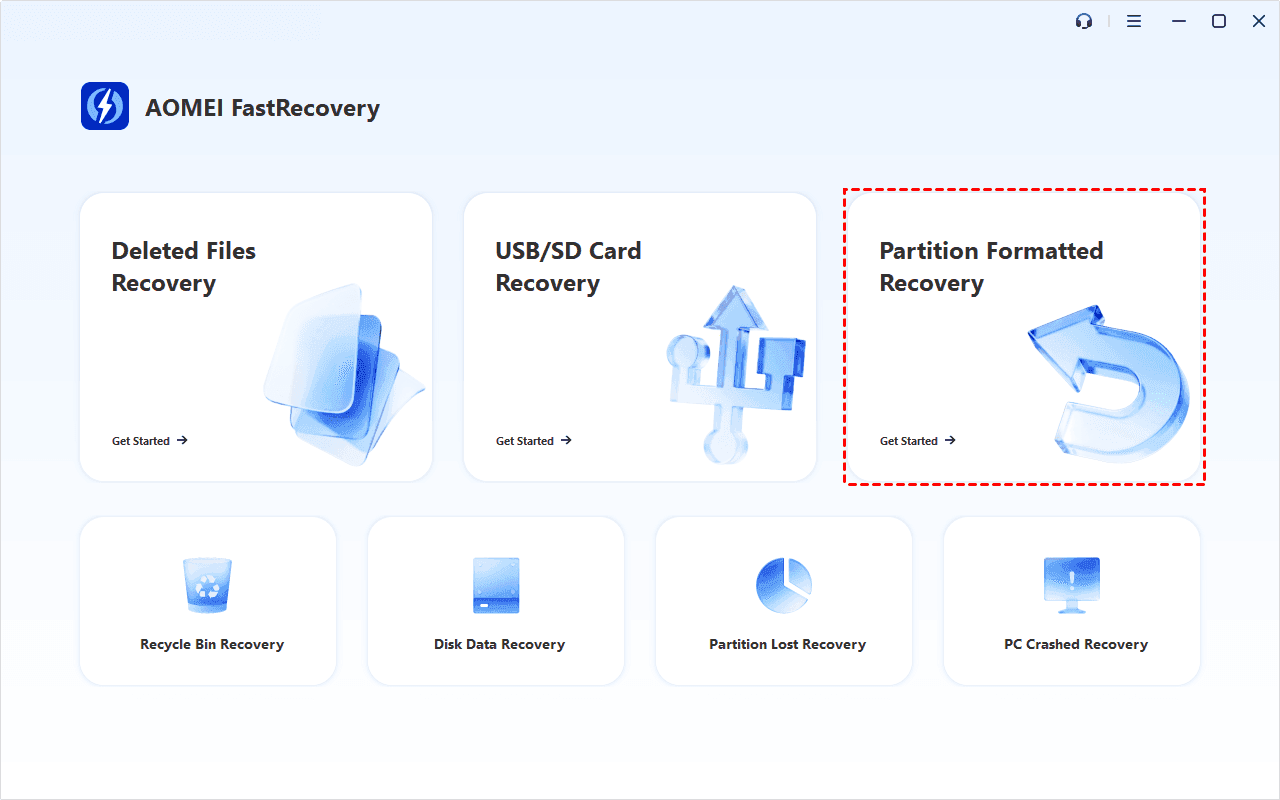
- 🔄 Partition Formatted Recovery: Designed for formatted drives, this mode uses Deep Scan by default. It searches more thoroughly but takes longer.
- 🗂️ Flexible Browsing: Browse by Type or Path, then narrow results with search, sorting, filters, and thumbnail previews.
- 📚 1000+ File Types: Recover deleted images (JPG, PNG, TIF, HEIC, GIF), documents (DOC, XLSX, CSV, PDF), videos (MP4, MOV, AVI, ASF, WMV), audio files (MP3, WAV, and more), etc.
- 🛡️ Complete Scenarios: Recover data in any situation, such as accidental deletion, formatted or damaged drives, lost partitions, virus attacks, or system crashes.
- 💰 Free Tier: Recover up to 500MB for free. Need more? Upgrade for unlimited recovery.
 100% Secure
Step 1. Download and install AOMEI FastRecovery on another working computer, not the old Windows partition. Doing so writes new data that can overwrite the missing files you want to recover. Then, open the software and choose Partition Formatted Recovery.
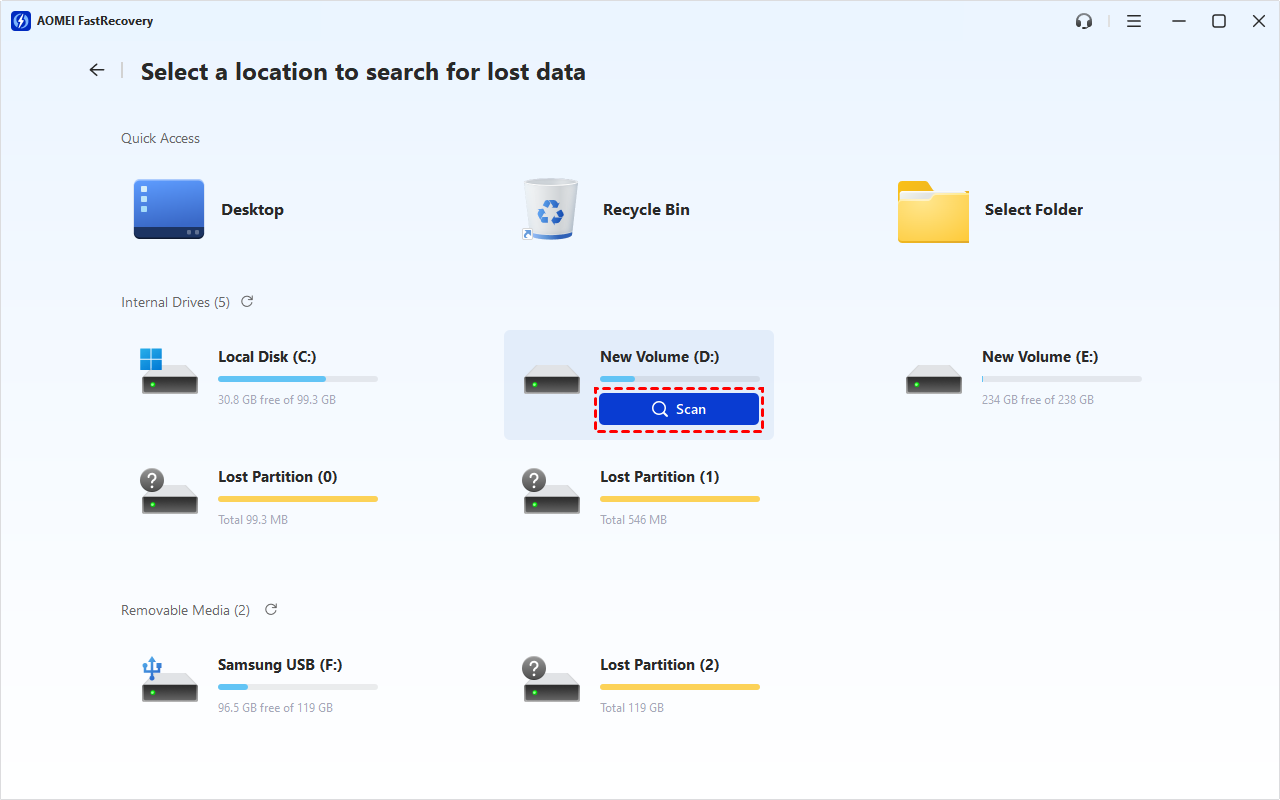
Step 2. Identify the original Windows partition by its drive letter and capacity, then click Scan. Its drive letter may differ on another computer.
Step 3. Let the default Deep Scan search the partition. Browse the results under Type or Path, then search for a filename or extension such as .docx or .jpg.
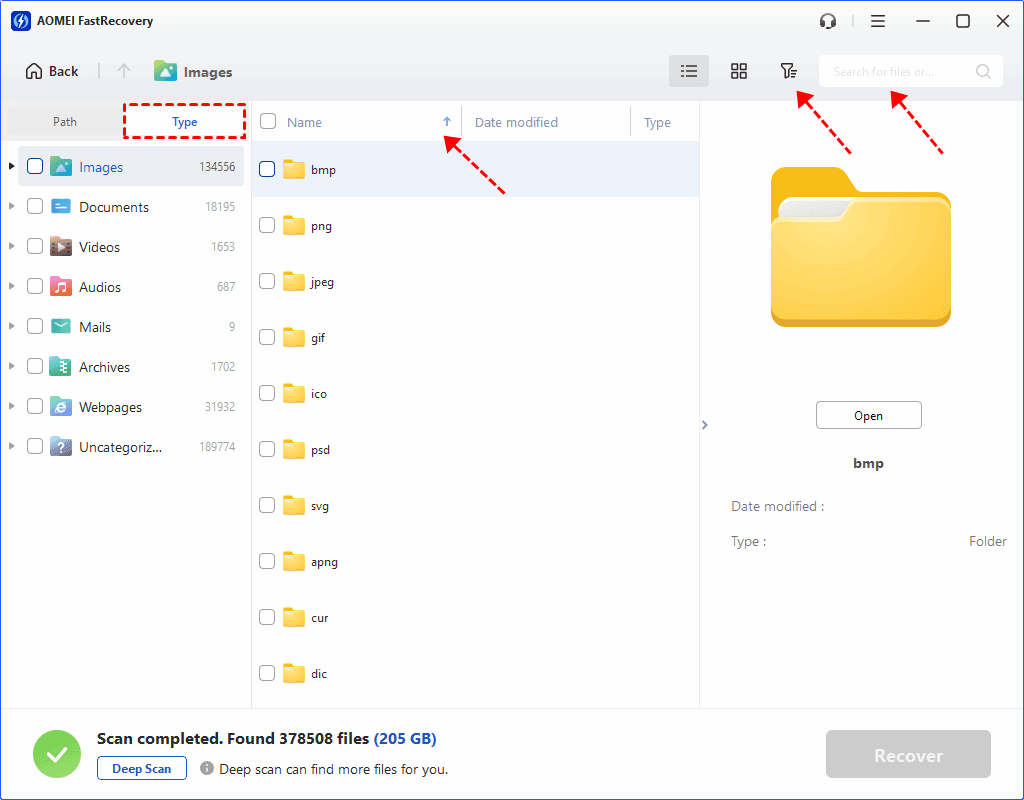
Step 4. Select the files and click Recover. Choose a different, healthy drive with enough free space. Another folder on the original Windows drive is not a safe destination.
-
The free edition can recover up to 500MB. Recovery beyond that allowance requires an upgraded edition; full preview is also available.
-
You can also use it to recover data after initialize disk, recover data from partitioned hard drive, and more.
Check If Your Recovered Files Are Complete
Finding a filename in a scan does not prove that the entire file survived. Check the recovered copies on the destination drive.
Open important documents and confirm that no pages are missing. Check spreadsheets for missing sheets or data. View photos at full size, and play videos at several points. For a specific missing workbook, see recovering permanently deleted Excel file from desktop.
Keep usable recovered copies while checking other results. After confirming they're complete, make an extra copy for backup.
FAQs
Can I recover files if Windows.old is missing?
Possibly. An existing backup may still contain the files. A recovery scan may also help when readable file data remains on the original drive. Windows.old being absent does not establish either outcome. Overwriting and SSD TRIM can prevent recovery.
Will recovery restore my installed programs?
Recovering personal files does not reinstall applications. Programs may depend on registry entries, services, and components from the previous installation. Reinstall them from their official sources, then restore any usable documents or application data separately.
Conclusion
To recover files after clean install, choose the method that matches what remains. Copy surviving files from Windows.old, restore an existing File History backup, or scan a suitable formatted partition. Keep downloads, installation, and recovered files off the original Windows drive, then check your recovered copies before resuming normal use.

 as a preferred
source on Google