




How to Recover a Deleted Volume
Deleted a volume in Disk Management? Don't create a new one or format the space. First confirm the disk's state, then pick the right method to recover the partition or the data inside it.

By Ivy Updated on October 15, 2026


You clicked Delete Volume in Disk Management, and the drive containing your photos, documents, or videos disappeared. Its former space may now show as Unallocated, leaving you unable to open the files.
If you’re wondering how to recover a deleted volume, stop writing to that physical disk first. Recovery may still be possible, depending on what remains readable. Don’t create a replacement volume or format the space to make it appear again.
You have two possible goals: retrieve the files or restore the original partition. AOMEI FastRecovery can scan for files from a lost partition; restoring the partition structure requires a separate tool. Start by checking which situation applies.
Check the Volume’s Status
A missing drive in File Explorer doesn’t prove that its volume was deleted. Right-click Start and open Disk Management. Locate the physical disk by its capacity, then check the area where the missing volume used to be.
| 👁🗨 What you see | ✅ What to do next |
|---|---|
| Unallocated where the volume existed | Use file recovery, or consider partition recovery after preserving important data. |
| A Healthy data volume with the expected size and file system, but no letter | Add a drive letter using Method 3. |
| A volume marked RAW | Windows cannot recognize its file system. Recover before attempting repair. |
| A disk that clicks, repeatedly disconnects, or isn’t consistently detected | Stop software scans and consider professional recovery help. |
Unallocated space has no active volume to receive a drive letter. DiskPart’s assign command therefore cannot bring back a truly deleted partition.
Avoid New Simple Volume, Format, and Initialize Disk while you still need the original files. If a separate backup already contains them, restore those copies to another healthy drive instead.
If you didn’t delete anything and the symptoms are broader, see the guide to recovering a missing volume.
Method 1: Recover Files from a Deleted Volume with AOMEI FastRecovery
👍 Best for: The disk is detected and stable, and you want documents, photos, or other files from the deleted volume.
AOMEI FastRecovery is specialized data recovery software that scans readable storage for files left behind after a partition is lost or deleted.
 AOMEI FastRecovery
- 🔍 Partition Lost Recovery: Automatically starts a Deep Scan to find files from the missing or deleted volume.
- 🗂️ Target Browsing: Browse by type or path, then search, sort, and filter results, with thumbnail previews so you know exactly what you're recovering.
- ✅ Selective Recovery: Pick the documents, photos, and videos you need, not the entire scan result.
- 💾 Flexible Storage: Save files to a different drive, whether internal or external, such as an HDD, SSD, USB drive, SD card, or anywhere else with space.
 100% Secure
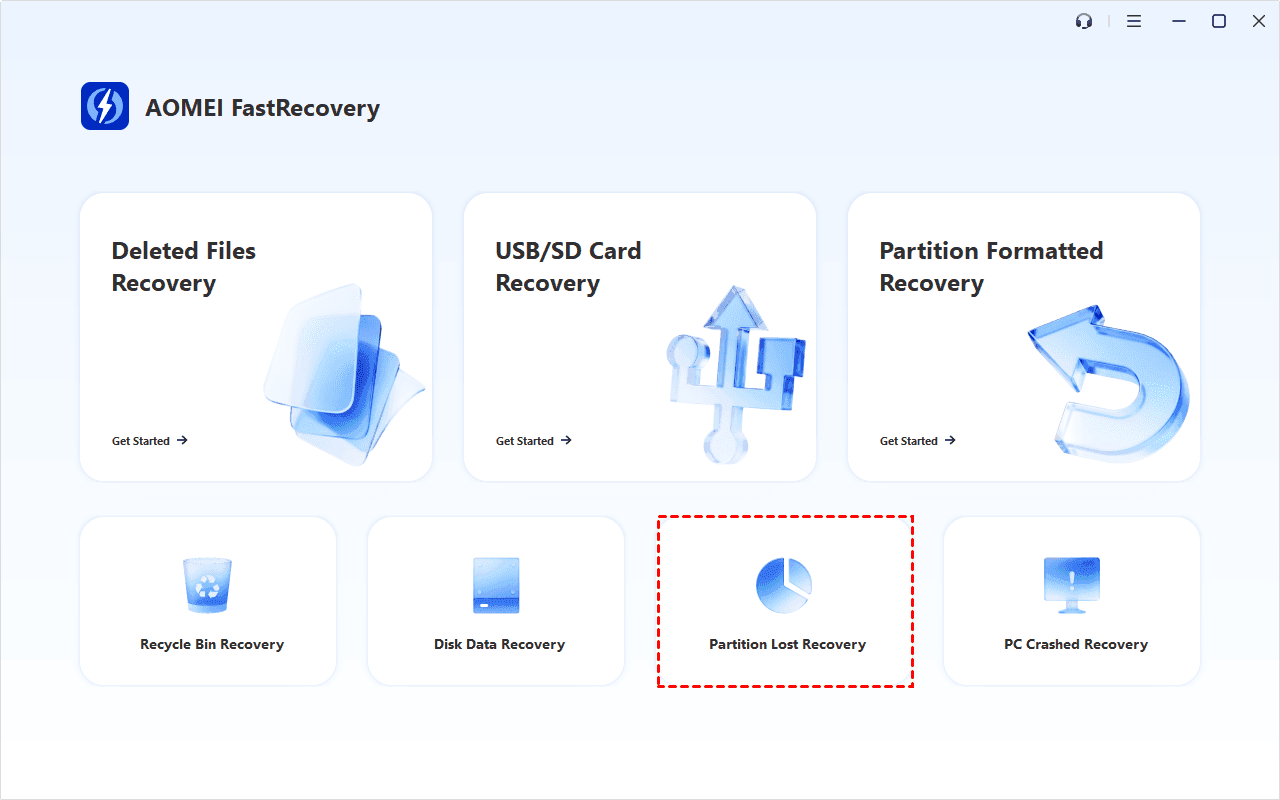
Step 1. Download and install AOMEI FastRecovery on a healthy drive outside the affected one. Prepare another device with enough free space to save the recovered files. Then, open it and select Partition Lost Recovery.
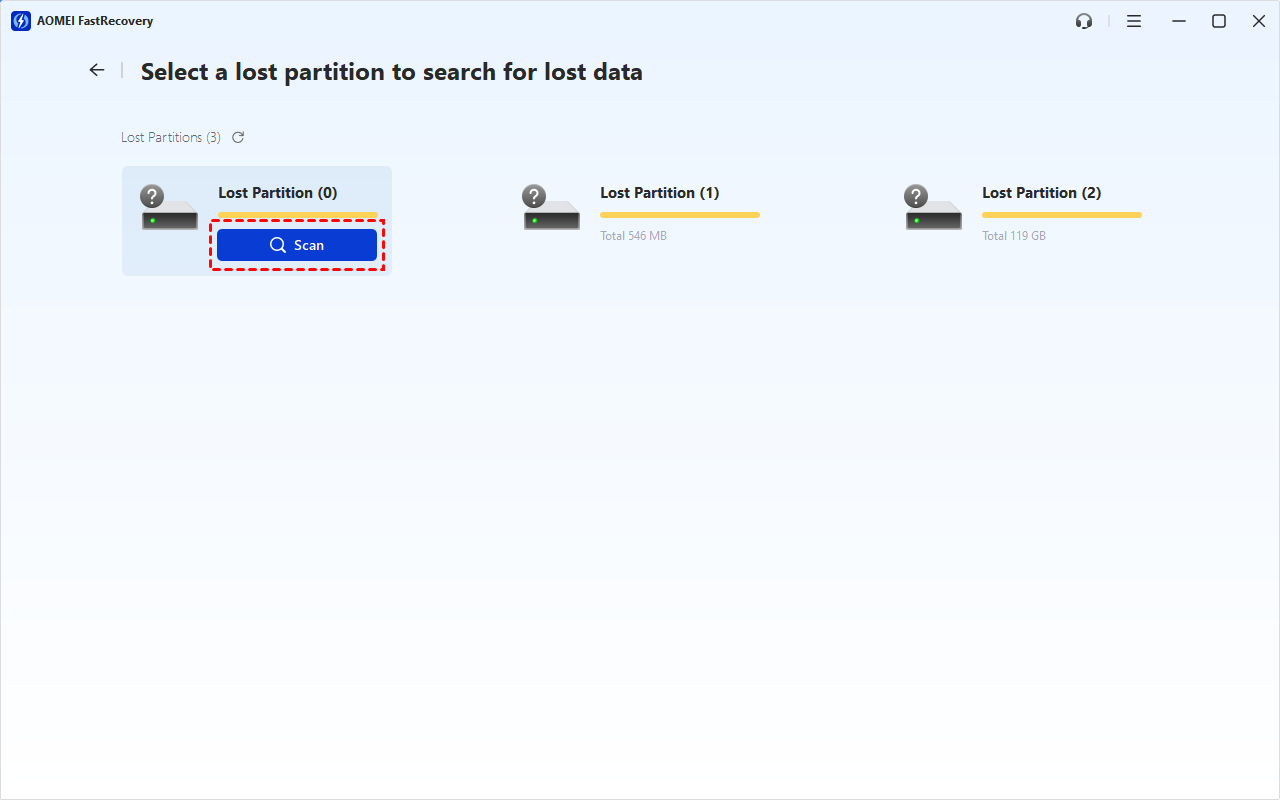
Step 2. Locate the storage device containing the deleted volume and click Scan. Identify the source by its capacity and available device info rather than relying on its former drive letter.
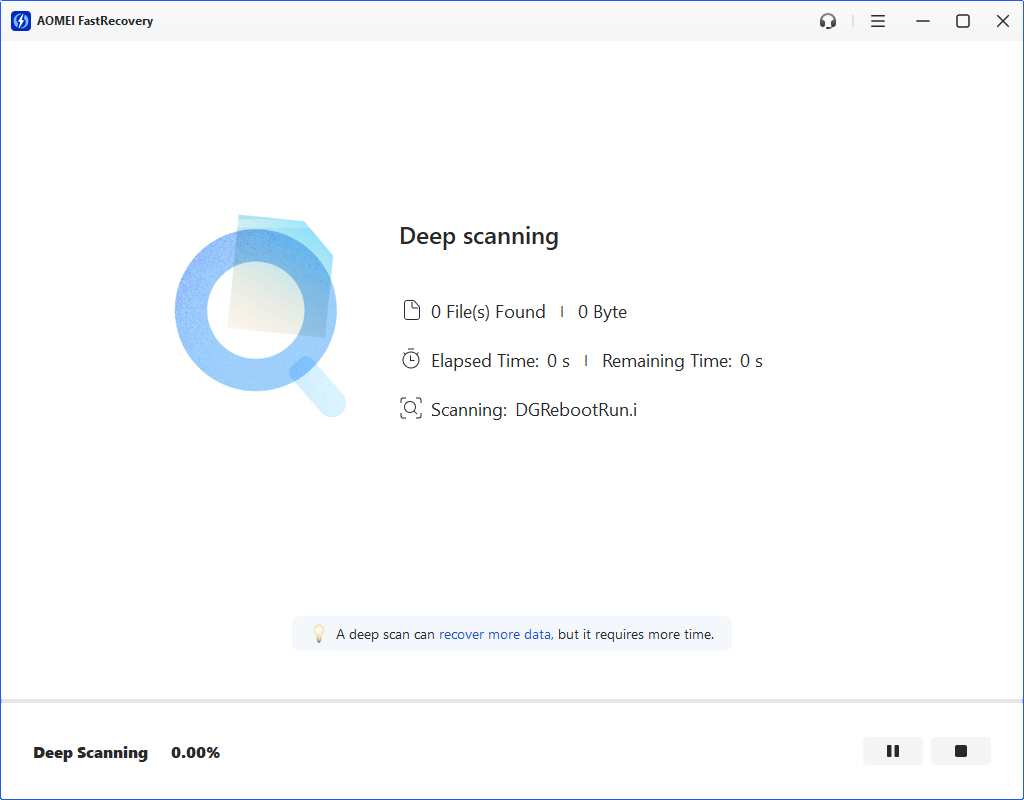
Step 3. It will automatically start a Deep Scan to search for missing files. Scan time varies with the device and its condition; a large disk may take longer.
Step 4. Browse the results by Type or Path. Search for familiar filenames or extensions, and use filters to narrow the selection. Thumbnail previews help you spot relevant images and videos.
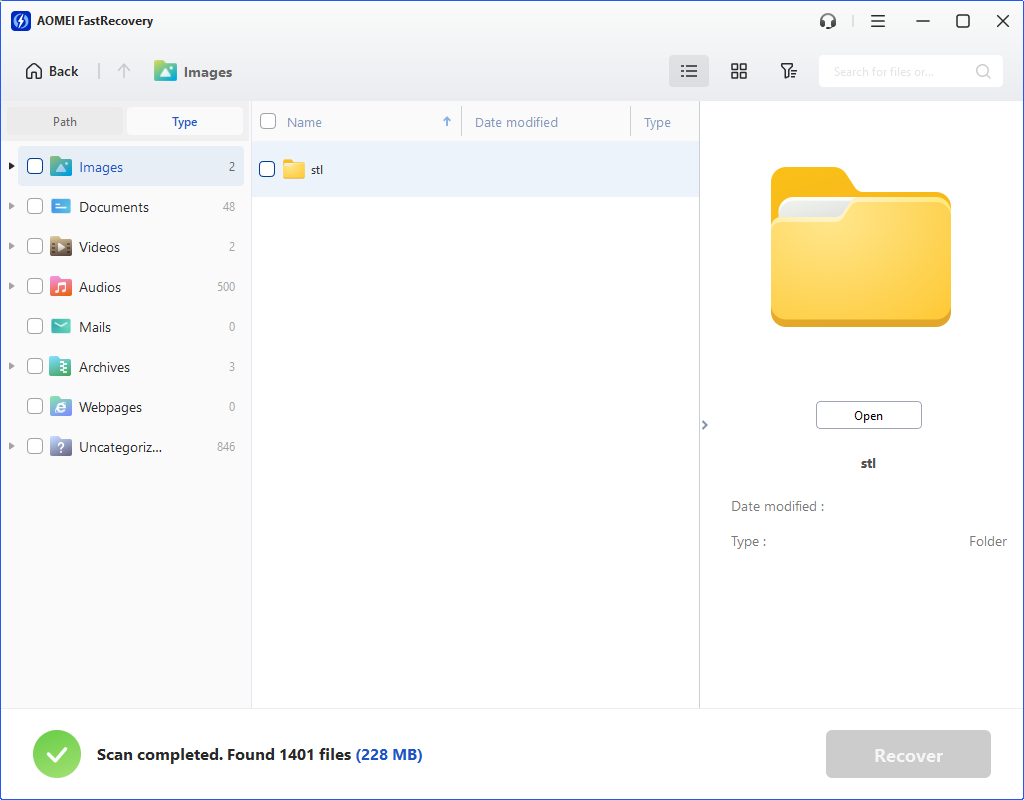
Step 5. Select the required files and click Recover. Save them to the separate device to avoid overwritting.
- The free edition can recover up to 500MB. Upgrade if the files you choose exceed that allowance.
- For an external source, you can referto lost partitions on external hard drives.
Method 2: Restore the Deleted Partition with AOMEI Partition Assistant
👍 Best for: You want the original volume to reappear, and its remaining partition information can be identified.
AOMEI Partition Assistant searches for deleted partitions and can restore their entries. Unlike exporting individual files, this changes the disk's structure. So preserve important data before you proceed, and verify the candidate partition carefully.
 AOMEI Partition Software
A free and reliable disk partition software that helps you recover partition, migrate OS, convert disks, and optimize PC efficiently.
Step 1. Download, install and open AOMEI Partition Assistant on a healthy drive. Open Recovery and select Partition Recovery.
Step 2. Choose the physical disk that held the deleted volume, then click Next. Confirm its capacity before continuing.
Step 3. Select Fast Search first. If it doesn’t locate the required partition, use Full Search for a more thorough search.
Step 4. Compare the found partition’s capacity and file system with the original volume. Select the deleted volume and click Proceed.
After completion, check whether the volume appears in File Explorer and whether its important files open correctly.
Knowing how to recover a deleted volume includes knowing when to stop. If several candidates look plausible or the expected folders are missing, don’t guess. Return to file recovery or seek help before writing a partition layout.
Method 3: Add a Missing Drive Letter in Disk Management
👍 Best for: An intact, Healthy data volume still exists with the expected capacity and file system but has no drive letter.
Disk Management can make an existing data volume visible by assigning a drive letter. It does not recreate a deleted partition or repair a RAW file system.
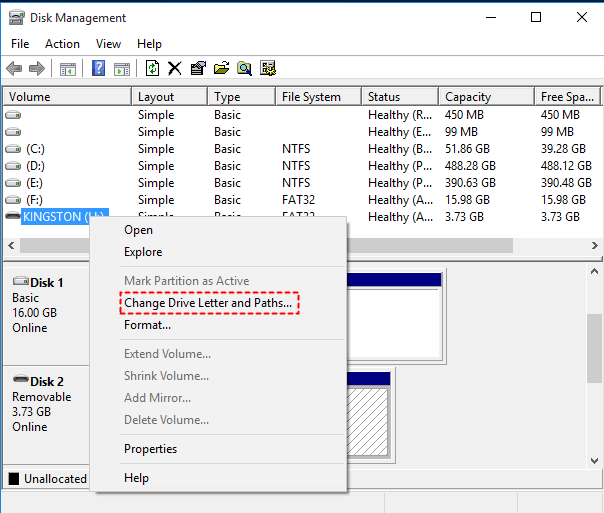
Step 1. Right-click the Start menu and select Disk Management to open it and find the Healthy data volume without a drive letter.
Step 2. Right-click that volume and select Change Drive Letter and Paths. Then, click Add.
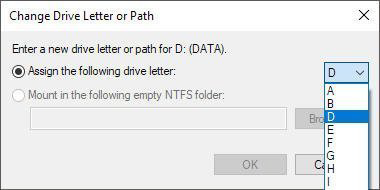
Step 3. Choose Assign the following drive letter, select an unused letter, and click OK. Check the hard drive in File Explorer.
If the option is unavailable, don’t create or format a volume to enable it. Recheck the disk’s state.
Check the Recovered Files Before Reusing the Disk
A scan result or restored drive letter is only an intermediate result. Check the files you actually need:
- Open important Word documents and spreadsheets, and review the contents.
- View photos at full size and play videos beyond the opening seconds.
- Open the archives and confirm you can extract the files inside.
A familiar filename does not prove the file is complete. If recovered files won’t open, keep the source unchanged while deciding whether further recovery is worthwhile.
Once the required files are usable, create another backup copy before preparing the original disk for reuse.
FAQs
Can I recover a deleted volume from an SSD?
Possibly, but SSD TRIM and subsequent disk activity can reduce what remains recoverable. Having made no manual changes does not guarantee that the original data survives. Avoid assuming a complete recovery before checking actual results.
What if I already created a new volume?
Stop using it. Creating a volume or formatting may change information needed for recovery, and saving files can overwrite older data. A scan may still find some files, but the outcome depends on what was changed or overwritten.
What if Windows no longer boots after I deleted a partition?
Treat this as a separate boot-related case. Avoid reinstalling Windows onto the source disk before recovering files. Follow the guidance for a deleted partition now won't boot.
Conclusion
To recover a deleted volume, first confirm whether it is genuinely deleted or simply missing a drive letter. If the files matter most, scan the stable source with AOMEI FastRecovery and save them elsewhere. Consider partition restoration when you need the original volume back and can verify the correct partition.

 as a preferred
source on Google
as a preferred
source on Google