




How to Recover Deleted Google Docs: 6 Proven Methods (2026)
Need to recover deleted Google Docs? This guide covers 6 methods, from Google Drive Trash and File History to Admin Console, Google Vault, and AOMEI FastRecovery. Plus prevention tips. Keep reading.

By Ivy Updated on July 15, 2026


You've spent hours writing that document, and now it's gone. Maybe you accidentally deleted it. Maybe you emptied the Trash without checking. Maybe 30 days have passed, and Google wiped it automatically.
Whatever happened, your work doesn't have to be lost forever. This guide covers 6 proven ways to recover deleted Google Docs, from the Trash to professional recovery tools.
Quick Guide: Which Recovery Method Should You Use?
| ❓ Your Situation | 🎯 Best Method |
|---|---|
| You deleted the file within the last 30 days | Method 1: Google Drive Trash |
| You have File History enabled on your PC | Method 6: File History |
| You're a Google Workspace user | |
| You don't have any backup and need urgent recovery | Method 2: AOMEI FastRecovery |
| You've tried everything and still need help | Method 4: Google Drive Help |
Method 1: Recover Deleted Google Docs from Google Drive Trash
If you deleted your Google Doc within the last 30 days, the simplest way to recover it is through Google Drive's Trash feature.
Step 1. Open drive.google.com and sign in to your Google account.
Step 2. Click Trash in the left sidebar. Find the Google Doc you want to recover. You can search by document name or browse through the list of deleted files.
Step 3. Right-click the file and select Restore.
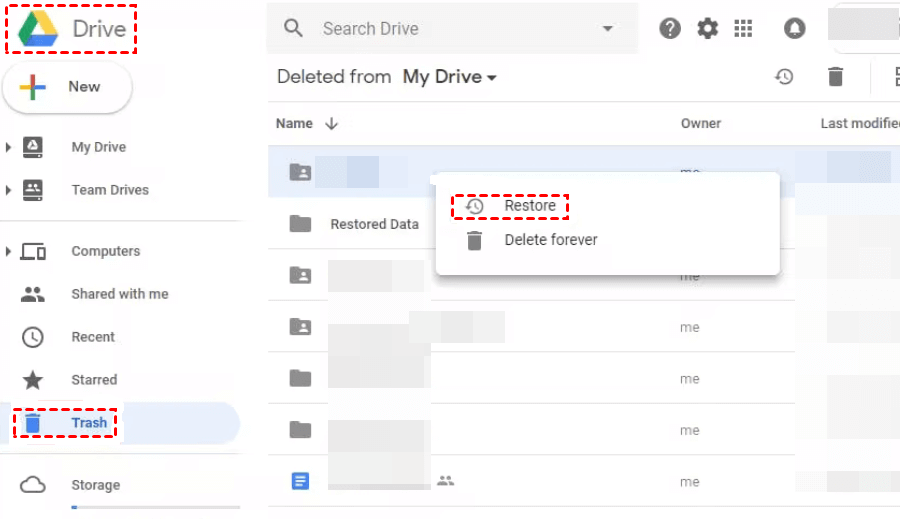
The document is restored to its original location. If you don't see it there, try searching for it in Google Drive.
Method 2: Recover Deleted Google Docs with AOMEI FastRecovery
If you don't have a backup and need to recover your Google Docs urgently, AOMEI FastRecovery is your best option. It scans your local drive for deleted files and recovers them, even if they were permanently deleted from Google Drive.
 AOMEI FastRecovery
- 🔎 Dual-Scan Mode: Quick Scan for recently deleted files, Deep Scan for complex data loss. Together, they give you the best chance of recovery.
- 📁 1000+ Data Types: Recover Google Docs, Sheets, Slides, and other documents (TXT, DOC, XLSX, CSV), plus images, videos, audio, and more.
- 🛡️ Wide Range of Scenarios: Recover files from accidental deletion, disk formatting, system crashes, unbootable drives, and more.
- 🚀 Find Your Files Fast: Browse by type or path, preview files, and recover only what you need. No more digging through endless lists.
- ✅ Safe & Easy to Use: Read-only, no data overwriting. simple, intuitve interface.
- 🎁 Try It with No Risk: Free edition recovers up to 500MB - no commitment, no quality compromise.
 100% Secure
Step 1. Download and install AOMEI FastRecovery on your Windows PC. Then, click Deleted Files Recovery for fast recovery.

Step 2. Hover your mouse over the disk that stores your Google Docs, and click Scan. The Quick Scan starts automatically.
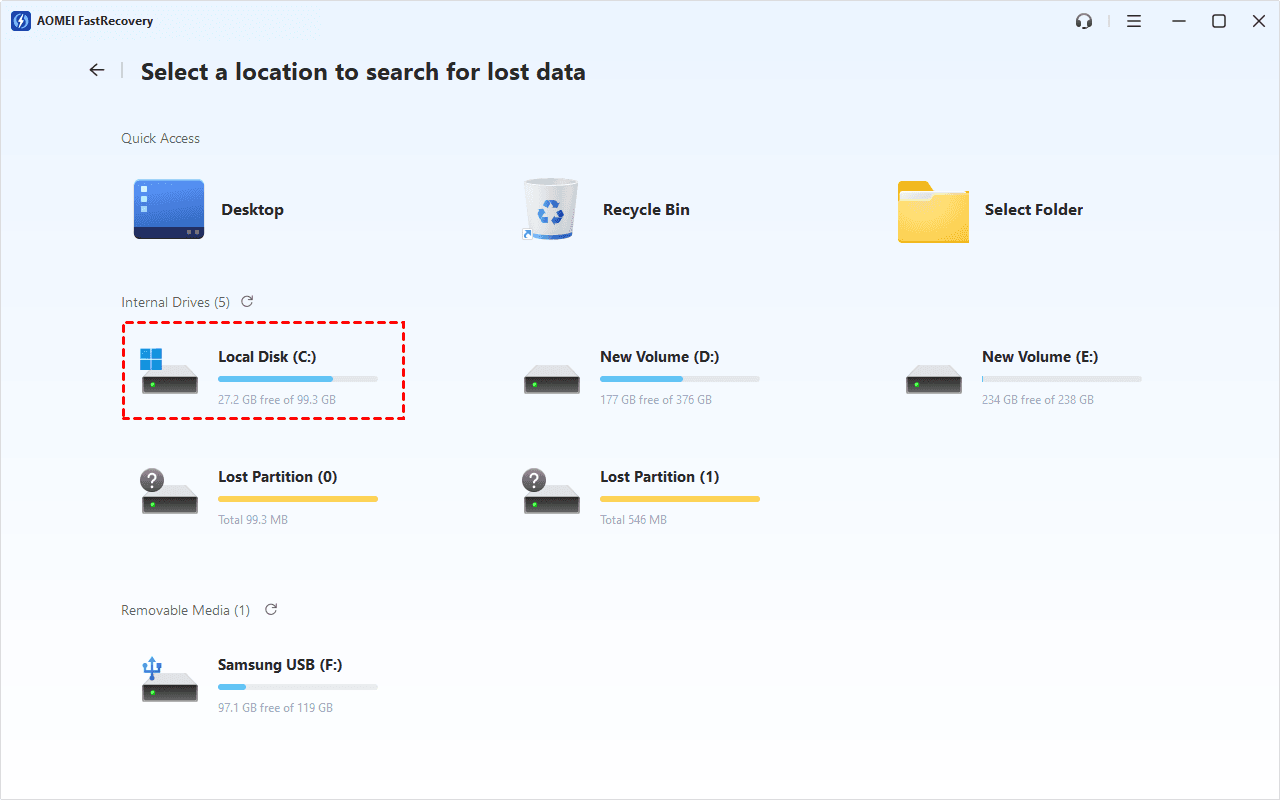
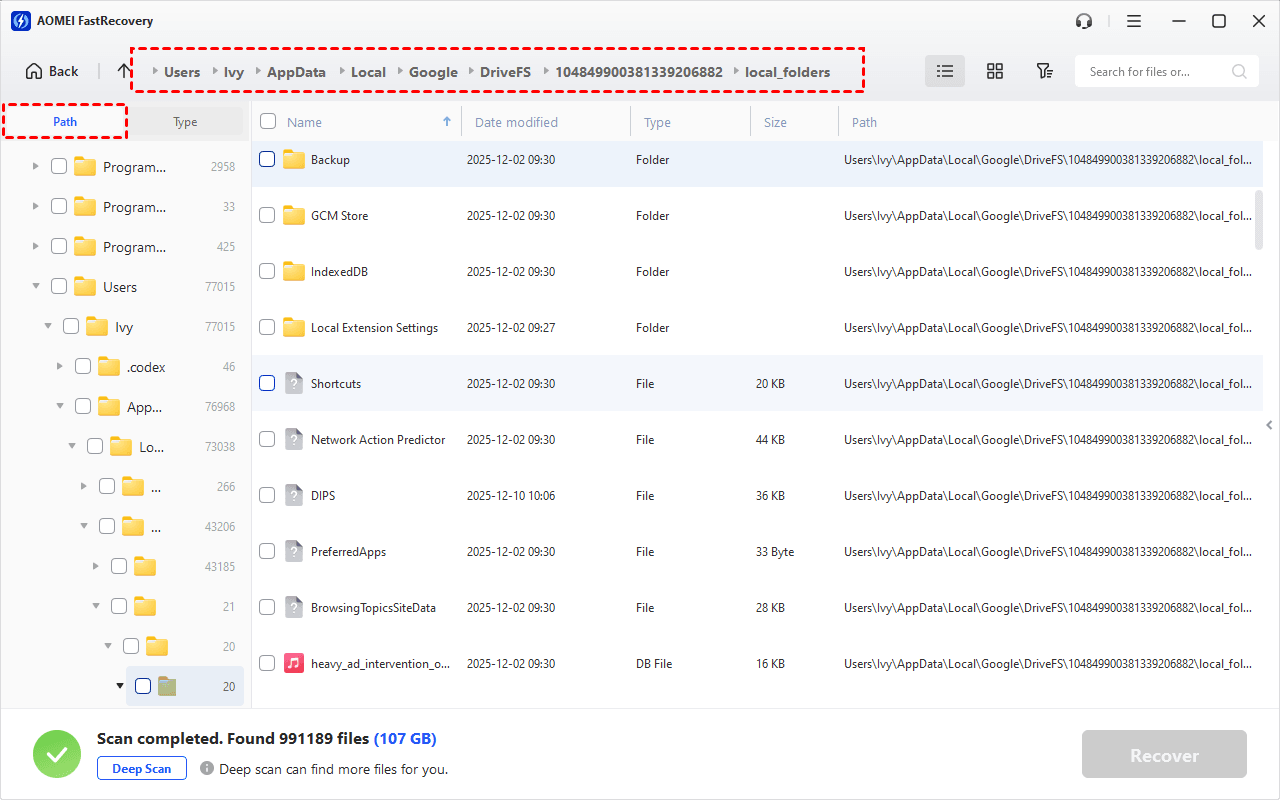
Step 3. Once the scan completes, you'll see all recoverable files. Under the Path section, go to local Google Drive folders and sort the results using column headers (Name, Date Modified, Type, etc.).
-
You can find permanently deleted Google Drive folders by Type, along with search or filter features.
-
Click the Deep Scan to find more data if Quick Scan fails. It will scan every sector of the disk and take longer.
Step 4. Preview the files by double-clicking them. Select the Google Docs you want to recover and click Recover to get them back quickly.
Method 3: Recover Deleted Google Docs via Google Admin Console
If you're using Google Workspace (formerly G Suite) through an organization, your administrator can help recover deleted files beyond the 30-day Trash window.
Step 1. Contact your Google Workspace administrator for data recovery. Log into the Google Admin Console. Then,go to Menu > Directory > Users.
Step 2. Locate the target user, right-click it, and select Restore data.
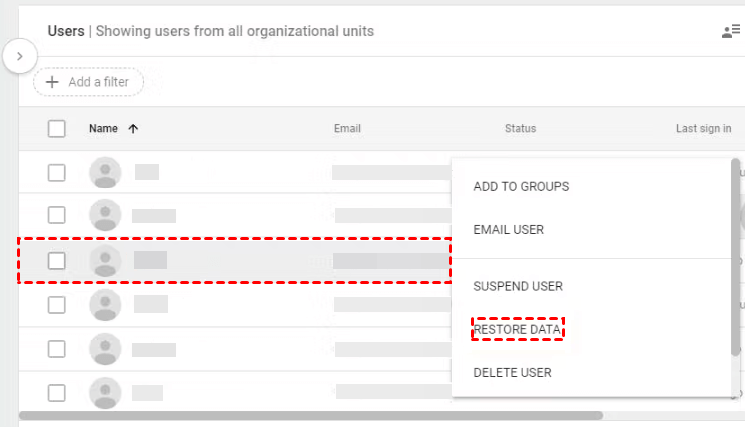
Step 3. Select the date range for the data you want to restore. Then, click Restore. Only the last 25 days' data are available.
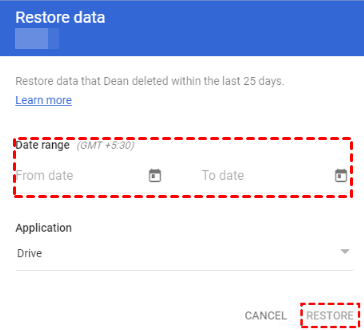
Once restored, check your Google Drive for the recovered document.
Method 4: Contact Google Drive Help for Data Recovery
If none of the above methods work and you believe Google may be able to help, you can contact Google Drive Support directly.
Step 1. Go to the Google Drive Help page. Click Request file recovery at the bottom.
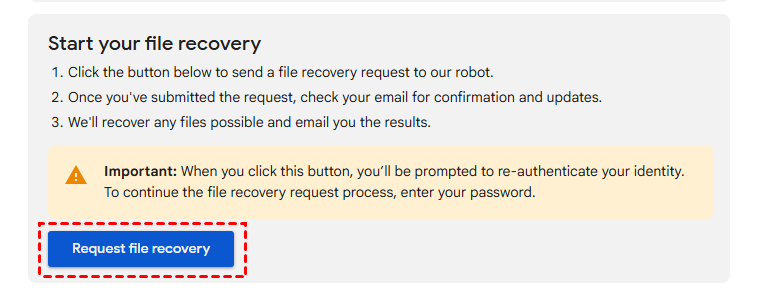
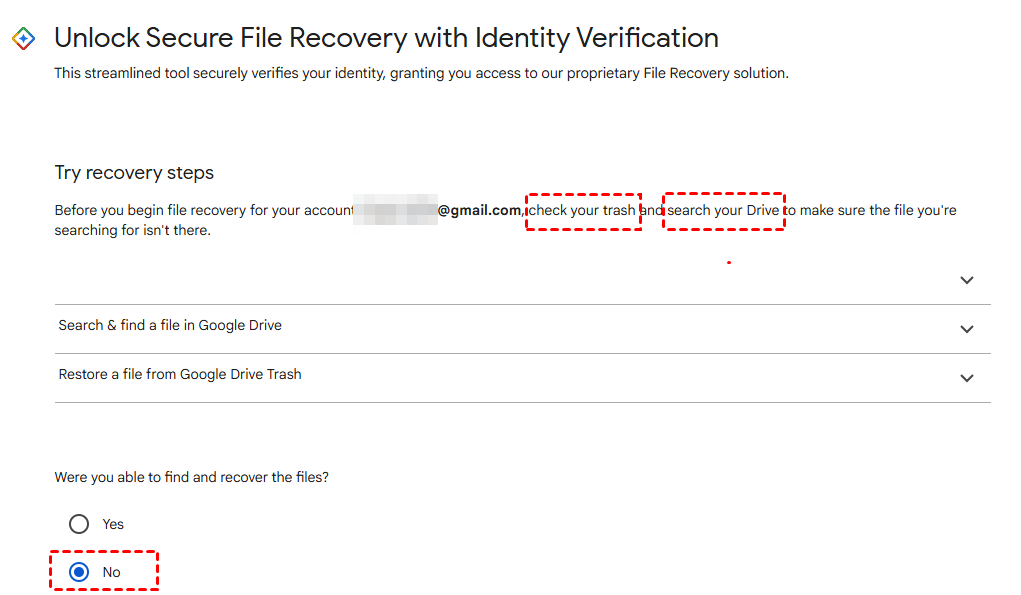
Step 2. Sign in with your Google account. You'll be asked to try recovery steps - check your Trash, or search your drive. If not, click No > Continue.
Step 3. Review the file recovery limitation and click Request File Recovery.
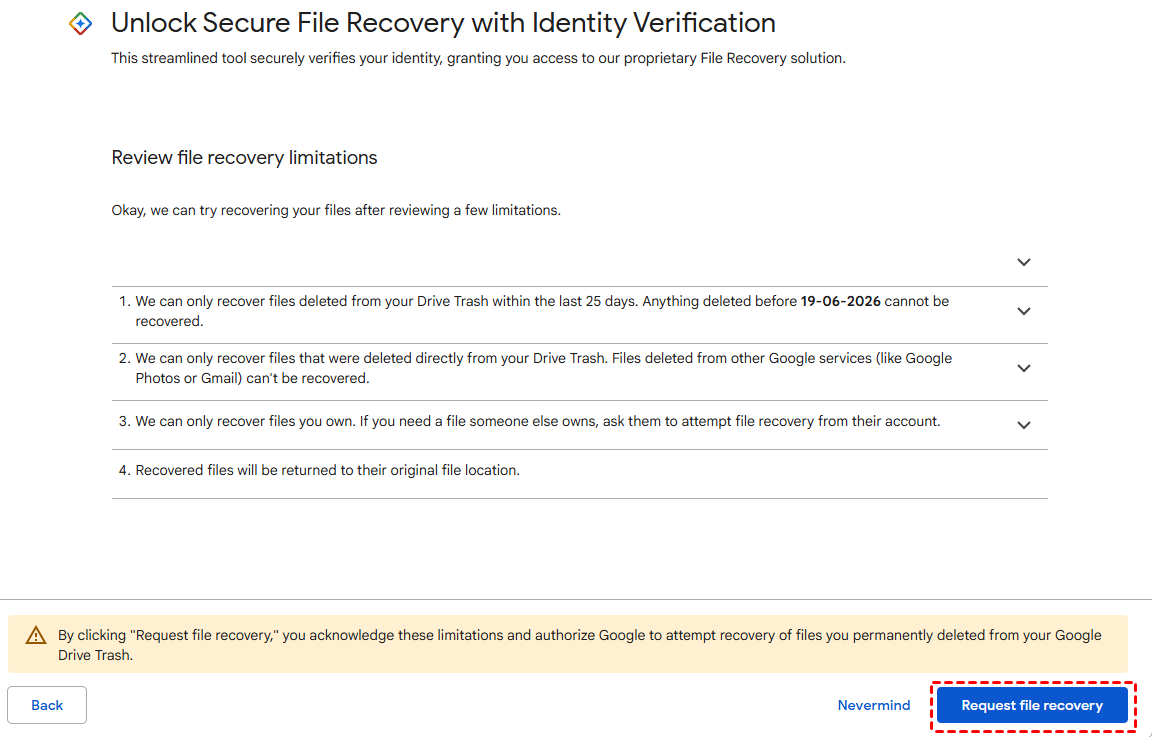
After submitting your request, just wait, and you'll receive an email with the result within the next hour.
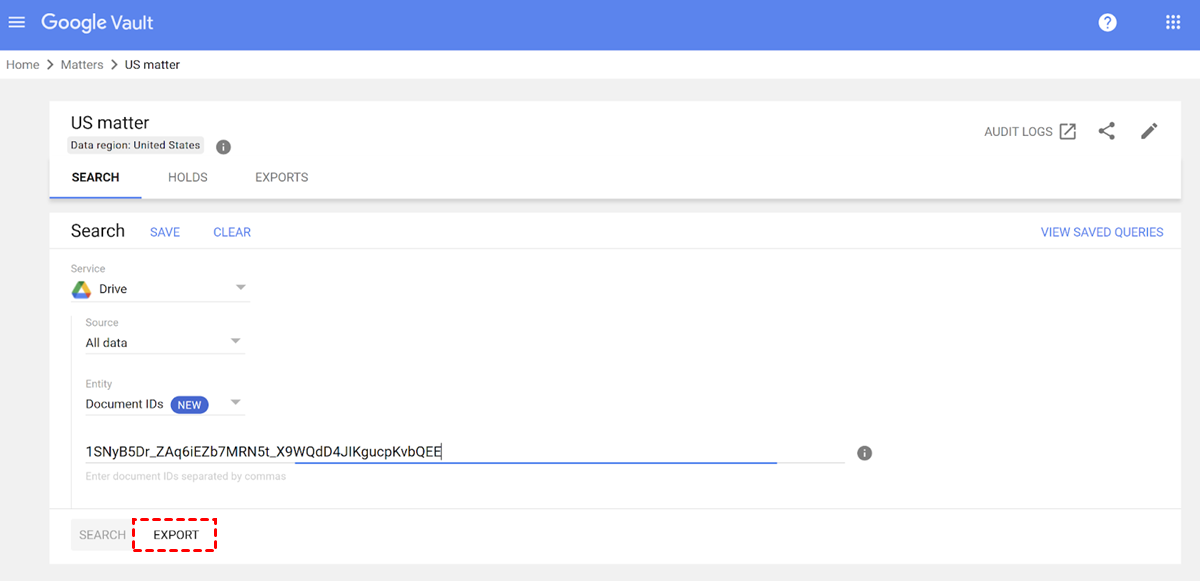
Method 5: Recover Google Docs Using Google Vault
If you have a Google Vault license and the document was deleted more than 30 days ago, this is your best option. Google Vault can retain and recover data beyond the standard 30-day Trash window.
Step 1. Go to vault.google.com and sign in with your Google Workspace admin account.
Step 2. Click Matters and select an existing matter, or create a new one.
Step 3. Search for the deleted folder or files and export them.
Method 6: Recover Deleted Google Docs via File History
If you use Google Drive for Desktop and have File History enabled on your Windows PC, your Google Docs may have local copies saved on your computer.
Step 1. Open the folder where Google Drive for Desktop syncs files on your computer.
Step 2. Locate the folder that contained the deleted Google Doc. Right-click the folder and select Restore previous versions.
Step 3. Select a previous version of the folder from the list and click Restore. Your Google Doc will appear in the restored folder.
How to Prevent Google Docs Data Loss in the Future
Recovery is great, but prevention is even better. Here are four practical steps to protect your Google Docs from permanent loss:
1. Download offline copies
Save important Google Docs as .docx or .pdf on your computer or external drive. This gives you a permanent backup that's not tied to your Google account.
2. Use Google Drive for Desktop
Keep local copies of your Google Drive files synced to your PC. Even if files are deleted from the cloud, the local copies may still be recoverable.
3. Enable File History
Windows users can enable File History to automatically back up their Google Drive folder. Go to Control Panel > File History and turn it on.
4. Schedule regular backups
Use free backup software like AOMEI Backupper Standard to schedule automatic backups of your important files to an external drive or cloud storage. Set it to run daily or weekly, so you never have to worry about losing your work.
Final Words
Losing a Google Doc can be stressful, but as this guide shows, you have multiple ways to recover deleted Google Docs.
Here's the simple rule:
-
Check Trash first - most recoveries are this simple.
-
Use File History if you have local backups enabled.
-
Contact your Workspace admin if you're on a business or school account.
-
Use AOMEI FastRecovery if you don't have any backup and need urgent recovery.
-
Use Google Vault if your organization has a Vault license and the file is older than 30 days.
Your documents are worth protecting. Start recovery now.

 as a preferred
source on Google
as a preferred
source on Google