




How to Recover a Deleted Folder Not in Recycle Bin
You can recover a deleted folder not in the Recycle Bin by restoring a saved copy or scanning the drive it came from. The best starting point depends on where the folder was stored and which copies are still available.

By Ivy Updated on November 17, 2026


To recover deleted folder not in recycle bin, you have two options: restore it from an existing copy, or scan the original drive for the folder. If the folder lived in OneDrive, check the OneDrive Recycle Bin on the web. If it was deleted from local storage, AOMEI FastRecovery lets you scan and select what you want to recover, not everything.
Before you scan, cut back on using the drive where the folder was stored. Saving files, downloading software, or installing apps there can overwrite deleted data.
Choose a recovery method for where the folder was originally stored
How to recover a deleted folder not in Recycle Bin? Start with what you have, then pick a method below that matches your situation.
|
🎒 What you have |
📍 Where to start |
|---|---|
|
File History backed up where the folder was |
Restore a previous version of deleted folder |
|
You have a file backup made with Backup and Restore (Windows 7) |
Restore a deleted folder from Windows backup |
|
The folder was stored in or synced to OneDrive |
Checks the OneDrive Recycle Bin |
|
You don't have a copy anywhere |
Scan the original drive using AOMEI FastRecovery |
|
You're comfortable with the command line. |
Use Windows File Recovery |
Method 1: Restore a previous version of deleted folder with File History
I'd start with File History to see if it has the deleted folder. If it does, I can restore the folder and the files it held at the time of the backup. I'd check the backup date first, especially if I added or edited files shortly before deleting the folder.
Step 1. Connect the File History backup drive if it’s an external drive. Open File Explorer and go to the parent folder, right-click it and choose Restore previous versions.
Step 2. Select a version dated before the deletion, then expand Open > Open in File History to check whether it contains the folder you need.

Step 3. Once confirmed, expand Restore, and choose Restore to…. You can select a different drive for the recovered folder.
Method 2: Recover a folder with Backup and Restore (Windows 7)
Backup and Restore (Windows 7) is another option for backing up user folder. If you previously created a file backup with it, browse and select a folder you want to recover. Make sure that folder was in one of these user folders when you backed it up.
Step 1. Connect the backup drive to your computer. Go to Control Panel > System and Security and select Backup and Restore (Windows 7).
Step 2. Click Restore my files. If no backup is available, choose Select another backup to restore files from instead.
Step 3. Choose Browse for folders to find and select the deleted folder. To compare the saved copy with files still on your PC, select a different location.
Method 3: Restore a deleted folder from OneDrive Recycle Bin
If the folder was in your local OneDrive folder and synced online, search for it on onedrive.com. Also check OneDrive's Recycle Bin: a folder that was online-only can still be there even when the Windows Recycle Bin is empty.
Step 1. Sign in to OneDrive in your browser with the account that held the folder. If it was a work folder, use your work or school account.
Step 2. Select Recycle bin in the left sidebar. Find the folder and check its original location if several entries have the same name.
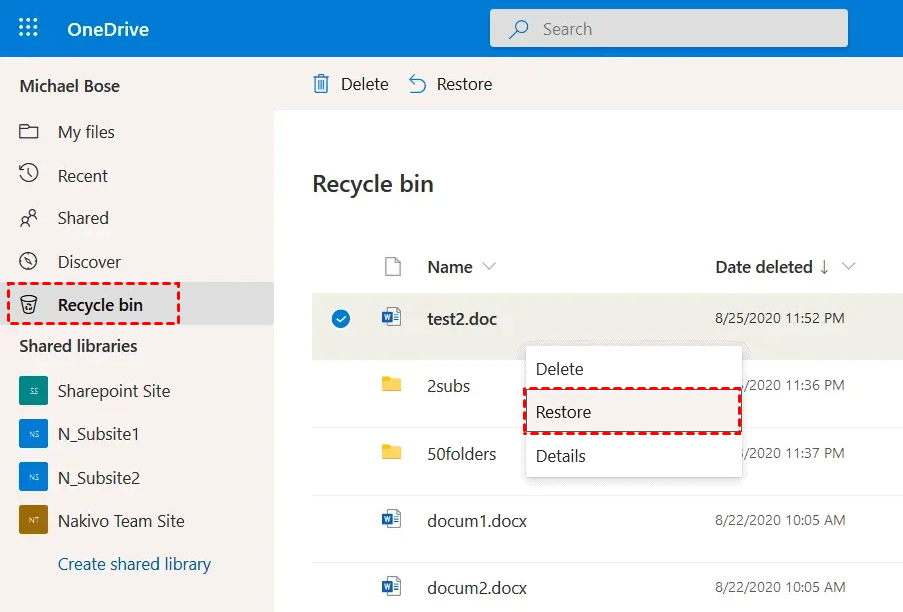
Step 3. Select the folder and choose Restore. Open its original location in OneDrive on the web to check the files.
Method 4: Recover a permanently deleted folder with AOMEI FastRecovery
AOMEI FastRecovery is a powerful Windows data recovery software that lets you scan the original drive and look for a deleted folder to recover. You can also select individual files inside it instead of recovering everything.
AOMEI FastRecovery- 🧩 Scenario matching: Deleted File Recovery handles deleted files well and runs fast, even for deleted folder not in Recycle Bin.
- ⚡ Two scan modes: Quick Scan for fast results, with an optional Deep Scan for a more thorough search.
- 📂 1,000+ file types: Recover deleted or lost documents (DOCX, XLSX, PDF), images (JPG, PNG, GIF), videos (MP4, MOV, AVI), and more.
- 🔎 Flexible browsing: Start with Type or Path, depending on what you know. Search, sort, and thumbnail previews help narrow down the results.
- 🎁 Free recovery: The free edition recovers up to 500 MB. Need more? Upgrade.
 100% Secure
How much you can recover depends on what's still on the drive. So don't download or install AOMEI FastRecovery on the drive where the deleted folder was, and don't add new data to it either. Any of these actions can overwrite data.
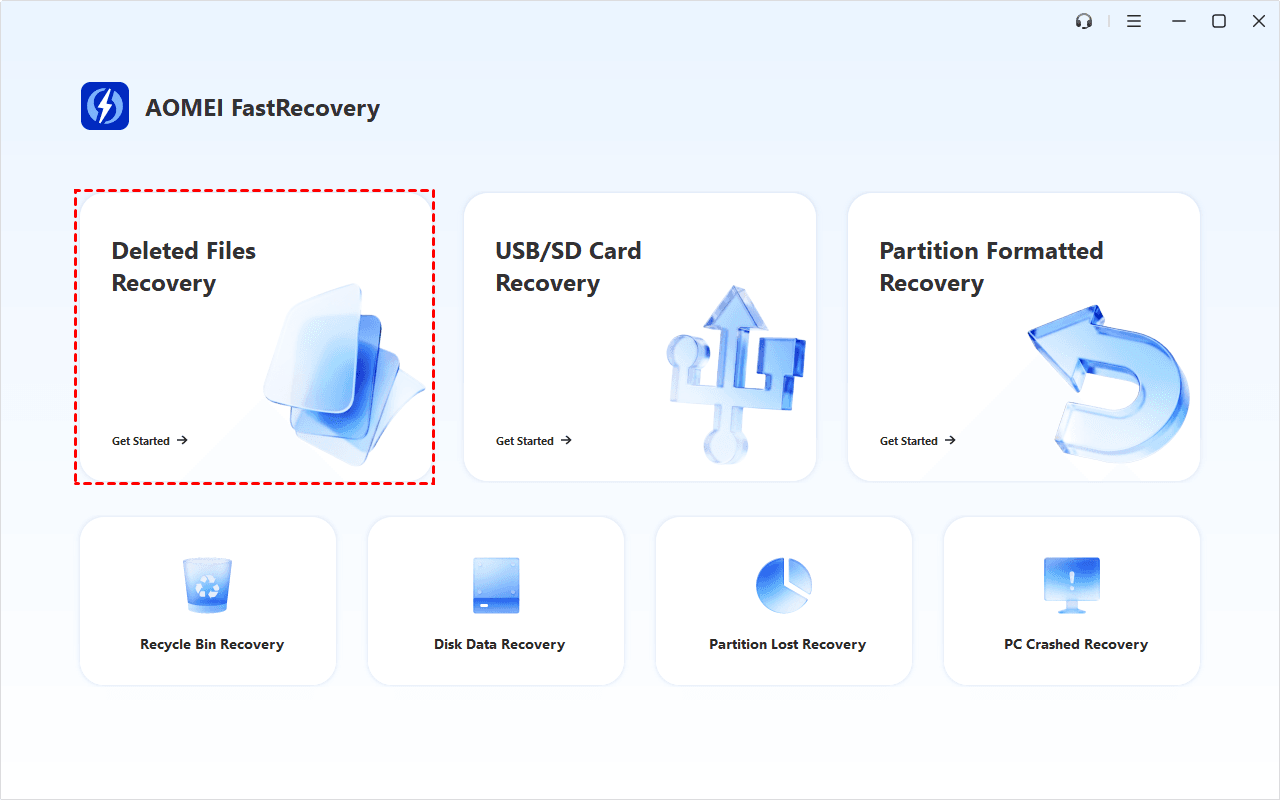
Step 1. Open AOMEI FastRecovery and choose Deleted Files Recovery.
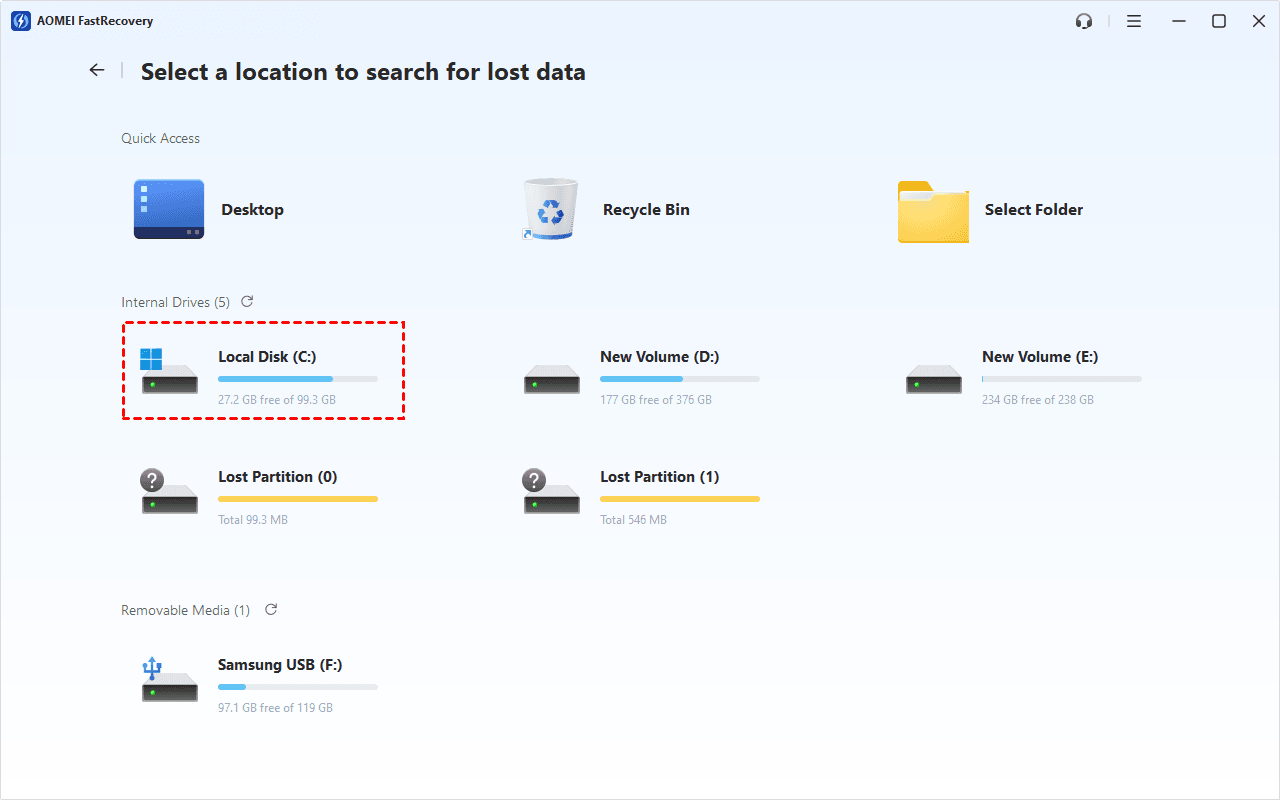
Step 2. Select the drive where the folder was stored and click Scan. This mode automatically starts with Quick Scan.
Step 3. Search for the folder name and select it. Before recovery, expand the folder to check that it has all the files you want. Sort the results in this folder to find files faster, or click Preview to confirm when available.
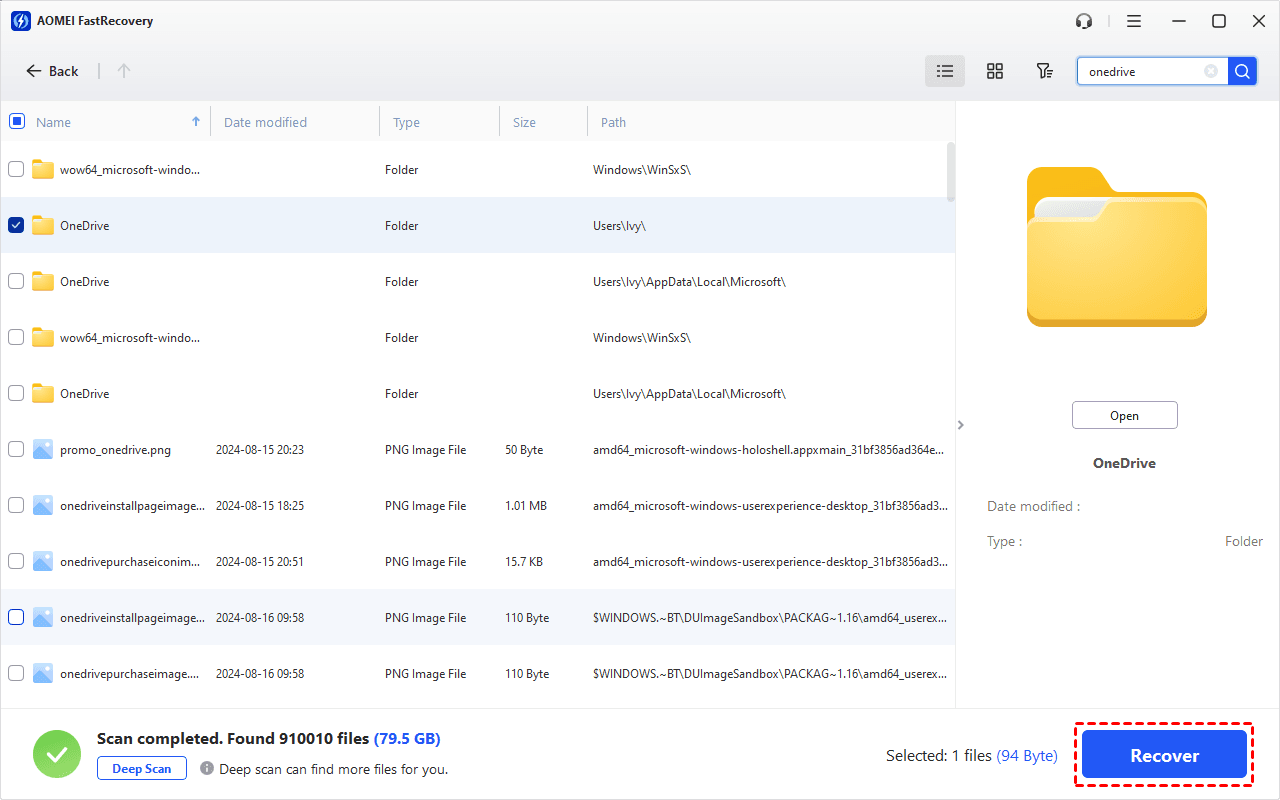
- You can also browse the Path results for the original folder.
- If the folder are still missing, choose Deep Scan for more thorough search. It may take longer.
Step 4. Select the folder and click Recover. Save them to a different drive, such as an external drive. Another folder on the source drive still writes to that drive.
The free edition recovers up to 500 MB. Recovery beyond that allowance requires an upgrade.
Method 5: Recover a deleted folder with Windows File Recovery
Windows File Recovery is Microsoft's command-line data recovery tool for internal and external drives, memory cards, and more. The original folder path helps narrow the scan. Use /regular for recently deleted files on a healthy NTFS drive. Use /extensive for older deletions, corrupted or formatted drives, or FAT/exFAT drives.
Step 1. Connect a separate drive for the recovered files. In File Explorer, right-click the drive containing deleted folder and select Properties to check its file system.
Step 2. Open Windows File Recovery from the Start menu and approve the permission prompt. If the app isn’t installed, it’s available from the Microsoft Store.
Step 3. To recover a recently deleted folder on an NTFS drive, enter:
winfr D: E: /regular /n "\Projects\foldername\"
This command looks for files in D:\Projects\foldername and saves them to a separate drive ( E:). Swap in your own drive letters and folder path.
Keep the trailing backslash for the folder filter. If the path contains spaces, put the filter path in quotes.
Press Y when prompted. When the scan finishes, open the Recovery_ folder created on the destination drive and check the recovered files.
Check whether the folder is complete
Open the recovered folder from the destination drive. Check for the subfolders you expected, then open the files that matter most. For example, check a PDF has all the pages or an Excel workbook contains the worksheets you remember. If you don’t know how, see recover a deleted Excel file.
FAQs
1. Why did the folder skip the Recycle Bin?
Shift + Delete bypasses the Recycle Bin. Windows can also prompt you to permanently delete an item if it’s too large for the Recycle Bin.
2. What if I emptied the Recycle Bin after deleting the folder?
To recover files after emptying Recycle Bin, you can still check for an existing backup or try a reliable data recovery software, such as AOMEI FastRecovery. Its Recycle Bin Recovery option is built for exactly this case.
3. Can I get the folder back with its original structure?
A saved copy can restore the folder structure as it was on the backup date. A software scan may also show the original structure if enough directory info remains.
If the software only finds individual files, save them to a separate drive. You can then create folders and sort the recovered files into them.
Conclusion
To recover a deleted folder not in Recycle Bin, start with where it was stored. Check OneDrive for a synced folder, or open the backup which included the folder. If you scan the original drive, save the results to a separate drive and verify the files before using the folder again.

 as a preferred
source on Google