




How to Recover Deleted EPS Files: 3 Simple Steps
Recover deleted EPS files easily with AOMEI FastRecovery. This guide covers 3 simple steps to get your vector graphics back, plus prevention tips to avoid future data loss. Keep reading to get started.

By Ivy Updated on July 13, 2026


You've spent hours perfecting a vector graphic in Adobe Illustrator or CorelDRAW. You save it as an EPS file, and then it's gone. Deleted by mistake, lost after formatting, or corrupted during transfer.
Don't panic. EPS files are recoverable in most cases, and this guide shows you exactly how.
What Is an EPS File and How to Open It?
Short for Encapsulated PostScript, an EPS file contains a PostScript program describing an image or drawing, along with a low-resolution embedded preview. EPS files are widely used in graphic design, vector illustration, and desktop publishing. They are compatible with a wide range of vector graphics applications, as well as both old and new printers.
Like all other types of files, EPS files face the risk of data loss - accidental deletion, formatting, or corruption can happen to anyone. When that happens, recovering your EPS files becomes the priority. This guide will help you get them back.
EPS files are widely supported across graphic design software. You can open them in Adobe Illustrator, Photoshop, CorelDRAW, AutoCAD, GIMP, and many other vector and raster editing tools.
How to Recover Deleted EPS Files Effectively
In today's digital age, accidental deletions happen. But don't worry, with the right tool, you can get your EPS files back effortlessly.
AOMEI FastRecovery is a powerful data recovery application that supports all Windows versions and a wide range of storage devices, including internal/external hard disks, USB drives, and memory cards.
 AOMEI FastRecovery
- 🔎 Dual-Scan Mode: Quick Scan for recently deleted files, Deep Scan for complex data loss. Together, they give you the best chance of recovery.
- 📁 1000+ Data Types: Recover EPS vector graphics, along with common images (JPG/JPEG, PNG, GIF), documents, videos, audio, and more.
- 🛡️ Wide Range of Scenarios: Recover files from accidental deletion, disk formatting, system crashes, unbootable drives, and more.
- 🚀 Find Your Files Fast: Browse by type or path, preview files, and recover only what you need. No more digging through endless lists.
- ✅ Safe & Easy to Use: Read-only, no data overwriting. simple, intuitve interface.
- 🎁 Try It with No Risk: Free edition recovers up to 500MB - no commitment, no quality compromise.
 100% Secure
How to Recover Deleted EPS Files in 3 Simple Steps
Step 1. Select a loss scenario
Download and install AOMEI FastRecovery on your Windows PC. Connect the storage device containing your lost EPS files. Then, click Deleted Files Recovery for fast recovery. You can also choose Recycle Bin Recovery, Disk Data Recovery, etc., if it's more suitable.

Step 2. Scan for lost EPS images
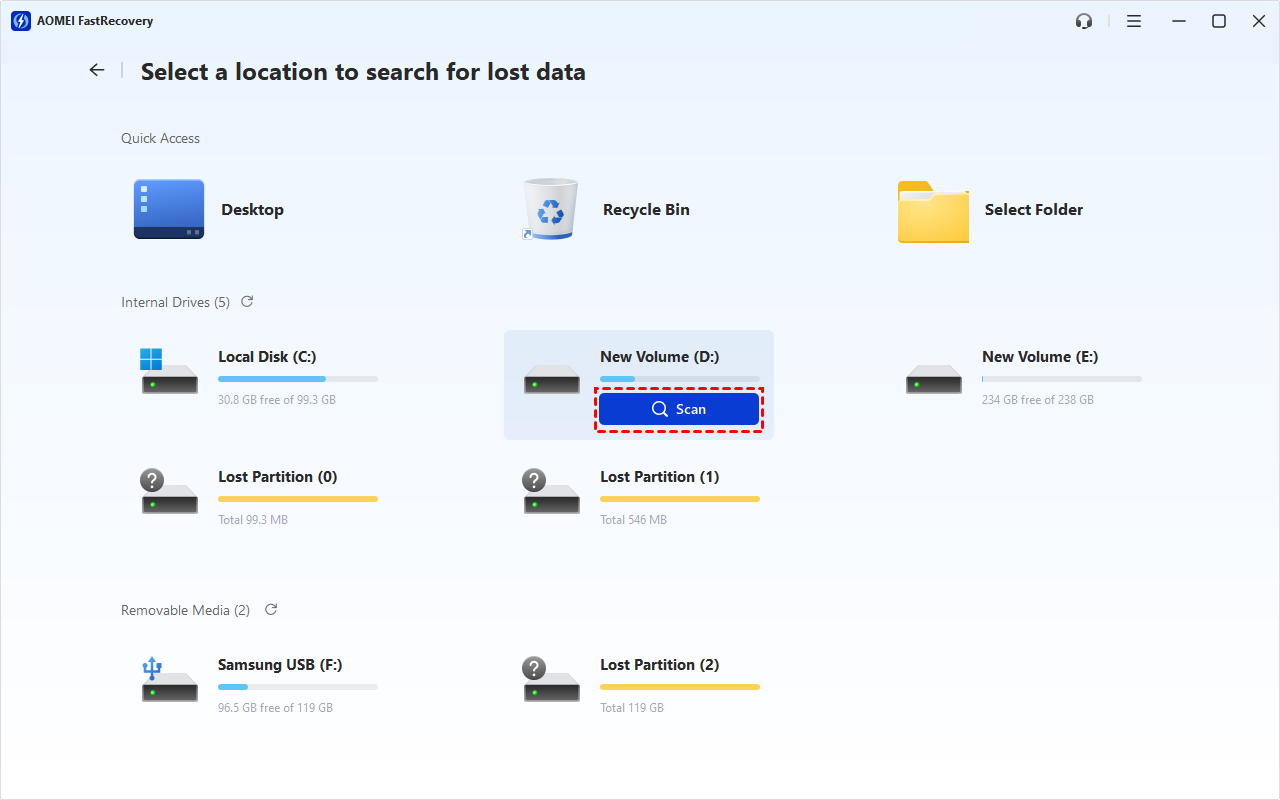
Hover over the target drive, and click Scan to find deleted or lost EPS images.
Step 3. Filter and locate EPS
AOMEI FastRecovery automatically runs a Quick Scan to locate all recoverable data. Once the scan finishes, go to the Types section, select Images, and filter for EPS files to pinpoint what you need.
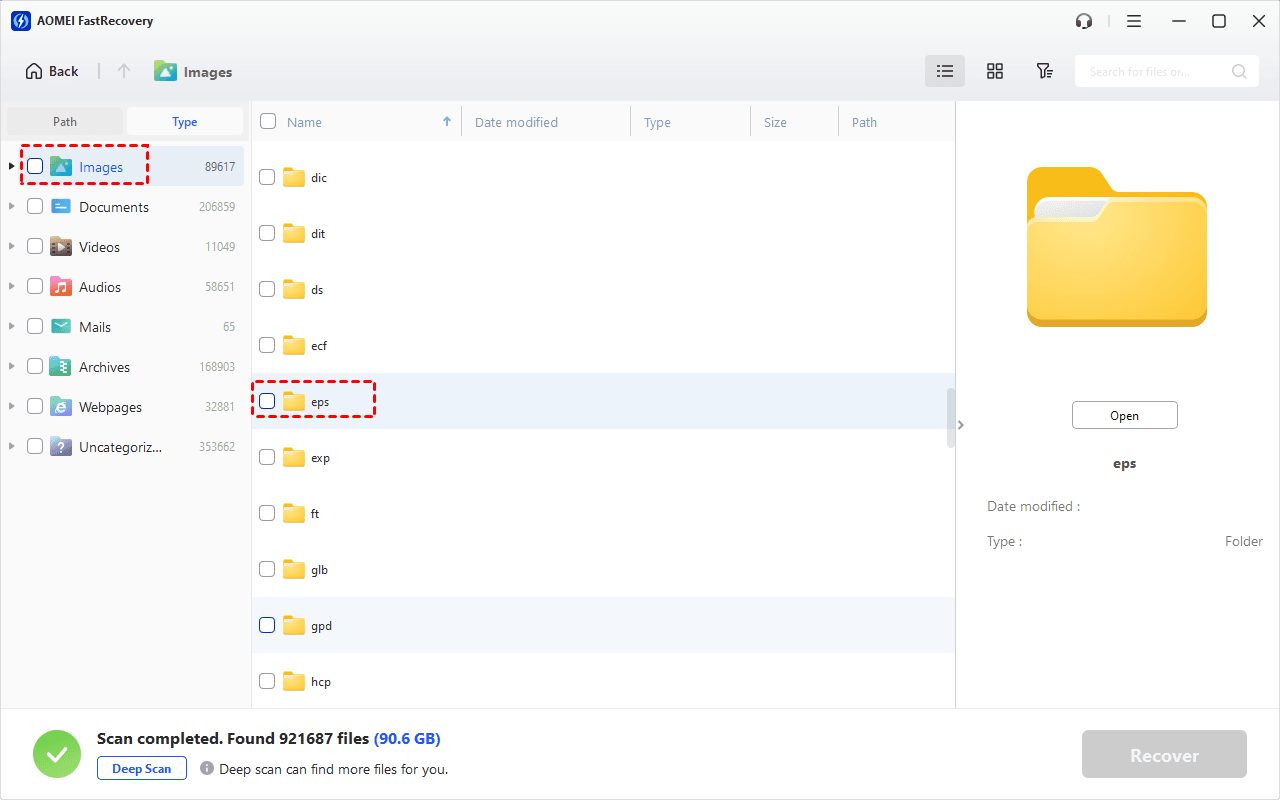
For a more detailed view, expand EPS > Deleted Files, Recycle Bin, or Existing Files to browse all recovered EPS images.
To locate your EPS files even faster, try these options:
-
Type the file name or extension (.eps) in the search box.
-
Click Filter ( funnel‑shaped button) to narrow results by file type or size, especially useful for large deleted files.
-
Sort the list using column headers (Name, Date Modified, Type, etc.).
Step 4. Preview and recover
Double-clicking the desired EPS images to preview files. Then, select them and click Recover to start EPS file recovery.
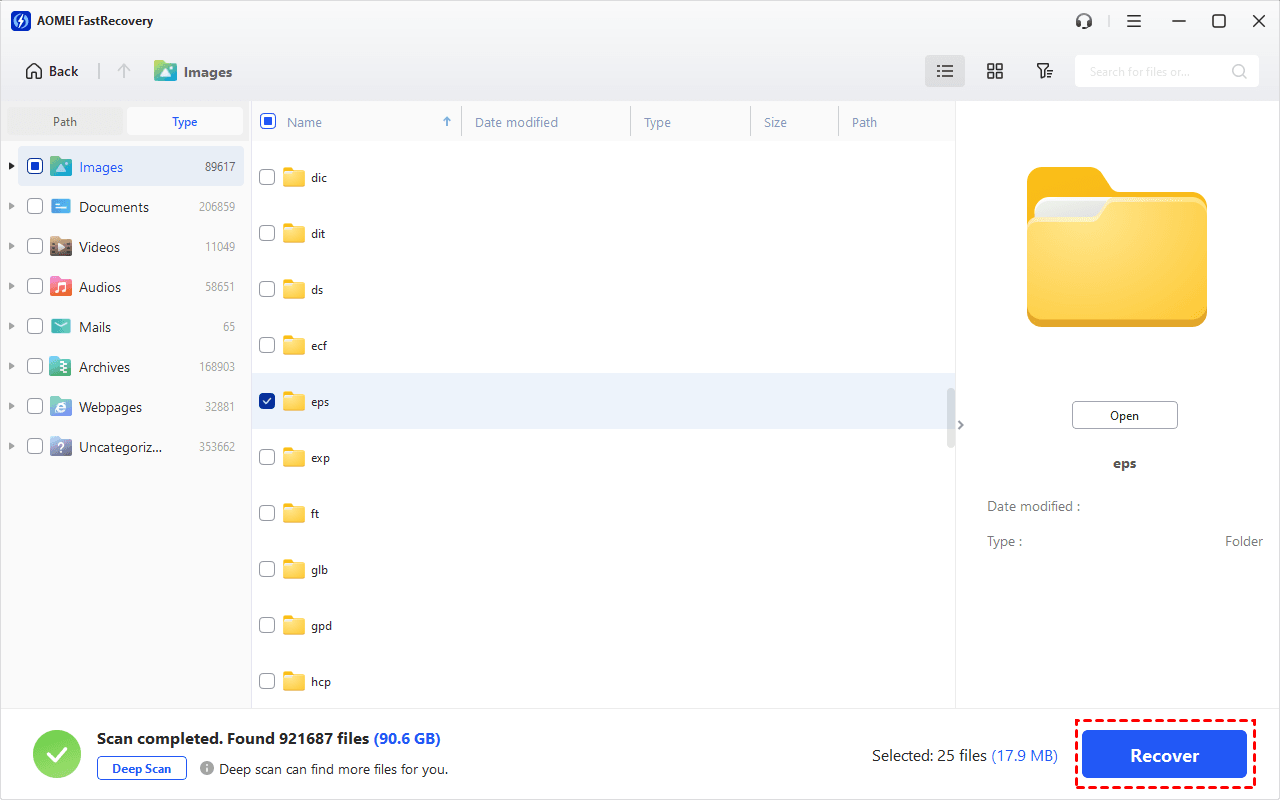
Always choose a new location for your recovered files, which significantly avoids data overwriting.
How to Prevent EPS File Data Loss
Protecting your EPS files from data loss requires adopting several preventive measures:
Double-check before deleting: Always review files before permanently deleting them. Once overwritten, recovery becomes much harder.
Keep your PC secure: Run updated antivirus software to protect against malware that can corrupt or encrypt your EPS files.
Back up regularly: Use AOMEI Backupper Standard, a free Windows backup software, to back up EPS files to external drives, USB sticks, or cloud storage. Set up scheduled backups for continuous protection.
Save in multiple formats: Consider saving your work in both EPS and a more widely supported format like PDF or SVG as a fallback.
Conclusion
Losing an EPS file can feel like losing hours of work, especially when it's a design you've spent time perfecting. But as this guide shows, recovering deleted EPS files are often simpler than you think.
Whether you're working in Illustrator, CorelDRAW, or any other design software, deleted EPS files are rarely gone for good. With the right tool like AOMEI FastRecovery, you can get them back in just a few clicks.
Here's what to remember:
-
Act quickly: The sooner you start recovery, the higher your chances of success. Stop using the drive immediately.
-
Use the right tool: AOMEI FastRecovery handles EPS files and many other design formats with ease.
-
Prevent future loss: Back up your work regularly and consider saving copies in multiple formats.
Your designs are worth protecting. Start recovery now, and get back to creating.
FAQs about EPS Files
1. Is it possible to recover EPS files after formatting a drive?
Yes, if you used Quick Format rather than Full Format. Quick Format only removes the file index, leaving the actual EPS data recoverable with software like AOMEI FastRecovery.
2. How long does it take to recover deleted EPS files?
It depends on the size of your drive and the number of files. A typical recovery with AOMEI FastRecovery takes 10-30 minutes.
3. Can I convert an EPS file to other formats like PDF or JPEG?
Yes. You can convert EPS to PDF, JPEG, PNG, and other formats using Adobe Acrobat, Illustrator, CorelDRAW, or free online converters.
4. What are the advantages of using EPS files in graphics design?
EPS files are vector-based, meaning they can be scaled to any size without losing quality. They're widely compatible with both old and new printers and design software.

 as a preferred
source on Google
as a preferred
source on Google