




How to Recover Data from a Surface Pro That Won’t Turn On
If you need to recover data from a Surface Pro that won’t turn on, start with what the device can still do. A black screen and a Surface logo point to different ways of reaching your files.

By Ivy Updated on November 25, 2026


Trying to recover data from a Surface Pro that won’t turn on? You may still be able to retrieve files that synced to OneDrive or are stored on a readable SSD. If the files are only on the Surface, what the device can still do will determine how you can reach them.
Check What Your Surface Pro Can Still Do
Start with the method that matches what you can still access.
|
🔓 What you can access |
📍 Where to start |
|---|---|
|
Your files are synced to OneDrive and accessible on another computer |
Method 1: Download Synced Files from OneDrive |
|
The Surface reaches the Windows recovery screen |
Method 2: Copy Files in Windows Safe Mode |
|
The Surface can boot from a compatible USB drive, and SSD is recongnized |
Method 3: Recover Files from Bootable USB with AOMEI FastRecovery |
|
The Surface can’t boot, but the SSD is removable |
Method 4: Copy Files from a Removable Surface SSD |
✅ Quick Startup Checks:
If your Surface screen is still black, try these checks to see if you can get back into Windows.
- Disconnect the dock and other accessories, plug in the charger, and wait at least 15 minutes.
- If you have a keyboard connected, press Windows + Ctrl + Shift + B to try waking the display.
- If the screen is still black, try a forced restart. The button sequence depends on your Surface model.
If Windows loads, copy your important files to an external hard drive while still accessible.
Method 1: Download Synced Files from OneDrive
Even if your Surface won’t turn on, you can get any files you’ve already synced to OneDrive from another computer. If everything you need is there, you can save yourself a trip to the repair shop.
Step 1. Open OneDrive in a browser on another computer. Sign in with the account you synced files on your Surface.
Step 2. Look for the files under My files. Check Desktop, Documents, or Pictures if you enabled OneDrive backup for those folders. Use the modification date to check whether the available copy is recent enough.
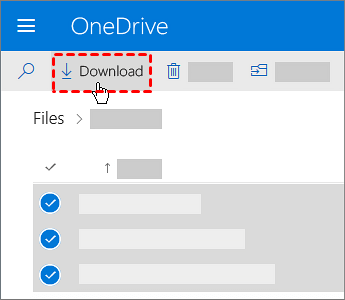
Step 3. Select the files or folders and choose Download. OneDrive may package multiple files as a ZIP file. Extract it if needed, then open the downloaded files and check the versions you need are there.
Method 2: Copy Files in Windows Safe Mode
If the Surface reaches the Windows recovery screen, Safe Mode may let you sign in and copy your files. Have your BitLocker recovery key ready if Windows asks for it.
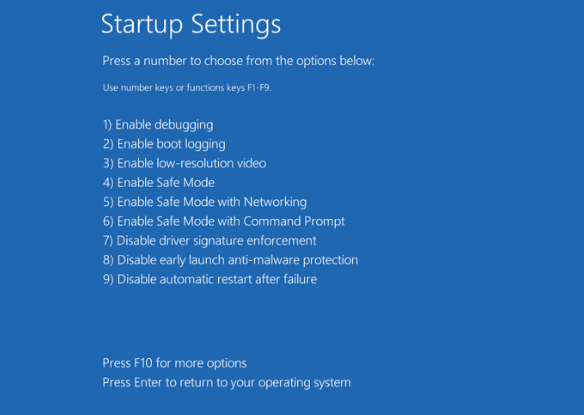
Step 1. From the Choose an option screen, select Troubleshoot > Advanced options > Startup Settings > Restart. After the Surface restarts, press 4 or F4 for Enable Safe Mode.
Step 2. Sign in and plug in an external drive. Open File Explorer, go to your user folder, and copy the files that would be hardest to replace first.
Step 3. Copy the files to your external drive, then open them from there. Make sure your documents have all their pages and your photos load all the way.
If Safe Mode also fails to load, check whether your Surface can start from USB.
Method 3: Recover Files from Bootable USB with AOMEI FastRecovery
If your Surface Pro won’t turn on, you can create a bootable USB on another working Windows PC, then start Surface Pro from it.
AOMEI FastRecovery is a dedicated Windows bootable data recovery software that supports PC Crashed Recovery, Disk Data Recovery, and so on, allowing you to scan hard drive or SSD in Surface Pro and recover data.
 AOMEI FastRecovery

- Scenario matching: PC Crashed Recovery creates a bootable USB or ISO to start any PC that won’t boot while Disk Data Recovery scans and recovers individual files or the whole partition.
- Two scan modes: Quick Scan for fast results, with an optional Deep Scan for a more thorough search.
- 1,000+ file types: Recover deleted or lost documents (DOCX, XLSX, PDF), images (JPG, PNG, GIF), videos (MP4, MOV, AVI), and more
- Flexible browsing: Start with Type or Path, depending on what you know. Search, sort, and thumbnail previews help narrow down the results.
- Free recovery: The free edition recovers up to 500 MB. Need more? Upgrade.
 100% Secure
- Download and install AOMEI FastRecovery on a working Windows PC, separate from the Surface SSD. Both write data, and may overwrite files you’re trying to recover.
- Prepare a new hard drive to save the recovered data. Restoring to original location may overwrite data as well.
- Use a blank USB drive for the boot media because the process will delete all data on it.
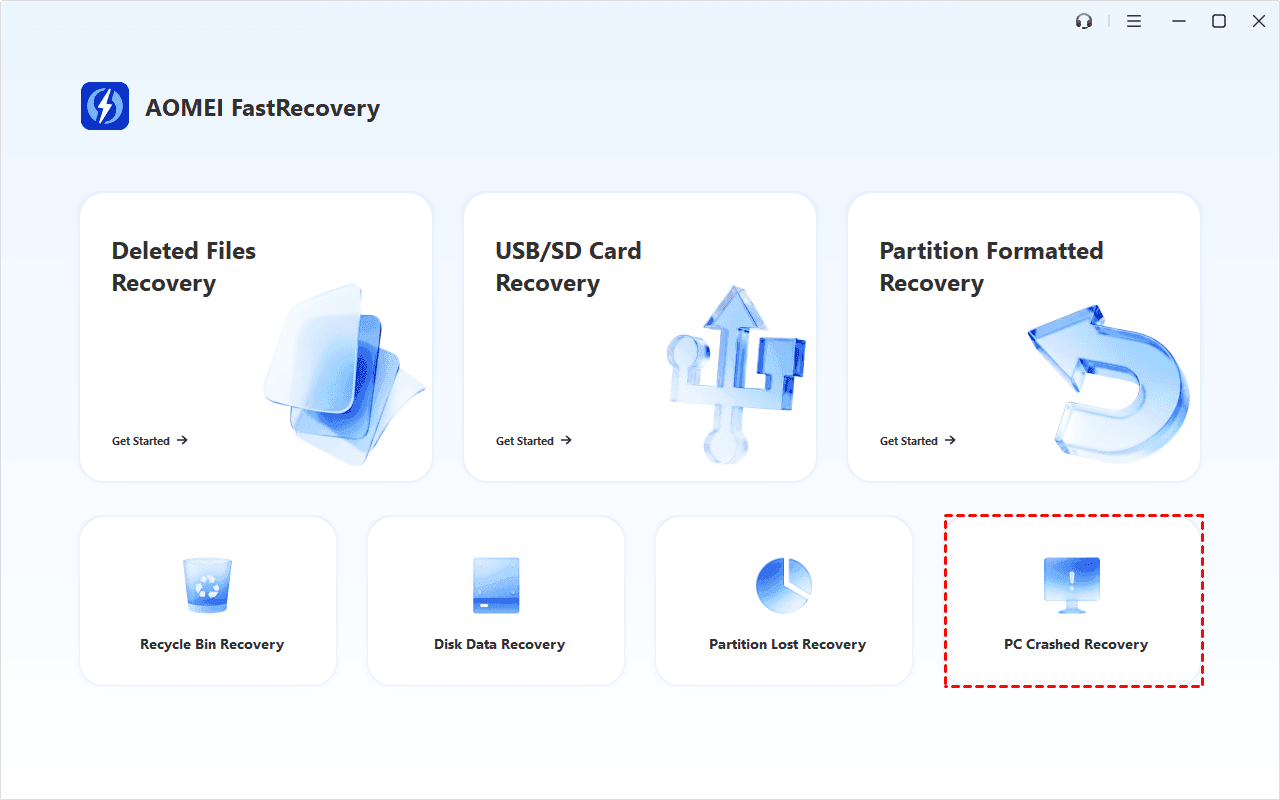
Step 1. Open AOMEI FastRecovery on the working PC and choose PC Crashed Recovery.
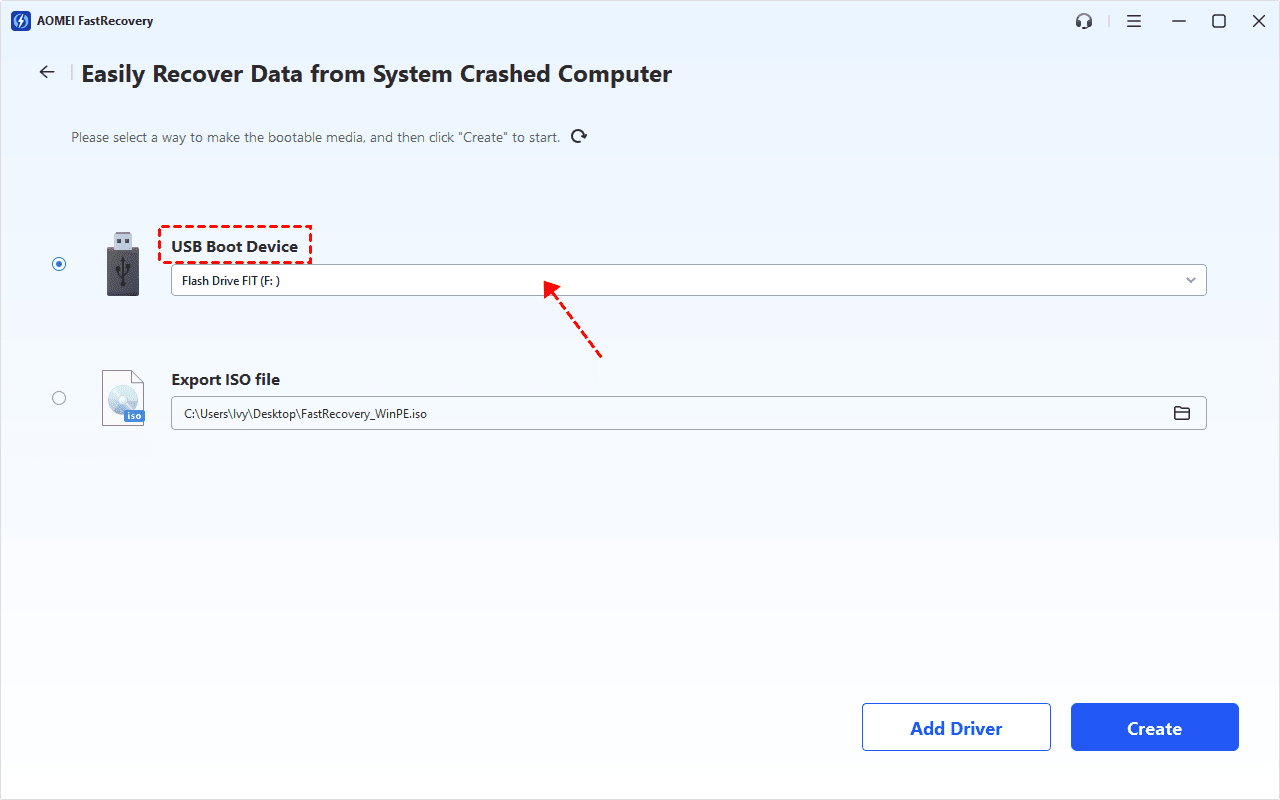
Step 2. Select the USB Boot Device option and your blank USB drive. Choose Create > Yes to create a bootable USB.
Step 3. Plug in the bootable USB to Surface Pro. Hold down the volume-down button, then briefly press the power button. Keep holding volume-down when the Surface or Microsoft logo appears. Release it once you see spinning dots below the logo.
Step 4. When AOMEI FastRecovery opens, choose Disk Data Recovery > Start File Recovery.
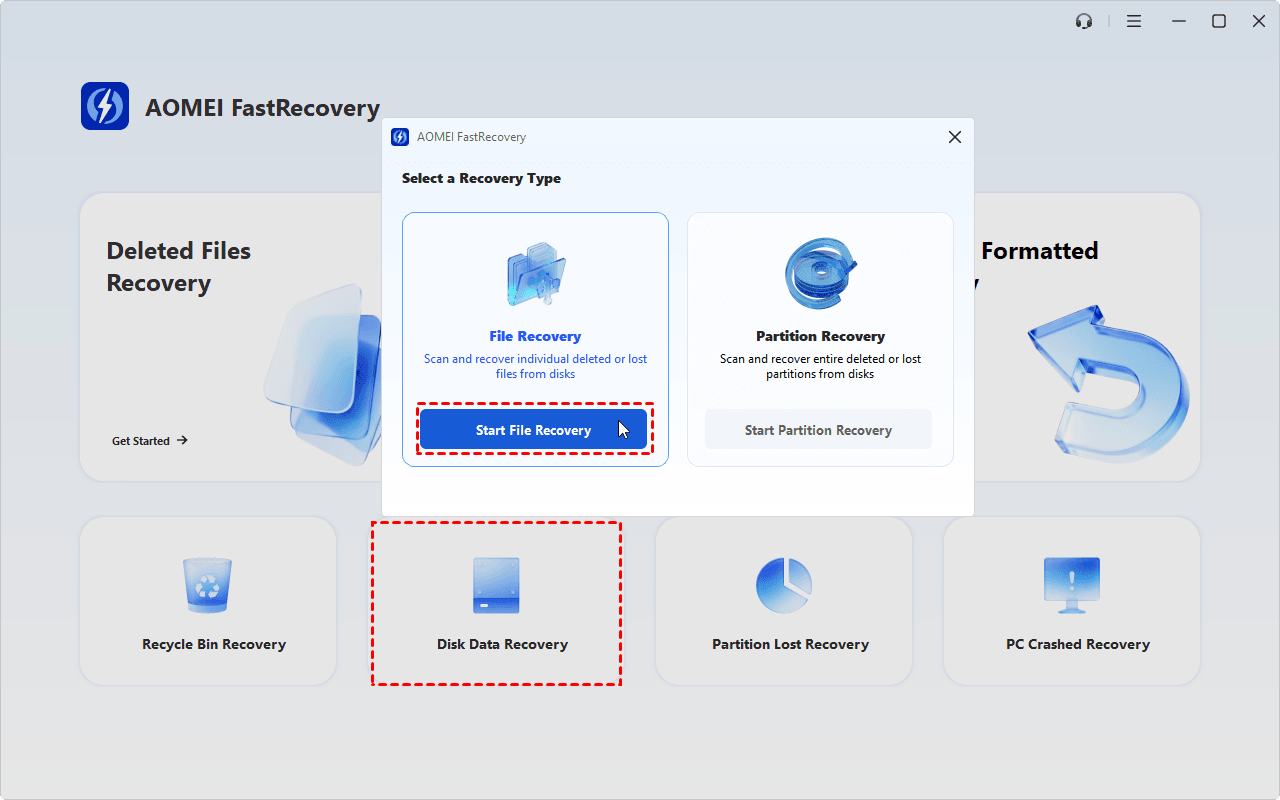
Step 5. Look for your Surface Pro’s SSD by checking the model and capacity, then click Scan. This workflow runs Deep Scan by default. If BitLocker keeps the volume locked, unlock it before retrieving files.

Step 6. Select all data you want to recover and click Recover. For individual files, search file name or extension. Then, sort the results to find files by date, size, type, etc. For several formats, go to Types and browse the relevant category. Thumbnail preview helps identify the right copies.
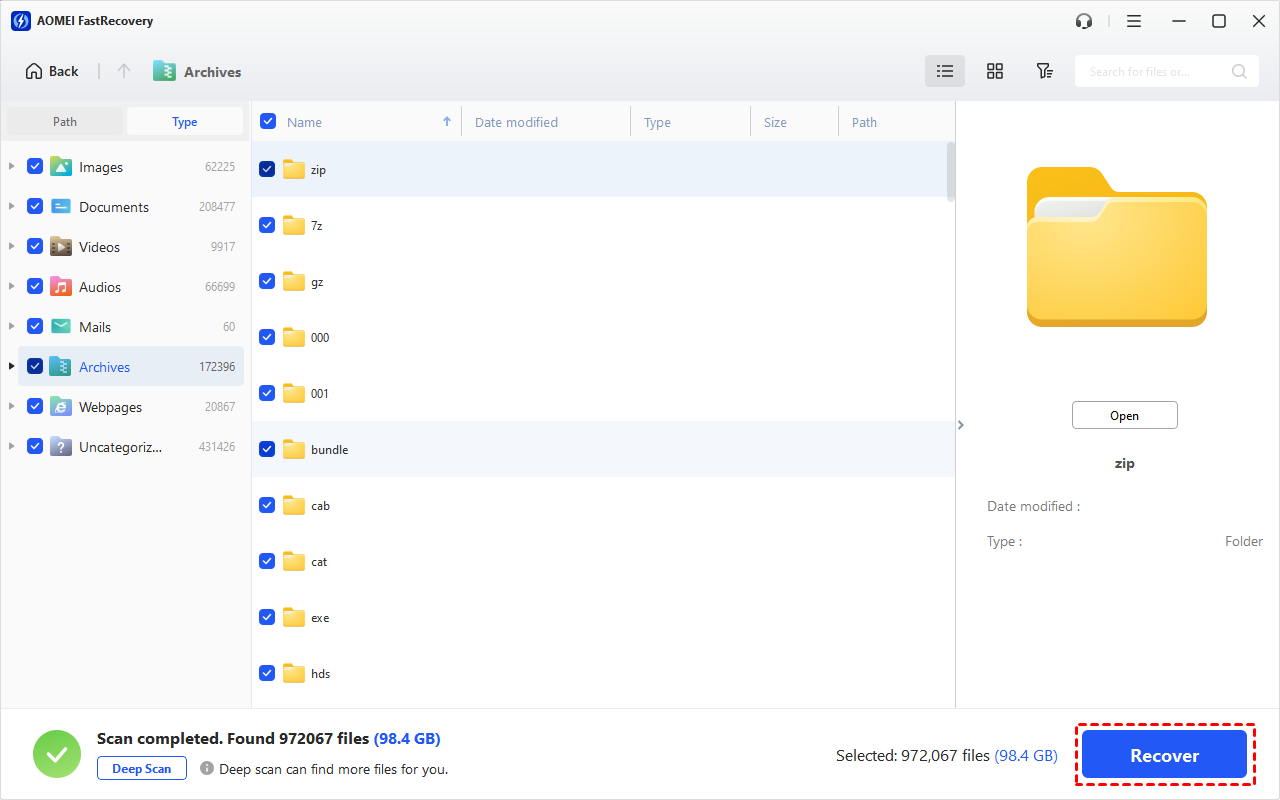
Save the recovered data to a different physical drive, such as a separate external SSD. Another folder on the Surface SSD still writes to the source. Open the saved files to confirm the important documents are complete and pictures display properly.
Method 4: Copy Files from a Removable Surface SSD
If your Surface still won’t turn on, check whether your model in Microsoft’s Surface service guides. If it has a removable SSD, a technician can remove it and connect it to another PC with a compatible adapter or enclosure.
If Windows asks for a BitLocker recovery key, unlock it with corresponding 48-digit key. You need to match the key ID shown on-screen to the key in your Microsoft account.
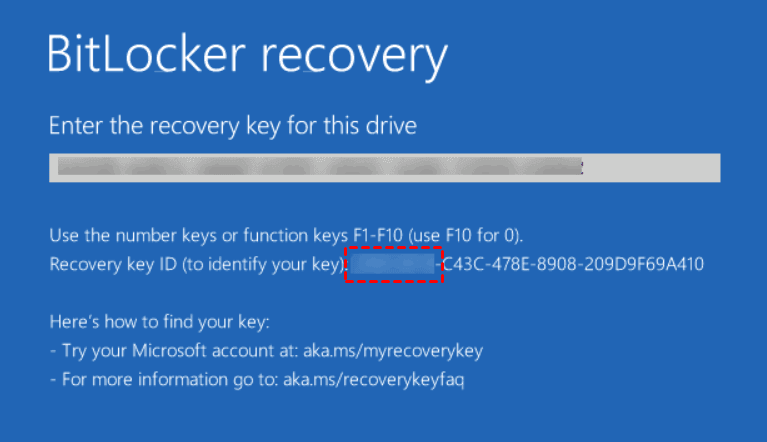
Once the SSD opens, find your files and copy them to this working PC or a separate external drive. If Windows asks to initialize or format the SSD, cancel the prompt and recover data from drive not initialized first.
Conclusion
To recover data from a Surface Pro that won’t turn on, check OneDrive first. For files stored only on the Surface, use the access the device still gives you. Try Safe Mode if you can reach the Windows recovery screen, or a compatible recovery USB if the Surface can boot from it.
If the Surface stays unresponsive, check the model’s service guide to see whether a technician can access the SSD separately. Save the files you need before resetting, reinstalling Windows, or sending the Surface in for service.

 as a preferred
source on Google